Music has always been about sharing: a song that gets you through a rough day or a playlist that perfectly captures a road trip. And with Spotify now crossing 760 million monthly active users globally, chances are your friends and family are already on it too.
No matter if you’re curating the ultimate party mix or sending a feel-good playlist to someone going through a hard time, knowing how to share a Spotify playlist is one of those small things that genuinely brings people closer.
It’s easier than most people think, and way more personal than just texting a song title. So let’s start from the very beginning: creating your playlist and getting it share-ready.
How to create and share a Spotify playlist
Before you can share your music with anyone, you need a playlist worth sharing. In this section, we’ll walk you through creating your first (or next) Spotify playlist, and don’t worry, the sharing part is coming up shortly in the sections below.
How to create a playlist on Spotify on mobile (iOS & Android)
Creating a playlist on Spotify’s mobile app is straightforward. Whether you’re on an iPhone or an Android device, the steps are exactly the same.
Here’s how to create a Spotify playlist and share link (step-by-step):
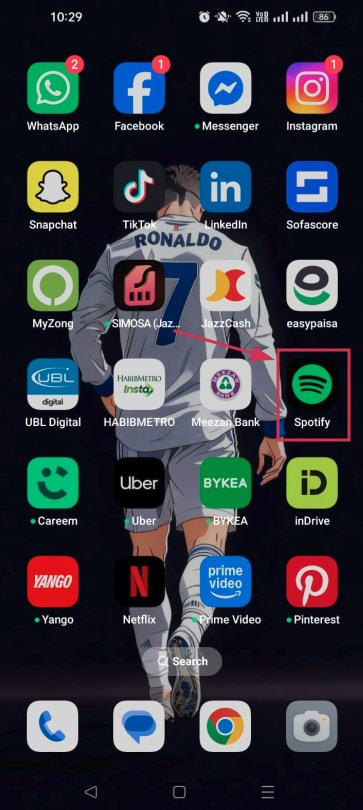
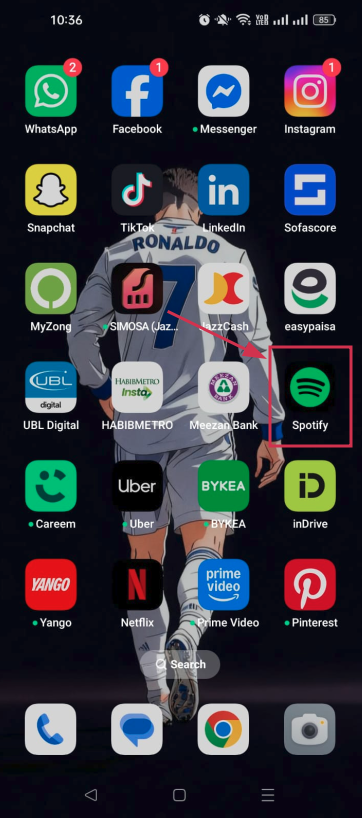
Step#01: Open the Spotify app
Grab your phone and tap the “Spotify” icon to launch the app. Make sure you’re logged into your account before proceeding.
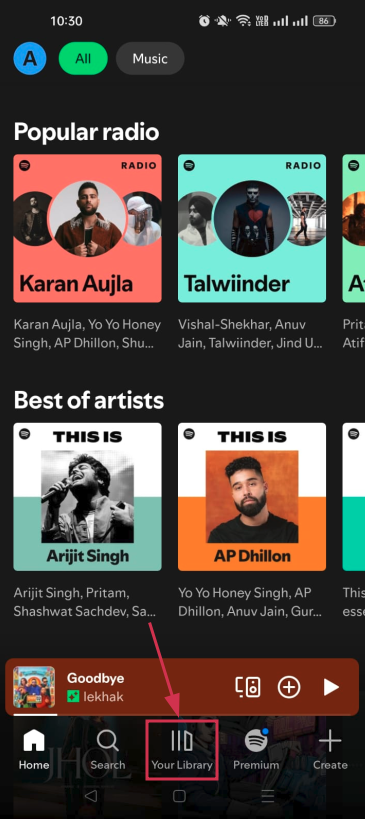
Step#02: Tap “Your Library”
Hit the “Your Library” tab at the bottom center of your screen. This is where all your saved music, podcasts, and playlists live.
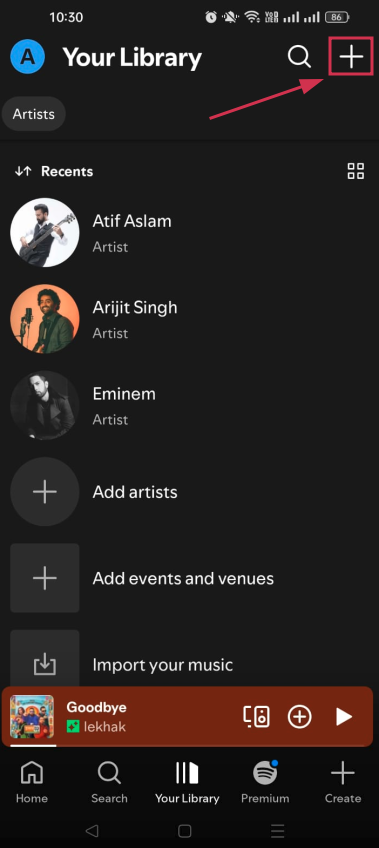
Step#03: Tap the “+” icon
Look for the “+” icon at the top right corner of the your library screen and tap it. This is your starting point for creating something new.
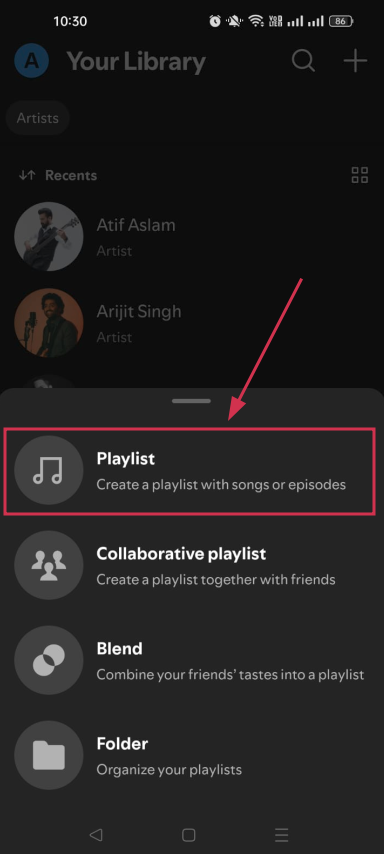
Step#04: Select “Playlist”
A small menu will pop up with a couple of options. Tap “Playlist” to begin setting up your new playlist.
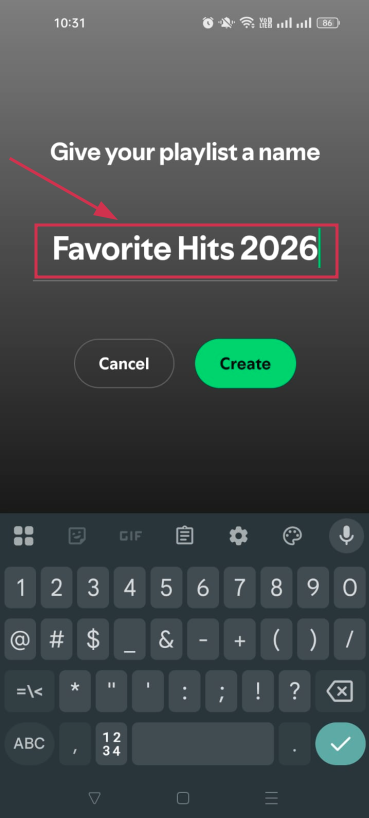
Step#05: Enter a name for your playlist
Type in a name that fits the vibe (whether it’s “Favorite Hits 2026,” “Sunday Morning Chill,” or “Gym Hits 2026”). Make it something you and your friends will instantly get.
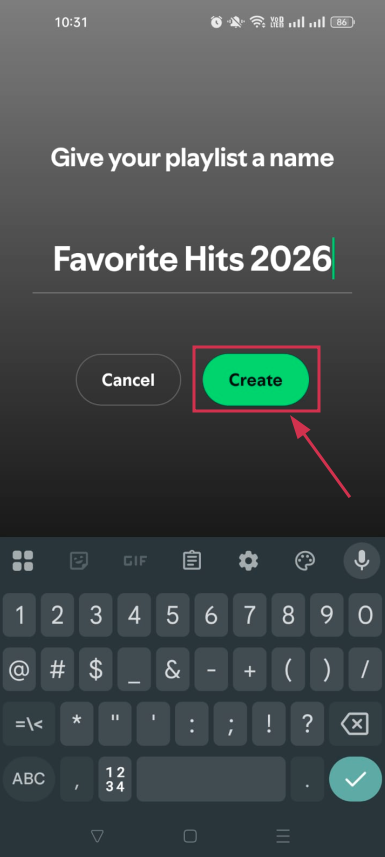
Step#06: Tap “Create”
Hit the “Create” button, and that’s it. Your playlist is officially live!
Now you can start adding songs to it and get it ready to share!
How to create a playlist on Spotify on desktop (PC & Mac)
Prefer using a PC over a smartphone?
Creating a playlist on Spotify’s desktop web player is just as simple. Follow these steps, and you’ll have one ready in under a minute:
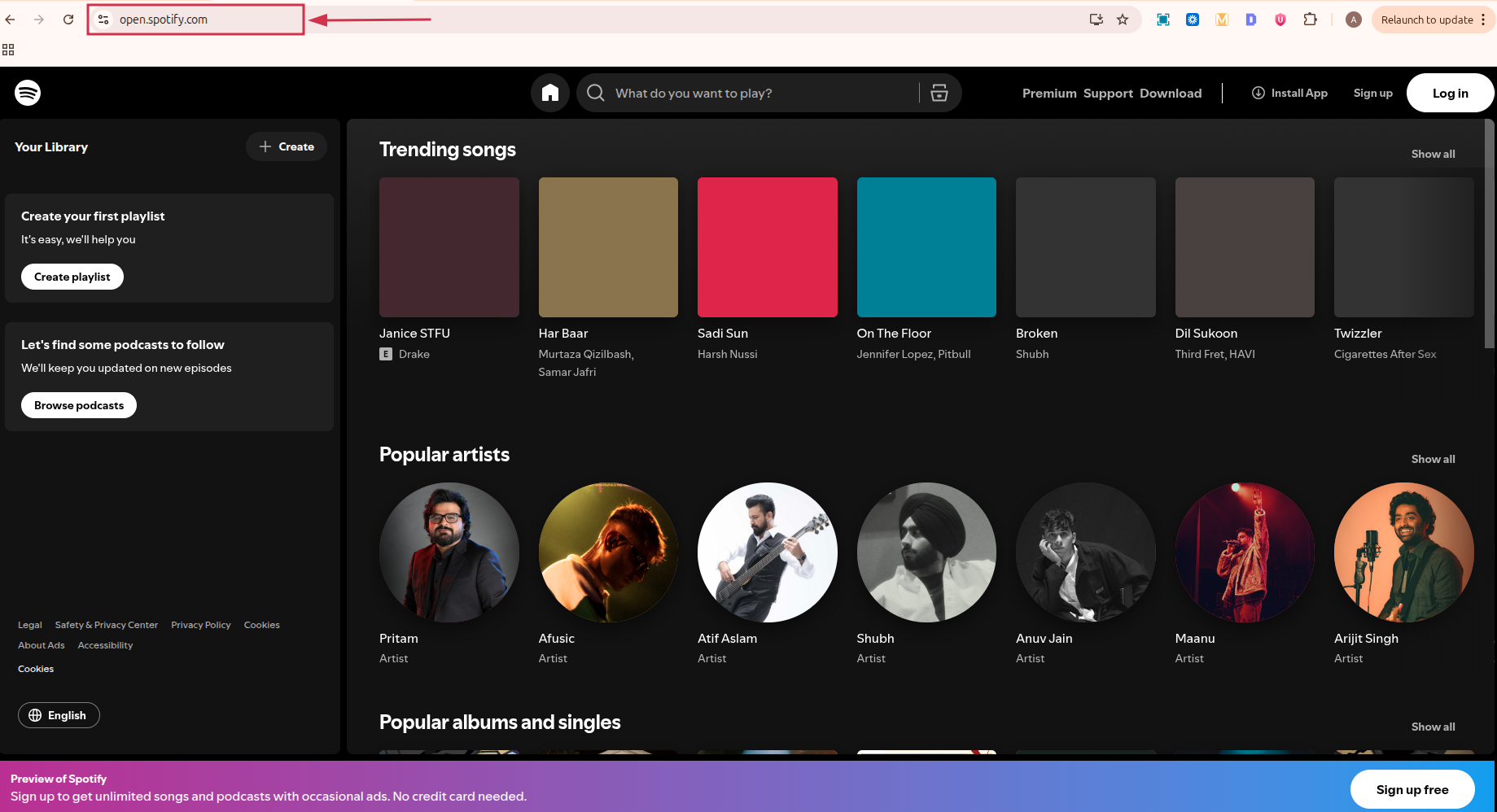
Step#01: Go to open.spotify.com
Open any browser on your PC or Mac and head over to open.spotify.com. This is Spotify’s official web player, so no app download is needed.
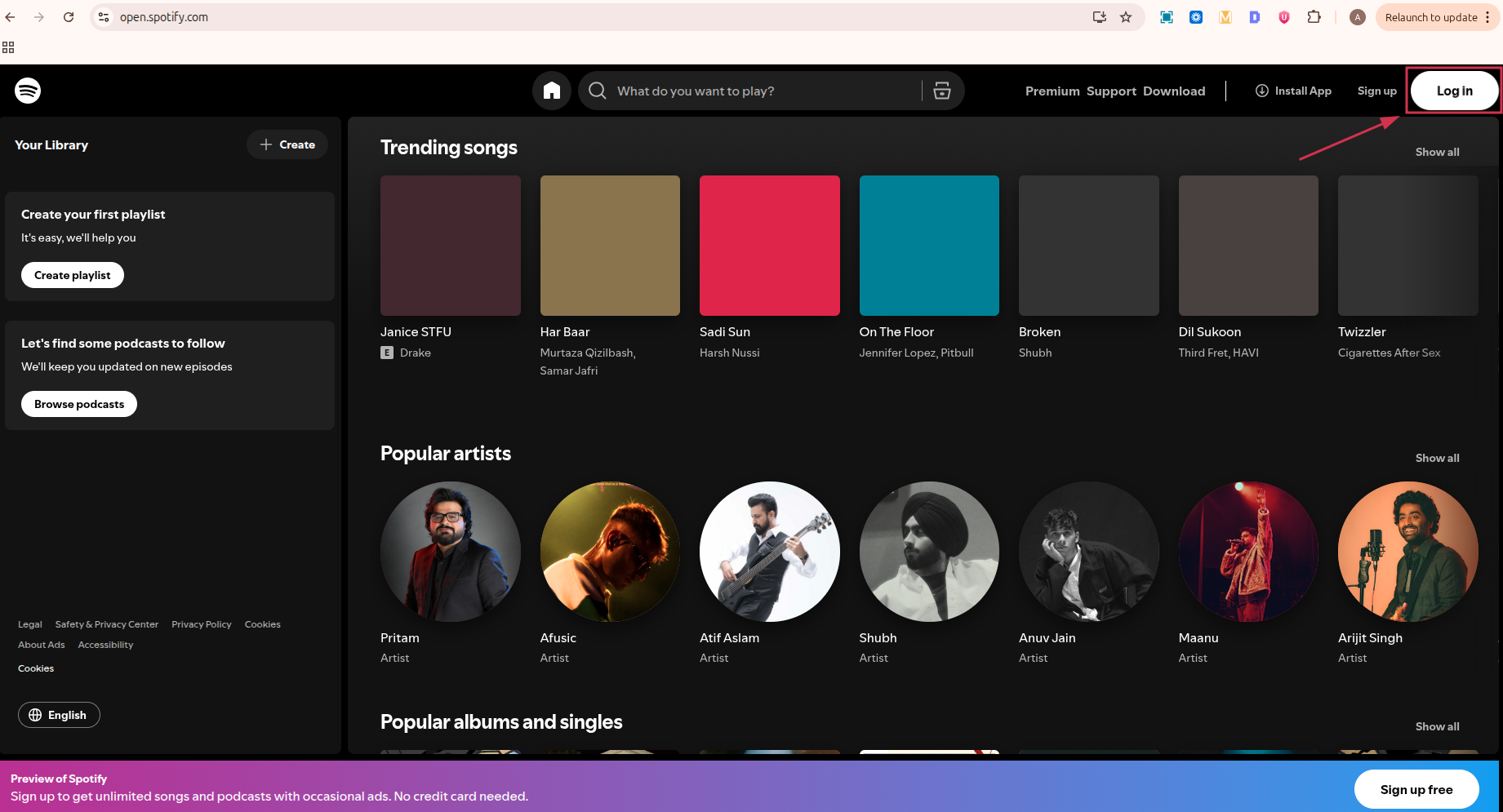
Step#02: Click the “Log in” button & sign in
Hit the “Log in” button at the top right corner of the page and enter your Spotify credentials. You can also sign in quickly using your Google, Facebook, or Apple account.
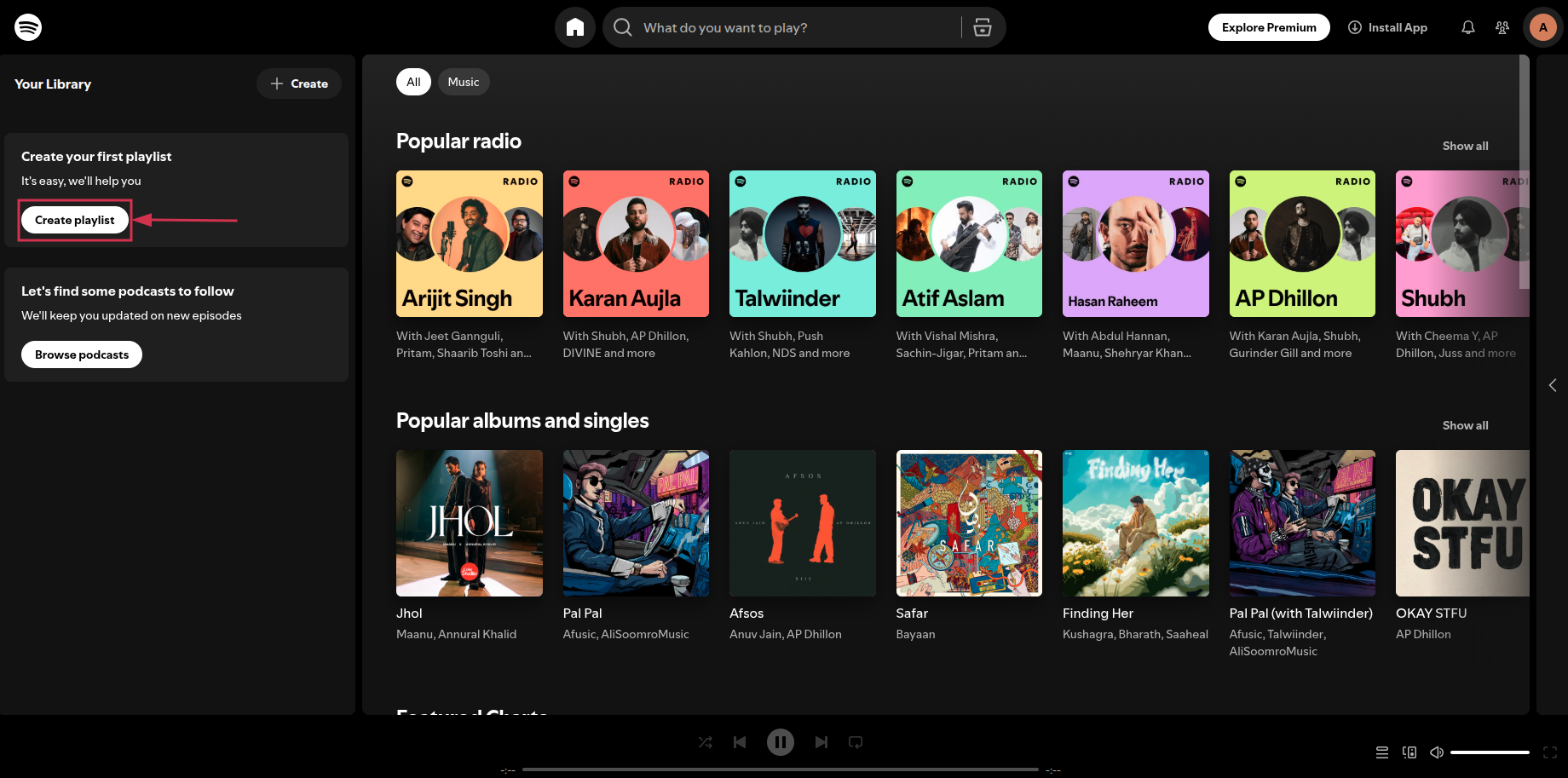
Step#03: Click the “Create playlist” button
Once you’re in, look for the “Create Playlist” button on the left-hand sidebar. One click and Spotify will instantly generate a blank playlist for you.
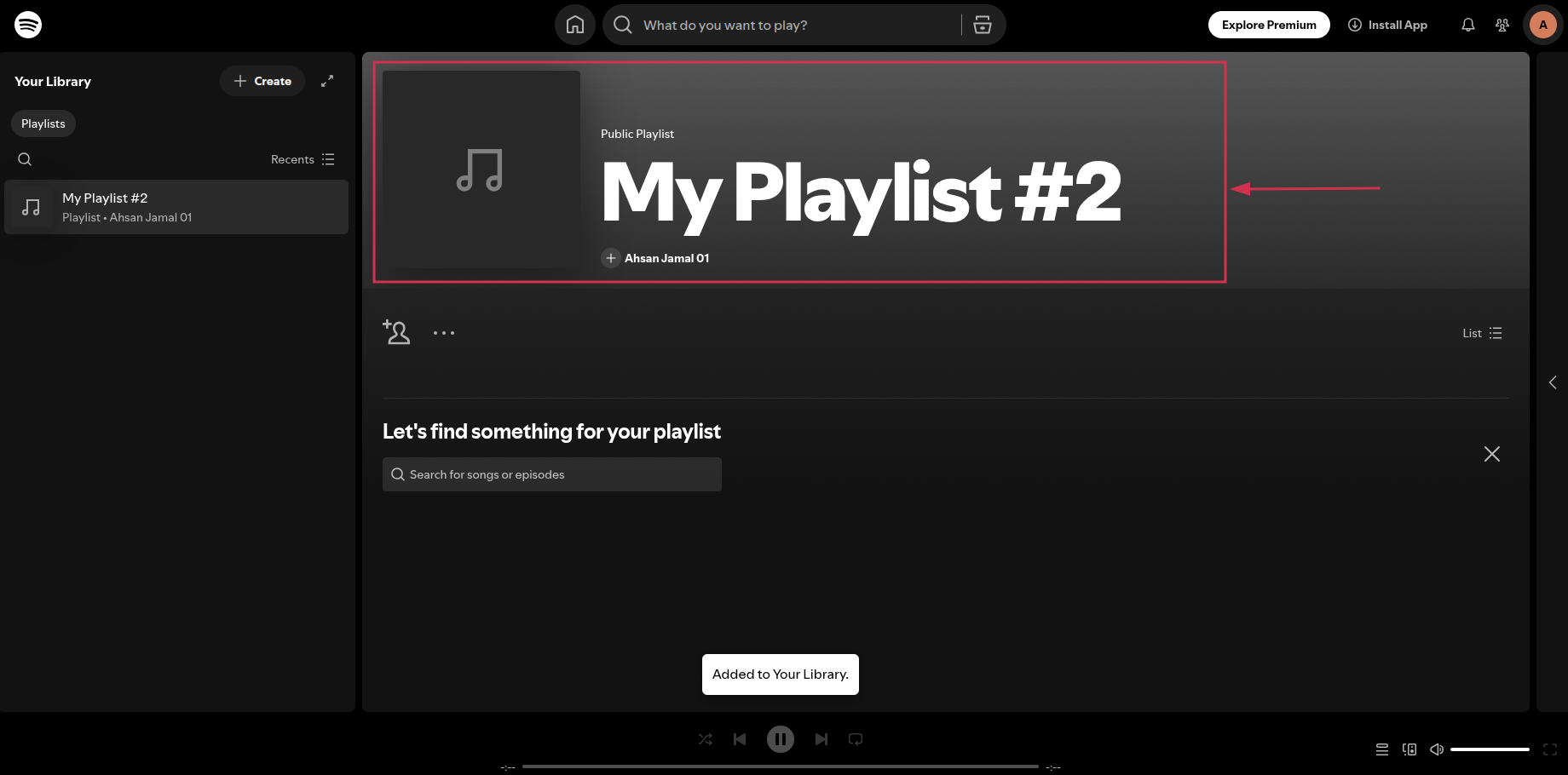
Step#04: Customize the playlist name & photo
Click on the default playlist name to rename it to something that fits your theme. You can also upload a custom cover photo by hovering over the playlist image area. A small touch that makes your playlist feel a lot more personal!
How to share Spotify playlist on phone
Now that your playlist is ready, it’s time to share it!
Sharing a Spotify playlist from your phone takes less than a minute, and the steps are identical, no matter if you’re on an iPhone or an Android device.
Here’s exactly what to do:
- Step#01: Open the Spotify app
Tap the “Spotify” icon on your phone to open the app and make sure you’re logged into your account.
- Step#02: Tap “Your Library”
Head to the “Your Library” tab at the center bottom of your screen. All your created and saved playlists will be right there waiting for you.
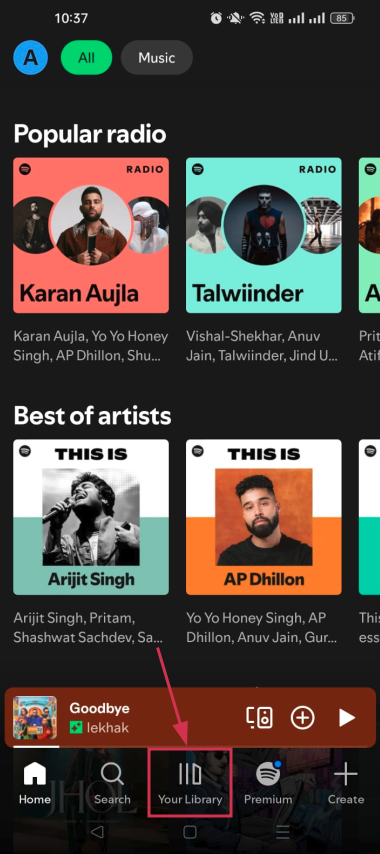
- Step#03: Select the playlist
Scroll through your library and tap on the specific playlist you want to share. This will open it up fully.
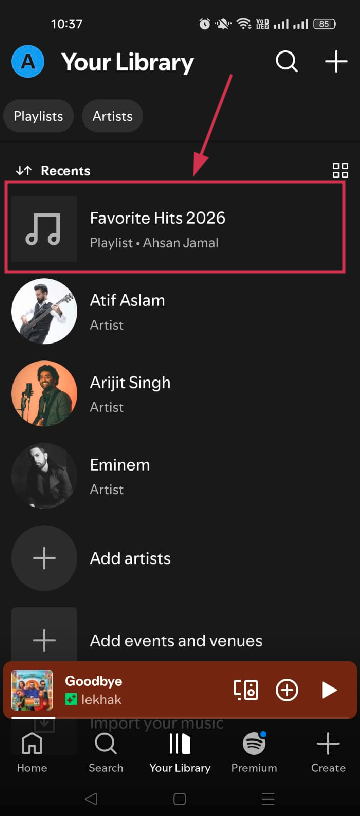
- Step#04: Tap the three dots (⋮) icon
Look for the three vertical dots (⋮) icon next to the share icon on the playlist page and tap it. This opens up a menu with several options for that playlist.
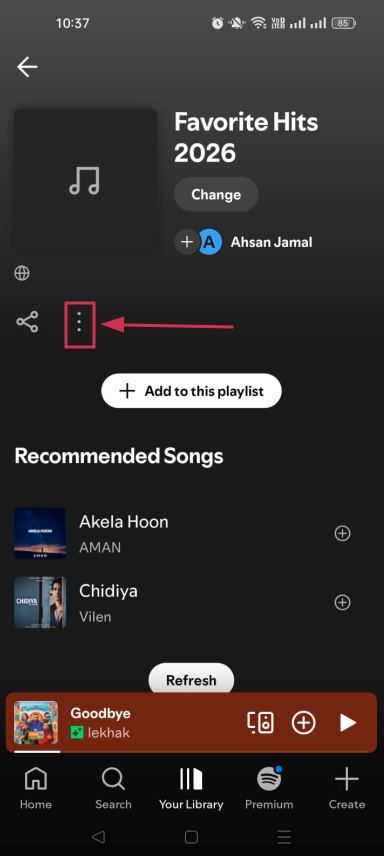
- Step#05: Tap “Share”
From the menu that appears, tap the “Share” option. Spotify will immediately pull up sharing options for you.
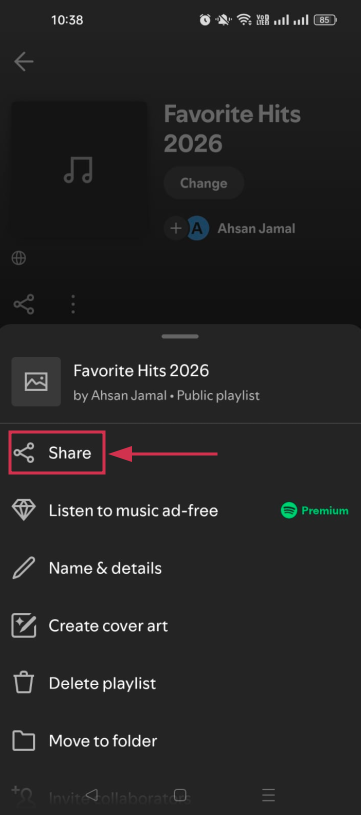
- Step#06: Tap “Copy link”
Tap “Copy link” to copy the playlist’s unique URL straight to your clipboard. You won’t see any confirmation pop-up; it copies silently, so don’t tap it twice.
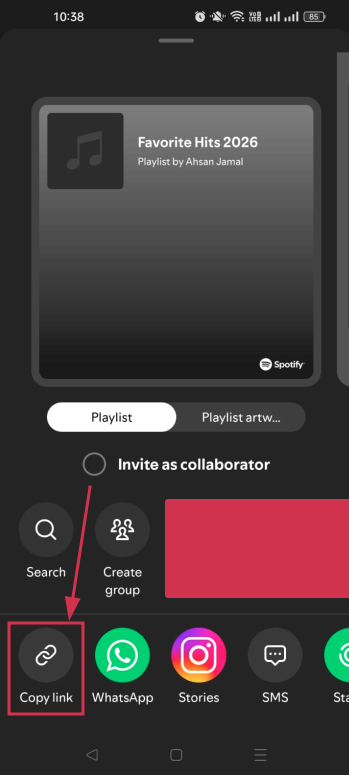
- Step#07: Share the copied link anywhere
Now paste that link wherever you like, i.e., inside a WhatsApp chat, Instagram DM, text message, email, or even a Tweet. Anyone who taps it will be taken directly to your playlist on Spotify.
📝 Note: Besides copying the link, Spotify also gives you two other handy sharing options. Invite Collaborators (so friends can add songs to your playlist) and Show Spotify Code (a scannable code that opens your playlist instantly).
How to share Spotify playlist on desktop
Sharing a playlist from your desktop is just as quick and hassle-free as doing it from your phone.
Whether you’re on a PC or a Mac, the process is the same. Just a few clicks and your playlist link is ready to go.
Here’s how:
- Step#01: Go to open.spotify.com
Open your preferred browser and navigate to open.spotify.com. No app installation required; the web player works just fine for this.
- Step#02: Click the “Log in” button & sign in
Hit the “Log in” button at the top right and sign in with your Spotify credentials. Use whichever login method you set your account up with (email, Google, Facebook, or Apple).
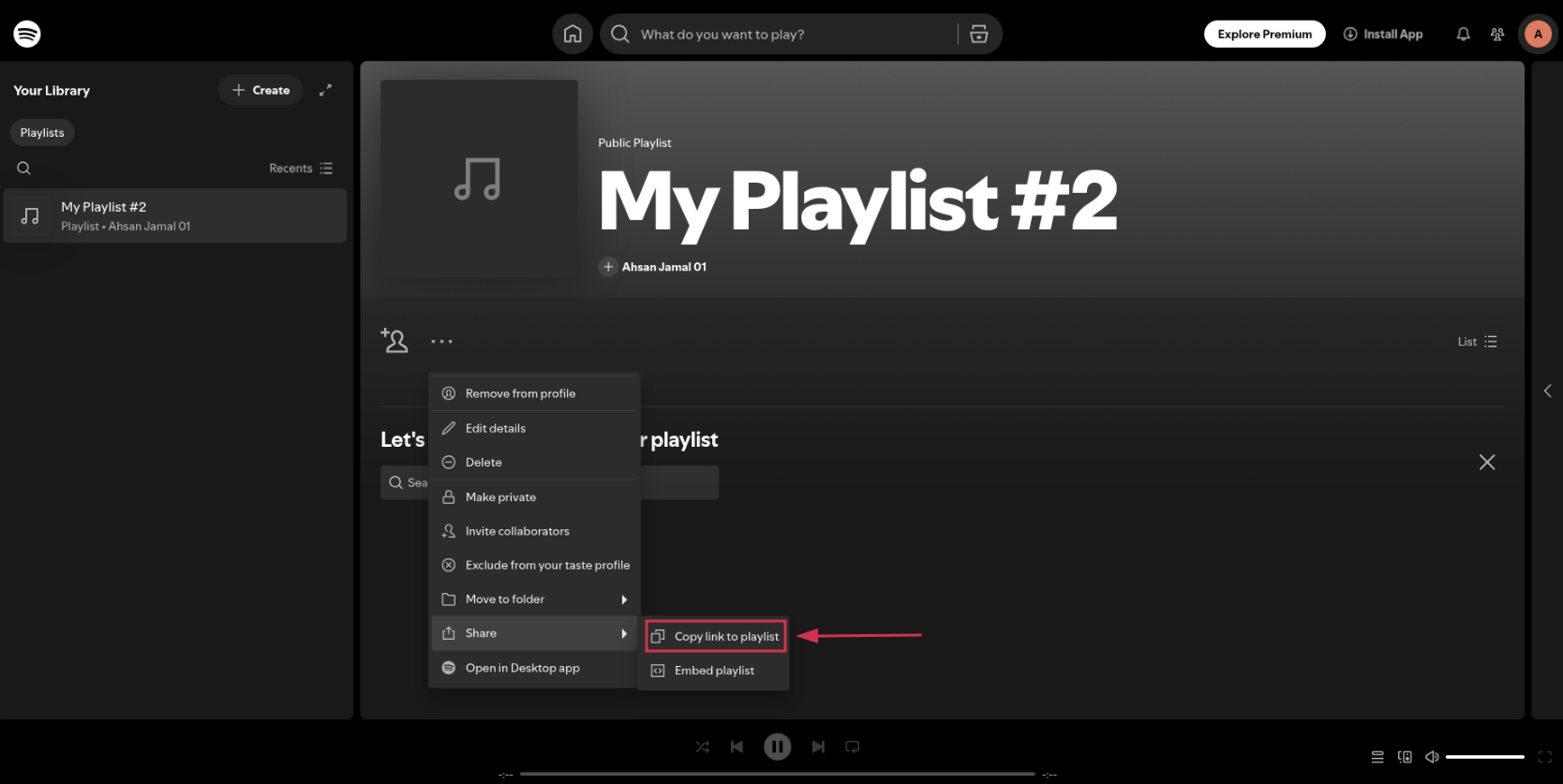
- Step#03: Click the playlist in your left sidebar
Find your playlist listed in the left-hand sidebar and click on it. This will open the playlist in the main window.
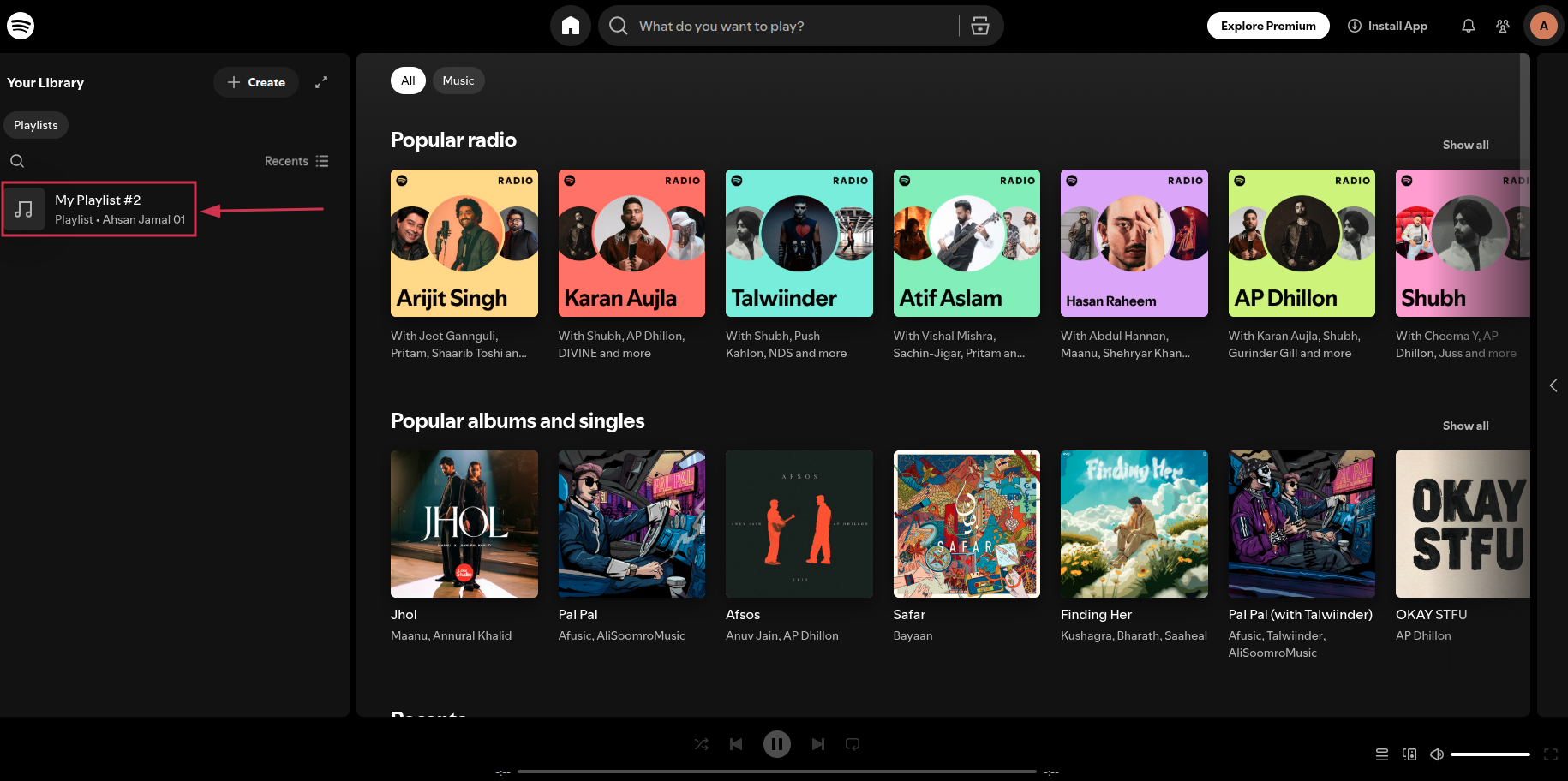
- Step#04: Click the three dots (…)
Now, click the three horizontal dots (…) icon that appears next to the invite collaborators icon. This opens up the playlist options menu.
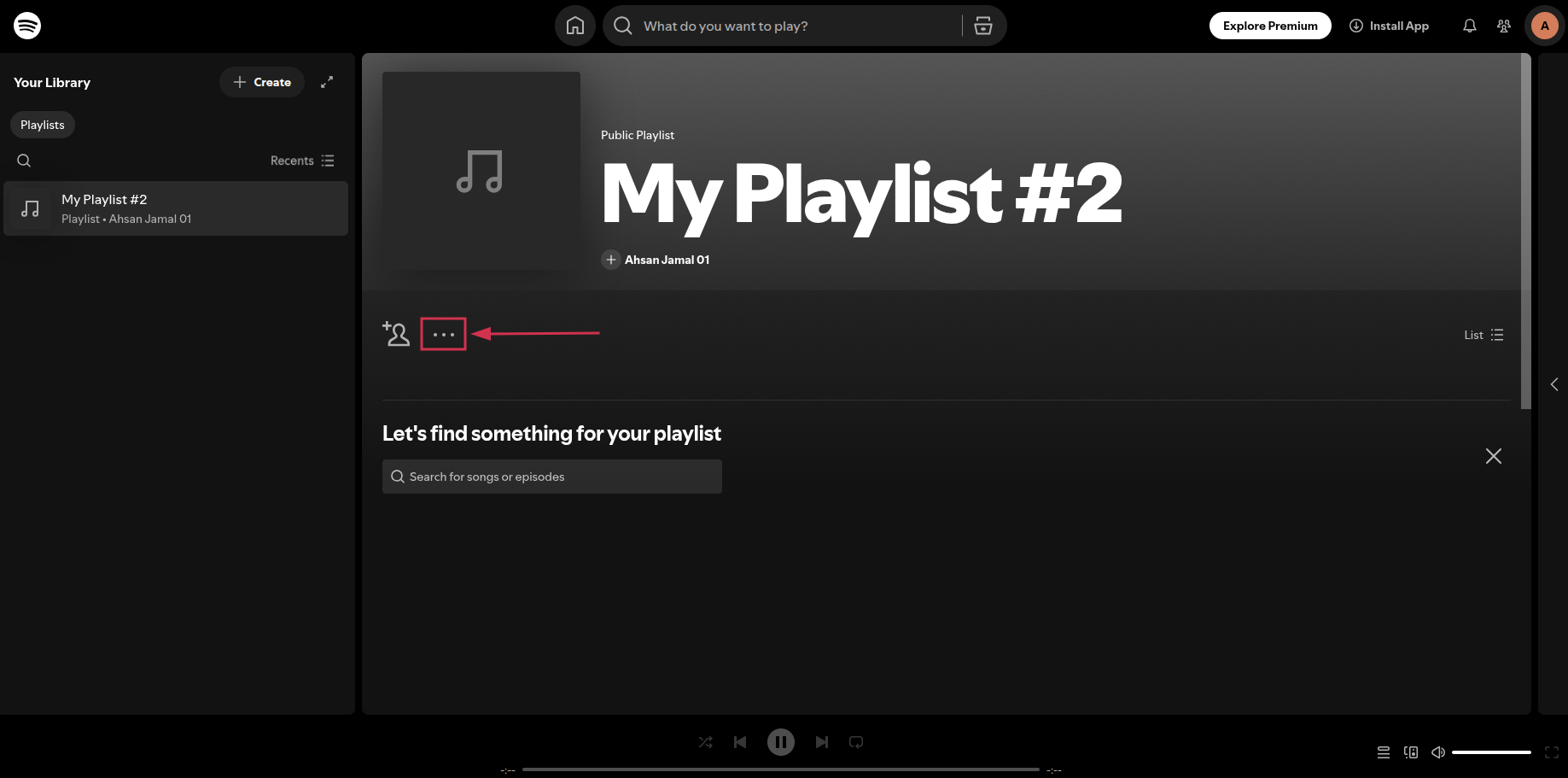
- Step#05: Select “Share”
From the dropdown menu, hover over or click “Share” to reveal the sharing options available for your playlist.
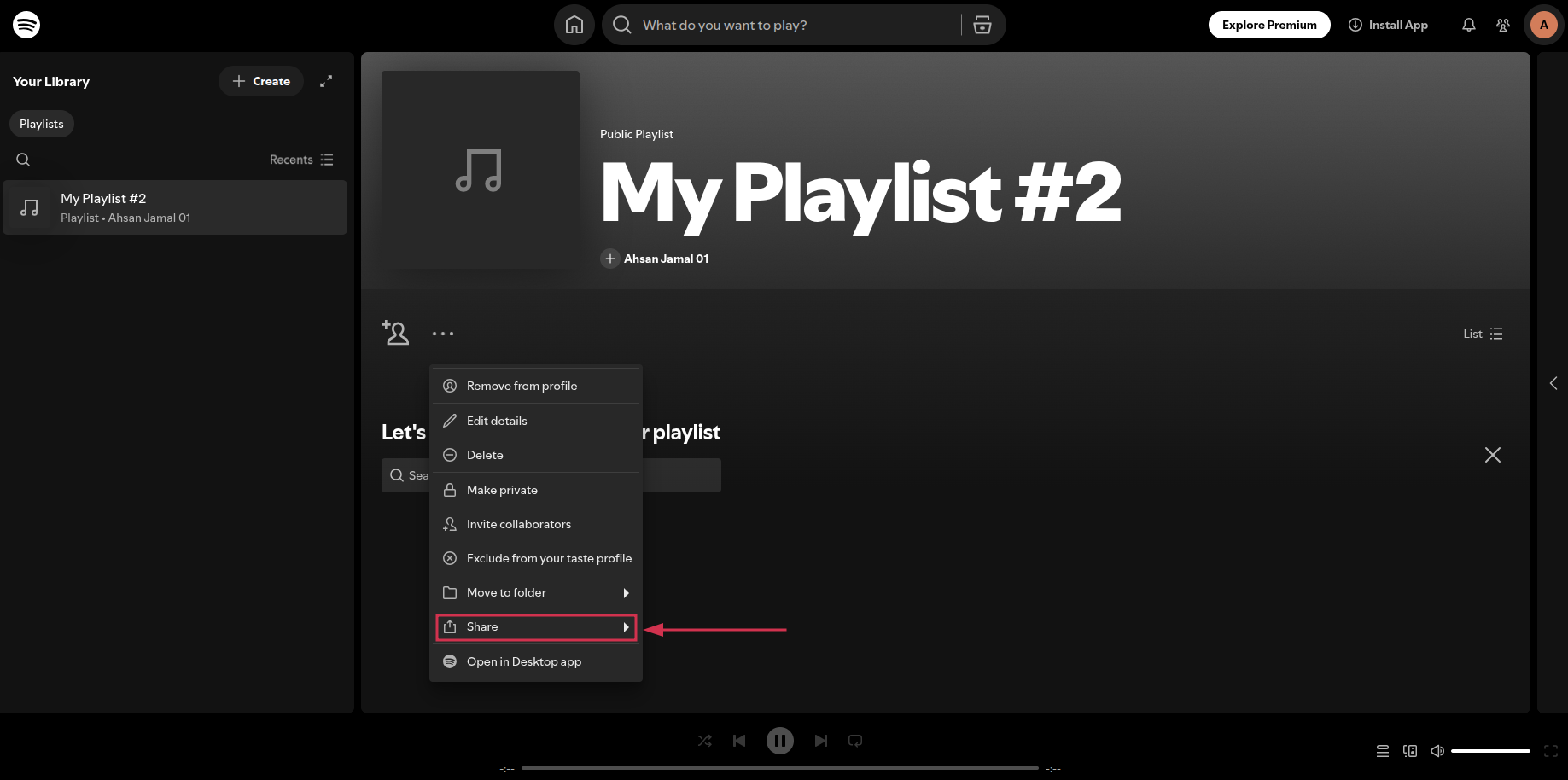
- Step#06: Click “Copy link to playlist”
Click on “Copy link to playlist,” and the URL will be instantly copied to your clipboard, ready to be pasted anywhere you need it.
- Step#07: Paste the copied link anywhere
Now simply paste the link into an email, a Slack message, a DM, or wherever you want to send it. The recipient just clicks it and lands directly on your playlist.
📝 Pro Tip: Prefer a faster route? Simply right-click the playlist directly from the left-hand sidebar and select “Share” from the context menu. No need to open the playlist page at all!
How to share Spotify playlist to Apple Music
Want to send your playlist to someone who uses Apple Music instead of Spotify?
Apple actually has a built-in music transfer feature that makes moving playlists between the two platforms surprisingly simple.
Here’s how to get it done:
- Step#01: Go to Settings → Apps → Music
Open the “Settings” app on your iPhone, scroll down to “Apps”, and tap on “Music”. This is where Apple keeps its music transfer options tucked away.
- Step#02: Tap “Transfer music from other music services”
Inside the “Music” settings, tap on “Transfer music from other music services”. This feature is Apple’s native tool for pulling in playlists and songs from third-party streaming platforms.
- Step#03: Pick “Spotify” from the list
You’ll see a list of supported music services. Tap on “Spotify”. If prompted, sign in to your Spotify account to authorize the transfer.
- Step#04: Select the specific playlist to share
Browse through your Spotify playlists and select the one you want to transfer over. You can typically move one playlist at a time through this method.
- Step#05: Tap “Add to Library”
Hit “Add to Library,” and Apple Music will start matching and importing the songs into your Apple Music library. Some tracks may not transfer if they aren’t available on Apple Music.
How to share Spotify playlist to YouTube Music
Not everyone you know is on Spotify; some of your friends might be die-hard YouTube Music users.
The good news is that YouTube Music has a built-in playlist transfer feature that lets you move your Spotify playlists over with minimal effort.
Here’s how to do it step-by-step:
- Step#01: Open the YouTube Music app
Launch the “YouTube Music” app on your phone. Make sure you’re on the latest version of the app to ensure the transfer feature is available.
- Step#02: Tap your profile picture
Tap your profile picture at the top right corner of the screen. This opens up your account menu and settings options.
- Step#03: Go to Settings → Privacy & data
From the account menu, tap “Settings” and then navigate to “Privacy & data”. This is where YouTube Music keeps its data and transfer-related options.
- Step#04: Tap “Transfer playlists from other apps”
Look for the “Transfer playlists from other apps” option and tap it. YouTube Music will now show you a list of supported platforms to transfer from.
- Step#05: Select “Spotify” from the available options
From the list of supported services, tap on “Spotify”. This tells YouTube Music which platform it needs to connect to for the transfer.
- Step#06: Log in to authorize the connection
You’ll be prompted to sign in to your Spotify account. Go ahead and log in. This simply gives YouTube Music permission to access your Spotify playlists.
- Step#07: Select the playlist you want to share
Browse through your Spotify playlists and tap on the one you’d like to transfer. Pick carefully, especially if you have a lot of playlists to choose from.
- Step#08: Confirm the transfer
Hit “Confirm” and YouTube Music will get to work importing your playlist. Tracks that are available on YouTube Music will be matched and added automatically to your library.
📝 Note: If you don’t see Spotify listed as an available option, don’t worry. Simply use a trusted third-party service like “Soundiiz” or “TuneMyMusic” to transfer your playlists from Spotify to YouTube Music hassle-free.
Also check out: How to share YouTube playlist using deep links?
Pro-tips for managing your Spotify playlist
Creating and sharing a playlist is one thing; keeping it well-organized and enjoyable is another. A little smart management goes a long way in making your playlists feel intentional rather than cluttered.
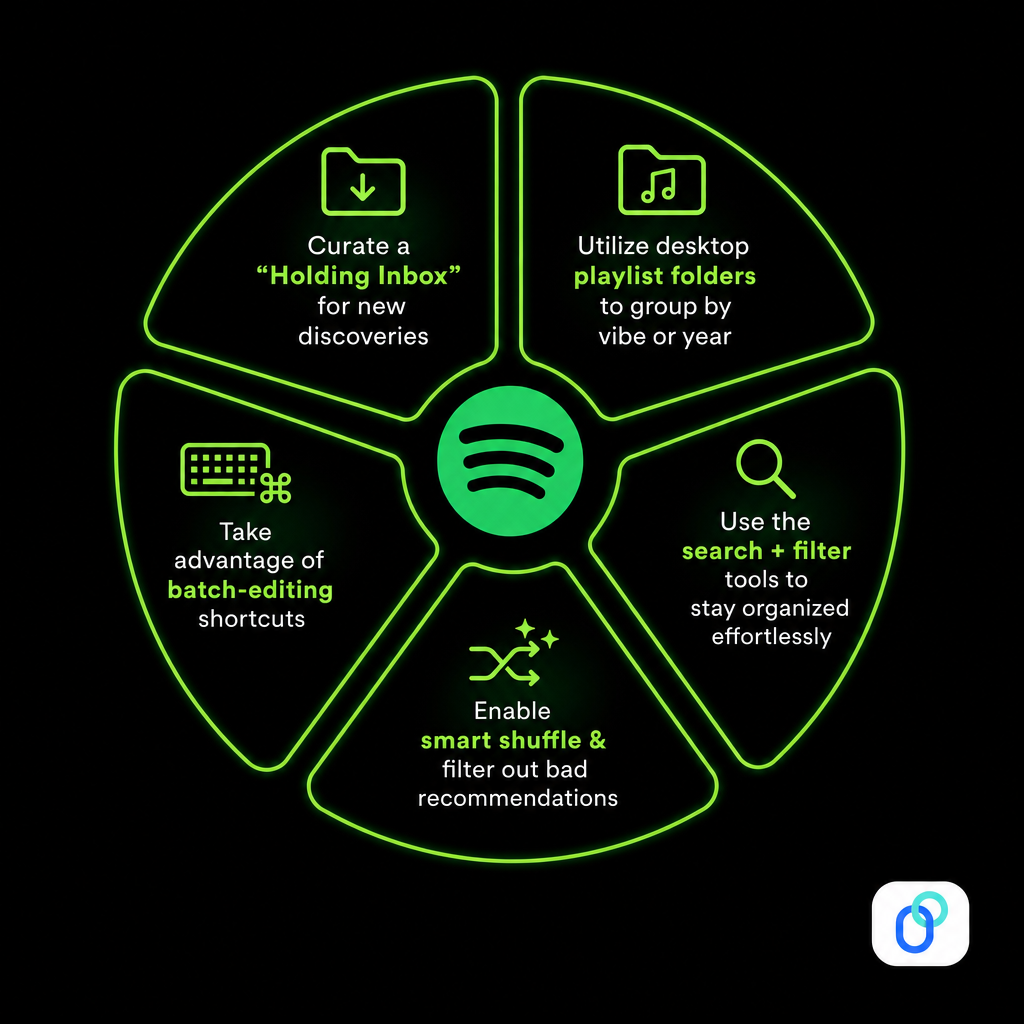
Here are five practical tips to help you stay on top of your Spotify playlists like a pro:
Tip #01: Curate a “Holding Inbox” for new discoveries
Create a dedicated playlist called something like “Inbox” or “New Finds” where you dump every new song you come across. This keeps your main playlists clean while giving you a space to properly evaluate new tracks before adding them permanently.
Tip #02: Utilize desktop playlist folders to group by vibe or year
On the Spotify desktop app, you can create “folders” to organize your playlists into categories. Think “Workout,” “Late Night,” or “2026 Favorites”. It’s a simple habit that saves you a lot of scrolling time, especially if you have dozens of playlists built up over the years.
Tip #03: Take advantage of batch-editing shortcuts
On desktop, you can select multiple songs at once by holding Ctrl (Windows) or Cmd (Mac) and clicking tracks. This makes it easy to move, remove, or reorder several songs in one go rather than doing it one by one.
Tip #04: Use the search bar to refine and filter your tracks
Did you know you can search within a playlist? Just open your playlist and use the search bar at the top to quickly find a specific song or artist without endlessly scrolling through hundreds of tracks.
Tip #05: Enable smart shuffle & filter out bad recommendations
Spotify’s “Smart Shuffle” feature adds recommended songs to your playlist session on the fly. If a suggestion doesn’t fit the vibe, simply tap the minus (−) button next to it to remove it from the recommendation queue. This also trains Spotify to get better at reading your taste over time.
How Replug makes Spotify playlist sharing smarter in 2026
Once you have your playlist link ready, why share a messy, long URL when you can make it look clean and professional?
Replug is an all-in-one link management platform that lets you shorten, brand, and track your links effortlessly.
Its custom link shortener lets you generate a personalized branded short URL within seconds. So instead of a cluttered Spotify URL, you’re sharing something sleek like yourbrand.co/summer-playlist.


Replug also offers a dedicated Spotify link shortener and a Spotify QR code generator, making it incredibly easy to share your playlists across social media, bios, or even printed materials.
It’s a small upgrade that makes a big difference. Must give it a try!
Frequently asked questions

Muhammad Ahsan Jamal