Quick answer: to share a YouTube playlist, make sure it is set to Public or Unlisted (a private playlist can’t be shared by link), then copy its link. On a computer, open the playlist page and copy the URL from your browser; it contains playlist?list=. In the YouTube app on iPhone or Android, go to the channel page, tap Playlists, tap More next to the playlist and choose Share (to send it through WhatsApp, text or email) or Copy link. These steps come from YouTube Help. Further down you will also see how to turn the link into a short, branded deep link that opens the playlist in the YouTube app.
YouTube playlists are a feature that allows users to organize and view a series of videos together. Users can create their playlists or add videos to existing playlists created by other users. Videos in a playlist can be rearranged, edited, or removed at anytime.
Deep links directly link to specific content within an app rather than simply linking to the app’s home page.
Using a deep link to share a YouTube playlist allows the recipient to immediately access and view the playlist without having to search for it within the app. The same trick works when you only want to share a single YouTube video. Also, deep links can contain information about the content, such as the specific video or playlist, so recipients know what they click on and why it is relevant.
Using deep links to share YouTube playlists can also help increase the app’s engagement and retention. As a result, recipients are more likely to continue using the app after being directed to the specific content they are interested in.
How to share a YouTube playlist: current steps
On a computer
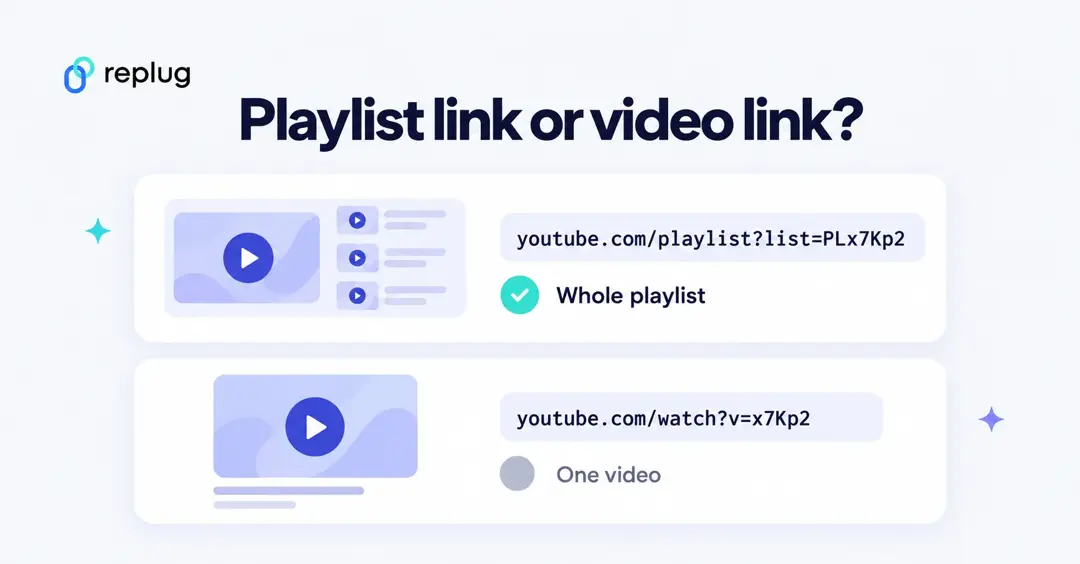
According to YouTube Help, you share a playlist on desktop by copying the URL of the playlist page. Check that the address contains “playlist”, for example https://www.youtube.com/playlist?list=<playlist ID>; otherwise you are sharing a single video inside the playlist.
- Your own playlist: sign in, select Playlists in the left menu, click the playlist and copy the URL from the address bar.
- Someone else’s playlist: go to their channel, select Playlists, click View full playlist under the one you want and copy the URL.
- From a video you are watching: click the playlist title in the box on the right to open the playlist page, then copy the URL.
On iPhone, iPad and Android (YouTube app)
- Open the YouTube app.
- Go to the channel page (yours or another creator’s).
- At the top, tap Playlists.
- Next to the playlist you want to share, tap More (the three dots).
- Tap Share to send it by email, text or another app, or tap Copy link to paste it anywhere.
These are the steps in YouTube Help for the app. YouTube’s mobile website (m.youtube.com) can only share videos, not playlists, so use the app or a computer.
Share a YouTube playlist on WhatsApp
In the YouTube app, follow the steps above and tap Share, then pick WhatsApp from the share sheet and choose the chat. If WhatsApp isn’t listed, tap Copy link and paste the link into the chat. The person you send it to can open it in the YouTube app or in a web browser.
Public, unlisted or private: who can open the link?
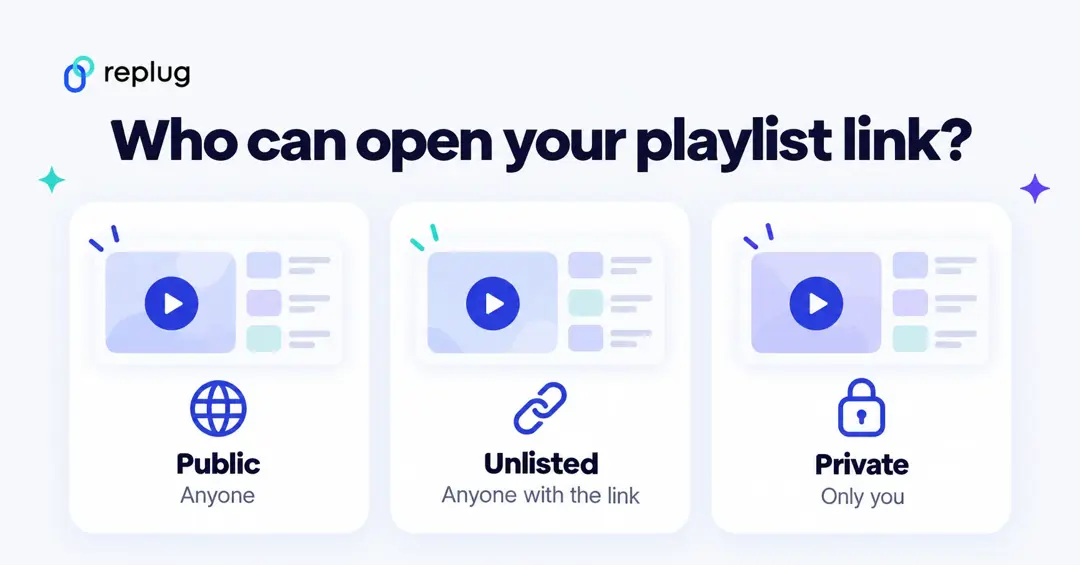
Whether a shared link works depends on the playlist’s privacy setting. YouTube Help describes the three options like this:
| Setting | Who can open it | Shows in search and on your channel |
|---|---|---|
| Public | Anyone can watch and share it | Yes |
| Unlisted | Anyone with the link can watch and share it | No |
| Private | Only you; it can’t be shared by link | No |
To change it on a computer, go to the You tab, open Playlists, select View full playlist and pick a setting from the menu under the title. In the Android app, tap your profile picture, then Playlists, View all, select the playlist, tap Edit, choose the setting and tap Save. If the playlist contains private videos, YouTube says you need to invite people to view those videos first.
Let friends add videos: collaborative playlists
YouTube still offers collaborative playlists. According to YouTube Help, open your playlist, select Share, then Invite collaborators and choose who to invite. If the playlist isn’t unlisted or public yet, YouTube asks you to make it shareable before the invite is sent. Collaborators can add videos and remove the ones they added, and you can turn on ranked voting (Everyone, Collaborators only or Off) so people can vote on the order of the videos. To stop collaborating, select the collaborators’ profile photos at the top of the playlist and turn off Collaborate.
Why can’t I share my YouTube playlist?
- It’s private. Switch it to Unlisted (only people with the link) or Public.
- You copied a video link. Make sure the URL contains “playlist?list=”, not “watch?v=”.
- You’re on the mobile website. Playlists can be shared from the app or a computer, not from m.youtube.com.
- Some videos won’t play for others. Private videos only play for people the uploader shared them with, even inside a shared playlist.
Here’s how to share YouTube playlists on mobile and computer devices:
How to share Youtube playlist with deep links on a mobile device?
Follow the steps below:
The screenshots in this section are from 2023. In the current app the quickest route is the channel page’s Playlists tab, as in the steps above; the deep-link steps that follow still apply.
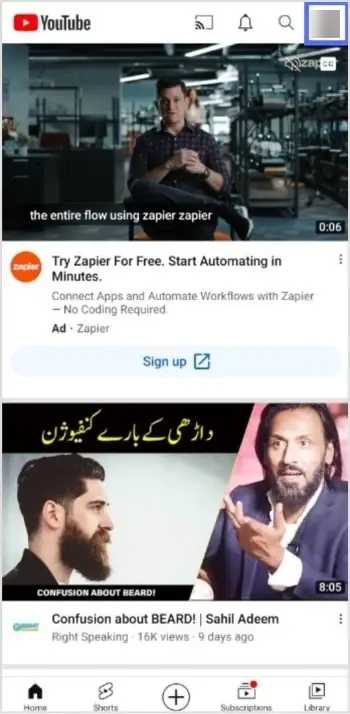
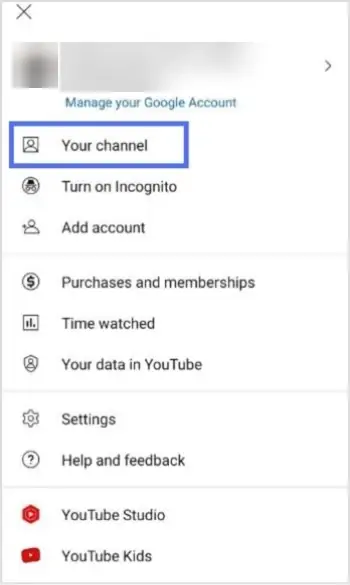
Step 1: Open YouTube on your mobile phone and tap the profile icon in the top right corner.
Step 2: Tap “your channel” from the drop-down menu.
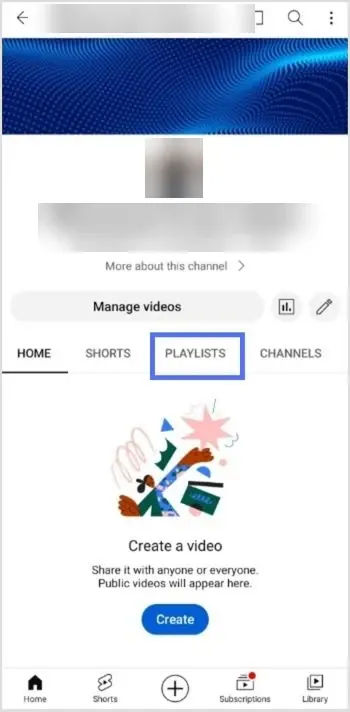
Step 3: Tap “playlist” on your mobile screen.
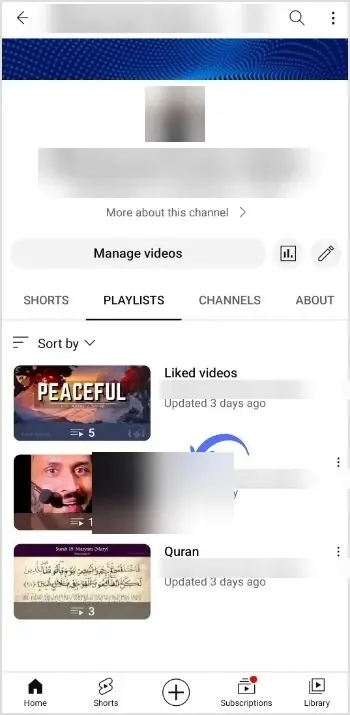
Step 4: Open the playlist you want to share.
Step 5: Tap three dots alongside the playlist.
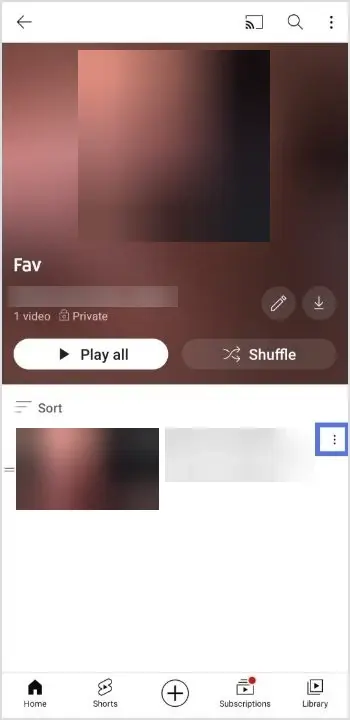
Step 6: Tap share to share the playlist.
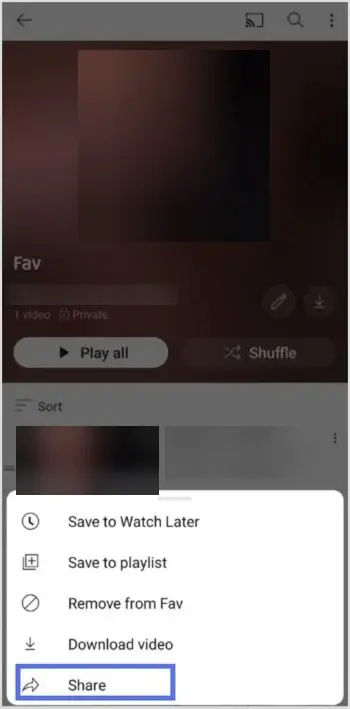
Step 7: Tap Copy link to copy the link and create a deep link for your YouTube playlist.
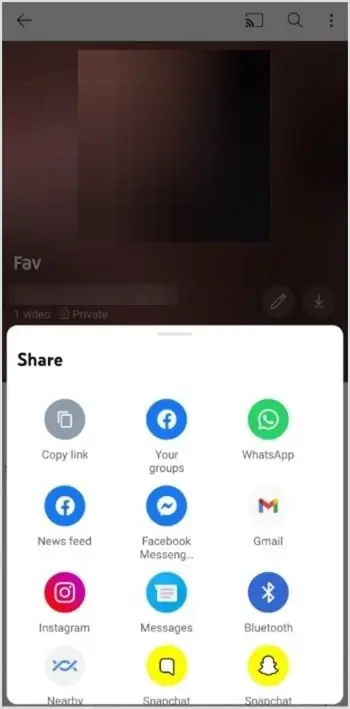
Create a deep link for YouTube Mobile Playlist:
Step 8: Go to Replug and sign in or create an account for free.
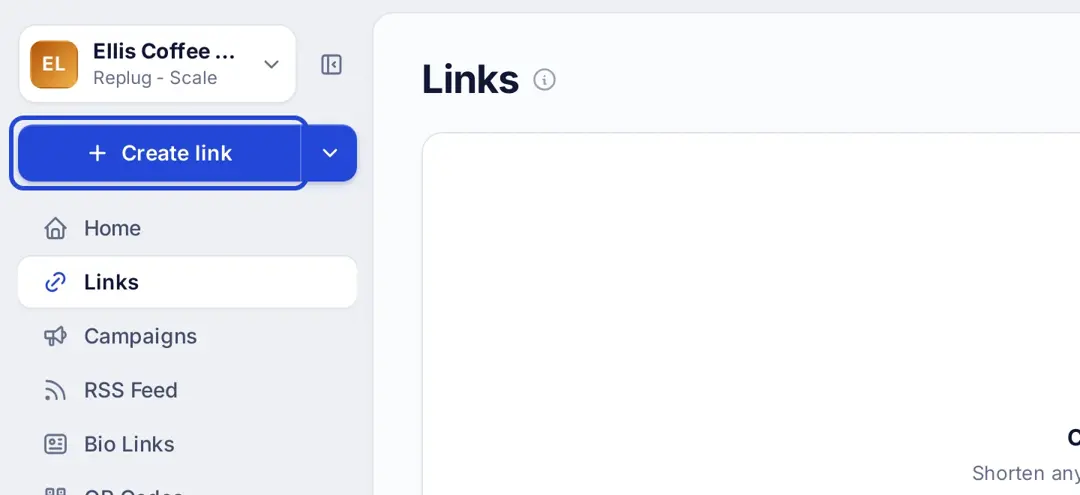
Step 9: Click Create link at the top of the left menu. You can pick or create a campaign for the link on the next screen.
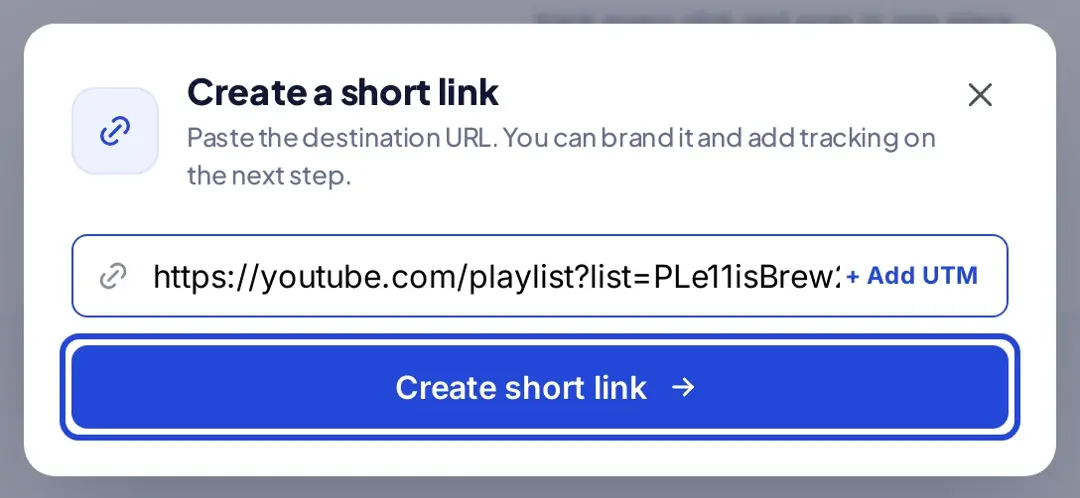
Step 10: Paste the YouTube playlist link into the Create a short link window and click Create short link.
Step 11: Your new Replug link opens in the Your link window. Click the pencil icon next to the short link if you want to customize its ending.
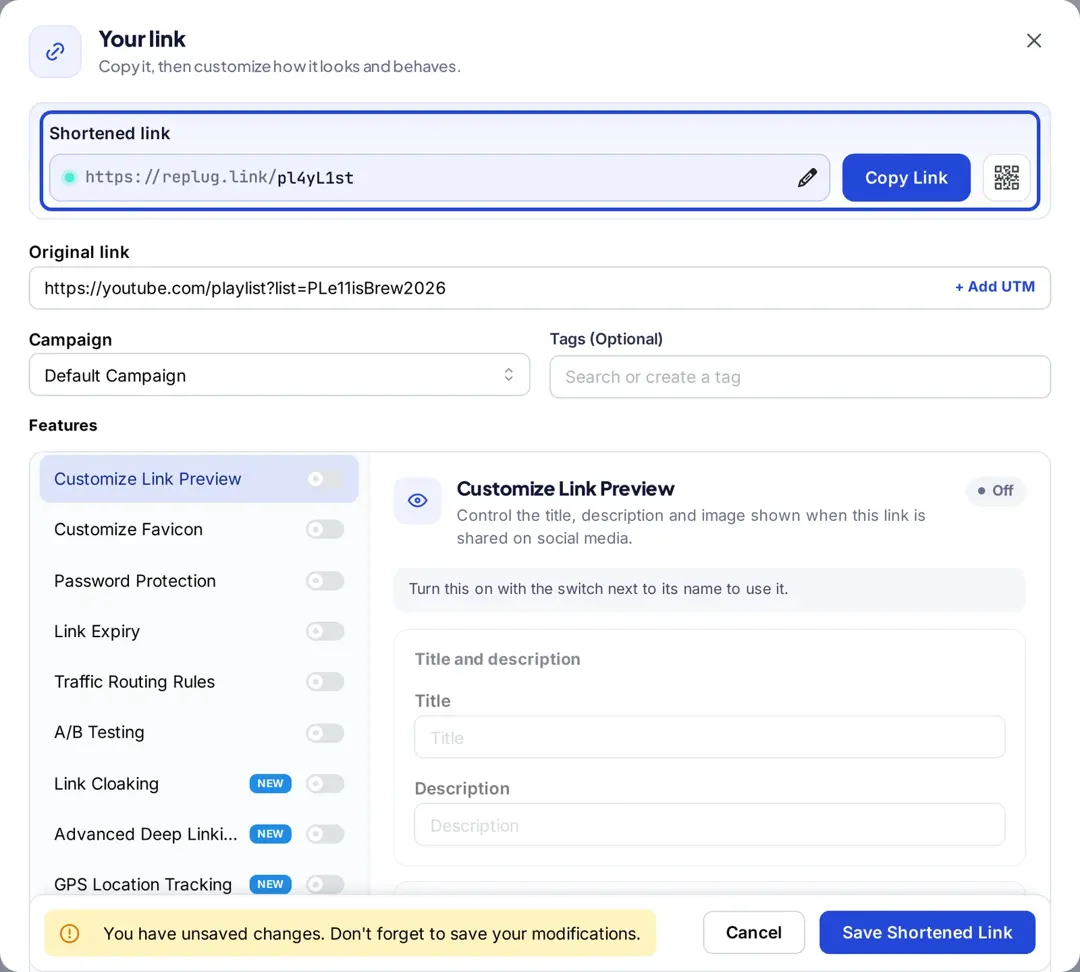
Step 12: Under Features, turn on Advanced Deep Linking and check that Replug shows “Platform detected: Youtube”.
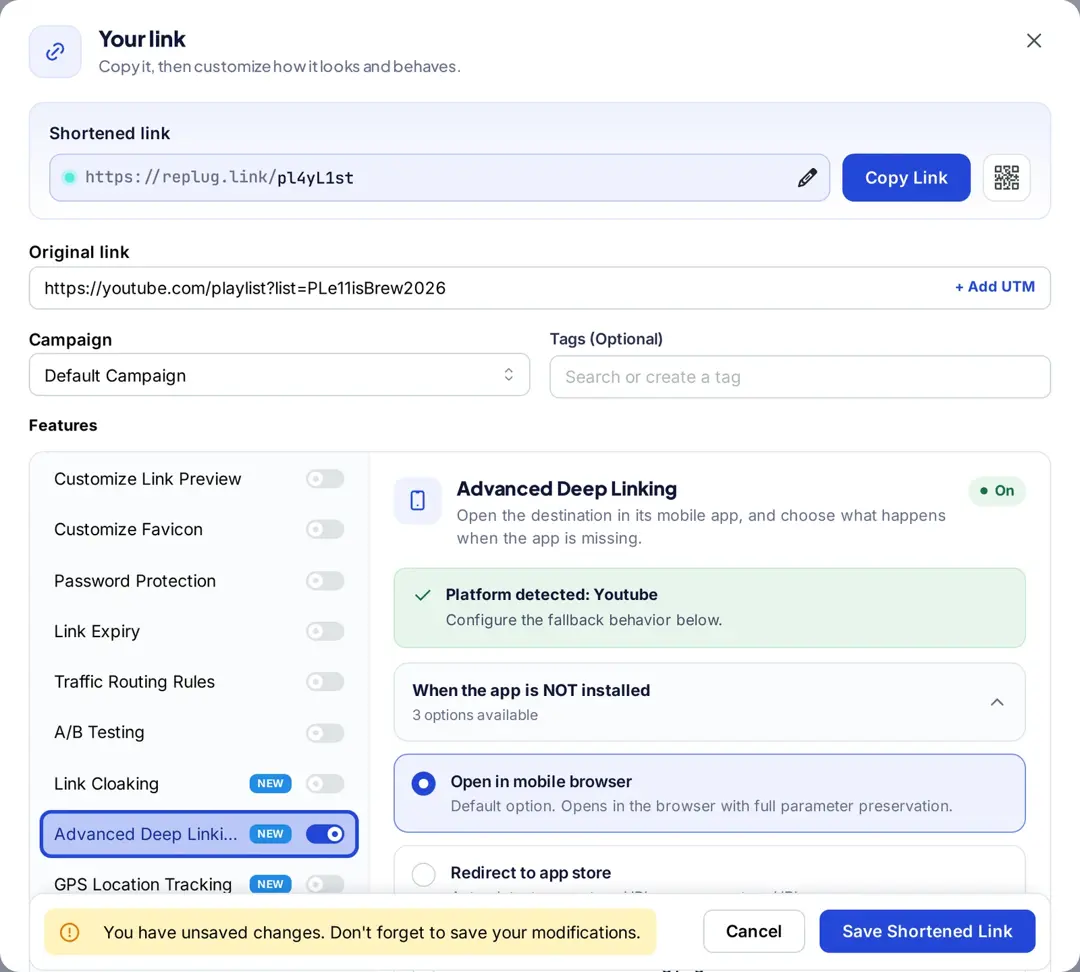
Step 13: Click the Save Shortened Link button to create a deep link for your YouTube playlist.
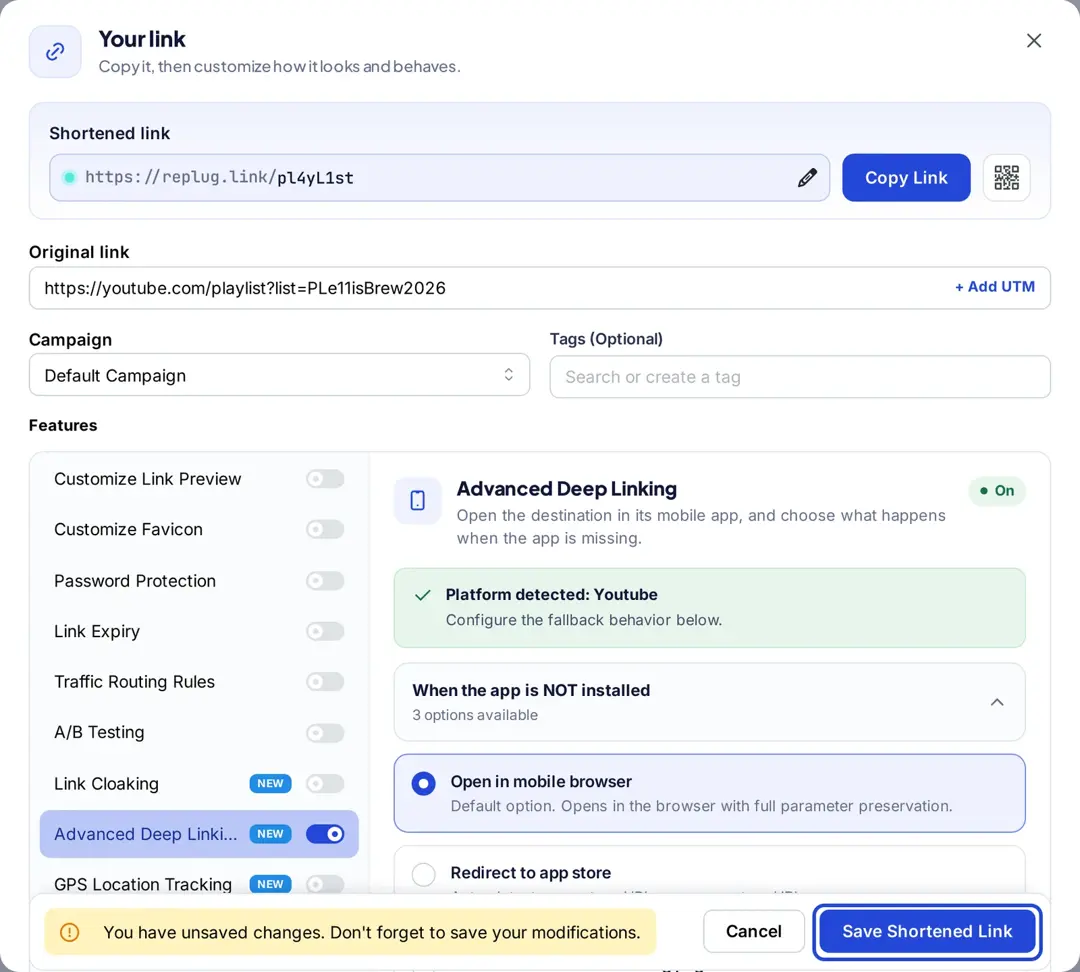
Note: To find the deep link later, click Links in the left menu.
Also Read: How to Build Your Brand on YouTube: Branding on Youtube the Right Way!
How to share YouTube playlist with deep links on a computer device?
Step 1: Open YouTube on your computer and click the profile icon in the top right corner.

Step 2: Click “your channel” from the drop-down menu.
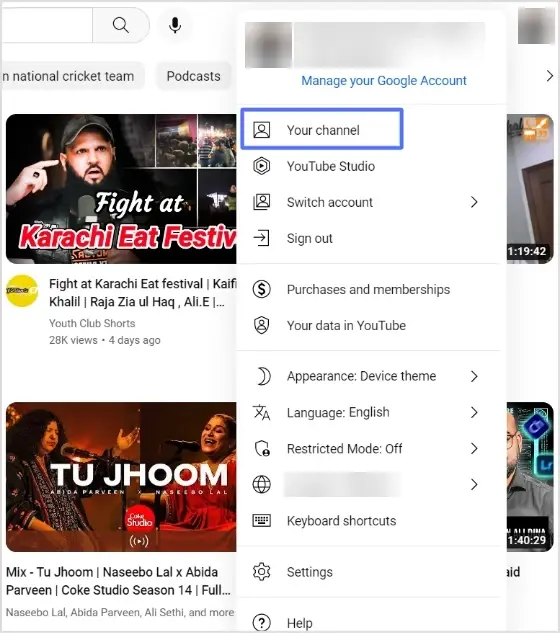
Step 3: Click playlists on your screen.
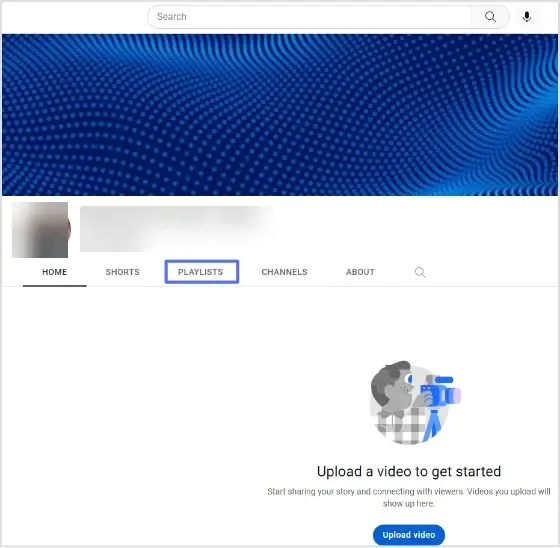
Step 4: Click “view full playlist” under the playlist you want to share.
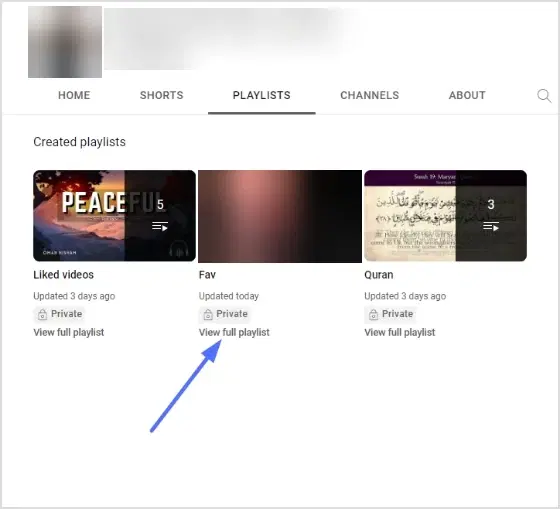
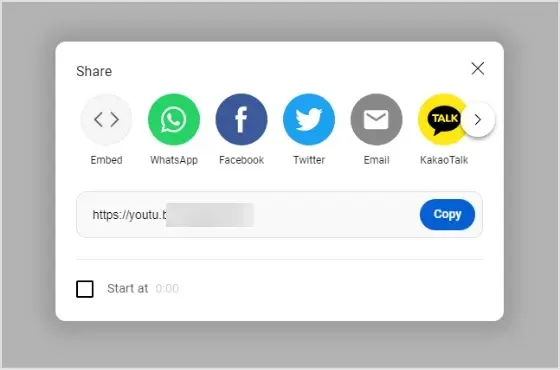
Step 5: Click three dots at the end of the playlist, then click share.

Step 7: Click Copy to copy the link and create a deep link for your YouTube playlist.
Also Read: How to change YouTube URL name using a URL shortener tool?
Create a deep link for a YouTube computer playlist:
Step 8: Sign in to Replug or create an account for free.
Step 9: Click Create link at the top of the left menu. You can pick or create a campaign for the link on the next screen.
Step 10: Paste the YouTube playlist link into the Create a short link window and click Create short link.
Step 11: Your new Replug link opens in the Your link window. Click the pencil icon next to the short link if you want to customize its ending.
Step 12: Under Features, turn on Advanced Deep Linking and check that Replug shows “Platform detected: Youtube”.
Step 13: Click the Save Shortened Link button to create a deep link for your YouTube playlist.
Note: To find the deep link later, click Links in the left menu.
Once you have the playlist link, you can create a branded short URL using Replug to make sharing cleaner and more memorable.
Plan note (from Replug’s pricing page, checked October 2026): deep linking is on the Scale and Agency plans, with a 14-day free trial; in the link editor it appears as Advanced Deep Linking. According to Replug’s deep links page, YouTube links open in the YouTube app on iOS and Android, and you choose the fallback (mobile browser, app store or your own page) for people without the app. Short links on every plan use the replug.link domain by default, or your own domain.
Trending Now:
FAQs

Arslan Jadoon