![How to get YouTube URL link: A detailed guide for everyday YouTubers [2026]](/_next/image?url=https%3A%2F%2Finternal-blog.replug.io%2Fwp-content%2Fuploads%2F2023%2F01%2FHow-to-get-YouTube-URL-link-A-detailed-guide-for-everyday-YouTubers-2026.png&w=3840&q=90)
YouTube isn’t just that video app anymore; it’s a digital powerhouse shaping what we watch, how we learn, and how creators connect with the world.
In 2026, YouTube proudly owns over 2.5 billion monthly active users, meaning roughly one in every four people online visits the platform regularly. That’s more than almost any other site on Earth, WOW!!!
Every single day, hundreds of millions of people are watching, uploading, and sharing content, from cooking tips to trending music videos, news clips to killer tutorials.
No matter if you’re a hobbyist YouTuber looking to share your first clip or a seasoned creator building your brand, knowing how to grab and share a YouTube URL link is a foundational skill you must possess. And we’re about to break it down step by step!
Now, let’s start with the basics: What is a URL on YouTube?
What is the YouTube URL link?
Think of URLs as the web addresses that take you exactly where you want to go online, kind of like entering a street address into Google Maps to find a friend’s house.
A “YouTube URL link” is just that: a specific web address that points directly to something on YouTube, whether that’s a video, playlist, or channel.
The URL stands for Uniform Resource Locator, and it’s essentially the address that loads a specific piece of YouTube content when entered into a browser or tapped in a message.
The main objective of a YouTube URL is simple, i.e., to direct viewers straight to the content you want them to watch or explore. Without it, you’d be guessing around the platform trying to find that one video, playlist, or creator you intended to share.
An example of a YouTube URL link
Here’s a classic example of a YouTube video URL link that takes you straight to a specific video:
https://www.youtube.com/watch?v=ysCh-ikzOC1
Here, everything after watch?v= is the unique ID YouTube uses to find that exact video.
This same idea applies to channel or playlist links. Just a slightly different URL structure that still points you right where you want to go.
How to get YouTube URL on phone
Getting a YouTube URL on your phone is something almost every user does, no matter if you’re sharing a funny clip with a friend or linking your latest vlog in a message.
On both iPhone and Android, the YouTube app makes it quick and easy to grab the link you need so you can paste it anywhere you want, hassle-free.
How to get YouTube URL on iPhone
Here’s a friendly step-by-step guide for iPhone users:
1. Open the YouTube app on your iPhone.
2. Find the video you want the URL for and tap it to open it.
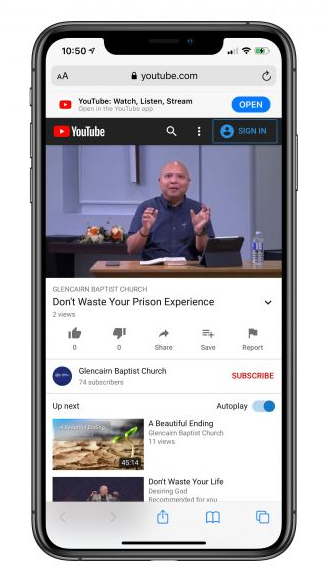
3. Look for the “Share” icon (it’s usually an arrow pointing right, available below the video).
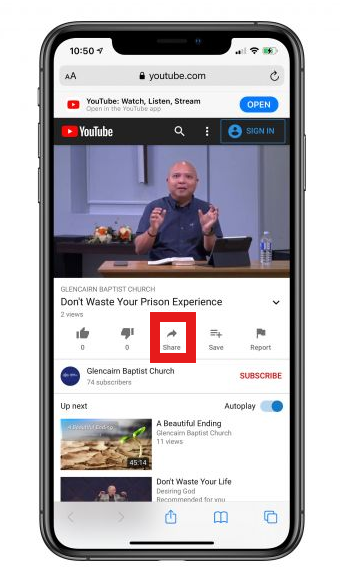
4. Tap “Share,” then tap “Copy link.” iOS will put that URL into your clipboard.
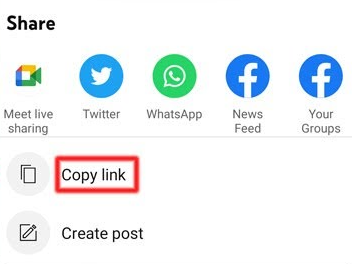
Now you can paste the copied link into Messages, Notes, email, social media, or wherever you need it.
How to get YouTube URL on Android
Here’s how to get a YouTube URL from the app on an Android smartphone:
1. Launch the YouTube app on your Android device.
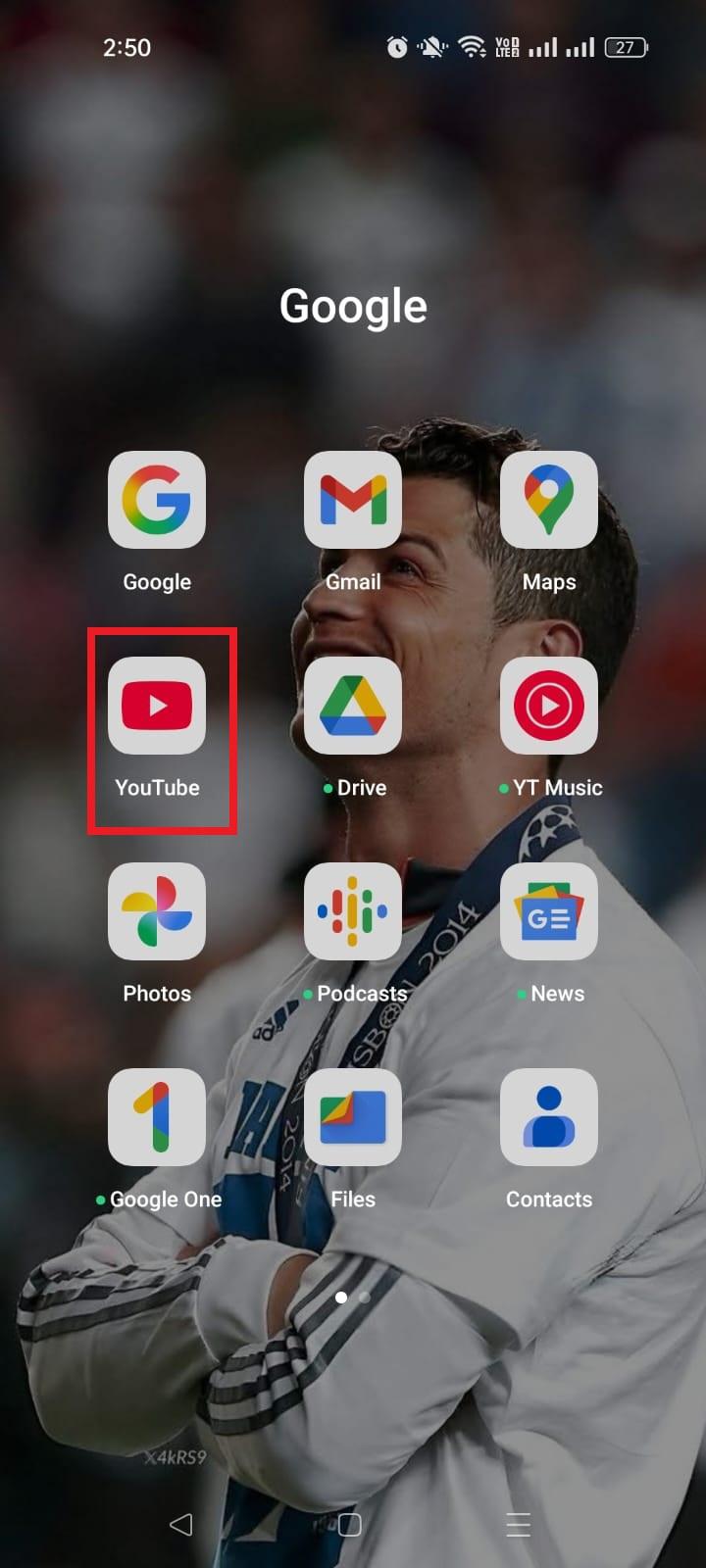
2. Search for and open the video you want to share.
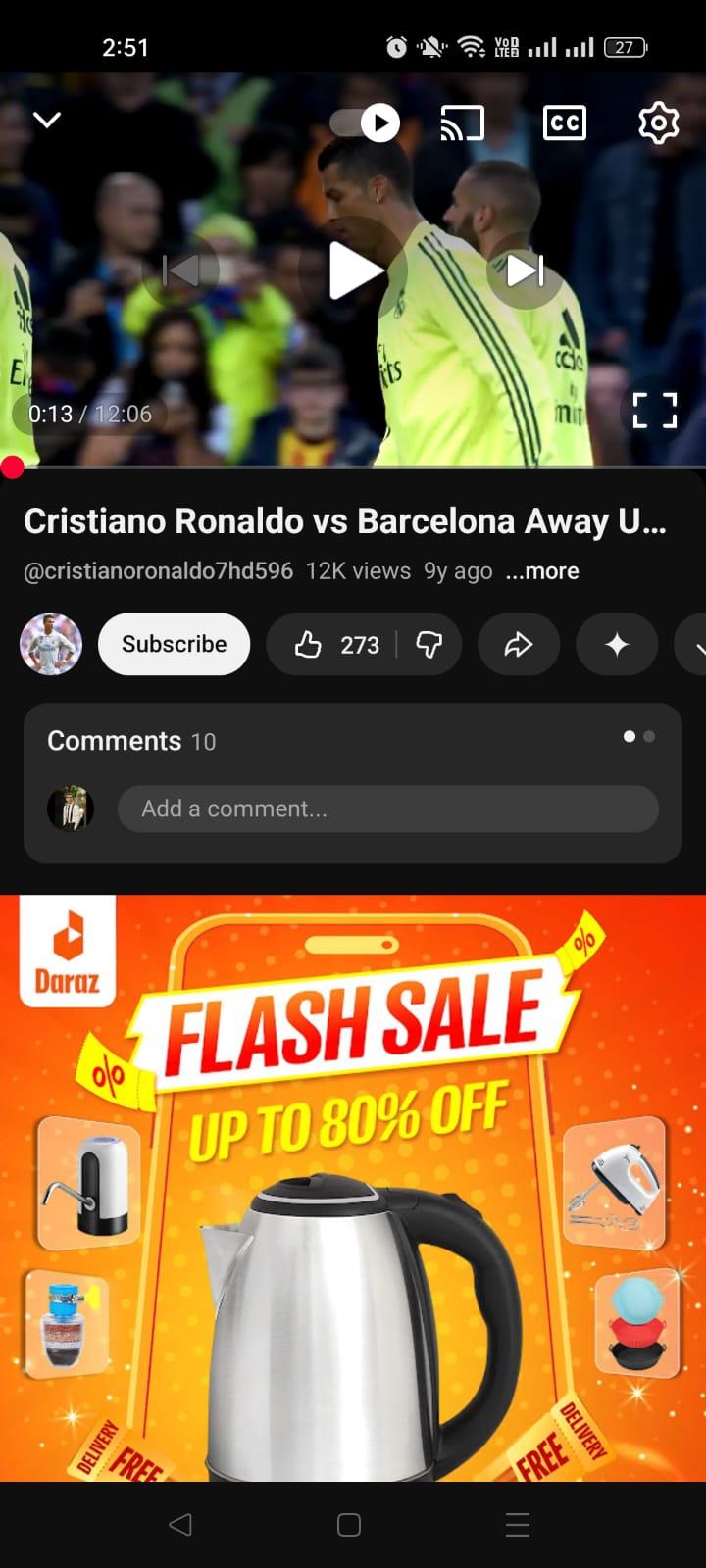
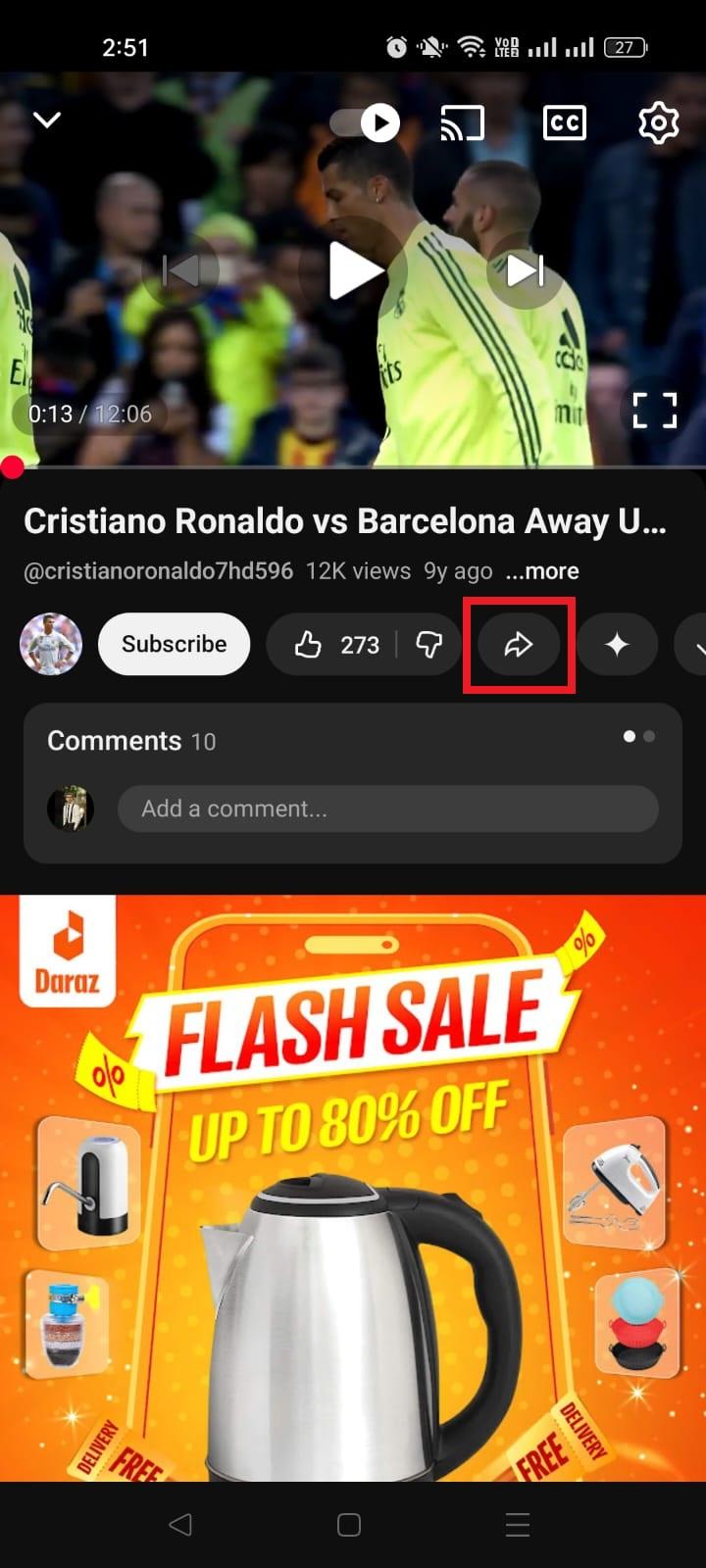
3. Tap the “Share” button (an arrow pointing right) under the video player.
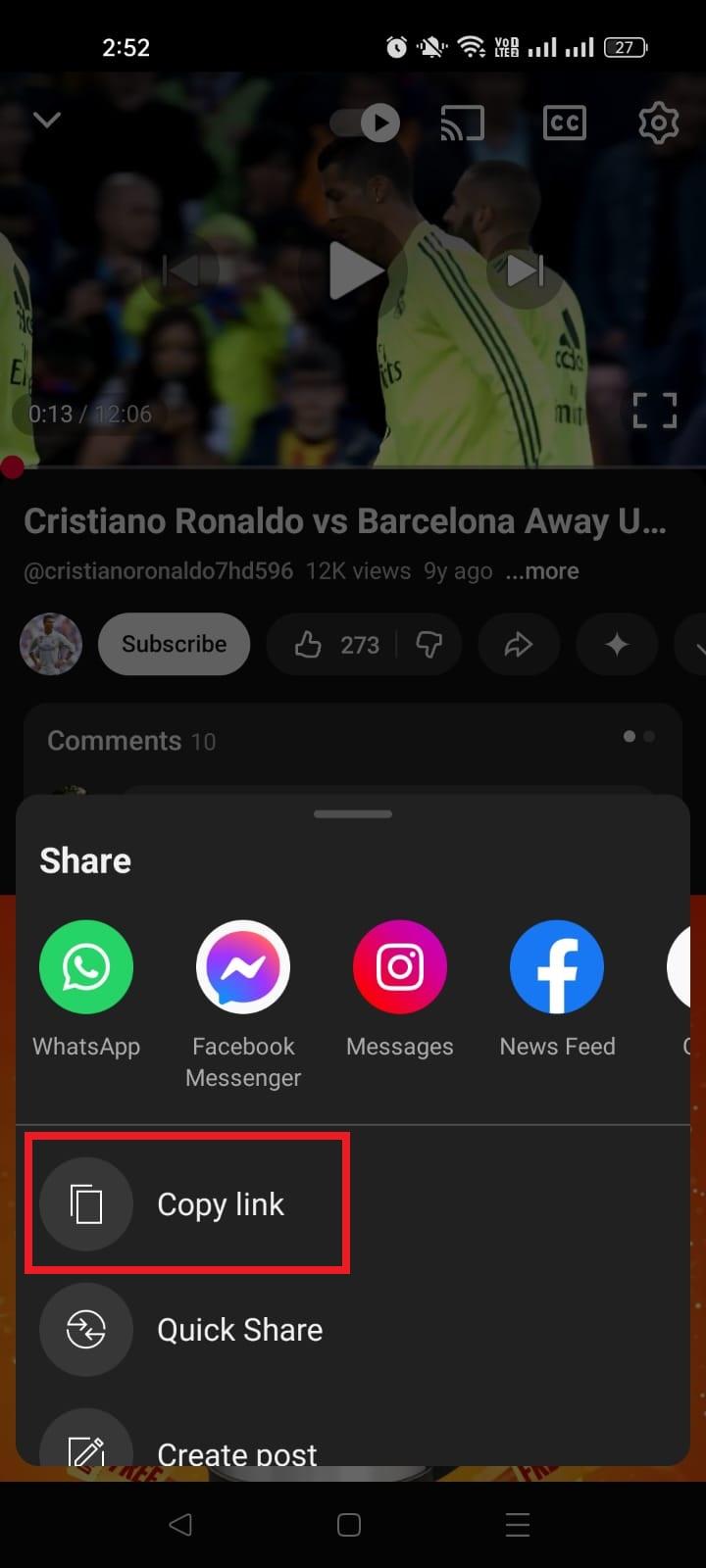
4. From the share menu, select “Copy link.” This copies the full YouTube URL.
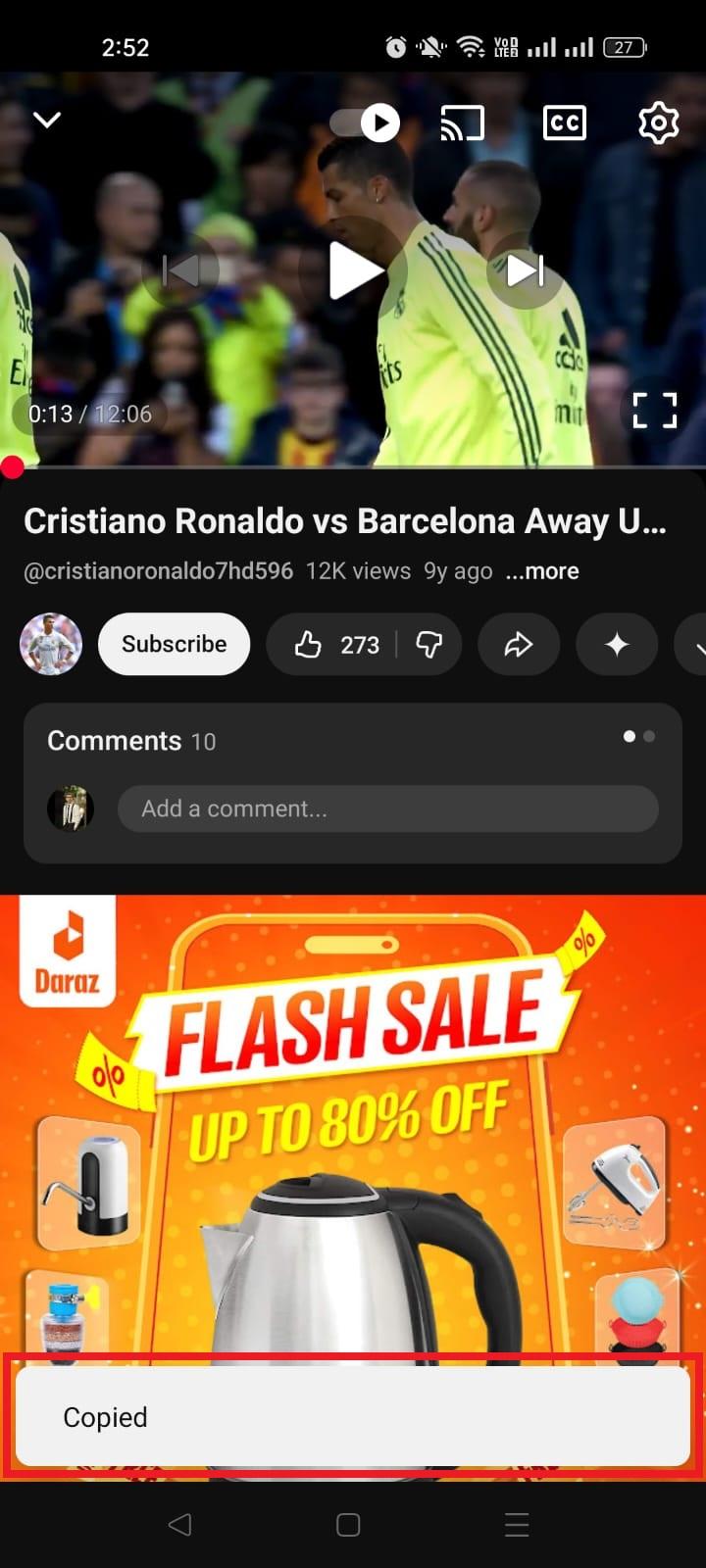
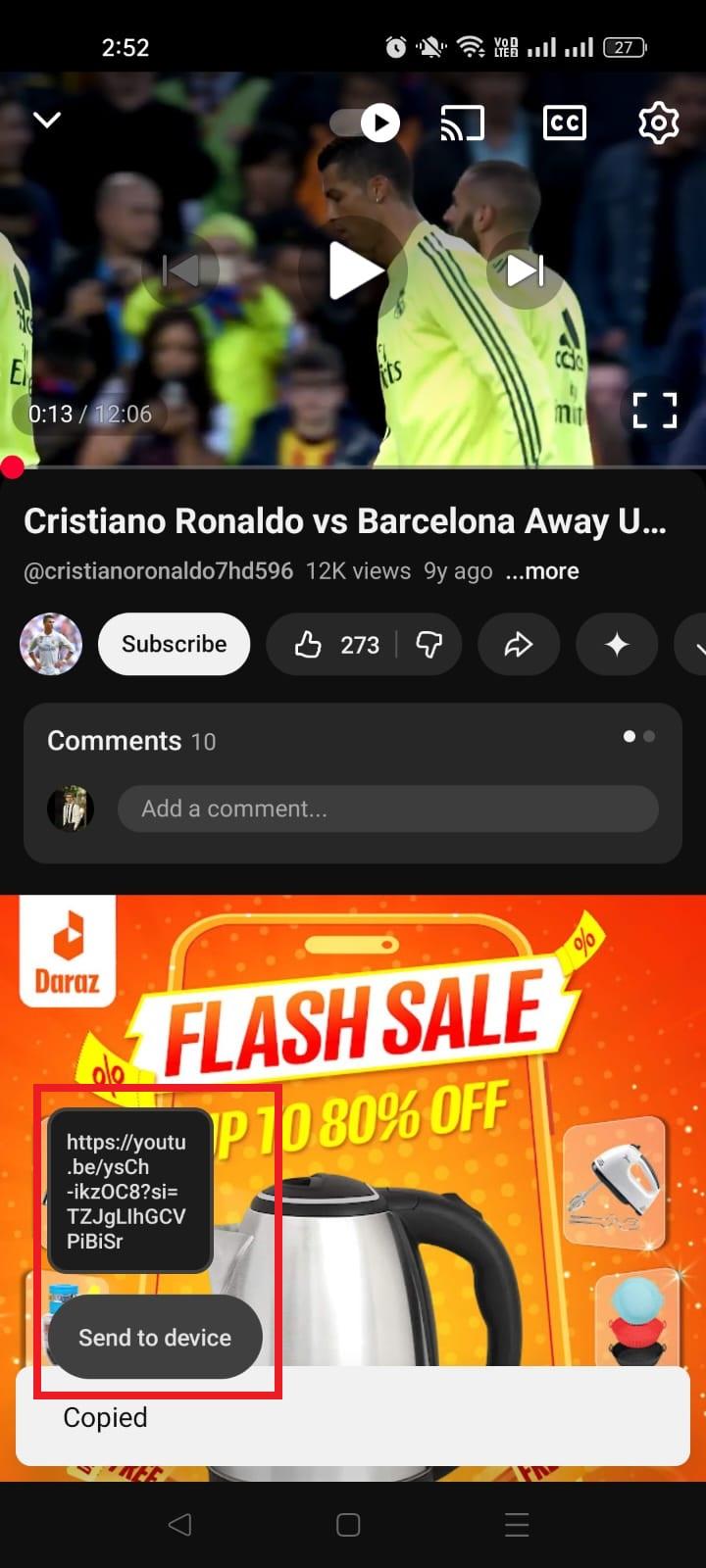
5. Paste that link wherever you need it, e.g., chat, apps, posts, etc.
Whether you’re on an iPhone or an Android device, it’s usually just a few taps to grab a YouTube URL and get your content out into the world.
Read also: How to get Snapchat URL: A detailed guide for Snapchat users in 2026
How to get YouTube URL on iPad
Grabbing a YouTube URL on your iPad is super simple! It’s just a couple of taps, no matter if you’re using the official YouTube app or the Safari browser.
This lets you copy the link to share with friends, post on social media, or save for later.
Step-by-step guide (iPad):
1. Open the YouTube app (or visit youtube.com in Safari) on your iPad.
2. Find the video you want to get the URL for. Scroll, search, or open it from your subscriptions.
3. Tap the “Share” button. It’s usually an arrow pointing right just below the video player. You can also tap the URL address bar at the top of the browser to select the URL, and then copy it.
4. In the share options that pop up, look for “Copy link” and tap it. That URL is now copied to your iPad’s clipboard.
5. Paste the link wherever you want by tapping and holding the text field and selecting “Paste.”
That’s it!
A few taps and you’ve got the exact web address (URL) for the YouTube video ready to share or save for later.
Note: If you ever want to copy playlist or channel URLs, the process is similar. Just open the playlist or channel page → tap the three dots (More) in the top right → tap Share → tap Copy link.
How to get YouTube URL on PC/Desktop
Getting a YouTube URL on PC is one of the easiest things you’ll do online, whether you’re sharing a video with friends, linking to a playlist, or embedding content on your blog.
On a computer, all you really need to do is open YouTube in your browser and copy the link from the right place.
Step-by-step guide (PC):
1. Open your web browser and go to “youtube.com.”
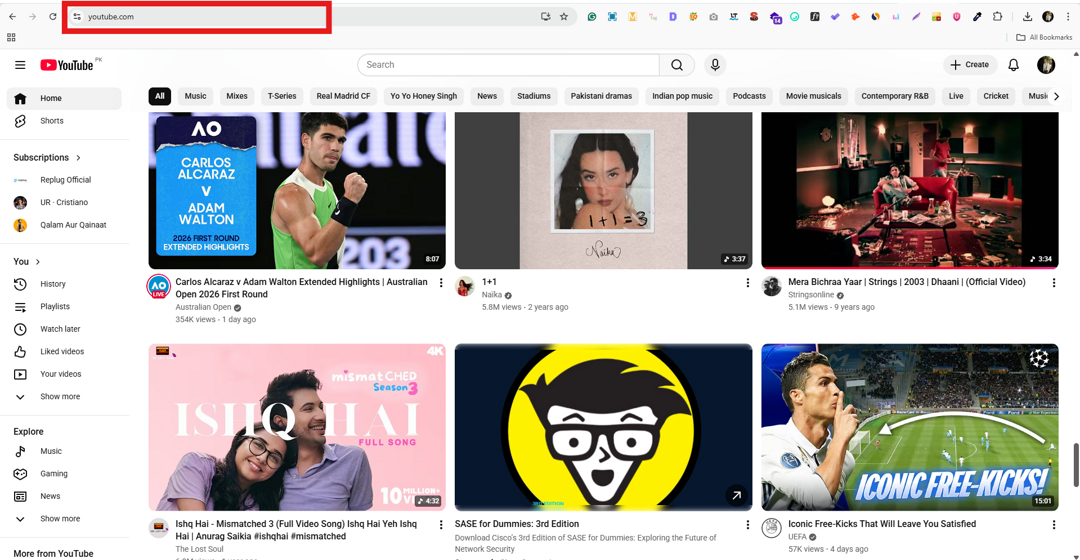
2. Find and click the video you want to get the URL for. The video page will open in your browser.
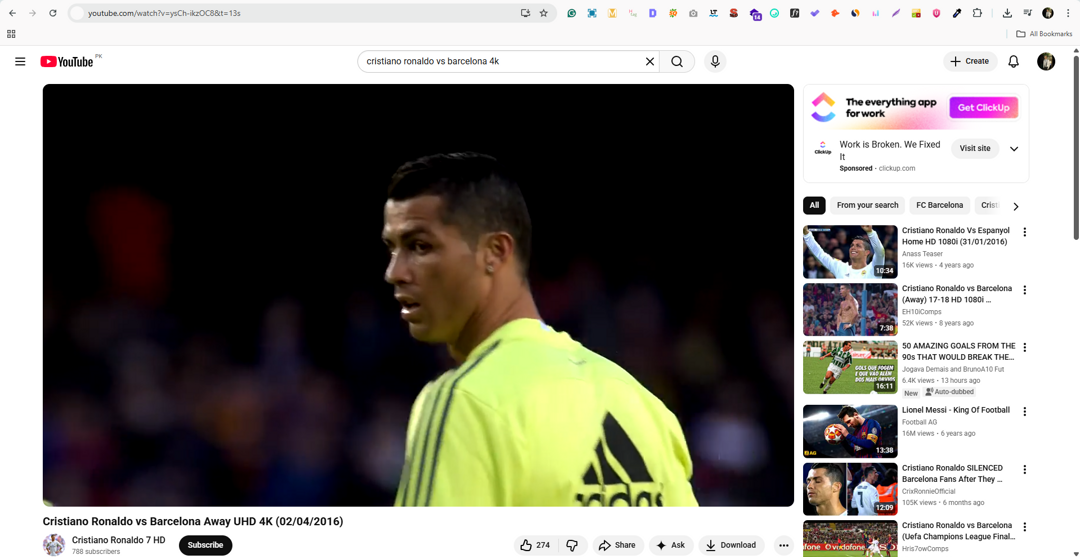
3. Look at the address bar at the top of your browser window. This shows the full YouTube URL. It usually looks like: https://www.youtube.com/watch?v=VIDEO_ID.
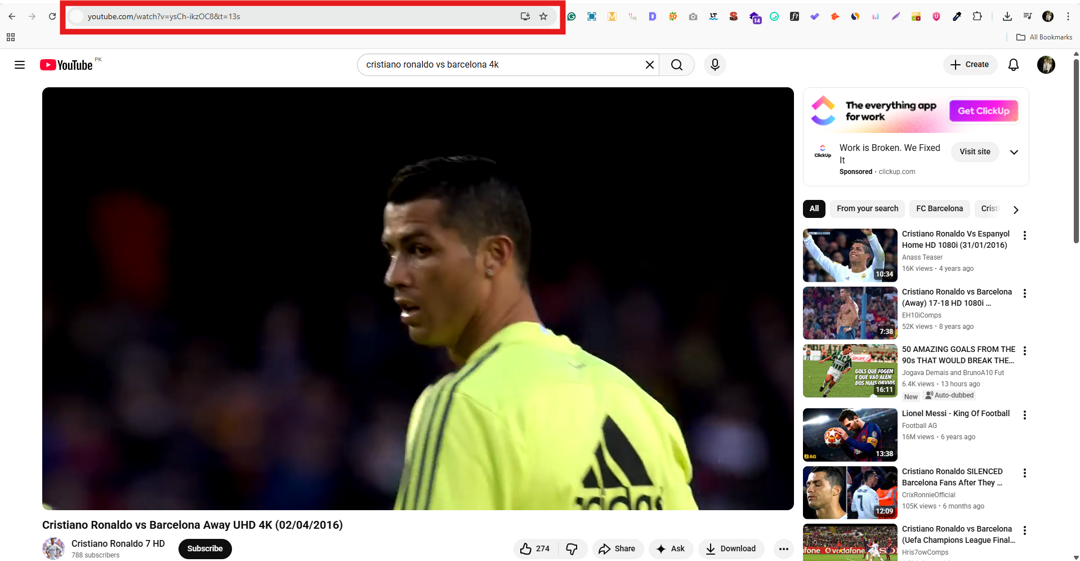
4. Click inside the address bar to highlight the whole link, then press “Ctrl + C” (Windows) or “Cmd + C” (Mac) to copy it.
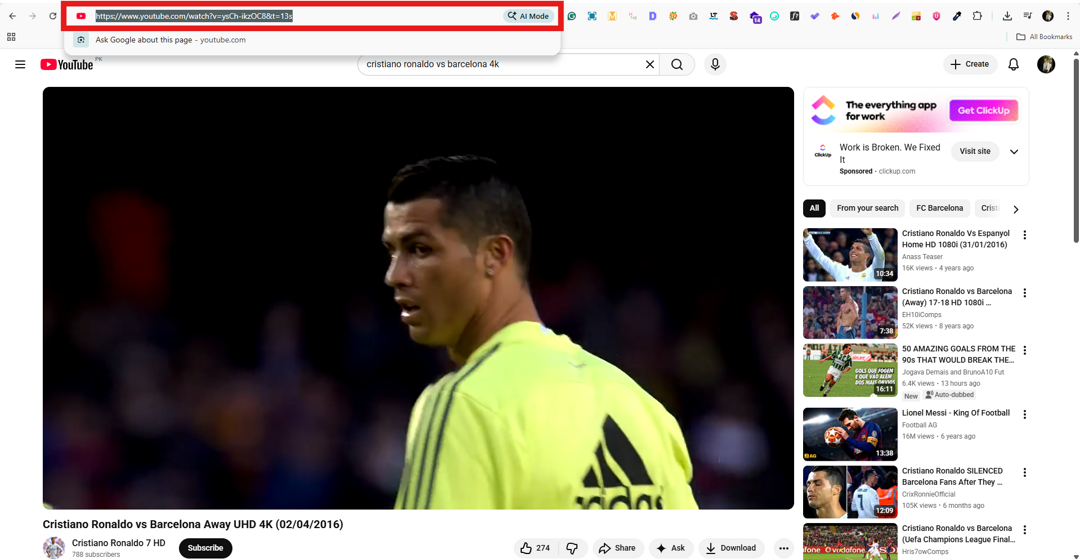
5. Paste the link (Ctrl/Cmd + V) wherever you need it, in an email, message, social post, or document.
Useful tip: You can also click the “Share” button under the video player and choose “Copy link.” That usually gives you a shorter youtu.be version of the URL that works just as well. One more way is to right-click the video and choose “Copy link address.”
How to find URL for your YouTube channel (Desktop)
Finding your YouTube channel URL on a desktop is super useful, no matter if you’re linking your channel on your website, sharing it with friends, or promoting it on social media.
On a computer, it’s pretty straightforward: you just navigate to your channel page and grab the address from your browser.
Step-by-step guide (Desktop):
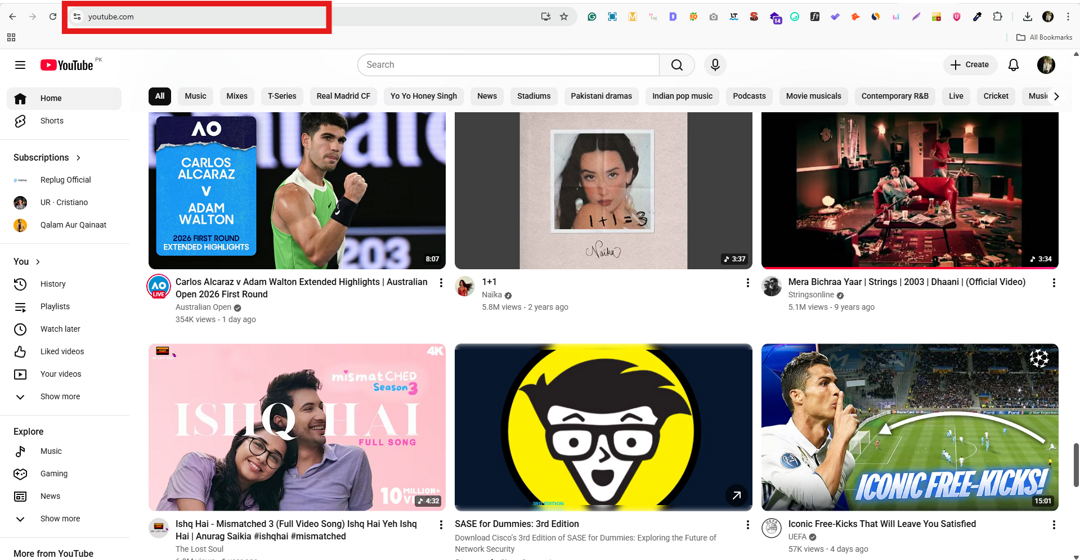
1. Sign in to YouTube: Open your web browser (like Chrome, Safari, or Firefox) and go to youtube.com. Make sure you’re logged into the Google account that owns the channel.
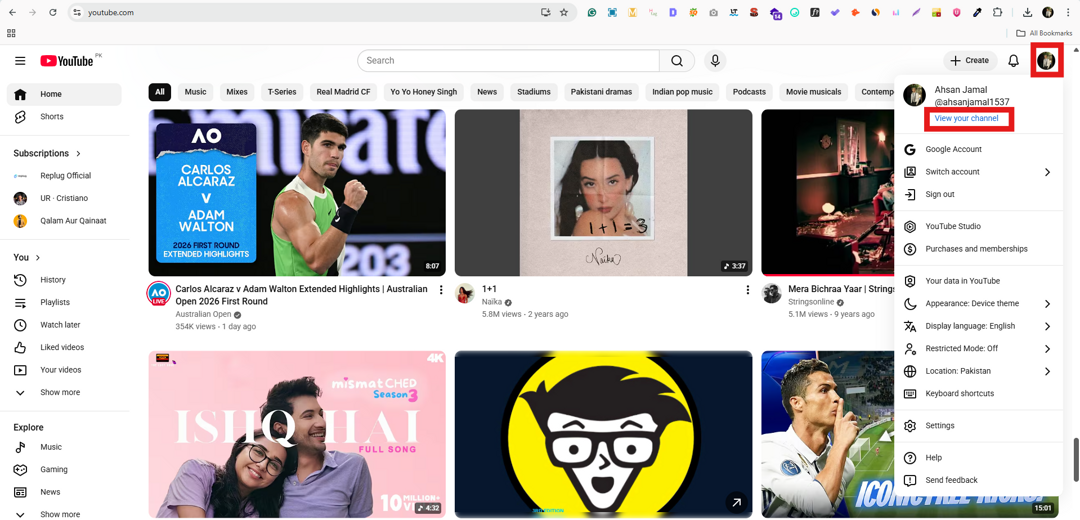
2. Go to your channel: In the top right corner, click your profile picture. From the dropdown that appears, select “View your channel.” This will take you to your public channel page.
3. Look at the address bar: Once your channel page is open, look at the URL in your browser’s address bar. That’s your channel’s link! It might look like:
- https://www.youtube.com/channel/UCabcdef123456…
- Or, if you have a custom handle: https://www.youtube.com/@YourHandle
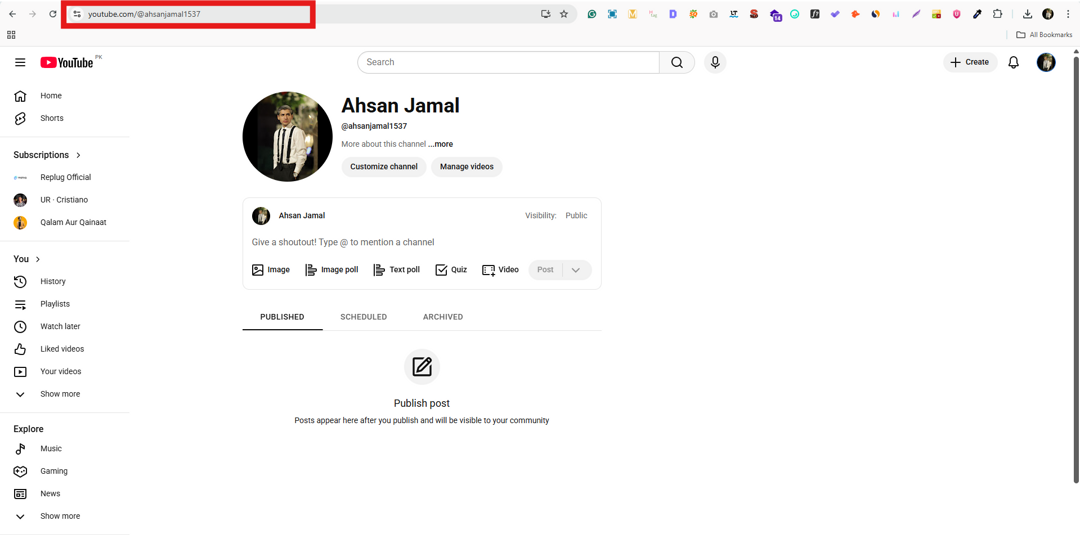
Both are valid and take people straight to your channel.
4. Copy the URL: Click inside the address bar to highlight the link, then copy it using Ctrl + C (Windows) or Cmd + C (Mac).
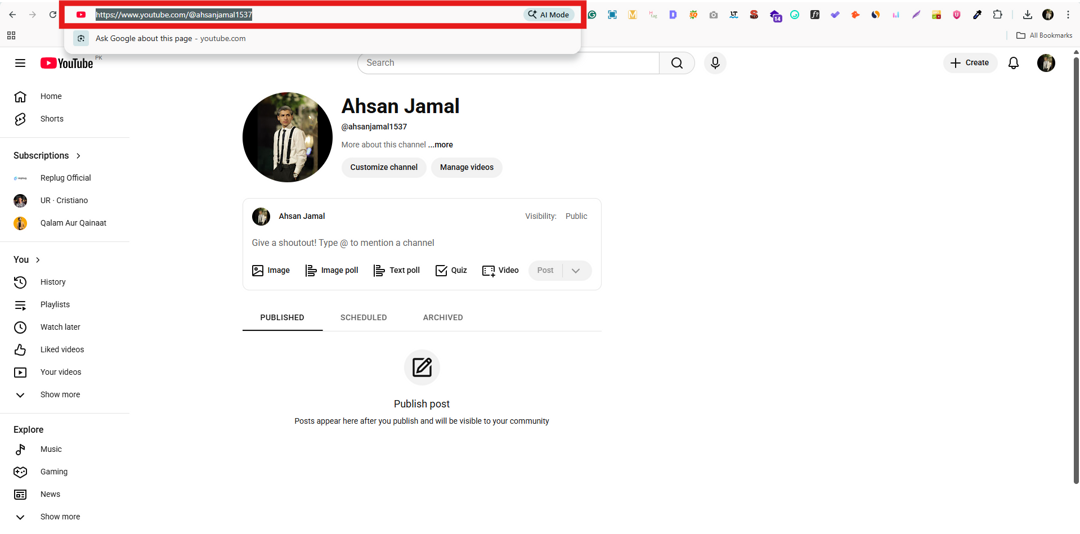
Now you can paste that link (Ctrl/Cmd + V) anywhere you’d like without hesitation!
How to find URL for your YouTube channel (Mobile App)
Getting your YouTube channel URL right from the YouTube mobile app is handy when you want to share your channel with friends, add it to your Instagram bio, or send it in a message. And yes, you can do it directly from your phone without needing a desktop.
Here’s how to get the URL from the YouTube app for your YT channel:
1. Open the YouTube app on your phone and make sure you’re signed into the account that owns the channel.
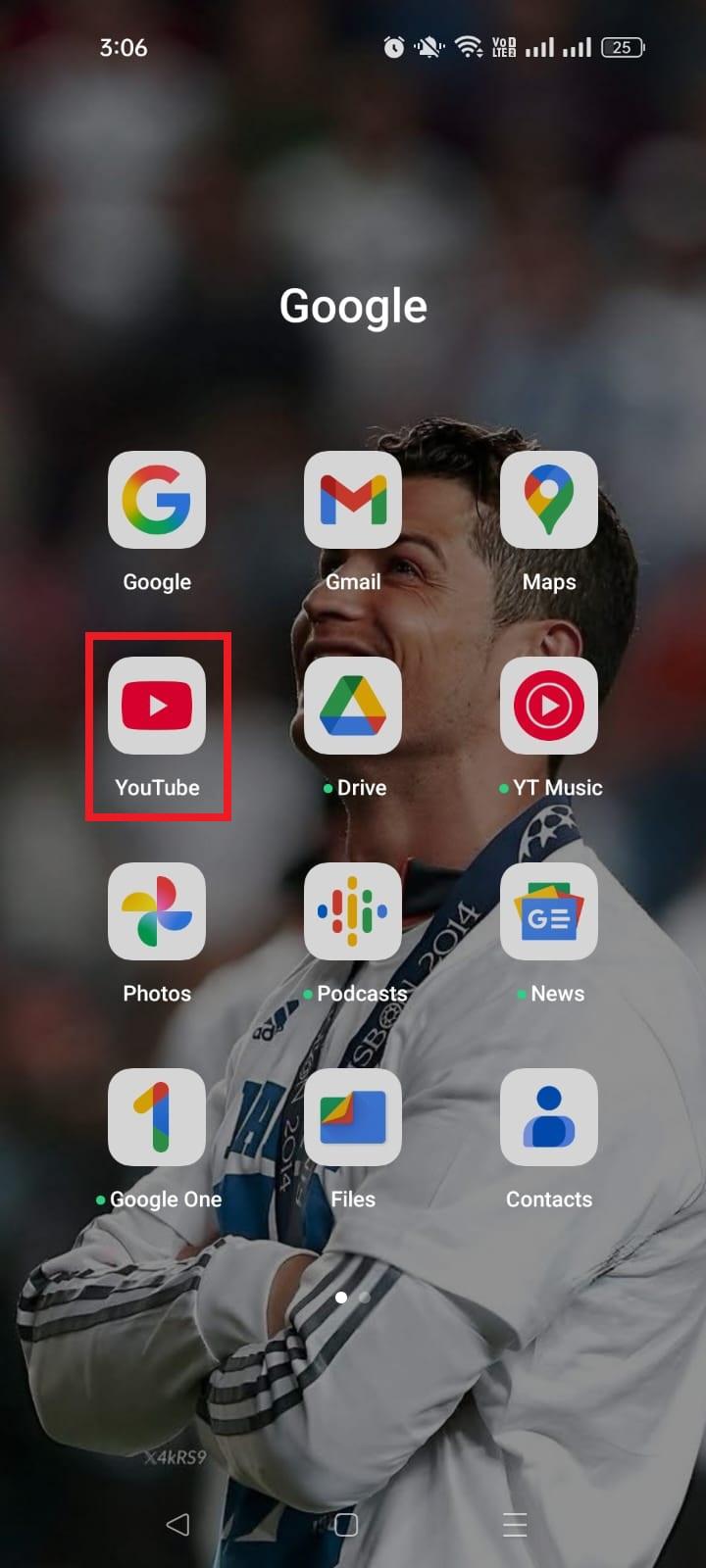
2. Tap your profile picture in the bottom-right corner to open the account profile.
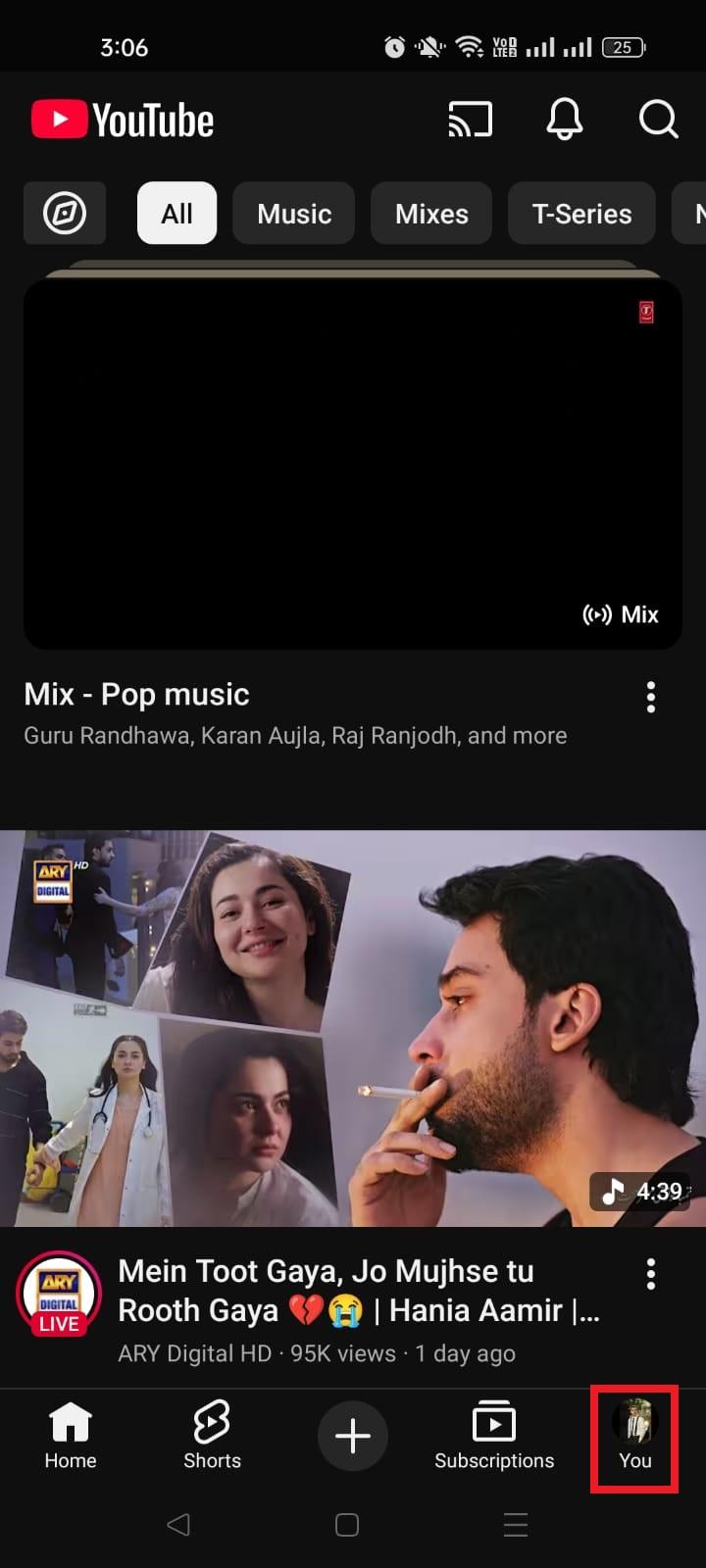
3. From the screen, tap “View channel.” This will take you to your channel’s home page.
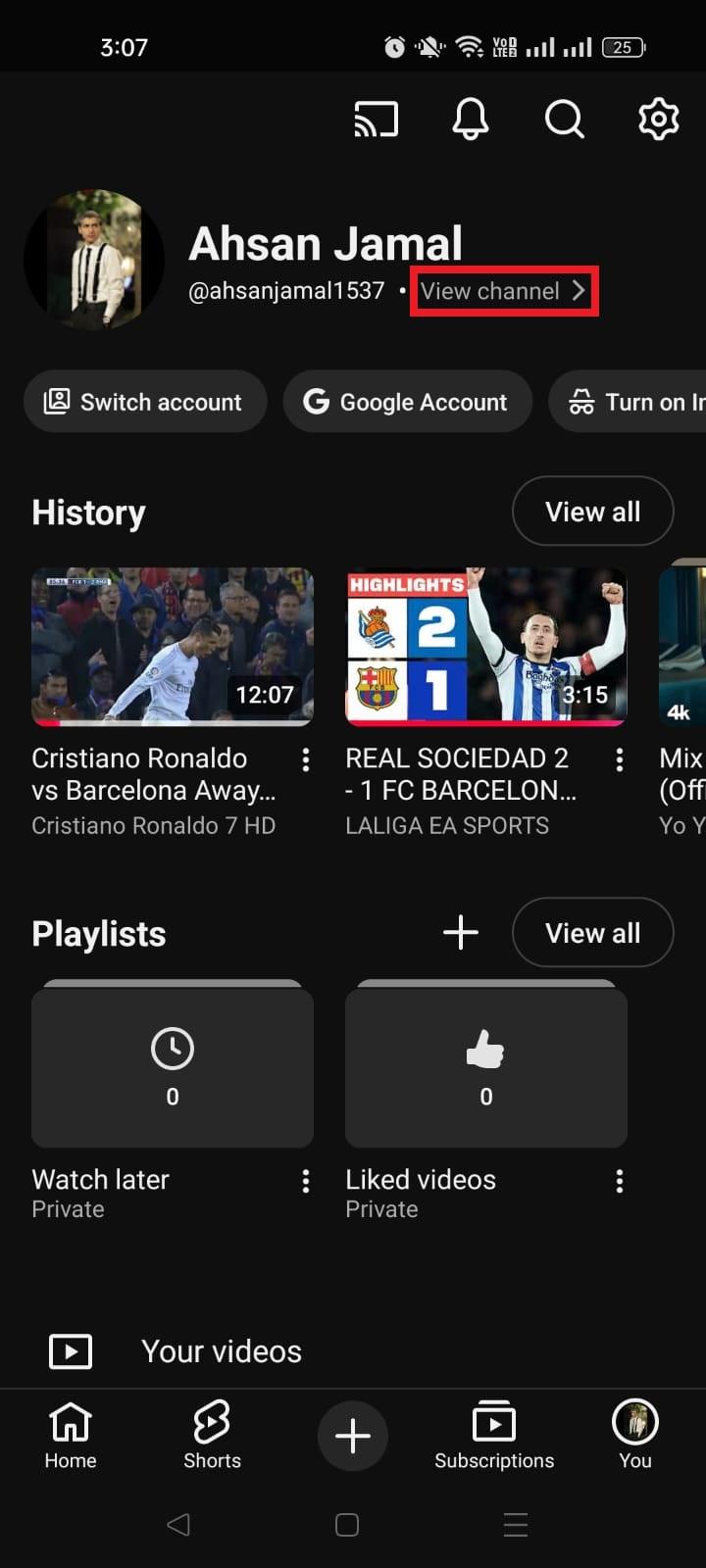
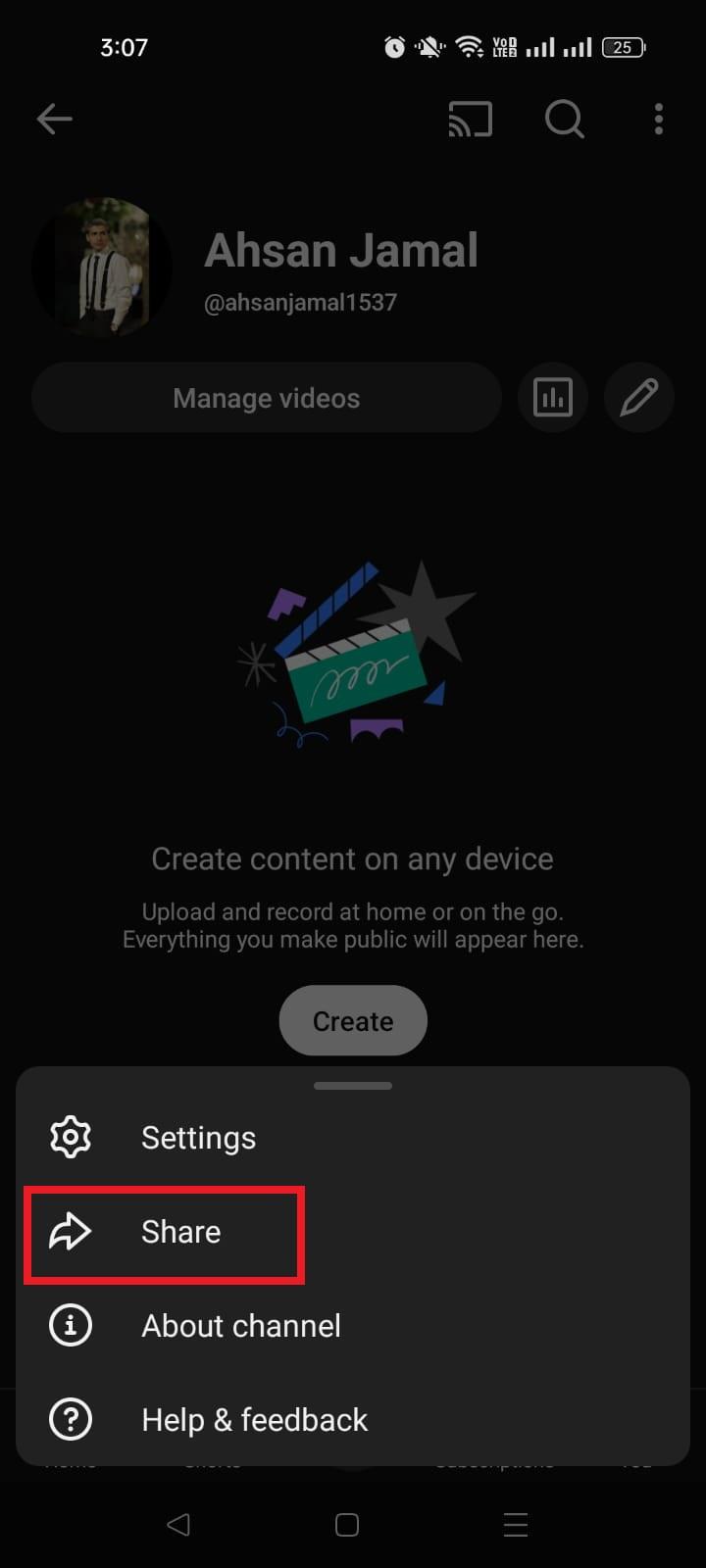
4. On your channel page, tap the three dots (⋮) or the “More” icon in the top-right corner.
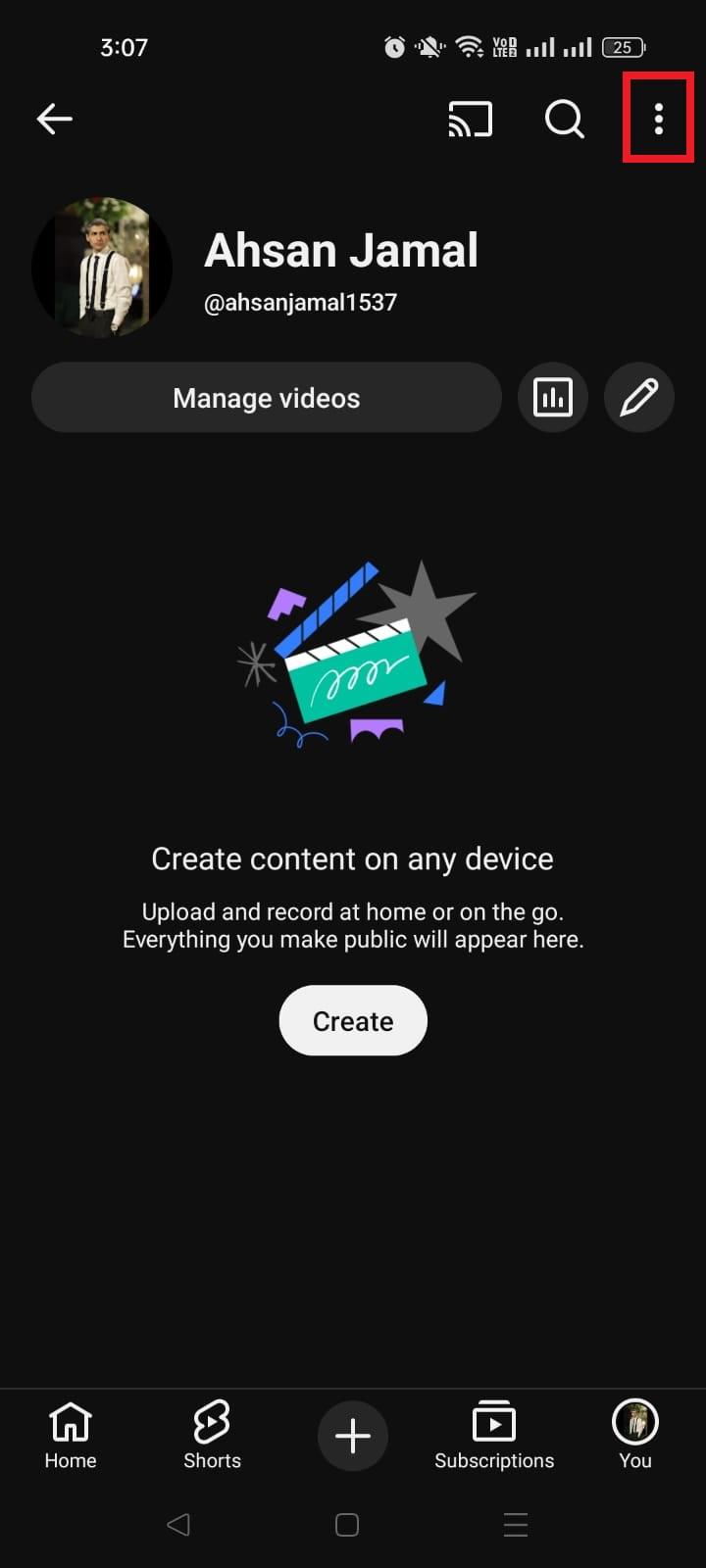
5. Choose “Share” from the listed options. A share sheet will appear with several choices.
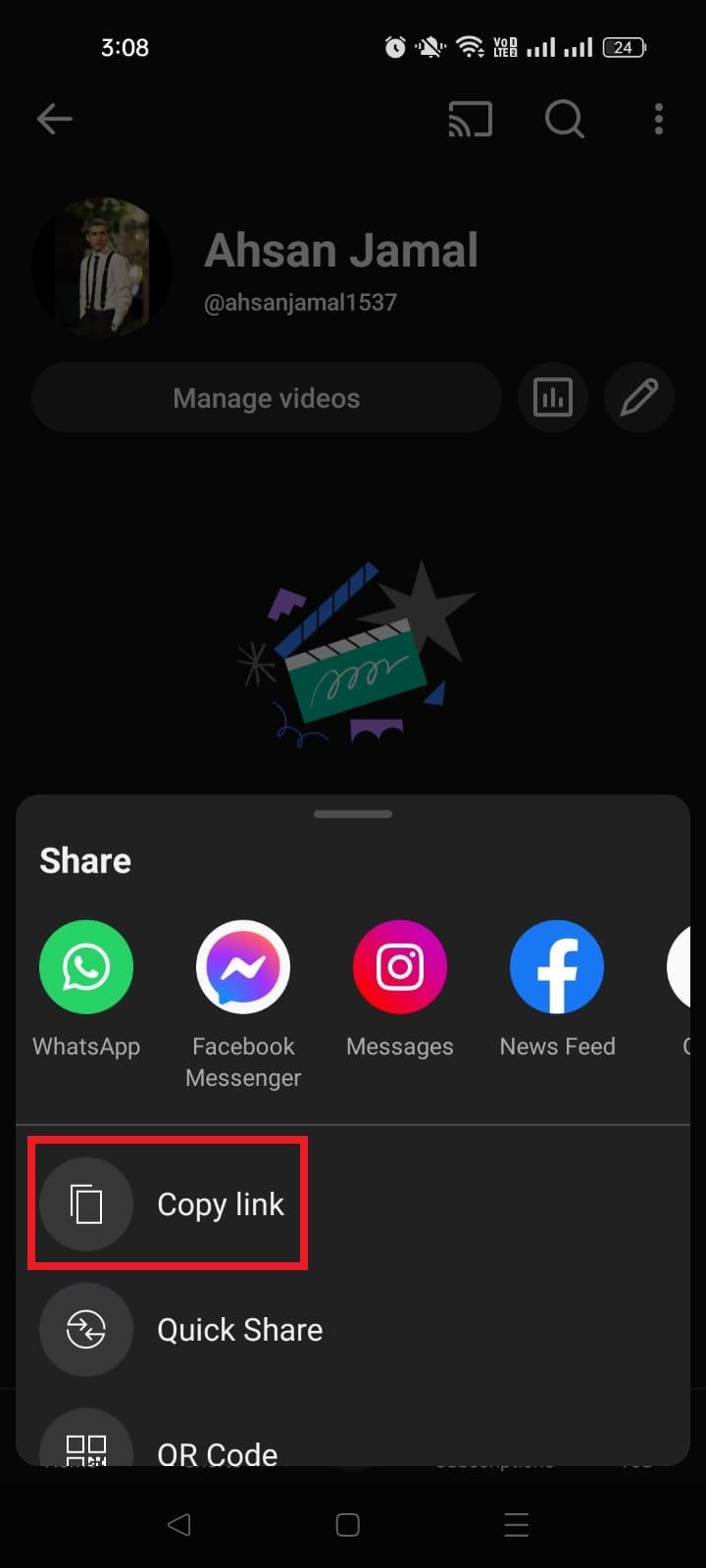
6. Tap “Copy link.” That’s your YouTube channel URL. It’s now saved to your clipboard and ready to paste anywhere you want.
Once copied, you can paste your channel link into text messages, social apps, or email by long-pressing any text field and selecting “Paste.”
That’s all there is to it! Quick, simple, and perfect for sharing your channel on the go!
Also read: How to find my Twitter URL on mobile and desktop?
Wrapping up!
To sum up, learning how to find and share YouTube URLs (whether it’s a video, your channel, playlist, or a link on mobile or PC) makes sharing your content way easier and more professional.
We’ve covered everything from grabbing links on iPhone, Android, iPad, and desktop to finding your own channel’s URL so you can share it anywhere you want without the guesswork.
You now have all the steps you need to confidently navigate YouTube links like a pro!
Before you go, here’s a tip!
If you’re tired of messy, long URLs and want to make your YouTube links cleaner and more clickable, give Replug.io a try!
Replug is an all-in-one link management platform that doubles as a URL shortener. It lets you generate branded short links in seconds and easily shorten long, cluttered YouTube URLs. You can even shorten your channel link into something people remember.
Whether you’re sharing videos, promoting your channel, or running a campaign, Replug gives you clean, trackable links that look great and perform even better.
Frequently asked questions

Muhammad Ahsan Jamal