
An RSS feed widget shows the newest posts from a feed (your blog, a podcast or a news site) on another page and keeps that list up to date on its own. Most website builders can add one with a built-in block or a bit of embed code. Replug works with feeds in two places: an RSS block that shows your latest posts on a bio link page, and RSS Automation, which turns each new post into a branded short link.
In this guide: what an RSS feed widget is, how to add one to a WordPress, Squarespace or custom site, how to find any site’s feed URL, and how to use a feed in Replug.
What is an RSS feed widget?
An RSS feed widget is a technique used to display dynamic content from RSS (Really Simple Syndication) feeds on a website or platform. RSS feeds, an XML format described in the RSS 2.0 specification, allow websites to publish frequently updated content in a standardized format, which can then be easily consumed and displayed by RSS feed widgets.
These widgets typically appear as boxes or sections on a webpage, showing headlines, summaries, or snippets of articles, blog posts, news updates, or other types of content from external sources. They can be customized in terms of design, layout, and functionality to seamlessly integrate with the look and feel of a website.
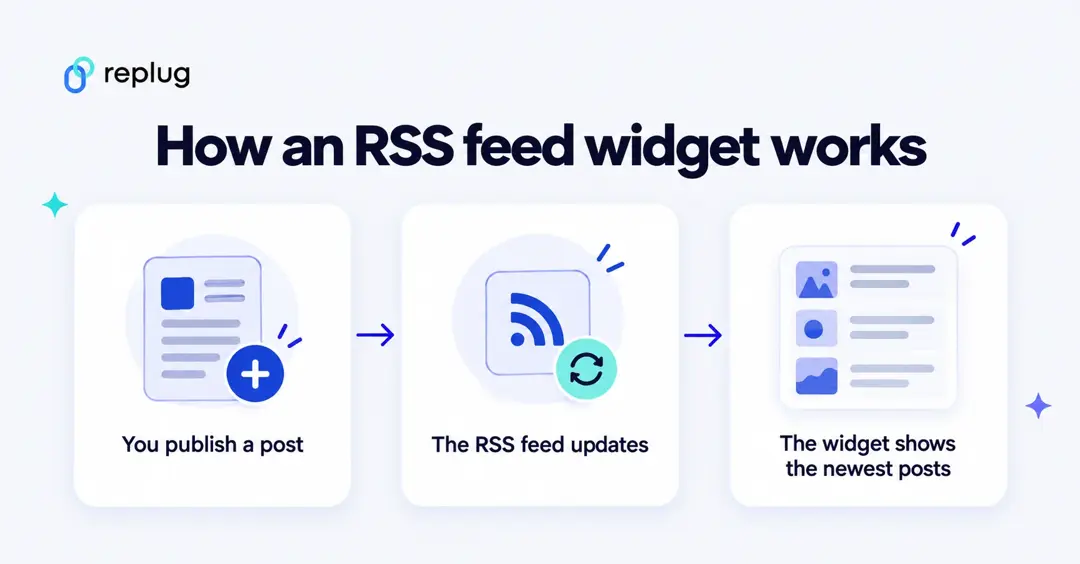
The widget never copies your posts by hand. It reads the feed again on a schedule, so a new post shows up in the widget a little while after you publish it. How often depends on the tool: Replug’s bio-page RSS block, for example, fetches the feed every 30 minutes.
How to add an RSS feed widget to your website
There are three common routes, depending on where you want the posts to appear:
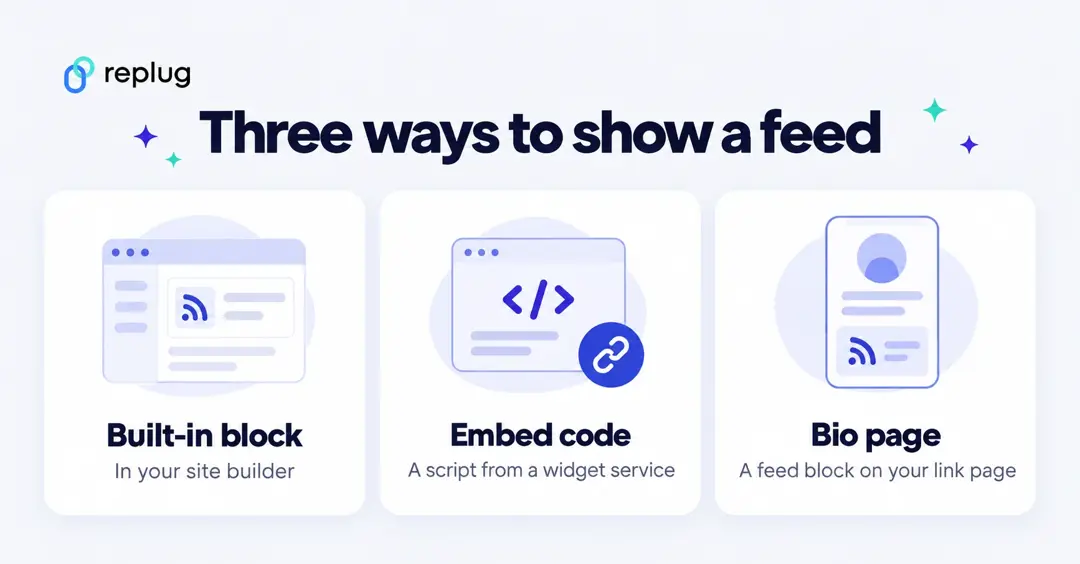
WordPress: the RSS block
- In the block editor, add the RSS block where you want the posts.
- Paste the feed URL and click Use URL.
- Pick list or grid view, then choose in the block settings how many items to show and whether to display the date, author and an excerpt.
Those steps follow the RSS block documentation on WordPress.org. The block can show any site’s feed, not just your own.
Squarespace and other builders
Not every builder has a feed display. Squarespace’s RSS block, for example, adds a link to your own blog’s feed (an RSS icon with the blog title); it doesn’t list another site’s posts, per Squarespace Help. In that case use embed code, below.
Any site: embed code from a widget service
Feed widget services read the feed for you and give you a snippet (a script tag or an iframe) to paste into an HTML or code block on your page. Before you pick one, check whether it adds its own branding, how often it refreshes, and whether it loads cookies or trackers your privacy notice should mention.
Bio pages: a feed block on your link page
If the goal is to show your newest posts to people who tap the link in your Instagram or TikTok bio, a bio page with an RSS block does that without touching your website. That’s the Replug option below.
How to use an RSS feed in Replug
Replug is a powerful URL tracking and link optimization platform designed to boost your online presence. With this efficient link shortener you can effortlessly brand, track, retarget, and A/B test links to maximize their impact.
Replug doesn’t make a widget for your own website. It uses RSS feeds in two places:
- RSS block on bio pages. Shows your latest posts in a vertical list with the title, image and a short description, and fetches the feed again every 30 minutes. The RSS block is available on every plan, including Free, per replug.io/bio-links.
- RSS Automation. Watches a feed and creates a branded short link for every new post, so each post is ready to share and track. “Links via RSS automation” is on the Scale and Agency plans, per replug.io/pricing.
Here’s how to set up a feed in Replug:
Add an RSS block to a bio page
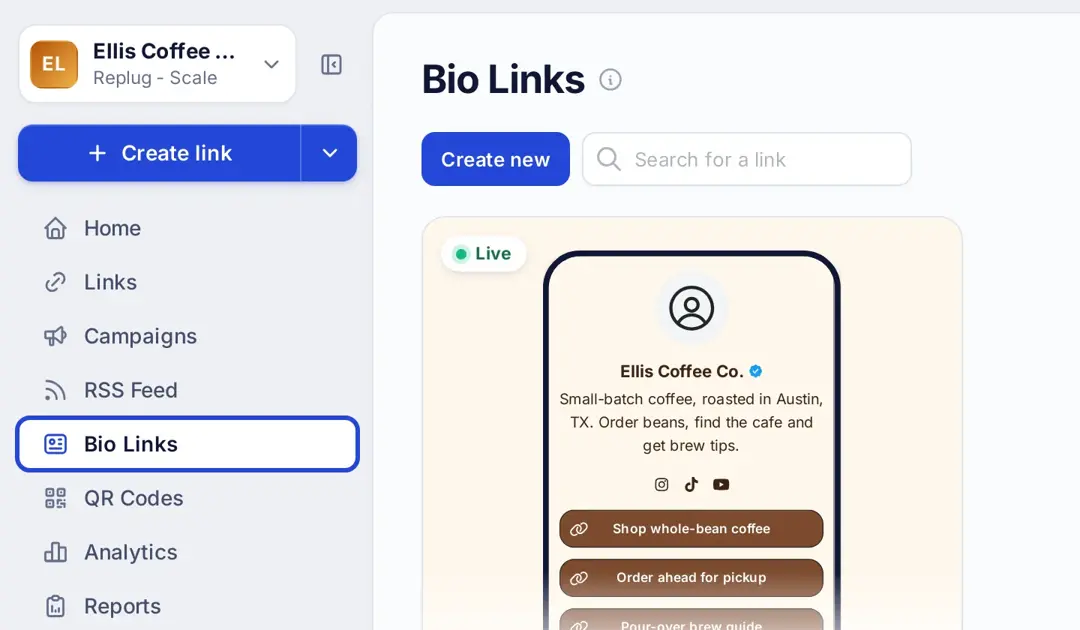
Step 1: In Replug, click Bio Links in the left menu and open a bio page, or click Create new. Free accounts include two bio pages.
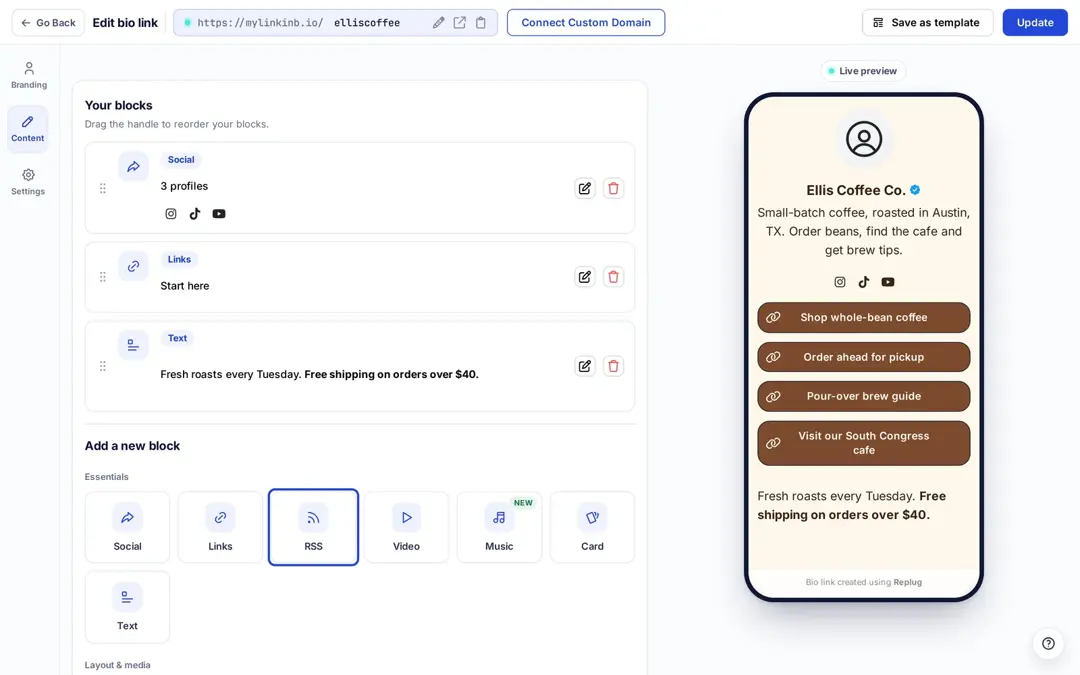
Step 2: On the Content tab, under Add a new block, click RSS.
Step 3: Add a title, paste your feed URL into RSS URL, and choose how many posts to show and a card style. The preview fills with your latest posts. Leave Open link in new tab on if you want posts to open in a new tab.
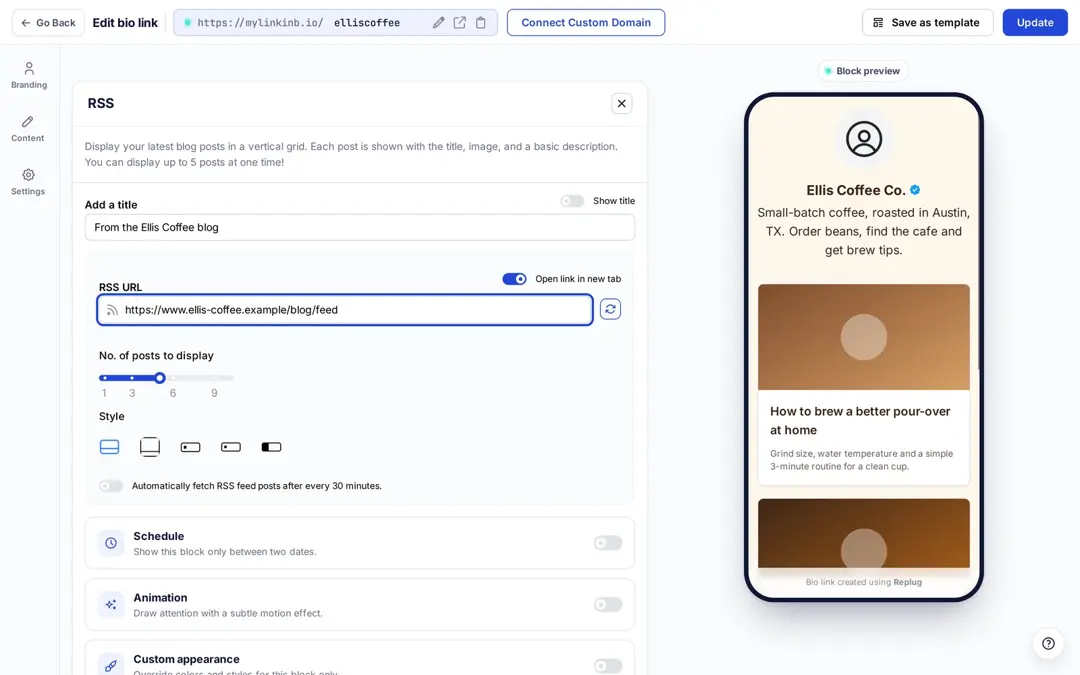
Step 4: Click Update to publish the page. New posts appear on their own as the block refreshes the feed.
Turn new posts into short links with RSS Automation
Step 1: Begin by logging in to your Replug account. If you don’t have one yet, you can sign up for an account for free; RSS Automation itself needs the Scale or Agency plan.
Step 2: Click RSS Feed in the left menu to open the RSS Automation page.
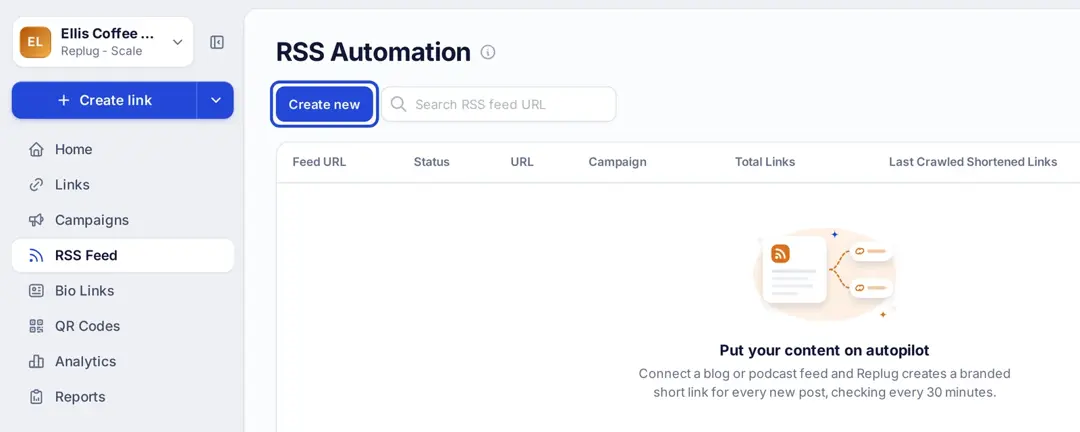
Step 3: Click Create new at the top left of the page.
Step 4: In the Add RSS feed window, choose the campaign the new links should belong to, paste the feed URL into RSS feed and click Create.
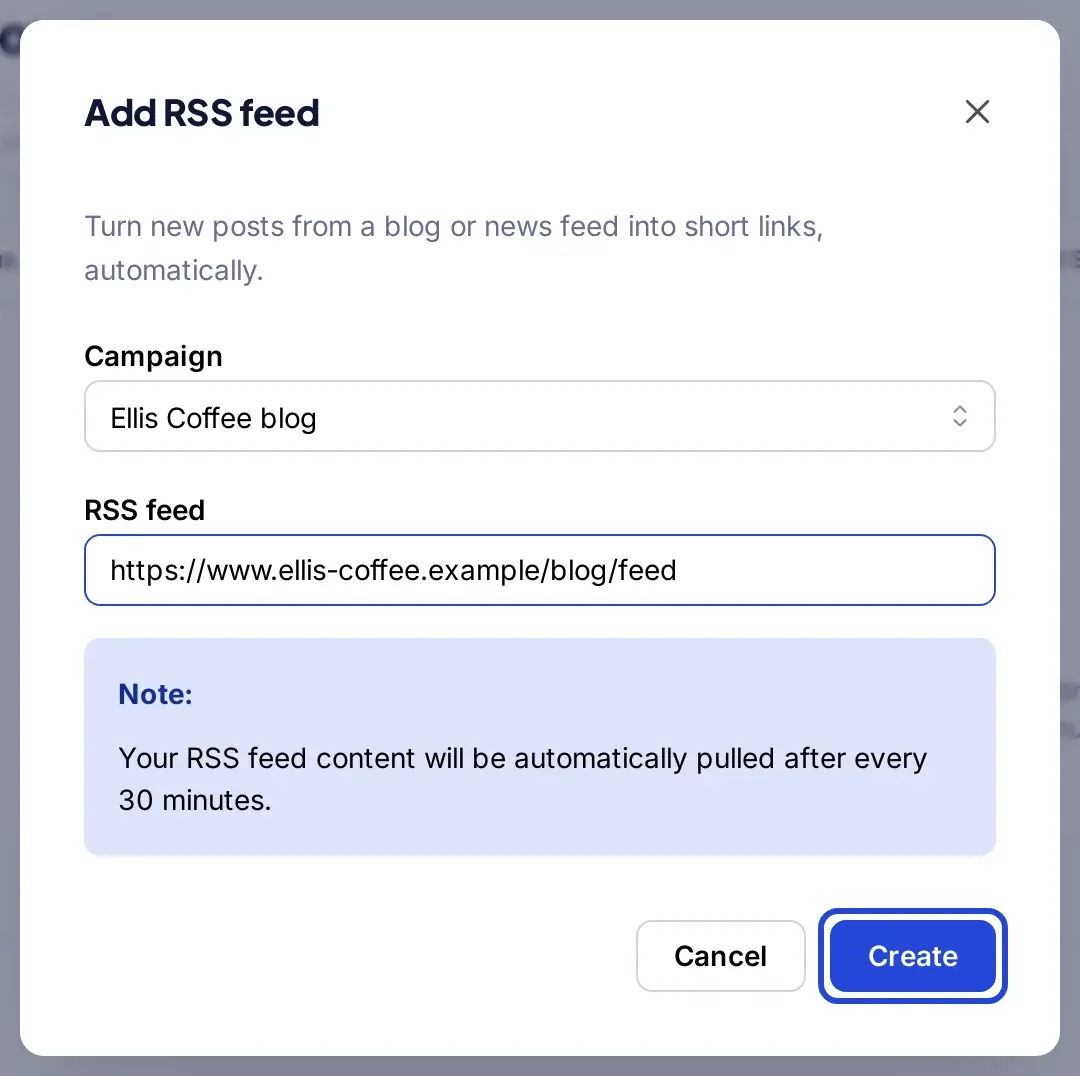
After completing these steps, Replug pulls the feed every 30 minutes and creates a short link for each new post in that campaign. Copy the links from the feed’s row on the RSS Automation page and share them anywhere, with clicks tracked like any other Replug link.
Also read: How to Automatically Shorten URLs in an RSS Feed?
Step 5: With your RSS feed created, you have several actions you can perform:
- Edit: Update or change the added RSS feed whenever necessary.
- Re-crawl: Instantly re-crawl your entire RSS feed to fetch any new links that have been added.
- Preview: View a list of posts from the RSS feeds that have been converted.
- Remove: Remove your RSS feed to create a new one or perform other actions.
- Pause / Resume: Stop creating links from the feed for a while without deleting it.
Also read: Elevate Your Bio: Smart Links for Music Artists
How to find the RSS feed URL?
Here’s how to find the feed URL on common platforms (each checked October 2026):
- WordPress Website:
Simply add “feed” to the end of your URL. For example: https://yourdomain.com/blog/feed. WordPress.org’s own news feed, used in its RSS block guide, is https://wordpress.org/news/feed.
- Blogger Website:
Append “feeds/posts/default” to the end of your URL for the Atom feed, or “feeds/posts/default?alt=rss” for RSS 2.0, per Blogger Help. For example: http://blogname.blogspot.com/feeds/posts/default?alt=rss. Site feeds don’t work on private blogs.
- Tumblr Website:
Add “rss” to the end of your Tumblr URL. For example: http://example.tumblr.com/rss (Tumblr’s own staff blog serves its feed at staff.tumblr.com/rss).
- Wix Website:
Add Wix’s RSS button to your site and click it on the live site to get your blog feed URL, per Wix Help. Wix notes the feed shows up to 20 of your most recent posts.
- Squarespace Website:
Find your Squarespace RSS Feed URL by adding “?format=rss” to the end of the blog page’s URL, per Squarespace Help. For example: https://sitename.squarespace.com/blog?format=rss
By following these steps, you can find the feed URL for most sites and paste it into a WordPress RSS block, a widget service or a Replug RSS block. On other sites, look for an orange RSS icon or try adding /feed or /rss to the address.
FAQs

Arslan Jadoon



![1000+ best captions for Instagram posts & stories in 2026 [Copy & Paste]](/_next/image?url=https%3A%2F%2Finternal-blog.replug.io%2Fwp-content%2Fuploads%2F2026%2F01%2F1000-best-captions-for-Instagram-posts-stories-in-2026-Copy-Paste.png&w=640&q=75)