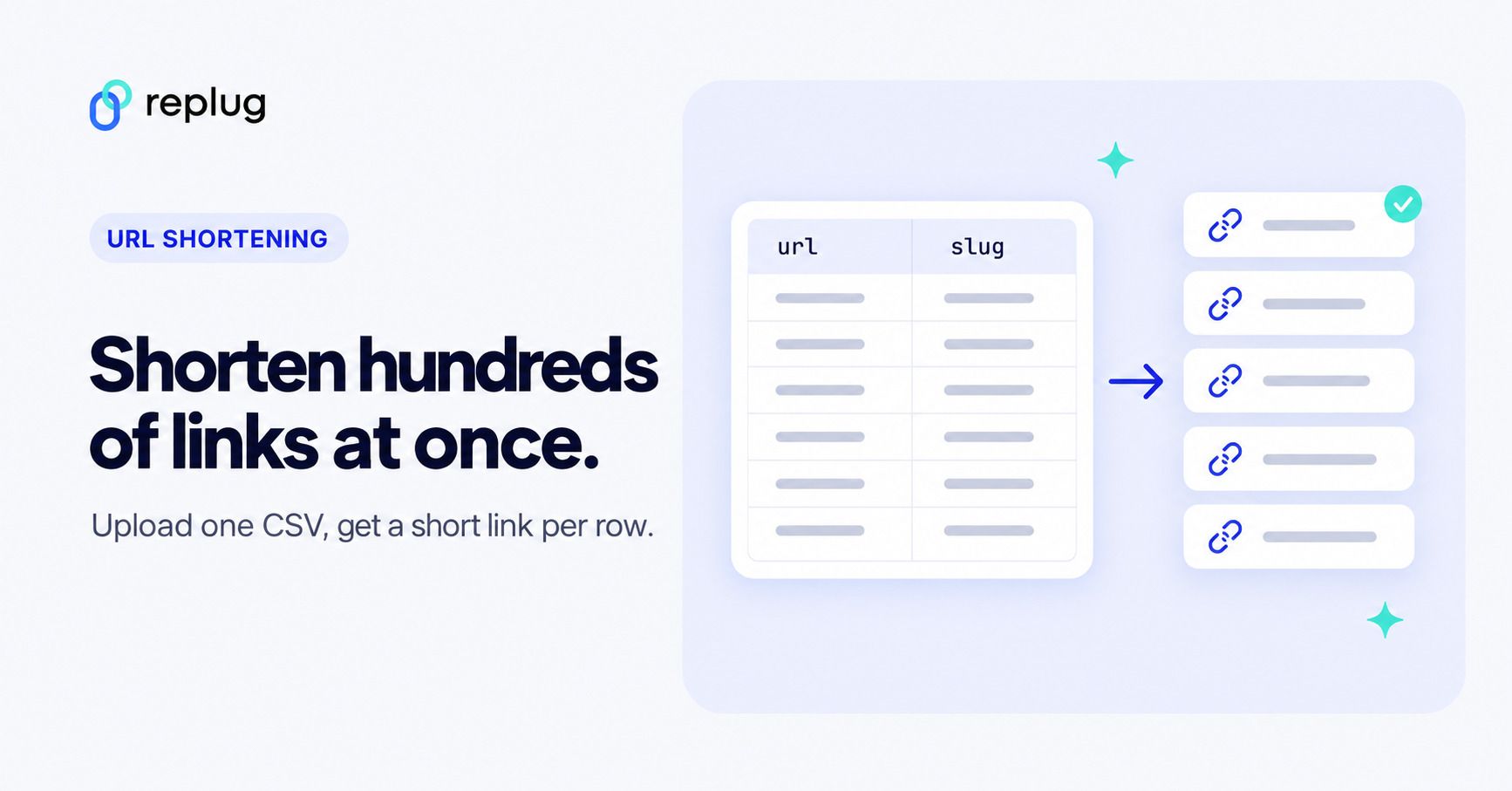
A bulk URL shortener turns a list or spreadsheet of long URLs into short links in one step instead of one at a time. You either paste the URLs, one per line, or upload a CSV with a URL column and an optional slug column, and the tool creates a short link for every valid row.
Updated: November 2026
Bulk shortening matters when the links come from a catalog, an event schedule, a course folder or a print run, where pasting 300 URLs one by one would take an afternoon. (It is not the same thing as a “bulk URL opener”, which opens a list of links in browser tabs.)
When do you need a bulk URL shortener?
You need one whenever the number of links is too large to create by hand or the links already live in a spreadsheet. Four typical cases:
- Product links for SMS. A Phoenix outdoor-gear store sends text promotions and needs a short link for each of its 400 product pages. Short links matter in texts: according to the Pew Research Center’s 2026 mobile fact sheet, 98% of U.S. adults own a cellphone, and long tracking URLs eat into a message’s length.
- One link per session. A conference team in Raleigh puts a short link on every session page and slide deck, so it imports the schedule spreadsheet with one row per session.
- Course materials. A teacher in Columbus shares 60 Google Drive files with students and wants readable links like replug.link/unit-3-reading instead of long Drive URLs.
- Agency campaigns. An agency receives a client’s landing-page list before launch and loads it into the client’s campaign so every link uses the client’s branded domain.
How do you shorten multiple URLs at once?
In Replug you shorten many URLs at once in two ways: paste a list with Bulk create, or upload a spreadsheet with Import CSV. Both are in the menu next to the Create link button on the Links page. Plan: Scale and above. On Free and Essentials the menu items open an upgrade prompt instead; compare plans to see what each plan includes.
Replug is a link-management platform for branded short links, bio pages, QR codes and retargeting. Its bulk tools put every new link into one campaign, and the campaign decides which domain the links use.
Method 1: Paste a list (Bulk create)
Use Bulk create when you have a few dozen URLs and are happy with auto-generated endings.
- On the Links page, click the arrow next to Create link and choose Bulk create (“Paste a list and shorten them all”).
- In Campaign, pick the campaign the links belong to. Its domain is the domain of every new link.
- In URLs, paste your links, one URL per line. Remove empty lines, since every line must hold a valid URL.
- Optionally add Tags; they apply to every link in the batch.
- Click Create links. Replug creates them in the background, and they show up in your links list shortly after.
If any line isn’t a valid URL, Replug rejects the whole batch with “Some links are invalid”, so fix that line and submit again. Lines without https:// get it added automatically.
Method 2: Import a CSV
Use Import CSV when the list is long, when you want your own slug for each link, or when the URLs already sit in a spreadsheet.
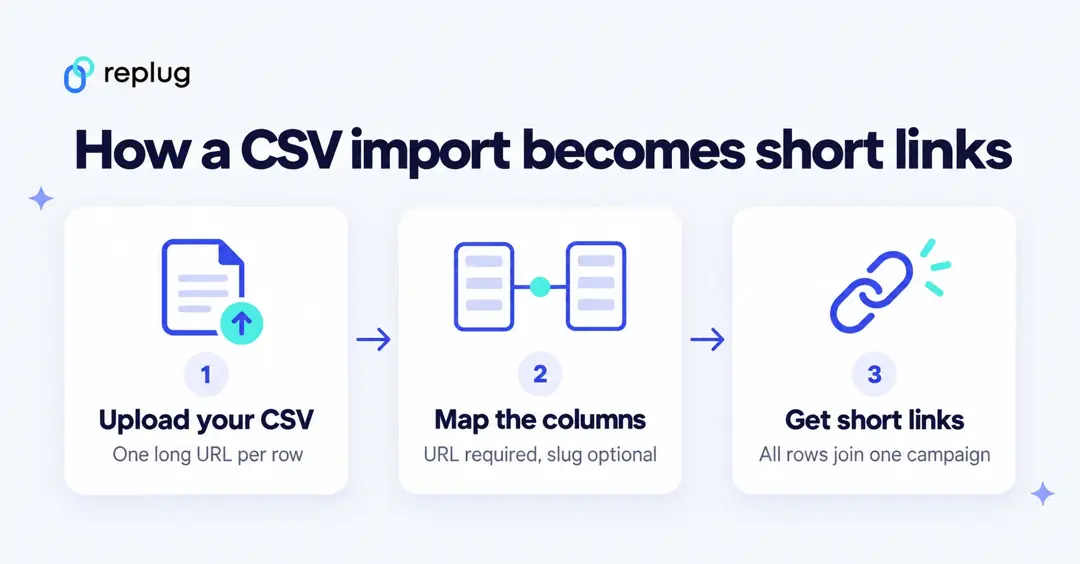
- On the Links page, click the arrow next to Create link and choose Import CSV.
- Select the Campaign and, optionally, Tags for every row. Then drag your .csv file onto the upload area (or click to select it) and click Next.
- On Map CSV columns, check the URL Field (required). Replug pre-selects a column whose header contains “url” or is “destination”. If you have custom endings, pick the column in Slug Field (optional); a header containing “slug” is pre-selected.
- Under Import Options, decide what happens to duplicate and invalid slugs (see the table below), then click Next.
- On Preview import, check the first rows and the row count, then click Import.
- Wait for Upload Complete. Files with more than 100 rows are always processed in the background, which keeps going if you close the browser.
How should you format the CSV?
Format the CSV with a header row and one link per row: a url column with the full destination, and, if you want custom endings, a slug column. Here is a template you can copy into a spreadsheet:
| url | slug |
|---|---|
| https://www.saguarotrail.example/tents/ridge-2p | ridge-tent |
| https://www.saguarotrail.example/packs/canyon-38l | canyon-pack |
| https://www.saguarotrail.example/sale/fall-boots |
The third row has no slug, so Replug generates a random ending for it. Rules the importer follows:
- File: save as .csv, comma-separated, with UTF-8 encoding. Files can be up to 30 MB, and no row limit is documented.
- Header row: the first row must name the columns. The CSV specification, RFC 4180 (2005), makes the header line optional, but Replug reads the first line as headers, so a file without one loses its first link.
- URLs: write each one in full, starting with https://. The CSV importer saves the URL exactly as written.
- Slugs: letters and numbers, with words joined by single hyphens (ridge-tent). No spaces, underscores, dots or leading/trailing hyphens. Each slug must be unique on its domain, and uniqueness ignores case.
- Tags: set them in the import window’s Tags (optional) field; they apply to every row. To tag groups of links differently, split the file and import each part with its own tags.
- Domain: all rows go into the one campaign you pick, and the campaign sets the domain. Split the file if links need different domains.
Preparing the file in Google Sheets or Excel
Both spreadsheet apps export CSV directly. Keep the URL and slug in separate columns, with headers in row 1.
- Google Sheets: open the sheet with your links, then click File → Download → Comma-separated values (.csv) (Google’s download instructions). Only the sheet you have open is exported.
- Excel: click File → Save As (or Save a Copy) and choose CSV UTF-8 (Comma delimited) (*.csv) (Microsoft’s CSV export guide).
- Build slugs from names: if product names are in column A,
=LOWER(SUBSTITUTE(TRIM(A2)," ","-"))turns “Ridge Tent 2P” into ridge-tent-2p. Remove other punctuation (apostrophes, ampersands) before importing. - Add missing https://: if URLs are in column B,
=IF(LEFT(B2,4)="http",B2,"https://"&B2)adds the prefix only where it’s missing.
Spreadsheet size is rarely the limit: Microsoft’s Excel specifications allow 1,048,576 rows per worksheet, and Google Drive’s file limits allow up to 20 million cells in Google Sheets. The 30 MB file size is what to watch in Replug.
What do the import options do?
The import options decide what Replug does with a row whose slug can’t be used. Both slug options are off by default, which means those rows are skipped.
| Option | What it does | When to use it |
|---|---|---|
| Assign new slug in case of a duplicate slug | On: a slug already used on the domain (or repeated in the file) is replaced with a random one. Off: that row is skipped. | Turn on when every URL must get a link. Leave off when a printed or published slug must stay exact. |
| Assign new slug in case of an invalid slug | On: a slug with spaces, underscores or other invalid characters is replaced with a random one. Off: that row is skipped. | Turn on for quick imports; leave off and fix the file when the slugs matter. |
| Run the import process in the background | Processes the file on the server, so you can close the browser. Forced on for files with more than 100 rows. | Large files, or whenever you don’t want to wait. |
| Tags (in the first step) | Adds the chosen tags to every imported link. | Always: a tag named after the import (for example fall-catalog) makes the batch easy to find and check. |
Why did some rows fail to import?
Rows fail because of the slug, the URL or the file format; Replug skips a row it can’t use and imports the rest. The upload screen doesn’t list skipped rows, so filter your links by the import’s tag and compare the count with the rows in your file.
| Symptom | Cause | Fix |
|---|---|---|
| A row is missing after the import | Its slug has a space, underscore or other invalid character, and the invalid-slug option was off | Fix the slug (letters, numbers, single hyphens) or turn on “Assign new slug in case of an invalid slug” |
| A row is missing, and its slug looked fine | The slug is already used on that domain, or appears twice in the file (case is ignored) | Change the slug or turn on “Assign new slug in case of a duplicate slug” |
| A short link doesn’t open the right page | The URL in the file had no https:// | Add the prefix with the formula above and edit or re-import that link |
| Every row fails, or the map step shows one long column | The file uses semicolons or tabs instead of commas, as some regional Excel settings do | Export again as CSV UTF-8 (Comma delimited), or change the list separator |
| The links point to the wrong place | The wrong column was chosen in URL Field | Re-check the mapping on the preview step; delete the batch by its tag and import again |
| Custom slugs were ignored | You are on a trial plan, where slug-column mapping is turned off | Import after the trial converts to a paid plan, or let Replug generate the endings |
| The links use the wrong domain | The campaign you picked uses a different domain | Choose a campaign set to your custom domain before importing |
What can you do after a bulk import?
After the import, the links behave like any other Replug link. You can:
- Filter the links list by the import’s tag to review or share the batch.
- Edit a link’s destination later without changing its short URL (Scale and above), useful when a product page moves.
- Rely on the campaign’s settings: every imported link belongs to the chosen campaign, so its domain and retargeting pixels apply to the whole batch.
- Export your link list as a CSV (Scale and above) to paste the short links back into your spreadsheet or SMS tool.
Under the hood, each short link is a record that sends visitors on to the destination URL; here is how short links redirect.
Bulk shortening for file links
Cloud-file share links are some of the longest URLs people send, so they are a common bulk job. Export the share links from your Drive or Dropbox folder list into a spreadsheet, import them, and see the guides on shortening Google Drive links and Dropbox short links for the sharing settings that make files open for everyone.
If the links are going on flyers, packaging or name badges, put them on your own domain and read about links that keep working after you print them before the print run.
Which bulk URL shortener should you pick?
Pick the tool whose import handles your file without manual cleanup, on a plan you can justify. Check these points in each tool’s own documentation:
| What to check | Why it matters | In Replug |
|---|---|---|
| Paste mode and CSV import | Paste is fast for short lists; CSV is better for long ones | Both (Bulk create and Import CSV) |
| Custom slugs from the file | Readable endings for print and SMS | Yes, from a mapped slug column |
| Handling of bad or duplicate slugs | Decides whether rows are skipped or renamed | Your choice per import |
| Tags | Lets you find and report on the batch | Tags for the whole import |
| Domain per import | Branded domains per client or brand | Set by the campaign |
| File limits | Large catalogs | 30 MB per file |
| Plan required | Bulk tools are often paid-only | Scale and above |
| API | For automated, recurring imports | Developer API: see the pricing page for the plan that includes it |
If you also want a single tool for everyday links, branded domains and click analytics, start with Replug’s URL shortener and the guide to URL slugs.
FAQ
Replug is a link-management platform for branded short links, bio pages, QR codes and retargeting. If your next launch comes with a spreadsheet of URLs, compare plans and import the whole list in one go.
Frequently Asked Questions

Muhammad Ahsan Jamal