Have you ever tried emailing a PDF only to hear, “I can’t open this”?
That’s a real pain, especially when 98% of businesses still rely on PDFs for sharing docs in 2026. And yet, bulky attachments, hidden files, and endless download steps slow everyone down.
If you’ve ever felt frustrated by unclickable docs, you’re not alone! Slow downloads and attachment chaos waste precious time, and they kill engagement.
The good news?
There’s a super simple fix, i.e., turn your PDF into a clean, shareable link online. No downloads, no headaches!
In just seconds, you can create a URL anyone can open with just a single click, and keep everyone happy.
Ready to break down what a PDF actually is before we get into how conversion works?
Let’s get right to it!
What is a PDF?
A “PDF (Portable Document Format)” is a universal file format that preserves a document’s layout, fonts, images, and content, so it looks the same no matter what device or software you use to open it. It was created to make sharing and viewing documents easy and consistent for everyone.
PDFs work on computers, phones, and browsers without changing their actual appearance.
For example, if you save your résumé as a PDF and send it to someone, it will look exactly the same on their screen as it does on yours (no weird formatting or missing fonts).
What is a URL?
A “URL (short for Uniform Resource Locator)” is basically the web address you type or click to find something online, whether it’s a webpage, a video, an image, or even a document like a PDF. It tells your browser where something lives on the internet and how to load it.
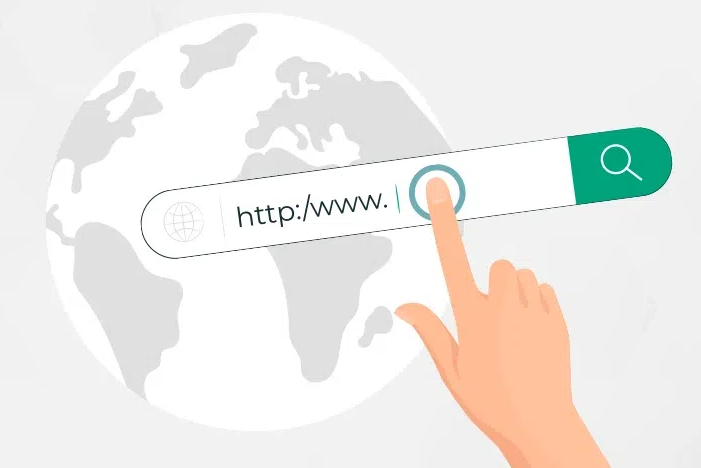
Think of it like a street address for online stuff. For instance, https://www.example.com/page1 takes you right to that specific page (i.e., page1).
Can you convert a PDF to a link/URL?
Yes! You can absolutely convert a PDF into a shareable URL online, and most tools do it in just a few clicks.
You simply upload your PDF to a free service, and it hosts the file and instantly gives you a link anyone can open in their browser, hassle-free.
That link lets people view (and sometimes download) your PDF without having to send the file itself.
It’s quick, works on phones and computers, and you can share the URL via email, chat, or social media seamlessly.
How to convert PDF to URL link for free: 4 simple methods discussed!
Sharing your PDF as a link makes it much easier for others to view or download without bulky attachments.
Below are four easy ways to turn a PDF into a shareable URL, starting with the most popular free option using cloud storage like Google Drive, OneDrive, and Dropbox.
Here’s how to convert a PDF to a URL for free, with simple steps anyone can easily follow!
Method #01: Using Cloud Storage (easiest way)
Uploading your PDF to cloud storage lets you generate a quick, unique URL you can share with anyone, anytime. Most cloud drives let you control who can view or edit the file, perfect for free PDF-to-link sharing.
Google Drive PDF to URL conversion
1. Go to Google Drive and sign in to your Google account.
2. Click “+ New” → “File upload” and choose your PDF.
3. Once uploaded, right-click the file and click “Share” → “Get link.”
4. Change the permission from “Restricted” to “Anyone with the link” (Viewer) so others can open it without signing in.
5. Click “Copy link,” then “Done,” and paste it wherever you want to share.
OneDrive PDF to URL conversion
1. Open OneDrive and sign in with your Microsoft account.
2. Upload your PDF by dragging it into your OneDrive folder or using Upload → Files.
3. After the upload finishes, select or right-click the file and click “Share.”
4. Choose “Anyone with the link can view” or “Anyone with the link can edit” to make the URL public.
5. Click “Copy link” and share it.
Dropbox PDF to URL conversion
1. Sign in to Dropbox and upload your PDF to your space.
2. Hover over the PDF and click “Share.”
3. If a link hasn’t been created yet, click “Create link.”
4. Once ready, hit “Copy link” to grab the URL.
5. Share the link, so people can open it in a browser.
These cloud storage methods are reliable ways to learn how to convert a PDF to a URL for free, without extra tools or software. Next, we’ll look at other simple approaches that don’t even require a cloud account!
Method #02: Converting to HTML (for web pages)
If you want your PDF to act like a real online web page, converting it to HTML is a great way to do so.
Turning a PDF into an HTML file lets browsers display it just like a site, and once it’s online, you can share its URL easily.
Here’s how to convert a PDF into a web-friendly HTML using popular tools:
Using Adobe Acrobat
1. Open your PDF file inside Adobe Acrobat on your computer/laptop.
2. From the toolbar on the right, click on the “Create & Edit” option.
3. At the top of the window, choose the “Export PDF” or “Convert” option.
4. In the list of available formats, pick “HTML Web Page” for the output type.
5. Set your desired options (like whether to create a single HTML file or several), and then click “Export” to proceed.
6. Click “Save” and Adobe Acrobat will export your PDF as an HTML document.
7. Upload the HTML file(s) and any related folders to your web host, then open them through their URL.
Using PDFelement
1. Launch PDFelement and open your PDF file in the app (either by dragging it or selecting “Open File”).
2. In the top menu, go to the “Convert” tab.
3. Click the option that says “To HTML” or select “HTML” from the output formats.
4. Choose where you want the converted file saved, and click “Save.”
5. PDFelement will turn your PDF into an HTML web page ready for sharing or hosting online.
Method #03: Using other notable online tools
If you’re looking for quick web-based ways to turn your PDF into a URL without installing anything, several online tools make this super easy.
These platforms let you upload your PDF file and get a shareable link in just a few clicks. Perfect option for converting a PDF to a URL in minutes!
pdfFiller
pdfFiller lets you upload a PDF and instantly generate a shareable URL/link you can send to anyone. No complicated steps!
1. Go to the pdfFiller website.
2. Upload your PDF file using the upload box.
3. Choose the “Share or Create Link” option.
4. Adjust permission settings, and click the button labeled “Create Link.”
5. Wait for the conversion to finish.
6. Copy the link provided and share it via email, chat, or social media.
EdgeOne Pages
EdgeOne Pages offers simple PDF-to-URL hosting. Upload your file and get a direct link, with options for custom domains and secure HTTPS.

1. Visit EdgeOne Pages and sign in or create an account.
2. Upload your PDF file to the platform.
3. Pick a free default domain or connect your own.
4. Click “Deploy” or “Publish” to host the file.
5. Copy the generated URL and share it with anyone.
FlippingBook
FlippingBook converts your PDF into a stylish, interactive online document with a shareable link. Great choice if you want more than a basic viewer.

1. Go to FlippingBook.
2. Upload your PDF via the “Upload PDF” button.
3. Wait while the tool converts it into an online flip book.
4. Customize settings or look if you’d like.
5. When ready, copy the URL for your generated flip book.
6. Share the link by email, social media, or embed it on your site.
Method #04: Via a quick file host
If you want to generate a quick PDF URL without long processes or accounts, using a temporary file host is one of the easiest ways to do it.
These services let you upload a PDF and instantly get a link to share with others. The ideal option when you just need a fast way to convert PDF to URL without storage or setup.
Tiiny.host
Tiiny.host lets you upload your PDF and host it online in seconds, giving you a unique URL others can open right away (with no complicated setup).

1. Visit Tiiny.host in your browser.
2. Drag and drop your PDF file into the upload area.
3. Enter a custom link name if you want a friendly URL.
4. Click “Publish” or “Launch” and wait a moment.
5. Copy the generated link you get and share it. Anyone with the URL can view the PDF online.
WeTransfer
WeTransfer is primarily a file-sharing service that instantly turns uploads into shareable links. A great tool for big PDFs up to ~2 GB.

1. Go to wetransfer.com in any web browser.
2. Click “Add your files” or the “+” icon, then pick your PDF.
3. Choose “Get transfer link (or Link Transfer)” instead of emailing it, from “…” or “More Options.”
4. Hit “Transfer” and wait for the upload to finish.
5. Once done, copy your download link. This becomes your shareable PDF URL.
Note: With the free plan, the link typically stays active for about 3–7 days.
SendSpace
SendSpace is another simple file host that creates a shareable link for any upload, including PDFs, with up to ~300 MB on the free plan.
1. Open sendspace.com in your browser.
2. Click the “Browse” button and select your PDF.
3. Start the upload; wait until it’s fully complete.
4. When finished, copy your unique link from the results page.
5. Share that link anywhere you like! People can visit it to download or view your PDF.
These quick hosts are excellent when you want a fast and free way to convert a PDF to a URL without complex tools. Ideal for one-off shares, portfolios, resumes, or client files.
How to convert a PDF to a URL link on Mac (iCloud Drive)
If you keep your PDF in iCloud Drive on your Mac, you can create a shareable link right from Finder, so anyone with the URL can view or download it.
It’s a great way to share large documents without attachments, and it works across devices as long as you’re signed into your Apple ID.
Here’s how to convert a PDF to a URL on a MacBook, step-by-step:
1. Move your PDF to iCloud Drive: Open Finder, go to iCloud Drive, and drag your PDF in there. Wait a moment for it to finish uploading.
2. Select the file: In iCloud Drive, click the PDF you want to share to highlight it.
3. Open the “Share” menu: Right-click (or Control-click) the file and choose “Share”, then “Share File” from the menu. You can also click the “Share” icon inside the toolbar for this step. It is a square with an upward arrow.
4. Set link access: In the window that appears, click “Share Options” and switch “Only invited people can edit” to “Anyone with the link” if you want anyone to open it without signing in. Also, set the permission to “can view only.”
5. Copy the link: Click the “Copy Link” option. Your unique iCloud PDF link will be copied to your clipboard. Just paste it into an email, message, or post to send it.
That’s all! Now you’ve successfully turned a PDF stored in your iCloud Drive into a URL link others can open easily.
How to convert a PDF to a clickable URL link on a laptop/PC
Turning a PDF into a clickable link on your laptop or PC is simple and takes only a couple of minutes.
You just upload the file to a free online PDF-to-URL converter, and it instantly gives you a shareable link you can copy and send to anyone.
These tools work right in your browser and don’t require downloading special software, making the process quick and easy for everyday sharing.
Step-by-step guide:
1. Pick a PDF-to-URL tool: Open your browser and go to a free converter like PDF Deck, UPDF, or LinkyHost. These let you upload and convert PDFs to URLs right away!
2. Upload your PDF: Click the “Upload” or “Choose File” button and select the PDF you want to share from your PC.
3. Generate the URL: Once the file finishes uploading, the tool will process it and show you a shareable link. (Some tools give you a QR code too!)
4. Copy the link: Click “Copy Link (or similar)” to save the URL to your clipboard.
5. Share the URL: Paste the link into an email, chat, or webpage, so anyone who clicks it can open your PDF in a browser effortlessly.
That’s it! No installs, no tech setup, just a few clicks to turn your PDF into a clickable URL link!
How to convert a PDF to a link in mobile
Turning a PDF into a clickable URL on your mobile phone is easier than you might think. You don’t need to install heavy software for this task.
You can use free online tools right from your phone’s browser to upload your PDF and instantly get a shareable link that anyone can open hassle-free.
Step-by-step guide:
1. Open your mobile browser: Launch Chrome, Safari, or your usual browser on your iPhone or Android phone.
2. Go to a PDF-to-URL tool: Visit a free converter like PDF to Link (pdftolink.io) or iScanner. These work on phones just like on a desktop.
3. Upload your PDF: Tap “Upload” or “Choose File,” then pick the PDF from your phone’s files or cloud storage.
4. Generate the shareable link: Once the upload finishes, the site will create a URL for your PDF. Just tap “Copy Link” to save it.
5. Share your link: Paste the link into a message, email, or WhatsApp. Now, anyone can open your PDF with just a single tap!
👉 Some modern mobile apps also let you create and share a PDF link directly (e.g., certain PDF hosting apps on iPhone), but using a browser tool is usually the fastest way on any device.
Also read: How to convert a video to a link (the easy way)
Summing up
By now, you’ve seen that turning a PDF into a clickable URL link is something anyone can do in minutes, no matter if you’re on a laptop, mobile phone, Mac with iCloud Drive, or using cloud storage and online tools.
These methods make sharing documents effortless, eliminate bulky attachments, and keep your links neat and easy to access.
And if you want to go a step further and create short link versions that are trackable and professional, tools like Replug make it pretty simple to shorten, brand, and monitor your links while boosting engagement.
Give this all-in-one link optimization platform a try and explore its key features, from branded URLs to link analytics and team link management, to make every link you share work harder for you.
Frequently asked questions

Muhammad Ahsan Jamal