A practical guide to YouTube custom URLs: How to get a custom YouTube URL in 2026!

 17 minutes
YouTube isn’t just the world’s biggest video platform; it’s huge!
As of 2026, more than 2.5 billion people log in every month to watch, share, and engage with content from tens of millions of creators around the world.
But ask most new content creators what the one thing is that makes their channel look more professional and memorable, and you’ll hear one answer again and again: having a clean, custom URL.
Instead of a random string of characters, a custom YouTube URL (like youtube.com/YourName) gives you something easy to share, brandable, and instantly recognizable to your audience.
In this guide, we’ll break down exactly how to create, get, change, or delete a YouTube custom URL, starting with a clear answer to the question: what a YouTube custom URL actually is!
What is a YouTube custom URL: A brief overview
A “YouTube custom URL” is simply a personalized web address for your channel that replaces the auto-generated, long link YouTube gives you by default with something memorable, like youtube.com/c/YourBrandName.
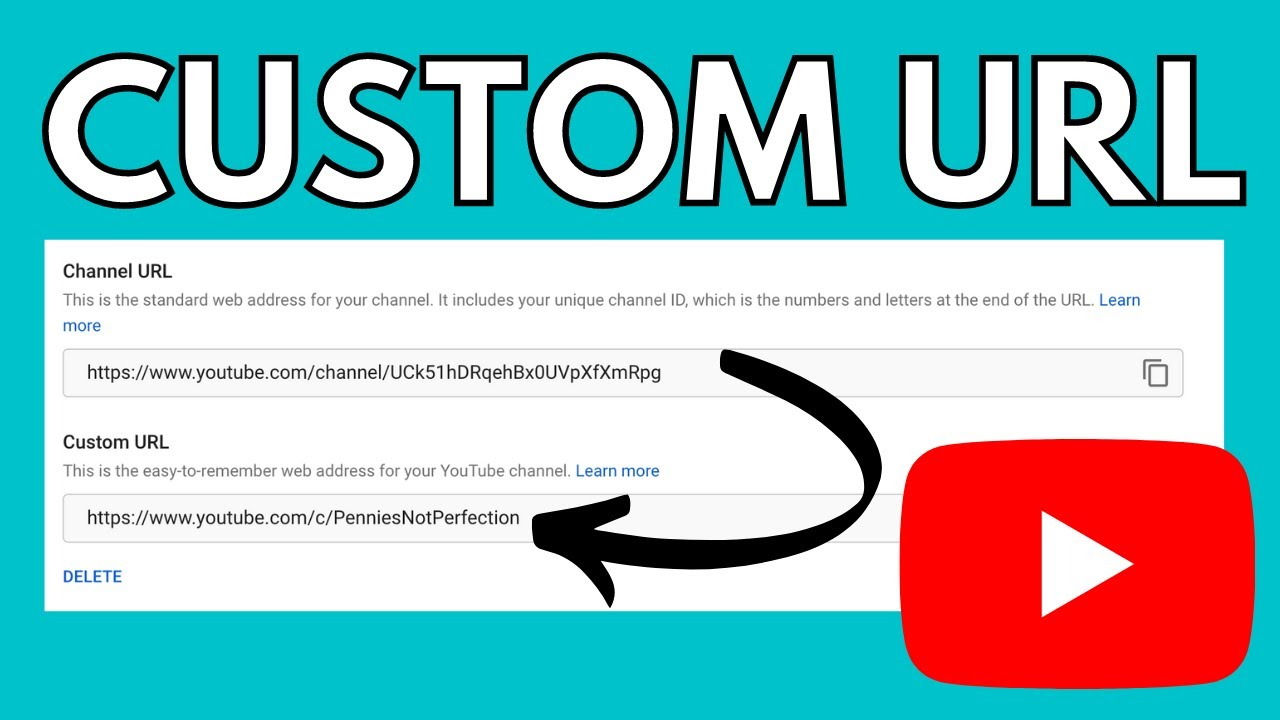
Instead of a jumble of letters and numbers, a custom URL lets viewers remember and type your channel link easily, boosting your visibility and professionalism online.
The main goal of such URLs is to make it simple for fans to find and share your content, helping your brand or name stick in people’s minds and across social platforms.
YouTube custom URL eligibility criteria/requirements
Before you can grab a custom web address for your channel, you’ve got to meet YouTube’s basic YouTube custom URL requirements.
Think of these as the platform’s way of making sure you’re serious about your channel before handing you a memorable URL that’s easy to share.
Once these are in place, YouTube will let you claim a custom link that’s cleaner and more professional than a string of random characters.
Here’s what you need:
- Have 100 or more subscribers on your channel.
- Your channel must be at least 30 days old.
- Upload a profile picture.
- Upload a banner image (channel art).
Once you’ve ticked all these boxes, YouTube will usually show the option to set your custom URL in YouTube Studio.
How to create a YouTube custom URL?
Creating a custom URL for your channel is all about giving your viewers a clean, branded link that’s easier to remember and share. Think youtube.com/c/YourName or youtube.com/@YourHandle.
Once your channel meets the eligibility criteria, YouTube makes it pretty straightforward to set one up right from your dashboard.
Here’s a simple step-by-step guide:
1. Sign in to YouTube with the Google account tied to your channel.
2. Click your profile picture at the top right and go to “YouTube Studio.”
3. From the left menu, select “Customization” → “Basic info.”
4. Scroll down to the “Channel URL” section and click “Set a custom URL for your channel” (this appears once you’re eligible).
5. You’ll see suggested URLs based on your channel name. You can tweak them if allowed, then click “Publish” and “Confirm.”
Once confirmed, your new custom URL goes live, making your channel link way more unique!
Read also: How to shorten a YouTube URL?
How to get a YouTube custom URL?
Getting a custom URL (like youtube.com/c/YourName) is all about turning your channel’s messy default URL into something easy to remember and share.
YouTube only lets channels that qualify claim one, and the platform will either offer you a suggested URL or let you pick from options once you’re eligible.
Here’s a friendly step-by-step guide to help you claim it:
1. Sign in to YouTube with the Google account that manages your channel.
2. Click your profile picture and go to “YouTube Studio.”
3. From the left menu, click “Customization,” then “Basic info.”
4. Scroll down to the “Channel URL” section. If you’re eligible, you’ll see an option like “Set a custom URL for your channel.”
5. Copy or edit the suggested custom URL that YouTube provides.
6. Click “Publish” and “Confirm” to lock it in.
After that, your channel link becomes way easier to promote and remember. A small upgrade that really helps with branding and sharing online!
Can you change a YouTube custom URL?
Yes, but with some limits!
YouTube does let you do a YouTube custom URL change, yet it isn’t as simple as typing a new one whenever you feel like it.
Once you’ve claimed a custom URL, YouTube generally doesn’t let you edit it directly. Instead, you need to remove the old one and then claim a new one if eligible.
You can change your URL by updating your YouTube handle, which creates a new youtube.com/@handle URL. The old custom URL will redirect to the new handle URL.
Here’s how it works:
- You can’t edit an existing custom URL in place.
- To change it, you must remove/delete your current custom URL from your channel and update the handle.
Note: You can only remove and reclaim a custom URL a limited number of times per year, so choose carefully. The handle can be changed/updated up to three times per year!
How to change a YouTube custom URL?
If you’re wondering how to change the custom URL on YouTube, there is a way, but it’s not a simple “edit” like changing your display name.
YouTube doesn’t let you rename your existing custom URL directly. Instead, you must now update your channel handle at youtube.com/handle or in YouTube Studio.
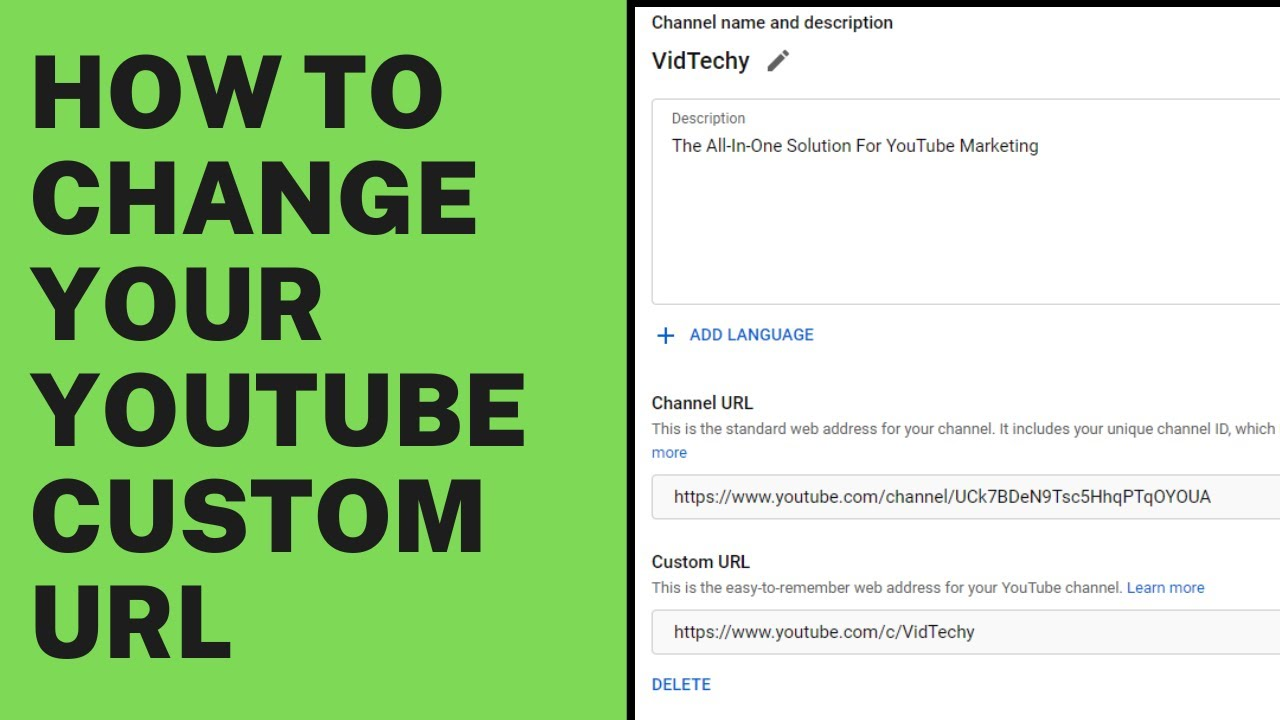
Here’s a friendly step-by-step guide:
1. Sign in to YouTube Studio with the channel you want to change.
2. From the left menu, click “Customization,” then “Basic info.”
3. Scroll to the “Handle” section. Change your current handle to your desired new URL.
4. Now, check if the handle is available.
5. If available, click “Publish” in the top right corner to save the changes.
👉 Keep in mind, on YouTube, you can change/update your handle twice every 14 days!
Why is YouTube’s custom URL not showing?
Sometimes, even when it looks like you should see the option for a custom URL in your YouTube Studio, it just doesn’t appear.
This can be confusing, but there are a few common reasons the option to claim or set a custom URL on YouTube might not show up yet, even if you think you’ve done everything right.
Here’s what might be going on:
- 📊 Eligibility isn’t actually processed yet: YouTube can take time to recognize your channel meets all requirements (100+ subs, 30+ days old, profile & banner added).
- 📨 YouTube hasn’t offered the custom URL yet: Even eligible accounts sometimes must wait for YouTube to make the option available (probably around 2 weeks).
- ⚙️ Temporary glitches or UI update delays: Platform updates or bugs can hide the option temporarily. Clearing the cache or checking later can help.
- 📍 Feature rollout changes: YouTube has been shifting toward handles (@YourHandle) as the main way channels get easy-to-share URLs, which may affect how and where custom URL options appear.
Note: If you’re sure you meet the official requirements and still don’t see anything, give it a few days. YouTube sometimes takes time to update eligibility on all accounts.
Why is YouTube’s custom URL not changing?
If you’ve tried updating your channel link and it just won’t change, don’t worry. This happens for a few solid reasons that are tied to how YouTube currently handles URLs.
YouTube’s system has changed over the years, and legacy custom URLs (the old youtube.com/c/YourName style) behave differently today than they did before.
Here’s why it might not be changing:
- ❌ You can’t directly edit an existing custom URL anymore: Once set, legacy custom URLs generally stay as they are, and YouTube doesn’t offer a direct change function.
- 🔁 YouTube now uses handles instead: The current way to get a custom-looking URL is by setting or changing your handle, not the legacy custom URL itself.
- 🔄 If the old URL was created under the old system, YouTube may keep it locked to maintain backward compatibility and avoid breaking existing links.
- 📅 Rate limits or system updates can also block changes temporarily, especially as YouTube transitions features.
In short, YouTube doesn’t let you freely edit the old custom URLs anymore. Updating your handle is the modern way to refresh your channel’s public link. Make sure your desired handle isn’t taken, so you can use it hassle-free!
How to delete a YouTube custom URL?
Sometimes you want to get rid of your current custom URL, maybe because you rebranded or want a fresh new link.
YouTube lets you delete your custom URL so that it no longer directs viewers to your channel, and then you can claim a new one if you’re still eligible.
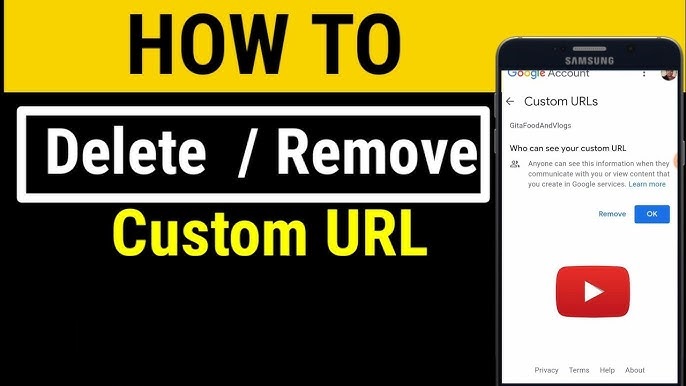
Here’s a clear step-by-step guide you can follow:
1. Sign in to YouTube Studio with the channel that has the custom URL you want to remove.
2. Go to “Customization” → “Basic info.”
3. Under “Channel URL,” you’ll see your current custom URL. Click “DELETE.”
4. Confirm the action by clicking “Remove”(in the pop-up window) again when prompted.
Once deleted, the URL will stop directing people to your channel (this can take a couple of days).
After that, if you still meet the eligibility requirements (like having 100+ subscribers and the channel being at least 30 days old), you can go ahead and claim a new custom URL.
Note: If you cannot delete a YouTube custom URL, you may need to delete your YouTube channel permanently to remove it, or wait for the system to allow changes.
Benefits of a YouTube custom URL
A YouTube custom URL makes your channel’s web address clean, easy to remember, and aligned with your brand instead of a long string of random letters and numbers.
It helps your channel look more professional and makes it easier for people to find and share you online.
Enhanced branding & professionalism
Having a custom URL puts your channel name or brand right in the link, instead of a messy default one. This makes your channel feel more polished and established, which is great for building a serious image. People are more likely to trust a channel that looks professional at first glance.
Improved memorability & sharing
Custom URLs are short and simple, so they’re way easier for people to remember than long auto-generated ones. That means if someone wants to tell a friend about your channel, they can just say your URL without fumbling through random characters. That’s a big win when you’re trying to grow your audience.
Boosted SEO & visibility
While a custom URL won’t magically make you rank at the top of search results, having relevant words in your link can make it easier for search engines and YouTube to understand what your channel is about. This can help your channel appear more naturally in search results.
Increased trust & click-through rates (CTR)
People are more likely to click links that look clean and trustworthy. Custom URLs that clearly display your channel name signal legitimacy and can drive more clicks when you share links on social media or elsewhere.
Simplified navigation
A custom URL basically becomes your channel’s shortcut address. Instead of copying a long link every time, you’ve got a simple one to type, share, print on business cards, or post everywhere. That makes it easier for fans, old and new, to reach you quickly and effortlessly.
How to maximize the impact of a YouTube custom URL: 8 useful tips to follow!
Making the most of your YouTube custom URL is more than just claiming it. It’s about using it in smart ways so your channel gets more visibility, looks stronger, and drives real growth.

Here are a few friendly, practical tips you can start using right away:
Tip #01: Make sure it is short & memorable
Keep your custom URL as short and simple as possible so people can remember it easily and type it without thinking. A short URL also looks cleaner and feels more personal, which makes it way easier to share in conversations, emails, or on social media.
Tip #02: Ensure it is consistent with your brand across all platforms
Try matching your YouTube URL to your name or brand on Instagram, TikTok, and other sites so people instantly recognize you. This consistency helps reinforce your brand identity wherever you show up or appear online.
Tip #03: Strategic promotion
Don’t just set the URL and forget it! Use it in video descriptions, on your “About” page, in email signatures, and in all your social bios. The more places you show it, the more likely people are to click and remember it.
Tip #04: Boost subscriptions automatically
A clear, branded custom URL makes your channel look professional and trustworthy, so people are more likely to click and subscribe when they land on your page. While a custom URL alone won’t compel subscribers, it definitely makes subscribing feel simple and natural.
Tip #05: Use in collaborations
When you work with other creators, share your custom URL with them so they can link directly to your channel in their video descriptions or promotions. This makes it super easy for both audiences to find each other’s content and boosts visibility on both sides.
Collaborations like this naturally grow your reach because viewers are more likely to check out a partnership they trust.
Tip #06: Drive traffic with incentives
You can encourage people to click your custom URL by offering something valuable, like bonus content, a downloadable guide, or a contest entry, when they visit your channel.
Incentives give people a clear reason to follow your link instead of scrolling past it. Small rewards or exclusive perks make your URL feel worth clicking and help bring in more engaged viewers.
Tip #07: SEO integration
Even though the custom URL itself doesn’t directly boost rankings, using it alongside good SEO practices, like including keywords in video titles, descriptions, and tags, helps both YouTube and search engines understand what your channel is about. This means your channel is more likely to show up when people search for topics you cover.
Placing your custom URL in places such as online profiles, blog posts, or embeds also strengthens your overall online visibility.
Tip #08: Track performance
Add tracking tags (like UTM parameters) to your custom URL when you share it across different platforms so you can see which posts or platforms are driving the most clicks.
Tools like Google Analytics or Usermaven then show you where your traffic came from and which efforts are working best. This makes it easier to adjust your strategy and focus on the promotion spots that actually drive viewership.
Get your shortened YouTube custom URL with Replug!
If you want a clean, branded version of your long YouTube links, you can use Replug today!
It is a solid YouTube link shortener and an all-in-one link management platform that does more than just shorten links.


It helps you create branded short URLs, bio links, QR codes, track clicks, run A/B tests, and get useful analytics all from one place, so sharing and promoting your content feels smooth and professional.
Here’s a simple step-by-step guide to get your shortened YouTube custom URL with Replug within seconds:
1. Sign up or log in to Replug: First, create your account on Replug. If you already have one, sign in.
2. Go for shortening link: In your Replug dashboard, find the section for creating short links. This is usually on the main page under something like “Quickly Shorten your link.”
3. Paste your YouTube link: Copy the long YouTube URL you want to clean up, and paste it into the field.
4. Generate the short link: Hit the blue arrow button to shorten it! Replug will create a short, easy-to-remember URL that you can tailor with a branded slug if you want.
5. Customize your new URL (optional but useful): Once the short link is created, you can edit settings like the link text (called the slug), add UTM tracking, set an expiration, or even protect it with a password.
6. Optional advanced features: Replug also lets you add link previews, run A/B tests to see which links perform better, and attach retargeting pixels to learn more about who clicks your links.
7. Copy & start sharing: After you’re happy with your new short URL, copy it and use it wherever you want (social bios, email, video descriptions, or messages) to make your YouTube connections easy to click and remember.
Over time, check Replug’s analytics dashboard to see how your shortened YouTube links are performing. How many clicks they get, where the traffic comes from, and what’s working best!
Also read: How to get YouTube URL link: A detailed guide for everyday YouTubers [2026]
Wrapping up!
To sum up, having a YouTube custom URL makes your channel easier to find, share, and remember.
And you now know everything from eligibility and how to create or change it, to what to do when it doesn’t show up, even how to delete it if needed.
You also learned why it matters, how to make the most of it, and how tools like Replug’s short URL generator can help you shorten, customize, and track your links with ease.

No matter if you’re just starting out or looking to grow your audience, using a custom URL and smart link tools together is a simple way to look more professional and get more eyes on your content.
Frequently asked questions
Can I customize my YouTube URL?
Yes, once your channel meets YouTube’s eligibility requirements, you can replace the long default link with a custom URL that’s easier to remember and looks cleaner. YouTube offers this option in YouTube Studio under Customization > Basic info when you’re eligible.
How to create a URL link for YouTube?
Every YouTube channel automatically gets a default URL when it’s created, something like https://www.youtube.com/channel/UCxxxxxxx. You can copy this anytime from your channel page or from YouTube Studio and share it directly with viewers.
How do you rename a YouTube link?
You can’t literally “rename” the default YouTube link itself, but you can create a custom URL that replaces the long default address with a simpler version once you meet the eligibility criteria. Otherwise, the best way to make a link look nicer is to use a link shortener or a branded link/URL.
How can I create a custom URL?
If you’re eligible (100+ subscribers, channel at least 30 days old, profile picture and banner uploaded):
Go to YouTube Studio → Customization → Basic info and look for “Set a custom URL for your channel.”
Pick the suggested option or tweak it slightly if available, then confirm to create it.
How to set and get a custom URL for your YouTube channel?
To set a YouTube custom URL channel name, make sure your channel meets YouTube’s requirements (100+ subs, 30+ days old, profile pic and banner uploaded).
Then open YouTube Studio, go to Customization → Basic info, and click Set a custom URL. You’ll see options based on the channel name you can choose or adjust before publishing.
How to customize your YouTube channel URL?
You can customize your YouTube channel’s web link by setting a handle (starts with @) in YouTube Studio under Customization → Basic info. Once you pick a handle that fits your channel and meets YouTube’s rules, your new URL (like youtube.com/@YourHandle) will go live right away.
What are the standard YouTube handle naming guidelines?
Your YouTube handle must be 3–30 characters long and can include letters, numbers, underscores, hyphens, periods, and certain language scripts. You can’t mix left-to-right and right-to-left scripts in a single handle except under specific conditions, and it must follow YouTube’s community rules to be accepted.
What is the best YouTube custom URL generator online?
YouTube itself provides official URLs based on handles or past custom options. However, third-party tools and link shorteners (such as Replug, Bitly, or TinyURL) are great for creating simple, branded short links for sharing. Select one that lets you customize endings, track clicks, and works well with your promotion strategy.
How to get the YouTube custom URL from the app?
Here’s how to do it:
1. Open the YouTube app.
2. Tap your profile icon.
3. Go to YouTube Studio → Customization → Basic info.
4. Then look for the handle or custom URL section.
5. From there, you can pick or edit your handle, and YouTube will automatically update your link.
What are the different types of YouTube channel URLs?
There are a few YouTube channel link formats you might see:
– Channel URL (ID-based): The default long link using your channel’s unique ID.
– Handle URL: The new youtube.com/@YourHandle format, tied to your chosen handle.
– Custom URL: Older customizable version like /c/YourName (still works if you had it before).
– Legacy username URL: Older formats like /user/Name from back in the day that still redirect to your channel.