Are you looking to enhance the effectiveness and branding of your shared links?
Learn how to make your links more descriptive, memorable, and on-brand to boost engagement and drive results. Whether you’re a marketer aiming to boost click-through rates or a content creator seeking to strengthen your online presence, using Replug to rename a link can transform your digital strategy.
Let’s find out how to rename links in no time!
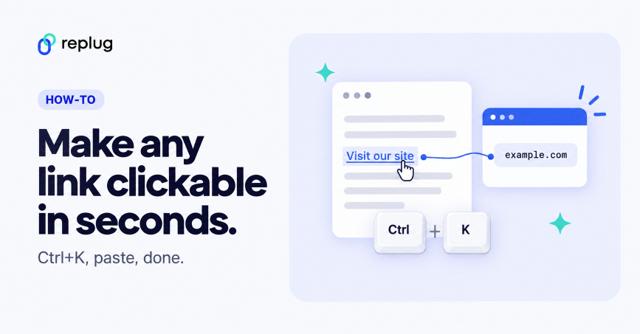
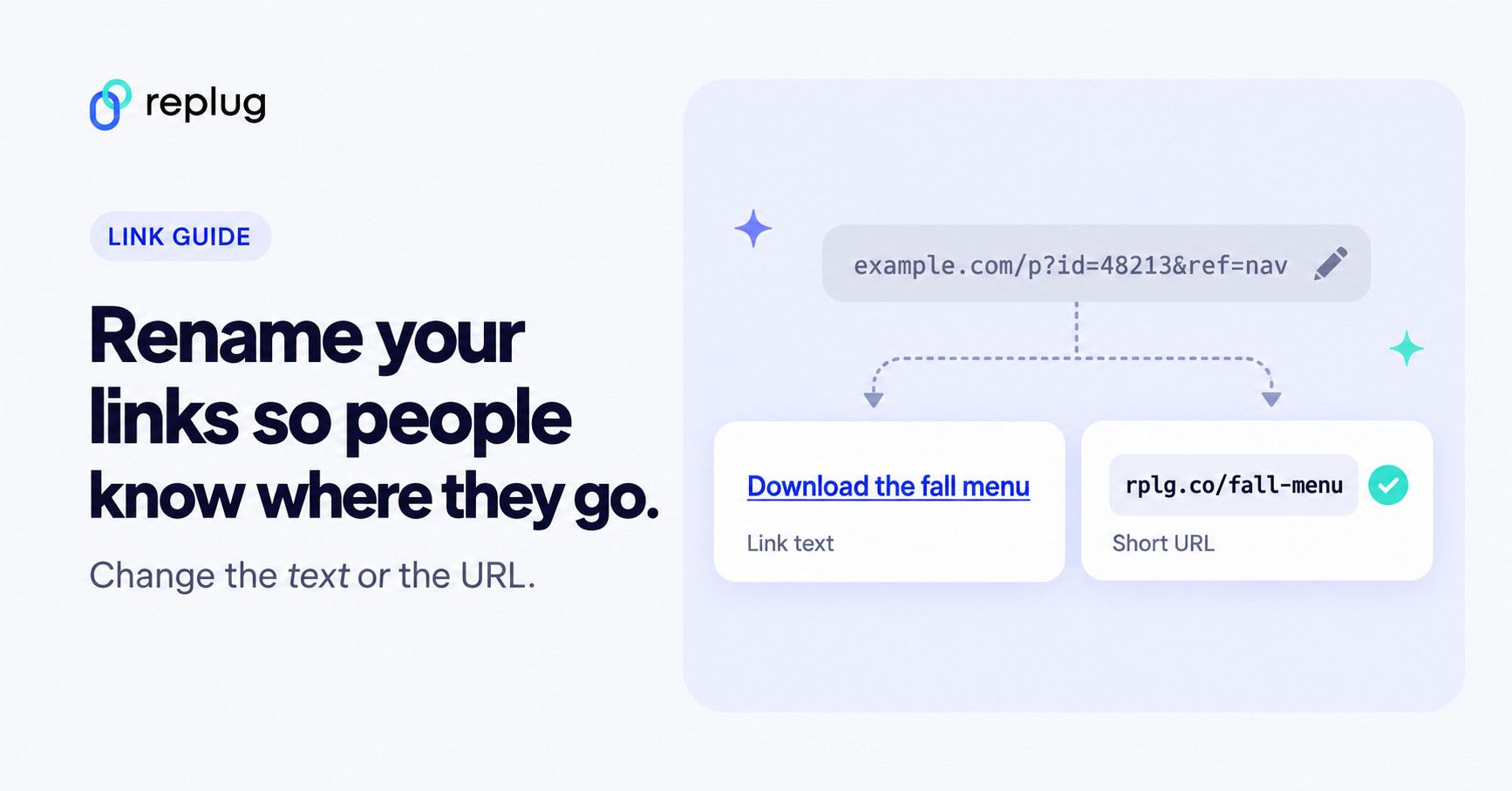
Short answer: “renaming a link” means one of two things. In a document or email you change the link text, the words people click, while the web address stays the same: select the link, press Ctrl + K (Cmd + K on a Mac) and type new text. To change the address itself, you create a short link with your own ending, such as rplg.co/spring-sale, in a link shortener like Replug. Both work on any long URL, and neither changes the page people land on.
Rename your link: What does it mean?
“Rename your link” refers to the action of changing the default or original URL of a webpage to a more personalized and descriptive one. This process involves customizing the link’s text to better reflect its content, purpose, or target audience.
By renaming a link, you make it more informative, engaging, and relevant to those who come across it. This can lead to higher click-through rates, improved user experience, and enhanced branding for your content or website.
In essence, renaming your link is about optimizing its visibility and impact in the digital landscape.
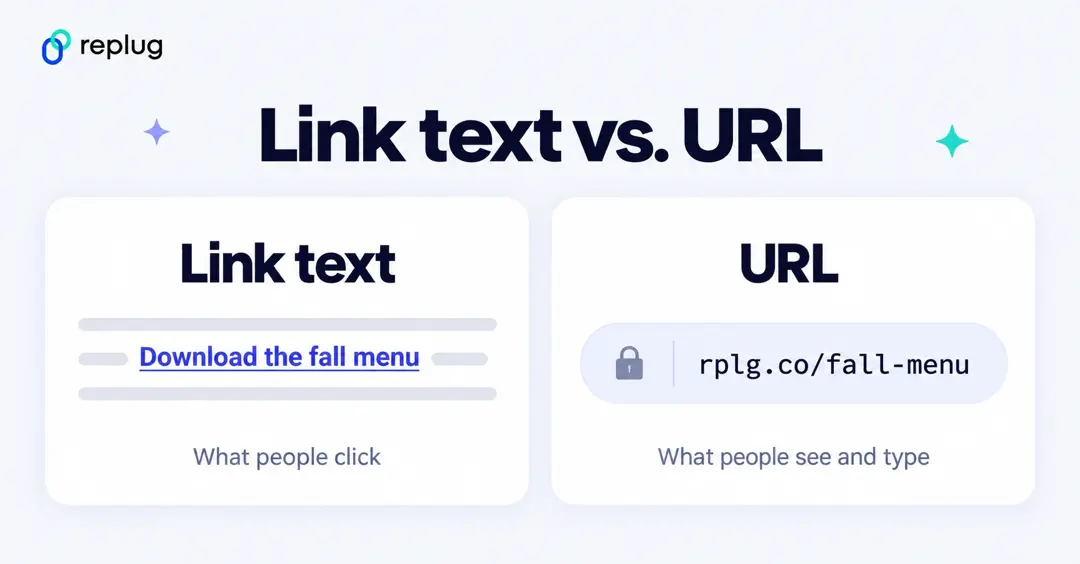
Link text vs. URL: which one do you want to rename?
| Link text (anchor text) | URL (web address) | |
|---|---|---|
| What it is | The clickable words, like “Download the menu” | The address in the browser bar, like rplg.co/fall-menu |
| Where it shows | Documents, emails, slides, web pages | Anywhere the link is pasted as plain text: social posts, SMS, print, video descriptions |
| How to rename it | Edit the link in the app (Ctrl + K or Edit link) | Create a short link with a custom ending, or a link on your own domain |
| Changes where it goes? | No | No, unless you also edit the destination |
If the link will be clicked inside a document or email, renaming the text is enough. If people will see, read aloud or type the address, for example in an Instagram bio, a printed flyer or a podcast, rename the URL with a short link.
How to rename links using Replug?
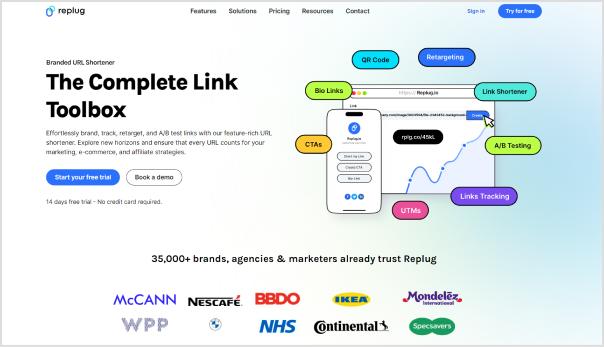
Replug.io is a comprehensive link management and tracking platform designed to empower marketers, content creators, and businesses to maximize the effectiveness of their shared links. With it, you can create, customize, and track the performance of your links across various channels.
Here’s how to rename links using Replug:
Step 1: Sign in to Replug if you already have an account, or create one if you’re new to Replug.
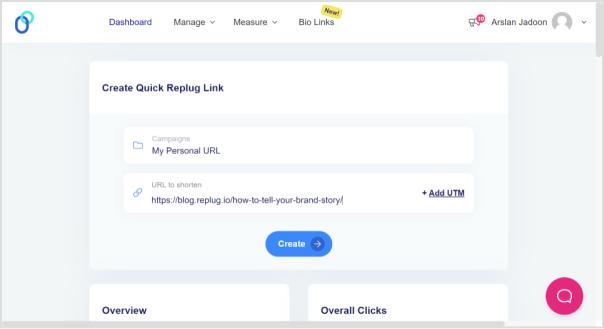
Step 2: Select the campaign you want to associate your link with or create a new campaign if needed.
Step 3: Enter the link in the “URL to shorten” section below “Select your campaign” and click “Create”. Optionally, add UTM parameters to track link performance.
Also read: How to shorten a link?
Step 4: Your link will be shortened. Click the edit icon and type the URL slug you want to use in the link.
Custom endings are available on Replug’s Essentials plan and above. On the Free plan Replug gives each link an automatic ending, and you can still use your own domain (the Free plan includes 100 short links and 3 custom domains), so a link like go.yourbrand.com/x7Kp2 already carries your name.
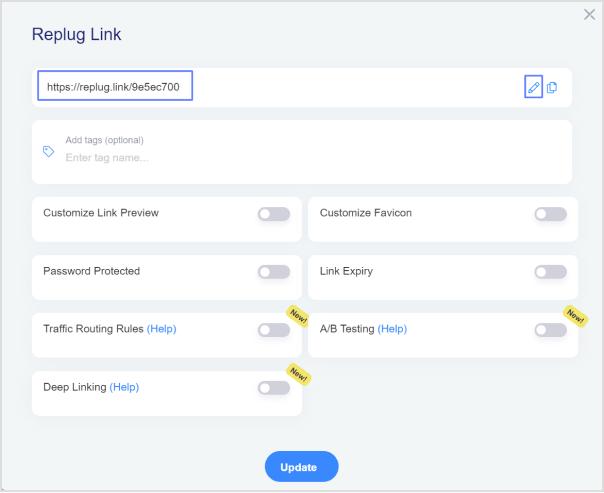
Step 5: Once you’ve customized the link, copy the new shortened URL and click “Update”. Your renamed link is now ready to be shared.
Renaming a short link that’s already been shared
Pick the ending before you share the link and treat it as fixed afterward. People who saved, bookmarked or printed the old address will keep using it, so changing the ending later can leave them on an error page. If a link is already out there and you need a better name, create a second short link with the new ending and point it at the same page; both keep working and you can compare their clicks.
Changing where a link goes is a separate setting. On the Scale and Agency plans you can edit a short link’s destination at any time while its name stays the same, which is useful when a campaign page moves. On Free and Essentials the destination stays the one you set when you created the link.
How to rename links in Google Docs?
Step 1: To begin, open your document and navigate to the link you want to rename. Simply click on the link to reveal the link options.
Step 2: After clicking on the link, a menu with options such as Copy link, Edit link, and Remove link will appear, along with a preview of the linked webpage or document. To rename the link, locate and click on the “Pencil” icon.
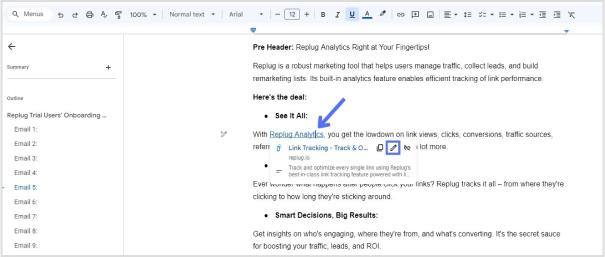
Step 3: In the editing menu, you’ll see three fields: the text field, the URL field, and the clickable URL. Click on the “Text” field to access the text editing mode.
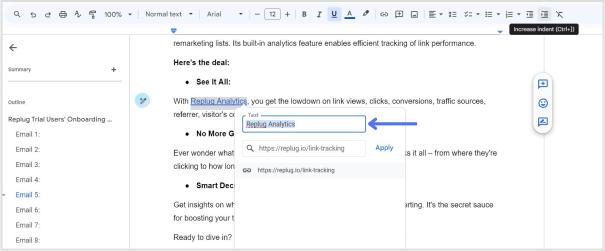
Step 4: Once you’ve clicked on the “Text” field, you can edit the text of the link. Use the backspace key to delete the existing text and type in the new text to rename the link according to your preference.
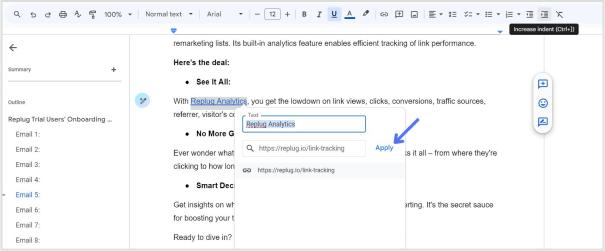
Step 5: After you’ve renamed the link, click on the “Apply” button to confirm the changes. Your link will now be updated with the new text, and the changes will take effect in your Google Docs document.
Also read: How to edit URL links with Replug?
How to rename a link in Microsoft Word
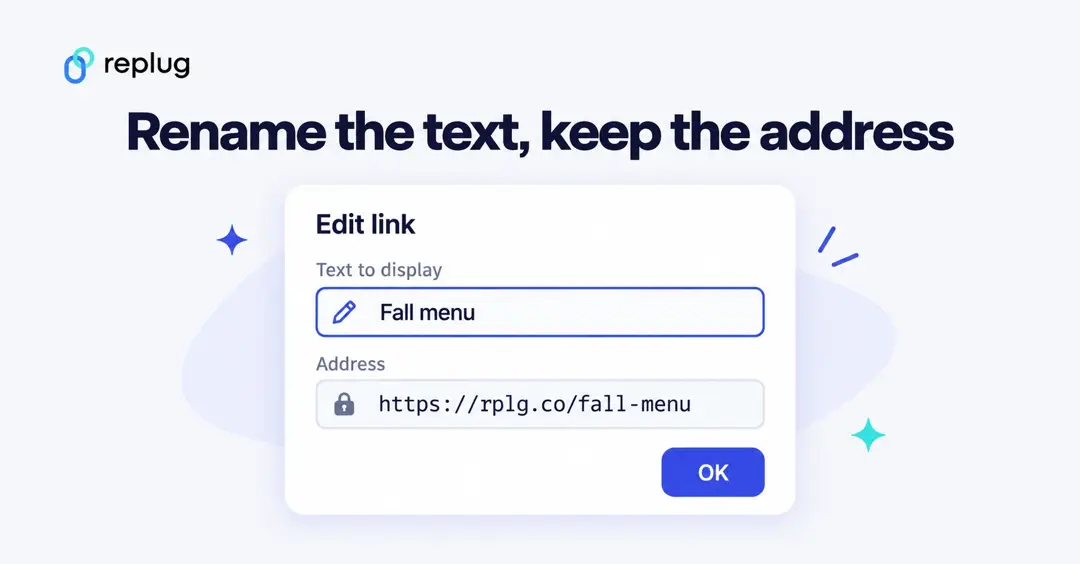
- Right-click the link and choose Edit Hyperlink (on a Mac, Hyperlink → Edit Hyperlink).
- In the Text to display box, type the new name.
- Click OK. The address in the Address box stays the same.
To add a name to a link you just pasted, select the URL, press Ctrl + K (Cmd + K on a Mac) and fill in Text to display.
How to rename a hyperlink in Outlook
- In classic Outlook, right-click the link in your message and choose Edit Hyperlink.
- Replace the words in the Text to display box and click OK.
- In new Outlook and Outlook on the web, right-click the link, choose Edit link and change the Display as box.
How to rename a link in Gmail
- In a new message, click the link you want to rename. A small bar appears with Go to link, Change and Remove.
- Click Change.
- Type the new name in Text to display and click OK.
For a new link, type the words first, select them, press Ctrl + K (Cmd + K on a Mac) and paste the address. In the Gmail mobile app you can’t edit link text, so rename links on a computer or paste a short link with a readable ending instead.
How to rename a link in Google Sheets
Click the cell, then click the pencil (Edit link) icon in the link preview and change the Text field. You can also build named links with a formula, which is handy for long lists:
=HYPERLINK("https://rplg.co/fall-menu", "Fall menu")
The first part is the address and the second is the name people see in the cell.
How to rename a link in Google Slides and PowerPoint
- Google Slides: click the link, click the pencil icon, change the Text field and click Apply, the same as in Google Docs.
- PowerPoint: right-click the link, choose Edit Link (or Edit Hyperlink), change Text to display and click OK.
Renaming links in chat apps, Notion and Markdown
| Where | How to give a link a name |
|---|---|
| Slack | Select the words, click the link icon in the message box (or press Ctrl + Shift + U, Cmd + Shift + U on a Mac) and paste the URL. |
| Discord | Type [your text](https://example.com) in a message. Discord shows the text and asks people to confirm before opening the site. |
| Notion | Select the words, press Ctrl + K (Cmd + K) and paste the URL. |
| Markdown (GitHub, Reddit, many CMS editors) | [your text](https://example.com) |
| WordPress block editor | Select the words, press Ctrl + K (Cmd + K) and paste the URL. |
| Instagram, TikTok, X, SMS | You can’t hide the URL behind text. Use a short link with a readable ending instead. |
How to rename a link on your phone
- Google Docs app: tap the link, tap Edit link, change the text and tap the check mark.
- Word app: tap the link, tap Edit Link in the menu, change Display text and tap Done.
- Gmail and most messaging apps: there is no link-text option, so send a short link with a clear ending, such as rplg.co/team-photos, instead of the long address.
Tips for naming a link
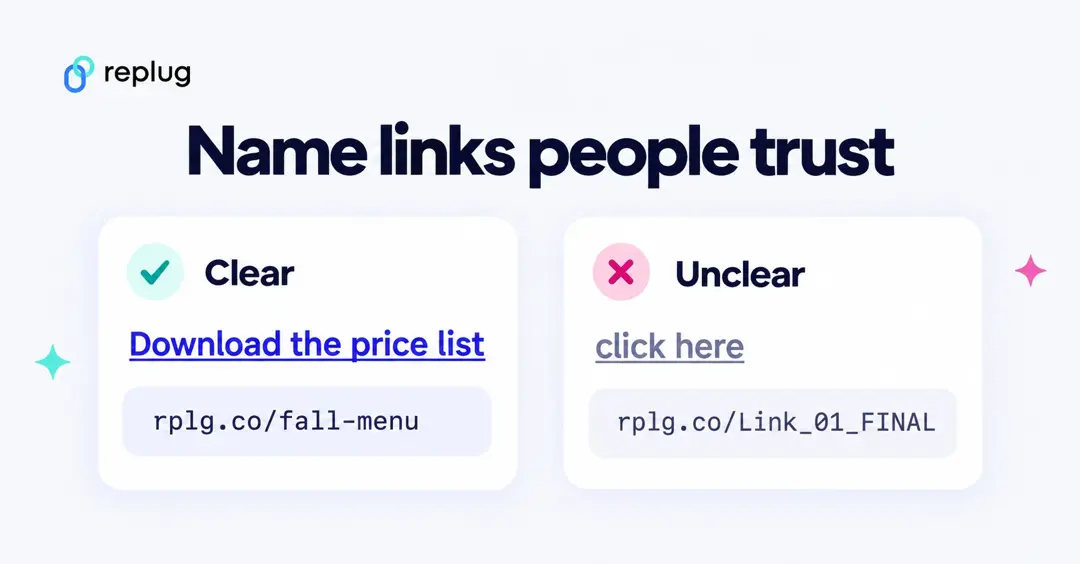
- Say what people get. “Download the 2026 price list” beats “click here” for readers and for screen readers, which often read links out of context.
- Keep URL endings short and lowercase. Use hyphens between words (rplg.co/fall-menu), and skip characters that are easy to mistype, such as underscores, or that look alike, such as 0 and O.
- Don’t mislead. The text should match the destination. A link that says one thing and opens another looks like phishing and gets reported.
- Use your own domain for public links. A link on your domain tells people who sent it before they click.
- Name links for tracking too. In Replug, a clear ending and campaign name make it easy to find the link later and compare clicks between versions.
Use Replug to manage your links:
Using Replug to manage your links offers several advantages:
- Link optimization: Replug offers a top-notch tool to create short link with absolute precision. Besides, it provides various options to customize and optimize your links, including link shortening, branding, and tracking features. This helps to make your links more visually appealing, recognizable, and effective in driving engagement.
- Branding: With Replug, you can create custom-branded links that reflect your brand identity, increasing brand visibility and credibility when sharing content across different channels.
- Performance tracking: Replug offers detailed analytics and insights into link performance, allowing you to monitor metrics such as click-through rates, geographic location of clicks, and conversion rates. This data enables you to assess the effectiveness of your link-sharing efforts and make informed decisions to optimize your strategy.
- Call-to-action integration: Replug allows you to add customizable call-to-action overlays to your shared links, directing traffic to specific actions or landing pages. This feature enhances the effectiveness of your links in driving conversions and achieving your marketing goals.
- Link rotation: Replug’s link rotation feature distributes traffic evenly among multiple destination URLs, enabling you to conduct A/B testing or distribute traffic to different landing pages based on predefined rules.
Frequently asked questions

Arslan Jadoon