LinkedIn isn’t just another social network anymore! It’s the professional hub where over 1.2 billion professionals connect, share opportunities, and grow their careers in 2026.
With a massive global audience and billions of monthly visits, your LinkedIn profile URL is more than a normal link. It’s your digital business card, résumé, and networking tool all in one.
Yet many users still don’t know the easiest and most effective methods to share that link with potential employers, collaborators, or clients.
No matter if you’re pitching yourself in an email, updating your portfolio, or connecting on a new platform, learning how to share your LinkedIn profile can seriously boost your visibility and opportunities.
Ready to optimize how you present yourself online?
Let’s start by understanding what your LinkedIn profile URL really is and why it matters so much!
What is your LinkedIn profile URL?
Your “LinkedIn profile URL” is simply the unique web address (or URL) that takes someone straight to your LinkedIn profile (no searching required).
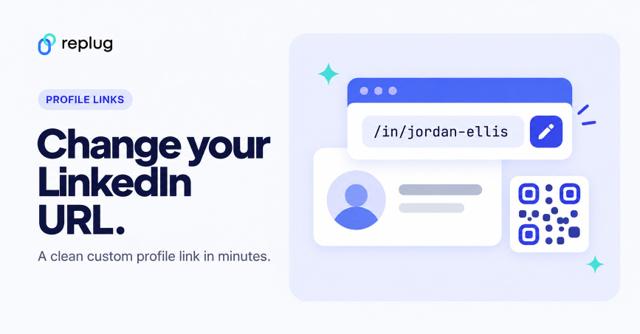
Every LinkedIn account gets one automatically when you sign up, usually in the format https://www.linkedin.com/in/your-name-#######, and you can customize it to make it cleaner and easier to remember.
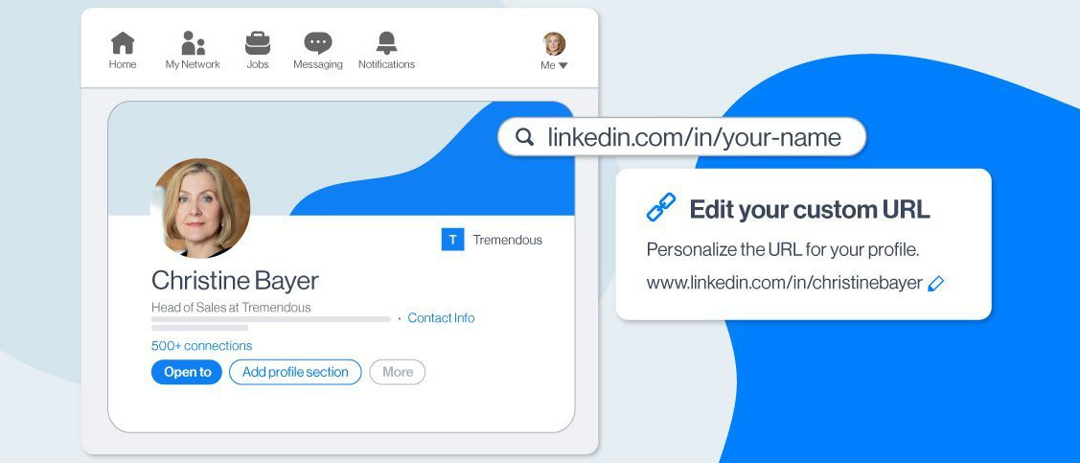
Think of this URL as your online professional address. Instead of telling someone your name and hoping they find you, you can just share that link, and they’ll land right on your profile.
That makes networking smoother, helps you look more professional on resumes and in email signatures, and makes it easier for people to find and connect with you.
How to share LinkedIn profile on mobile
Sharing your LinkedIn profile from your mobile device is one of the quickest ways to grow your network, whether you’re at a networking event, meeting someone new, or simply connecting online.
On mobile, LinkedIn makes it easy to share your profile link using different built-in options, from copying the link directly to using modern features like QR codes and the “Share Profile” button.
Below, you’ll find how to share LinkedIn profile on phone using multiple methods, with simple step-by-step instructions.
How to share LinkedIn profile link from mobile via the LinkedIn app
Here’s how to share LinkedIn profile link from app:
1. Open the LinkedIn app on your iPhone or Android device and sign in.
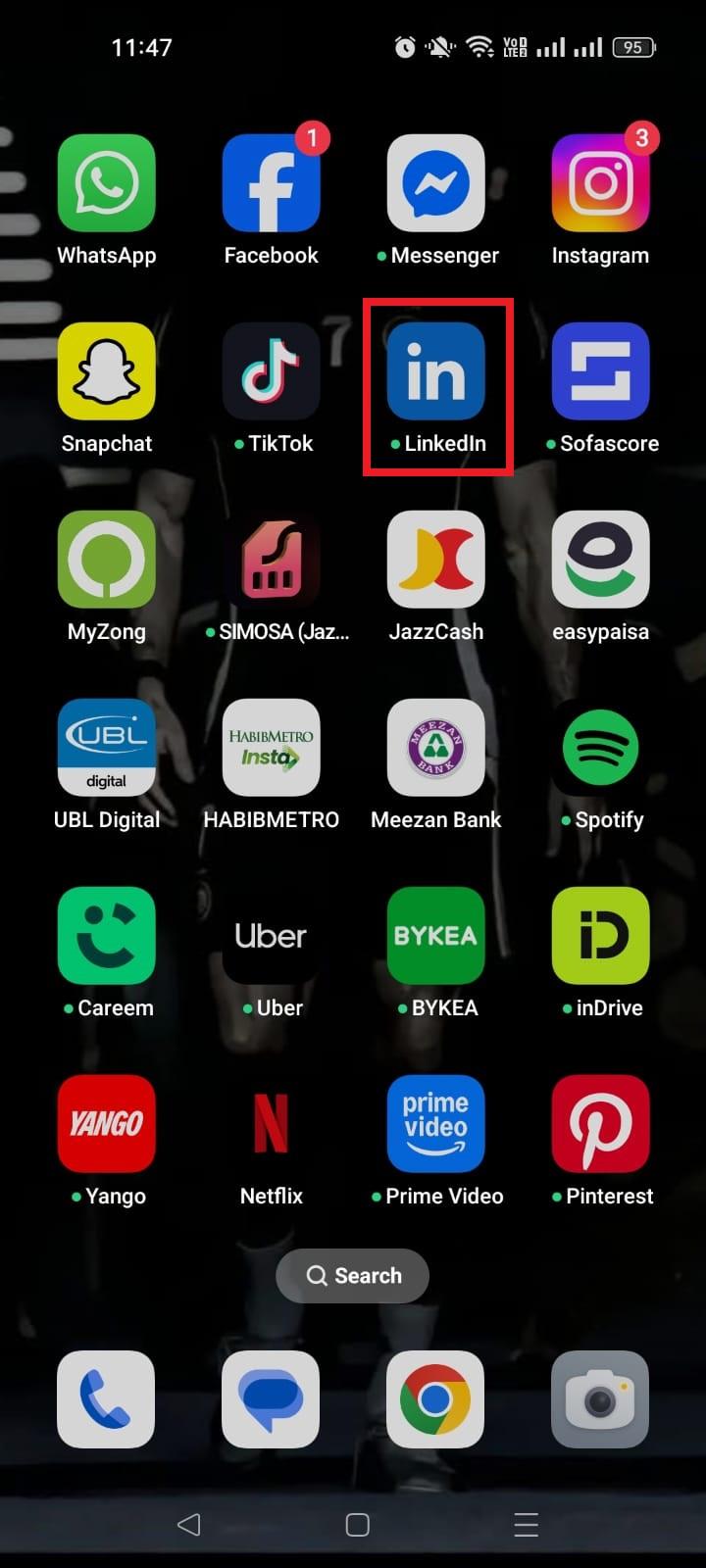
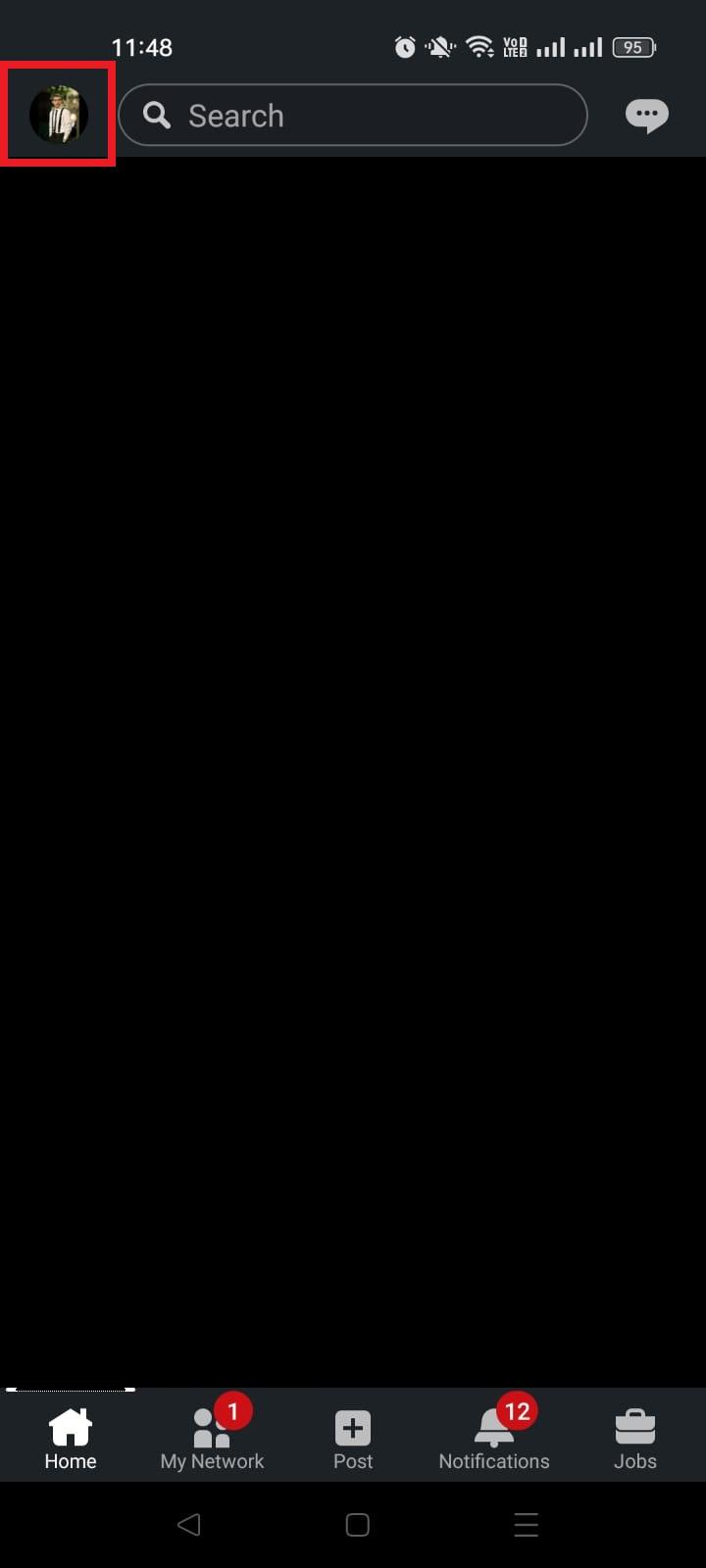
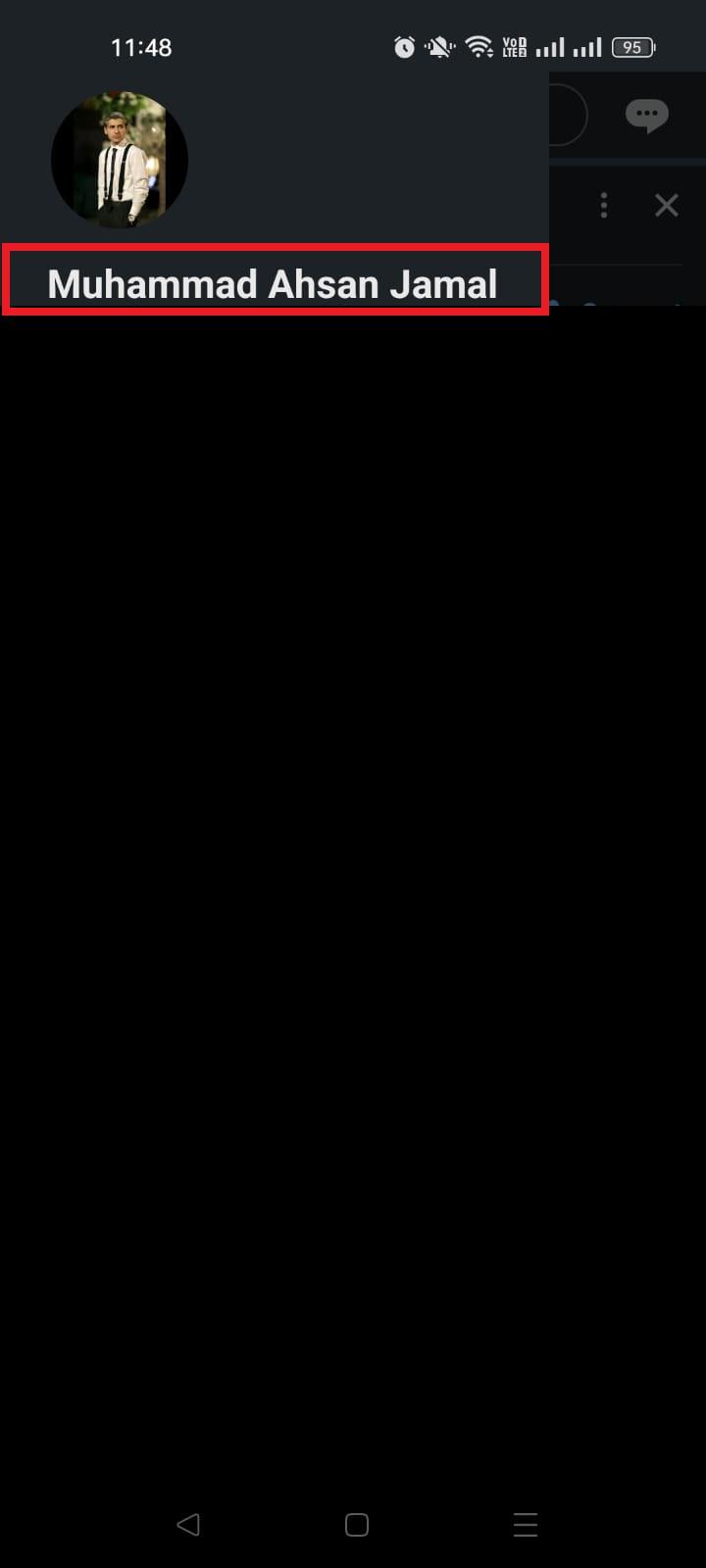
2. Tap your profile picture at the top left, then choose “View Profile,” or simply tap on your name.
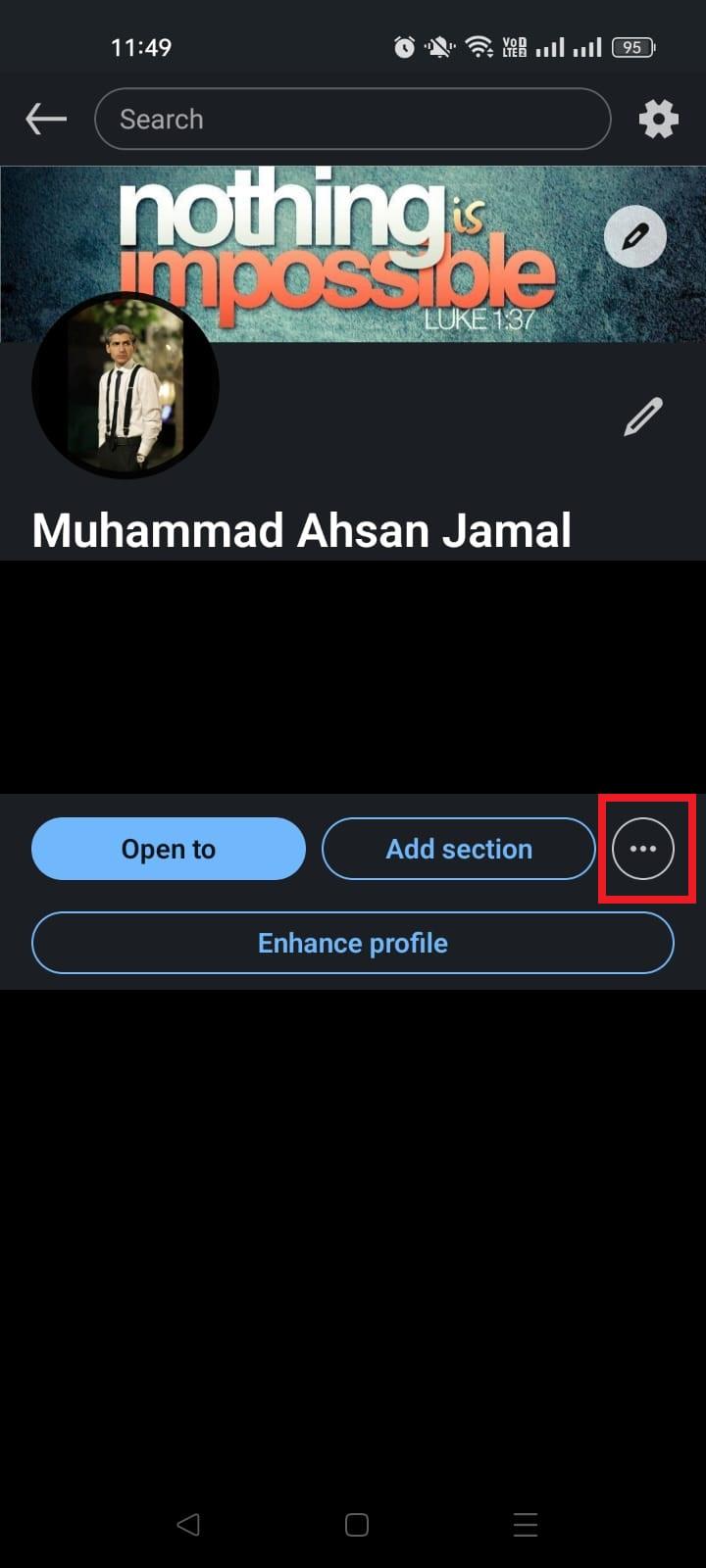
3. Once on your profile, look for the “More (⋯)” button near your photo or under your name. In most cases, it is next to the “Add section” button.
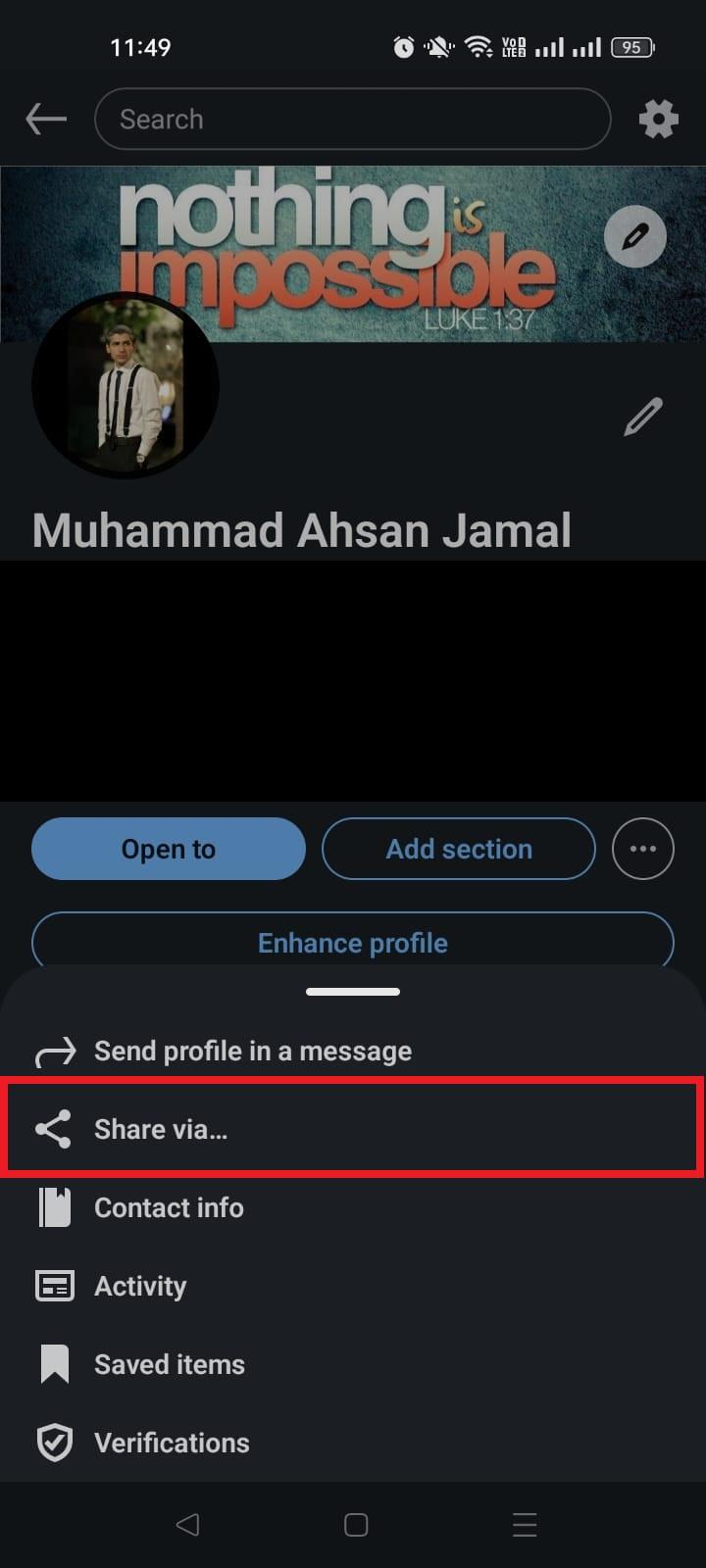
4. Tap “Share profile via…” (or similar option).
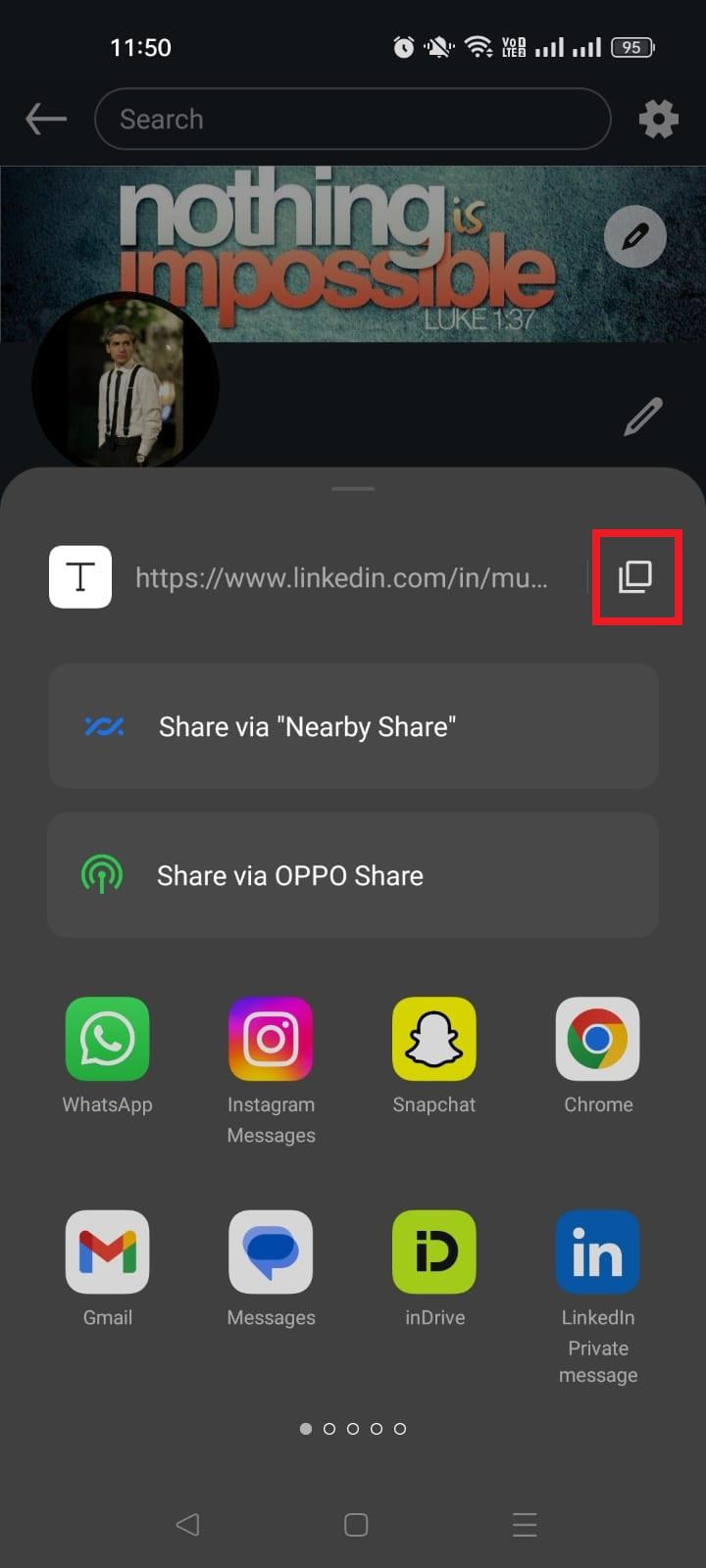
5. From the share menu, tap “Copy link” to copy your profile URL to your clipboard.

6. Paste and send this link anywhere you want (in a message, SMS, WhatsApp, email, or even other apps).
Note: This direct link will take people straight to your LinkedIn profile when clicked.
How to share LinkedIn profile link from mobile using a QR code
Here’s how to share LinkedIn profile via QR code (mobile):
1. Open the LinkedIn mobile app on your phone.
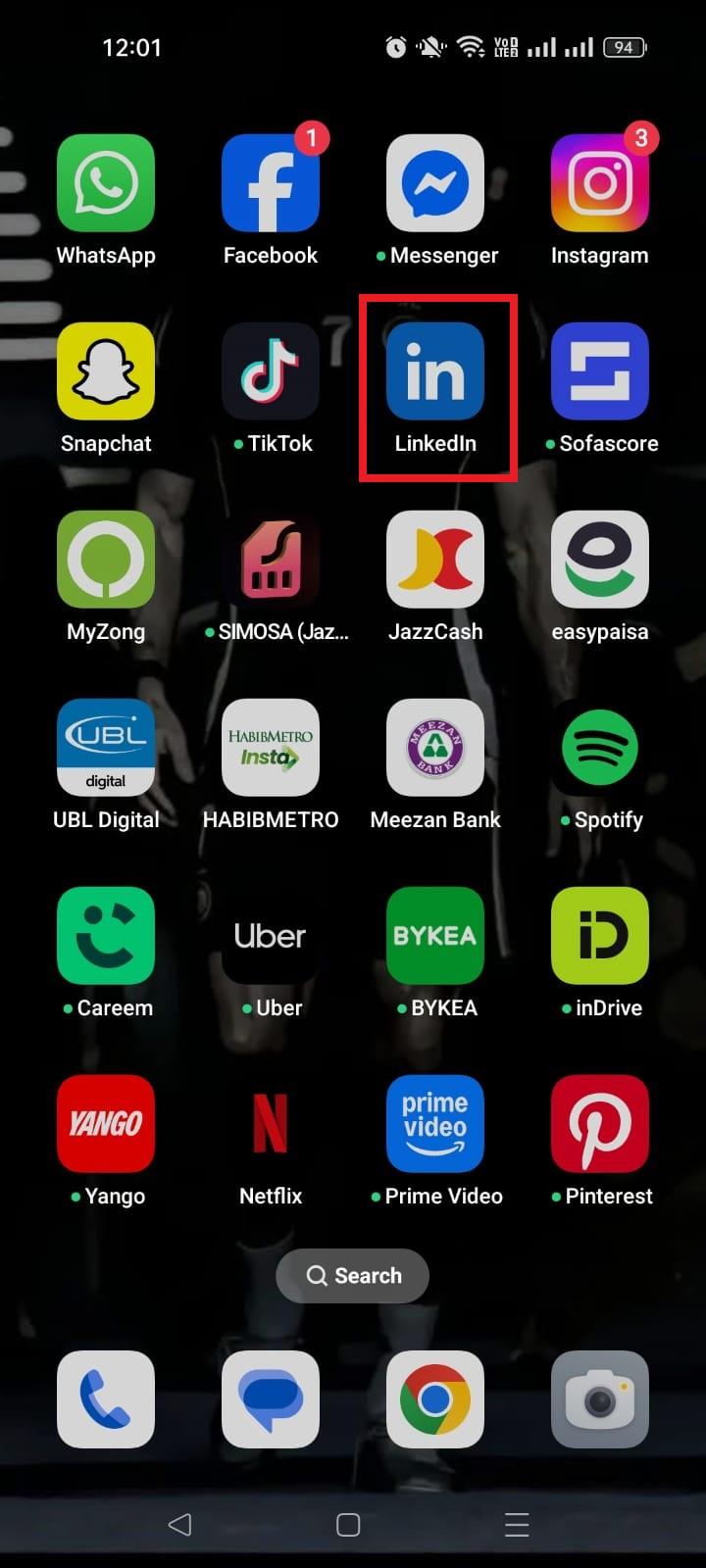
2. At the top of the home screen, tap on the “Search” bar.
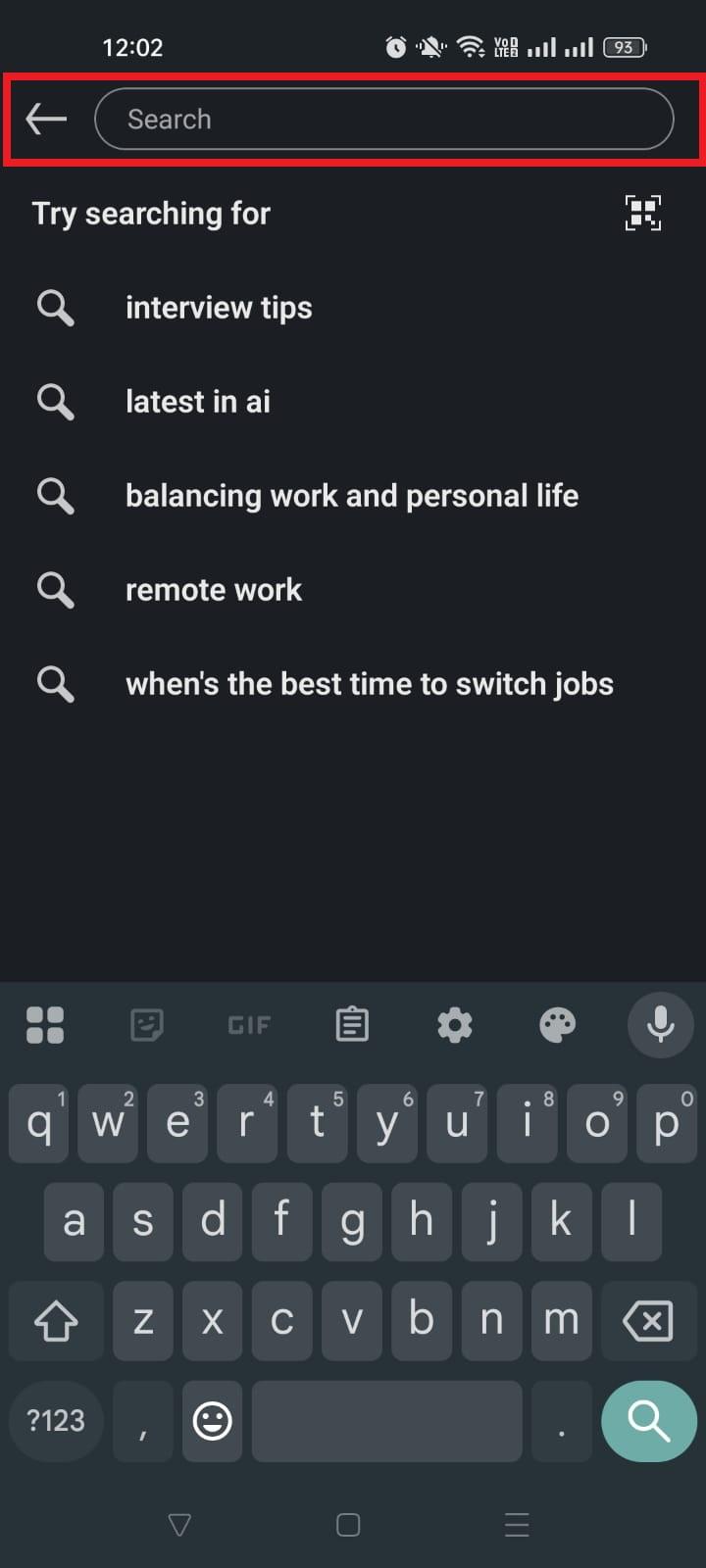
3. Tap the small “QR code” icon next to “Try searching for.” Your personal LinkedIn QR code will appear on the screen.
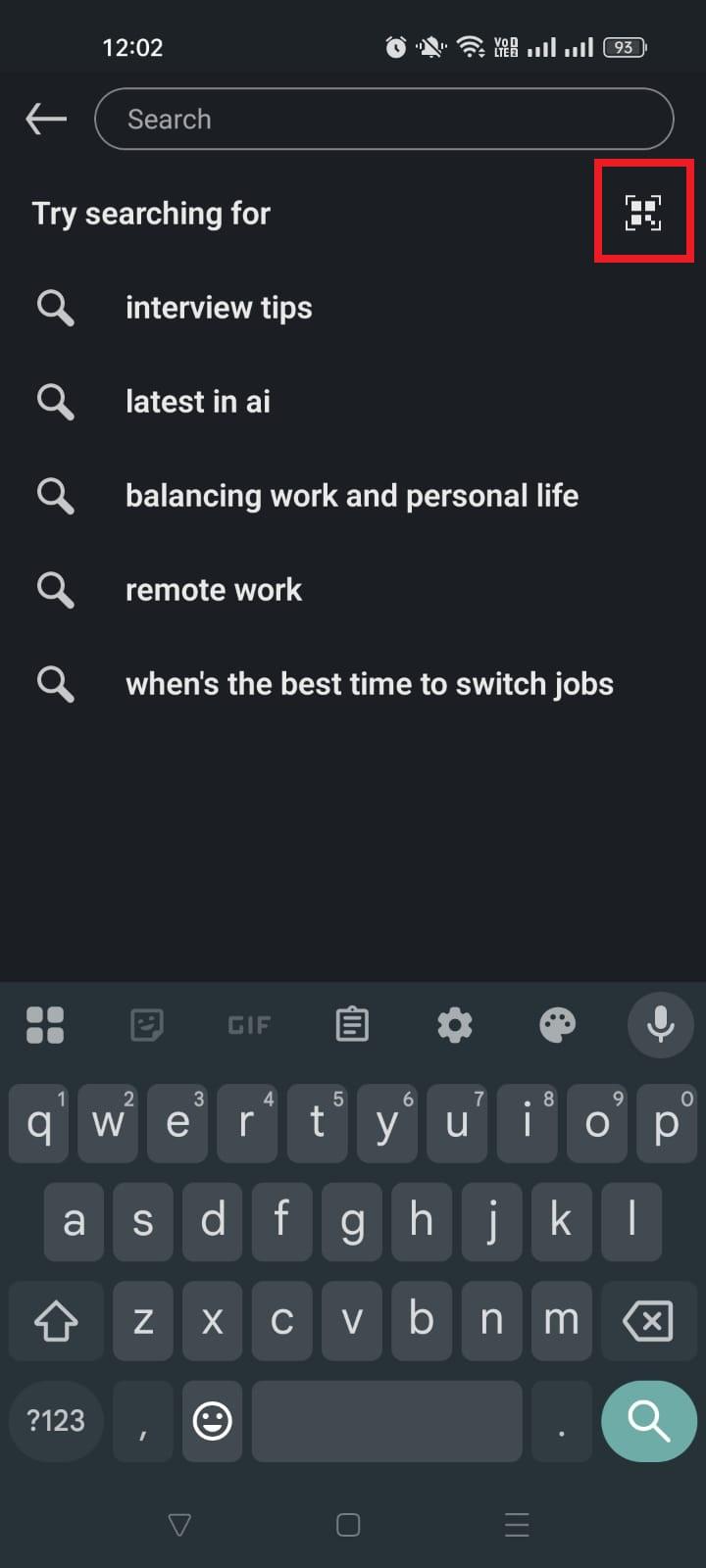
4. You can:
a. Show the code directly to someone nearby so they can scan it with their phone.
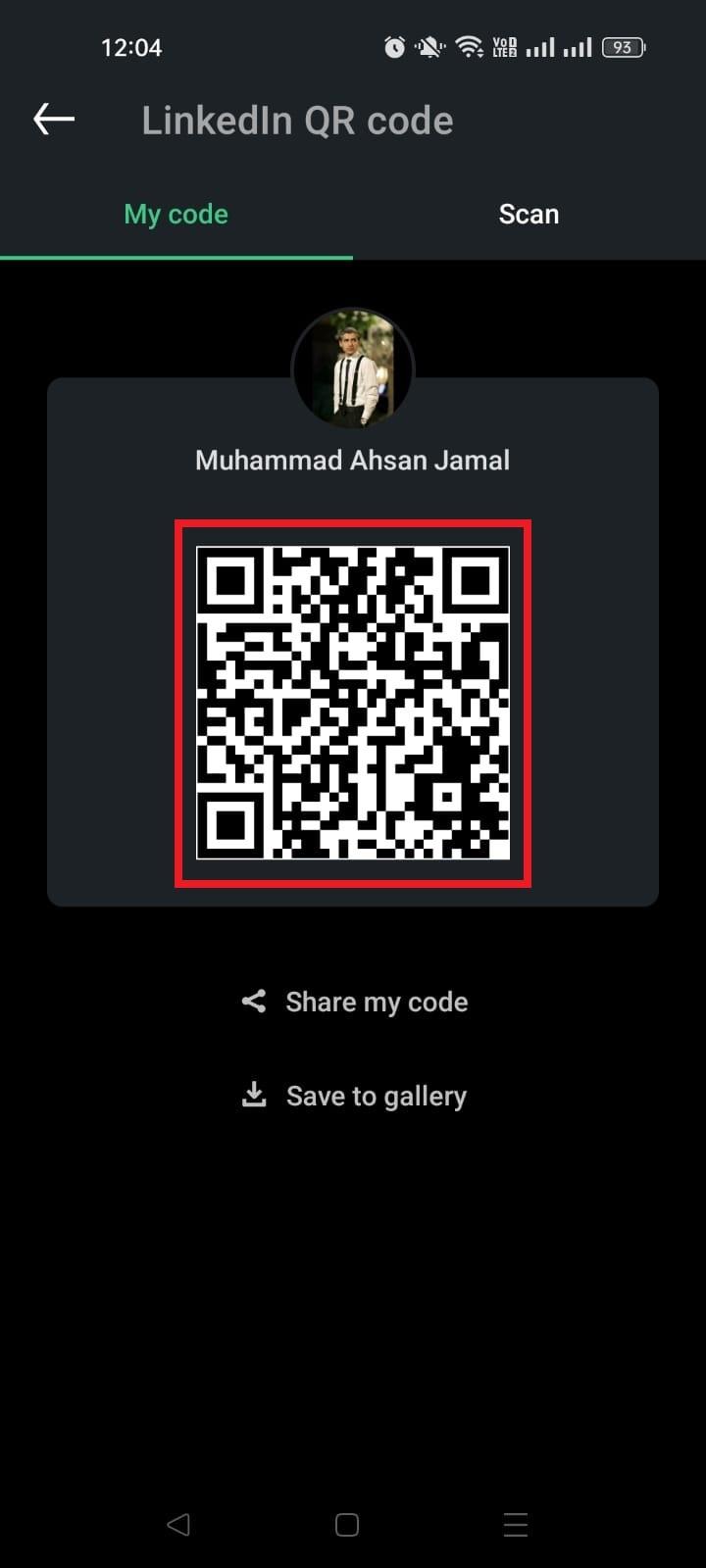
b. Tap “Share my code” to send it via messages, email, or social apps.
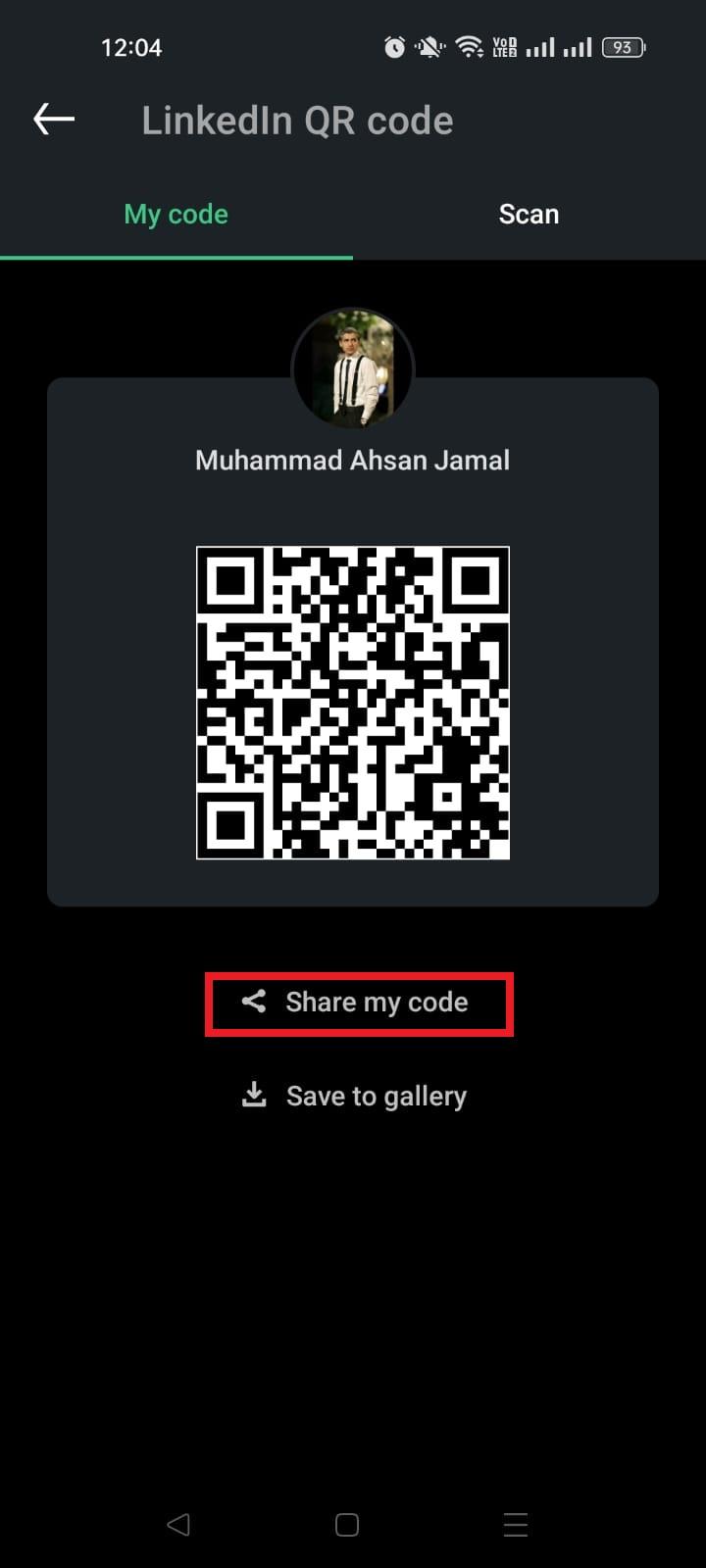
c. Tap “Save to gallery” to save it to your “Photos” section.
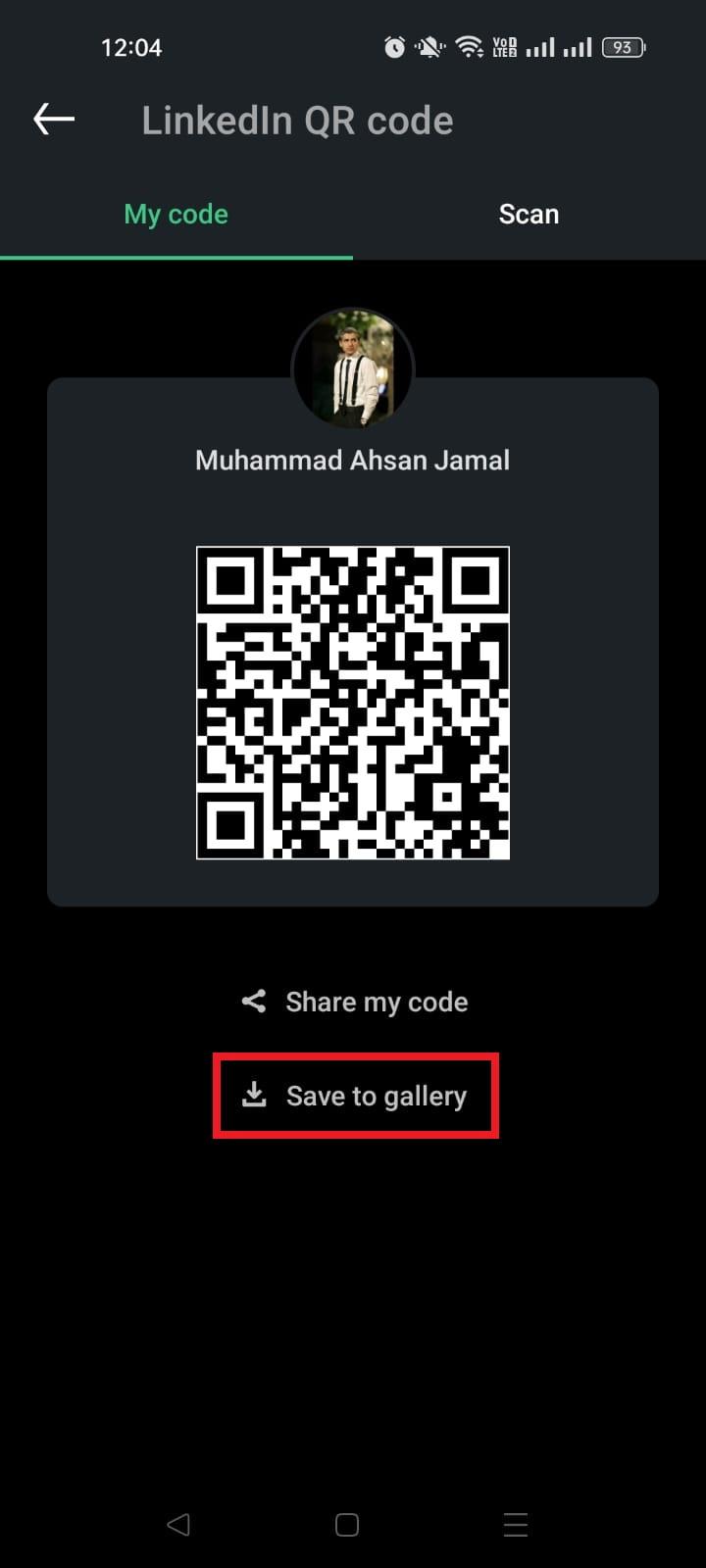
Note: When someone scans the QR code with their phone, they’ll be taken instantly to your LinkedIn profile (no typing or searching needed).
How to share LinkedIn profile link from mobile using the contact info
Here’s how to do it step-by-step:
1. Open the LinkedIn app on your iPhone or Android smartphone and log in to your account.
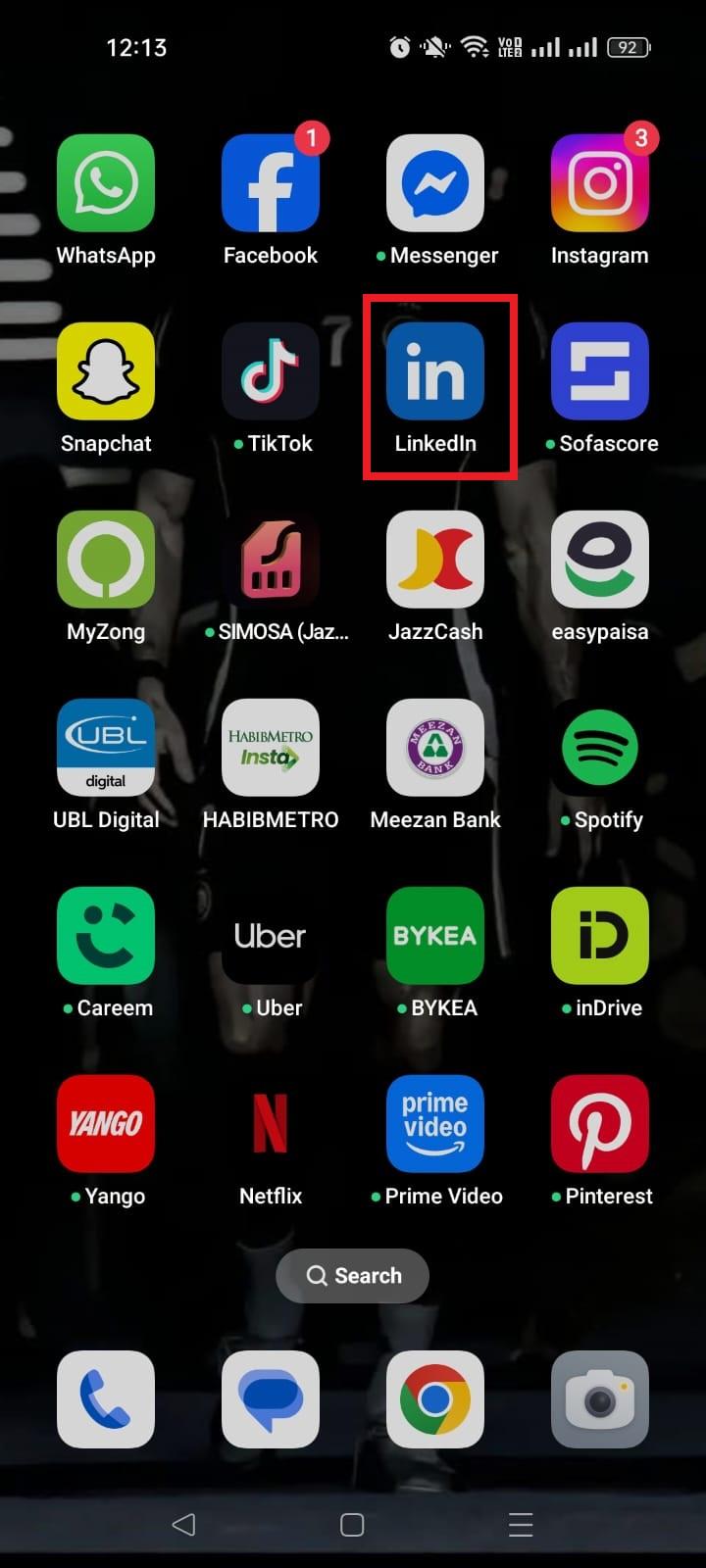
2. Go to your LinkedIn profile (tap your profile picture in the top left → View Profile).

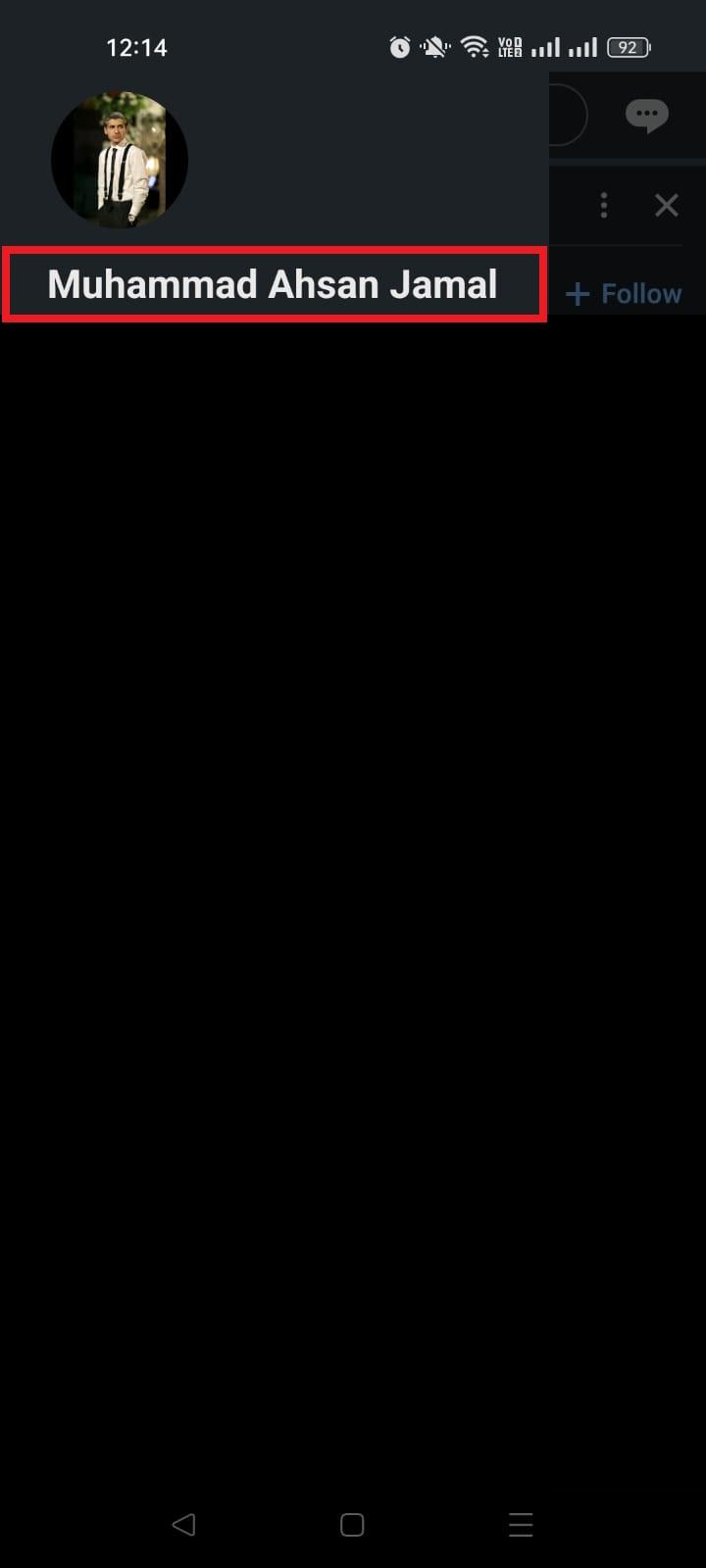
3. Tap the “(⋯)” button next to the “Add section” button.
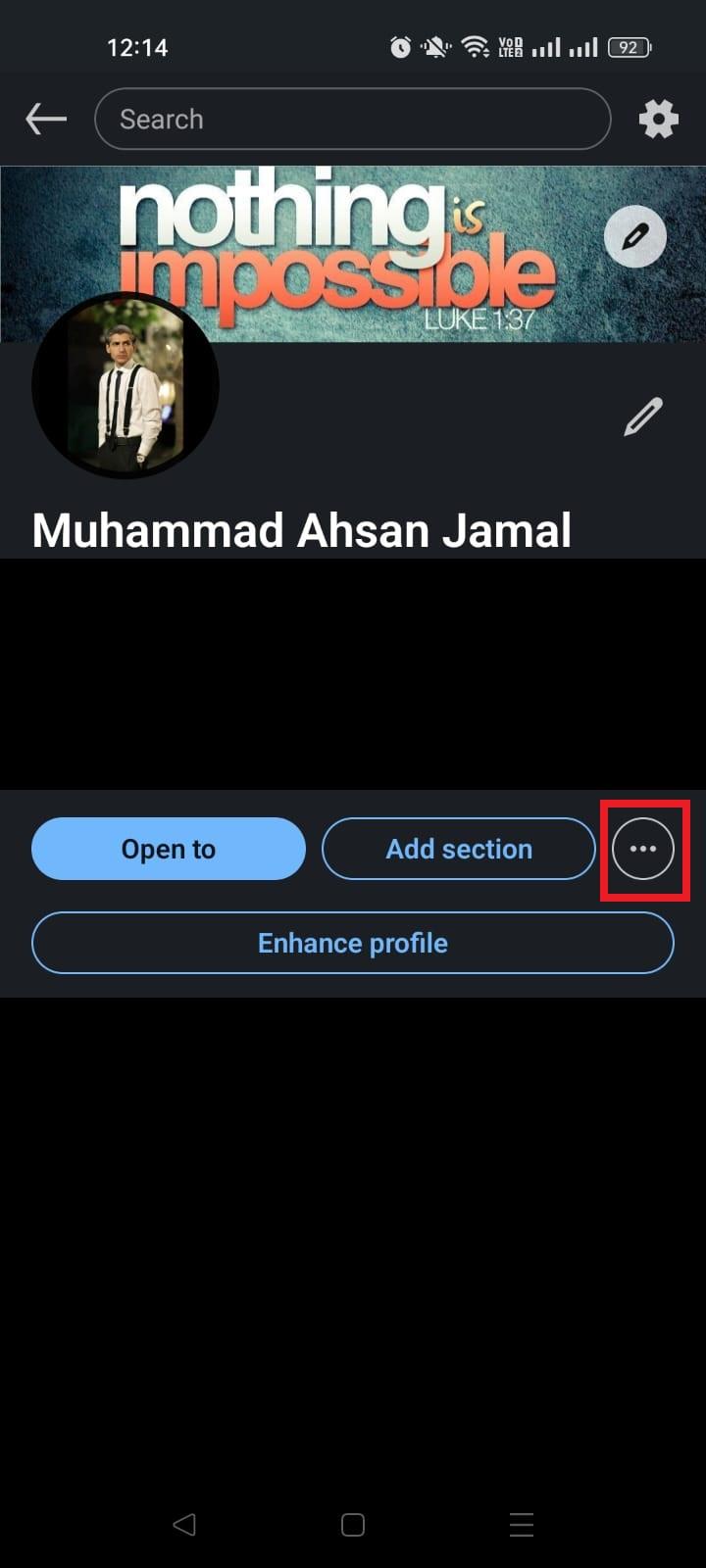
4. From the pop-up menu, tap on the “Contact info” section.
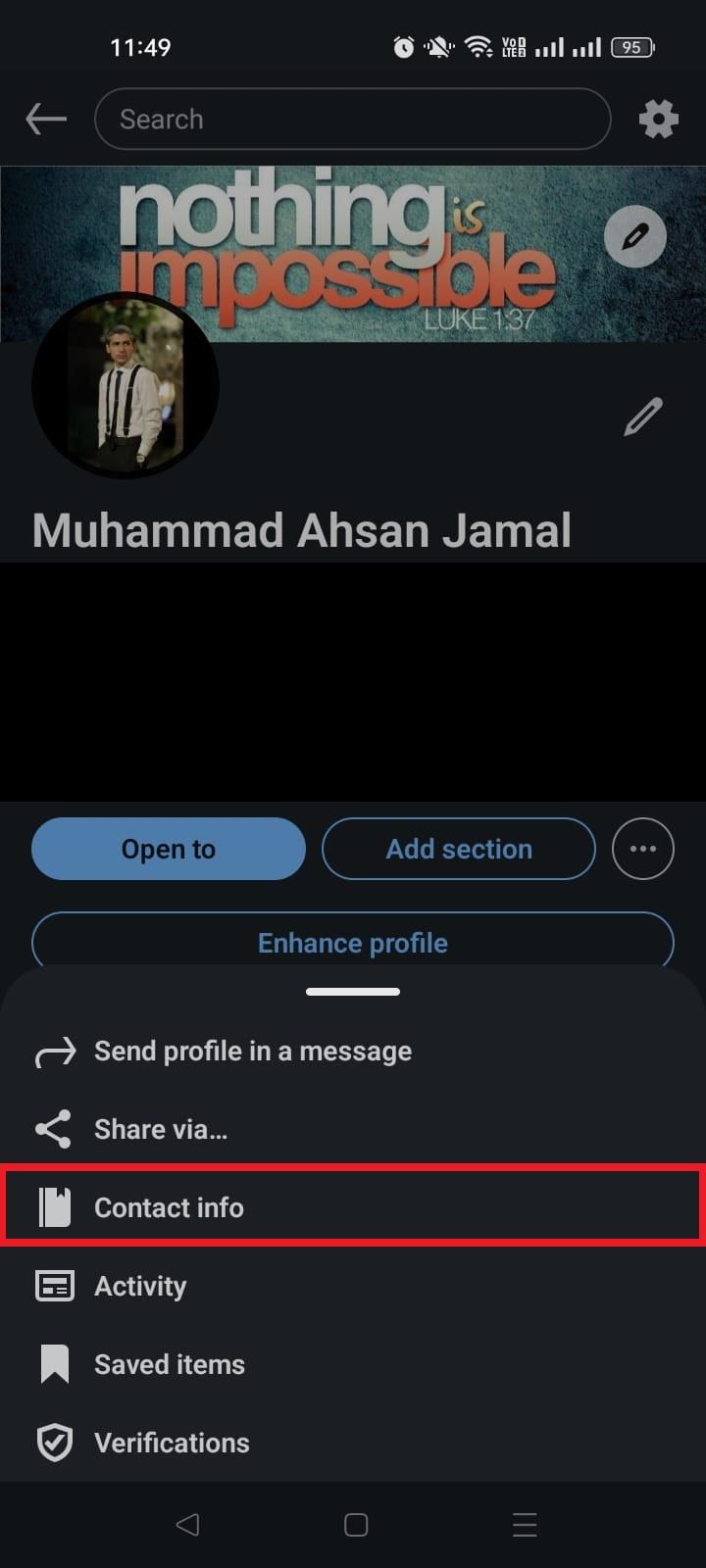
5. Tap “Your profile”.
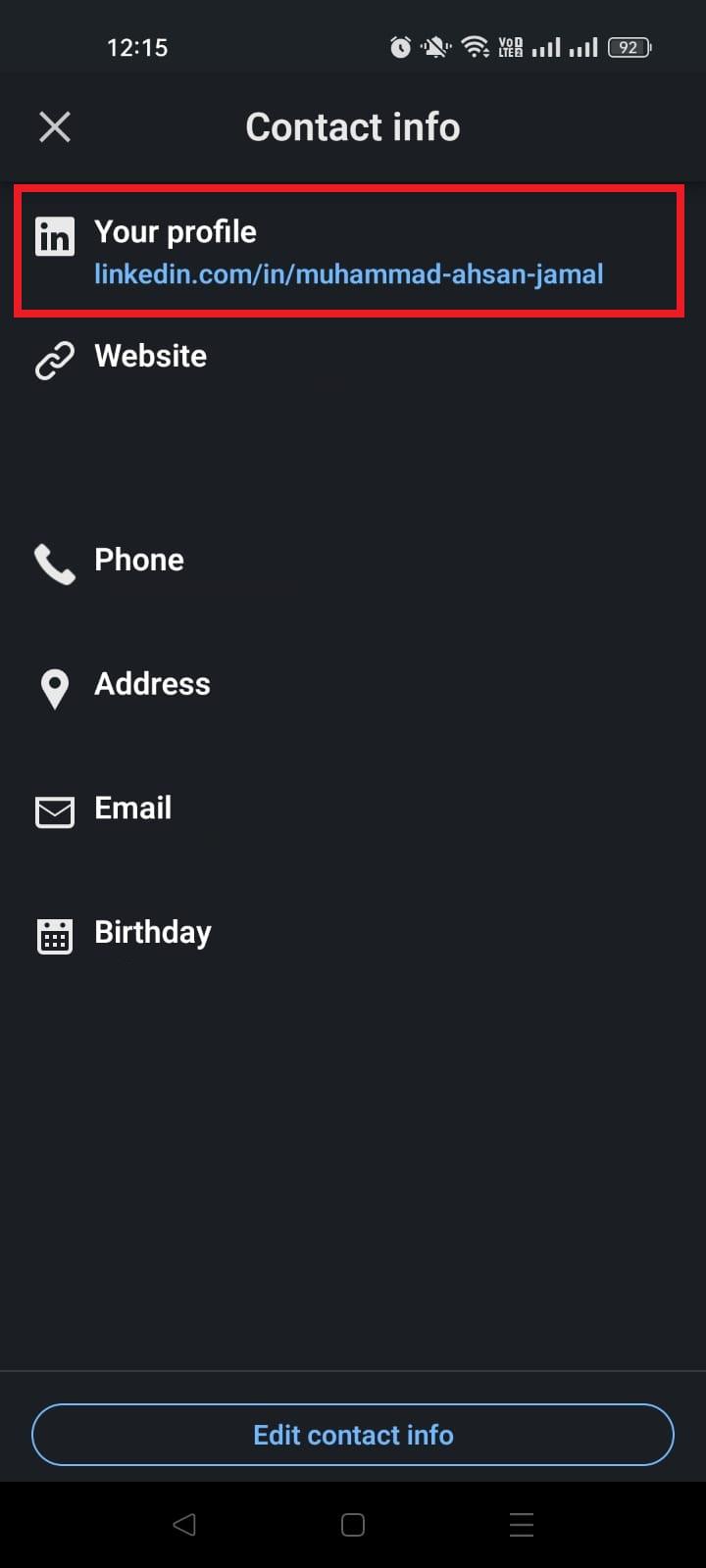
6. Choose whether to “Copy” or “Share via.”
a. If you tap “Copy,” your link will be copied to the clipboard.
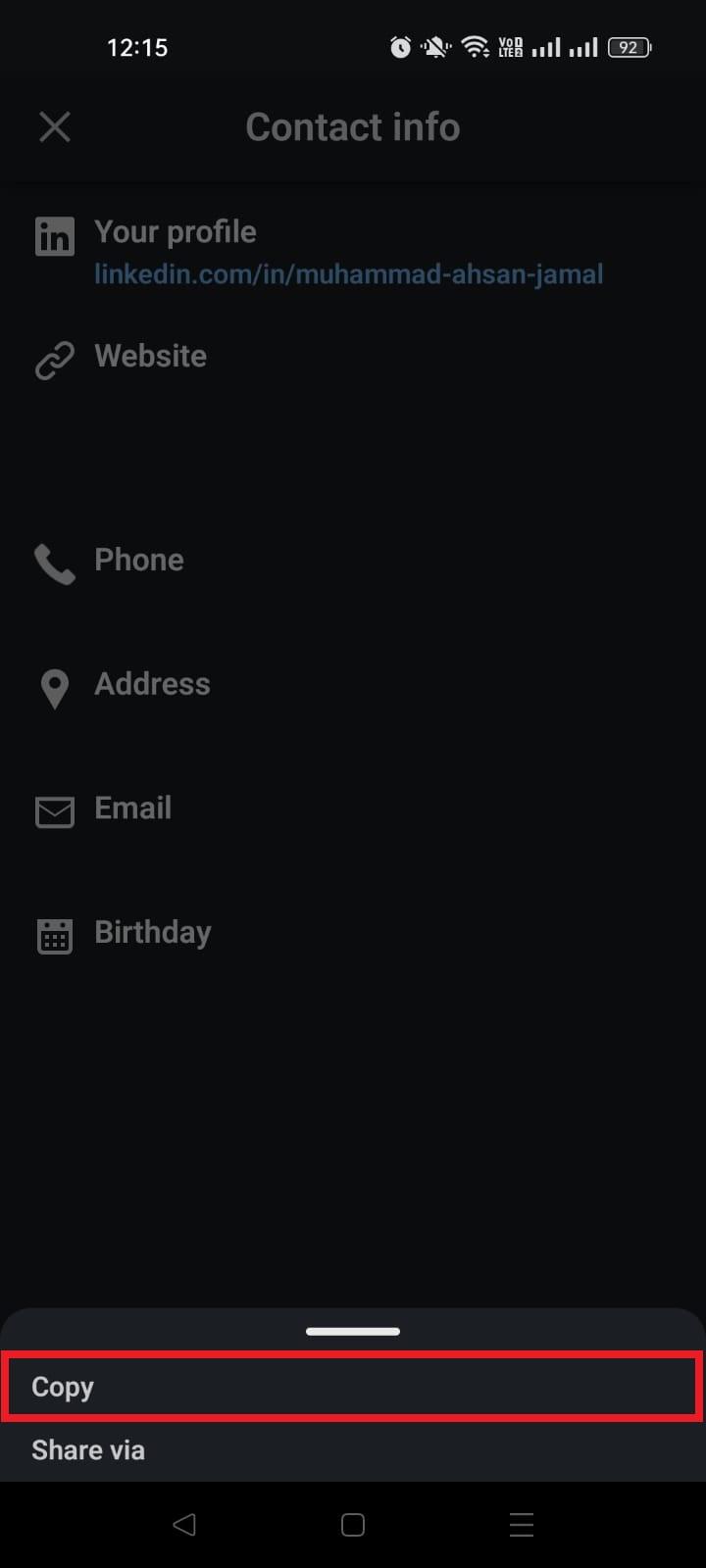
b. If you tap “Share via,” your phone’s sharing panel will appear. From here, you can share it wherever you want, like on WhatsApp, Snapchat, Gmail, or Messages.
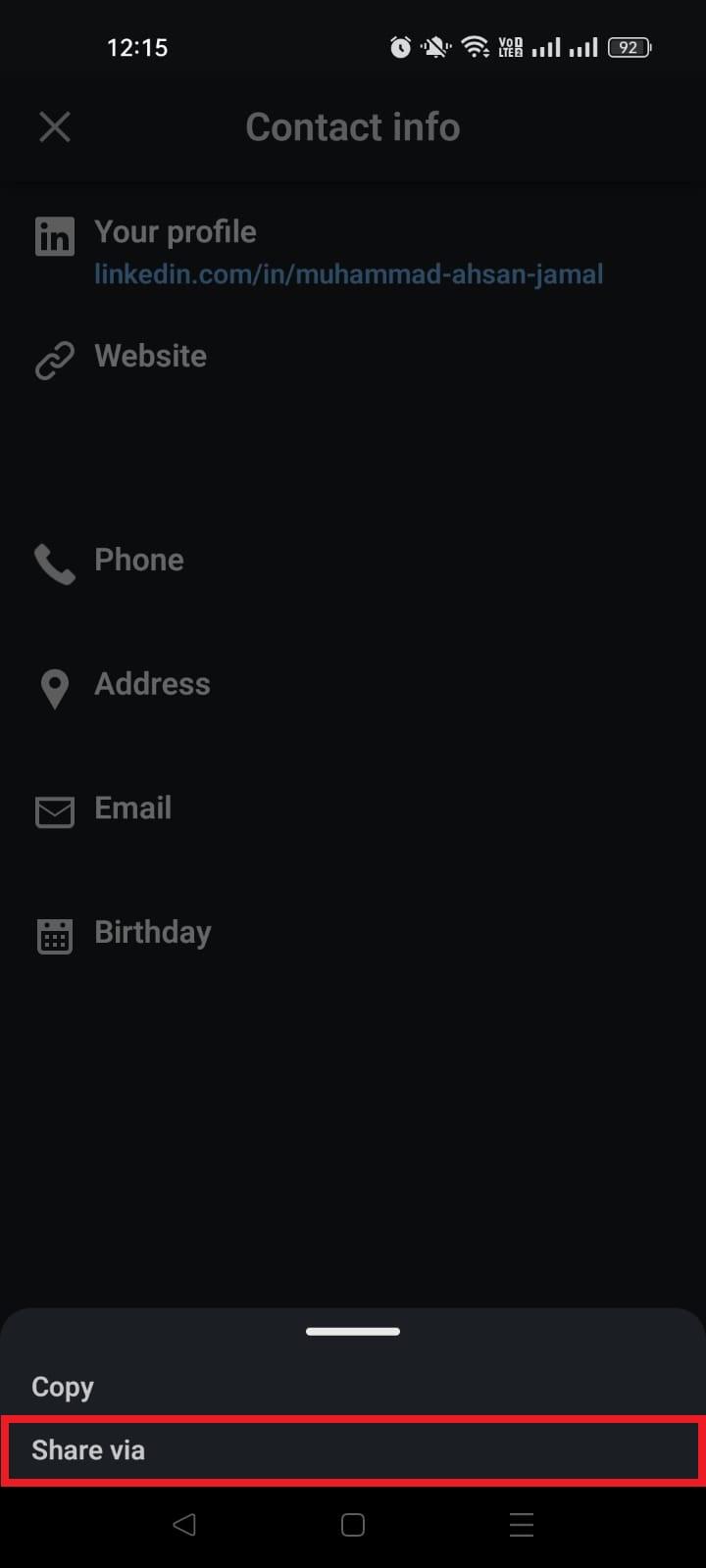
Note: You can also find your profile URL by clicking “Share profile” within the same “(⋯)” menu.
How to share LinkedIn profile on desktop
Sharing your LinkedIn profile from a desktop or laptop is simple and often more convenient when you’re applying for jobs, emailing clients, or networking professionally.
The desktop version gives you multiple ways to share your profile. You can send it directly through LinkedIn messages, copy and paste the link anywhere, or use a clean custom URL to look more professional.
Below are the easiest step-by-step methods you can follow!
How to share LinkedIn profile link from desktop via LinkedIn text message
Here’s how to do it step-by-step:
1. Log in to your LinkedIn account using a web browser.
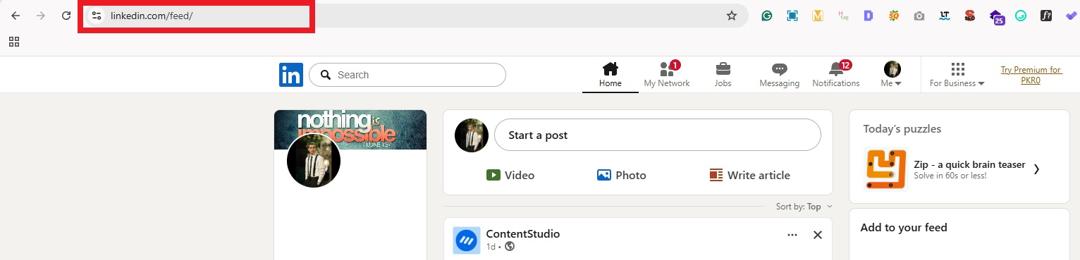
2. Click the “Me” icon at the top of the LinkedIn homepage and select “View profile.”
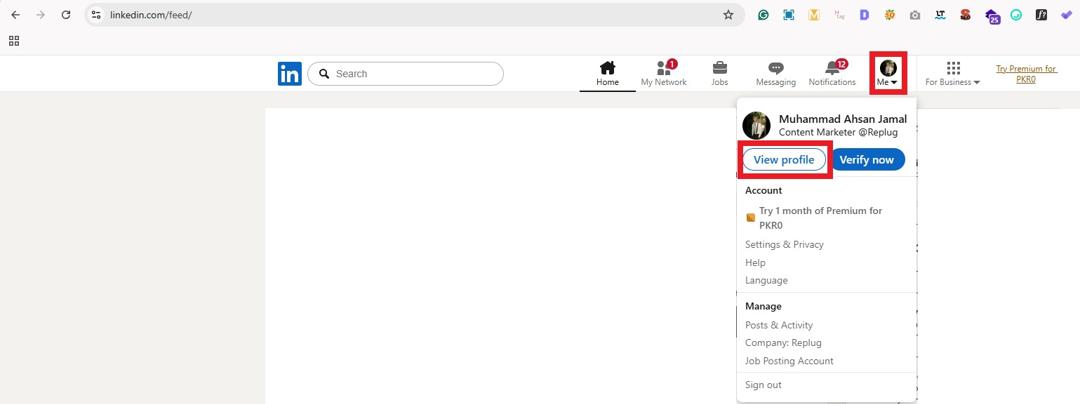
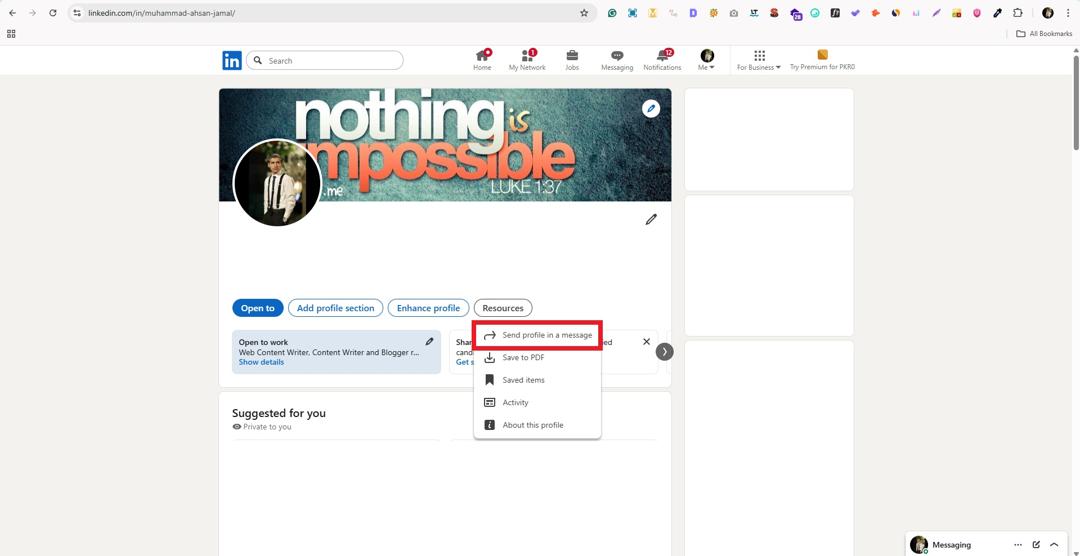
3. On your profile page, look for the “Resources” button (usually below your profile headline), and click on it.
4. Click “Send profile in a message.” This option lets you share your profile directly via LinkedIn messages.
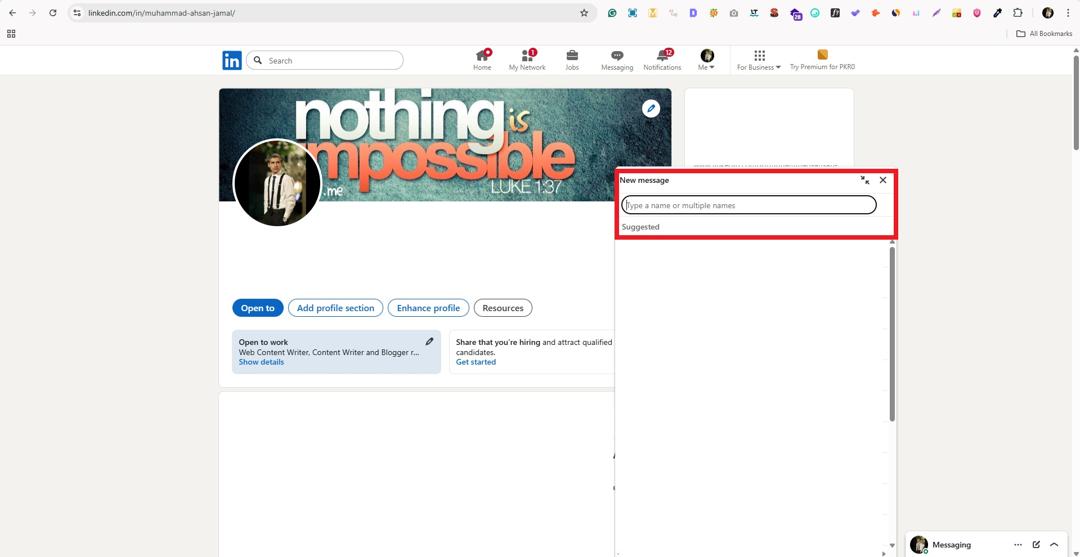
5. Select the connection or type the name of the person you want to send it to.
6. Add a short message if you want, then click “Send.”
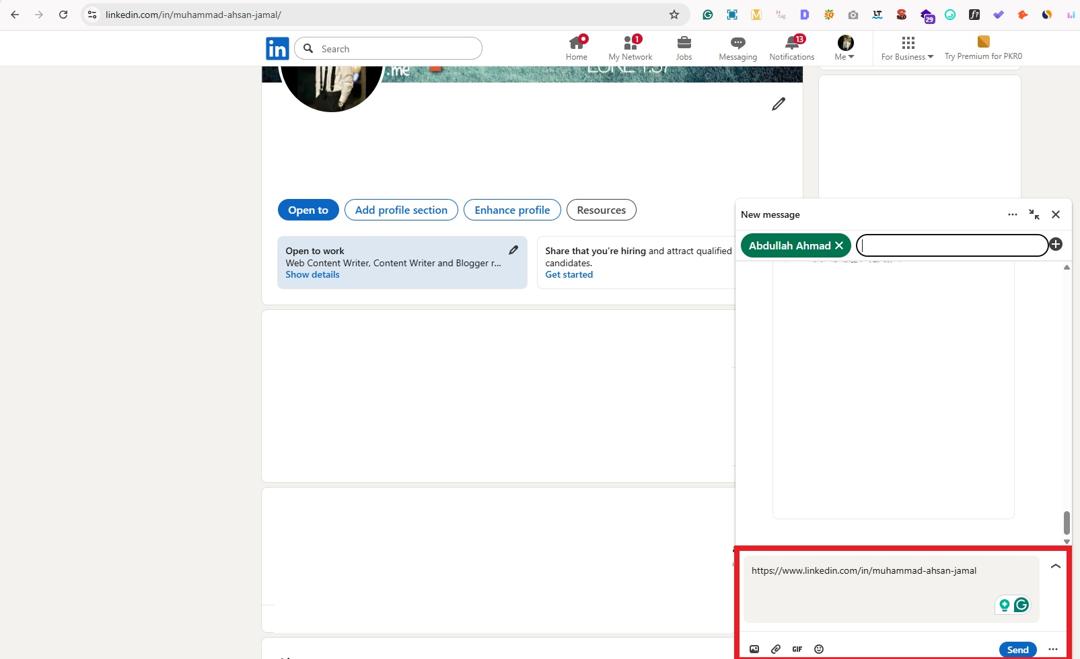
This method works great when you’re already talking to someone on LinkedIn and want to share your profile quickly without leaving the platform.
How to share LinkedIn profile link from desktop using copy/paste
Here’s how to do it step-by-step:
1. Open LinkedIn and go to your profile page (Me → View Profile).
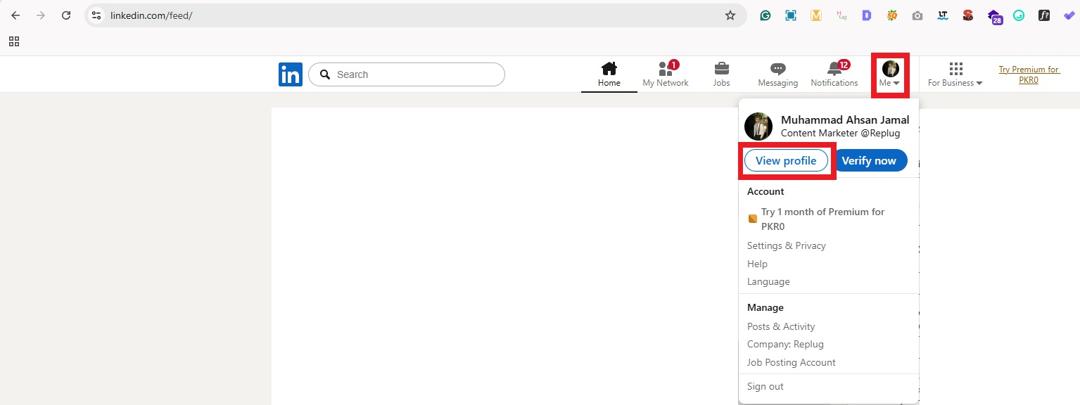
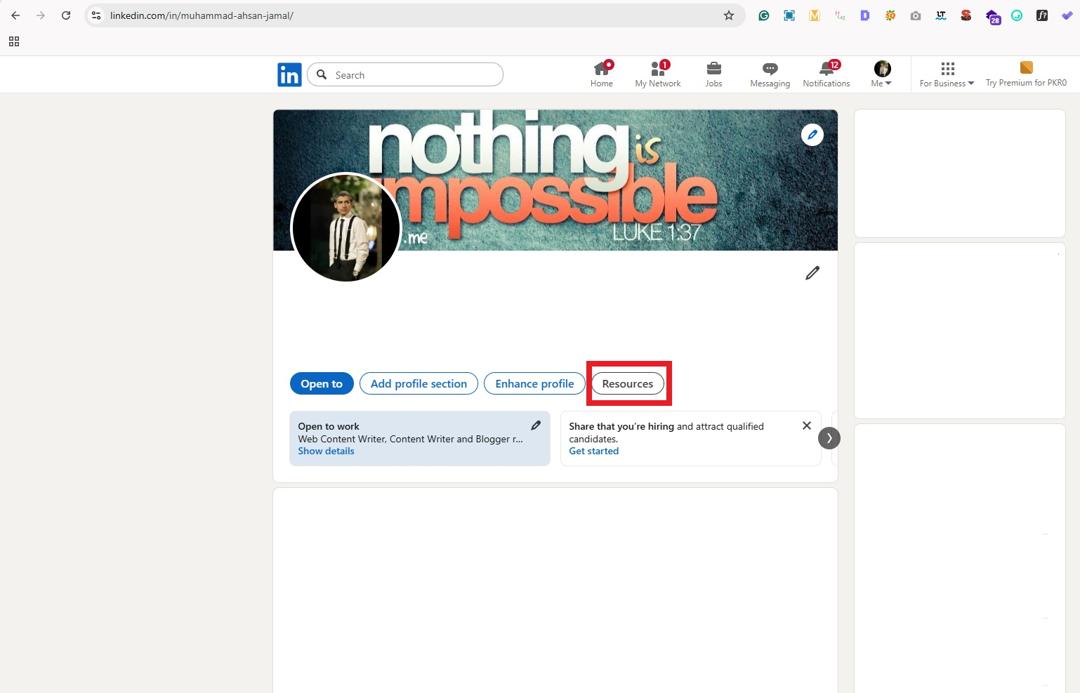
2. Once your profile opens, check your browser’s address bar at the top of the screen. This is your profile link!

3. Click the address bar to highlight the entire link.

4. Right-click and select “Copy,” or press Ctrl + C (Windows) / Command + C (Mac).
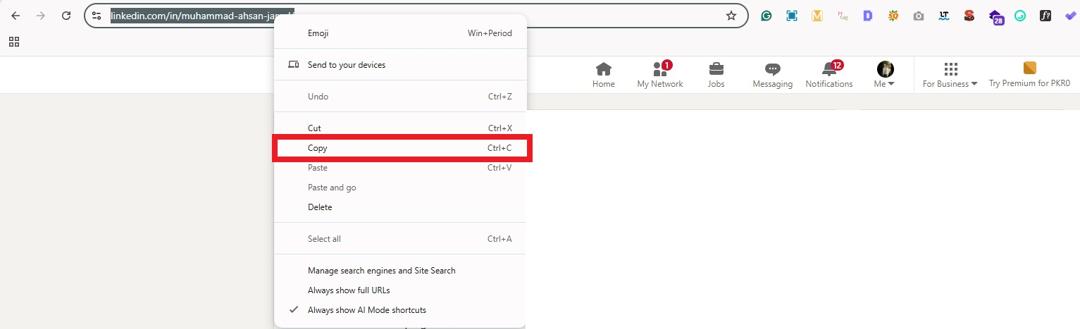
5. Paste the link anywhere you want (emails, job applications, resumes, or messaging apps), using Ctrl + V or Command + V.
This is the fastest and most commonly used way to share your LinkedIn profile with anyone, even outside LinkedIn.
How to share LinkedIn profile link from desktop using your custom URL
Here’s how to do it step-by-step:
1. Log in to LinkedIn and open your profile page.
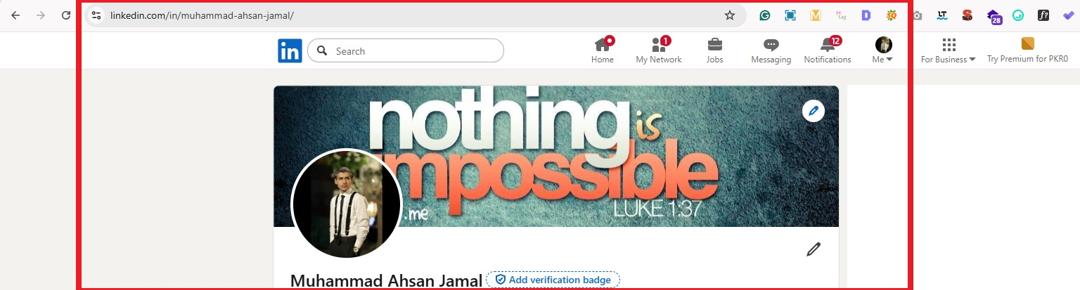
2. On the right side, locate “Public profile & URL.”
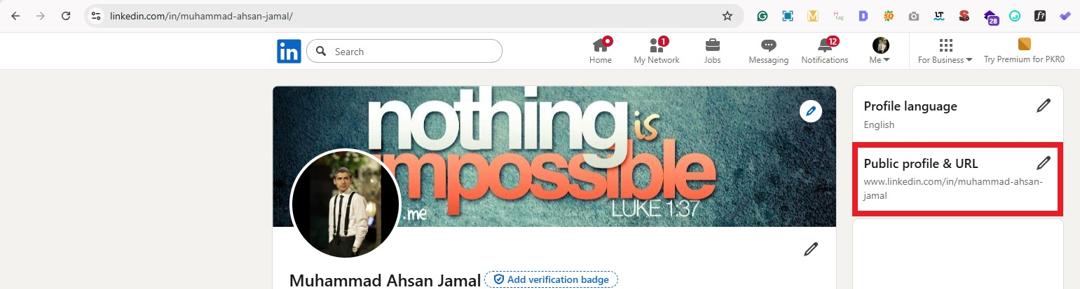
3. Click the edit (pencil) icon. Wait for the page to load.
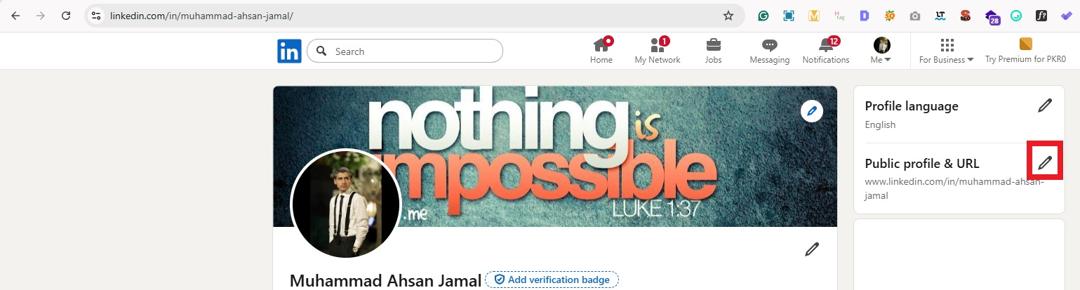
4. On the right side, locate “Edit your custom URL.”
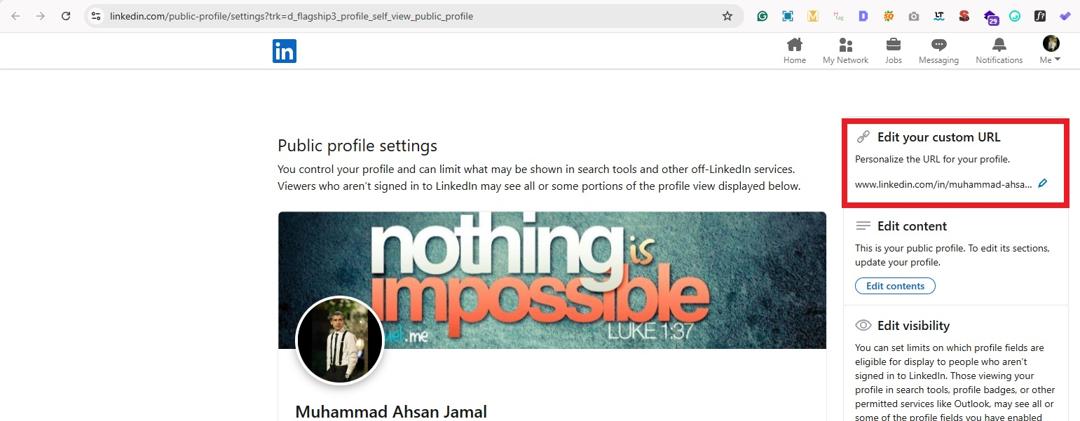
5. Click the edit (pencil) icon. Enter a personalized URL using your name or professional brand (if available).
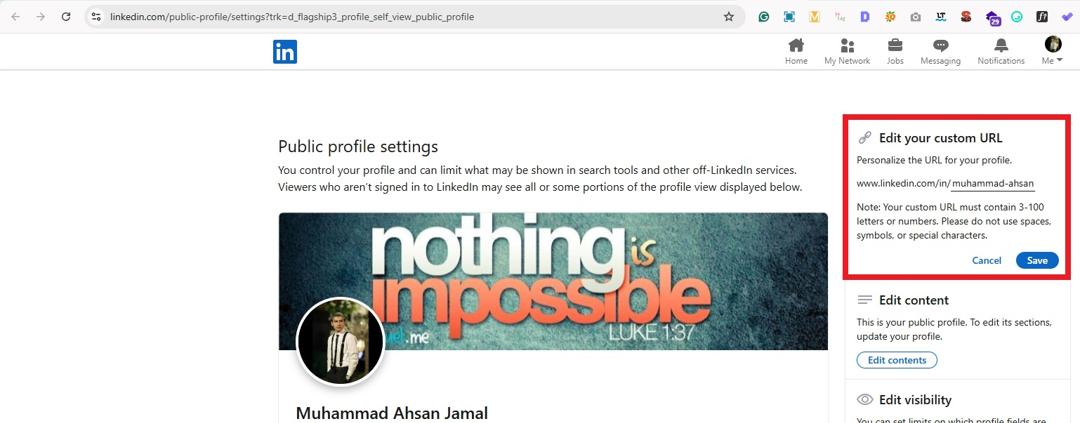
6. Click “Save” to apply the changes. Copy your new custom link and share it wherever needed.
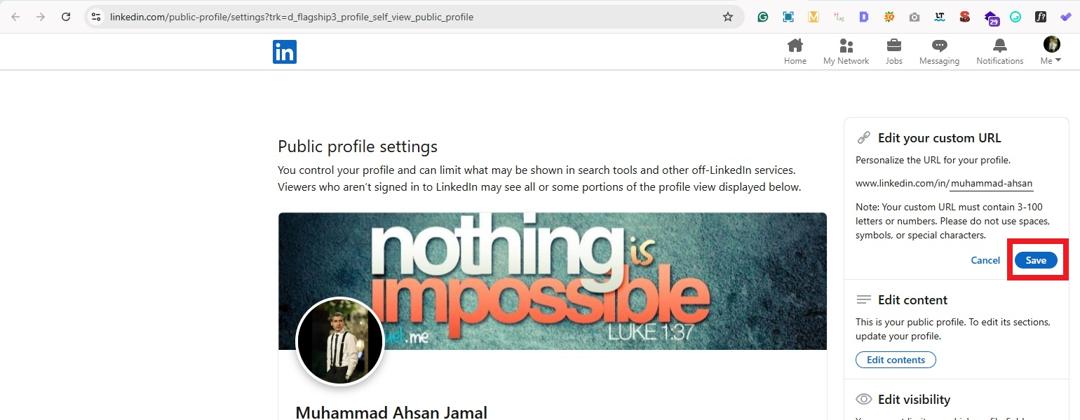
A custom URL usually looks cleaner and easier to remember, which makes you appear more professional and helps people find your profile quickly.
How to share LinkedIn profile on resume
Adding your LinkedIn profile to your resume is a smart way to give recruiters a deeper look at your professional background.
Your resume shows a summary of your experience, while your LinkedIn profile can highlight projects, recommendations, achievements, and work samples that don’t fit on one or two pages.
When done properly, it makes it easier for employers to learn more about you and verify your professional credibility.
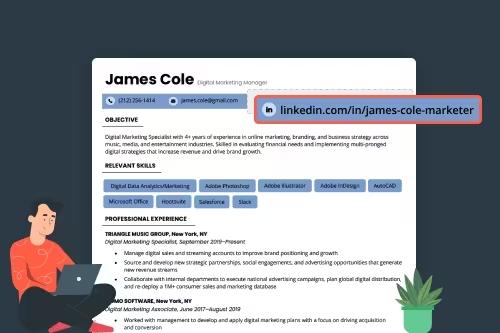
Here’s how to share LinkedIn profile link on resume:
Step #01: Make sure your LinkedIn profile is complete & updated
Before adding your profile to your resume, double-check that it looks professional and matches your resume details. Recruiters often review LinkedIn profiles to see work samples, career growth, and recommendations, so an updated profile helps create a strong impression.
Step #02: Create a clean & professional LinkedIn URL
Go to your LinkedIn profile page → Click the edit (pencil) icon next to “Public profile & URL” → Create a simple custom link using your name (for example: linkedin.com/in/yourname). Remember, a custom URL looks neater, saves space, and appears more professional on resumes.
Step #03: Add your LinkedIn profile to the resume header
Place your LinkedIn profile link in the “contact section” at the top of your resume. It should appear alongside your name, email address, phone number, and location. Recruiters usually check this section first, so adding it here makes your profile easy to find.
Step #04: Format the LinkedIn link properly
Remove extra text like “https://” to keep the link short and neat. If you’re submitting a digital resume or PDF, make the link clickable (clickable hyperlink) for quick access. For printed resumes, a simple, readable text link works best.
Step #05: Test the link before sending your resume
Copy and open the LinkedIn link to make sure it works correctly. A broken or incorrect link can leave a poor impression and make it harder for recruiters to reach your profile. Must perform this step!
By following these steps, you can confidently add your LinkedIn profile to your resume and make it easier for hiring managers to explore your professional story.
Read also: How to find and share your Discord profile link on mobile?
Why you must share your LinkedIn profile URL/link
Sharing your LinkedIn profile URL helps people quickly learn about your professional background and connect with you with minimal effort. It’s like your online career portfolio, easy to access and share anytime.
Increases visibility to recruiters
Many recruiters rely on LinkedIn to find and evaluate candidates, with studies showing that 70–87% use it to source talent. Plus, most employers review profiles before interviews. Sharing your profile link makes it easier for recruiters to discover you and review your experience, skills, and achievements in one place.
Enhances professionalism & credibility
A shared LinkedIn profile gives others a complete and verified view of your professional identity, including recommendations, endorsements, and career history. Profiles with skill endorsements, for example, can receive significantly more recruiter views, which boosts credibility.
Provides comprehensive context
Unlike a short resume, your LinkedIn profile can showcase projects, certifications, achievements, and work samples in detail. This helps hiring managers and connections better understand your professional journey and strengths.
Facilitates easy networking
LinkedIn is home to over 1 billion professionals worldwide, making it one of the largest platforms for career networking. Sharing your profile link makes it easier for colleagues, clients, and industry peers to connect, collaborate, and stay in touch.
Streamlines job applications
Many job applications ask for or accept your LinkedIn profile URL, helping recruiters quickly review your background and verify your qualifications. It also allows you to apply for jobs faster since your profile already contains most of your professional details.
Places to share your LinkedIn profile in 2026
Sharing your LinkedIn profile in the right places helps you stay visible, build credibility, and grow professional connections naturally.
The more strategic you are about where you place your profile link, the easier it becomes for recruiters, clients, and collaborators to discover you.
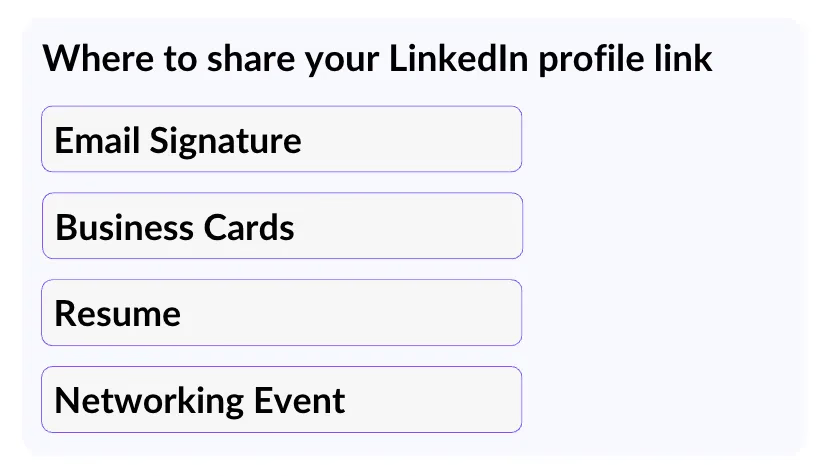
Professional email signatures
Adding your LinkedIn profile to your email signature makes it easy for recipients to learn more about your professional background.
Since emails are still widely used for business communication, this creates a simple, ongoing networking opportunity. It also adds credibility and gives people a quick way to verify your experience.
Personal business cards
Including your LinkedIn profile on business cards allows people to connect with you digitally after meeting in person.
Many professionals now add QR codes that lead directly to their LinkedIn page. It helps turn quick introductions into long-term professional connections.
Alternative social platforms & profiles
You can share your LinkedIn link on platforms like Twitter (X), Instagram, or professional communities to strengthen your online presence. This helps followers from different platforms understand your professional identity. It also makes cross-platform networking much easier.
Digital portfolios & personal websites
Adding your LinkedIn profile to your portfolio or personal website builds trust and adds professional proof. Visitors can quickly verify your career achievements, recommendations, and work history. It also improves your credibility when applying for jobs or attracting clients.
Content platforms
Platforms like Medium, Substack, or YouTube are great places to include your LinkedIn link in your bio or descriptions.
When people find value in your content, they often want to connect professionally. This helps you grow your network organically through your expertise.
Startup & niche boards
Startup communities, freelance platforms, and industry-specific boards often allow profile linking. Sharing your LinkedIn profile here helps you stand out and build authority in your niche. It also increases opportunities for collaborations, hiring, or partnerships.
Local networking events
Sharing your LinkedIn profile link during conferences, meetups, or workshops makes post-event follow-ups much easier.
Instead of exchanging only phone numbers, professionals often prefer LinkedIn for ongoing communication. It helps maintain professional relationships long after the event ends.
Within LinkedIn content
Sharing your profile in comments, posts, or articles on LinkedIn itself helps expand your reach. Engaging in discussions or tagging your profile encourages others to connect with you.
This approach works especially well when you’re actively sharing insights or thought leadership content.
Best practices & tips for sharing your LinkedIn profile
Sharing your LinkedIn profile link well isn’t just about doing it; it’s about doing it smartly. These tips help ensure your link looks professional, reaches the right people, and actually gets clicked.
Tip #01: Customize your profile URL first
Before you start sharing your profile, edit your LinkedIn URL to make it clean and memorable. Ideally, something like linkedin.com/in/yourname. A custom URL looks more professional and is easier to include on resumes, emails, or business cards.
Tip #02: Must keep your profile updated
Make sure your LinkedIn profile reflects your latest experience, skills, and achievements. An up-to-date profile gives anyone who clicks your link a current and accurate picture of your professional story.
Tip #03: Only share when & where appropriate
Don’t drop your profile link everywhere randomly (think about context). Share it in professional settings, such as job applications, networking emails, or industry conversations, not just random forums or casual chats.
Tip #04: Add to digital assets
Include your LinkedIn link in your email signature, digital portfolio, and personal website so people can easily find you. This creates multiple touchpoints for professionals to connect with you hassle-free.
Tip #05: Use QR code
Using a QR code that links directly to your LinkedIn profile makes it super easy for people to connect, especially at events or in print materials. Just make sure the code is tested on different devices before you share it. Try Replug’s free LinkedIn QR code generator to create a custom, branded QR code you can embed anywhere.
Tip #06: Leverage “Share Profile”
LinkedIn’s built-in “share profile” feature lets you send your profile link directly through the platform or to apps like email and messaging. It’s quick and keeps the link accurate.
Tip #07: Personalize connection requests
When sending your LinkedIn link with a connection invite, add a personalized note about why you want to connect. It increases the chance they’ll accept. This is probably the best practice widely recommended for LinkedIn outreach.
Shorten your LinkedIn profile URL with Replug: Get a new custom URL & boost your profile!
If your LinkedIn profile link looks long or messy, using a tool like Replug can make it cleaner, shorter, and easier to share on the go.
Replug is a powerful link management platform that helps you create branded, trackable links using a link shortener, making your LinkedIn profile look more professional and easy to remember.
It allows you to convert long LinkedIn profile links into short, branded URLs that match your personal or business identity.
Plus, it supports custom domains, which helps strengthen your brand and build trust when sharing your profile in emails, on social media, or in marketing campaigns.
Another great advantage of using Replug is its tracking and analytics features. With its custom URL shortener, you can monitor clicks, analyze audience engagement, and even use tracking tools such as UTM parameters or retargeting pixels to understand how people interact with your shared LinkedIn profile link.
Overall, Replug makes sharing your LinkedIn profile smarter, more professional, and data-driven, helping you build stronger personal branding and networking opportunities.
Summing up
To wrap things up, sharing your LinkedIn profile the right way can open doors to better networking, stronger professional visibility, and smoother job opportunities.
Whether you’re sharing your profile through mobile, desktop, resumes, or events, making your link easy to access and professional-looking makes a real difference.
Tools like this reliable LinkedIn URL shortener help you turn long, cluttered links into clean and memorable ones, making your profile easier to share and track engagement.
Besides, platforms like Replug also support content growth by offering tools such as a LinkedIn post generator to create engaging posts and a LinkedIn video downloader to repurpose valuable content for future use.
When you combine smart sharing with the right tools, you make your LinkedIn presence more impactful and easier for the right people to find and connect with.
Frequently asked questions

Muhammad Ahsan Jamal