VSCO is a popular platform for photographers and creators to showcase their work, but sometimes, its links can be long and unappealing. Whether you’re sharing your VSCO profile on social media or adding it to your Instagram bio, a branded short link makes it cleaner, more professional, and easier to track.
That’s where Replug.io comes in!
With Replug, you can shorten, customize, and track your links effortlessly. In this guide, we’ll walk you through the simple steps to shorten a VSCO link using Replug.
Let’s begin!
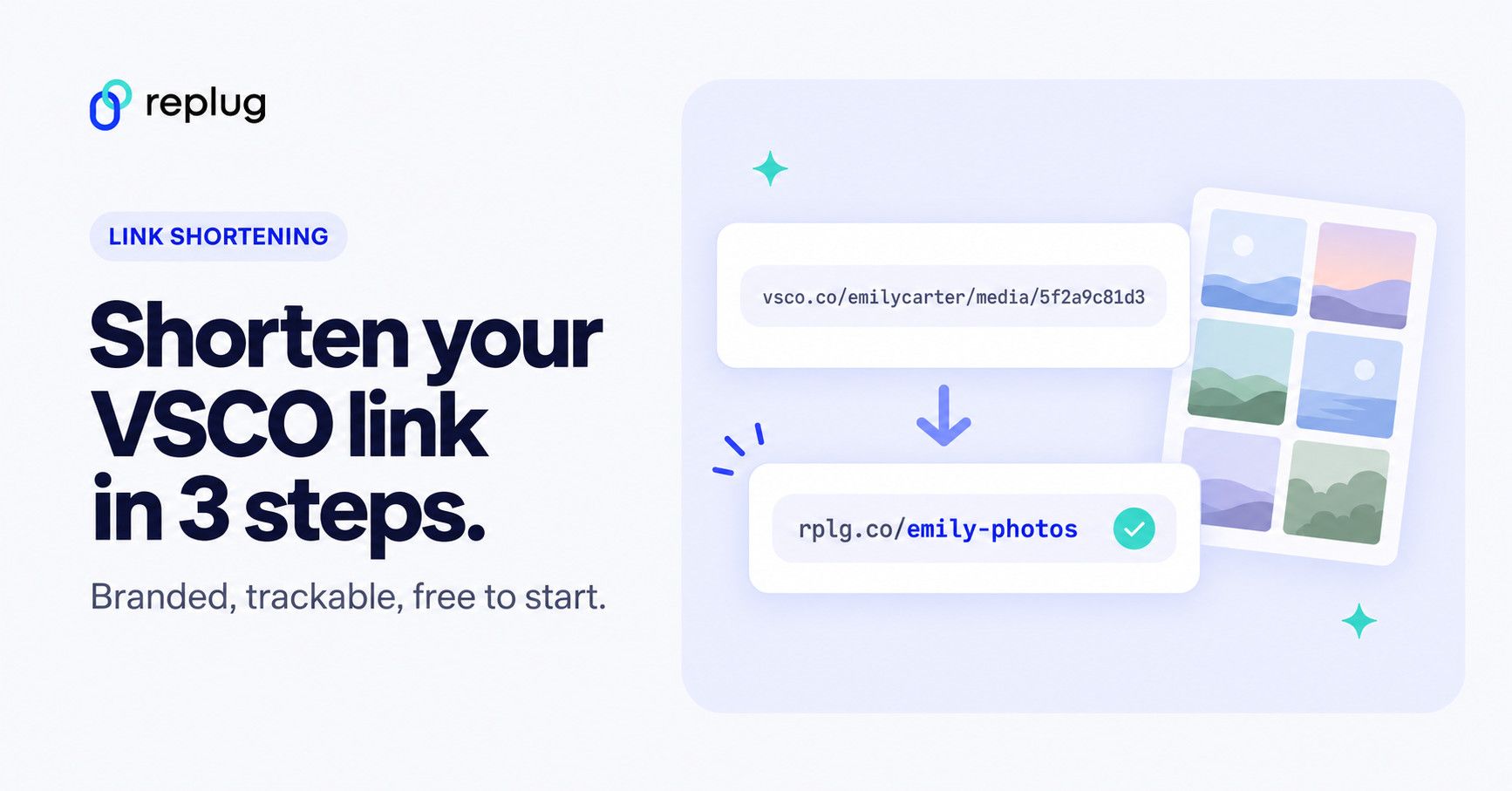
Quick answer: in the VSCO app, open your profile, tap Share and copy your link (it looks like vsco.co/yourname). Paste it into the shorten bar on Replug’s Home page and click Shorten. On the free plan you get a short link with an automatic ending, such as replug.link/x7Kp2; on Essentials and above you can pick the ending, such as replug.link/emily-photos. You can also use your own domain on any plan, and every short link counts its clicks.
What your VSCO link looks like (and why shorten it)
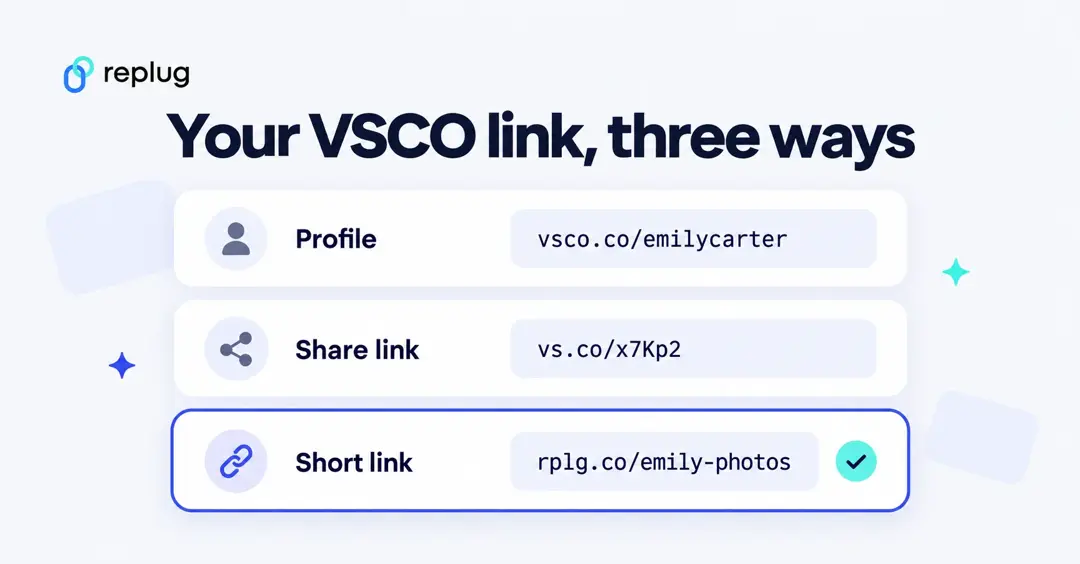
- Profile link: vsco.co/yourname, the address of your public gallery.
- Post link: a longer address with your username and a string of letters and numbers for one photo or video.
- Share link: the VSCO app sometimes copies a short vs.co/… link instead. It’s short, but the ending is random and you can’t see how many people opened it.
A Replug short link fixes both problems: you choose a readable address that matches your name or portfolio, and you can see how many people tap it, from where and on which devices. It also saves space in bios with tight character limits.
3 steps to shorten a VSCO link using Replug
Step 1: Copy your VSCO link
- Open VSCO on your browser or app.
- Navigate to your profile or the specific post you want to share.
- Tap the Share button and select copy your profile URL.
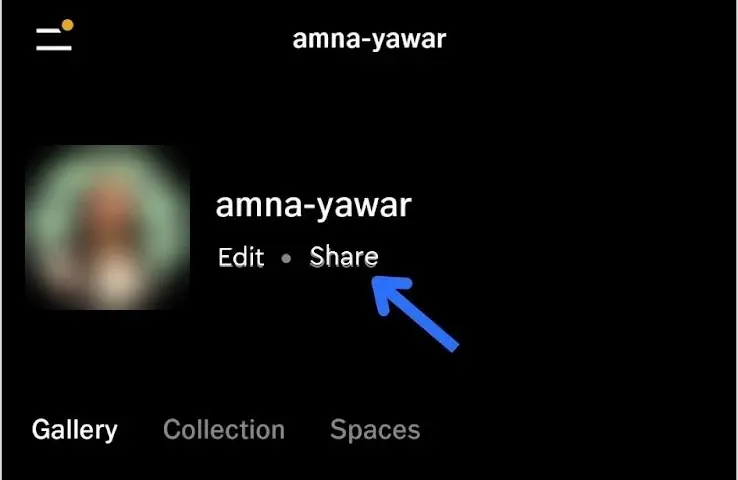
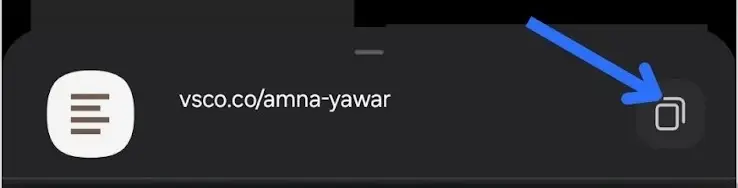
Step 2: Create a new shortened link
- Go to the Replug app and log in to your account. If you don’t have an account, create a new one.
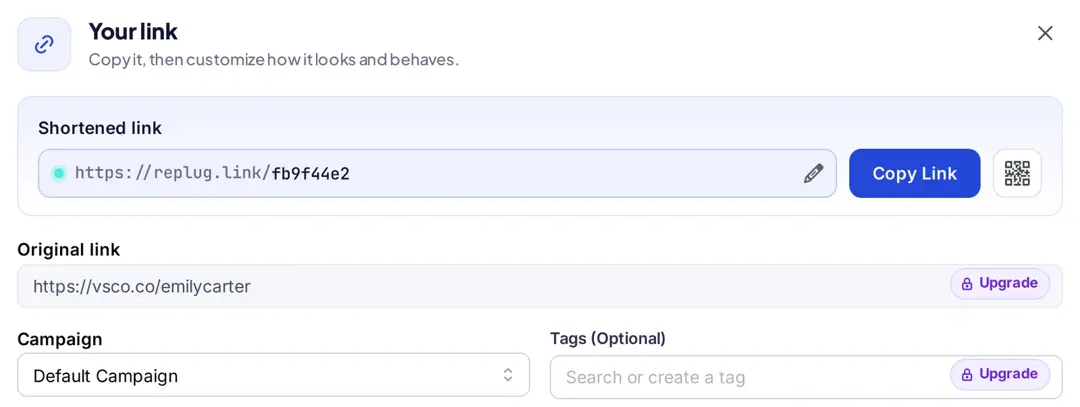
- Once logged in, you land on the Home page. Paste the VSCO link in the bar that says Paste a long URL to shorten… and click Shorten.

- Replug creates the short link right away and opens the Your link window. Here’s what the auto-generated short VSCO link looks like:
Step 3: Copy your shortened link
- Click Copy Link. The button turns green and says Copied, and your short link is ready to paste. The link is already saved; use Save Shortened Link at the bottom of the window only if you change other settings, such as the campaign. You can find the link again later under Links in the sidebar.

Useful tip: Copy the shortened link and test it in your browser to ensure it redirects correctly.
Link shortener tools like Replug not only help you create short links but also make your link cleaner and more shareable. Plus, you’ll also save space, making them perfect for platforms with character limits.
What else can you do with Replug?
With Replug, you can do much more than just shorten and track your VSCO links. Here are a few ways Replug can enhance how you share your VSCO content:
- Create custom links: You can personalize your shortened VSCO link to match your brand or make it more recognizable (picking your own ending, like replug.link/emily-photos, is on Essentials and above: click the pencil next to the short link, type the ending and click the checkmark; the free plan gives you an automatic ending). Whether it’s for your photography portfolio or a specific post, shortening a URL ensures that your link is memorable and professional.

- Track engagement: Replug allows you to add tracking and UTM parameters to your VSCO links. You can monitor which social platforms, websites, or campaigns drive the most traffic to your VSCO profile or posts. It’s a great way to measure your success and refine your strategy.
- Create expiring links: Replug allows you to set expiration dates for links if you’re offering limited-time access to exclusive VSCO content (like behind-the-scenes shots or premium presets). Once the time is up, visitors see a “Link Expired” page instead of your content, so the offer really ends. (According to Replug’s pricing page, link expiry is on the Scale and Agency plans; without an expiry date your links keep working.)
- A/B test your links: Not sure which post or portfolio format attracts more visitors? With Replug, you can split one short link across up to 20 destination URLs, as described on Replug’s A/B testing page, and track which one gets the most clicks. (A/B tests are on the Scale and Agency plans.)
- Sharing across multiple platforms: Once you’ve shortened your VSCO link, sharing it becomes much easier. You can use your branded short link across various platforms, such as in your Instagram bio, social media posts, email newsletters, or even direct messages, without worrying about clutter or space limitations.
- Optimizing for SEO: Creating an SEO-friendly URL tells people where a link goes before they tap it. Plus, your VSCO link will always stay professional and on-brand with Replug.
Make it a branded VSCO link
A short link is good; one that reads like your name is better. A few options, depending on your plan:
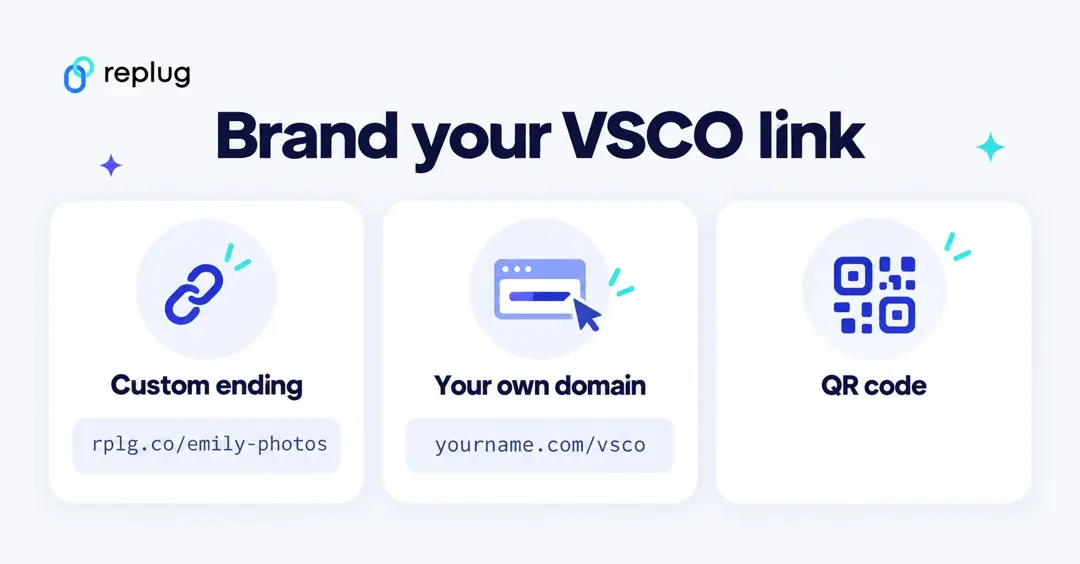
- Your own ending (Essentials and above): replug.link/emily-photos instead of a random code.
- Your own domain (every plan, including Free): connect a domain you own, such as yourname.com/vsco. Paid plans include a free .link domain for the first year.
- A QR code (10 smart QR codes on Free): print it on business cards, photo prints or a market stall sign so people can open your gallery from their camera.
Where to use your short VSCO link
- Instagram bio: add it under Edit profile, then Links. Our guide shows how to put your VSCO link in your Instagram bio and fix it when it only says “OK”.
- TikTok and X: paste it in the website or link field, or type it in the bio where links aren’t clickable; a short, readable link is easier to type.
- Email signature and portfolio PDFs: one clean link to your latest work.
- Several links at once: if you also want to share a print shop, Pinterest or a portfolio site, put them all on one bio link page and share that link instead.
See how many people click your VSCO link
VSCO doesn’t tell you who opened your profile from a link, and neither does Replug: you see totals, not names. For every short link, Replug shows clicks, unique visitors, countries, cities, devices, browsers and the sites people came from. The free plan keeps 14 days of click history, Essentials 90 days, and Scale and Agency keep it with no time limit.
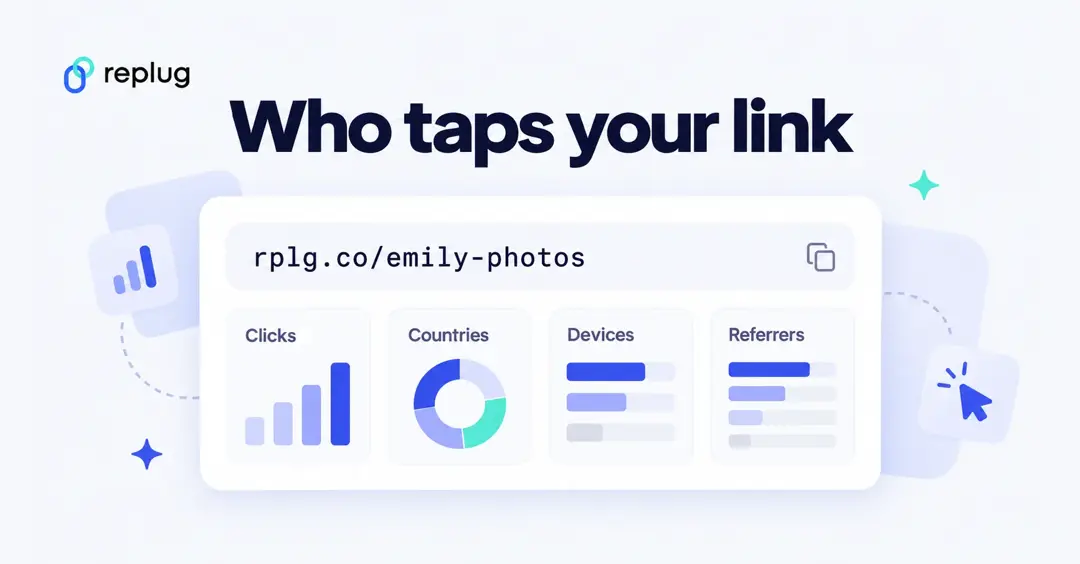
To compare channels, make one short link per place (one for Instagram, one for TikTok, one for your email signature) or add UTM tags with the built-in UTM builder, which is on every plan.
How to spot a fake VSCO link
Fake links that pretend to be VSCO are usually after your login. Before you tap or sign in:
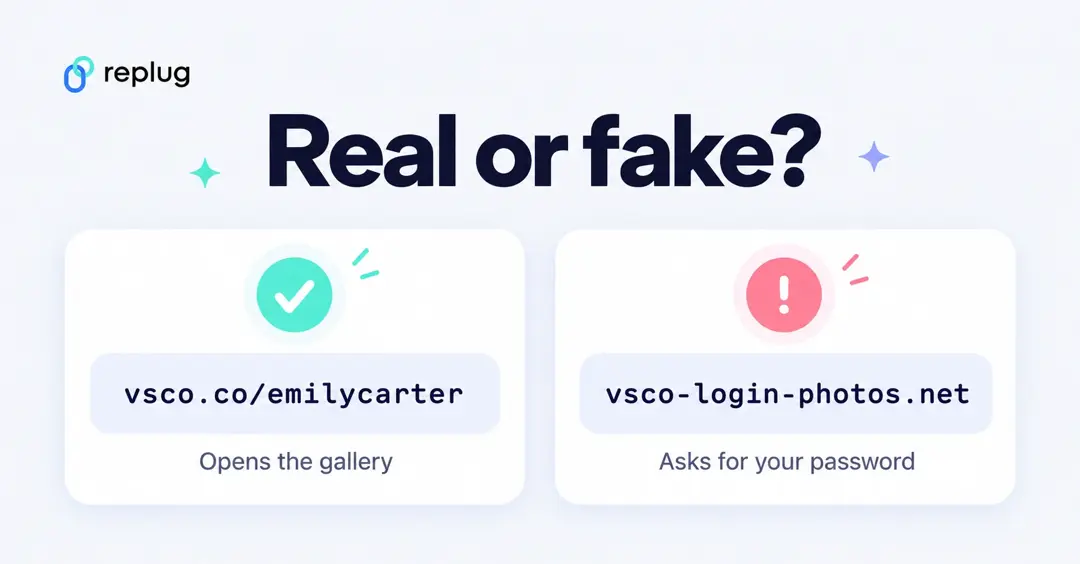
- Real VSCO pages open on vsco.co, and app share links start with vs.co. Look-alike spellings or extra words in the domain are a red flag.
- A VSCO gallery never needs your password to view. If a link asks you to log in to “see the photos”, close it and open VSCO yourself.
- If a short link from a stranger leads somewhere unexpected, don’t enter anything, and report the account that shared it.
- When you share your own link, a branded short link on a domain you control is easier for followers to trust than a random string.
Short VSCO link not working? Quick checks
- Test it first: open the short link in a private browser window. If the VSCO page loads there, the link works.
- Check the username: a typo or a changed VSCO username sends people to an empty page. If you changed your username, update the link (Scale and Agency) or make a new one.
- It only says “OK” inside Instagram: that’s the in-app browser, not your short link. See the fixes in our VSCO link in Instagram bio guide.
- Wrong page opens: you may have copied a post link instead of your profile link. Copy the profile link again from VSCO.
Conclusion
Shortening your VSCO link with Replug makes it more professional, user-friendly, and trackable. Whether you’re sharing your photography portfolio or a specific post, a short and clean URL improves the user experience.
Start using Replug today and optimize how you share your VSCO content!
Frequently asked questions

Manahil