![How to start a YouTube channel for beginners [2026]: Step-by-step YT channel setup + tips for success!](/_next/image?url=https%3A%2F%2Finternal-blog.replug.io%2Fwp-content%2Fuploads%2F2026%2F05%2FHow-to-start-a-YouTube-channel-for-beginners-2026-Step-by-step-YT-channel-setup-tips-for-success.png&w=1920&q=80)
Are you the one wondering if starting a YouTube channel in 2026 is too late? Think again, please!
YouTube now has over 2.7 billion monthly active users, which is more than a third of the entire planet tuning in every single month.
And here’s the wild part: only about 4.4% of those users actually own or run a channel. That means the audience is massive, but the creator space still has plenty of room for ‘you’.
No matter if you want to share a hobby, build a personal brand, or eventually earn real income from your content, YouTube remains the best long-form video platform on earth to do it. And, the bar to entry is lower than ever.
In this guide, we’ll walk you through every step, from zero to your first published video. But before we get into the setup, let’s make sure we’re on the same page about the basics: what exactly is a YouTube channel, and how does it work?
What is a YouTube channel?
Think of a YouTube channel as your own personal TV station, but on the internet, and completely free to set up.
It’s basically a dedicated space on YouTube where you upload, organize, and share your videos with the world. Anyone with a Google account can create one in just a few minutes.
When someone visits your YT channel, they’ll see everything you’ve posted: your videos, playlists, an About section, and even a banner that represents your brand. Viewers can also hit that “Subscribe” button to stay updated whenever you post something new.
In short, it’s your home on YouTube, and you decide what goes up there!
Important things to know before starting a YouTube channel
Before you hit that “Create a channel” option, there are a few things worth knowing upfront. Starting a YouTube channel is exciting, but going in with the right mindset and realistic expectations will save you a lot of frustration down the road.
Here’s what you should keep in mind:
- Consistency is key: Posting regularly tells both YouTube’s algorithm and your audience that you’re serious. Channels that upload consistently tend to grow faster than those that post randomly.
- Patience is mandatory: Most successful YouTubers didn’t blow up overnight. Growth takes time, so don’t get discouraged if the first few months feel slow (keep going anyway).
- Focus on value over high-end equipment: You don’t need a fancy camera to start. A decent smartphone and good lighting can take you far. What truly matters is whether your content is actually useful or entertaining to your viewers.
- Identify a specific niche: Trying to make content about everything usually leads to attracting no one. Pick a focused topic you genuinely enjoy, and build your channel around that.
- Prioritize compelling thumbnails & titles: Your thumbnail and title are the first things people see before clicking. If they don’t grab attention, even great videos get ignored. So, spend real time getting these right.
- Commit to a regular, sustainable posting schedule: Don’t burn yourself out by over-committing. It’s far better to post once a week consistently than to upload daily for a month and then disappear.
- Focus on authentic content: Viewers can spot fakeness pretty quickly. Just be yourself! People connect with real personalities far more than overly polished, scripted ones.
- Learn editing & SEO basics: You don’t need to be a pro editor, but knowing how to trim clips, add some music, and optimize your titles and descriptions for search can make a big difference early on.
- Create a backlog: Before launching, try to have at least 3–5 videos ready to go. This gives you a buffer and helps you maintain your posting schedule without scrambling for ideas at the last minute.
- Embrace imperfection: Your first videos probably won’t be great, and that’s completely fine. Every creator started somewhere. Ship the video, learn from it, and improve as you go.
- Be prepared for feedback: Comments won’t always be kind. Develop a thick skin, take constructive criticism on board, and learn to ignore the noise that adds no real value.
- Use analytics: YouTube’s built-in analytics show you what’s working and what isn’t, things like watch time, click-through rate, and audience retention. Check them regularly and let the data guide your decisions.
- Avoid “shiny object syndrome”: It’s tempting to constantly switch styles, formats, or niches every time you see another creator doing something cool. Stick to your lane, stay focused, and give your strategy enough time to actually work.
- Avoid Sub4Sub: Sub4Sub means subscribing to someone’s channel in exchange for them subscribing back. It sounds like a shortcut, but it only inflates your numbers with people who don’t care about your content, which bombs your engagement and hurts your channel long-term.
How to start a YouTube channel: Create a personal YT channel in no time!
Setting up a YouTube channel is honestly simpler than most people think. You don’t need any technical skills, just a Google account and a few minutes of your time. Follow the next steps, and you’ll have your channel up and running before you know it.
Steps on how to start a YouTube channel:
Step #01: Sign in to YouTube
Head over to www.youtube.com and click the “Sign in” button at the top right corner. Use your existing Google account to log in, or create a new one if you don’t have one yet.

Step #02: Create channel
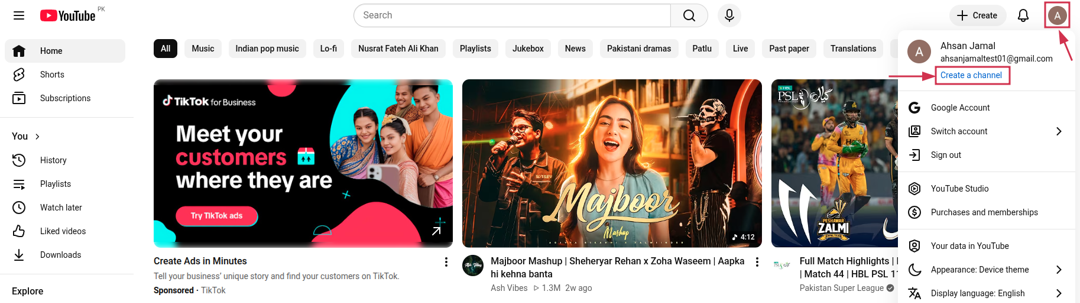
Once you’re signed in, click on your profile icon at the top right, then select “Create a channel” from the dropdown menu.
Step #03: Customize channel name & handle
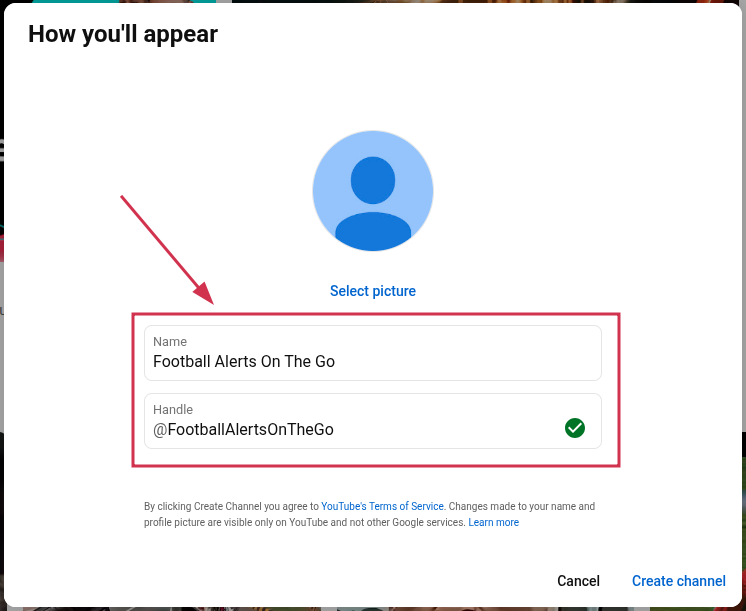
Choose a channel name that reflects what your content is about and is easy to remember. You’ll also get to set your unique handle (that’s the @username people use to find and tag you on the platform).
Step #04: Customize branding
This is where you give your channel its look and feel. Upload a profile picture to make your channel look professional and recognizable from day one. Then, click on “Create channel”.
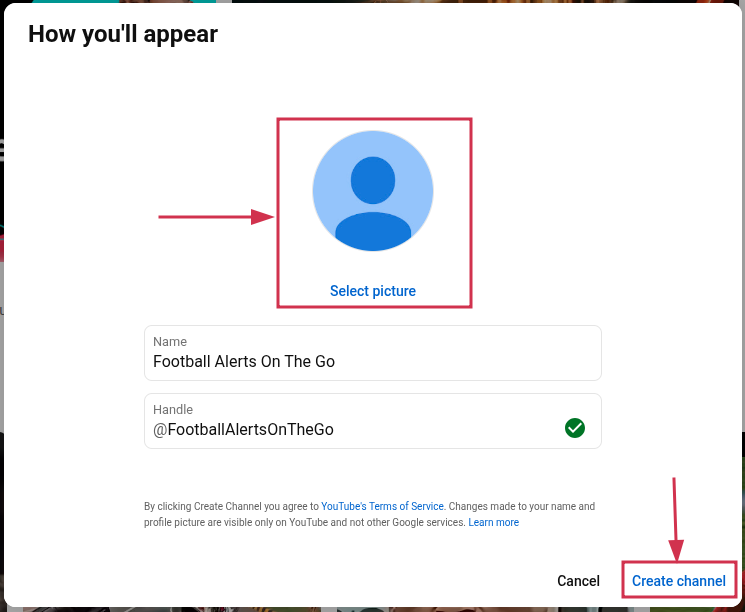
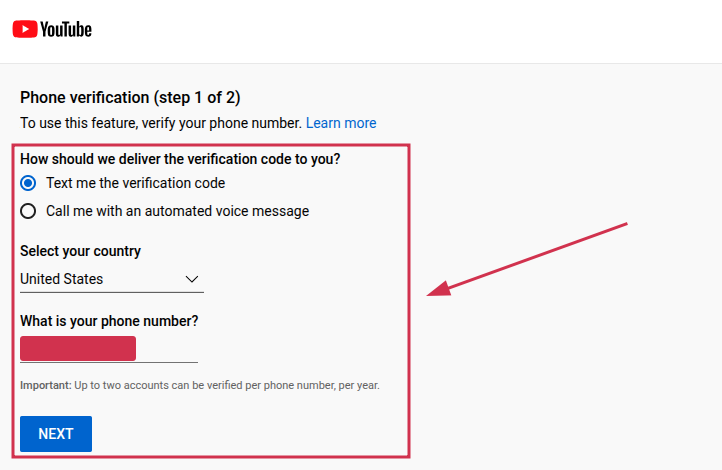
Step #05: Verify channel
Head to youtube.com/verify and enter your phone number to verify your account. Then, click on “Next.”
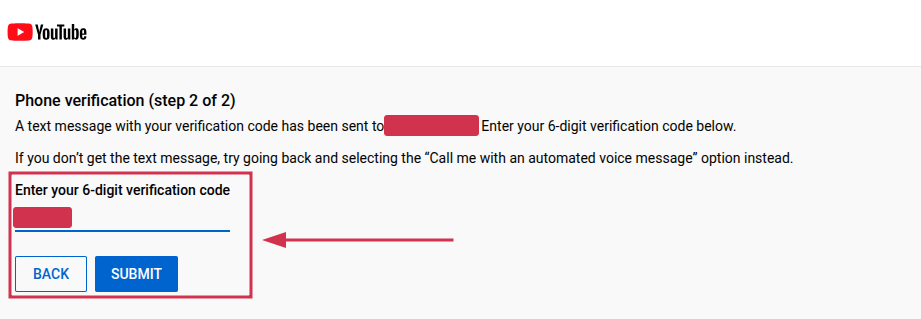
Now, you will receive a 6-digit verification code. Please enter it and click the “Submit” button.
And that’s all there is to it!
How to start a YouTube channel for business
A business YouTube channel works a little differently from a personal one, and setting it up the right way from the start actually matters. The key difference is that you’ll want to create it under a Google Brand Account, so it stays separate from your personal profile and can be managed by multiple people if needed.
Here’s how to do it step-by-step:
Step #01: Create a dedicated Google Brand Account
Go to myaccount.google.com, click on “Create an account,” and select the option to create it for a business or brand. This keeps your business channel completely separate from your personal Google account.
Step #02: Create a brand channel
Sign in to YouTube using your new Google Brand Account, click your profile icon, and select “Create a channel.” This channel will represent your business, which is exactly what you want.
Step #03: Customize channel branding
Upload your business logo as the profile picture and design a clean, on-brand banner that reflects your business identity. First impressions count, so make sure everything looks consistent with your overall brand.
Step #04: Fill out the ‘About’ section
Write a clear, concise description of what your business does and what kind of content viewers can expect. Don’t forget to add your website link, business email, and any relevant social media handles here, too.
Step #05: Verify your channel
Just like with a personal channel, head to youtube.com/verify and complete phone verification. This unlocks custom thumbnails, longer video uploads (more than 15 minutes), and live streaming, all essential features for a business channel.
Step #06: Set up default upload settings
Go to YouTube Studio, navigate to Settings, and configure your default upload preferences – things like default visibility, license type, category, and tags. This saves you time with every upload and keeps your settings consistent across all videos.
How to start a YouTube channel on your phone
Don’t have a laptop or PC at hand? No problem!
You can set up a fully functional YouTube channel right from your smartphone in just a few minutes. The process is super straightforward, and the YouTube app makes it pretty intuitive.
Here’s how to create a YouTube channel in mobile:
Step #01: Open YouTube app
Download the YouTube app from the App Store (iPhone) or Google Play Store (Android) and install it. Then go ahead and open it up.
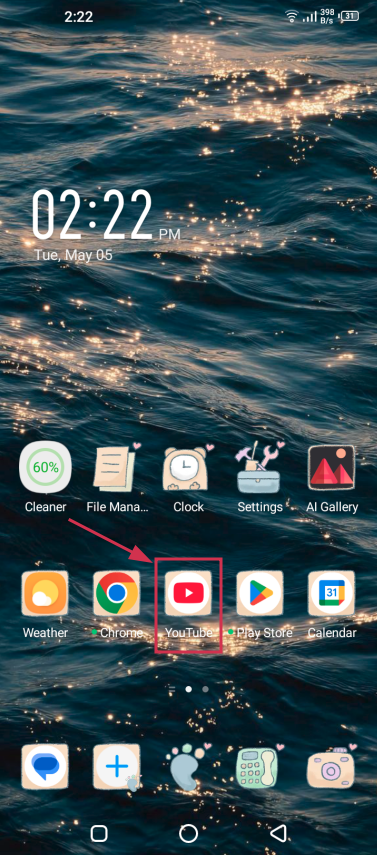
Step #02: Sign in with a Google account
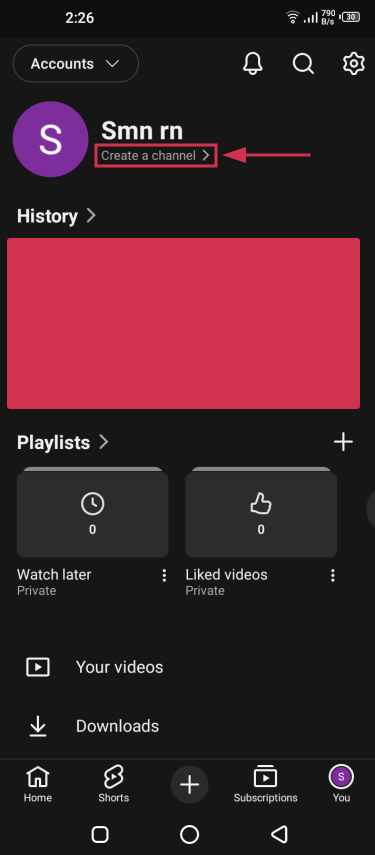
Tap your profile icon, followed by tapping the “Accounts” button.
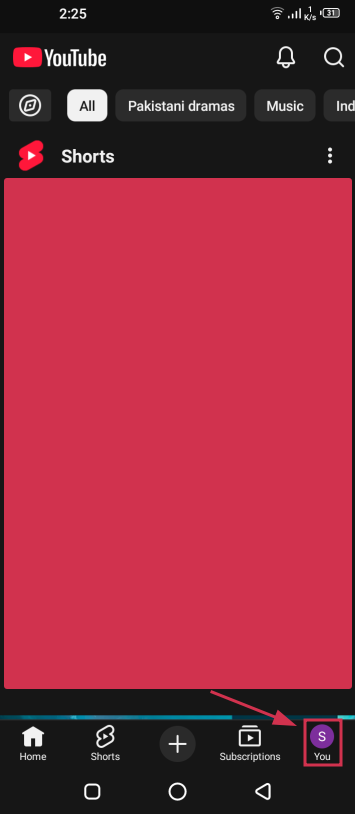
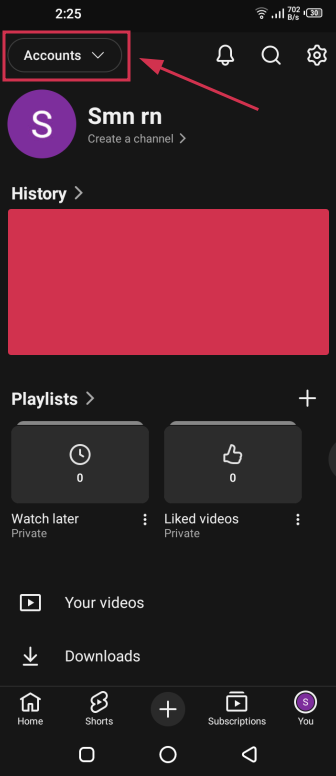
Log in with your existing Google account. If you don’t have one, you can create a new Google account right from the app in just a couple of minutes.
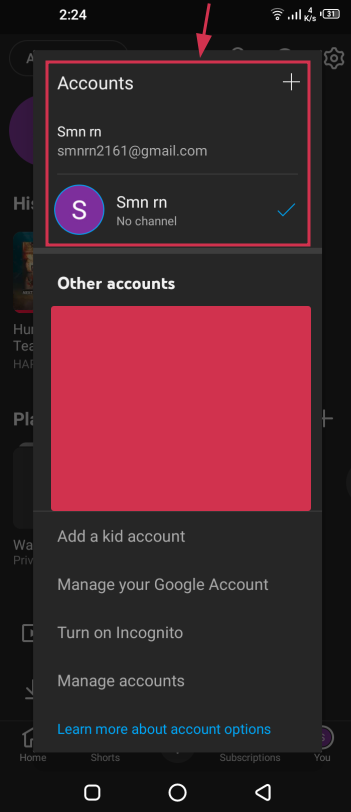
Step #03: Tap your profile picture
Once you’re successfully signed in, tap your profile picture or icon again in the bottom right corner of the screen. This opens up your account menu, where all the important options live.
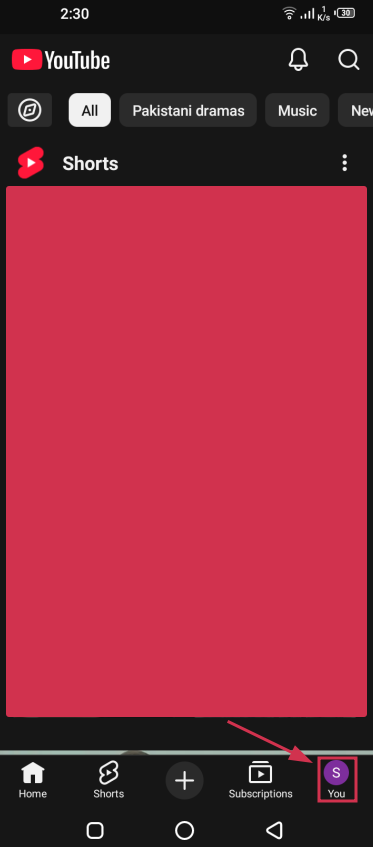
Step #04: Select “Create a channel”
From the opened screen, tap “Create a channel.” This is where YouTube will prompt you to set up your channel if you haven’t already. Just follow the quick on-screen steps to get it created.
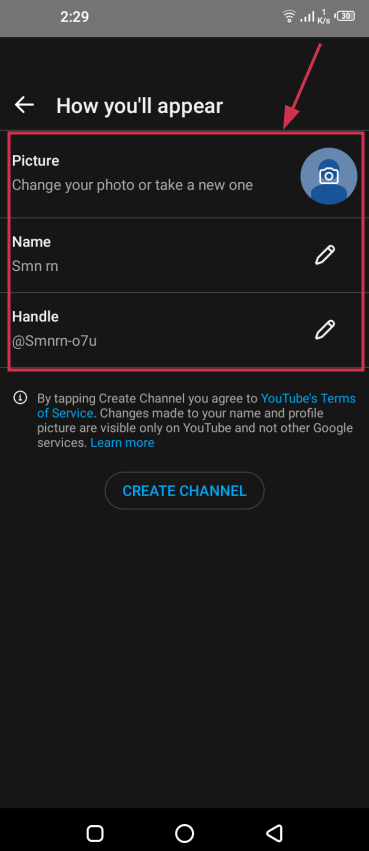
Step #05: Customize your channel name, handle, & picture
Now, add your channel name, set your unique handle, and upload a profile picture. Keep it clear and relevant to what your channel is going to be about.
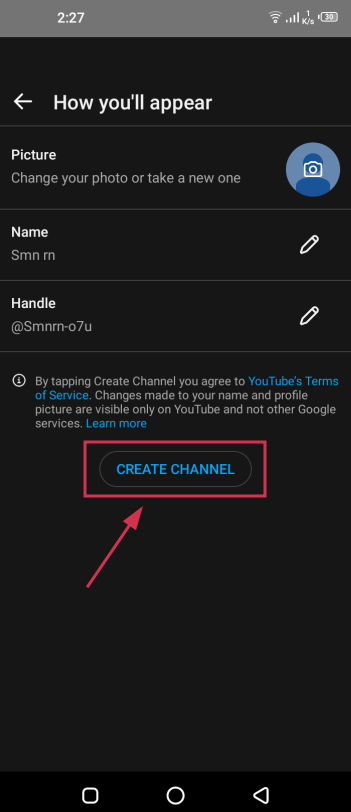
Finally, tap on the “CREATE CHANNEL” button. That’s all!
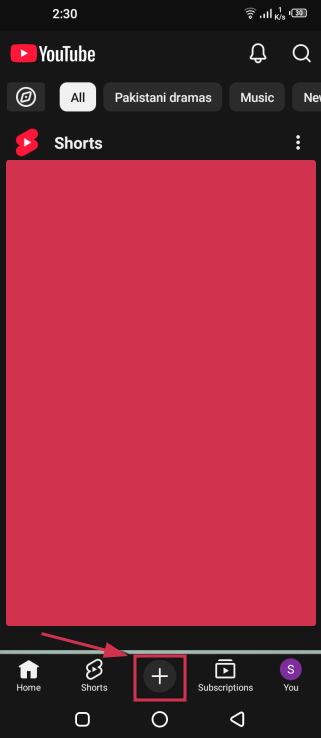
Step #06: Use the “+” button to create or upload content (additional step)
Tap the “+” icon at the bottom center of the app to start uploading videos, record content directly, or even create a YouTube Short. This is your go-to button for getting content live on your channel.
How to start a YouTube channel for kids
Starting a YouTube channel for kids is a bit different from a regular channel; safety and parental oversight come first, always.
Whether your child wants to share creative videos, gaming content, or just have fun on camera, it’s important to set everything up the right way before posting anything publicly.
Here’s how to create a YouTube channel for a kid properly:
Step #01: Set up account & channel
Since YouTube requires users to be at least 13 years old, a parent or guardian needs to create and own the Google account and YouTube channel. The child can create content, but an adult should always be in control of the account itself.
Step #02: Set safety settings
Go to YouTube Studio and mark the channel as “Made for kids” to filter out inappropriate content. Also, make sure to turn off or carefully manage features like comments, as unmoderated comments on kids’ content can get problematic quickly.
Step #03: Enable supervised mode
YouTube offers a supervised experience through the YouTube Family Center, which lets parents control what their child can watch and do on the platform. It’s a solid extra layer of protection worth setting up.
Step #04: Content creation
Always be involved when your child is filming or editing. Keep videos fun and age-appropriate, and make sure no personally identifiable information (like your home address, school name, or daily routine) ever makes it into the content.
Step #05: Manage privacy
Consider setting videos to “Unlisted” initially so only people with the direct link can view them. If you do go public, make sure to mark your content as “Made for Kids” in YouTube Studio. This is actually a legal requirement under COPPA if your content targets children.
Step #06: Content strategy
Focus on content your child genuinely enjoys, no matter if that’s crafts, storytelling, toys, or educational videos. Keep it consistent, light, and fun rather than chasing trends, and always prioritize your child’s comfort and well-being over views or growth.
How to start a YouTube channel and make money
Making money on YouTube is absolutely possible, but it’s important to understand that it rarely happens overnight.
The good news is that there are multiple ways to monetize your channel, and you don’t even need millions of subscribers to start earning.
Here’s how to create a YouTube channel and make money using these effective ways:
Method #01: YouTube Partner Program (AdSense)
This is YouTube’s official monetization program, where you earn money from ads shown on your videos.
To qualify, you currently need:
- at least 1,000 subscribers and 4,000 watch hours in the past 12 months, or
- 1,000 subscribers and 10 million Shorts views in the last 90 days
Method #02: Alternative monetization (smaller channels)
If you haven’t hit YPP requirements yet, you can still earn through YouTube’s early monetization features like channel memberships and Super Thanks, which are available to smaller creators. These let your audience support you directly without you needing to wait for ad revenue.
Method #03: Affiliate marketing
This involves promoting other companies’ products or services in your videos and dropping your unique affiliate link in the description. Every time someone makes a purchase through your link, you earn a commission, and this method can work even with a relatively small audience.
Method #04: Brand sponsorships
Brands pay creators to feature or review their products within videos, and this can be one of the most profitable income streams on YouTube. You don’t necessarily need a massive channel either. Brands often love working with smaller, highly engaged niche audiences.
Method #05: Sell own products/services
If you have something to sell, whether that’s an online course, merchandise, coaching, or a digital download, your YouTube channel can act as a powerful free marketing tool to drive sales. This method puts the most money in your pocket since there’s no middleman involved.
Tips on how to start a YouTube channel
Setting up a channel is the easy part; growing it is where most beginners struggle. These tips won’t guarantee rapid success, but they will help you avoid the most common mistakes and set your channel up for long-term growth.
Let’s get into it:
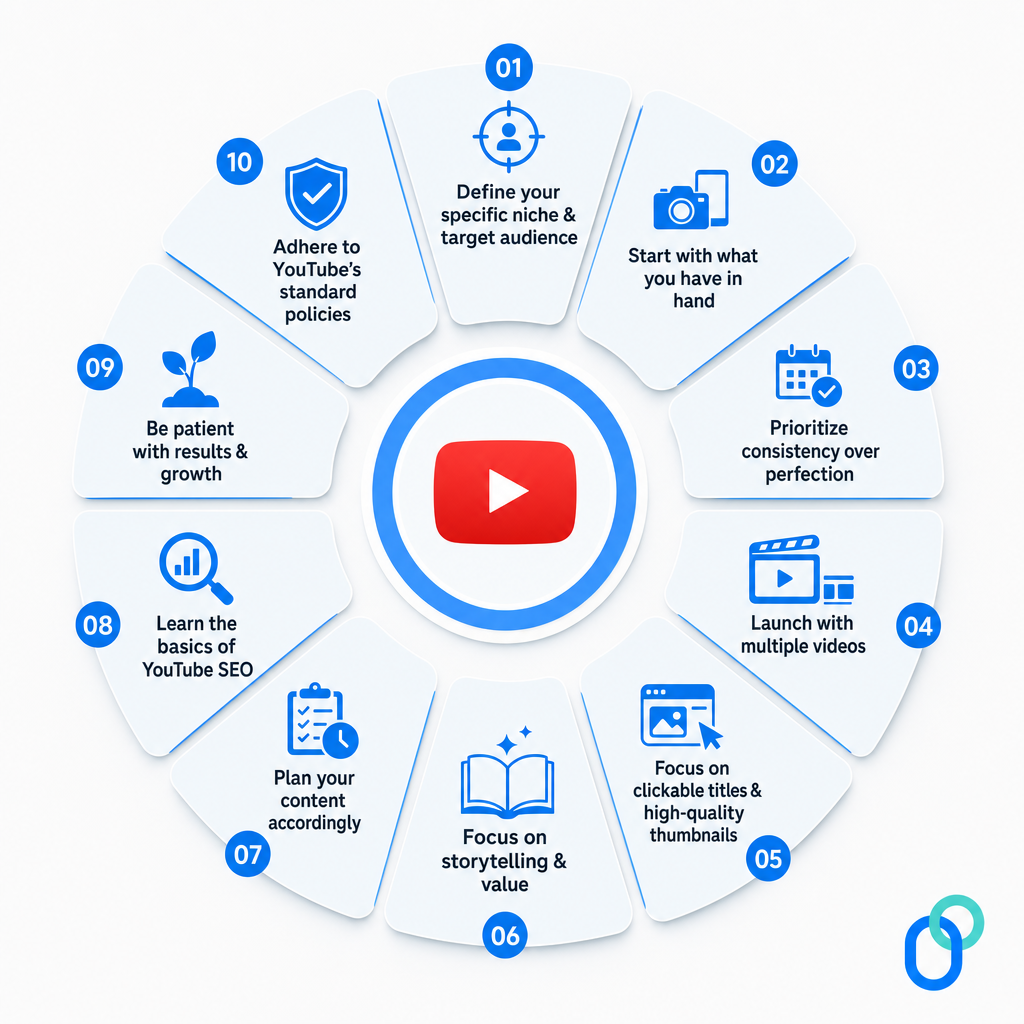
Tip #01: Define your specific niche & target audience
Before you record a single video, get crystal clear on what your channel is about and who it’s for. The more specific your niche, the easier it is to attract a loyal, relevant audience rather than random one-time viewers.
Tip #02: Start with what you have in hand
Don’t wait until you can afford better gear. Start with your smartphone and whatever you already own. Waiting for the “perfect setup” is just procrastination in disguise, and your audience cares far more about your content than your camera quality.
Tip #03: Prioritize consistency over perfection
Posting regularly (even if the videos aren’t flawless) will always beat uploading perfect videos once in a blue moon. Consistency builds trust with your audience and signals to YouTube’s algorithm that your channel is active and worth promoting.
Tip #04: Launch with multiple videos
Instead of launching with just one video, try to have at least 3–5 videos ready on day one. This gives new visitors more content to indulge in, which increases watch time and makes your channel look more established right from the start.
Tip #05: Focus on clickable titles & high-quality thumbnails
Your title and thumbnail are basically your video’s billboard. They determine if someone clicks or keeps scrolling. Spend real time crafting curiosity-driven titles and clean, eye-catching thumbnails that actually represent your content honestly.
Tip #06: Focus on storytelling & value
Every video you make should either solve a problem, entertain, or teach something useful. Wrapping that value in a good story keeps viewers watching longer, and watch time is one of the biggest factors YouTube uses to decide how widely to push your content.
Tip #07: Plan your content accordingly
Don’t just act without preparation every time you sit down to record. Have a content calendar or at least a running list of video ideas ready. Planning ahead keeps you consistent, reduces creative burnout, and ensures your content stays aligned with your niche.
Tip #08: Learn the basics of YouTube SEO
Understanding how to use the right keywords in your titles, descriptions, and tags can significantly improve how easily people discover your videos through search. You don’t need to be an SEO expert; just learn the fundamentals and apply them to every upload.
Tip #09: Be patient with results & growth
Most channels take anywhere from 6 to 12 months before they see meaningful growth, and that’s completely normal. Trust the process, keep improving your content, and resist the urge to quit just because the numbers aren’t moving as fast as you’d like.
Tip #10: Adhere to YouTube’s standard policies
Always follow YouTube’s Community Guidelines and Terms of Service. Violating them can get your videos removed, your channel demonetized, or worse, permanently banned. When in doubt, check YouTube’s official policy pages before posting anything that feels borderline.
How to manage a YouTube channel as a beginner
Once your channel is live, managing it well is what separates creators who grow from those who fizzle out. It doesn’t have to be complicated, though a few smart habits and the right tools can keep everything running smoothly.
Here’s what to focus on:
Tip #01: Use YouTube Studio to upload, edit, & analyze content
YouTube Studio is your channel’s control room. It’s where you upload videos, make basic edits, write descriptions, and check how your content is performing. Get comfortable with it early because you’ll be spending a lot of time there.
Tip #02: Ensure consistent branding (banner/logo)
Your channel banner and profile picture should look cohesive and instantly reflect what your channel is about. Consistent branding makes your channel look professional and helps viewers remember you more easily.
Tip #03: Focus on channel customization & verification
Take time to completely fill out your channel layout and verify it. Featured videos, channel trailers, playlists, and sections all make a big difference in how new visitors experience your page. A well-organized, verified channel page encourages people to stick around and explore more.
Tip #04: Activate 2-step verification for security
Your channel is an asset worth protecting, so make sure to enable 2-step verification on your Google account right away. It takes two minutes to set up and significantly reduces the risk of your account getting hacked or compromised.
Tip #05: Engage with viewers through comments
Replying to comments (especially early on) builds a real sense of community and shows your audience that there’s an actual human behind the channel. Even a short, genuine reply goes a long way in building loyalty with your viewers.
Tip #06: Enable “Intermediate Features” for custom thumbnails
Custom thumbnails are one of the most powerful tools for getting clicks, but they’re locked until you enable “Intermediate Features” in YouTube Studio. It usually just requires phone verification, so it’s a quick win.
Tip #07: Set up video defaults for efficiency
In YouTube Studio settings, you can pre-fill default values for things like video descriptions, tags, category, and license type. This saves you a surprising amount of time with every upload and keeps your metadata consistent across all your videos.
Tip #08: Batch produce & set up permissions
Recording and editing multiple videos in one sitting (rather than one at a time) saves a ton of time and keeps your upload schedule on track. If you ever bring on a collaborator or editor, you can also manage their access through YouTube Studio’s permissions settings without sharing your login.
Tip #09: Use Creator Insider & Audio Library
Creator Insider is YouTube’s official channel where they share platform updates, algorithm changes, and feature announcements directly from the YouTube team (well worth following). The YouTube Audio Library, meanwhile, gives you free, copyright-safe music and sound effects to use in your videos without any worries.
Tip #10: Use analytics to track performance
Dig into your YouTube analytics regularly to understand what’s working. Pay close attention to metrics like click-through rate, average view duration, and impressions. These numbers tell you more about your channel’s health than subscriber count alone ever will.
You may also like: How to build your brand on YouTube – Branding on YouTube the right way!
Join hands with Replug and make your YouTube channel stand out in 2026!
Growing a YouTube channel gets a whole lot easier when you have the right tools backing you up.
Replug is an all-in-one link management platform packed with features designed to help creators and businesses manage their online presence more effectively.
Its custom link shortener lets you generate clean, branded short links within seconds. Perfect option for dropping in your YT video descriptions, bio, or anywhere else you share content. No more messy, long URLs!
And if you ever get stuck on what to title your next video, Replug’s free YouTube title generator has got you covered. It helps you craft catchy, click-worthy titles without the headache.
Give it a try today, you’ll wonder how you managed without it!
Frequently asked questions

Muhammad Ahsan Jamal