Quick answer: a call-to-action (CTA) overlay is a small button, banner or pop-up shown on top of content, such as a page you share or a video ad, that asks people to take one next step: visit a page, sign up or buy. Marketers use them in two main places. On links you share, a tool such as Replug adds your CTA on top of any article or video page. On YouTube, CTA overlays and buttons are part of video ads; ordinary uploads use end screens and cards instead.
Sharing useful content is part of every marketer’s daily routine; whether it’s an insightful article, a trending video, or a how-to guide your audience will love, but what if, instead of stopping there, you could guide your audience toward the next step you want them to take; right on top of the content you share? That’s where call-to-action overlays come in.
In this blog, we’ll explore what CTA overlays are, how they work, why they’re powerful, real examples, templates, best practices, and how tools like Replug make creating call-to-action overlays simple, even if you don’t code.
What are call-to-action overlays?
A call-to-action overlay is a small, non-intrusive, and interactive pop up or banner (like a CTA banner or CTA button) that appears over content.
These overlays act as interactive prompts, encouraging users to:
- Click a CTA button to visit your landing page
- Subscribe to your newsletter
- Download a resource
- Follow your social channels
Why use CTA overlays?
Adding call-to-action overlays to content helps:
- Increase traffic to your website or landing page
- Build email lists faster
- Promote offers, webinars, or digital products
- Maximize conversions on your offers or promotions
- Keep your brand visible even when sharing third-party content
For example, if you share an article about marketing trends, your CTA banner could invite readers to download your free eBook on the same topic.
With tools like Replug.io, you can add CTA overlays in minutes, turning every shared link into an opportunity to capture leads.
How do call-to-action overlays work?
You start by selecting a call to action generator like Replug, a tool that not only lets you add customizable call-to-action banners and pop-ups but also tracks clicks to see what’s working best.
Next, you:
- Pick the content you want to share. It can be anything; an article, video, or guide that your audience will find useful and engaging.
- Design your overlay. This could be a button, banner, or popup form featuring a short message and a clear call to action, like “Subscribe now” or “Get the free guide.”
Replug makes it easy to brand these overlays with your logo, colors, and style, so every shared link becomes a subtle marketing asset that drives traffic back to your website or landing page.
How to create call-to-action overlays with Replug
Adding CTA overlays with Replug is quick and doesn’t need any coding. Here’s how:
Step 1: Log in to Replug or sign up for a 14-day trial with access to full features. (CTAs are included from the Essentials plan up, not on the free plan, per Replug’s pricing page, October 2026.)
Step 2: Create a new CTA from the campaign section
Step 3: In the “Call-to-action” tab, select your button style (or call-to-action overlay).
Step 4: Click “Next”. Type in a catchy headline, message, button text, and link URL (or phone number) for your CTA campaign.
Step 5: Customize the look. Pick a colour palette or adjust it yourself by changing the background, text colour, and tweaking the appearance.
In just a few minutes, you’ll have a branded pop up, exit intent, banner, or social classic/modern CTA button ready to add to any shared link, helping you drive traffic to your landing page, collect leads, or promote special offers.
Types of call-to-action overlays
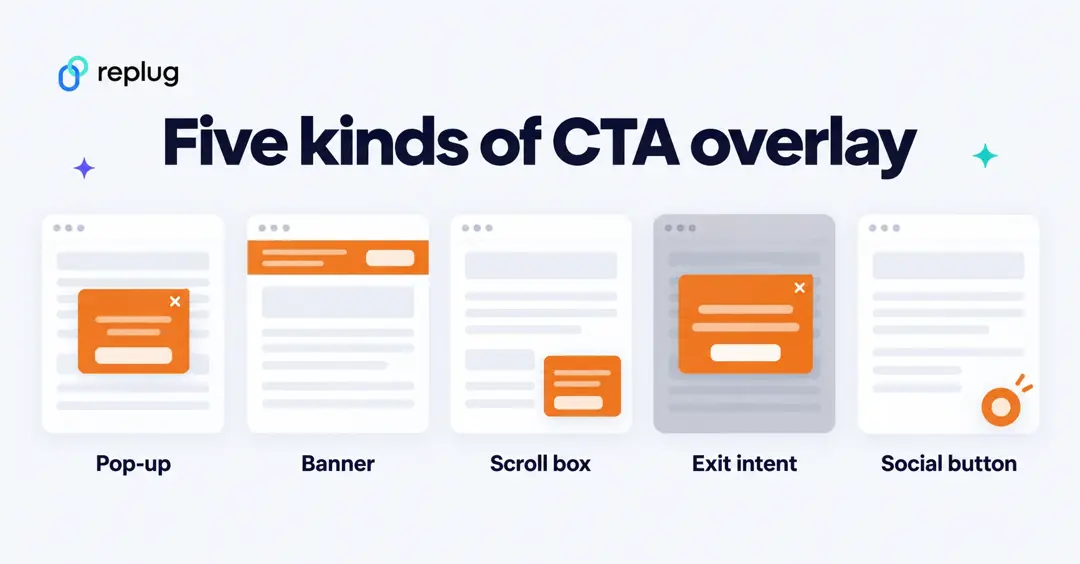
Replug offers multiple types of call-to-action overlays so you can match your message with your marketing goal. Here’s a quick look:
| Overlay type | What it looks like | Perfect for |
| Pop up | Large overlay in the center of the screen | Grabbing attention, collecting emails, limited-time offers |
| Banner | Long strip at the top or bottom of the page | Sharing announcements, driving traffic to a landing page, subtle promotions |
| Scroll box | Appears when a visitor scrolls a set percentage down the page | Engaging already-interested users, mid-article offers |
| Exit intent | Shows up when someone is about to leave the page | Saving abandoned visitors, last-chance discounts, newsletter sign-ups |
| Social classic and social modern | Small, always-visible button on the page | Keeping your brand visible, encouraging ongoing engagement, linking to social or special pages |
With Replug, adding these CTA overlays to your shared links is simple. You can turn every pop up, banner, or social classic/modern CTA button into a powerful tool to guide visitors back to your landing page, newsletter, or offer.
Replug also offers a bridge page, a short in-between page with your message that people see before they continue to the destination. And because some sites block being shown inside another page, Replug can fall back to a summary page: a branded preview of the content with your CTA, so the link still works.
Also read: CTA in marketing: What it means and why it matters
Best practices for designing effective CTA overlays
Your call-to-action (CTA) overlay isn’t just a button or banner; it’s the make-or-break moment between a visitor and a conversion. In many cases, tweaks can have a significant impact on user actions.
Here’s how to get it right:
Keep it clear and actionable
Use verbs that make the next step obvious: “Download your free ebook now,” “Start free trial,” or “Get my exclusive discount.” Avoid vague CTAs like “Click here” or “Learn more,” as they don’t clearly communicate the benefit to the user.
Add your official contact information
Include your business email, phone number, or website so people know the overlay is legitimate and can easily reach you.
Make it stand out but stay on-brand
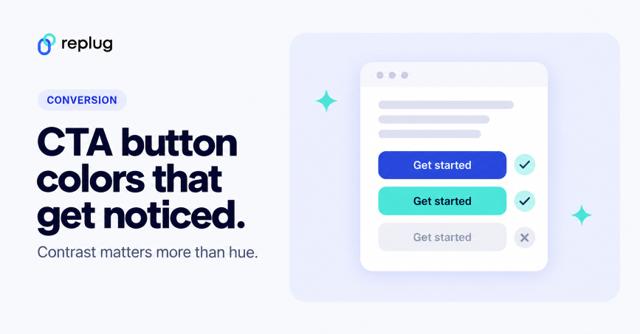
Your CTA overlay should catch the eye without clashing with your overall design. Use contrasting colors that draw attention, while still fitting within your brand palette. Rounded corners and subtle shadows can also make buttons feel more inviting and clickable.
Also read: Top call-to-action tools – Proven CTA tips and tricks
Size and placement matter
A call-to-action overlay should be large enough to notice, but not so large it feels overwhelming. Place it above the fold and repeat it after key sections or at the end of longer pages, so visitors always have an opportunity to take action without scrolling back.
Test different variations
Small changes, like updating text from “Sign up” to “Join free,” or adjusting the button color, can affect conversion rates. Use A/B testing to see which combinations work best for your audience.
Create a sense of trust and urgency
Adding CTA phrases like “Secure checkout,” “Limited offer,” or “Offer ends today” helps encourage faster action and reassures users about the safety of their information.
Keep it concise
CTA text should typically stay between two to five words. Short, direct messages have more impact and are easier for users to process quickly. Ad platforms are even stricter: in Google Ads, the call-to-action on a video ad can be up to 10 characters.
Tip: If you’re using tools like Replug to add CTA overlays to curated content, apply the same best practices: clear copy, contrasting design, and strategic placement. This will guide users toward your goal effectively.
YouTube CTA overlays in 2026 (and what happened to TrueView)
Many people searching for a “TrueView CTA overlay” are looking for the clickable box that used to appear over YouTube video ads. Here is what Google offers now, according to its own help pages (checked October 2026):
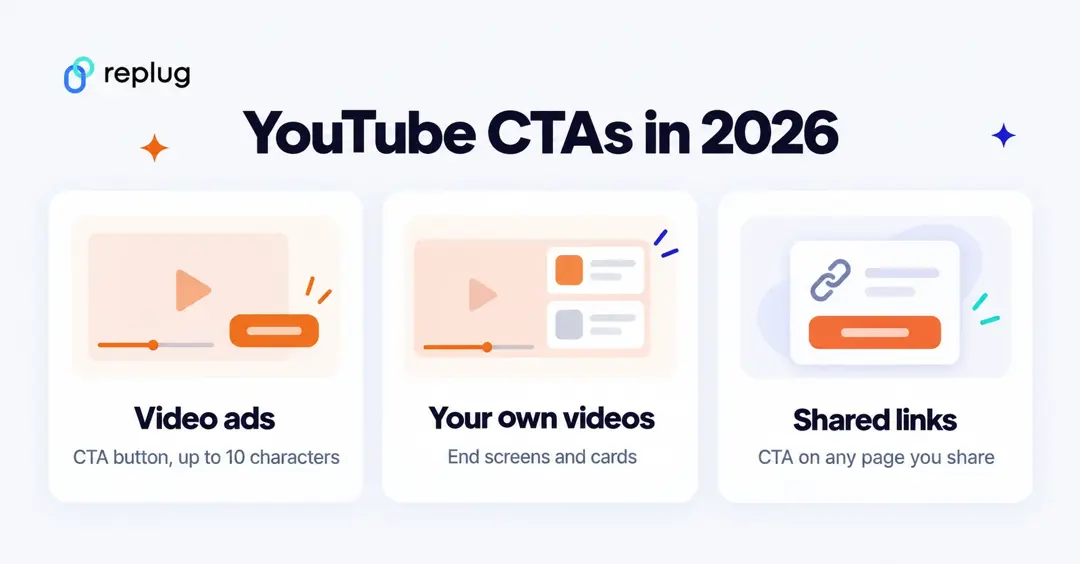
- Display & Video 360 still has CTA overlays. Display & Video 360 Help says the overlay appears when the video starts and collapses into a thumbnail after 15 seconds, with CTA text up to 10 characters and a headline up to 15 characters. It is required for YouTube video action campaigns there and optional for in-stream, bumper and non-skippable ads.
- Google Ads uses a CTA button with headlines. When you build a video ad for sales, leads or website traffic, Google Ads Help lists a call-to-action of up to 10 characters, a headline of up to 30 characters, a long headline of up to 90 characters and a description of up to 70 characters.
- Video action campaigns moved to Demand Gen. The same Google Ads page says all Video action campaigns were upgraded to Demand Gen as of May 2026. Demand Gen ads also take a CTA along with headlines and descriptions, and run on YouTube (including Shorts), Discover, Gmail and the Google Display Network.
- TrueView campaign types are being retired. Google Ads Help says that starting August 2026, Google automatically upgrades all TrueView In-stream and In-feed for Consideration campaigns to Video view campaigns with multi-format ads. The name lives on in reporting: since October 2025 the views metric is called “TrueView views” (YouTube Help).
What about normal YouTube videos? Creators can’t add a CTA overlay to an organic upload. The closest options are end screens (shown in the last 5 to 20 seconds of a video that is at least 25 seconds long, with up to four elements) and info cards (up to five per video). Both can link to an outside website only if you’re in the YouTube Partner Program, and neither is available on videos set as made for kids. YouTube Help also notes that videos showing cards won’t show a call-to-action overlay.
| Where | CTA option in 2026 | Main limits |
|---|---|---|
| YouTube ads in Google Ads (Demand Gen, Video campaigns) | CTA button plus headline and description | CTA up to 10 characters |
| YouTube ads in Display & Video 360 | CTA overlay | CTA up to 10, headline up to 15 characters; collapses after 15 seconds |
| Your own YouTube videos | End screens and info cards | External links need the YouTube Partner Program |
| Any page or video you share by link | Replug CTA (button, banner, pop-up, scroll box, exit intent, social, bridge page) | Essentials plan and above |
Sources: Google Ads Help, Display & Video 360 Help and YouTube Help pages linked above, checked October 2026.
Examples of call-to-action overlays
Here are some examples of the different types of call-to-action overlays:
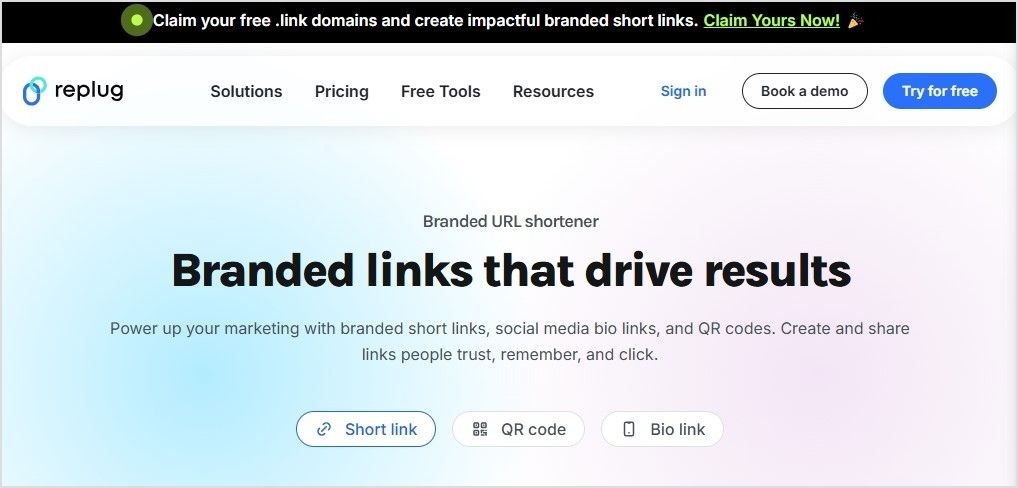
1. Replug
– Top banner CTA overlay
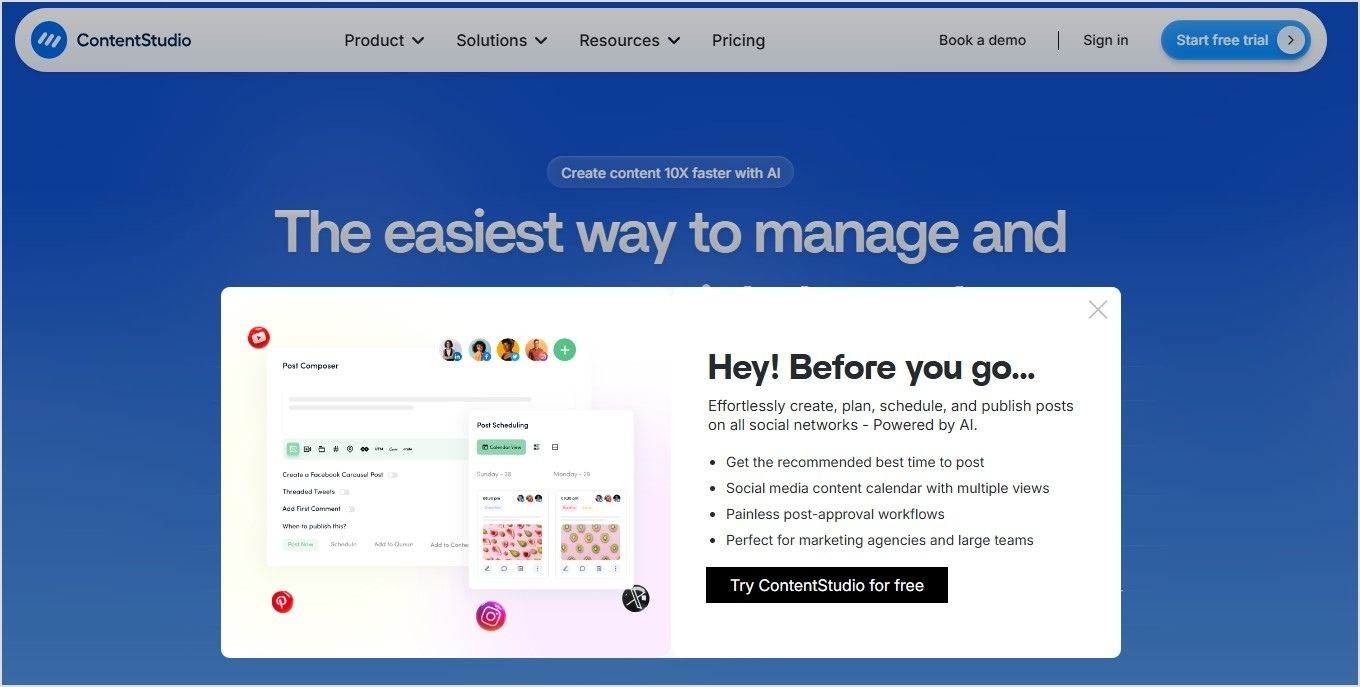
2. ContentStudio
– Exit intent CTA overlay
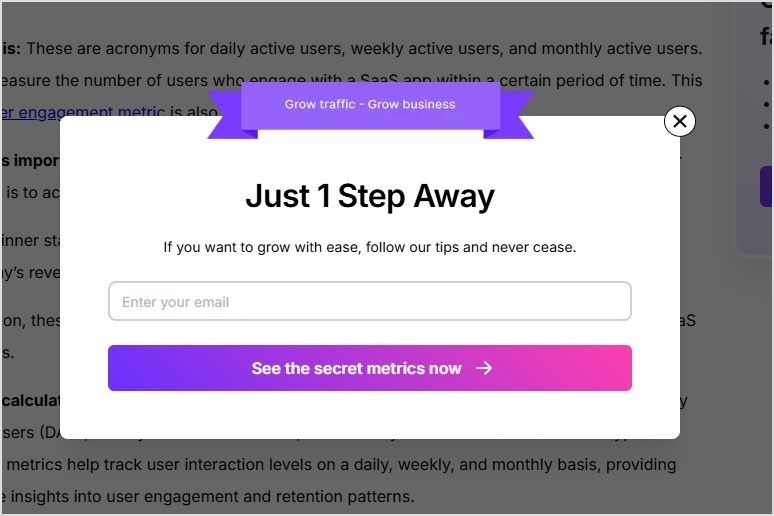
3. Usermaven
– Popup CTA overlay
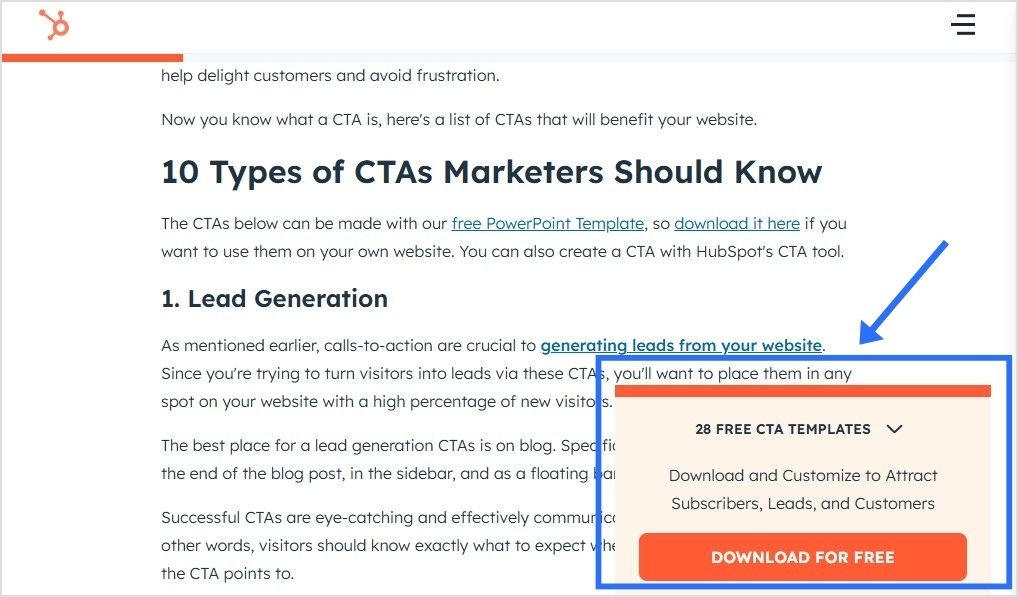
4. HubSpot
– Social classic/modern CTA overlay
5. Adobe
– Top banner CTA overlay

6. GirlBoss Daily
– Scroll Box CTA overlay

7. Backlink.io
– Popup CTA overlay

8. TechCrunch
– Top banner CTA overlay

9. Minimalist Baker
– Popup CTA overlay

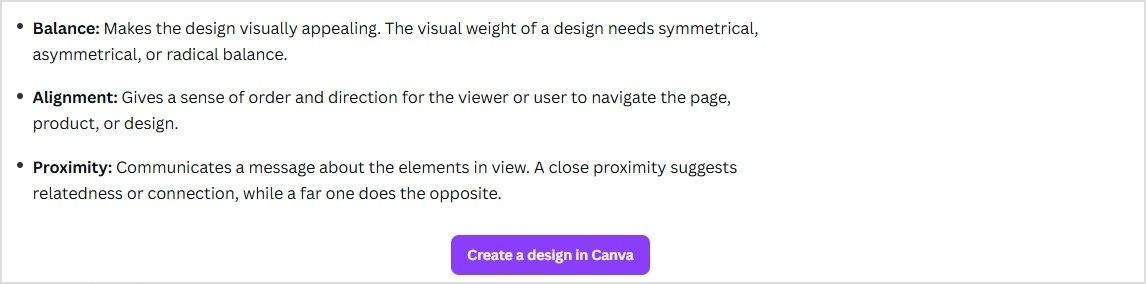
10. Canva
– Bottom banner CTA overlay
CTA overlay templates you can copy and paste
Need a little spark to write your overlays? Here are real-life inspired CTA overlay templates or CTA button templates you can copy, tweak, and make your own. From popups to banners and scroll boxes, these aren’t your typical “click here” buttons; they’re punchy, playful, and crafted to get real clicks.
| Scenario | Overlay type | Template (headline + message + CTA button) |
| Sharing a trending industry article | Popup | Headline: “Get our free 2026 social media checklist!”Message: “Stay ahead of trends with proven tips.”CTA button: “Show me the secrets” |
| Sharing a product review blog | Banner | Headline: “Limited-time offer!”Message: “Use code SAVE10 for 10% off your first purchase.”CTA button: “Yes, I want the deal” |
| Sharing a whitepaper or report | Banner | Headline: “Need expert advice?”Message: “Book a free consultation to grow your business.”CTA button: “Let’s make a plan” |
| Sharing a YouTube video | Social modern | Button text: “Send me fresh tips” |
| Sharing a lifestyle blog | Exit intent | Headline: “Wait! Don’t miss this deal.”Message: “Sign up now and get 10% off your first order.”CTA button: “Unlock my discount” |
| Sharing a blog on productivity hacks | Scroll box | Headline: “Want to work smarter?”Message: “Book your free strategy call today.”CTA button: “Yes, boost my workflow” |
Conclusion
Call-to-action overlays transform every piece of shared content into a conversion tool.
Whether you’re driving traffic to your landing page, collecting emails, or promoting offers, CTA overlays keep your brand in the spotlight, even on third-party content.
Tools like Replug make adding CTA banners, popups, and buttons effortless, helping you capture more leads without extra effort. You can pair it with this powerful link shortener to track clicks and boost engagement effortlessly.
Start turning your shared links into results today!
FAQs on call-to-action overlays

Amna Yawar