With over 2.7 billion monthly active users and more than 500 hours of video uploaded every single minute, YouTube isn’t just a media platform; it’s basically the internet’s living room. People are on it every day, discovering tutorials, music, vlogs, and everything in between.
But here’s the thing: With that much content flying around, finding your favorite videos again can feel like searching for a needle in a haystack. That’s exactly where playlists come in!
If you’ve ever wondered what is a YouTube playlist and how it can make your experience so much smoother, you’re in the right place.
Let’s start from the very beginning: what is a playlist on YouTube, and why should you care?
What is a playlist on YouTube
Think of a YouTube playlist as your own personal collection of videos, grouped together in one place. Instead of hunting down the same videos over and over again, a playlist lines them up automatically (one after another), so you can just sit back and watch.
You can create playlists for literally anything: workout routines, study music, cooking tutorials, or even a bunch of videos you want to watch later. They’re completely free to create and available on every device.
No matter if you’re organizing your own uploads or saving YouTube videos from other creators, playlists basically make YouTube work for you instead of the other way around.
How to make a playlist on YouTube on phone
Making a playlist on the YouTube mobile app is super easy and takes less than a minute. There are a few different ways to do it depending on where you are in the app, so let’s walk through each method one by one.
Here’s how to make a playlist on YouTube mobile step-by-step using various methods:
Method #01: From the “You” tab (best for starting fresh)
This is the cleanest and most straightforward way to create a brand-new playlist on your phone. Perfect when you want to set one up before adding any videos to it.
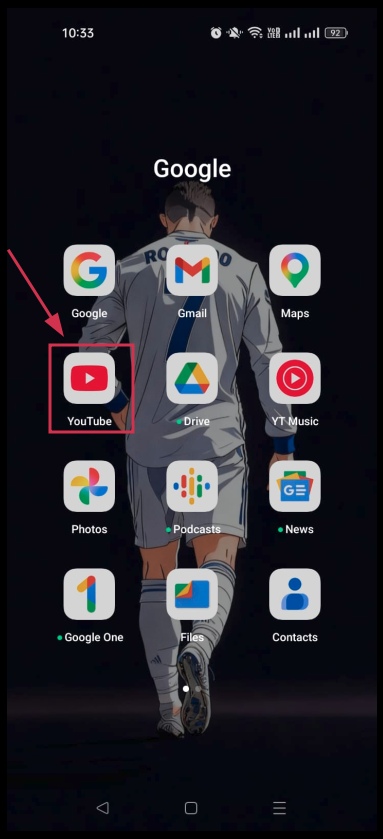
Step#01: Open the YouTube app
Grab your phone and tap the YouTube app to open it. Make sure you’re signed into your Google account; otherwise, you won’t be able to create or save playlists.
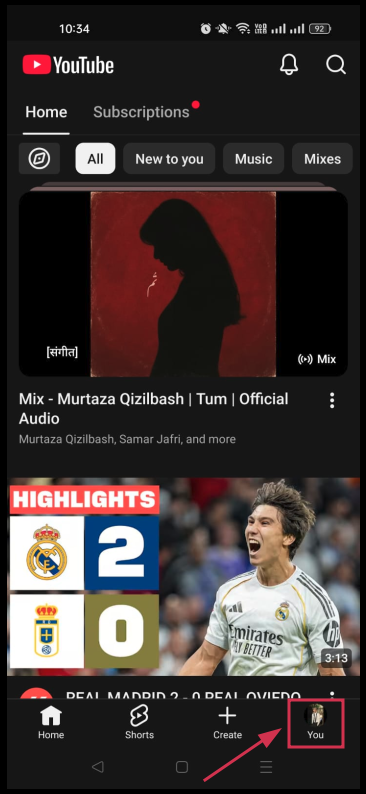
Step#02: Tap your profile picture (“You”)
Look at the bottom navigation bar and tap the “You” tab in the bottom-right corner. This takes you straight to your channel and account options.
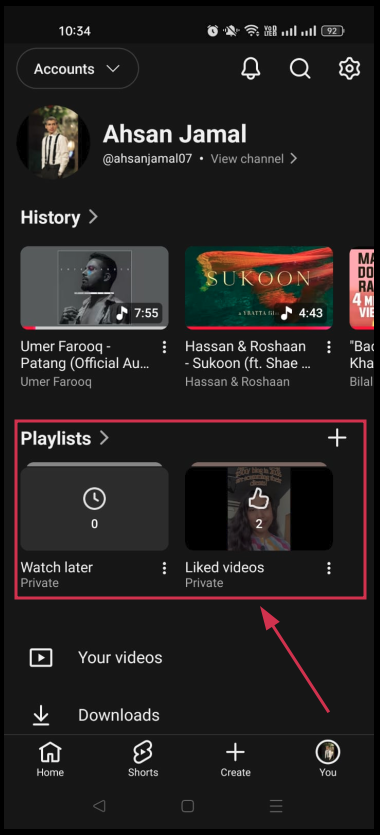
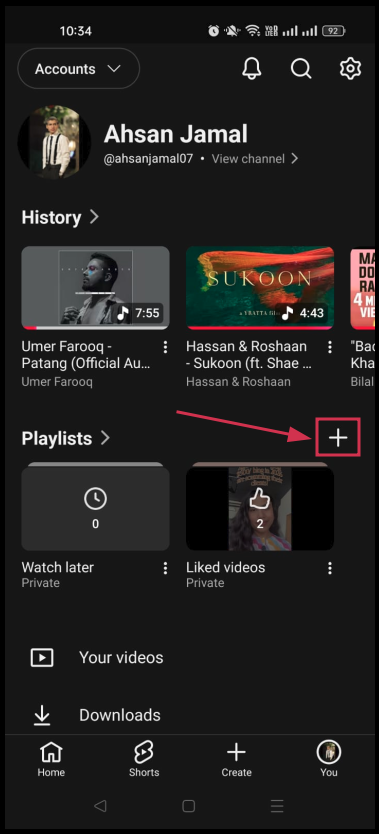
Step#03: Navigate to the “Playlists” section
Scroll down a little, and you’ll see a “Playlists” section showing any playlists you’ve already created. This is your playlist hub!
Step#04: Tap “+” icon
You’ll spot a “+” icon near the Playlists section. Tap it to kick off the playlist creation process.
Step#05: Enter a playlist title & set the visibility
Type in a name for your playlist, then choose who can see it.
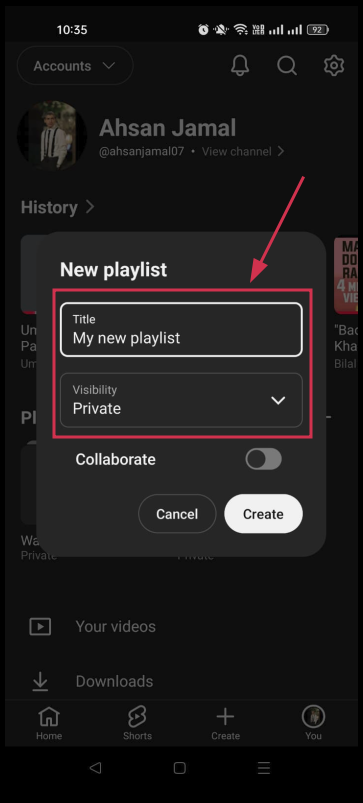
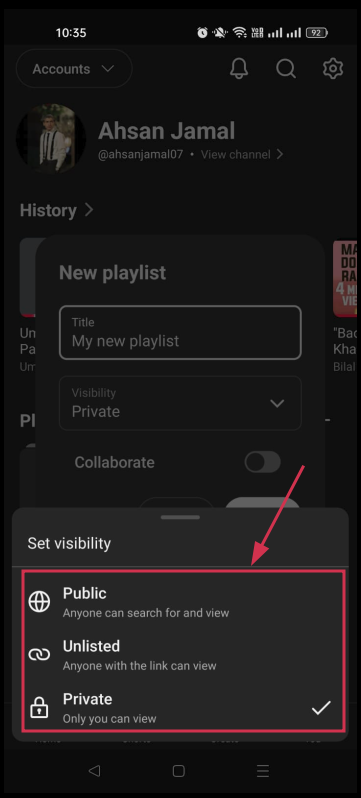
Public (anyone), Unlisted (only people with the link), or Private (just you).
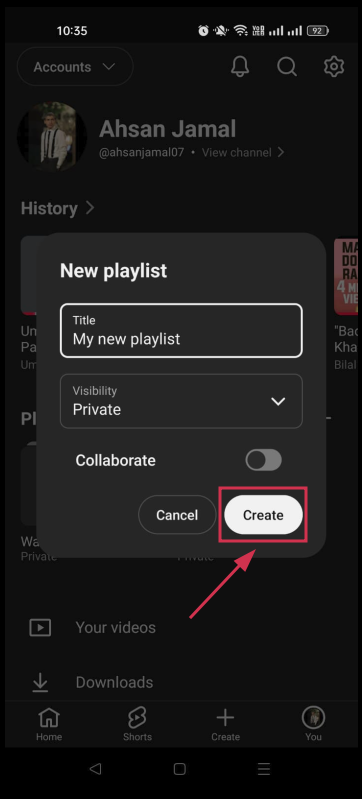
Step#06: Tap “Create”
Finally, tap the “Create” button, and you’re done! Your new playlist is ready and waiting for videos to be added.
Method #02: From a video (best for adding as you watch)
This method is ideal for those moments when you’re watching a video and think, “I want to save this!” You can create a brand-new playlist and add the video to it right on the spot.
Step#01: Open the YouTube app
Tap the YouTube app on your phone to open it and make sure you’re logged into your account.
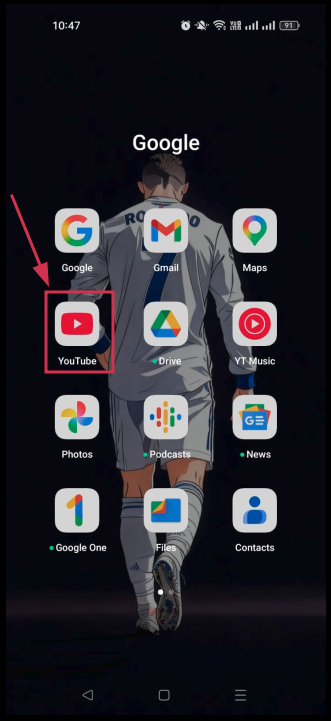
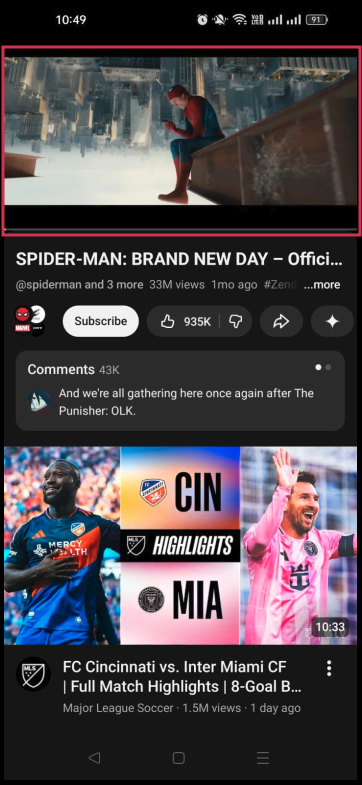
Step#02: Watch a video
Find and open any video you want to save to a new playlist. It can be any video from any channel.
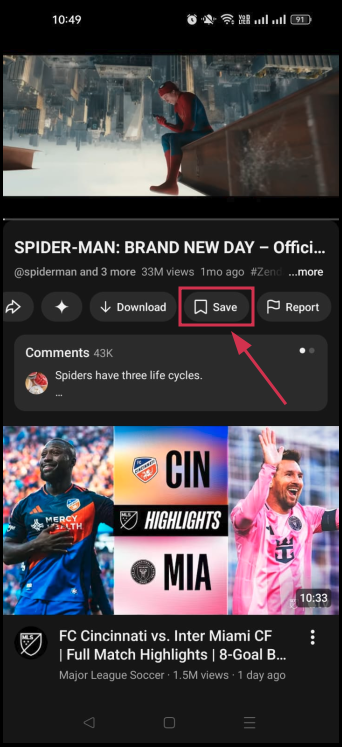
Step#03: Tap “Save”
Below the video, tap the “Save” button (it looks like a small bookmark icon). A pop-up will appear on your screen.
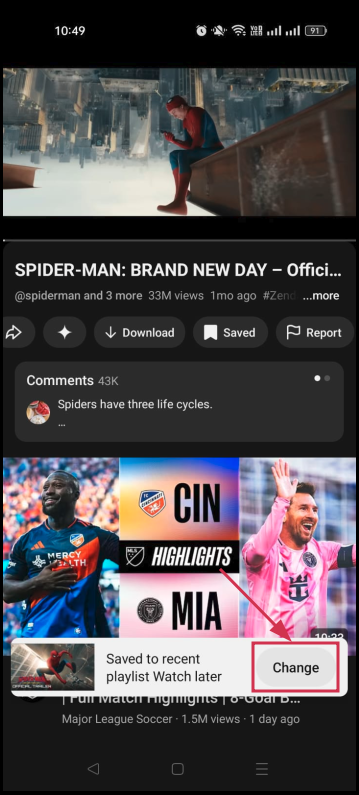
Step#04: Tap “Change” inside the pop-up
Inside the pop-up, you’ll see a default saving option. Tap “Change” to get the option to create or select a different playlist.
Step#05: Tap “+ New playlist”
From the list that appears, tap “+ New Playlist” at the bottom to start creating a fresh playlist right then and there.
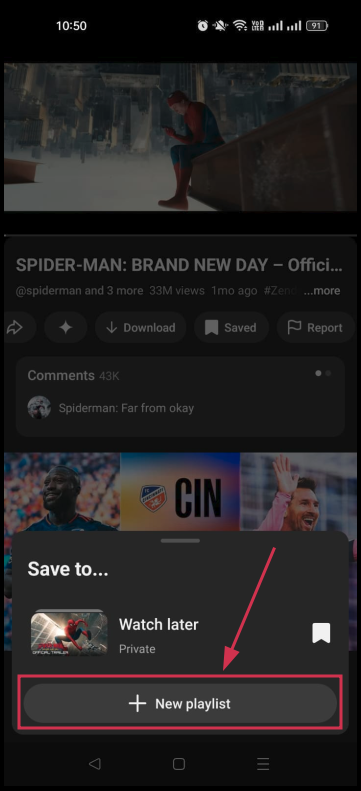
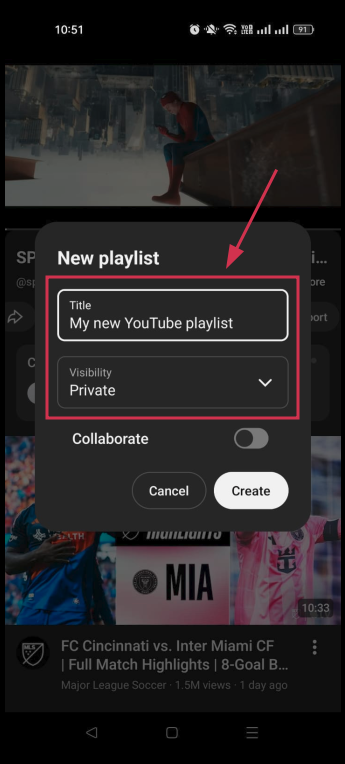
Step#06: Set title & visibility
Give your playlist a unique name and choose its visibility (Public, Unlisted, or Private) depending on who you want to see it.
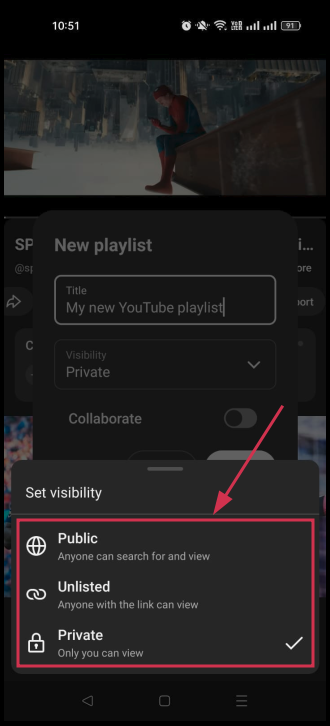
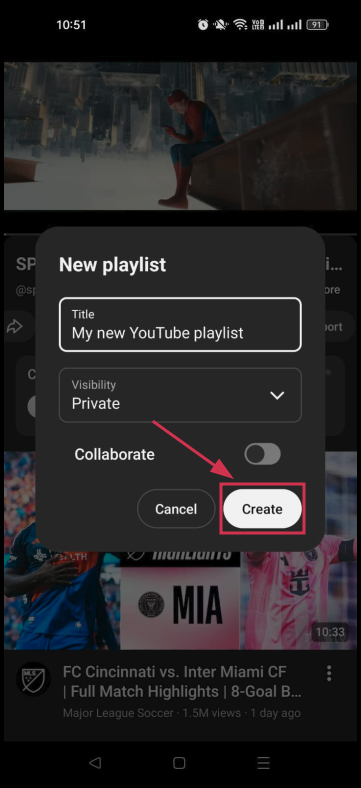
Step#07: Tap “Create”
Tap the “Create” button, and you’re all set! The video you were watching gets automatically saved into your brand-new playlist.
Method #03: From a YouTube Short
Did you know you can create a YouTube playlist from YT Shorts too? Most people don’t realize this! Here’s how to do it without ever leaving the Shorts feed.
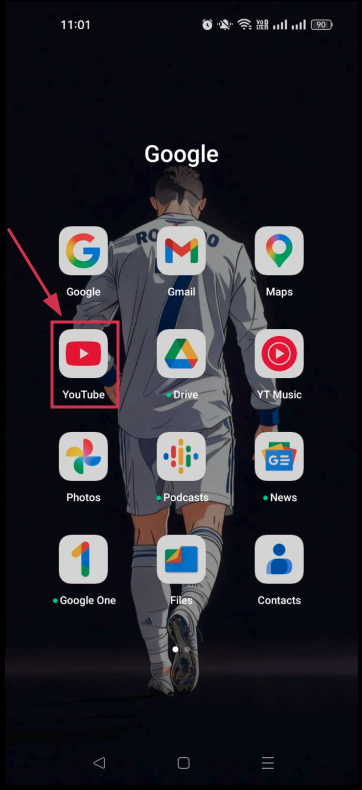
Step#01: Open the YouTube app
Tap the YouTube app on your phone and make sure you’re signed into your Google account.
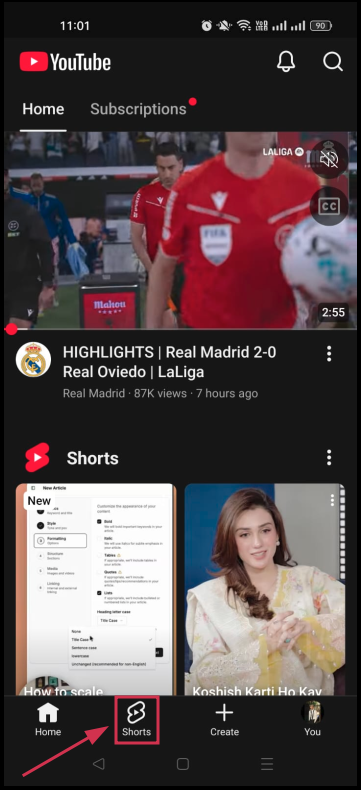
Step#02: Tap “Shorts”
Tap on the “Shorts” tab from the bottom navigation bar to open the Shorts feed and start scrolling.
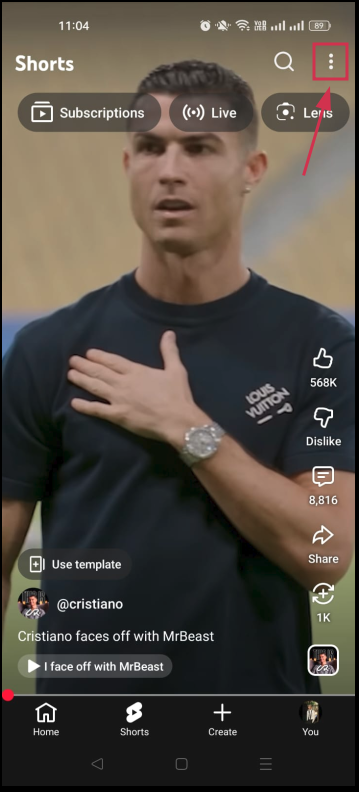
Step#03: Tap the three-dot menu (⋮)
On the Short you want to save, tap the (⋮) on the top-right side of the screen to open more options.
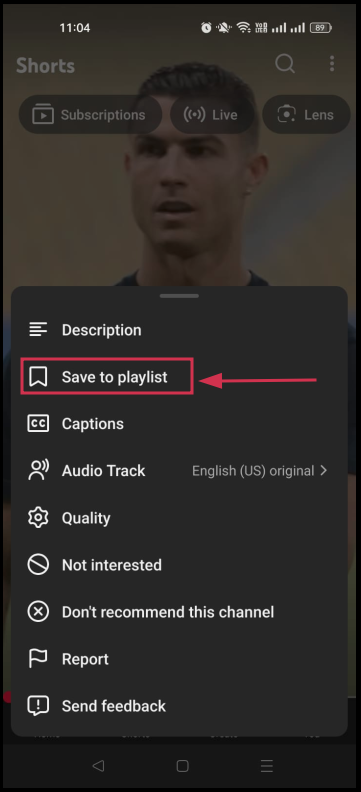
Step#04: Select “Save to playlist”
From the menu that pops up, tap “Save to playlist”. This is where you’ll get the option to add it to an existing playlist or create a new one.
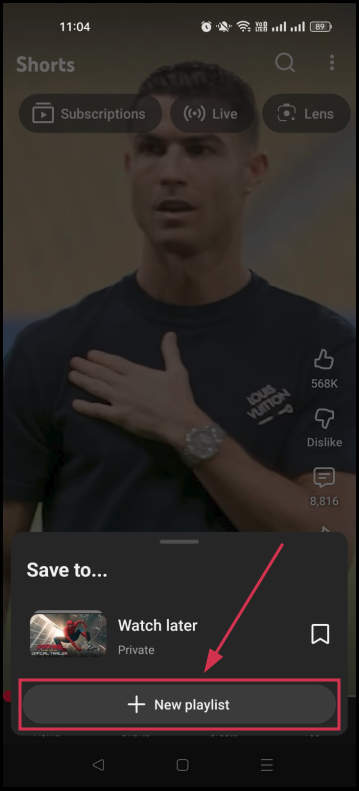
Step#05: Tap “+ New playlist”
Tap “+ New playlist” at the bottom of the screen to start setting up a fresh playlist for your saved Short.
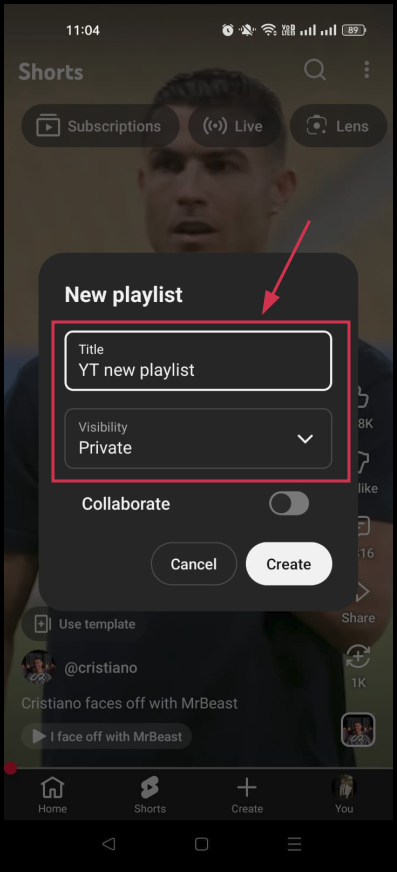
Step#06: Set title & visibility
Enter a name for your playlist and choose your preferred visibility setting (Public, Unlisted, or Private).
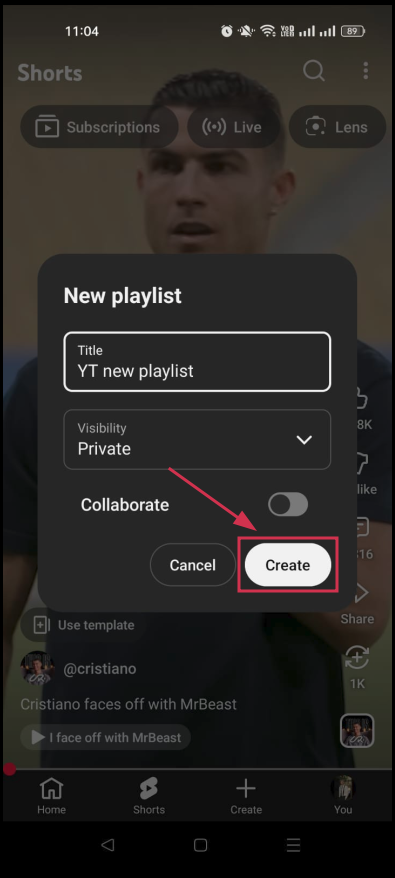
Step#07: Tap “Create”
Tap “Create” and you’re done! The Short is now saved, and your new playlist is ready to go.
How to make a playlist on YouTube PC
Creating a playlist on YouTube’s desktop version is just as simple as on mobile, maybe even easier. You don’t need any special account or subscription; just a browser, a Google account, and a video you like.
Here’s how to make a playlist on YouTube desktop step-by-step:
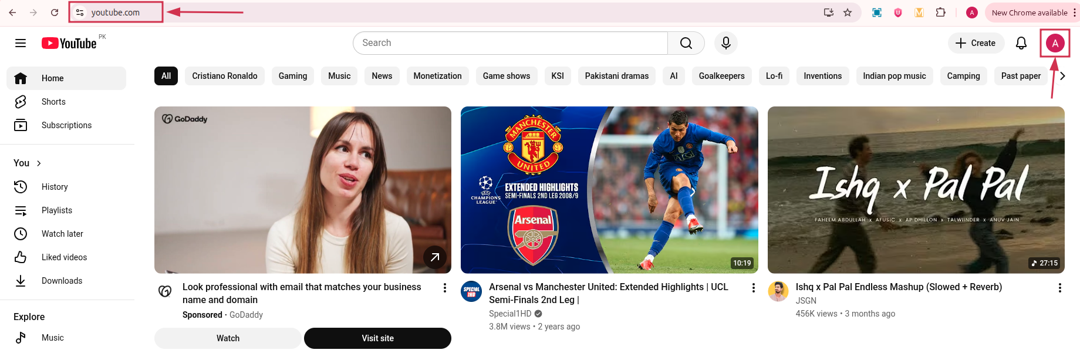
- Step#01: Go to the YouTube homepage
Open your preferred browser and head over to www.youtube.com. Sign in to your Google account if you aren’t already logged in.
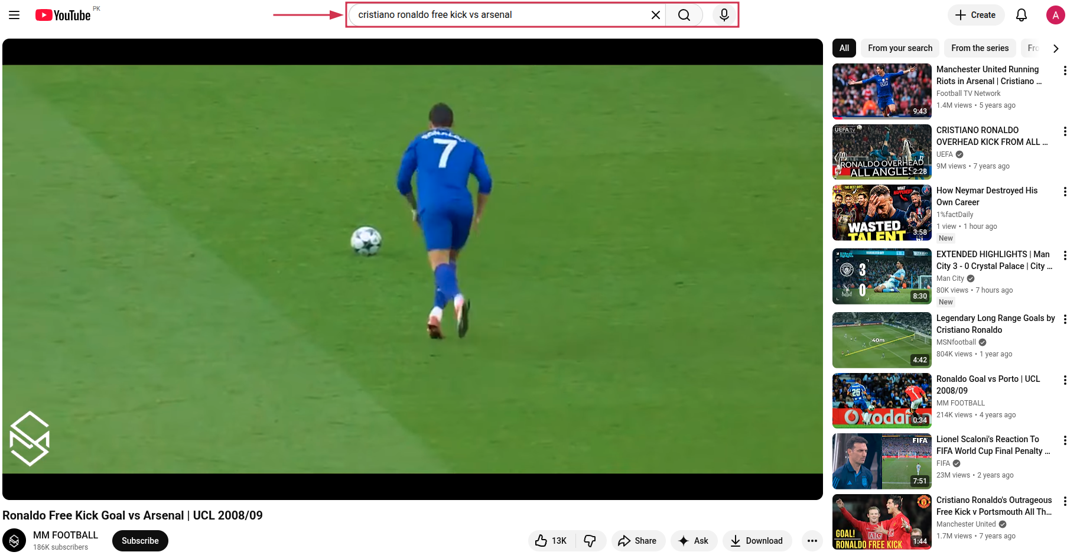
- Step#02: Find a video & play it
Search for any video you want to add to your new playlist and click on it to open it up.
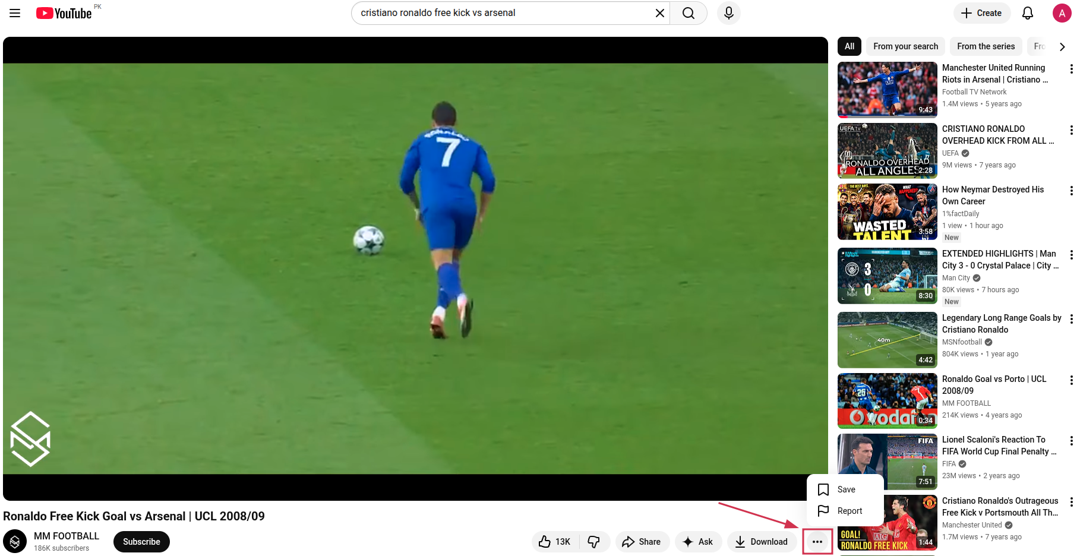
- Step#03: Click the three-dot menu (⋯)
Just below the video, look for the (⋯) icon sitting next to the like, dislike, share, and download buttons. Click on it to reveal more options.
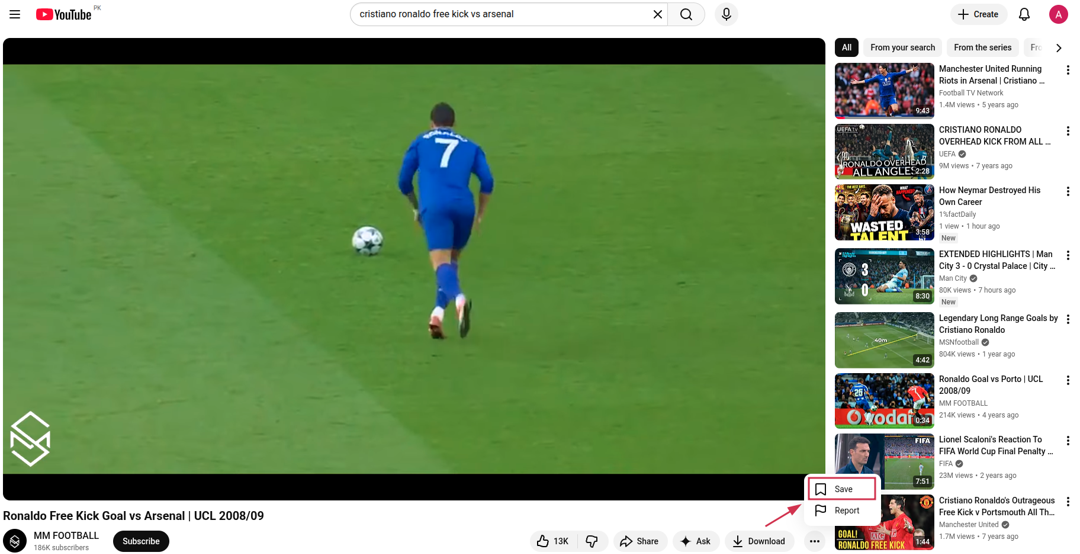
- Step#04: Click “Save”
From the options that appear, click “Save”. A small pop-up window will show up with your existing playlists.
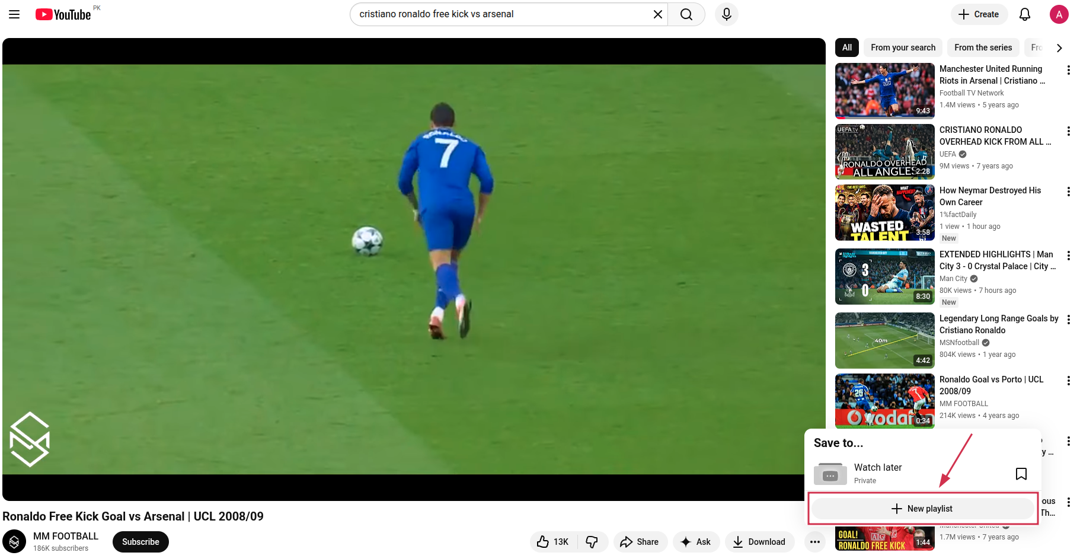
- Step#05: Click “+ New playlist”
At the bottom of the pop-up, click “+ New playlist” to start creating a fresh one instead of adding it to an existing playlist.
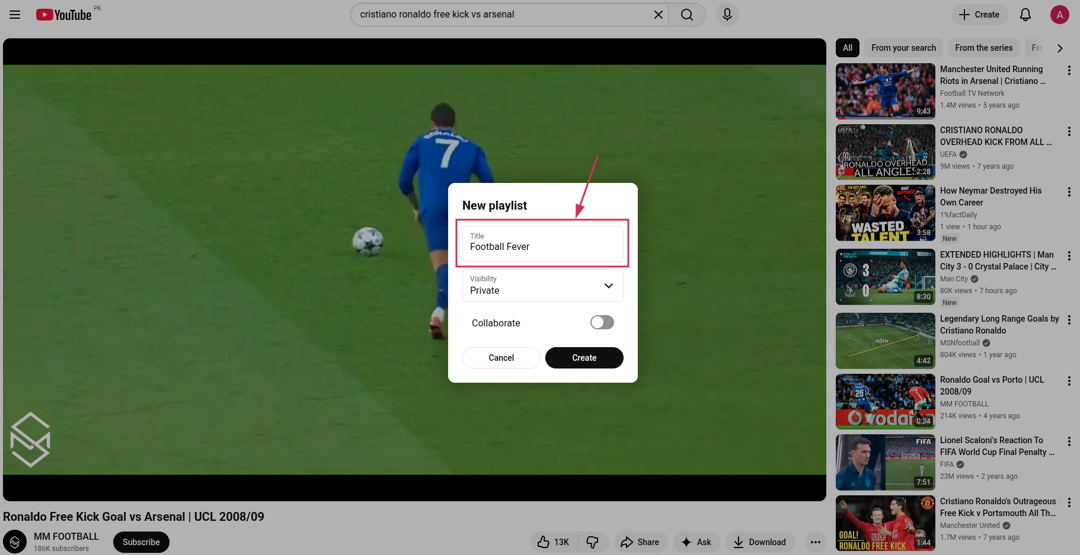
- Step#06: Set title & visibility
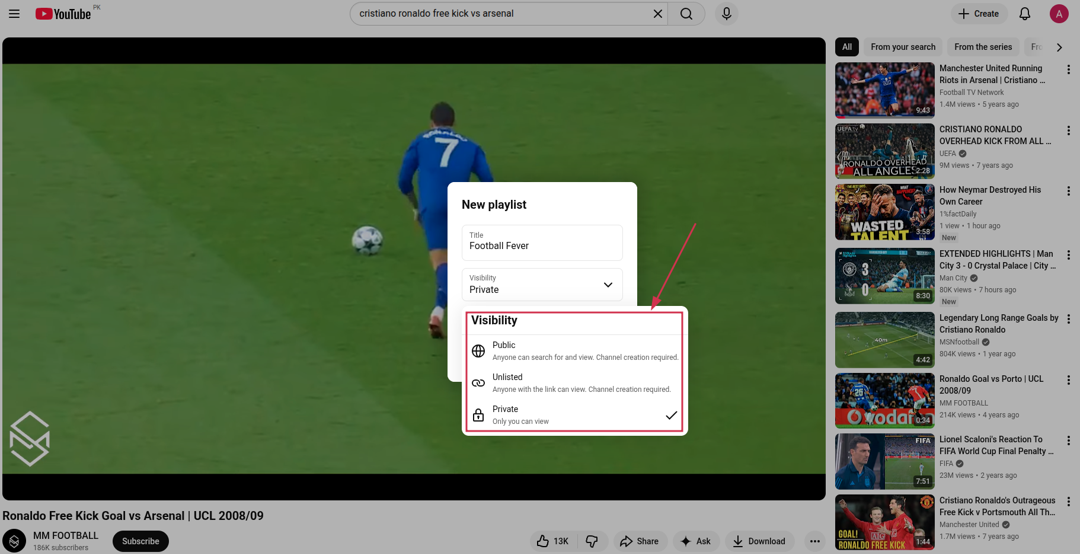
Type in a name for your playlist and choose who can see it.
Public, Unlisted, or Private based on your preference.
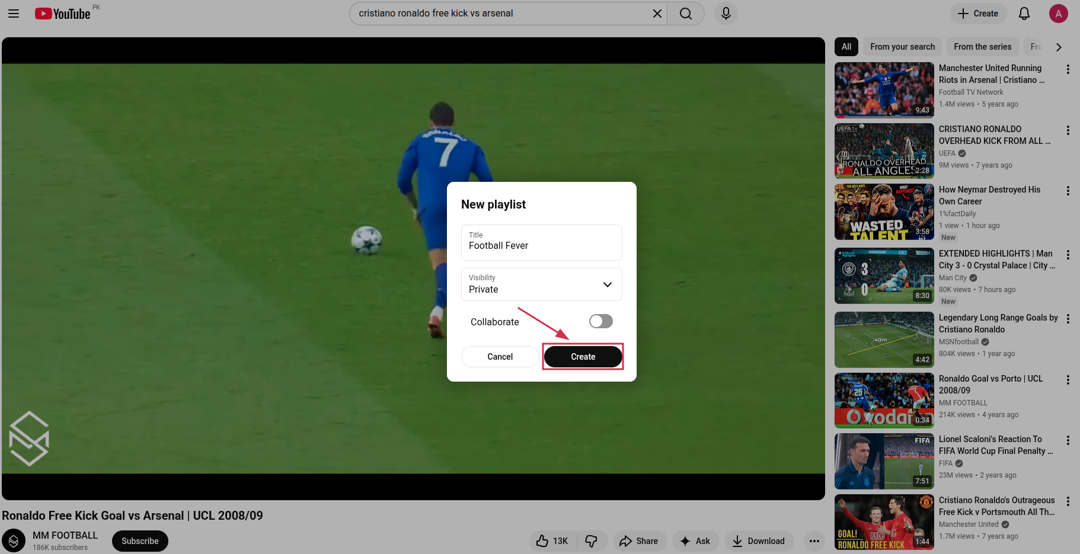
- Step#07: Click “Create”
Click “Create,” and that’s it! Your new playlist is live, and the video is already saved inside it.
How to create a playlist on YouTube on TV
Yes, you can create and manage YouTube playlists directly from your TV (no phone or laptop needed). It works on most smart TVs, Fire Stick, Roku, Apple TV, and gaming consoles that have the YouTube app installed.
Let’s walk through how to make a playlist on YouTube on TV step-by-step using multiple available methods:
Method #01: Creating a playlist while watching TV
This is the most natural way to build a YT playlist on your TV. You come across a video you love and save it into a new playlist right then and there, without switching to another device.
Step#01: Open the YouTube app on your TV
Grab your TV remote and launch the YouTube app from your smart TV’s home screen or app menu.
Step#02: Sign in with your Google account
Make sure you’re signed into your Google account. Without this, the playlist creation option simply won’t show up.
Step#03: Find and open a video
Browse or search for a video you want to save, then open it using your TV remote.
Step#04: Click the three dots (…) or the “Save” button
While the video is playing, navigate to the (…) icon or the “Save” button that appears on screen and select it with your remote.
Step#05: Select “+ New playlist”
From the options that appear, scroll down and select “+ New Playlist” to start building a fresh playlist.
Step#06: Set title & visibility
Use your remote to type in a playlist name and select your visibility (Public, Unlisted, or Private).
Step#07: Select “Create”
Select “Create,” and you’re all done! The video is saved, and your new playlist is ready to enjoy on the big screen.
Method #02: Creating a playlist from “Library” (TV)
This method is great when you want to create a playlist without having a specific video open. You’re basically setting things up in advance so it’s ready whenever you need it.
Step#01: Open the YouTube app
Turn on your TV and launch the YouTube app from your home screen or app menu.
Step#02: Select “You” or your profile image
Using your remote, navigate to the left-side menu and select “You” or your profile image to access your account options.
Step#03: Move to the “Playlists” section
Scroll through your account options until you find the “Playlists” section. This is where all your existing playlists live.
Step#04: Select “+ New playlist”
Highlight and hit “+ New Playlist” to begin creating a brand-new playlist from scratch.
Step#05: Set title & visibility
Use your remote to type in a name for your playlist. Then set the visibility to “Public,” “Unlisted,” or “Private” based on your preference.
Step#06: Select “Create”
Select “Create,” and that’s it! Your playlist is ready and waiting for videos to be added whenever you like.
How to make a playlist on YouTube Music
YouTube Music is a whole separate app from regular YouTube. Think of it as Google’s answer to Spotify. It’s built specifically for music lovers, and yes, you can create your own playlists there too.
Here’s how to do it across different devices:
How to create a playlist (mobile app)
Creating a playlist on the YouTube Music mobile app is quick and straightforward. Whether you want to build a morning commute mix or a late-night chill playlist, here’s how to get it done in seconds.
Here’s how to make a playlist on YouTube Music on phone step-by-step:
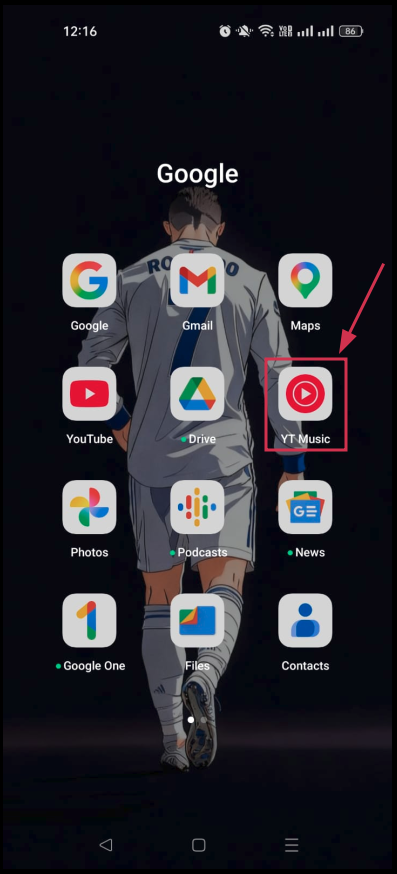
Step#01: Open the YouTube Music app
Tap the YouTube Music app on your phone to open it and make sure you’re signed into your Google account.
Step#02: Find a song or album
Browse or search for any song or album you want to add to your new playlist and pull it up on screen.
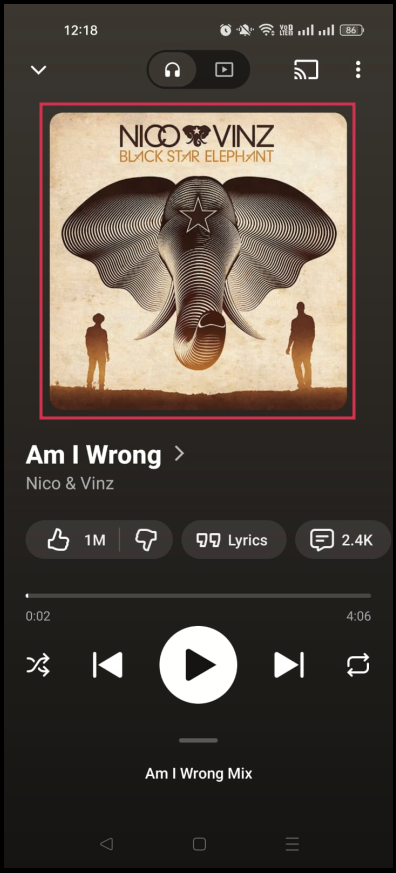
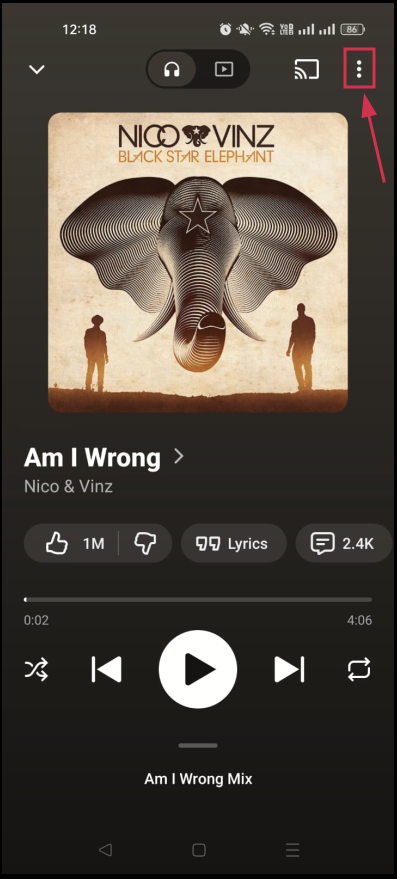
Step#03: Tap the three vertical dots menu (⋮)
Next to the song or album or in the top right-hand corner, tap the (⋮) icon to open a list of available options for that track.
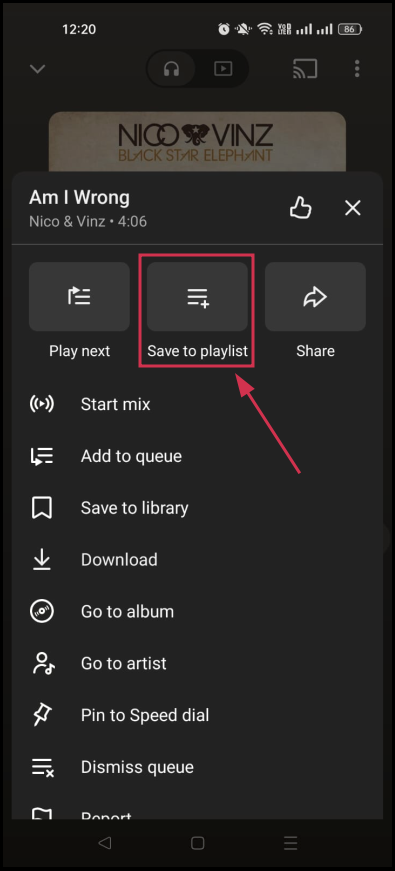
Step#04: Select “Save to playlist”
From the options menu, tap “Save to playlist”. A new section will pop up showing your existing playlists.
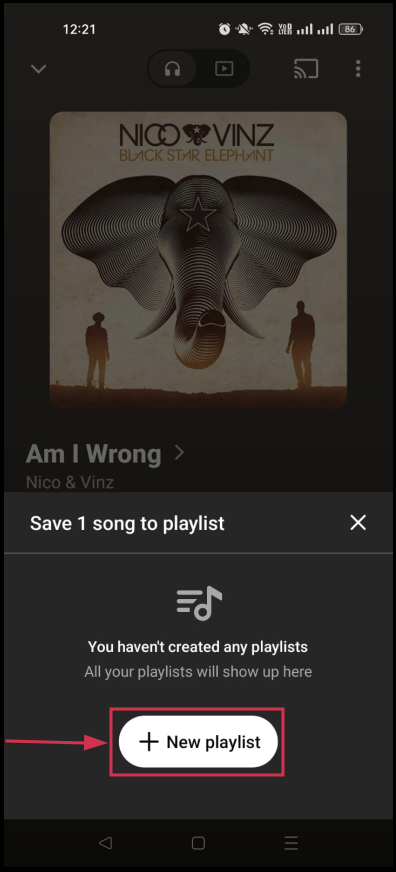
Step#05: Tap “+ New playlist”
Tap “+ New Playlist” at the bottom of the screen to start building a fresh playlist instead of adding to an existing one.
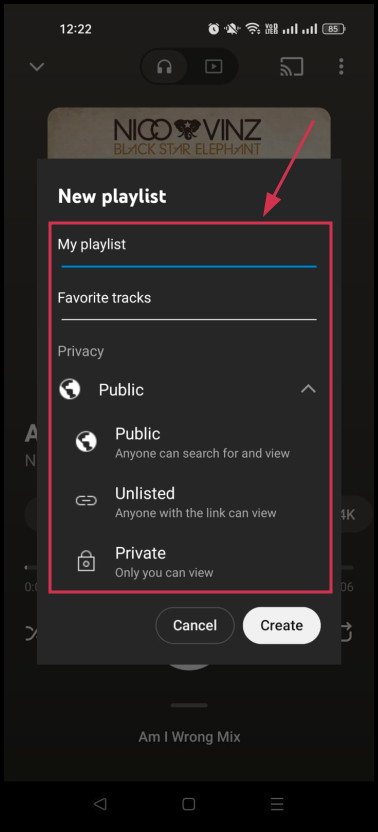
Step#06: Set title, description, & privacy
Give your playlist a name, add an optional description, and set the privacy to Public, Unlisted, or Private depending on who you want to share it with.
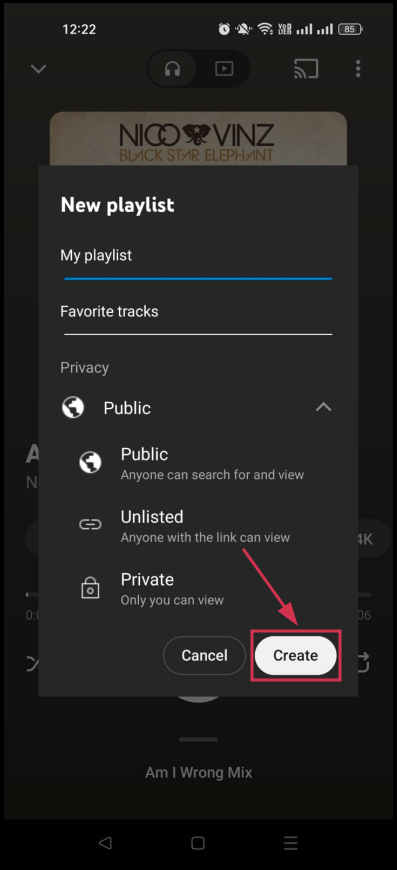
Step#07: Tap “Create”
Tap “Create” and you’re all set! Your new YouTube Music playlist is ready, and the song is already saved inside it.
How to create a playlist (desktop/web)
Prefer using YouTube Music on your laptop or desktop browser? No problem! Creating a playlist on the web version is just as smooth.
Here’s how to do it step by step:
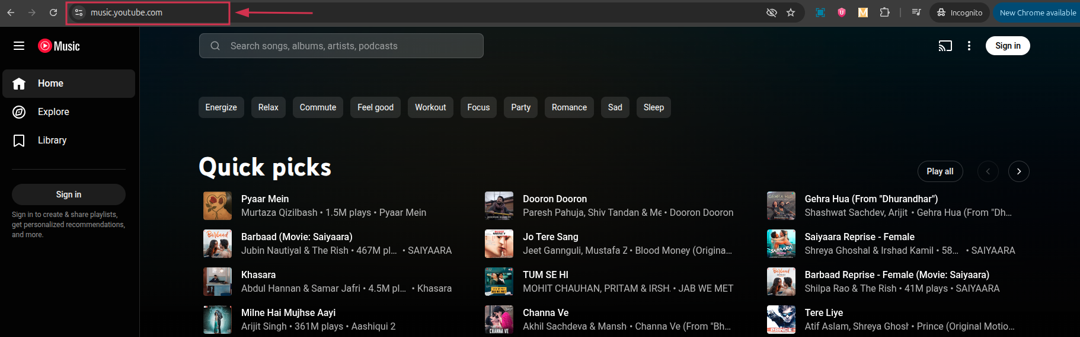
Step#01: Go to music.youtube.com
Open your preferred browser and type in music.youtube.com in the address bar to land directly on the YouTube Music web player.
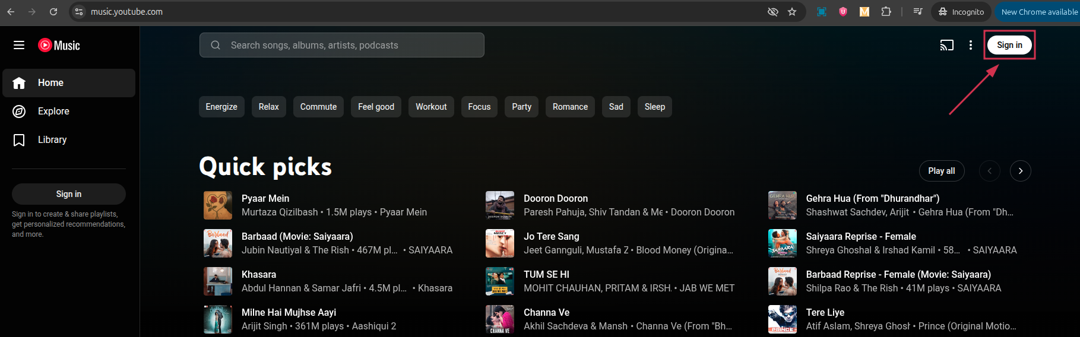
Step#02: Sign in with your Google account
Click “Sign In” in the top-right corner and log in with your Google account. You’ll need this to save and manage playlists.
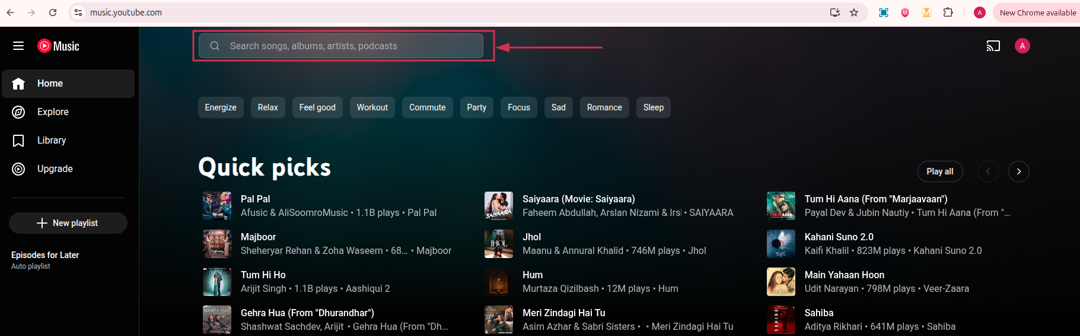
Step#03: Search for a song, album, or podcast
Use the search bar at the top to find any song, album, or podcast you want to add to your new playlist.
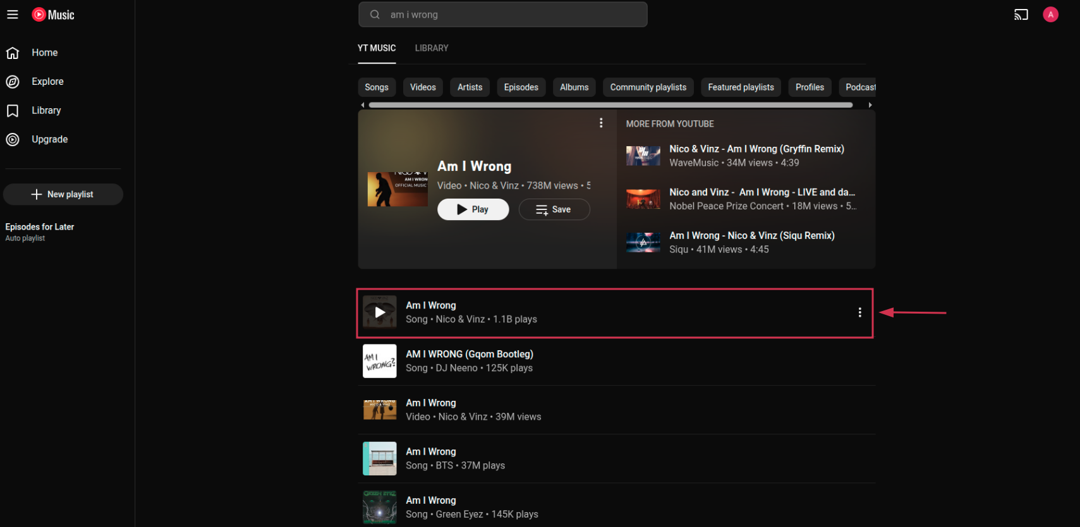
Step#04: Click the three dots (⋮)
Hover over the track or album and click the (⋮) icon that appears next to it to open its options menu.
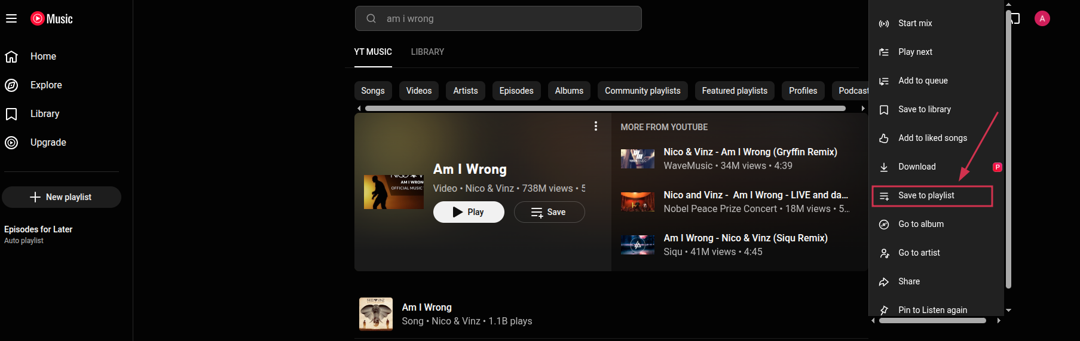
Step#05: Select “Save to playlist”
From the dropdown menu, click “Save to playlist”. A pop-up will appear showing your existing playlists.
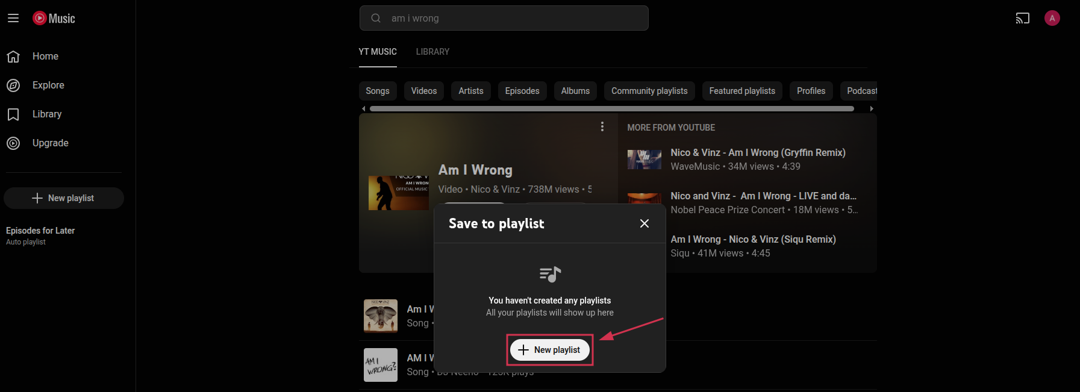
Step#06: Click “+ New playlist”
Click “+ New playlist” inside the pop-up to start creating a fresh playlist from scratch.
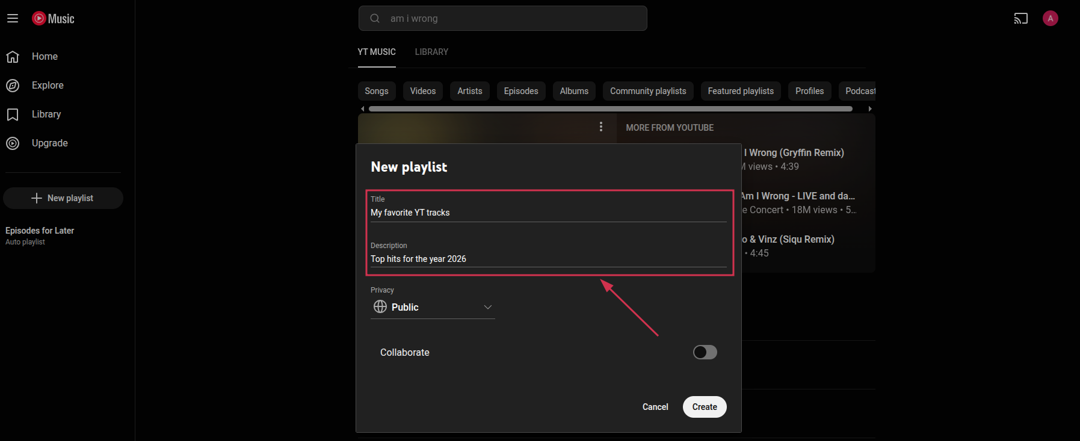
Step#07: Enter a title & description
Type in a name for your playlist and add an optional description to help you remember what it’s all about.
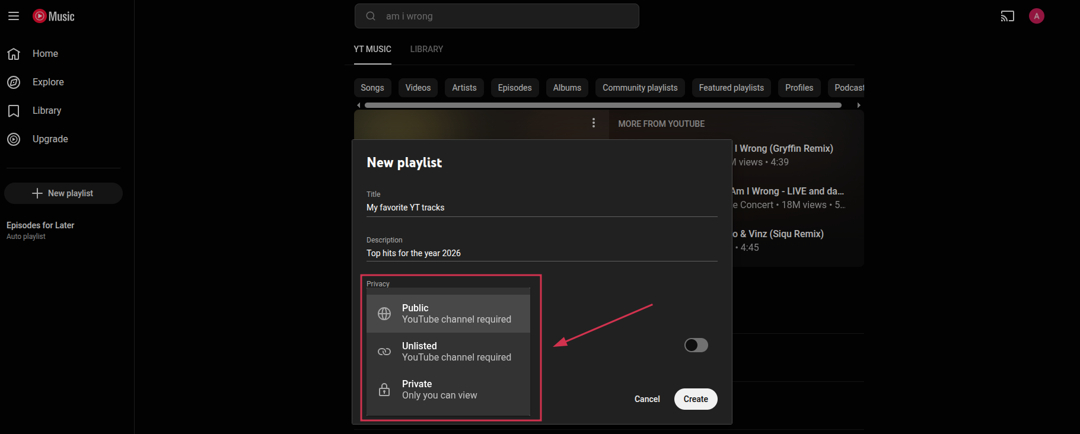
Step#08: Set the privacy
Choose your preferred privacy setting (Public, Unlisted, or Private) depending on whether you want others to find and view your playlist.
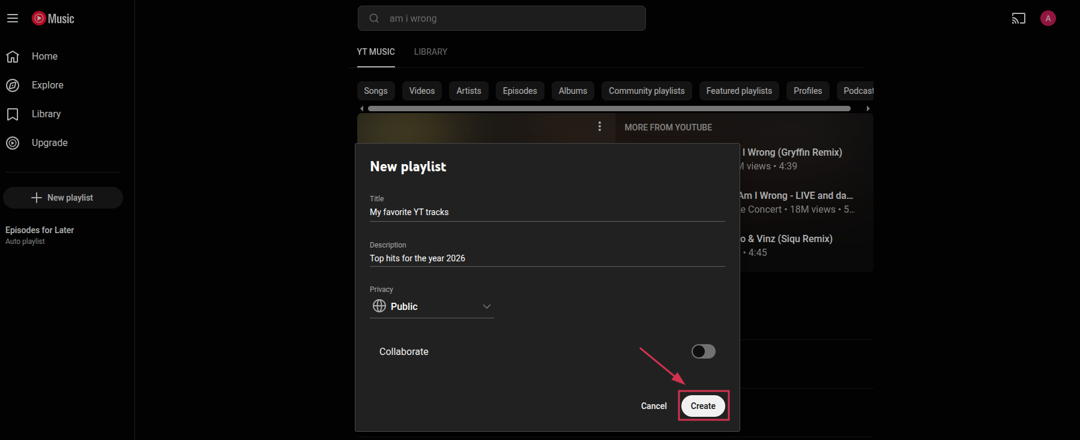
Step#09: Click “Create”
Click “Create,” and that’s a wrap! Your new YouTube Music playlist is live and ready to be filled up with your favorite tracks.
Also check out: How to share YouTube playlist using deep links?
Useful tips for managing your YouTube playlists efficiently
Creating a playlist is just the first step; managing it well is what makes it truly useful. A well-organized playlist saves you time, keeps your content easy to find, and makes the whole viewing experience way more enjoyable.
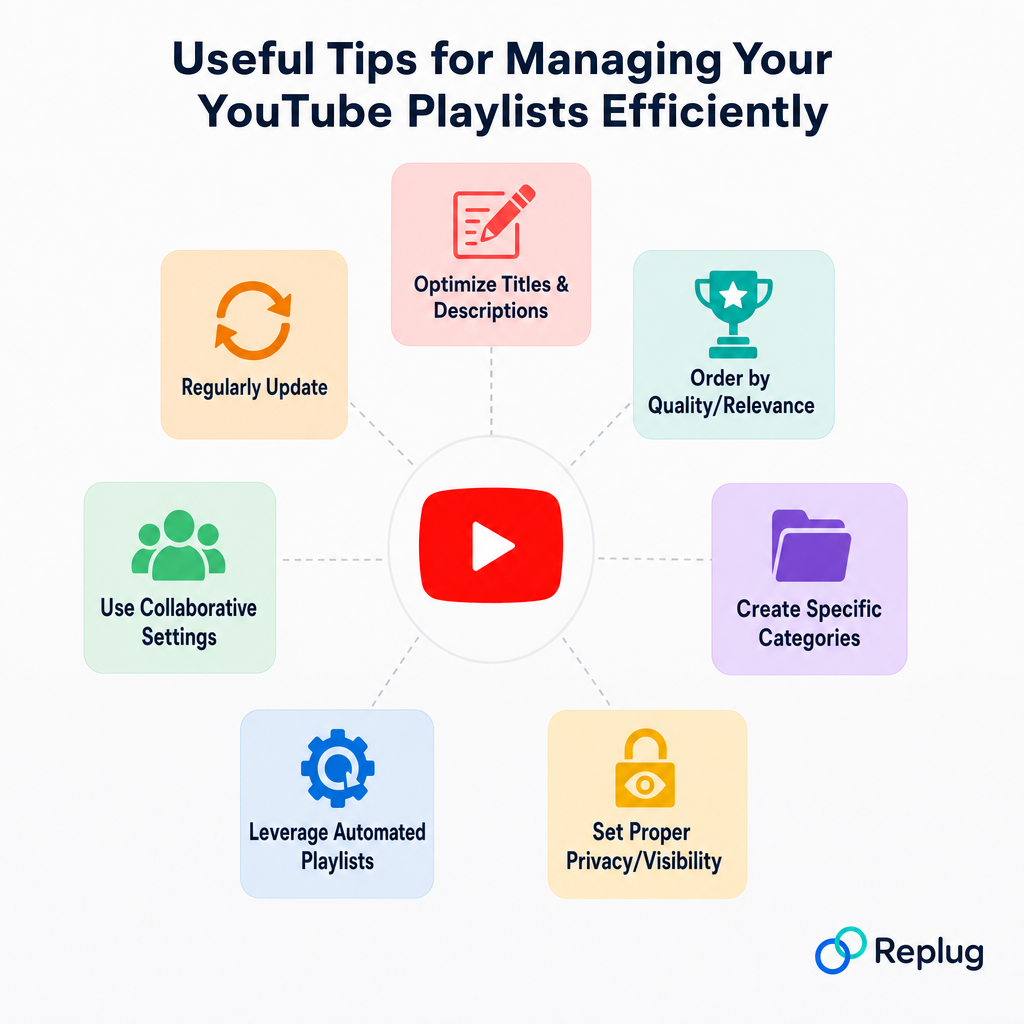
Here are some handy tips to help you stay on top of your playlists!
Tip #01: Optimize titles & descriptions
Give your playlists clear, descriptive names that tell you (and others) exactly what’s inside. Something like “Morning Workout Routines” beats “My Playlist 1” any day. Moreover, adding a short description also helps YouTube’s search algorithm surface your playlist to the right audience.
Tip #02: Order by quality/relevance
Don’t just dump videos in randomly. Arrange them in a logical order so the best or most relevant content comes first. You can manually drag and reorder videos inside the playlist settings to control exactly how they flow.
Tip #03: Create specific categories
Instead of one giant playlist for everything, break things down into focused categories like “Cooking Tutorials”, “Travel Vlogs”, or “Study Music”. The more specific your playlists are, the easier it is to find exactly what you’re in the mood for.
Tip #04: Set proper privacy/visibility
Always double-check your visibility settings before sharing a playlist.
Use:
- “Public” for playlists you want everyone to discover,
- “Unlisted” is for sharing with specific people only, and
- “Private” is for content that’s just for your own personal use.
Tip #05: Leverage automated playlists
YouTube automatically generates playlists like “Watch Later” and “Liked Videos” for every account; don’t ignore these! They’re great built-in tools for saving content on the fly without having to create a playlist from scratch every time.
Tip #06: Use collaborative settings
YouTube lets you make playlists collaborative, meaning you can invite others to add videos to it too. It’s a fun feature for building shared playlists with friends, family, or even a community around a topic you all love.
Tip #07: Regularly update
A monotonous playlist full of outdated or irrelevant videos isn’t doing you any favors. Make it a habit to revisit your playlists every now and then. Remove videos that no longer fit and add fresh ones to keep things current and engaging.
Turn every YouTube playlist link into a growth opportunity with Replug!
Once your playlist is ready, why share a long, messy YouTube link when you can do so much better?
Replug is an all-in-one link management platform that helps you shorten, brand, and track every link you share, including your YouTube playlists.
With its custom link shortener, you can create clean, personalized branded short links in seconds that actually look professional and trustworthy. No more ugly, long URLs!
And if you’re a content creator, don’t miss Replug’s free YouTube title generator. It helps you craft catchy, click-worthy titles effortlessly. With this tool, this tough task feels like a piece of cake.
Give it a try today and see how much easier managing and sharing your content becomes!
Frequently asked questions

Muhammad Ahsan Jamal