It’s no surprise that every website visitor who lands on the sales page or browses product pages doesn’t purchase the items right away – some of them convert later, and many of them don’t.
What if we told you that there is a way to re-engage the audience that has shown some interest in your product and left the website without taking any action?
Well, retargeting is the solution to this problem.
No idea what it is?
Stick around to learn what it is and how to use it to grow your business.
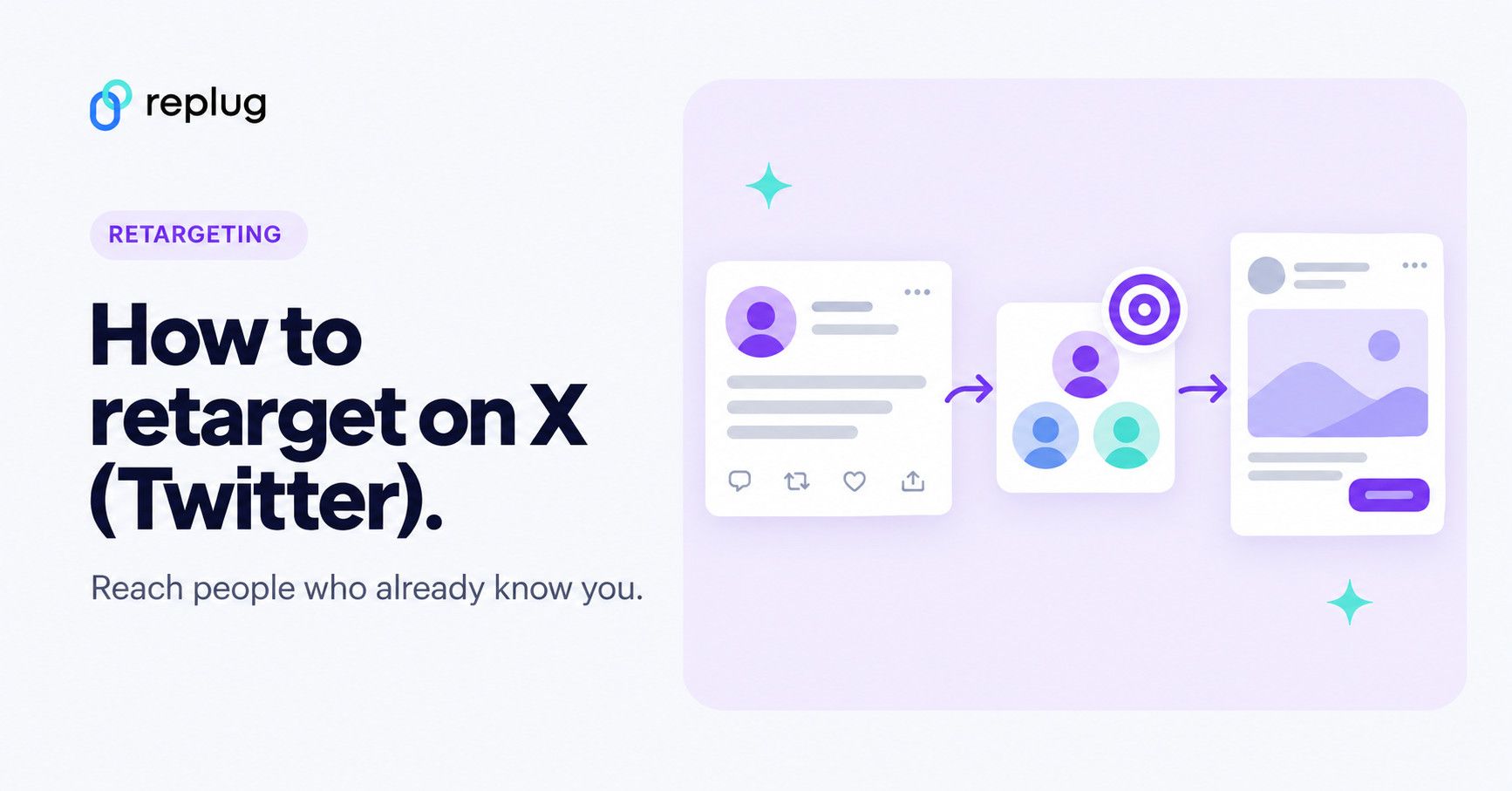
Retargeting focuses on people who have already shown interest, which is why it’s a common next step after your first X campaigns. This guide covers how retargeting works on X, how to set up the X Pixel and a Website Activity audience, and how to retarget people who click the links you share using Replug.
Quick answer: to retarget on X (formerly Twitter), build a Custom Audience in X Ads and target it in a campaign. You can build it from website visitors (X Pixel), an uploaded customer list, app activity, or people who saw or engaged with your posts. An audience needs at least 100 matched X users before you can use it, per X’s Custom Audiences help.
Remarketing on Twitter(X)
X (formerly Twitter) is where many brands, publishers and creators post news, launches and offers every day. If your customers or followers are active there, retargeting lets you reach the people who already clicked, visited or engaged.
People who already know your product are usually a warmer audience than people seeing it for the first time, so retargeting them on X is worth testing if your customers use the platform.
How does retargeting work on X (Twitter)?
Retargeting campaigns on X work the same way they work on other social media platforms – the advertiser decides to reach out to an existing audience and provides the source of the audience to target.
To set up a retargeting campaign on X, you create a Custom Audience on the Audiences page in X Ads and add it to an ad group’s targeting. X says Custom Audiences can be used “for retargeting, exclusion, and/or expansion” (X Help).
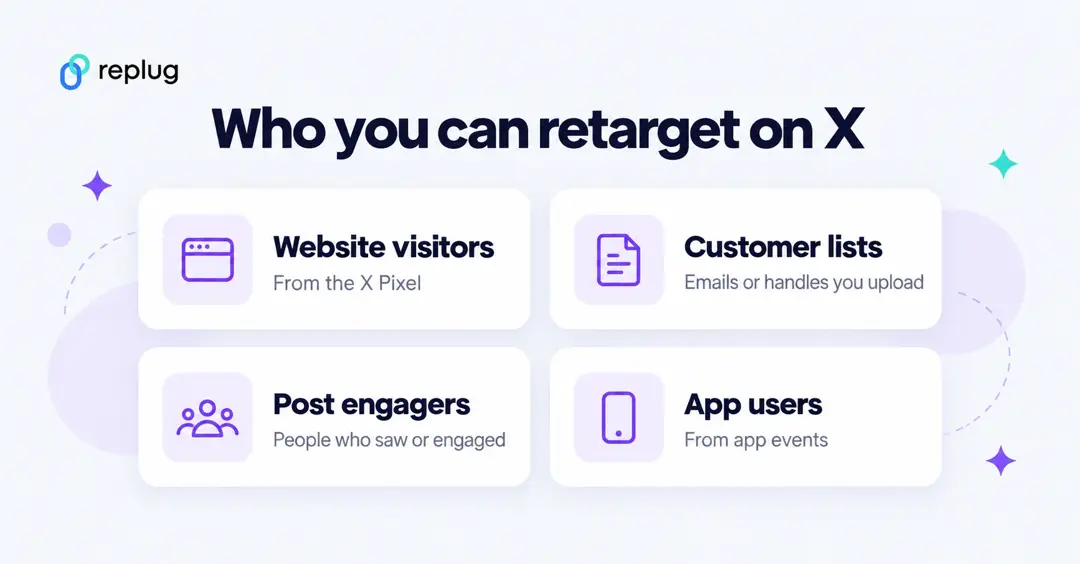
X offers these audience sources for retargeting:
- Website visitors: a Website Activity audience collects people who visited or took an action on your site, using the X Pixel (also called the website tag) or the Conversion API. Visitors stay in the audience for 90 days, and X only targets those who were active on X in the last 30 days (X Help).
- App users: people who downloaded your app or took an action in it, based on events from a mobile measurement partner. X also offers an app re-engagement campaign for this.
- List members: upload a file of your own customer data, such as a CRM export, and X matches it to the @handles of active users.
- Post engagers: people who saw or engaged with your posts, promoted or organic, can be targeted from the ad group’s targeting section. X’s lookback window is 45 days for organic engagements and 90 days for promoted ones (X Help).
Any of these audiences must reach 100 matched X users before you can use it in a campaign; until then it shows as “Audience too small.” For website retargeting, the next step is to install the X Pixel.
Step 1: Install the X Pixel
Website retargeting on X needs the X Pixel on your site. These steps follow X’s conversion tracking for websites guide:
1. Log in to X Ads
Log in to x.com with the account you advertise from, then go to ads.x.com.
2. Open Tools > Events Manager
In X Ads, open Tools and select Events Manager. If you don’t see a Tools tab, X says that’s likely because no credit card has been added to the ads account yet.
Events Manager is where you manage the pixel and the events it records.
3. Add an event source
Click Add event source and select I agree to X’s terms. If the pixel already exists, click View code in the pane on the right instead.
4. Install the base code
Copy the base code and paste it before the </head> tag of every page on your site, or add it through a tag manager using your pixel ID. X then auto-creates “Site Visit” and “Landing Page View” events that you can check in Events Manager.
Need the ID for a tag manager or for Replug? See how to find your X pixel ID.
Step 2: Create a Website Activity audience
Once the pixel is live, build the audience. X recommends waiting at least one week after installing the tag before you run campaigns (X Help).
- In X Ads, open Audiences and choose Create new audience > Website Activity.
- Name the audience and add an optional description.
- Choose the Universal Website Tag or the single event tag you installed.
- Set URL conditions. X suggests “Contains,” since “Equals” is case sensitive. For example, people who reached a page whose URL contains “thank-you.”
- Agree to the Custom Audiences and conversion tracking terms to create the audience.
The audience shows “Audience too small” until it collects 100 X users, then changes to “Ready.” Add it to an ad group’s targeting, and add a second audience as an exclusion (for example, people who already bought) so you don’t pay to retarget customers.
Step 3: Retarget people who click links you share
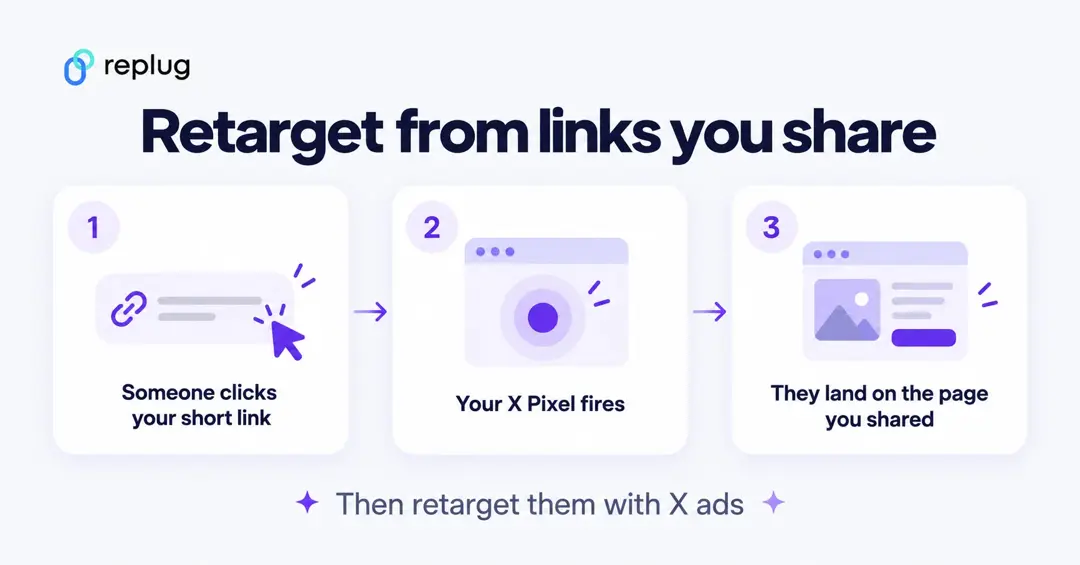
The X Pixel only fires on pages you control. If you share links to other sites, such as a press article, a marketplace listing or a partner’s page, you can still add those clicks to your X audience by putting the pixel on the short link itself.
How to retarget on X using Replug
Replug is a link management platform: short links on your own domain, bio pages and QR codes, with click tracking and ad retargeting. Its link retargeting tool fires your X Pixel when someone clicks a Replug link, then sends them on to the destination.
Retargeting pixels are on paid plans: Essentials includes 1 pixel, and Scale and Agency include unlimited pixels, per Replug’s pricing. Sign up or log in, then:
1. Add your X Pixel in Replug
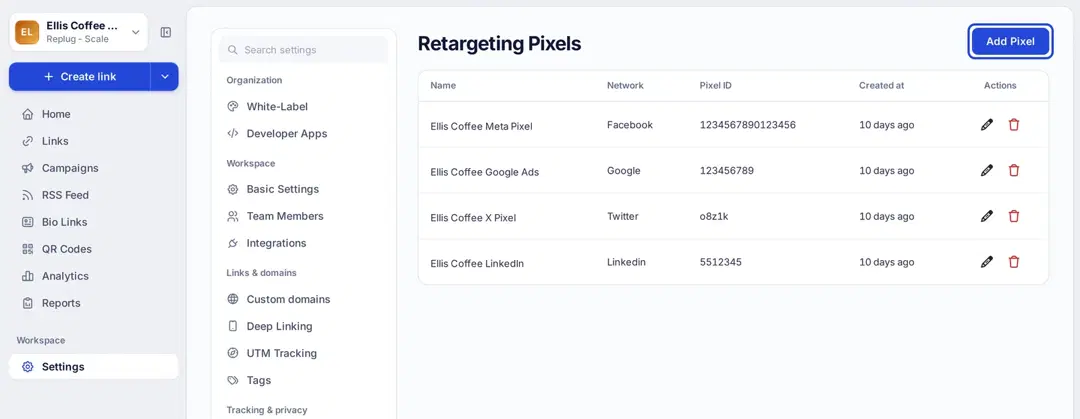
Go to Settings > Retargeting Pixels and click Add Pixel.
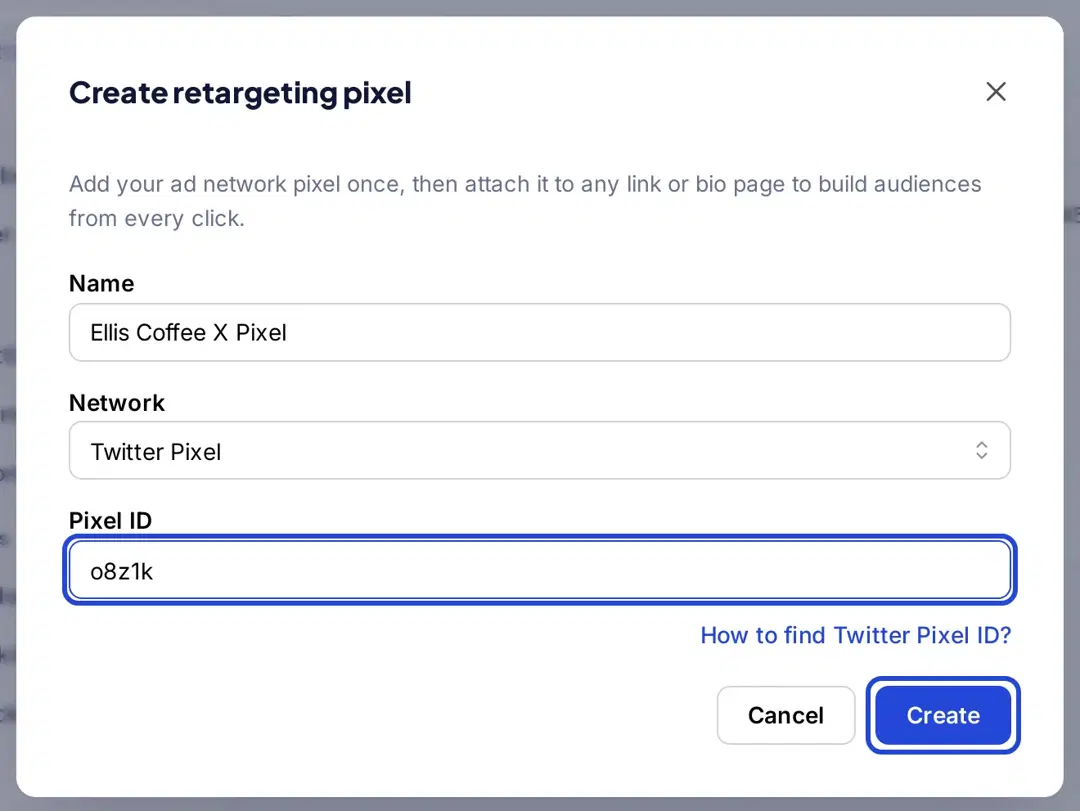
Name the pixel, choose Twitter Pixel as the network, paste your X pixel ID and click Create.
2. Create a retargeting campaign
Open Campaigns and click Create new. Campaigns used to sit under a brand in Replug; now you create them directly.
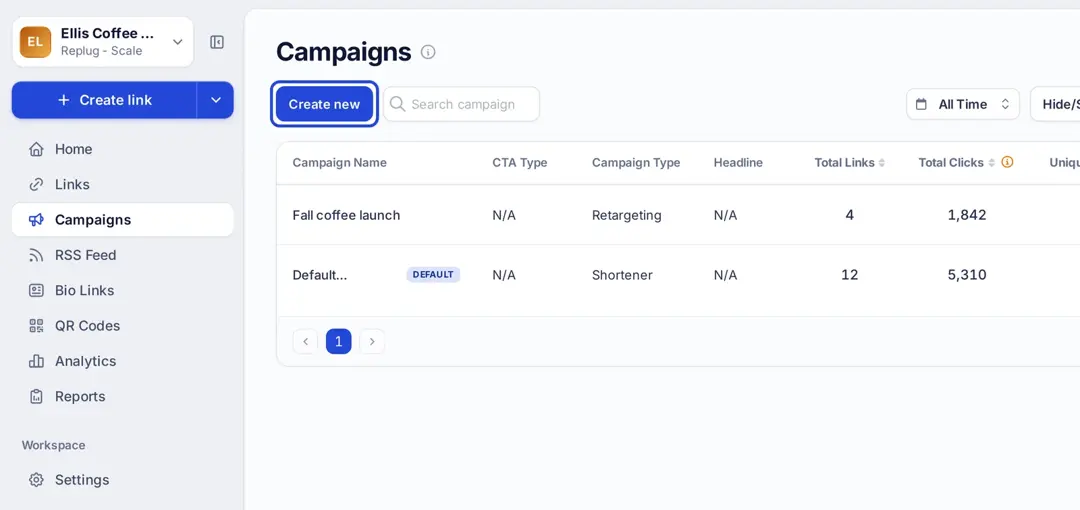
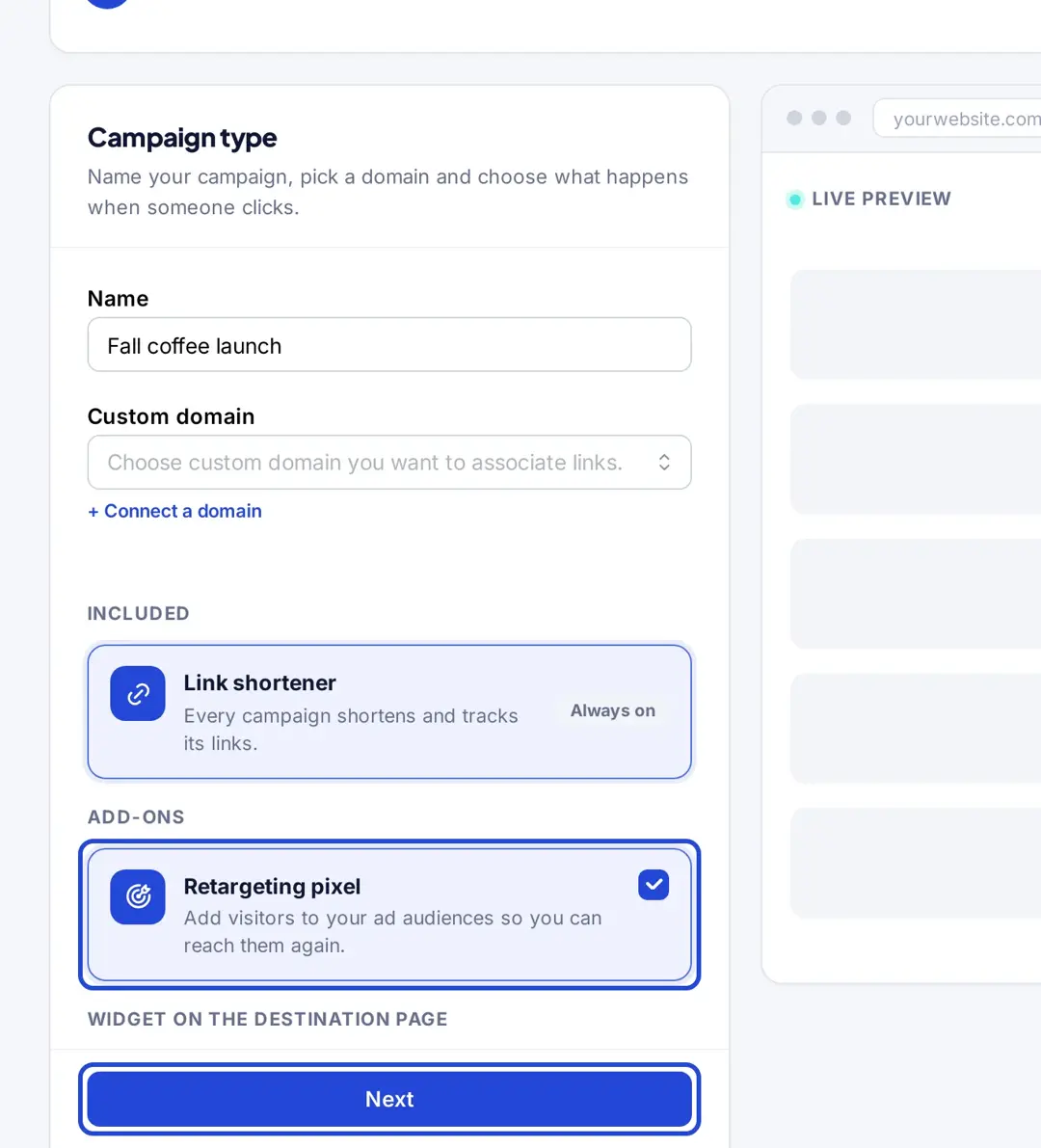
Name the campaign, select the Retargeting pixel add-on and click Next.
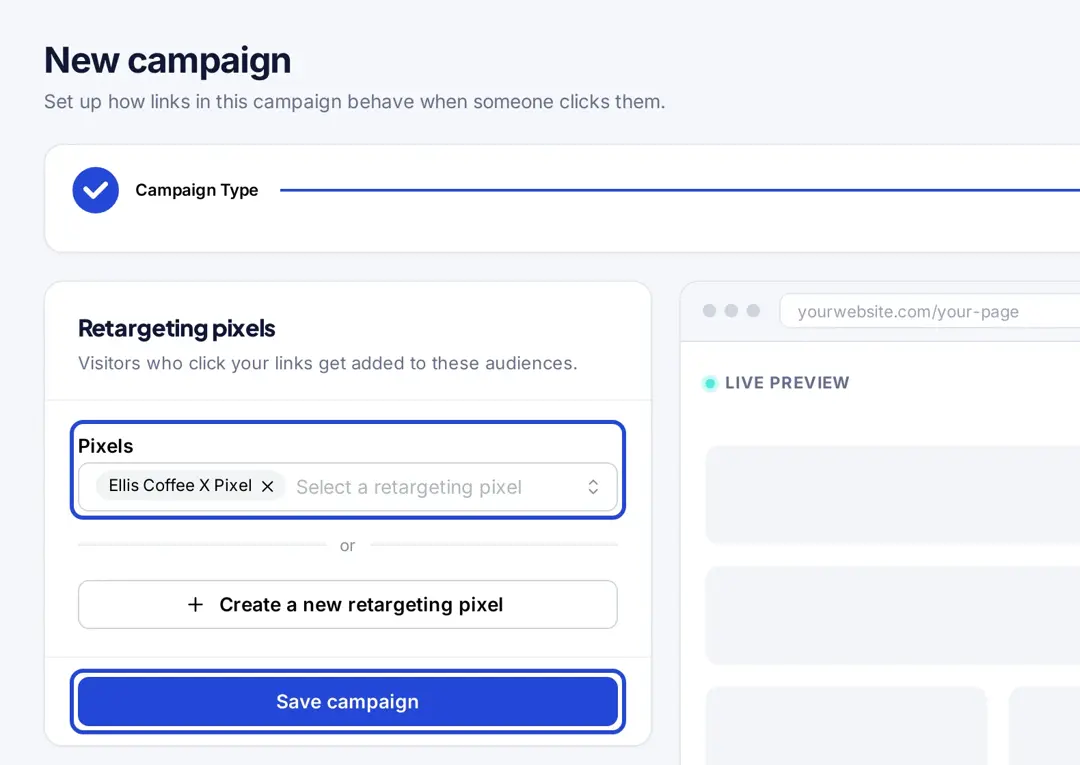
Choose your X pixel in the Retargeting pixels step and click Save campaign. You can add several pixels to one campaign if you also run Meta, LinkedIn or TikTok ads. Replug’s help center has more on creating a campaign.
3. Shorten links under that campaign
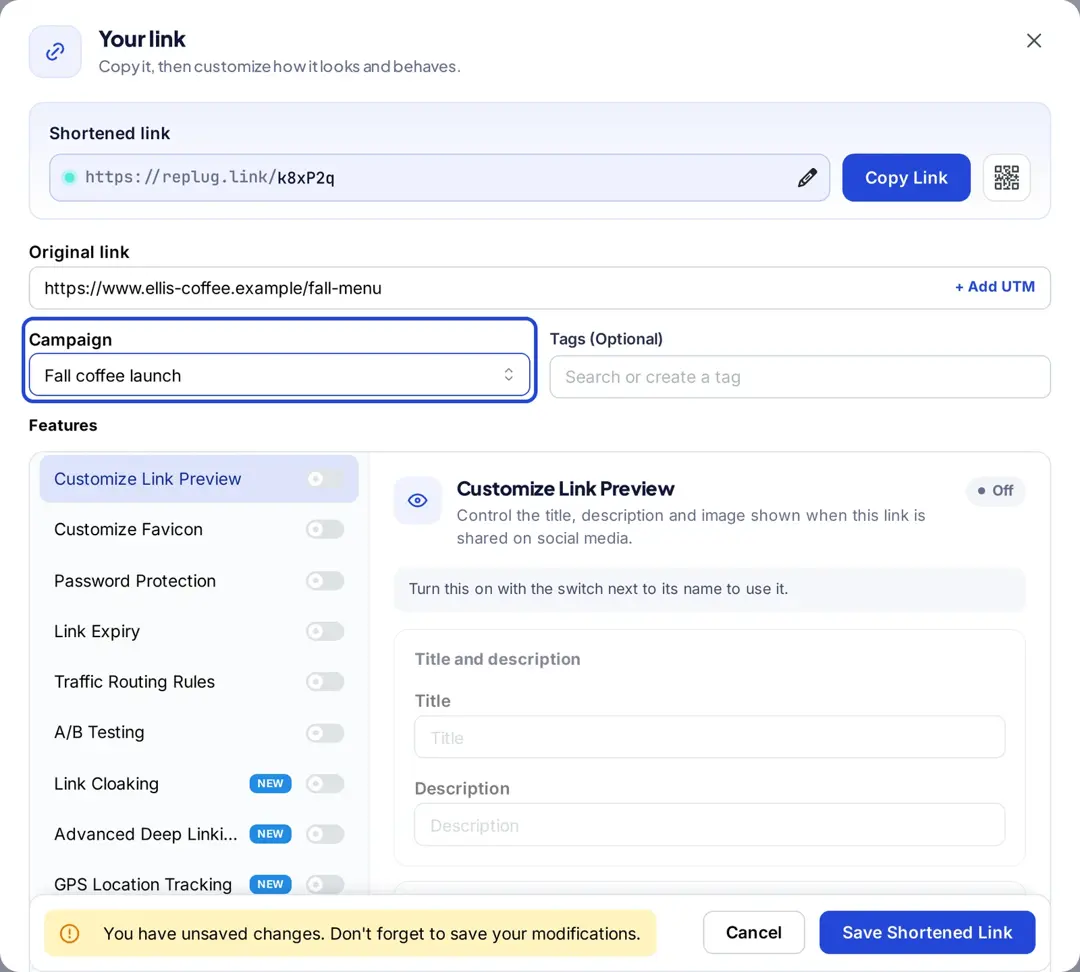
Using Replug’s Twitter link shortener, paste the long URL on the Home screen and click Shorten.

In the Your link window, pick the campaign in the Campaign field and save the link. Every click on it now fires your X Pixel before the visitor reaches the page.
Each click then becomes an X Pixel event, so people who clicked your Replug links can feed a Website Activity audience in X Ads that you retarget or exclude.
Give the audience time to fill. Like any X audience, it needs 100 matched users before you can target it.
You may also like: A step-by-step guide on Tiktok retargeting using Replug
The pros and cons of Twitter(X) retargeting
It’s always a good idea to comprehend both the good and bad of a marketing strategy. Like any other social media marketing strategy, Twitter (X) retargeting also has a fair share of weak points that must be discussed. So, here we go:
| Pros of retargeting on X | Cons of retargeting on X |
|---|---|
| You reach people who already visited, clicked or engaged, not cold audiences. | Audiences need 100 matched X users, so small sites may wait weeks. |
| Several audience sources: pixel, customer lists, app activity and post engagers. | Website audiences only include visitors active on X in the last 30 days. |
| Exclusions let you stop showing ads to people who already bought. | Showing the same ad too often can cause ad fatigue. |
| X Events Manager shows whether your pixel events are firing. | Costs vary with audience size, bids and competition, so budgets need testing. |
7 best Twitter (X) retargeting practices to follow
Hold your horses. Before you head over to the Twitter ads section for starting a Twitter retargeting campaign, read the following best practices for running Twitter retargeting campaigns:
1. Utilize a high-end retargeting tool
Retargeting tools automate the process of identifying and engaging with these potential customers, allowing you to reach them more efficiently and effectively.
This saves time on manual audience work, and you spend on people who already know you instead of cold audiences.
2. Start retargeting with one retargeting platform
Starting your retargeting efforts with a single platform simplifies your strategy and enhances efficiency. By focusing on one retargeting platform, you streamline your campaigns, ensuring that all your resources are concentrated in one place. This approach allows for more precise targeting, easier management, and a clearer understanding of your campaign performance. It also reduces the complexity of juggling multiple tools and integrations, helping you optimize your retargeting efforts and achieve better results with less effort.
3. Segment your audience and target the right one
Segmentation does wonders in digital marketing. Break down your audience into specific segments based on factors like user behavior, interests, demographics, or previous interactions with your brand. It ensures that the advertiser delivers highly personalized and relevant ads that resonate with the prospects rather quickly.
4. Use compelling yet meaningful words in the ad copy
Besides paying attention to designing ad creatives, advertisers must also learn how to write compelling words through their ad campaign. Use strong visuals, concise messaging, and clear calls-to-action (CTAs) to help businesses and individuals capture attention and drive engagement.
5. Optimize ad frequency to avoid ad bombardment
It’s necessary to keep an eye on the ad frequency for the target audience. Setting frequency caps on your ads can avoid ad overexposure. The same ads bombardment often leads to ad fatigue and lower engagement rates. Advertisers must try to strike a balance between maintaining visibility and avoiding the irritation from frequent or continuous ads.
6. Test multiple ad formats
Don’t stick with just one type of ad. Instead, experiment with various ad formats, like video, carousel, or image ads, to determine which format performs best with your retargeted audience. Each ad format has unique properties, and testing helps you find the most effective way to deliver your message and put your brand out there.
7. Adjust your bidding strategy from time to time
Try to understand how the bidding strategy works and be ready to adjust as needed. Regularly monitoring bids and running campaigns will help you optimize your campaign. As a result, you get the most out of your ad spend without overpaying for impressions.
Conclusion
Retargeting on X comes down to three pieces: a pixel or list that collects the right people, an audience big enough to use, and ads that give those people a reason to come back.
Install the X Pixel, build a Website Activity audience, exclude people who already converted, and test your creative. If you share links to pages you don’t own, add your pixel to those links too.
A link shortener with pixel support lets you do that and see clicks per link.
FAQs about retargeting on X (Twitter)

Manahil