You’ve set up your Twitter (X) Ads account, but now what? To truly make your ads work for you, you need your X pixel ID. So, how do I find my Twitter Pixel ID? It might sound technical, but don’t worry—it’s easier than you think.
Quick answer: to find your X (Twitter) pixel ID, log in to your ads account at ads.x.com, open Tools > Events Manager, and click View Twitter pixel (or View code in the right-hand pane) for your pixel. The pixel ID is shown when you choose to install with a tag manager, and it also appears inside the base code on the “Website code” page. If you have no pixel yet, click Add event source and agree to X’s terms; X then generates the base pixel. If you don’t see a Tools tab, add a payment card to your ads account first.
These steps follow X’s own help page on conversion tracking for websites, checked October 2026. X still labels the pixel “Twitter pixel” in some menus.
Let’s get you on the right track to find it and make your retargeting ad strategy more effective. This guide will help you utilize a high-quality link retargeting tool to track your audience’s every move and fine-tune your campaigns like a pro.
First thing first – Create your Twitter (X) Ads account first
- Go to X.com.
- Log in to the account that you want to promote Posts from. This is the handle that your X Ads account will be created for.
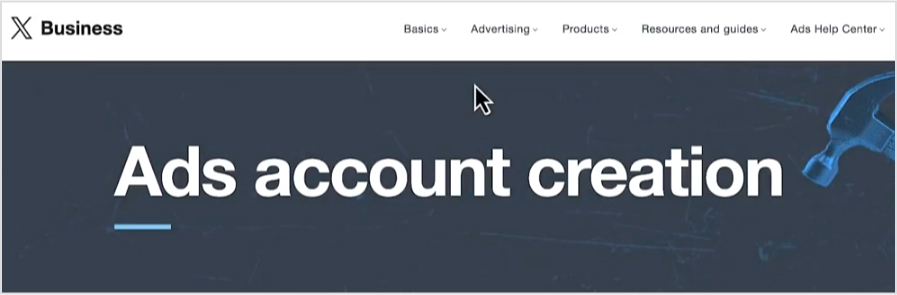
- Once logged in, go to ads.x.com.
- Select your country and time zone. Select the country whose currency you’d like to be billed in and the time zone you’d like your campaign results to show up in. You cannot change these values once you’ve created your account.
- You’ll be brought to the campaign setup form or X Promote Mode setup, depending on your choice at step 4.
- Enter your billing information to complete your ads account and start your campaign (steps from X Help Center).
Here’s how you can find your X Pixel ID:
1. Log in to your X ads account
Open your web browser and go to your ads account at ads.x.com.
- Log in with your X (formerly Twitter) account credentials. Make sure you have the necessary permissions to access ads and tracking settings.
2. Open the events manager page
Once logged in, look for the navigation menu. It’s typically on the left side of the screen.
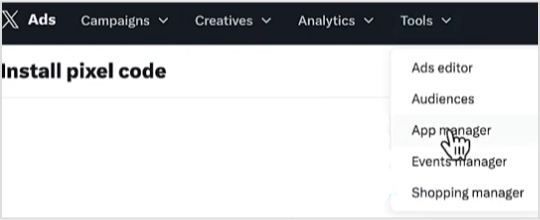
- Click on “Tools” to expand the dropdown menu.
- In the drop-down menu under “Tools,” select “Events manager.” No Tools tab? X says this is likely because a credit card hasn’t been added to the account yet.
3. Add an event source (only if you have no pixel yet)
Now this page typically consists of a list of your existing events and pixels.
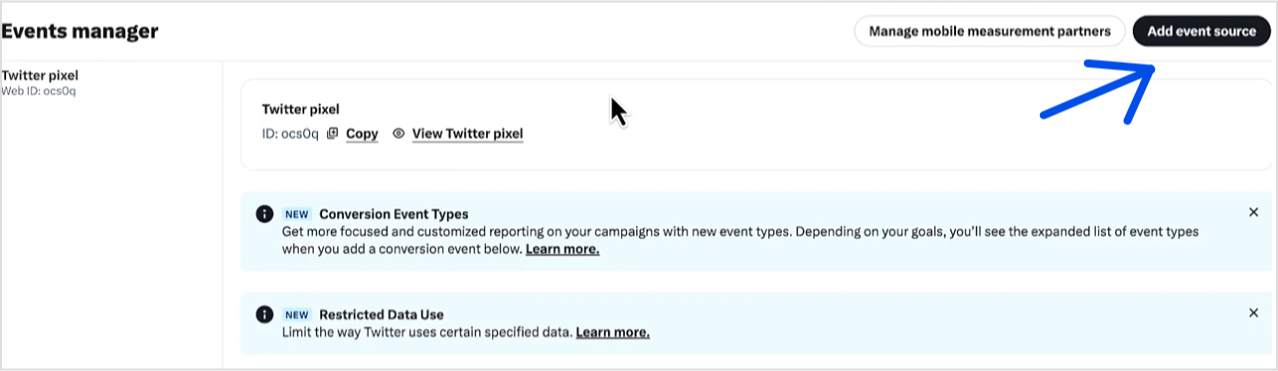
- If you don’t see any, you need to create the pixel first. Click “Add event source” and select “I agree” to X’s terms of use. X generates your base pixel along with two automatic events, “Landing Page Views” and “Site Visits.”
4. View the pixel code
Near the top of Events Manager, click “View Twitter pixel” for the pixel you want, or use the “View code” button in the pane on the right. This opens the “Website code” page.
The installation screen has tabs for each method. On the tag manager tab you’ll see a “Pixel ID” field; on the pixel code tab, the same ID appears inside the base code.
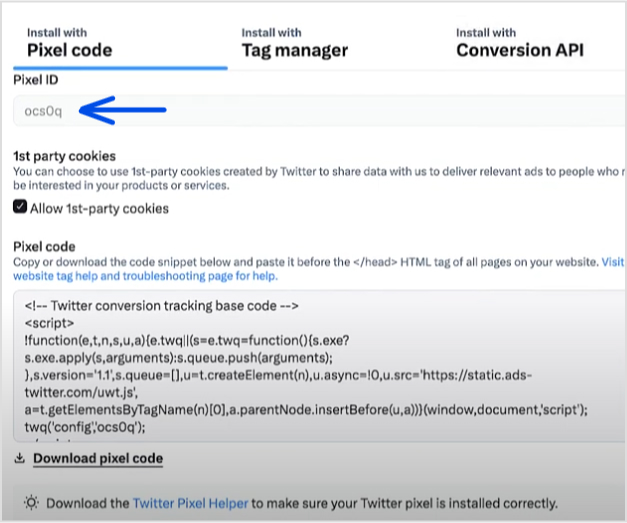
5. Copy the pixel ID
- Once you find the Pixel ID, copy it to your clipboard. You’ll need this ID to integrate the pixel with your website or other platforms.
You can also copy or download the full pixel code from the “Pixel code” field and paste it before the </head> tag of every page on your website (X Help Center).
Pixel ID vs. event ID
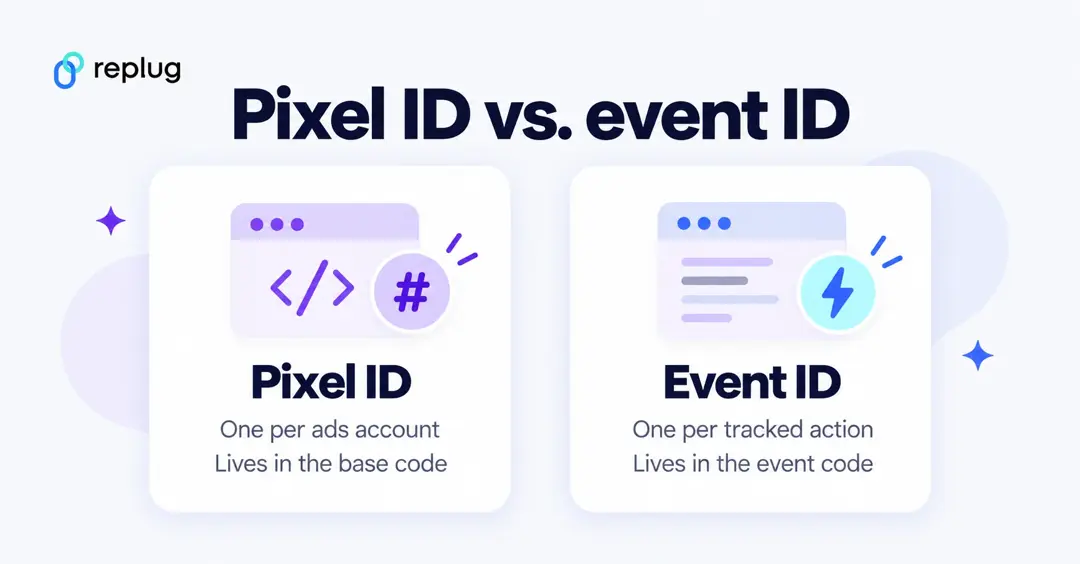
X’s pixel has two parts. The base code goes on every page of your site, tracks visits and holds your pixel ID. Event code tracks a specific action, such as a purchase or a sign-up, and needs the base code to work. Each event you create in Events Manager has its own event ID; when you install through a tag manager, you paste the pixel ID into the base pixel tag and the event ID into each event tag. X advises creating the base pixel only once and using each conversion type (such as Purchase) only once on your site (X Help Center).
| Pixel ID | Event ID | |
|---|---|---|
| What it identifies | Your X pixel (base code) | One tracked action (event code) |
| How many | One base pixel per ads account | One per event you create |
| Where you paste it | Base pixel tag, on every page | Event tag, on the page or action you track |
| Used by retargeting tools | Yes, enter it as your X pixel | Only for conversion events |
Check that your X pixel works
- Return to Events Manager after installing. X shows a status for each event: Active (activity detected within the last 24 hours), Inactive or No recent activity (X Help Center).
- For the base code, check the automatic “Site Visit” or “Landing Page View” events.
- Use “View Activity” on an event to open the Recent Activity Log and see sample events, their parameters and the host name that sent them.
- Once the pixel collects visits, you can build a Website Activity Custom Audience in Audiences. It shows “Audience too small” until it reaches 100 X users (X Help Center).
Troubleshooting tips
- If you can’t find the pixel ID: Double-check that you’re logged into the correct account and have the necessary permissions to view conversion tracking settings.
- No Tools tab: add a credit card to the ads account; X says a missing card is the likely reason the tab doesn’t show.
- For further assistance: Consult X Help Center or reach out to their support team if you encounter issues you can’t resolve.
After you’ve set up your X Pixel ID, you’ll be ready to start running targeted retargeting campaigns. This setup allows you to track user behavior on your brand, which in turn helps you create more personalized and effective ad experiences.
If you’re unsure how to do this, don’t worry. Below, we added a a brief paragraph on setting up and tracking your retargeting campaigns.
Setting up your X retargeting campaign
If you share links to pages you don’t control (a news story, a YouTube video, a partner’s product page), you can’t install your X pixel there. Replug fires your pixel on the short link instead, so people who click your links can join your X audiences (Replug link retargeting). Retargeting pixels are on paid plans: one pixel on Essentials and unlimited pixels on Scale and Agency (Replug pricing, checked October 2026). Here’s how to set it up in the current app:
First, sign up for Replug if you don’t have an account yet. If you already have one, simply log in.
Add your X pixel: Open Settings in the left sidebar, choose Retargeting Pixels under Tracking & privacy, and click Add Pixel.
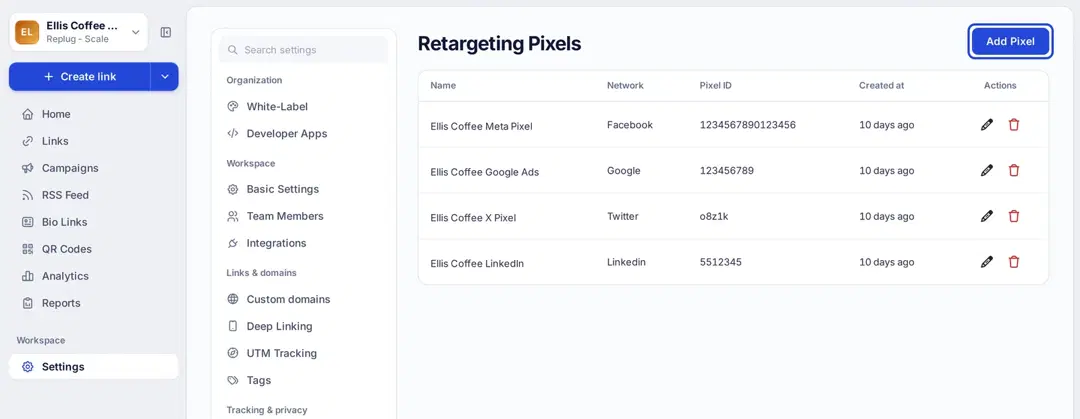
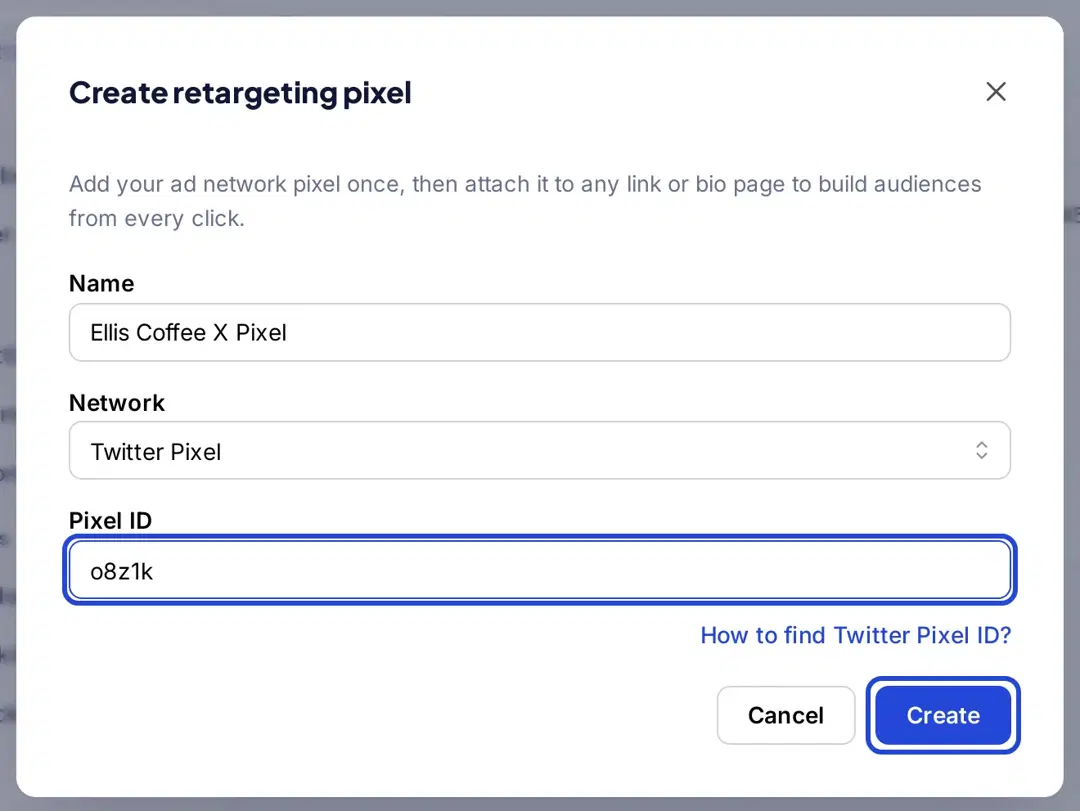
Enter the pixel details: Give the pixel a name, choose Twitter Pixel as the network, paste the pixel ID you copied from X Events Manager, and click Create.
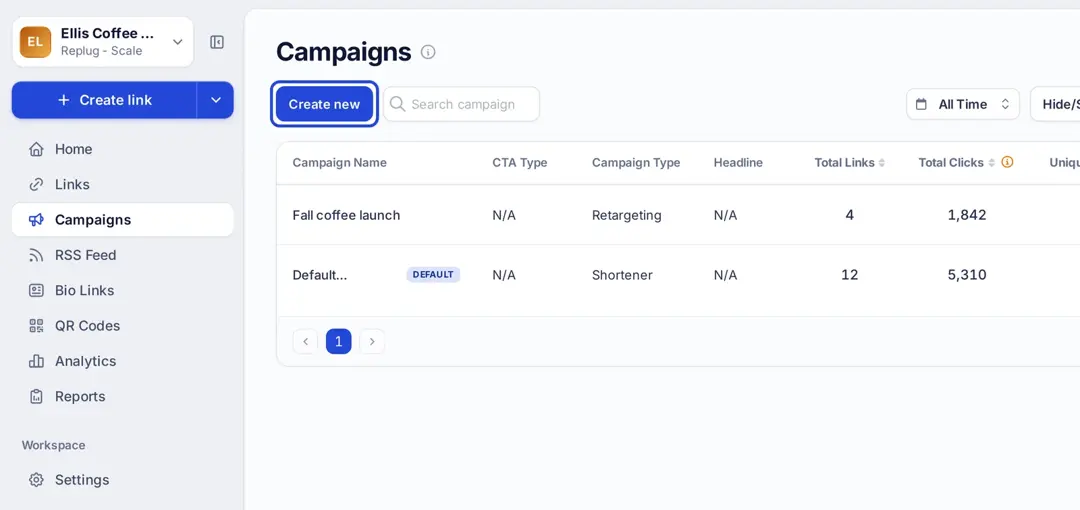
Create a campaign: Open Campaigns in the left sidebar and click Create new. Pixels are attached to campaigns, so every link in the campaign fires them. (Older Replug versions asked you to pick a brand first; that step no longer exists.)
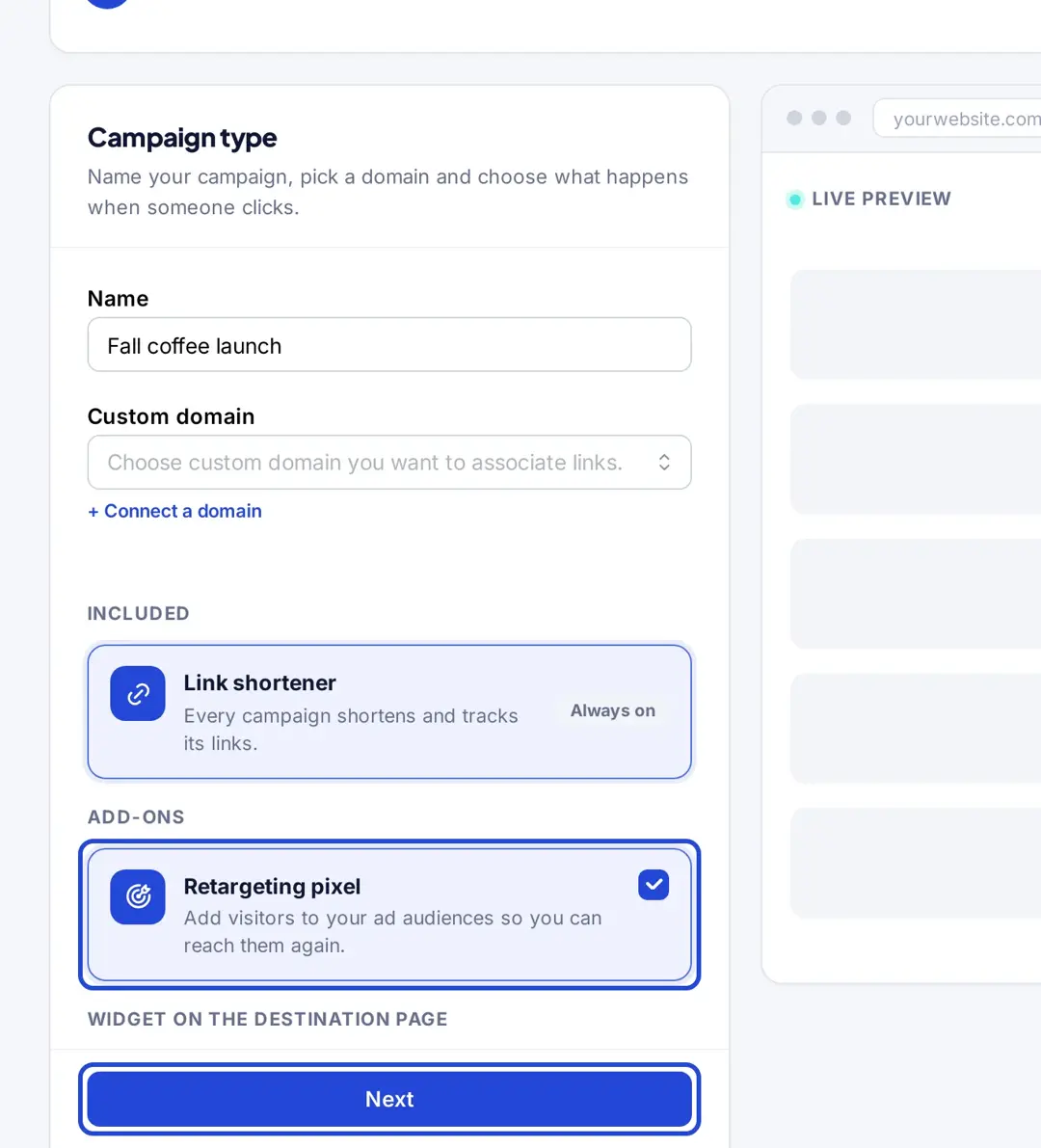
Choose your campaign type: Give your campaign a name and pick a custom domain if you want. Under Add-ons, select Retargeting pixel. Click “Next” to keep going.
Pick your pixel: On the Retargeting pixels step, open the Pixels field and select your X pixel. You can add more than one pixel (on Scale and Agency), or click Create a new retargeting pixel if you skipped the Settings step.
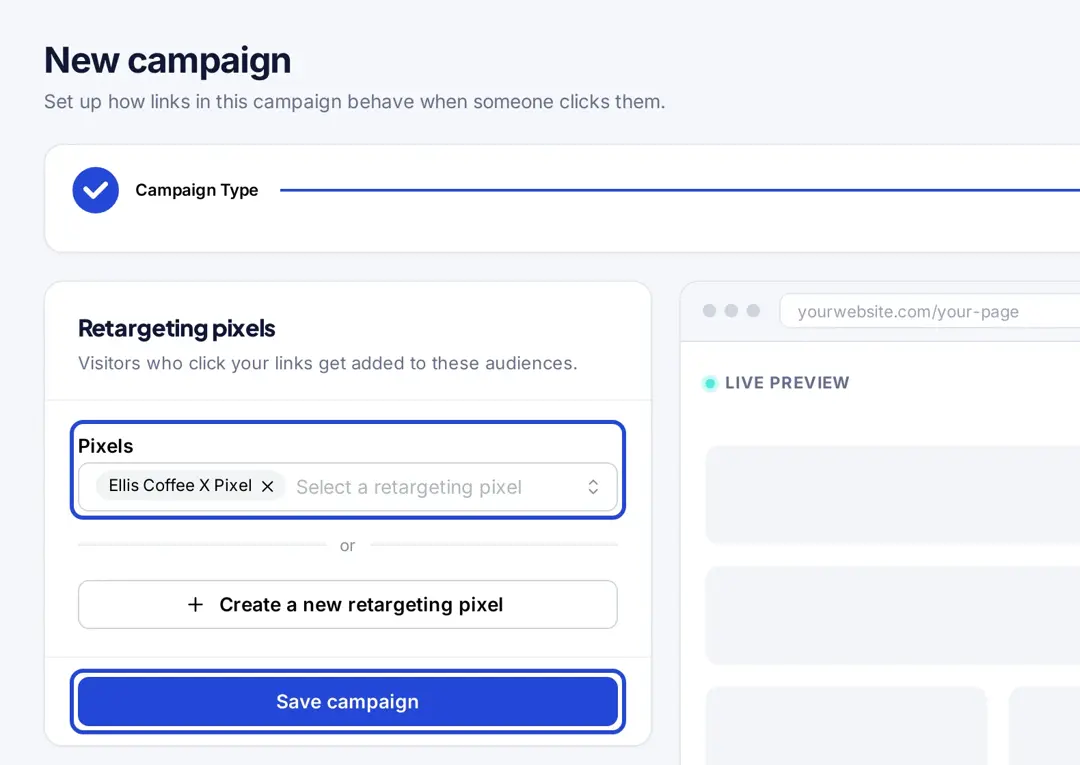
Save the campaign: Click Save campaign.
Remember that the network is called Twitter Pixel in Replug’s list, next to Meta, Google, LinkedIn, Pinterest, TikTok and Quora.
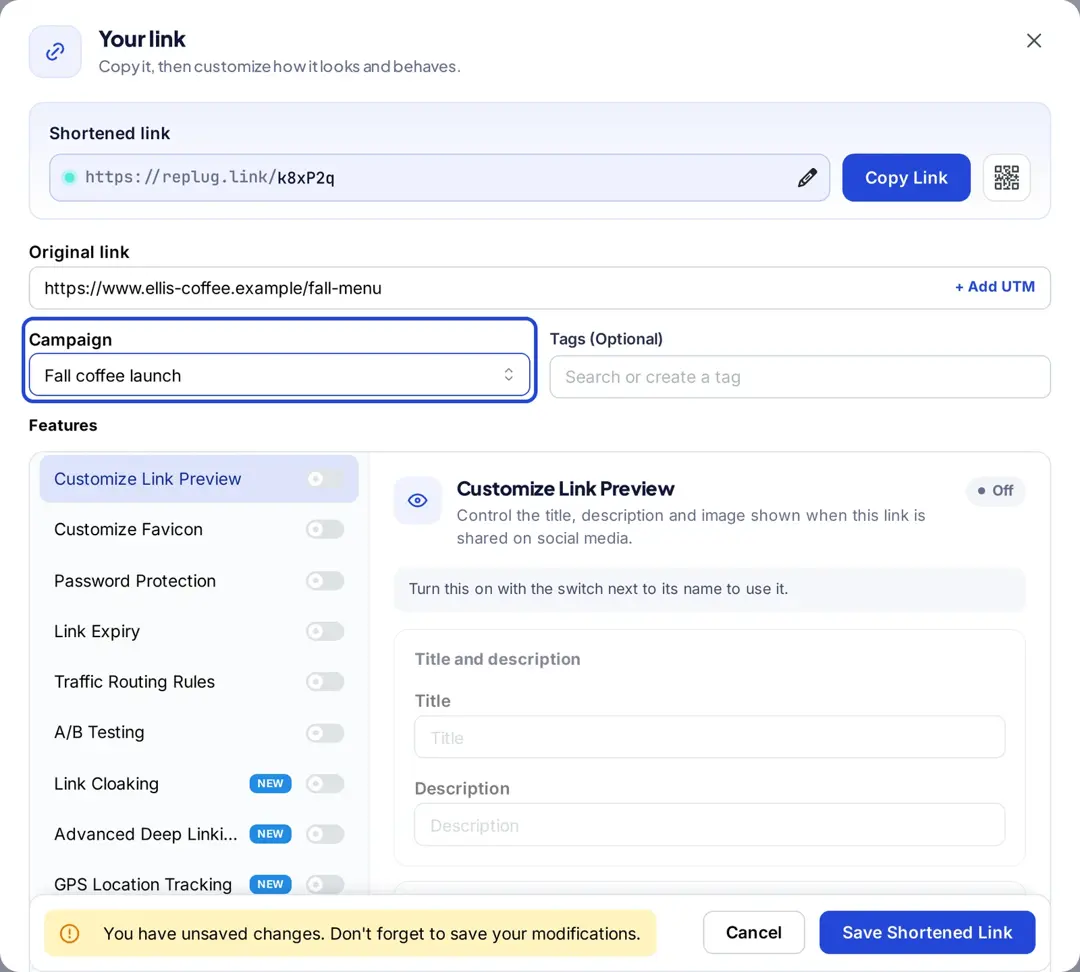
Shorten links in that campaign: Paste a URL on the Home screen, click Shorten, and in the Your link window choose your retargeting campaign in the Campaign field. Click Save Shortened Link. From now on, each click on that link fires your X pixel before the visitor reaches the page.
What else can I do with Replug?
Here’s what else you get with Replug:
Analytics & reporting
- Add UTM Parameters: Easily add UTM parameters to your links to track the performance of your campaigns in detail, so you can see exactly where your traffic is coming from.
- Track link performance: Monitor clicks, unique clicks and QR scans by country, device, browser and referrer for every link (Replug link tracking). Conversions happen on your site, so measure them there or with your X pixel events.
- Generate reports: Create detailed reports to analyze the effectiveness of your campaigns and make data-driven decisions.
Campaign management
- Run A/B tests: Split traffic between up to 20 destination URLs to see which performs better (Scale and Agency plans).
- Shorten Links: Create branded, short URLs and links that are easy to share and track, through our Twitter link shortener.
- Customize links: Add custom slugs to make your links more descriptive and engaging (Essentials and up).
- Set link expiry: Choose a date when a link stops working, for time-limited offers (Scale and Agency plans).
- Manage redirects: Set up redirects for your links to guide users to the most relevant or updated content.
You may also like: How to retarget on Twitter (X) using Replug?
Conclusion
That was all in today’s guide. This little code packs a big punch by letting you track what users do on your site, helping you fine-tune your campaigns for better results.
When you combine your Pixel ID with a tool like Replug, managing your campaigns is so easy, ensuring your ads connect with the right people at just the right time.
FAQs on X (Twitter) pixel ID

Manahil