Fix QR code blurry issue: Make your QR code easily scannable in no time!
 10 minutes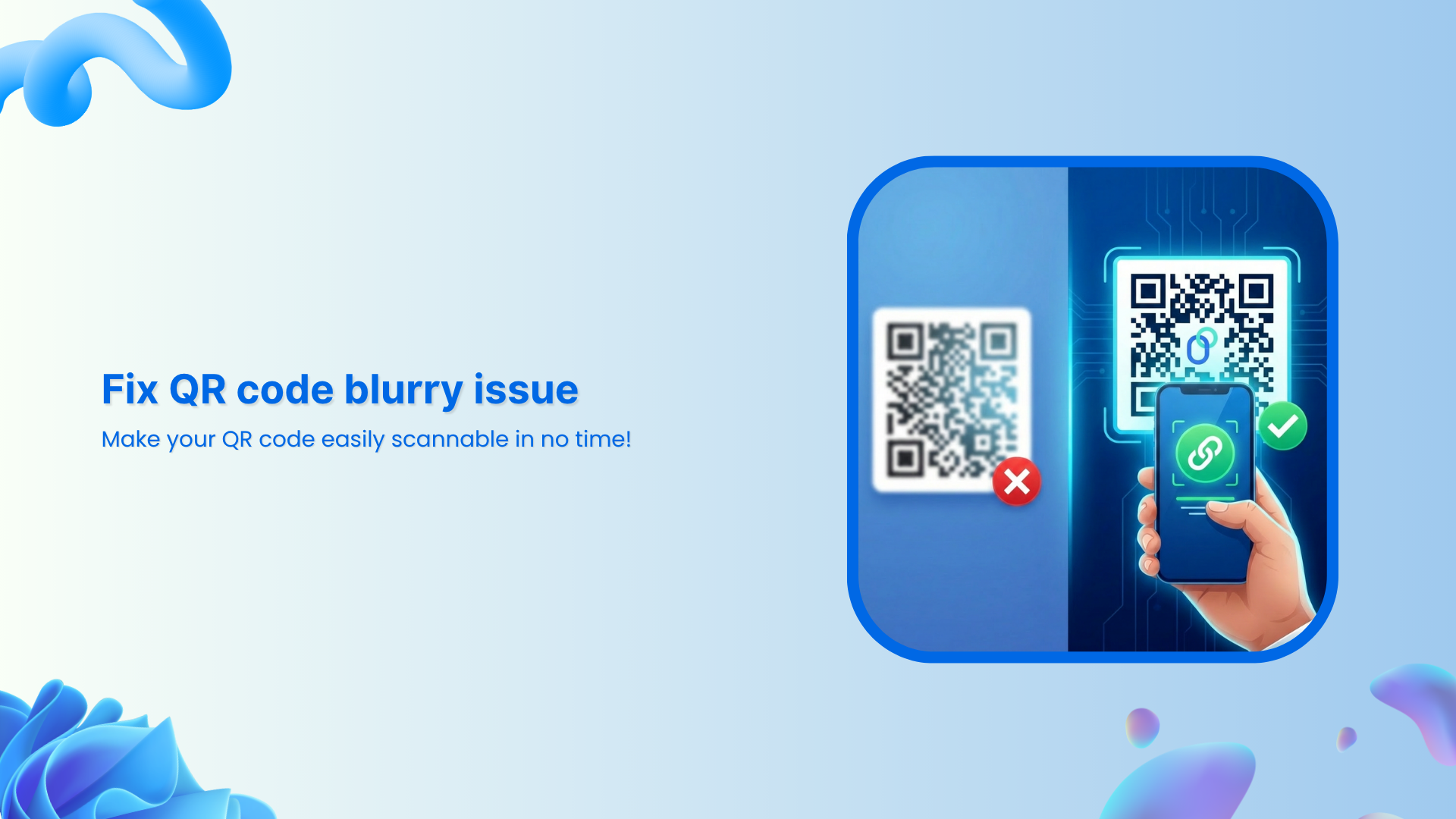
You pull out your phone, point it at a QR code, and… nothing. You try again, and still nothing. Frustrating, right?
A blurry or poorly generated QR code isn’t just annoying; it’s costing real opportunities. And given that nearly 99.5 million Americans scanned a QR code in 2025 and QR code usage grew by 323% between 2021 and 2025, this little square has become way too important to get wrong.
No matter if you’re a business owner, a marketer, or just someone who needs a working QR code, a blurry one can make people give up in seconds.
The good news? Fixing it is simpler than you’d think!
But before we jump into solutions, let’s make sure we’re all on the same page. So let’s quickly cover what a QR code actually is and how it works.
What is a QR code?
A QR code (short for “Quick Response code”) is a two-dimensional barcode that stores information like a website URL, contact details, or a payment prompt and can be instantly read by a smartphone camera.
Unlike the old barcodes you see on grocery items, a QR code holds way more data and works in any direction you scan it.
Its main purpose is simple:to bridge the gap between the physical and digital world in the fastest way possible.
How does it work?
When you create a QR code, the information you enter gets encoded into a pattern of black and white squares.
When someone scans it, their phone’s camera reads that pattern and decodes it back into the original information (opening a link, displaying text, or triggering an action).
Think of it like a secret visual language your phone can instantly translate. The whole thing happens in under a second, which is exactly why QR codes have become so popular.
Why is my QR code blurry?
Before you can fix a blurry QR code, it helps to know what’s causing it in the first place. There are actually quite a few reasons a QR code can become unscannable, and most of them are pretty easy to avoid once you know what to look out for.
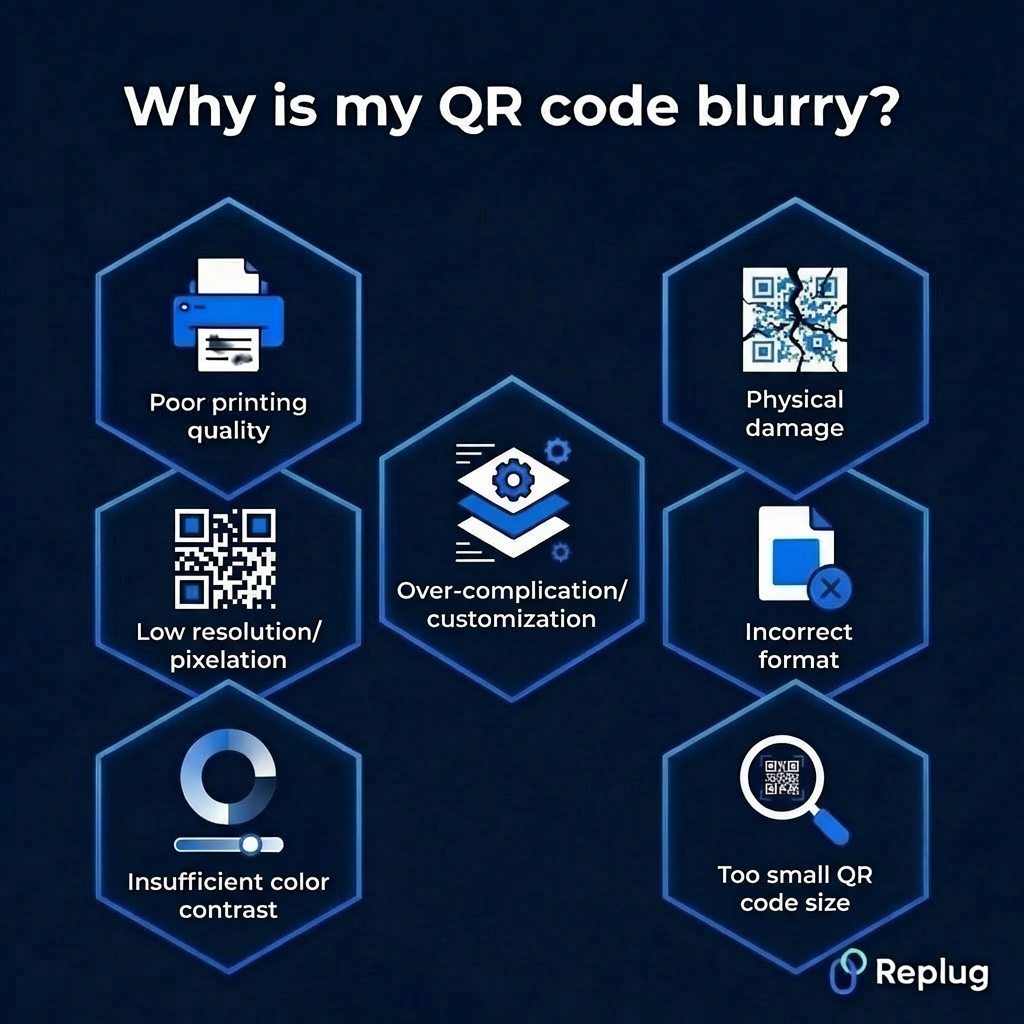
Low resolution/pixelation
This is probably the most common culprit. When a QR code is created at a low resolution and then stretched or scaled up, the edges get pixelated, and the scanner simply can’t read it cleanly. Always generate your QR code at the highest resolution available.
Poor printing quality
Even a perfectly designed QR code can go bad in print. If your printer is low on ink, using poor-quality paper, or set to a low print quality mode, the fine details of the code get lost. This makes it blurry or patchy and hard to scan.
Insufficient color contrast
QR codes rely on a clear contrast between the dark modules and the light background to be readable. Using similar shades (like a dark grey code on a black background) confuses the scanner and makes the code practically useless.
Over-complication/customization
Adding too many design elements, heavy colors, or large logos right in the center of your QR code can interfere with the data embedded in it. A little customization is fine, but overdoing it often pushes the code past the point where it can still be scanned reliably.
Physical damage
A QR code on a printed flyer, product label, or sticker is vulnerable to real-world wear and tear. Scratches, moisture, fading, or even a bad fold across the code can damage enough of the pattern to make it unreadable.
Incorrect format
Saving or exporting your QR code in the wrong file format can seriously hurt its quality. Formats like JPEG compress image data and can introduce blurriness, while vector formats like SVG or high-resolution PNGs keep the code sharp and crisp at any size.
Too small QR code size
There’s a minimum size a QR code needs to be to work properly. If it’s printed or displayed too small, the individual squares within the code become too tiny for a camera to distinguish. This ultimately makes scanning nearly impossible, especially from any reasonable distance.
You may also like: Why is my QR code not working: 9 reasons to consider
Enhance your QR codes with these useful tips & tricks
Now that you know what’s causing the blur, let’s talk about how to actually fix it. These tips are straightforward, practical, and easy to apply, whether you’re designing a QR code from scratch or trying to rescue an existing one.
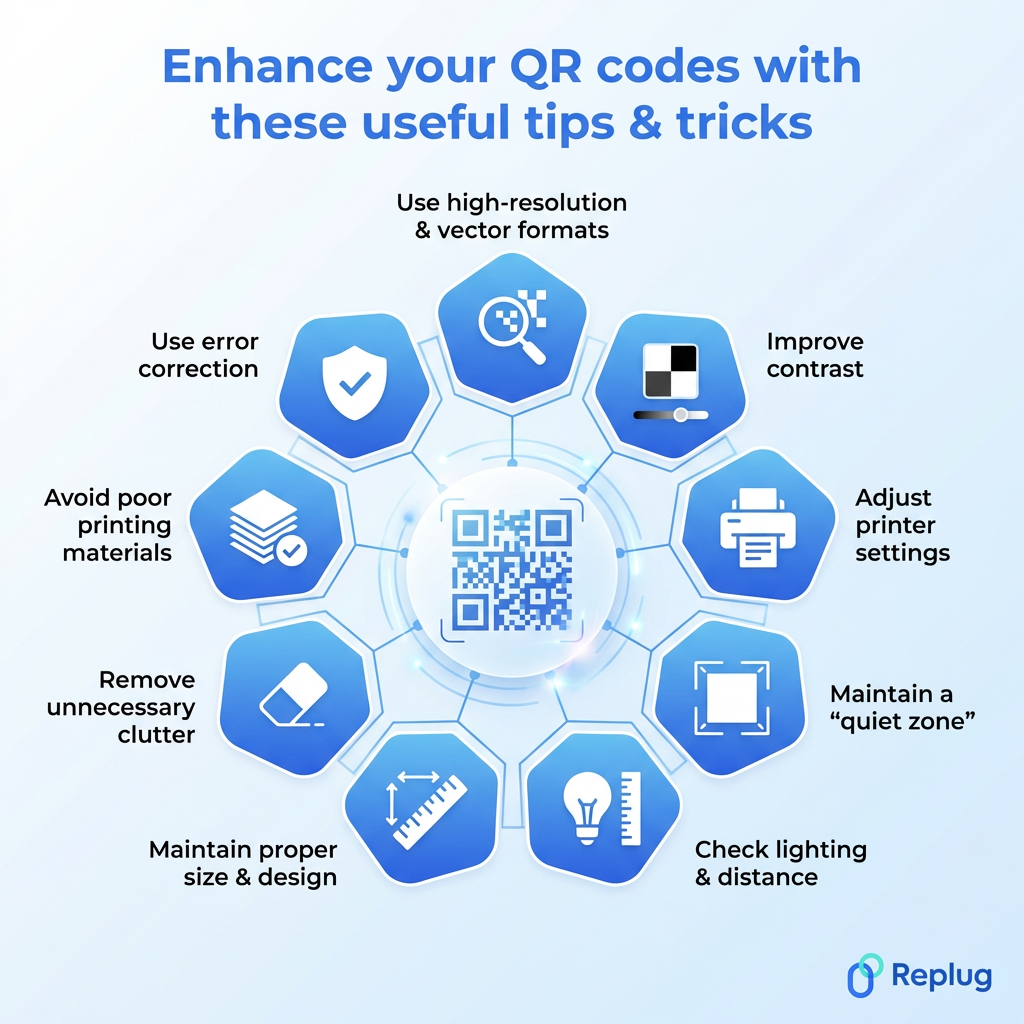
Tip #01: Use high-resolution & vector formats
Always export your QR code as an SVG or high-resolution PNG rather than a JPEG. Vector formats scale to any size without losing sharpness, so your code stays crisp no matter if it’s on a business card or a billboard. This single change alone can make a huge difference.
Tip #02: Improve contrast
Stick to the classic dark module on a light background combo. It’s the most reliable for scanning. If you want to use custom colors, make sure there’s a strong enough contrast between the two. When in doubt, test your QR code on multiple devices before publishing it.
Tip #03: Adjust printer settings
Before hitting print, optimize your printer settings to the highest quality mode available. Also, make sure your ink levels are good. A half-empty cartridge often produces faded or uneven prints that can make a QR code blurry and completely unscannable.
Tip #04: Maintain a “quiet zone”
A quiet zone is the blank white border surrounding your QR code, and it’s not just for looks; it’s actually essential. Without enough white space around the edges, scanners struggle to identify where the code begins and ends. A quiet zone of at least four modules wide is generally recommended.
Tip #05: Check lighting & distance
Sometimes the issue isn’t the code itself, it’s the scanning conditions. Make sure the QR code is well-lit and that you’re holding your phone at a comfortable distance, not too close and not too far. Glare from glossy surfaces can also interfere, so consider a matte finish for printed codes.
Tip #06: Maintain proper size & design
As a general rule, your QR code size should be at least 2 x 2 cm for close-range scanning, and bigger if it’s meant to be scanned from a distance. Keep the design clean and avoid distorting the shape of the code. Even minor stretching can cast off the scanner.
Tip #07: Remove unnecessary clutter
Less is actually more when it comes to QR code design. Overlapping text, excessive design elements, or a logo that’s too large can all interfere with the embedded data. If you want to add a logo, keep it small and centered, and make sure it doesn’t cover more than 30% of the code.
Tip #08: Avoid poor printing materials
The surface you print on matters more than people realize. Thin or low-quality paper can cause ink to bleed, and shiny or textured surfaces can distort the pattern. For best results, use a smooth, matte, medium-weight paper or a professional-grade label material.
Tip #09: Use error correction
QR codes come with a built-in error correction feature that allows them to remain scannable even if part of the code is damaged or obscured. Setting your error correction level to “H” (High) means up to 30% of the code can be recovered. A real lifesaver for codes used in physical environments.
Generate clear, high-quality QR codes using Replug’s custom QR code generator
If you’re looking for a reliable tool to create clean, scannable QR codes without the hassle, Replug.io is worth checking out. It’s a free URL shortener and an all-in-one link management platform that does a whole lot more than just shorten links.
One of its standout features is the custom QR code generator, which lets you generate high-quality, fully customizable, dynamic QR codes in seconds.
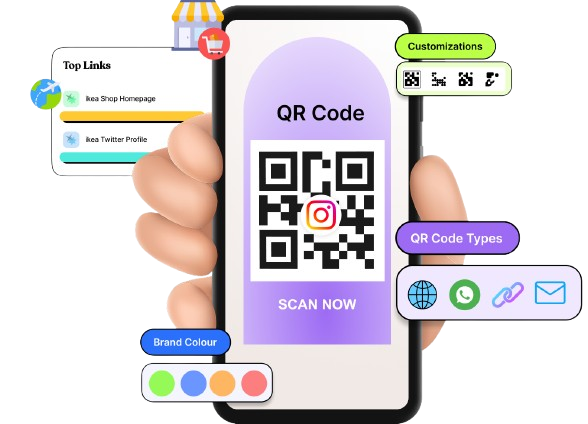

You can tweak the colors, add your logo, and adjust the design, all while keeping the code sharp and perfectly scannable.
Whether you’re a marketer, a business owner, or just someone who needs a quick and reliable QR code, Replug makes the whole process effortless and clean from start to finish.
Wrapping up
A blurred QR code is honestly more of a fixable inconvenience than a real problem, and now you have everything you need to sort it out.
From using the right file formats and fixing contrast issues to choosing quality print materials and enabling error correction, the fixes are simple once you know what to look for.
The key is paying attention to the small details that most people overlook. And if you want to skip the guesswork entirely, a tool like Replug makes it easy to generate clean, high-quality QR codes right from the start.
Put these tips into practice, and you’ll never have to deal with an unscannable, blurry QR code again.