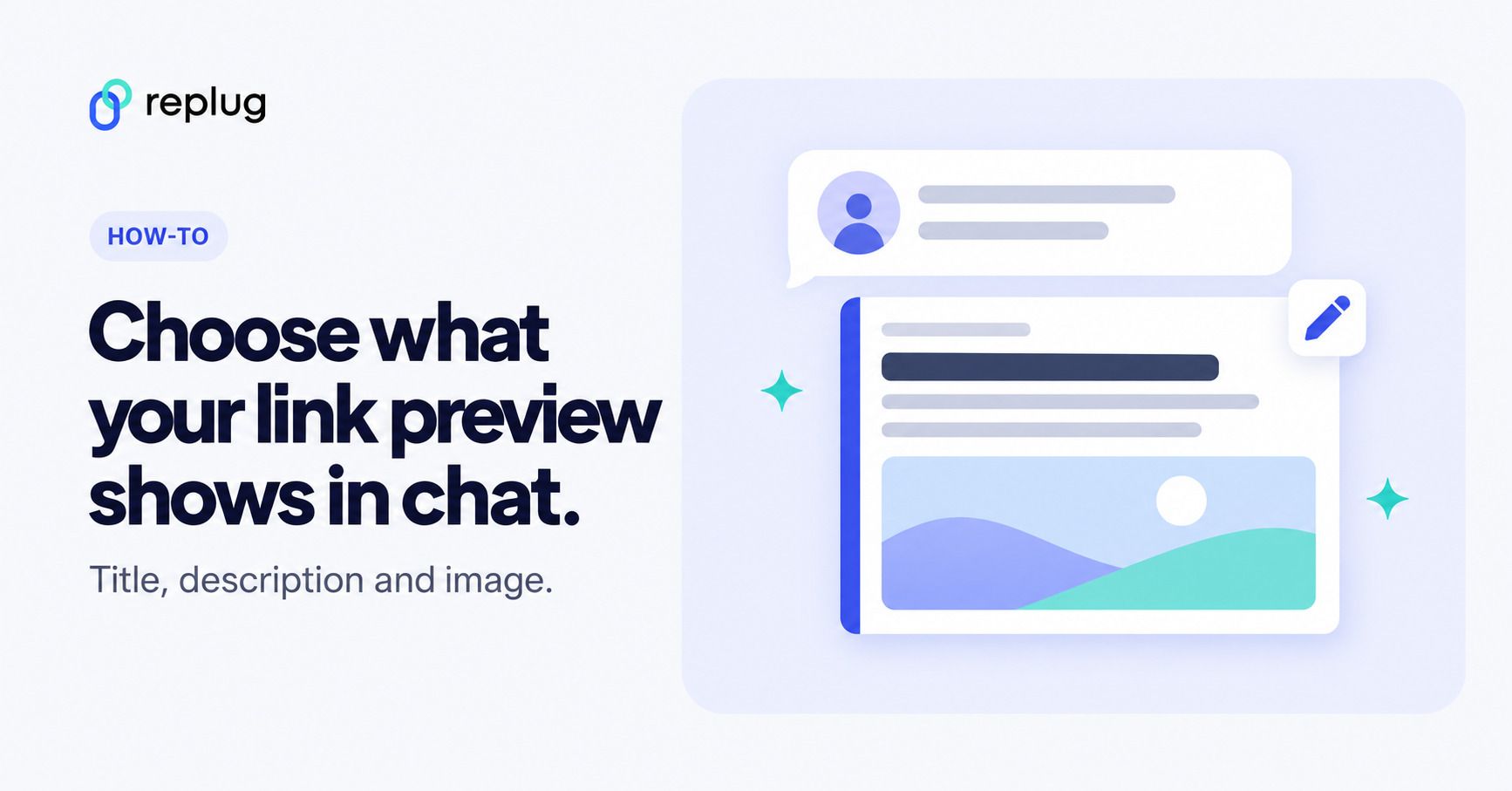
A Discord embed link is a URL that Discord expands into a preview card using the page’s Open Graph tags: og:title, og:description and og:image. To customize the embed, change those tags on the page, or put a short link with its own custom preview in front of the URL, then post the link again.
This guide shows which tags Discord reads (from Discord’s own developer documentation), how to set them on your site, how to change the embed for a page you can’t edit, and how to fix or hide an embed. Before you post in a busy channel, preview your link before you post it.
Updated: November 2026
How does Discord build a link embed?
Discord builds a link embed by visiting the URL the moment someone shares it and reading the page’s meta tags. Discord’s help center article About Discord Link Previews and the Discordbot (updated August 2026) says the visit is made by a crawler called Discordbot, only when a link is actually posted, with a user agent that contains Discordbot/2.0.
Two different things are called “embeds” in Discord, and they are set up in different places:
- Link embeds (also called link previews or unfurls) appear automatically under a pasted URL. The page’s tags decide what they show. This article is about these.
- Rich embeds are boxes that bots and webhooks send with a custom title, fields, color and footer. They are built with the embed object in Discord’s message API, not with tags on a web page.
If you want to understand how link previews work across apps beyond Discord, our explainer covers Slack, iMessage and social networks too.
Which tags does Discord read?
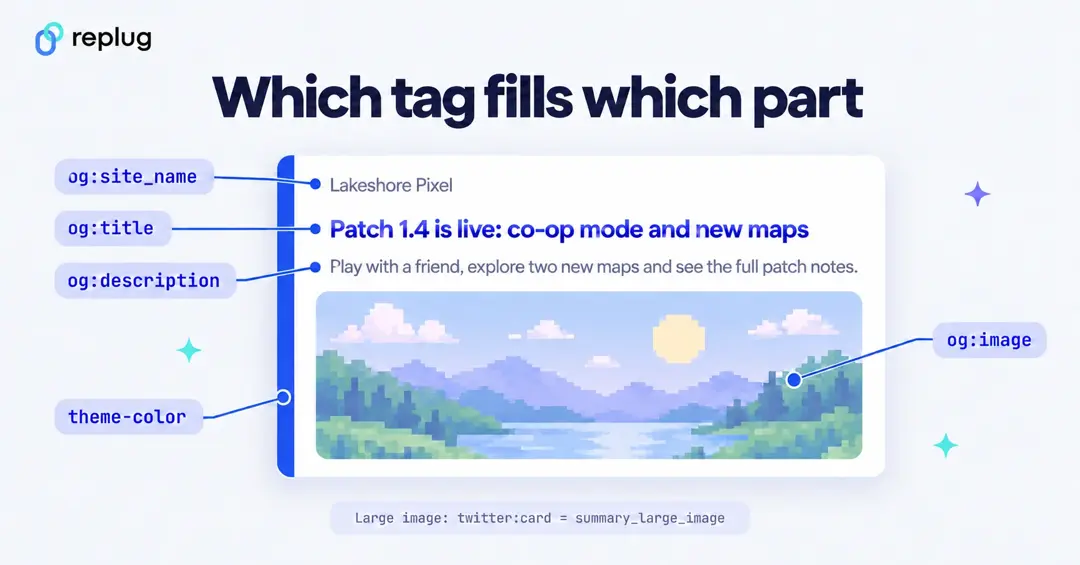
Discord reads the Open Graph tags defined at ogp.me, a few Twitter card tags, and theme-color. The table below follows Discord’s link preview documentation as we read it on November 22, 2026, including the length limits it lists.
| Tag | What it controls in Discord | Recommended value |
|---|---|---|
og:title (or twitter:title) | The linked title of the card. Trimmed after 70 bytes or 3 lines. | A specific title under about 60 characters |
og:description (or twitter:description) | The text under the title. Trimmed after 350 bytes or 20 lines. | One or two sentences |
og:image (or twitter:image) | The preview image. PNG, GIF, JPG, WEBP or AVIF. | An absolute https URL to a public, landscape image |
og:image:width and og:image:height | Image size, so Discord doesn’t have to download the image to measure it. | The real pixel size, for example 1200 and 630 |
twitter:card | summary_large_image shows a large image under the text. Without it, the image is a small thumbnail beside the text. | summary_large_image for most pages |
og:site_name | A small line above the title. Over 256 characters and no preview is shown. | Your brand or site name |
theme-color | The colored bar on the left edge of the card. | Your brand color as #RRGGBB |
og:type | video.other plays a video inline; rich renders Discord markdown in the description. | website or article for normal pages |
og:url | Not listed in Discord’s link preview docs. | Keep it for other apps; it’s a required Open Graph property |
A few more limits from Discord’s link preview docs are worth knowing: Discord shows up to 4 images per link, previews at most 5 links per message, and ignores any URL longer than 2,048 characters.
Here is a minimal head section that gives a large-image Discord embed:
<meta property="og:site_name" content="Lakeshore Pixel">
<meta property="og:title" content="Patch 1.4 is live: co-op mode and new maps">
<meta property="og:description" content="Play with a friend, explore two new maps and see the full patch notes.">
<meta property="og:image" content="https://lakeshorepixel.com/img/patch-1-4.png">
<meta property="og:image:width" content="1200">
<meta property="og:image:height" content="630">
<meta name="twitter:card" content="summary_large_image">
<meta name="theme-color" content="#2447D8">
Lakeshore Pixel is a made-up indie game studio in Minneapolis that we use as the example throughout.
How do I customize a Discord embed on my own website?
Edit the meta tags in the page’s HTML head, publish, and share the link again. If your site runs on a CMS, the title, description and social image fields of your SEO plugin usually write these tags for you.
- Open the page’s SEO or social sharing settings in your CMS, or the
<head>of the HTML template. - Write the title (under about 60 characters) and a one- or two-sentence description.
- Upload a landscape image and use its full https address. Discord doesn’t publish a recommended size; Meta’s sharing guidelines (checked 2026) ask for at least 1200 × 630 pixels at a 1.91:1 ratio, which works well across apps.
- Add
twitter:cardset tosummary_large_imageif you want the large image layout, andtheme-colorfor the side bar. - Publish, then open the page’s source (not the browser inspector) and check the tags are in the HTML the server sends. Discord runs no JavaScript, so tags added by scripts after the page loads are never seen.
- Paste the URL into Discord’s Embed Debugger to see which tags it picked up and which layout it chose.
- Post the link in a test channel. If you still see the old card, add a query string such as
?v=2to the URL: Discord’s documentation says it caches previews for about 30 minutes, and a new URL skips that cache.
How do I change the embed for a link I don’t control?
Put a short link in front of the page and give the short link its own preview. Discord then shows your title, description and image instead of the page’s tags, and people who click still land on the original page. This is how you fix the embed for a store listing, a partner’s article or a page your web team can’t change this week.
Replug is a link-management platform for marketers: branded short links on your own domain, link-in-bio pages, QR codes, retargeting pixels and CTA overlays on any link, and click analytics. With Replug’s Discord link shortener, the custom preview works like this:
- In Replug, create a short link to the page, or open an existing link.
- Open the Customize Link Preview tab and turn it on with the switch next to its name.
- Edit the Title and Description. Replug fills them in from the page first, so you only change what you need.
- Under Preview image, drag in an image or click to browse (images up to 5 MB).
- Save the link and share the short link in Discord.
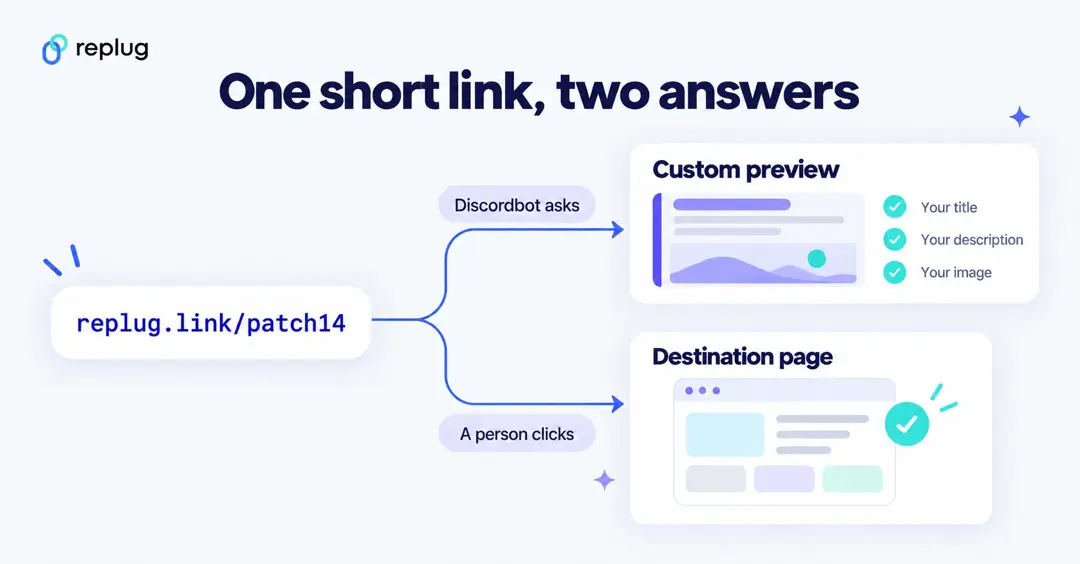
When Discordbot requests the short link, Replug recognizes it as a preview crawler and answers with a page that carries your og:title, og:description and og:image, plus twitter:card set to summary_large_image, so Discord shows the large image layout. Replug does the same for Slackbot, TelegramBot, Twitterbot, LinkedInBot, Facebook’s crawler and Threads’ crawler. People who click get redirected to the destination as usual, and Discordbot’s preview request isn’t counted as a click.
Custom link previews are included on the Essentials, Scale and Agency plans, not on the Free plan. Title, description and image are all required, and Replug doesn’t set a theme-color, so the card uses Discord’s default side color.
Why is my Discord embed not showing or out of date?
Most broken Discord embeds come from the page itself, a cached old version, or a setting that turns previews off. Check these in order:
- The tags aren’t in the server’s HTML. Single-page apps that add meta tags with JavaScript show no preview. Render the tags on the server.
- The image can’t be fetched. A relative path that doesn’t start with
/, an image behind a login, or an unsupported format leaves the card without an image. - The page doesn’t answer in time. Discord’s link preview docs say it needs a 2xx response with an HTML content type, follows at most 5 redirects, and gives up after 10 seconds.
- A firewall blocks Discordbot. Bot protection that challenges unknown visitors also blocks Discord. Discord’s Discordbot article explains how to allow it by user agent and IP range.
- Discord cached the old card. Previews are cached for about 30 minutes (see step 7 above). Wait, or post the URL with
?v=2added. - The channel doesn’t allow embeds. The Embed Links permission controls whether links shared by a role show embedded content in that channel.
- You turned previews off. Link previews can be switched off in your own User Settings, as Discord’s auto-embed help article shows. The option is in User Settings (under Chat, or Text & Images in older versions): “Show embeds and preview website links pasted into chat”.
- The link was wrapped in < >, or it’s the sixth link in the message. Both suppress the preview.
For a Replug short link, check that the custom preview switch is on. With it off, a plain short link sends Discord on to the destination, so Discord shows the destination’s own tags. After you edit a preview, Replug’s preview page can take up to about an hour to refresh, and Discord’s docs say it keeps a cached card for about 30 minutes, so give it time before you post again. Replug can’t clear Discord’s cache.
How do I hide a link embed in Discord?
Wrap the URL in angle brackets, like <https://lakeshorepixel.com/patch-notes>, and Discord posts the link without a preview, as Discord’s help article on auto-embeds explains. There are two other ways:
- After posting: hover over the embed and click the X in its corner to remove it. Moderators can do the same on other people’s messages if they have the Manage Messages permission, as Discord’s message documentation notes for the suppress-embeds flag.
- For a whole channel: turn off the Embed Links permission for a role in the channel’s permission settings.
To show a word instead of the raw URL, see our guide to masked links in Discord messages.
What makes a Discord embed get clicked?
A good embed tells people what they get before they click, and still reads well at the small size Discord shows it. Four habits help:
- A clear title. Say what’s behind the link (“Patch 1.4 is live: co-op mode and new maps”), not just your site name. Keep it under the 70-byte trim.
- A one-line description. Most readers scan, so lead with the detail that matters, such as a date, a price or what’s new.
- An image that reads small. Use big shapes and few words. Text that looks fine at 1200 × 630 can be unreadable in a phone’s chat.
- A consistent look. Use the same site name, colors and image style for every announcement, so members recognize your links in a fast-moving channel.
Because Replug counts clicks on every short link, you can share two short links with different previews for the same page and keep the one people click more. For server invites, see our guide to tracking clicks on links you share in Discord.
FAQ
Not sure how your link will look? Check how your link will look with our free link preview generator, then post it in Discord. To set a custom preview on any link, start with a Discord short link from Replug.
Frequently Asked Questions

Muhammad Ahsan Jamal