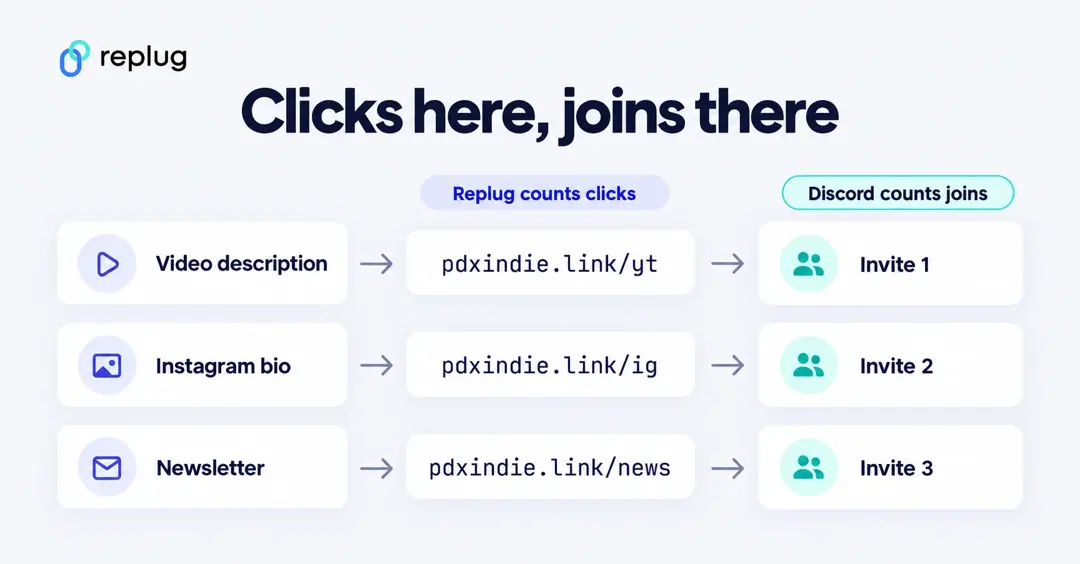
Discord shows how many times each invite was used under Server Settings > Invites, but not where those people saw the link or how many opened it and left. To track Discord invite link clicks by source, create one invite per channel, put a tracked short link in front of each, then compare clicks per link with uses per invite.
This guide covers what Discord already tells you, why clicks and joins never match, and a weekly routine for finding the channel that brings the most members. You only need Discord and short links for Discord invites; no bot or website is required.
Updated: November 2026
What can Discord tell you about your invites?
Discord tells you how many people joined through each invite and which invite each member used, but nothing about people who saw or opened the link without joining. There are three places to look.
- Server Settings > Invites. Discord’s Invites 101 help article points admins here to see and remove invites. Each invite carries its creator, its code and a use count, which Discord’s invite documentation defines as the “number of times this invite has been used”.
- The Members page. According to Discord’s Members Page article (last edited February 2024), it shows how each member joined, and its Join Method filter lists the members who joined with a specific invite code. You need the Manage Server permission to see invite information, and the page works on desktop and in the browser only.
- Server Insights. Discord’s Server Insights FAQ (first published in 2020, checked November 2026) calls it an experimental alpha feature and describes it for Community servers with more than 500 members, behind a View Server Insights permission. It answers “Where are new members coming from?”, but any referrer with fewer than 50 joiners in the chosen date range is grouped into “Other”, and history goes back 120 days for servers that aren’t Partnered or Verified.
| Question | Does Discord answer it? | Where |
|---|---|---|
| How many people joined through each invite? | Yes | Server Settings > Invites (uses) |
| Which invite did a member use? | Yes | Members page, Join Method filter |
| Who created each invite? | Yes | Server Settings > Invites |
| How many people opened the link but didn’t join? | No | Not available |
| Which post, video or bio did a person click? | No | Only if you use one invite per channel |
| Countries and devices of people who clicked | No | Server Insights shows members, not clickers (Community servers over 500 members) |
So Discord covers the join side well. The click side, everything before someone accepts the invite, needs a link you can count.
What’s the difference between a click and a join?
A click is someone opening your link; a join is someone accepting the invite and becoming a member. Invite click tracking is counting how many people open a Discord invite link, per source, before they decide to join.
Joins are usually lower than clicks. Some people open the link on a phone without the Discord app and stop at the sign-in screen, some read the server preview and change their mind, and some open the same link twice. Replug reports total clicks and unique clicks side by side; here is how unique clicks are counted.
Bots add clicks nobody made. Discord’s article About Discord Link Previews and the Discordbot (August 2026) explains that Discord visits every link shared in a message to build the preview card, and other apps do the same. Replug recognizes Discordbot and other preview crawlers, so those visits aren’t counted as clicks. It also flags visits with no browser signature, from data-center networks or in rapid bursts, and leaves them out of click counts. No bot detection catches everything, so treat small numbers with care.
Joins can also be higher than clicks for one channel: if someone copies the discord.gg address your short link opened and shares it, those joins count against that invite without a click on your link.
How do I track which channel brings the most members?
Give every channel its own invite and its own short link, then compare the two numbers each week. For a made-up server called Portland Indie Devs that promotes on YouTube, Instagram, X and a newsletter, that means four invites and four short links. For the Instagram one, here is how to add the invite to your Instagram bio.
- Create one invite per channel. In Discord, hover over a channel, select Create Invite, then Edit invite link. Choose the longest duration offered, set Max number of uses to No limit, and select Generate a New Link. Discord’s Invites 101 article (checked November 2026) says the panel offers a 7-day link by default, and a link that expires mid-campaign breaks every post that uses it. Invites that never expire are a Community server feature: Discord’s Clarifying Server Types article (October 2026) says invite links for Community servers never expire; here is how to set each invite to never expire.
- Write down which code belongs to which channel. A simple sheet with the channel, the invite code and the short link is enough. You’ll need it to read the Invites list and the Members page later.
- Create one short link per invite. In Replug, paste the invite URL as the destination of a Discord short link and save it. On a paid Essentials plan or higher (not during the free trial) you can name the ending after the channel, such as
pdxindie.link/ytorpdxindie.link/ig; on the Free plan you get a random ending on replug.link or a domain you connect. - Put each short link only in its own channel. The YouTube link goes in video descriptions, the Instagram link in the bio, and so on. For flyers and stream overlays, use the short link’s QR code; see our guide to Discord QR codes. Replug also reports how many of the link’s clicks came from QR scans.
- Compare clicks and joins every week. Write down each short link’s clicks in Replug and each invite’s uses in Discord, then divide uses by clicks to get a join rate per channel.
After a few weeks the sheet might look like this:
| Channel | Short link | Clicks (Replug) | Invite uses (Discord) | Join rate |
|---|---|---|---|---|
| YouTube | pdxindie.link/yt | 240 | 96 | 40% |
pdxindie.link/ig | 180 | 45 | 25% | |
| X | pdxindie.link/x | 90 | 18 | 20% |
| Newsletter | pdxindie.link/news | 60 | 33 | 55% |
In this example, Instagram brings many clicks but few joins, so the bio or the server’s first impression may not match what those visitors expected. The newsletter is small but converts best, so it may deserve a more prominent invite. Without per-channel links, all you would see is 192 new members.
What does a Replug link report show for a Discord invite?
A Replug link report shows how many people clicked each invite link and where they clicked from. Replug’s link tracking gives you, per link:
- Clicks and unique clicks, with a daily chart
- QR scans, shown as their own count
- Referrers, when the browser or app passes one along
- Countries, devices and operating systems
- Exports to CSV, Excel and PDF
How far back you can look depends on the plan: 14 days on Free, 90 days on Essentials, and full history on Scale and Agency. Reports aren’t live to the second, and Replug never sees who joined your server or which Discord account clicked: it counts visits to the link, not people.
Many apps open links without passing a referrer, so a separate link per channel tells you more than the referrer list alone. Replug is a link-management platform for marketers: branded short links on your own domain, link-in-bio pages, QR codes, retargeting pixels and CTA overlays on any link, and click analytics. If you also post the short link inside Discord, you can control the embed Discord shows with a custom link preview, which is available on the Essentials plan and up.
Server Insights vs invite bots vs short-link analytics: Which should you use?
Use Discord’s own tools for joins and short-link analytics for clicks; an invite bot is only worth adding if you want join logs or per-member inviter credit inside Discord.
| Server Insights | Invite-tracking bots | Short-link analytics | |
|---|---|---|---|
| What it measures | Joins, retention, activity, members’ countries and devices | Which invite (and inviter) each new member used | Clicks, unique clicks, QR scans, countries, devices, referrers |
| Shows the source channel | Referrers with 50+ joiners; the rest is “Other” | Only if each channel has its own invite | Yes, one link per channel |
| Counts people who didn’t join | No | No | Yes |
| Setup | Grant the View Server Insights permission | Add a bot and give it server permissions | Create one short link per invite |
| Who can use it | Community servers with more than 500 members | Any server that allows the bot | Any server, plus links outside Discord |
| Privacy | Aggregated and anonymized by Discord | The bot reads member joins in your server | No Discord accounts; visits are counted per link |
Invite-tracking bots work by storing each invite’s use count and checking which count went up when someone joins. Many also log when members leave, and they can’t always tell which link was used when someone joins through a vanity URL. That makes them useful for leaderboards and join logs, but they can only see what happens after the click, and they need permissions in your server.
Inside Discord itself, you can also tidy up how the link looks in chat; here’s our guide to turning a link into clickable text inside Discord.
Can I track Discord invite clicks with UTM parameters?
Not on the invite itself. A discord.gg link opens Discord, not your website, so UTM tags never reach Google Analytics or any other web analytics tool. Use a separate invite and short link per channel instead, and read the results in Replug and Discord.
FAQ
Ready to find out which channel fills your server? Make a short link for your server for each invite and check back in a week.
Frequently Asked Questions

Muhammad Ahsan Jamal