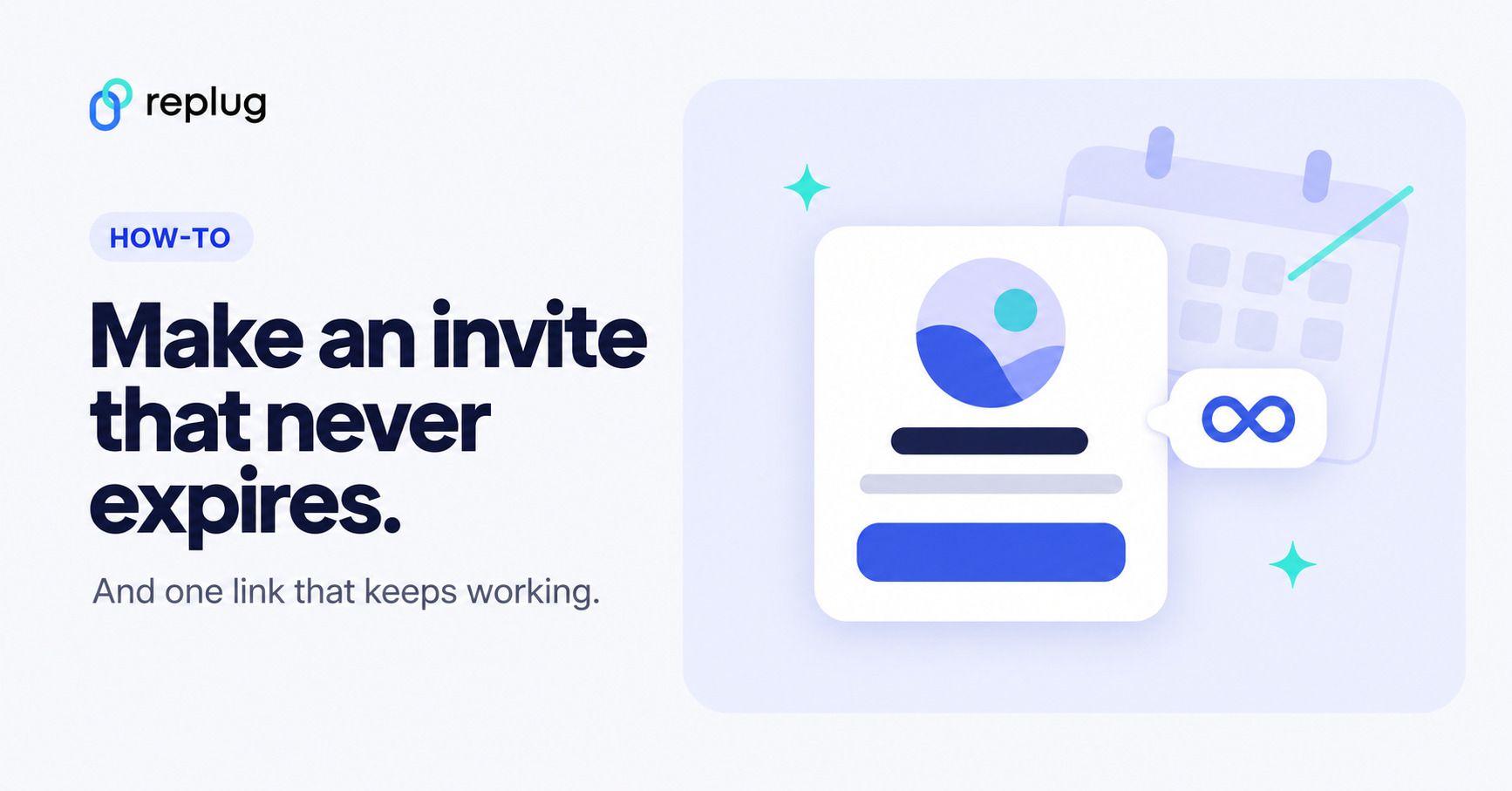
A permanent Discord invite link is a server invite set to never expire and allow unlimited uses, so it keeps working until someone deletes it. To make one, open the invite panel, select Edit invite link, set Expire After to Never and Max number of uses to No limit, then select Generate a New Link.
One catch most guides skip: Discord only offers never-expiring invites in Community servers, and new invites last 7 days by default, according to Discord’s Invites 101 help article (2023). If you share the invite in a bio, a video description or on a flyer, also put a short link for your Discord server in front of it, so the link people see never has to change.
Updated: November 2026
How do I make a Discord invite link that never expires?
You make a Discord invite that never expires by changing its settings before you copy it. The server must be a Community server for Never to appear (see the next section). These steps follow Discord’s Invites 101.
On desktop or the web app
- Open your server and hover over the channel new members should land in, such as #welcome. Select the Create Invite icon next to it. (You can also open the server name menu and choose Invite People.)
- In the invite panel, select Edit invite link.
- Set Expire After to Never.
- Set Max number of uses to No limit.
- Leave Grant temporary membership off, so people who join stay members after they disconnect.
- Select Generate a New Link, then copy the new link.
Pick the channel with care: per Discord’s How do I invite friends to my server?, new members land in the channel the invite was made from.
On iPhone and Android
Discord’s iOS invite article describes the same flow on mobile: press and hold a channel, then tap Invite. The invite panel labels below come from Invites 101.
- Open the server in the Discord app.
- Press and hold the channel you want people to land in, and tap Invite.
- Tap Edit invite link.
- Choose Never for how long the link lasts and No limit for the number of uses.
- Tap Generate a New Link, then copy or share the link.
Why can’t I set my Discord invite to never expire?
You can’t pick Never when your server isn’t a Community server. Discord’s Clarifying Server Types article (updated October 2026) says “invite links for Community Servers never expire,” and a new server starts as a Friend Server, which is invite-only and meant for smaller groups.
Turning on Community doesn’t make your server public: people still need an invite. Per Discord’s Enabling Your Community Server guide:
- Open Server Settings, select Enable Community, then Get Started.
- Accept the required safety settings (verified email to post, explicit media filter) and pick a rules channel and an updates channel.
- Select Finish Setup, then create a new invite with the steps above.
What invite expiry options does Discord offer?
Discord invites can last from 30 minutes to forever, with a set number of uses or no limit, according to Invites 101 (2023).
| Setting | What Discord documents | Source |
|---|---|---|
| Default expiry | 7 days, unless you changed that channel’s invite settings before | Invites 101 |
| Shortest expiry | 30 minutes | Invites 101 |
| Never | Community servers | Clarifying Server Types (2026) |
| Max number of uses | No limit, or a set number of uses | Invites 101 |
| Grant temporary membership | People who join are removed when they disconnect, unless they were given a role | Invites 101 |
Bots and scripts set the same options in seconds: Discord’s developer documentation for creating a channel invite (checked November 2026) allows an expiry from 0 (never) to 604,800 seconds (7 days), with a 24-hour default instead of 7 days, and from 0 (unlimited) to 100 uses.
Temporary membership is Discord’s version of a guest invite. Use it, or a short expiry with a few uses, for private events.
Why did my permanent Discord invite stop working?
A permanent invite stops working when someone removes or pauses it, or when the person clicking can’t join:
- It was never permanent. Friend Servers don’t offer Never, so the invite had a time limit. Turn on Community and make a new one.
- Someone deleted it. Anyone with permission can remove invites in Server Settings > Invites. Invites 101 says a deleted code can’t be made again, even by Discord Support. Make a new invite and update every place you posted the old one.
- Invites are paused. Admins can pause all invites, for example during a raid (Pause Invites FAQ). Select Enable Invites in Server Settings > Invites.
- The custom invite link was lost. A custom invite link (vanity URL) needs Boost Level 3, which takes 14 boosts according to Discord’s Server Boosting FAQ (2026), and the server loses it 30 days after the boosts run out, per Discord’s Custom Invite Link article (2025). It also stops working if no text channel is visible to @everyone, per the same article.
- The person can’t join. Discord’s Invalid Invite Links article (2023) lists a ban and the 100-server limit (200 with Nitro) as reasons an invite fails for one person only.
- The link was cut off or retyped. Invite codes are case sensitive, per the same article. Copy the link again and test it in a private window.
If someone asked for your Discord to message you, they may want your profile: see our guide to sharing your own profile instead of a server.
How do I see and manage my server’s invites?
You manage every active invite in Server Settings > Invites, per Invites 101: the X next to an invite deletes it, and Pause Invites stops new joins without deleting links (desktop app only, per the Pause Invites FAQ).
Tip: make one permanent invite per place you post it (bio, YouTube, flyer). The Join Method filter on the Members page shows who joined with each invite code, per Discord’s Members Page article (2024). It counts joins, not clicks; to see who clicks your server invite, put a trackable link in front of it.
Is a permanent invite safe to post publicly?
A permanent invite is fine to post publicly once your server is ready for strangers, since anyone who finds it can join (Invites 101). Before you post it:
- Set a verification level in Server Settings > Safety Setup > Verification Level; Discord’s raid protection guide recommends at least Low for public servers.
- Post your rules and point the invite at a welcome channel.
- If a raid starts, pause invites instead of deleting them, so your public links still work afterward.
Posting the invite in a chat? You can hide a long URL behind text in Discord. Sharing it on your profile instead? Here is how to put your server on Instagram.
How do I keep one link working even if the invite changes?
You keep one link working by sharing a branded short link that points at your invite. If the invite is ever deleted, or you switch to a custom invite link, you change where the short link points, and every bio, video description and QR code keeps working.
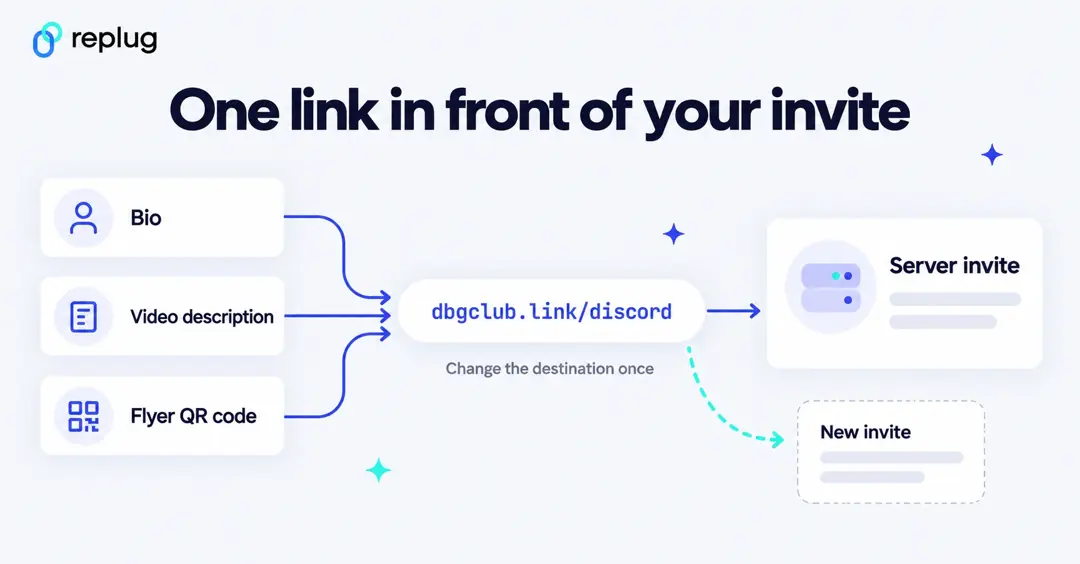
Replug is a link-management platform for marketers: branded short links on your own domain, link-in-bio pages, QR codes, retargeting pixels and CTA overlays on any link, and click analytics. Here is how Jake, a moderator of the Denver Board Game Club, would set it up:
- Create a permanent invite with the steps above.
- In Replug, create a short link with the invite as the destination, on a domain such as
dbgclub.link/discord(made-up example) or on the defaultreplug.linkdomain. - Use that short link everywhere: bios, video descriptions, the QR code on flyers.
- If the invite changes, open the link in Replug and paste the new invite as its destination (Scale plan and up).
Every Replug plan, including Free, creates short links (Free allows 3 custom domains) and shows clicks, unique clicks, referrers, countries and devices, with 14 days of history on Free, 90 on Essentials and full history on Scale. In the dashboard, changing a link’s destination after you create it is on the Scale plan ($39/month) and up, per Replug pricing (USD list prices; regional pricing applies). Replug counts clicks on the short link, not joins, and it can’t bring back a deleted invite.
Our guide to short links that don’t expire covers what else can break a link over time. To set one up, start with a Discord short link from Replug.
Permanent invite vs vanity URL vs short link: Which should I use?
Use a permanent invite for every server, add a custom invite link if your server already has Boost Level 3, and put a short link in front of either one when you post it somewhere hard to edit.
| Permanent invite | Custom invite link (vanity URL) | Branded short link | |
|---|---|---|---|
| Who can get it | Any Community server | Servers at Boost Level 3 (14 boosts) | Anyone with a Replug account, including the Free plan |
| Does it expire? | No, until someone deletes it | Lost 30 days after the server drops below Level 3 | No end date unless you delete it (setting an expiry is on Scale and up) |
| Can you change where it points? | No, a new invite gets a new code | You can change the name; it always opens your server | Yes, on Replug’s Scale plan and up |
| What it counts | Joins (uses) per invite | Not documented by Discord | Clicks, unique clicks, referrer, country and device |
For the boost rules, name limits and setup steps, read how Discord vanity URLs work.
FAQ
Made your invite permanent? Give it a link you control: create a short link for your server and post that instead of the raw invite.
Frequently Asked Questions

Muhammad Ahsan Jamal