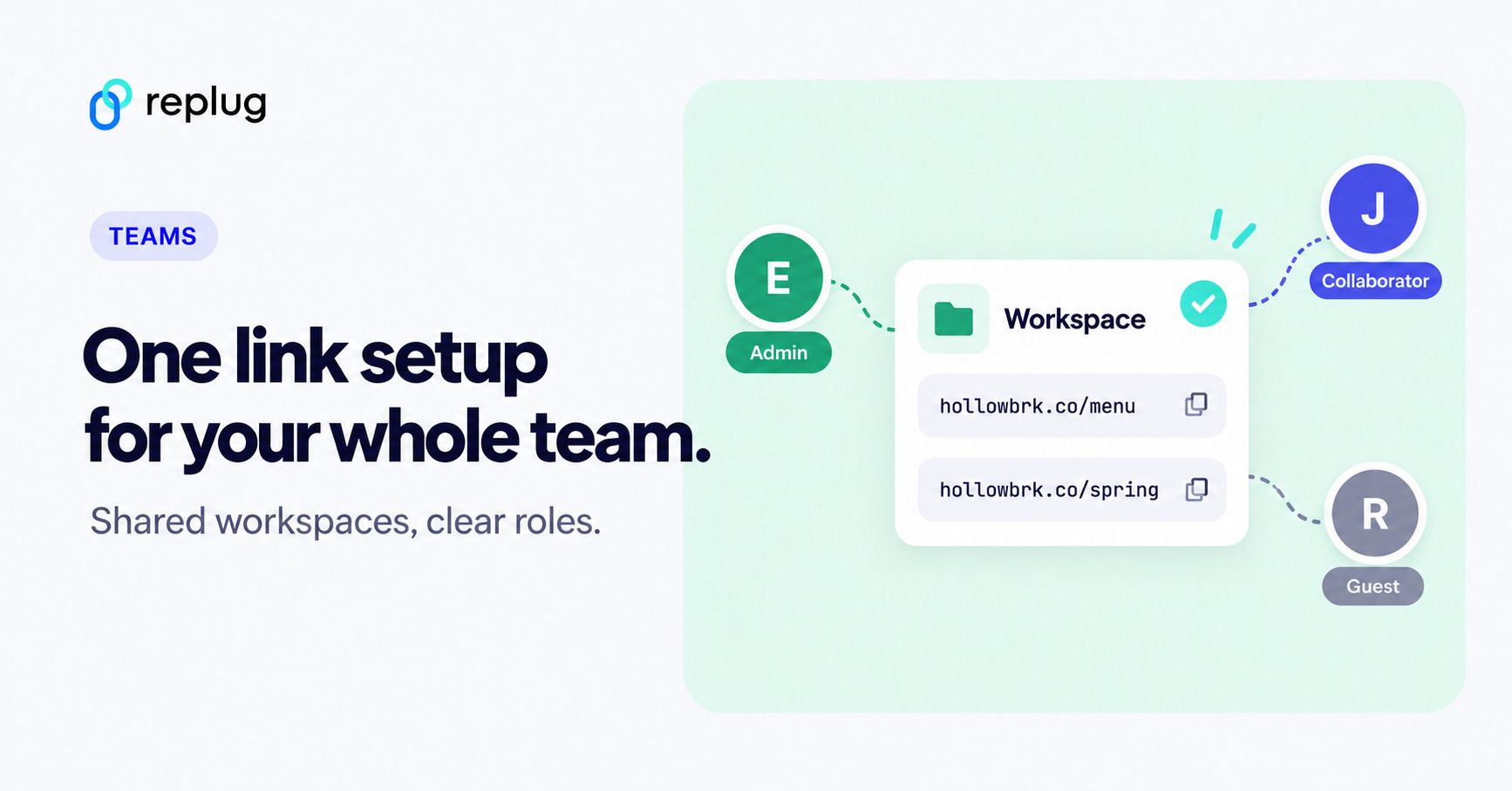
Link management for teams means one shared system where everyone creates short links on approved domains, follows the same naming and UTM rules, and has only the access their role needs. Instead of scattered personal accounts, the team works in shared workspaces with admin, editor and view-only roles, so every link has a named owner.
Updated: November 2026
Skipping this costs more than it seems. The same campaign ends up with three different short links, old links point at pages that no longer exist, and the person who left last spring still holds the login to half your links. If you’re new to the topic, start with the basics of link management; this guide is about running it as a team.
Below: how to split work into workspaces, which role to give each person, a link policy you can copy, and how to offboard someone without breaking their links. The examples use Replug, and the rules work in any tool.
Why do teams need shared link management?
Teams need it because links outlive the people and campaigns that created them. A link printed on a menu or posted in a 2024 video still gets clicks today, and someone has to own it. Link tools also add to an already long list of logins: the average company uses 101 apps, according to Okta’s Businesses at Work 2025 report. Each one is a place where access can drift.
Four problems show up again and again, and each has a simple fix:
- Links live in personal accounts. Fix: one shared account with a workspace per brand or client, and teammates invited by email.
- Domains and slugs are inconsistent. Fix: connect only approved domains to each workspace and agree on a slug style.
- Nobody knows who changed what. Fix: every link has a named owner, and destination changes are written down.
- Access disappears when someone leaves. Fix: move their links to the account owner before you remove them.
How should you structure workspaces?
Give each brand, client or business unit its own workspace. A workspace is a separate space inside one account with its own links, campaigns, domains, tags, UTM presets and team members, so work for one brand never mixes with another. In Replug, the dashboard describes it as a space that “keeps the links, campaigns and branding of one brand together.”
| Setup | When it fits | Example |
|---|---|---|
| One workspace per brand | A company that runs several brands with different domains and audiences | A Charlotte retailer runs Bellmeade Home and Bellmeade Kids, each with its own short domain and social team |
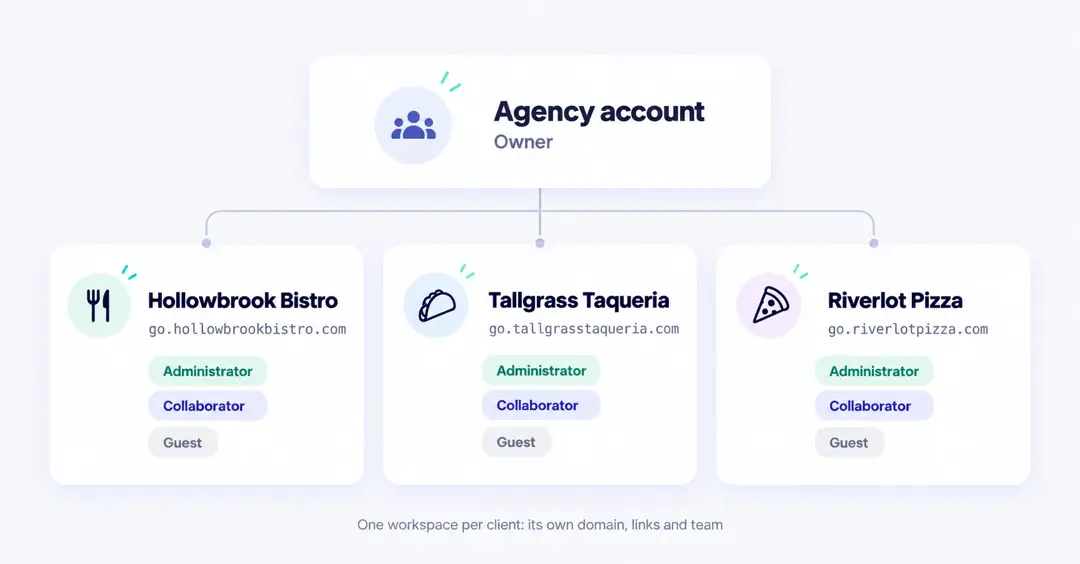
| One workspace per client | Agencies that manage links for clients and report to each one separately | A Minneapolis agency runs Hollowbrook Bistro, Tallgrass Taqueria and Riverlot Pizza in three workspaces |
| One workspace per region or business unit | One brand with teams that run their own campaigns, such as East and West regions | A Larkfield Bakery franchise gives its East and West regions their own workspace, each on its own subdomain: east.larkfieldbakery.com and west.larkfieldbakery.com |
Keep the number of workspaces small. One per client or brand is enough; you can separate channels inside a workspace with campaigns and tags. Agencies that want client reporting and their own branding on top can look at a setup built for agencies.
Which roles should each person have?
Give each person the smallest role that covers their job. Security teams call this least privilege: a role is a bundle of permissions, and fewer people with edit rights means fewer surprise changes. Replug has three roles you can assign, described in the invite dialog like this:
- Administrator: “Full control over the workspace, including creating, editing, and deleting campaigns and links, and managing team members. No access to billing and white-label.”
- Collaborator: “Can create, edit, and delete their own campaigns and links. No access to team management, billing, or white-label.”
- Guest: “Read-only access to the workspace.”
Above them sits the workspace owner: the account that created the workspace. The owner handles billing and white label, is the only one who can create new workspaces, and can’t be removed from the team.
| Role | Create links and campaigns | Edit or delete others’ links | Manage team members | Billing and white label |
|---|---|---|---|---|
| Owner | Yes | Yes | Yes | Yes (white label on Agency) |
| Administrator | Yes | Yes | Yes | No |
| Collaborator | Yes | No, only their own | No | No |
| Guest | No, view only | No | No | No |
A mapping that works for most teams:
- Marketing lead or account manager → Administrator. They own the domains, campaigns and the team list.
- Content, social and email staff → Collaborator. They create links every day, and the dashboard only lets them edit their own.
- Client, executive or outside partner → Guest. They see links, campaigns and click reports without being able to create or edit links.
The Guest role matters most for agencies. Third-party involvement in breaches doubled to 30% in a year, according to Verizon’s 2025 Data Breach Investigations Report. Inviting a client as a Guest is safer than sharing your login with them.
How do you set up link management for a team?
Set up the structure first, then invite people, so new teammates land in a workspace that already has its domain, campaigns and rules. Replug is a link management platform for branded short links, bio pages, QR codes and retargeting; the steps below use its dashboard labels. See Replug’s link management features for teams for the full feature list.
- Create a workspace per brand or client. Open the workspace switcher, select Manage workspaces, then Create workspace, and enter the brand’s name and website URL. Only the account owner can create workspaces.
- Connect the domain the team may use. In the new workspace, go to Settings → Custom domains → Add Domain and connect the brand’s short domain, such as go.hollowbrookbistro.com. Use one domain per brand so a link always shows whose it is. If the domain is registered at GoDaddy, follow the GoDaddy CNAME steps.
- Create campaigns that set the domain and extras. Select Create Campaign and pick the domain, plus any retargeting pixels or call-to-action overlay the brand uses. Every link created in that campaign inherits them, so nobody has to remember the settings.
- Invite teammates and pick a role. Go to Settings → Team Members → + Add Team Member, enter the email address, choose Administrator, Collaborator or Guest, and select Send invite. They get an email invitation and join with that role.
- Save UTM presets. In Settings → UTM Tracking, select Add UTM Preset for each channel (for example, source
instagram, mediumsocial), so everyone tags links the same way. UTM presets are on Essentials and up. - Agree on tags for channel and owner. In Settings → Tags, create a small fixed set, such as
email,social,print, and add each person’s initials as an owner tag. Tags are on Essentials and up.
Invitations are per workspace. If an account manager works on three clients, invite them to each of the three workspaces; they count once toward your plan’s user limit.
What rules should your team agree on?
Agree on a short written link policy and pin it where the team works. Roles control who can do what; the policy controls how they do it. Copy this one and adjust it:
- Approved domains: each brand uses only its own short domain. No personal accounts or generic shorteners for brand links.
- Slug style: lowercase, words separated by hyphens, no personal names or dates that will age badly (
/spring-menu, not/Emily-Spring-Menu-2026). On Essentials and up, you can choose your own short-link ending instead of a random one. - UTM conventions: use the saved presets; lowercase values; one agreed name per channel (always
facebook, neverfborFacebook). - Who changes destinations: only the link’s owner or an Administrator, and only after checking where the link is published.
- Change log: every destination change goes into a shared sheet with the date, link, old URL, new URL and who made it.
- Archiving: when a campaign ends, archive it rather than deleting its links. Archived links in Replug keep redirecting, so printed and posted links keep working.
- Review cadence: once a quarter, an Administrator reviews the team list, unused campaigns and links with no clicks.
What about approvals? Replug has no built-in approval step and no audit log, so handle sign-off as a team practice. For links that need review, such as a paid campaign or a client launch, the requester drafts the destination, slug and UTMs in a shared doc, and an Administrator creates the link after approving it. Collaborators can still create everyday links on their own.
What happens when a link needs to change?
You edit the destination behind the short link, and the link itself stays the same. A short link is a redirect: the short URL forwards each visitor to the destination you set, so changing the destination updates every place the link was shared, from printed flyers to old posts. Replug uses a 307 temporary redirect for this; for the details of status codes, see how URL redirects work.
That power is why the policy limits who uses it. Editing a destination is on Replug’s Scale plan and up. In a team, Collaborators can edit their own links and Administrators can edit any link in the workspace, so keep Administrator seats few. Replug also notifies workspace members who can edit links when a destination stops working, so a broken page doesn’t go unnoticed.
How do you offboard someone without breaking links?
Move the person’s links to the account owner before removing them, then close any other access they had. Stolen or reused credentials are a leading way into companies: credential abuse was the initial access vector in 22% of breaches, according to Verizon’s 2025 Data Breach Investigations Report. Use this checklist:
- Go to Settings → Team Members in each workspace the person belongs to and delete them as a member.
- In the Delete Member dialog, choose Migrate team member’s data to my account. Their campaigns, links, bio links, tags, custom domains, retargeting pixels, custom widgets, UTM presets and RSS feeds move to the owner’s account, and their links keep working.
- Don’t choose Permanently delete team member’s data unless the links are truly unused. It deletes their links, and every place those links were shared then breaks. The dialog warns that the process can’t be undone.
- Review the links they created in the last few weeks: destinations, slugs and UTMs.
- Rotate any shared credentials they knew, such as a shared inbox or the login to your domain registrar.
Which plan do teams need?
Teams need Replug’s Scale or Agency plan, because those are the plans with team access. Free and Essentials have one user, the account owner. User counts include the owner, so Scale gives you room for two teammates.
| Plan | Price per month | Workspaces | Users | Custom domains | Editable destinations | White label |
|---|---|---|---|---|---|---|
| Free | $0 | 1 | 1, no team access | 3 | No | No |
| Essentials | $19 | 1 | 1, no team access | 5 | No | No |
| Scale | $39 | 3 | 3 | 15 | Yes | No |
| Agency | $99 | 10 | 10 | 50 | Yes | Yes |
Agencies that outgrow 10 workspaces can add more on the pricing page; each added workspace includes one more user. If you run several brands, plan one domain per workspace and use branded short links for every brand you run, so each audience sees a name it knows.
FAQ
Put every link in one shared place
Start small: one workspace for your main brand, its domain, a campaign per channel and the link policy above. Then invite the team with the right roles. Replug gives teams shared workspaces and three roles on its Scale and Agency plans, with branded domains on every plan; see how Replug manages links for teams.
Frequently Asked Questions

Muhammad Ahsan Jamal