To add a Discord link to your Instagram bio, copy a server invite set to never expire, then in the Instagram app tap Edit profile → Links → Add external link, paste the invite and tap Done. The invite then shows as a tappable link under your bio. Instagram’s help center (checked November 2026) says you can add up to 5 links this way.
Instagram reached 3 billion monthly active users, according to Meta’s September 2025 announcement, so your profile is often where a future server member finds you. If you want a branded short link for your server instead of a random invite code, you can make one in Replug.
Updated: November 2026
Which Discord link should you put on Instagram?
Put a server invite in your bio if you want followers to join your community. A profile link only lets people find you and send a friend request, and a channel link only works for people who are already in the server.
Looking to show your Instagram on your Discord profile instead? That is a different task, done in Discord under User Settings → Connections, as Discord’s account connections FAQ shows.
| Link type | What it looks like | Use it in your Instagram bio when |
|---|---|---|
| Server invite | discord.gg/CODE (also discord.com/invite/CODE) | You want followers to join your server. This is what most people need. |
| Custom invite link | discord.gg/yourserver | Your server has unlocked a vanity URL through Server Boosts. See what a Discord vanity URL is. |
| Profile link | discord.com/users/USERID | You want people to add you as a friend, not join a server. Here is how to find your Discord profile link. |
| Channel or message link | discord.com/channels/… | Not for a bio: only members of the server can open it. |
Both invite forms work: when we tested on November 23, 2026, discord.gg/ answered with a permanent (301) redirect to discord.com/invite/ with the same code.
How do I get a Discord invite that won’t expire?
Change the invite’s expiry to Never before you copy it. Discord’s Invites 101 article (2023) says the invite panel shows a link that lasts 7 days by default, so a default invite in your bio quietly stops working a week later.
- Open your server and choose Create Invite next to a channel (or Invite People from the server menu).
- Click Edit invite link.
- Set the expiry to Never (Discord’s Invites 101 ties this to Community Servers).
- Set Max number of uses to No limit.
- Click Generate a New Link, then copy it.
The same Discord article ties the option that doesn’t expire at all to Community Servers, so if Never is missing from the list, check your server’s settings first. It also warns that a deleted invite can’t be remade with the same code, so don’t delete the invite in your bio. More on invites that never expire.
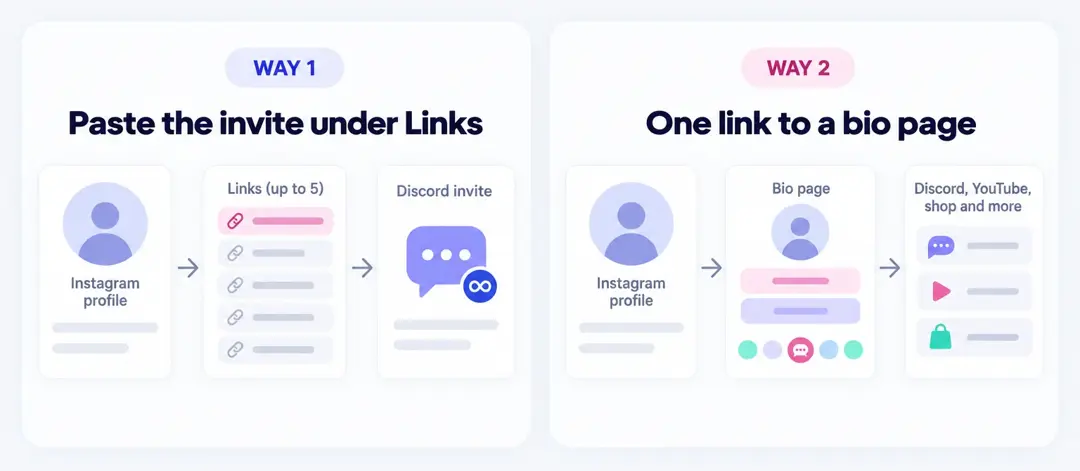
Way 1: How do I add a Discord link directly to my Instagram bio?
Paste the invite into the Links section of your profile in the Instagram app. These are the labels from Instagram’s help page on adding websites (iPhone and Android), which also notes the option isn’t available on computers:
- Tap Profile or your profile picture in the bottom right to go to your profile.
- Tap Edit profile at the top of the screen.
- Tap Links, then tap Add external link.
- Paste your Discord invite as the URL.
- Tap Done, then tap Back.
Want Discord to be the first link people see? In Edit profile → Links, tap Options, then Reorder links, drag your invite to the top, then tap Done.
Don’t paste the invite into the bio text. The bio is a text field of up to 150 characters, as Instagram’s bio help page (checked November 2026) says, and websites are added under Links, so a URL typed into the text won’t be the tappable link you want.
Also on TikTok? Here are the same steps on TikTok.
Way 2: How do I add Discord next to my other links?
Use a bio page: you put one link in your Instagram bio, and that page holds your Discord invite next to your YouTube channel, shop and everything else. It is the way to go when the 5 links Instagram allows aren’t enough, or when you want several links behind one bio link that you can change without editing your Instagram profile.
Replug is a link-management platform for marketers: branded short links on your own domain, link-in-bio pages, QR codes, retargeting pixels and CTA overlays on any link, and click analytics. In Replug Bio Links, Discord is one of the platforms in the Social block, which shows your profiles as a row of icons:
- In Replug, create a bio page, or open the one you already have.
- Click Add Block and choose Social.
- Under Select up to 8 social media platforms, pick Discord, plus any others you use.
- In the Discord field, paste the full invite, starting with
https://(the editor asks for a complete URL). - Click Add Block to save it. For a bigger button, also add a Links block titled “Join our Discord”.
- Copy your bio page’s URL and add it to Instagram with the steps in Way 1.
Say Maddie runs Bat City Speedruns, a made-up speedrunning community in Austin. Her one Instagram bio link opens a page with a “Join our Discord” button above her stream schedule and merch, and Discord, YouTube and TikTok icons below.
The Social and Links blocks are not premium blocks, so they work on every plan. The Free plan includes 2 bio pages, Essentials 10, and Scale and Agency unlimited. Start with an Instagram bio page built for this:
Can I see how many Instagram followers click my Discord link?
Yes, if the link goes through a bio page or a short link that counts clicks before people reach Discord. Discord’s invite list under Server Settings → Invites is where you pause or remove invites, as Invites 101 describes; it isn’t a report of where your visitors came from.
- On a Replug bio page, analytics show clicks on each link and each social icon, including Discord, plus where visitors came from, their country, browser and device.
- On a Replug short link to your invite, you see clicks, unique clicks, the referrer, country and device.
- History depends on the plan: 14 days on Free, 90 days on Essentials, and full history on Scale and Agency.
Clicks are not joins: Replug counts taps on your link, not who joins the server. To replace the invite later, edit the Discord URL in the bio page block; changing where an existing short link points needs the Scale or Agency plan. Step by step: how to track clicks on your Discord invite, and how to see who clicks your Instagram link.
Why isn’t my Discord link working on Instagram?
Open the link in a private browser window first, then check these:
- The invite expired or was deleted. Default invites last 7 days, and a deleted code can’t be remade, per Discord’s Invites 101 (2023). Create a new invite set to Never and update your bio.
- Invites are paused. Admins can pause invites under Server Settings → Invites, and Discord’s Pause Invites FAQ says nobody can join through an invite link until they are enabled again.
- The code was mistyped. Discord’s invalid invite article says invite codes are case sensitive, so copy the link instead of typing it.
- The person can’t join. The same Discord article (last edited August 2023) says a user can be in at most 100 servers (200 with Nitro), and banned users can’t rejoin.
- The URL is in the bio text. Move it to Edit profile → Links.
- Instagram removed the link. Instagram’s help center says teens under 18 can’t include links to certain websites in their bios.
FAQ
Your bio link only works as long as the invite does. To share the same invite everywhere else, start with a Discord short link from Replug.
Frequently Asked Questions

Muhammad Ahsan Jamal