

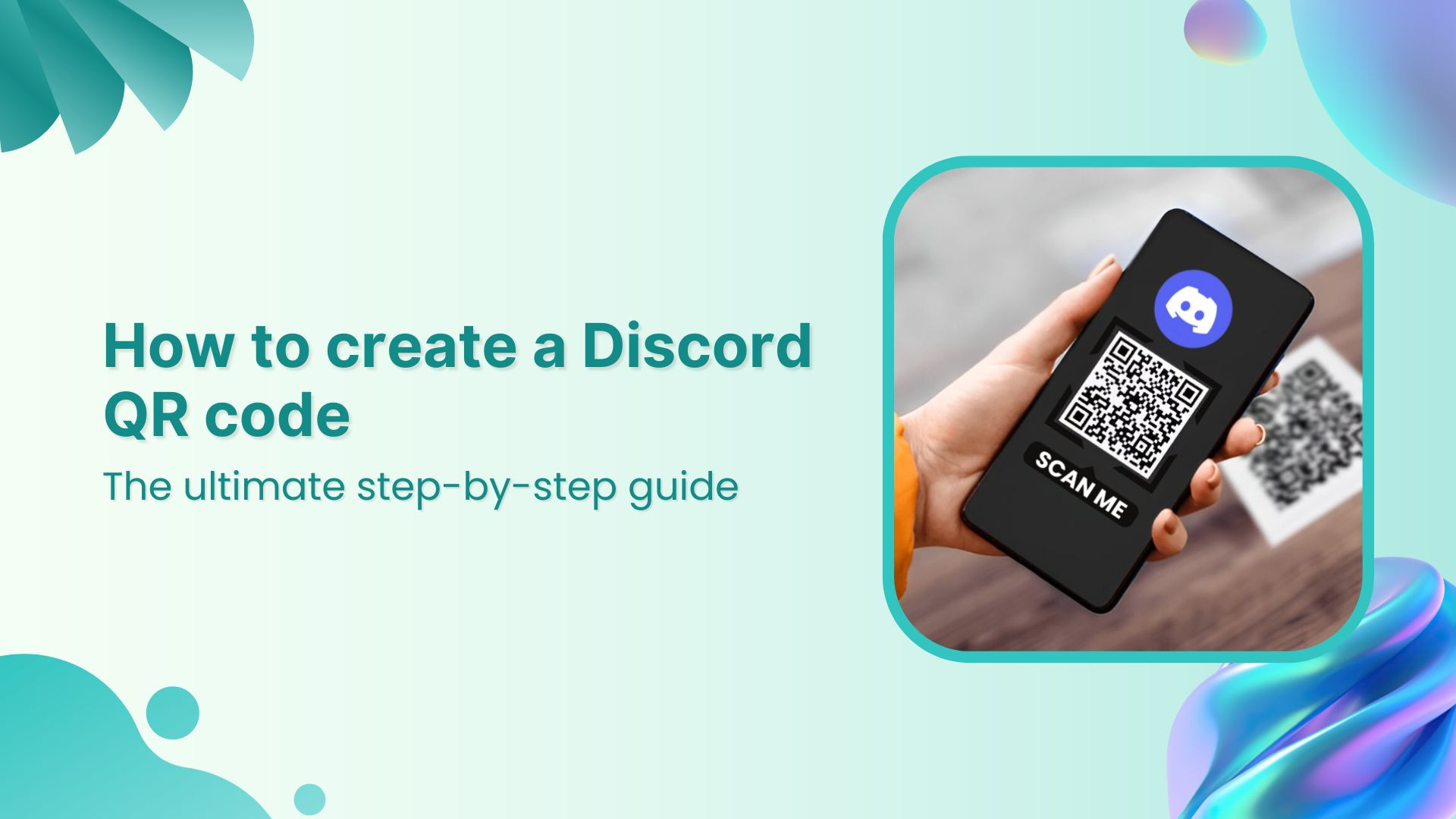
Discord isn’t just a gaming hangout anymore. With over 614 million registered users in 2024 and a projected 689 million by 2025, the platform has become a go-to space for communities, creators, businesses, and brands looking to build loyal audiences.
Whether you’re running a community server, launching a new product, or hosting events, a Discord QR code is your shortcut to making your space more accessible, shareable, and engaging.
In this guide, we’ll show you how to create a QR code for your Discord server using Replug, how users can scan a QR code, and why it can be a powerful growth tool.
What is a Discord QR code?
A Discord QR code is a scannable code that leads users directly to a Discord server, channel, or login screen, eliminating the need for manual search or typing.
There are two common ways QR codes are used with Discord:
- For sharing Discord server links: Create a QR code that redirects users straight to your server invitation link. This is ideal for marketing materials, digital invites, or community growth.
- For logging into Discord: Instead of typing your credentials, scan a QR code on the Discord website to log in via your mobile app.
Why use a QR code for Discord?
Here’s why you should start using QR codes for your Discord server:
| Reason | Description |
| Frictionless invites | No more sending long URLs or complicated instructions. One scan = instant server access. |
| Offline marketing | Add QR codes to posters, flyers, product packaging, business cards—anything physical. |
| Higher engagement | Easier access means more people are likely to join, especially from events or social gatherings. |
| Professional & scalable | Looks tech-savvy and works well for both small creators and big brands, especially if you write a Discord bio that matches the server it points to. |
How to create a QR code for a Discord server (using Replug)
Ready to create a QR code for your Discord server and share it with the world? Here’s how to do it in just a few minutes with Replug.io, a powerful and reliable QR code generator.
Step 1: Sign in or create a Replug account
Head over to Replug and sign in. If you don’t have an account yet, creating one only takes a minute.
Step 2: Get your Discord server invite link
Before you make the QR code, you’ll need your Discord invite link.
- Open your Discord server.
- Click the down arrow next to the server name.
- Select “Invite People.”
- Choose “Edit Invite Link” if you want to customize expiry settings.
- Copy the invite link.
Now you’re ready to build your QR code.
Step 3: Create a Discord QR code in Replug
There are two easy ways to do this:
Way #1: Use the QR code builder
- From your Replug dashboard, click on “QR Codes”.
- Tap “Create New.”

- Enter a title and description, and paste your Discord invite link in the appropriate field.
- Choose QR code type → Website.
- Customize the code: shape, colors, border, frame text (e.g. “Scan to Join!”), and even add your logo.


- Hit “Create QR Code.”
- Download it in your preferred format: PNG, JPEG, SVG, or WEBP.

💡 Pro Tip: Customize your URL slug for more clarity.

Way #2: Shorten your Discord link first
Want a cleaner link behind your QR code? Here’s how:
- Access your Replug dashboard.
- Paste your Discord invite URL in the bar under “Quickly Shorten your link”
- Customize the slug to make it short and branded.
- Click the QR code icon next to the shortened link.
- Customize the design as you like.
- Download and start sharing.
You may also like: How to create a QR code for Venmo?
Why use Replug to create your Discord QR code?
There are plenty of free QR code generators out there but Replug offers more than just a code:
- Branded short links: Keep your links clean and professional by creating a branded, vanity URL with this top-notch link shortener.
- Retargeting: Add tracking pixels to your QR code links to retarget users.
- Analytics: Track scans, clicks, and unique clicks based on geographical information, referral, and date.
- Full customization: Play around with the colours and frame of your QR code, and even add a logo to it for branding.
- Dynamic QR codes: Change the destination link later without changing the QR code image.
- Easily shareable: You can share your Replug QR across any platform, be it via WhatsApp, email, SMS, Instagram; you name it!
How to scan a QR code to log in to Discord
If you want to log in to Discord from a desktop browser using a QR code, here’s how to do it:
- Go to the Discord website
Visit discord.com/login. You’ll see a QR code next to the usual login form. - Open the Discord app on your phone
Tap your profile picture in the bottom-right corner to access settings. - Scan the QR code
Tap “Scan QR Code,” point your phone camera at the code on your desktop screen. - Confirm login
Tap “Yes, Log Me In” when prompted, and you’re in!

Note: Make sure you’ve enabled camera access for the Discord app on your phone to use the scanner.
Related: How to scan a QR code on your iPhone?
Conclusion
Discord QR codes are a simple yet powerful way to make your server more discoverable, professional, and easy to access. Whether you’re growing a creator community, running a marketing campaign, or just trying to simplify the joining process, using Replug to create and manage your QR codes adds a layer of polish and performance you won’t get with basic tools.
With features like branded links, analytics, and retargeting, your QR code isn’t just a static square, it’s a smart growth tool. So go ahead, make your server just a scan away!
FAQs for how to create a Discord QR code

Amna Yawar


![50+ different types of QR codes with examples & use cases [2026]](/_next/image?url=https%3A%2F%2Finternal-blog.replug.io%2Fwp-content%2Fuploads%2F2026%2F02%2F50-different-types-of-QR-codes-with-examples-use-cases-2026.png&w=640&q=75)
