You’re trying to visit a website, and instead of the page loading successfully, Chrome or Edge throws a cold, unhelpful error at you: ERR_SSL_PROTOCOL_ERROR.
Frustrating, right? You’re definitely not alone!
SSL is now the backbone of the modern web. 92.6% of the top 100,000 websites use HTTPS by default as of January 2026, and 99% of browsing time on Google Chrome now happens on HTTPS websites. That’s how standard secure connections have become.
So when something breaks that handshake between your browser and a server, it can stop you dead in your tracks, whether you’re a regular user trying to access a site or a website owner watching your visitors bounce.
The good news?
This error is almost always fixable. But first, you need to understand what’s actually going wrong.
Let’s start with the basics: what does ERR_SSL_PROTOCOL_ERROR mean exactly?
What is ERR_SSL_PROTOCOL_ERROR?
In simple terms, the ERR_SSL_PROTOCOL_ERROR meaning comes down to this: your browser tried to establish a secure, encrypted connection with a website, but something went wrong during that process, so it gave up.
When you visit a website or URL, your browser and the site’s server go through a quick “handshake” to verify security credentials. If that handshake fails for any reason, the browser blocks access entirely and displays “ERR_SSL_PROTOCOL_ERROR: This site can’t provide a secure connection.”
Think of it like showing up to a secure building without the right access card. The door doesn’t let you in (no negotiation). The error itself isn’t always the website’s fault, though. It could be coming from your browser, your device, or even your network. That’s exactly what we’re going to unwrap next.
Why ERR_SSL_PROTOCOL_ERROR occurs: Major reasons behind this error
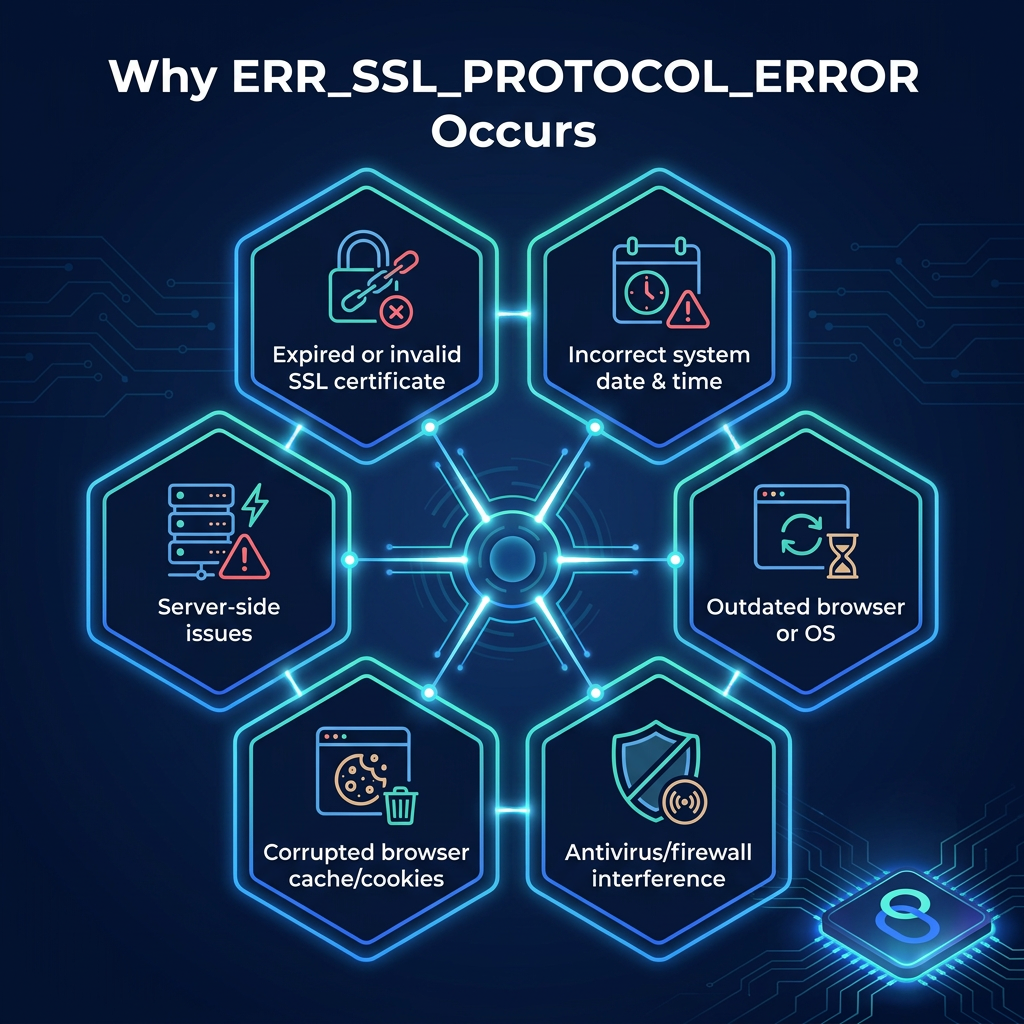
This error doesn’t just pop up for one reason. There’s actually a handful of things that can trigger it, from something as simple as a wrong date on your device to a misconfigured server.
Let’s break down the most common culprits so you know exactly what you’re dealing with.
Expired or invalid SSL certificate
Every SSL certificate comes with an expiration date, and when it lapses, browsers like Chrome instantly block access to the site. This is one of the most common server-side triggers.
If the certificate is expired, self-signed, or issued by an untrusted authority, your browser won’t complete the handshake, and you’ll land right on that error (ERR_SSL_PROTOCOL_ERROR) page.
Incorrect system date & time
This one surprises a lot of people. If your device’s date or time is off (even by a day), your browser might read a perfectly valid SSL certificate as expired or not yet active.
SSL certificates are time-sensitive by design, so a simple clock mismatch can throw the whole verification process out of sync.
Outdated browser or OS
Older browsers and operating systems sometimes lack support for newer security protocols like TLS 1.3. When a website requires an updated protocol that your browser or OS can’t handle, the connection fails.
Keeping your browser and system updated isn’t just about new features; it directly affects whether secure connections work properly.
Antivirus/firewall interference
Some antivirus programs and firewalls perform SSL scanning, essentially intercepting your connection to inspect it for threats. While well-intentioned, this process can sometimes disrupt the SSL handshake and trigger the ‘ERR_SSL_PROTOCOL_ERROR’ error.
If you’ve recently installed new security software or updated it, that’s worth checking first.
Corrupted browser cache/cookies
Your browser stores cached data to speed things up, but over time, that data can become outdated or corrupted. Old SSL state data, cached certificates, or stale cookies can conflict with a site’s current security setup, causing the connection to fail.
Clearing your cache and cookies often resolves this faster than you’d expect.
Server-side issues
Sometimes the problem has nothing to do with you at all. Misconfigurations on the server, like incorrect SSL/TLS settings, missing intermediate certificates, or protocol mismatches, can cause this error for every visitor calling on that site.
If the error appears across multiple browsers and devices, there’s a good chance the issue lives on the server end.
How to fix ‘ERR_SSL_PROTOCOL_ERROR’: Common troubleshooting steps
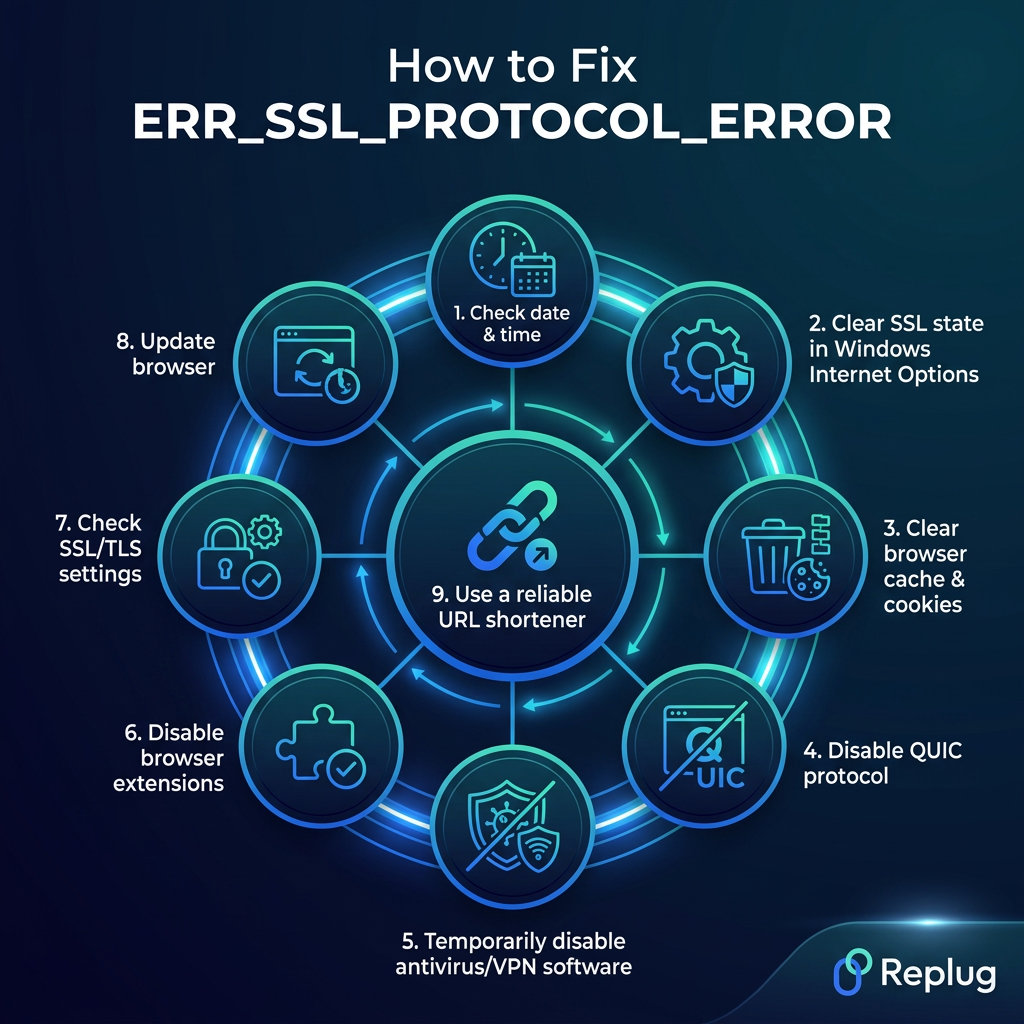
Finding the right ERR_SSL_PROTOCOL_ERROR fix isn’t always a one-size-fits-all situation. What works for one person might not work for another.
The good news is that most of these solutions are quick, straightforward, and don’t require any technical expertise. Work through these steps one by one, and you’ll likely resolve it faster than you think.
Check date & time
This is always the first thing to check because it’s the easiest to fix and more impactful than most people realize.
Go to your device’s date and time settings and make sure everything is accurate.
- On Windows, right-click the clock in the taskbar and select “Adjust date/time.”
- On Mac, head to System Settings → General → Date & Time. Enable the “Set time and date automatically” option, so your device always syncs with an internet time server.
Once corrected, restart your browser and try loading the site again.
Clear SSL state in Windows Internet Options
Windows stores SSL certificate data locally, and sometimes that cached data becomes outdated or conflicts with a site’s current certificate.
To clear it, open the “Control Panel” and search for “Internet Options.” Head to the “Content” tab and click the “Clear SSL State” button under the “Certificates” section. You’ll get a confirmation message once it’s done.
This doesn’t affect your browsing history or saved passwords. It simply flushes the old SSL handshake data so your browser can start fresh with the site.
Clear browser cache & cookies
Out-of-date cached data is one of the sneakiest causes of this error because everything on your end looks fine, but old stored data is quietly causing conflicts behind the scenes.
- In Chrome, click the three-dot menu (⋮) in the top-right corner → select “Delete browsing data,” → choose a time range, → check “Cookies and other site data” and “Cached images and files,” → then click the “Delete data” button, and relaunch your browser.
- In Microsoft Edge, press Ctrl+Shift+Delete. Select “Cookies and other site data” and “Cached images and files,” set the time range to “All time,” and click “Clear now.”
It takes less than a minute and often resolves the issue right away.
Disable QUIC protocol
QUIC is an experimental network protocol built into Chrome that can sometimes interfere with SSL connections.
To disable it, type chrome://flags in your address bar and search for “Experimental QUIC protocol.” Set it to “Disabled” from the dropdown and relaunch Chrome.
This is a lesser-known fix, but it’s surprisingly effective, especially if you’ve already tried the more obvious solutions and are still facing the same error.
Temporarily disable antivirus/VPN software
Antivirus programs and VPNs sometimes intercept SSL traffic as part of their security scanning, and that interception can break the connection. Try temporarily disabling your antivirus or VPN and then reloading the page.
If the error disappears, your security software is likely the culprit. From there, you can look into adjusting its SSL scanning settings rather than keeping it fully disabled. You want security, just without the interference.
Disable browser extensions
Extensions can quietly barge in with how your browser handles connections, especially ad blockers, privacy tools, or proxy-related extensions.
To test this, open Chrome in Incognito mode, since most extensions are disabled there by default. If the site loads fine in Incognito, an extension is almost certainly causing the problem.
Head to chrome://extensions, toggle them off one by one, and reload the page each time to identify the specific offender. If you are using another browser, like Microsoft Edge, here is how to disable extensions: Click the three dots → Extensions → Manage Extensions → Toggle off.
Check SSL/TLS settings
Your browser or operating system might be configured to use older, deprecated SSL/TLS protocol versions that modern websites no longer support.
- In Chrome, you can check this via chrome://settings/security under “Advanced.”
- On Windows, go to Internet Options → Advanced tab and scroll to the “Security” section.
Make sure TLS 1.2 and TLS 1.3 are enabled, and that older protocols like SSL 3.0 are unchecked. Aligning your settings with current standards often resolves compatibility-related SSL errors.
Update browser
Running an outdated browser is like trying to use an old key on a new lock (it just won’t work). Newer websites are built around modern security protocols, and older browser versions simply can’t keep up.
- In Chrome, click the three-dot menu in the top right, go to Help → About Google Chrome, and it’ll automatically check for and install any available updates. Restart/relaunch once it’s done.
- In Microsoft Edge, click the three-dot menu in the top-right corner, select Help and feedback → About Microsoft Edge. Edge will automatically check for updates and install them. Click Restart if prompted to complete the update.
It’s a simple step that’s easy to overlook but genuinely makes a difference.
Use a reliable URL shortener
Sometimes the issue isn’t your browser or device; it could be the link itself. Broken, malformed, or insecure URLs can trigger SSL errors before a page even has a chance to load.
If you’re sharing or managing links regularly, using a link optimization platform like Replug is a smart move. You can create short links that are clean, trackable, and redirect through secure connections.
Replug also offers free domains to get you started, so your links always look professional and load without any security hiccups.
How to fix ERR_SSL_PROTOCOL_ERROR on Google Chrome
While the fixes mentioned in the previous section work across most browsers, ERR_SSL_PROTOCOL_ERROR Chrome cases sometimes need a bit more targeted troubleshooting.
Chrome has its own settings, flags, and configurations that can specifically contribute to this error. So here’s what to look at if you’re running into it on Chrome in particular.
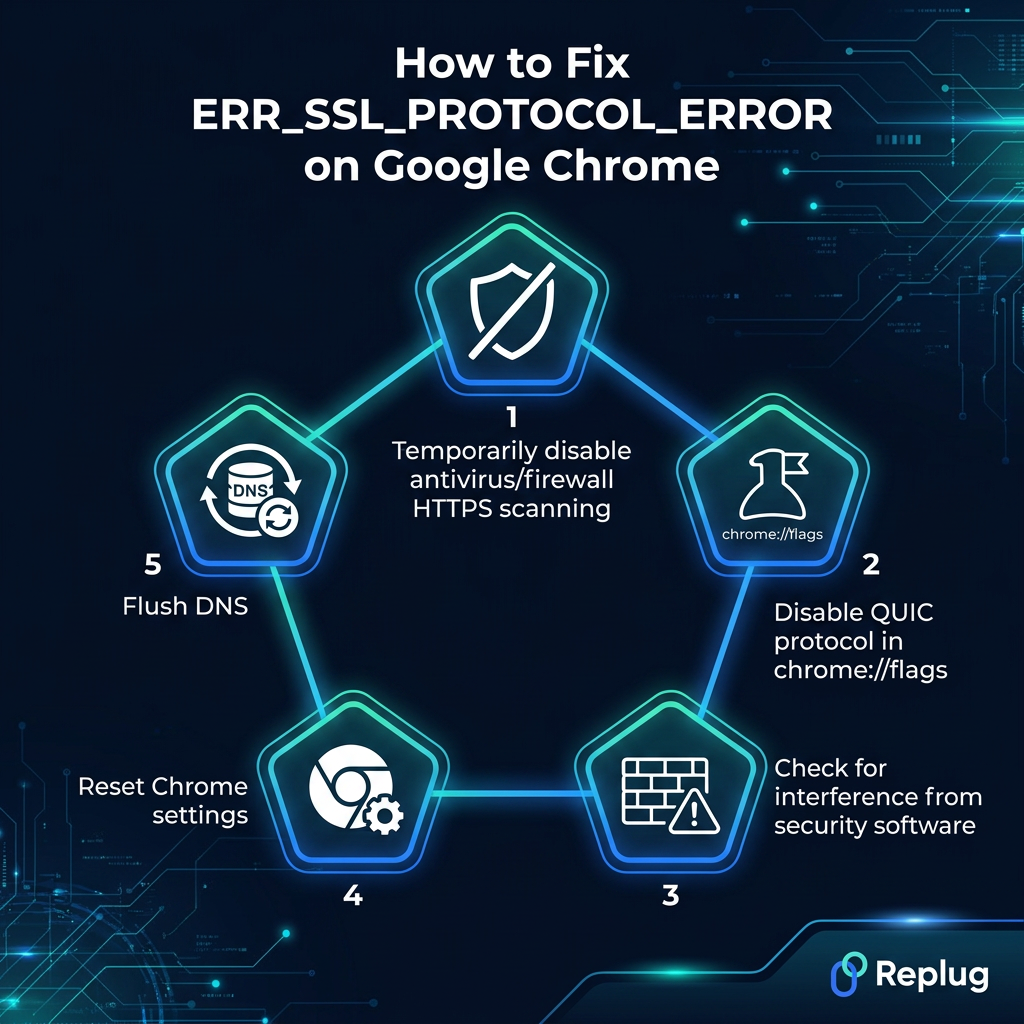
Temporarily disable antivirus/firewall HTTPS scanning
Many antivirus programs have a feature that scans HTTPS traffic to check for threats, which sounds helpful, but it can actually disrupt Chrome’s SSL handshake in the process.
Go into your antivirus settings and look for anything labeled “HTTPS scanning,” “SSL inspection,” or “Web Shield.” Temporarily turn it off and reload the page in Chrome. If it loads fine, you’ve found your culprit.
Most antivirus tools let you whitelist specific sites rather than disabling the feature entirely, which is the smarter long-term fix.
Disable QUIC protocol in chrome://flags
Chrome’s built-in QUIC protocol is designed to speed up connections, but it doesn’t always play nicely with SSL, especially on certain networks or server configurations.
To turn it off, type chrome://flags in Chrome’s address bar and press Enter. Use the search bar to find “Experimental QUIC protocol” and switch it from “Default” to “Disabled.” Click the “Relaunch” button that appears at the bottom.
It’s a small tweak, but it removes one potential layer of interference that Chrome adds on top of standard SSL connections.
Check for interference from security software
Beyond just antivirus, other security tools such as VPNs, firewalls, parental control software, or corporate network filters can all interfere with how Chrome handles SSL connections. Try disabling them one at a time and testing the page after each.
If you’re on a work or school network, a firewall rule set by your IT team might be blocking the connection entirely, and that’s something you’d need to flag with them directly.
Identifying the specific software causing the conflict is the key step here.
Flush DNS
Your device stores a local DNS cache to speed up how it connects to websites. But if that cache holds outdated or corrupted records for a site, it can cause connection issues, including SSL errors. Flushing it forces your device to fetch fresh DNS information.
- On Windows, open Command Prompt as “Administrator” and type ipconfig /flushdns, then press the Enter key.
- On Mac, open Terminal and run sudo dscacheutil -flushcache; sudo killall -HUP mDNSResponder.
Restart Chrome afterward and try the site again. This fix is quick and often more effective than people expect.
Reset Chrome settings
If you’ve tried everything and Chrome is still throwing the error, a settings reset is worth doing. Over time, Chrome’s configuration can accumulate changes from extensions, experiments, or manual tweaks that quietly break things.
To reset, go to chrome://settings/reset and click “Restore settings to their original defaults.” Confirm the reset by clicking the “Reset settings” button.
This won’t delete your bookmarks, history, or saved passwords, but it will clear your startup page, pinned tabs, and extension settings. Think of it as giving Chrome a clean slate without a full reinstall.
How to fix ERR_SSL_PROTOCOL_ERROR on Microsoft Edge
If you’re hitting ERR_SSL_PROTOCOL_ERROR Edge specifically, it’s worth knowing that Edge has some unique ties to Windows system settings that other browsers don’t share. This means the fixes here are a little different from what you’d do in Chrome.
These steps are tailored to Edge’s architecture and should help you get back on track quickly.
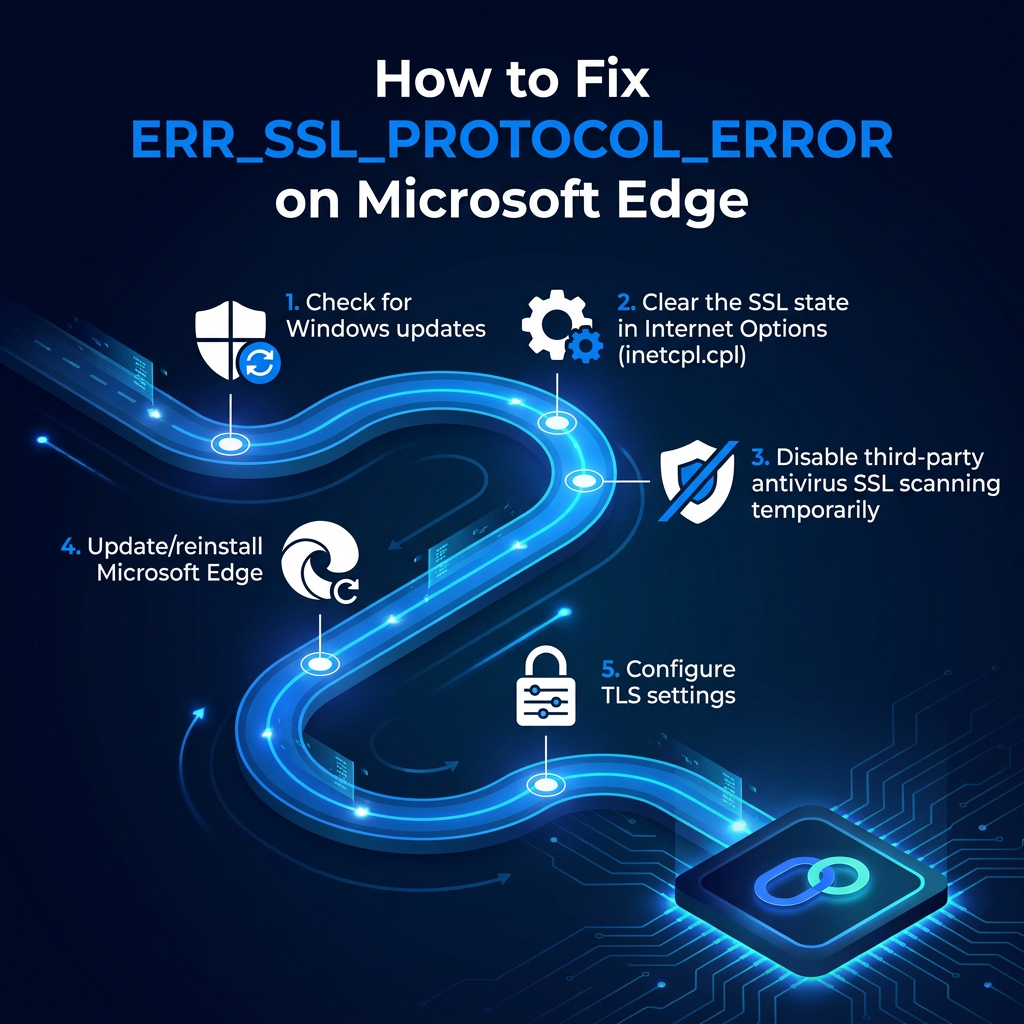
Check for Windows updates
Edge is deeply integrated with Windows, so outdated system files can directly affect how Edge handles SSL connections.
Open Settings → Windows Update and check if any updates are pending by clicking “Check for updates.” This includes both major Windows updates and smaller cumulative patches (both matter).
Microsoft regularly pushes security and protocol-related fixes through these updates, and skipping them can leave Edge unable to properly negotiate connections with modern, secure websites. Install any available updates, restart your device, and test the page again in Edge.
Clear the SSL state in Internet Options (inetcpl.cpl)
Because Edge is built on Windows infrastructure, it shares the SSL cache stored in Internet Options, and clearing it can resolve certificate conflicts that Edge runs into.
Press Windows + R, type inetcpl.cpl, and hit Enter. In the Internet Properties window, go to the Content tab and click “Clear SSL State.” You’ll see a confirmation pop-up once it’s cleared.
This wipes out any stored SSL session data that might be outdated or mismatched with a site’s current certificate, letting Edge establish a fresh connection on your next visit.
Disable third-party antivirus SSL scanning temporarily
Just like with Chrome, third-party antivirus software can intercept Edge’s SSL connections while scanning for threats, and that interception sometimes breaks the handshake entirely.
Go into your antivirus settings and look for SSL inspection, HTTPS filtering, or Web Shield options and turn them off temporarily. Reload the page in Edge and see if the error clears.
If it does, consider adding the affected site to your antivirus whitelist rather than leaving the scanning feature fully disabled. Your security software’s support documentation can guide you through that process.
Update/reinstall Microsoft Edge
An outdated version of Edge can lack support for the security protocols that modern websites require. Click the three-dot menu in Edge, go to Help and feedback → About Microsoft Edge, and let it check for updates automatically.
If updating doesn’t help and the error persists across multiple sites, a full reinstall might be the better move.
Download the latest version directly from Microsoft’s official site, uninstall your current version through Windows Settings → Apps → Installed apps, and do a clean reinstall. It’s a bit more involved, but it rules out any deeper installation issues.
Configure TLS settings
Edge relies on Windows’ TLS (Transport Layer Security) configuration, so if the wrong protocol versions are enabled or disabled, SSL connections can fail.
Press Windows + R, type inetcpl.cpl, and open the “Advanced” tab. Scroll down to the “Security” section and make sure TLS 1.2 and TLS 1.3 are checked.
Older protocols like SSL 2.0 and SSL 3.0 should be unchecked. They’re condemned and can actually cause conflicts with modern sites. Click “Apply” and “OK,” then restart Edge.
This small configuration adjustment can make a noticeable difference, especially on sites that strictly enforce modern TLS standards.
You may also like: How to find the IP address of a website: Step-by-step guide
How to fix ERR_SSL_PROTOCOL_ERROR on Android
Getting this error on an Android device adds a few extra variables to the mix. Your network connection, installed apps, and device-level settings all come into play in ways they don’t on a desktop.
The good news is that Android gives you several straightforward options to work through, and most of them take just a minute or two to try.
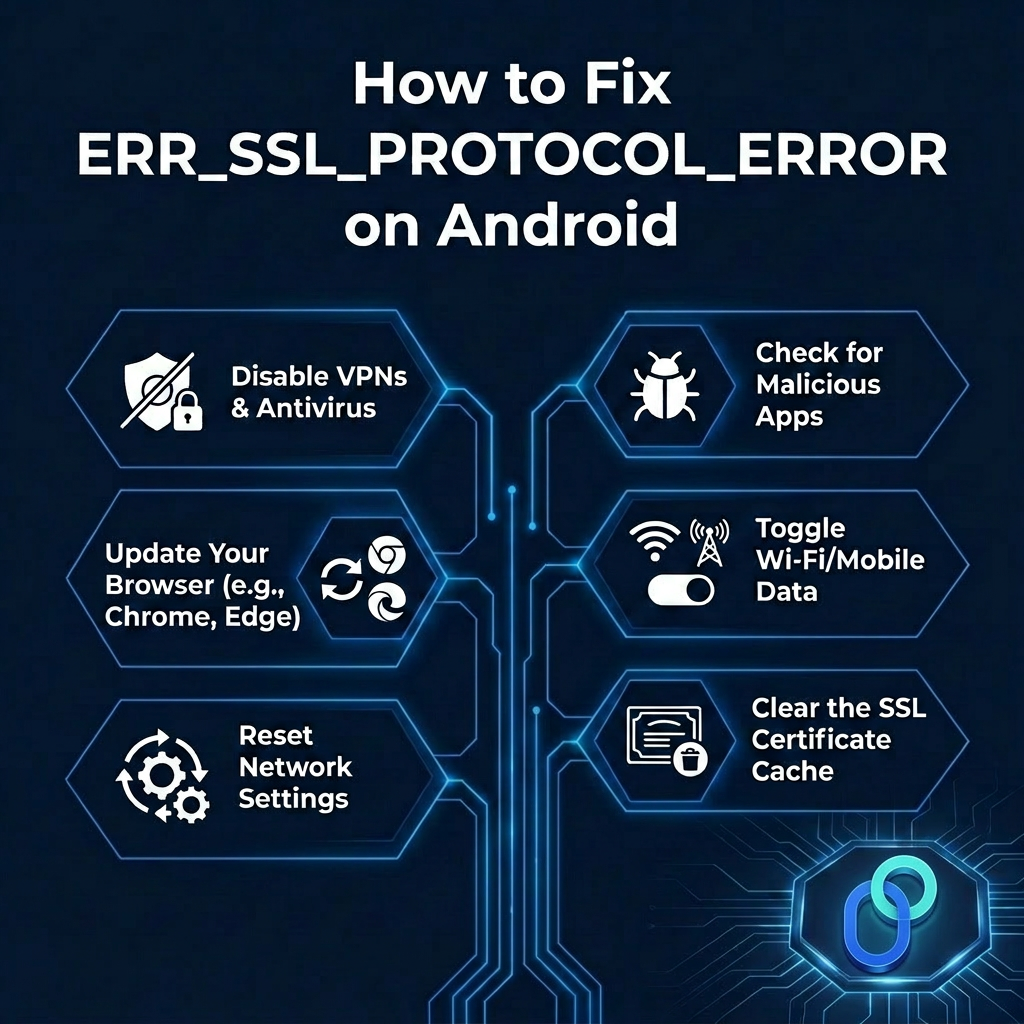
Disable VPNs & antivirus
VPNs and antivirus apps on Android can reroute or inspect your traffic in ways that interfere with SSL connections.
If you have a VPN running, switch it off and try reloading the page. The same goes for any mobile antivirus apps that have web protection or HTTPS scanning features enabled. You can usually find these toggles directly inside the app’s settings.
If the error disappears after disabling one of them, you’ve identified the source. You can then look into configuring that app to allow secure connections without blocking them.
Check for malicious apps
A less obvious but real cause of SSL errors on Android is malicious or poorly built apps that interfere with your device’s network traffic.
Go to Settings → Apps and review any recently installed apps that you don’t fully recognize or trust. Some shady apps install rogue certificates or mess with network configurations in the background.
Run a scan using Google Play Protect. Open the Play Store → tap your profile icon → and select “Play Protect.” Scan and remove anything flagged or suspicious, restart your device, and check if the error persists.
Update your browser (e.g., Chrome, Edge)
An outdated mobile browser is one of the simplest reasons the “ERR SSL PROTOCOL ERROR” error appears on Android.
Older versions may not support the TLS protocols that current websites require, causing the SSL handshake to fail before it even gets started.
Open the Google Play Store → search for your browser, no matter if that’s Chrome, Edge, or another → and tap the “Update” button if one is available. It takes just a few seconds and can instantly resolve compatibility issues.
And, while you’re at it, check if your Android OS itself has any pending updates under Settings → Software Update.
Toggle Wi-Fi/mobile data
Sometimes the issue is as simple as a temporary network glitch that’s disrupting the SSL handshake. In that case, try switching from Wi-Fi to mobile data, or vice versa, and reload the page.
If you’re on Wi-Fi, toggle it off and back on, or forget the network entirely and reconnect. Public or shared Wi-Fi networks are particularly prone to SSL interference due to network-level filters or proxies.
Switching networks entirely is a quick way to rule out whether the problem is tied to your current connection rather than your device or browser settings.
Reset network settings
If toggling your connection doesn’t help, a full network settings reset is the next step. This clears all saved Wi-Fi networks, Bluetooth pairings, and mobile data configurations, essentially giving your device a clean networking slate.
On most Android devices, go to Settings → System → Reset options → Reset network settings (or search “Reset” in Settings). You’ll need to reconnect to your Wi-Fi networks afterward, so keep your passwords handy.
This fix is particularly useful when SSL errors are happening across multiple sites and browsers, as it points to a deeper network configuration issue on the device itself.
Clear the SSL certificate cache
Android stores SSL certificate data to speed up future connections, but that cached data can sometimes become outdated or corrupted. This causes errors even when a site’s certificate is perfectly valid.
To clear it, go to Settings → Apps → your browser → Storage, and clear cached data. After clearing, restart your browser and try the site again.
How to fix ERR_SSL_PROTOCOL_ERROR on iPhone
While iPhones are generally well-optimized for secure browsing, they’re not immune to SSL errors.
The fixes on iOS are a bit more streamlined compared to Android since Apple keeps most network and security settings centralized, which actually makes troubleshooting a little easier.
Here’s what to work through if you’re seeing ERR_SSL_PROTOCOL_ERROR on your iPhone.
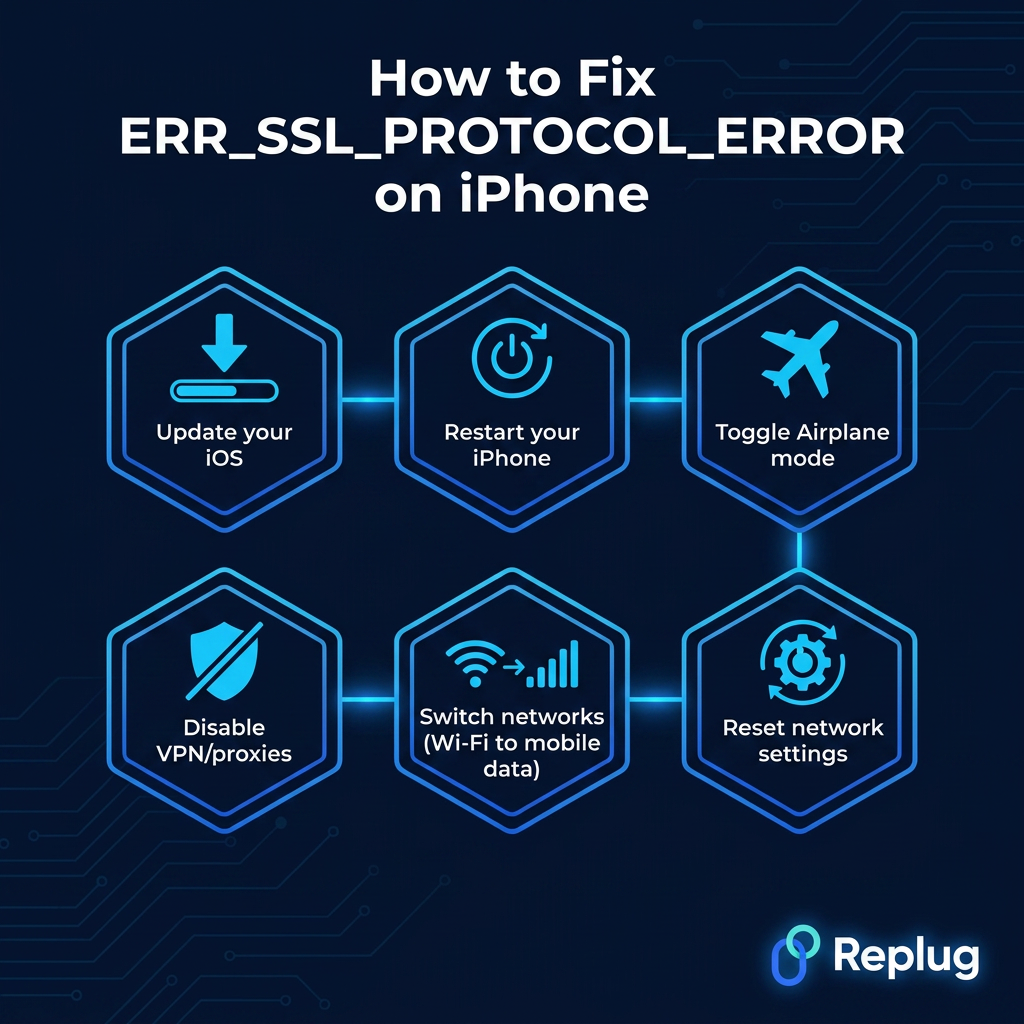
Update your iOS
Apple regularly pushes iOS updates that include security patches, protocol upgrades, and bug fixes, all of which directly affect how your iPhone handles SSL connections.
If you’re running an outdated version, your device might simply lack support for the security standards a website requires. Go to Settings → General → Software Update and install anything that’s pending.
It’s one of those fixes that people put off but genuinely makes a huge difference, not just for SSL errors, but for your device’s overall security and performance.
Restart your iPhone
It sounds almost too simple, but a restart clears temporary system glitches, refreshes network connections, and resets background processes that might be interfering with SSL handshakes.
If you haven’t restarted your iPhone in a while, there’s a real chance that’s all it takes. Hold the side button and a volume button together, slide to power off, wait about 30 seconds, and turn it back on.
Try loading the site again once it’s fully restarted. This is always worth doing before moving on to more involved fixes.
Toggle Airplane mode
Toggling Airplane mode off and on is essentially a quick reset for all of your iPhone’s wireless connections (cellular, Wi-Fi, and Bluetooth).
It forces your device to re-establish a fresh network connection, which can clear temporary glitches in how SSL handshakes are being negotiated.
Swipe into Control Center and tap the Airplane mode icon to enable it. Now, wait about 10–15 seconds, then tap it again to disable it. Once your connection is restored, reload the page.
It’s a 20-second fix that’s surprisingly effective for connection-related SSL errors.
Disable VPN/proxies
VPNs and proxy configurations on iPhone can reroute your traffic through servers that interfere with SSL verification. This is especially true if the VPN server itself has connection issues or uses outdated security protocols.
- For VPN, go to Settings → General → VPN & Device Management and toggle off any active VPN.
- For proxies, go to Settings → Wi-Fi, tap the ‘i’ icon, select “Configure Proxy,” and set it to “Off.”
Once disabled, reload the page and see if the error clears. If it does, the VPN or proxy configuration was the issue, and you may need to switch providers or adjust settings.
Switch networks (Wi-Fi to mobile data)
The network you’re connected to can be a direct cause of SSL errors, particularly on public Wi-Fi networks that use captive portals, content filters, or proxies that intercept HTTPS traffic.
Try switching from Wi-Fi to your mobile data connection and reloading the page. If it loads fine on mobile data, the problem is tied to that specific Wi-Fi network rather than your device.
You can also try forgetting the Wi-Fi network entirely under Settings → Wi-Fi, then reconnecting fresh. Sometimes, a corrupted network session is all that’s standing between you and a working connection.
Reset network settings
If nothing else has worked for you, resetting your network settings is the most thorough fix available on iPhone short of a full device restore.
It clears all saved Wi-Fi passwords, VPN configurations, APN settings, and network-related preferences, giving your iPhone a completely fresh networking foundation.
Go to Settings → General → Transfer or Reset iPhone → Reset → Reset Network Settings. You’ll need to re-enter your Wi-Fi passwords afterward, so note them down beforehand.
This fix is especially worth trying when SSL errors are appearing across multiple sites and browsers, since that pattern strongly suggests a device-level network configuration issue.
Also check out: What is a URL blacklist: Easy guide for fixing a URL blacklist in 2026!
Wrapping up
SSL errors can feel intimidating at first glance, but as you’ve seen throughout this guide, they’re almost always fixable with the right approach.
No matter if the culprit was an outdated browser, a misconfigured antivirus, a wrong date setting, or a network glitch, there’s a clear path to resolving it.
Rather than looking for an ERR_SSL_PROTOCOL_ERROR bypass that skips security altogether, working through these proper fixes ensures your connection is genuinely secure, not just superficially unblocked.
Start with the simplest solutions first, work your way down the list, and you’ll likely have things running smoothly in no time. Secure browsing isn’t complicated; it just needs a little attention sometimes.
Frequently asked questions

Muhammad Ahsan Jamal