Want to share your favorite tracks or current jams with friends on Discord? This guide walks you through exactly how to link Spotify to Discord so your music becomes part of the conversation.
As a bonus, we’ll spill the tea on how Replug can help amplify your Spotify presence even more.
Let’s begin connecting!


Why link Spotify to Discord?
Linking Spotify to Discord is a simple way to display what you’re listening to, connect over music with friends, or even sync up using the “Listen Along” feature. Whether you’re an artist, podcaster, or casual listener, integrating the two platforms adds a new dimension to your Discord presence.
Step-by-step: How to link Spotify to Discord
Let’s walk through the exact process of how to link your Spotify to Discord in just a few clicks.
Step 1: Open Discord and access User Settings
- Launch the Discord app
- Locate the cogwheel icon next to your username at the bottom left
- Click it to open User Settings

Step 2: Navigate to Connections
- Inside User Settings, click “Connections” in the left-hand menu
- This will show a range of platforms you can connect

Step 3: Link your Spotify account
- Click the green Spotify icon

- A new browser tab will open prompting you to log in or sign up for Spotify

- Enter your credentials and authorize the connection
Once done, your Spotify account will now be linked to your Discord profile.
Also read: How to Share Spotify Playlist: Step-by-Step Guide
Step 4: Customize Spotify display settings
- Head back to User Settings > Connections
- Use the toggles to:
- Display on Profile
- Display Spotify as your Status

Tip: Want to promote your latest song or playlist? Use Replug to create a branded short link and add it to your bio or status on Discord.
Also check out: How to link Instagram to Facebook?
How to disconnect Spotify from Discord
Need to unlink your account? Here’s how to disconnect Spotify from Discord:
- Open Discord and go to User Settings > Connections
- Find Spotify in the connected apps
- Click the X icon next to the green Spotify box
- Click Disconnect to confirm
How to use Spotify Listen Along on Discord
The Listen Along feature allows friends to sync up and listen to the same track in real-time, but there are a few conditions:
- You must have a Spotify Premium account
- You cannot be on a voice chat. Text chat only
How to listen along:
- Find a friend who’s listening to Spotify (look for the green status on their profile)
- Click their name
- Select Listen Along
Note: If your friend has the free version of Spotify, you’ll hear silence during their ad breaks.
Also read: How to disguise a link in Discord: 5 tricks you should know
Bonus Tip: Promote your Spotify content with Replug
If you’re a content creator, music artist, or podcaster; why stop at just linking your account?
Use Replug to:
- Create short branded URLs for your Spotify albums or playlists
- Track analytics to see how many people clicked on your Spotify link
- Create a bio link page with links to your Discord and Spotify profiles
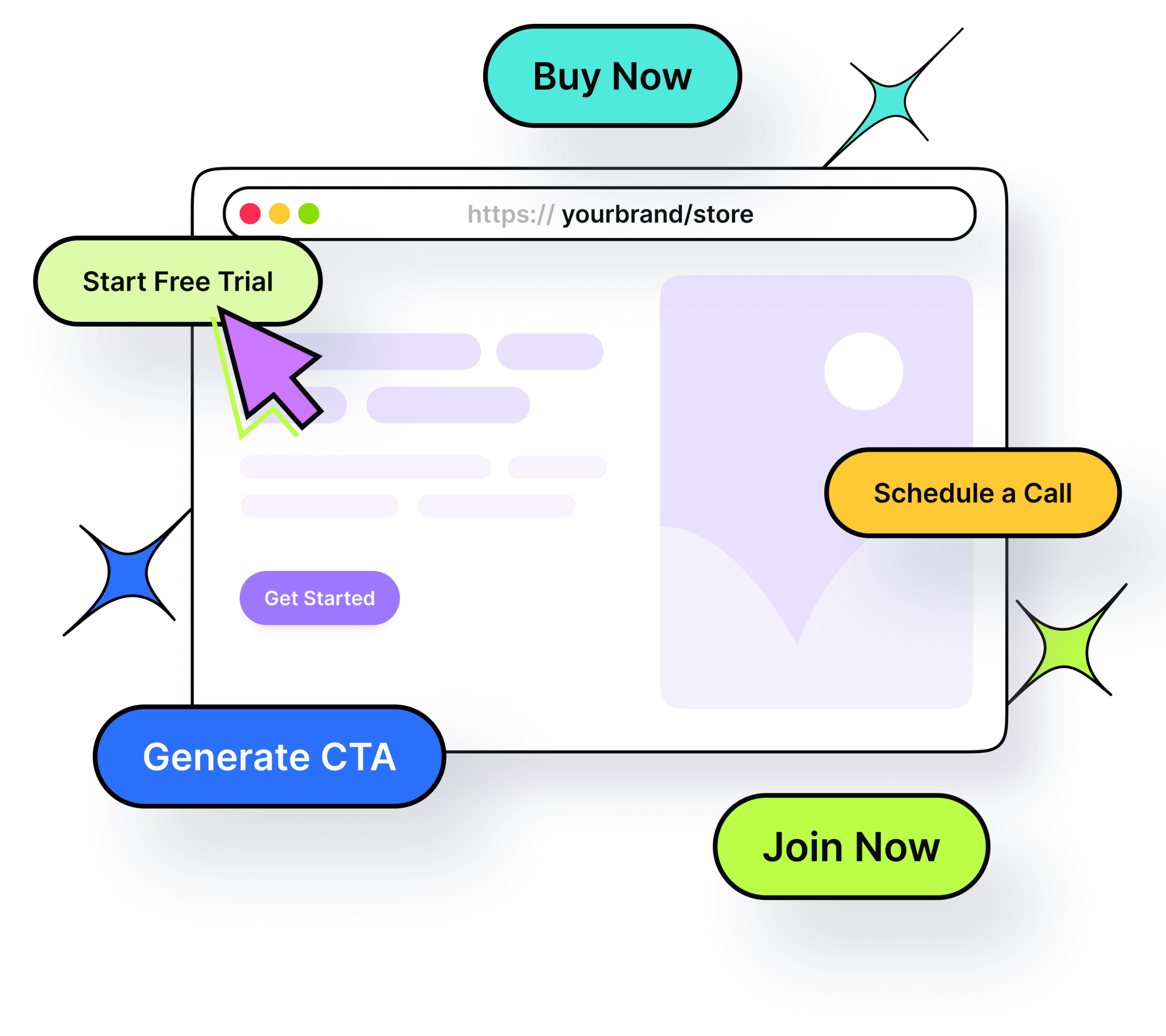
- Drive more clicks to your profile or playlists through a custom CTA generator

Conclusion
Now you know exactly how to link Spotify to Discord, share what you’re listening to, and even enjoy synchronized playback with friends. It’s a great way to add more personality to your profile, whether you’re jamming solo or connecting with your community.
Plus, if you’re looking to go beyond personal sharing and actually grow your music or content audience, tools like Replug can take your visibility even further.
FAQs on linking Spotify to Discord

Amna Yawar