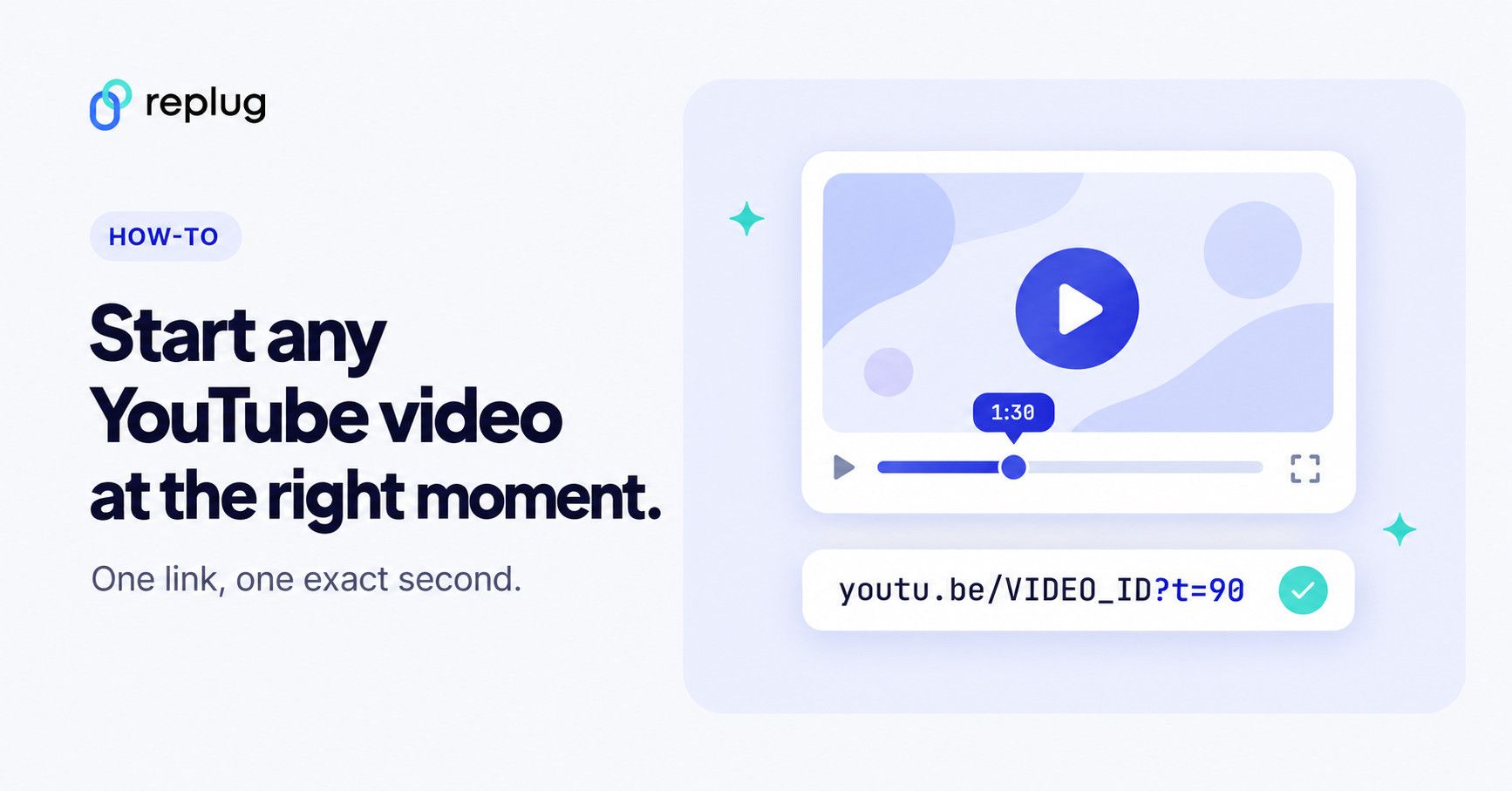
A YouTube link with a timestamp opens a video at a set moment instead of at the beginning. On a computer, click Share under the video, check “Start at,” enter the time and click Copy. On a phone, tap Share and turn on the time toggle, or add ?t= and the number of seconds to the link, such as youtu.be/VIDEO_ID?t=90.
The start time is part of the link itself, so it works for anyone who opens it. For embeds, playlists and other ways to share a video, see our sharing guide.
Updated: November 2026
How do you link to a specific time on a computer?
Use the “Start at” box in YouTube’s Share panel. These are the steps from YouTube Help’s page on sharing videos and channels:
- Open the video on youtube.com and pause it at the moment you want to share.
- Click Share under the video.
- Check Start at. It fills in the time where you paused.
- Change the time if you need to, for example
2:30for 2 minutes and 30 seconds. - Click Copy and paste the link into your email, chat or document.
When we tried this on November 19, 2026, checking Start at 2:34 added &t=154 to the copied youtu.be link: YouTube writes the time in seconds.
There’s a faster way too: right-click the video player and choose Copy video URL at current time. The link is copied with the current playback time already in it.
How do you add a timestamp on iPhone or Android?
Use the time toggle in the YouTube app’s Share menu. YouTube Help’s steps for Android and iPhone say to go to the moment, tap Share and turn on the “Minute : Second” toggle before you copy the link. TeamYouTube announced Share at Timestamp for the mobile app on April 16, 2026, as the replacement for Clips.
- Play the video in the YouTube app and pause it at the moment you want.
- Tap Share under the player.
- Turn on the time toggle. It shows the current time, such as 2:30.
- Tap Copy link, or pick the app you want to send it with.
If your app doesn’t show the toggle yet, add the time by hand:
- Tap Share, then Copy link.
- Paste the link into Notes, Messages or the email you’re writing.
- Add the start time at the end:
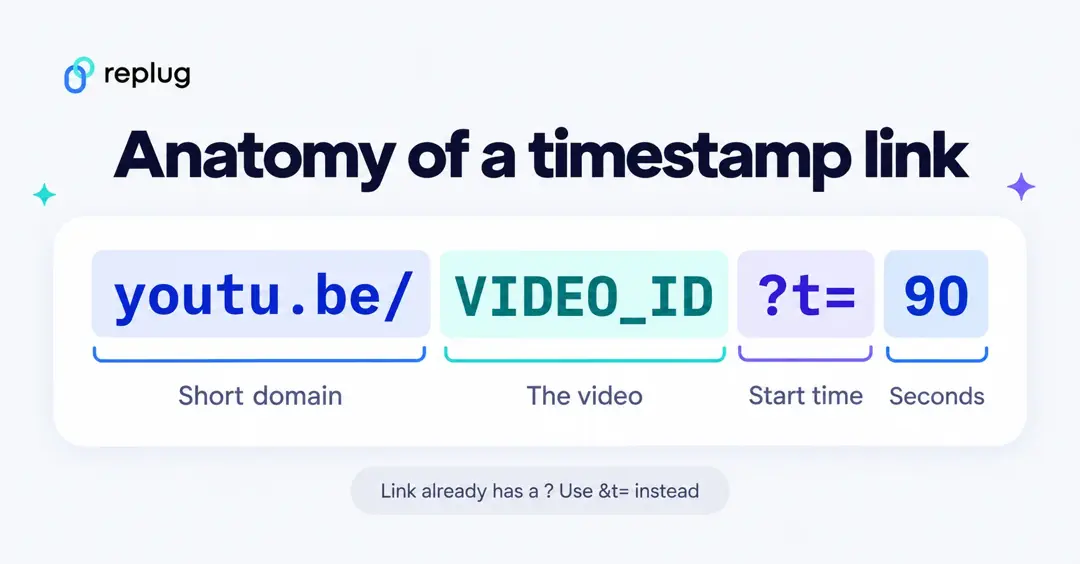
?t=90if the link has no question mark, or&t=90if it already has one (for example, a link ending in?si=…). - Send it, then tap it once yourself to check that it starts at the right second.
How does the YouTube timestamp parameter work?
The t= parameter tells YouTube where to start, counted from the beginning of the video. You can write it in plain seconds (t=90), with an s (t=90s), or with h, m and s units (t=1m30s). We tested each format below in a desktop browser on November 19, 2026, reading the start position from the player.
| Format | Example | Result in our test |
|---|---|---|
| Short link | youtu.be/VIDEO_ID?t=90 | Starts at 1:30 |
| Watch link | youtube.com/watch?v=VIDEO_ID&t=90s | Starts at 1:30 |
| Minutes and seconds | youtube.com/watch?v=VIDEO_ID&t=1m30s | Starts at 1:30 |
| Hash form | youtube.com/watch?v=VIDEO_ID#t=1m30s | Starts at 1:30 |
| Embed with start and end | youtube.com/embed/VIDEO_ID?start=90&end=100 | Plays from 1:30 and stops at 1:40 |
| Embed with t= | youtube.com/embed/VIDEO_ID?t=90 | Ignored: starts at 0:00 |
| Shorts link | youtube.com/shorts/VIDEO_ID?t=5 | YouTube removes t=; the Short plays from the start |
The one rule to remember: the first parameter in a link starts with ?, and every one after it starts with &. A watch link already has ?v=, so you add &t=90. In our test, youtube.com/watch?v=VIDEO_ID?t=90, with two question marks, opened at 0:00.
Embedded players use start and end instead. YouTube’s player parameters documentation defines both as whole seconds from the beginning of the video, and notes that the player jumps to the nearest keyframe, which can be up to about two seconds before the time you set.
How do you add clickable timestamps in a description or comment?
Type the time as m:ss or h:mm:ss, such as 1:10, and YouTube turns it into a link to that moment in the same video. On the videos we checked on November 19, 2026, a 1:10 in a comment linked to watch?v=VIDEO_ID&t=70s, and timestamps in descriptions worked the same way. They only work inside that video’s page.
How do YouTube chapters work?
If you own the video, a list of timestamps with titles in its description can become chapters: named sections in the progress bar. YouTube Help’s video chapters page sets three rules: the first timestamp must be 00:00, the video needs at least three timestamps in ascending order, and each chapter must be at least 10 seconds long. A description like this one qualifies:
00:00 Intro01:15 Setting up the tripod03:40 Lighting a small room
Why isn’t my timestamp link working?
Usually the link’s format is the problem, not YouTube:
| Symptom | Cause | Fix |
|---|---|---|
| Video starts at 0:00 | Two question marks, as in watch?v=VIDEO_ID?t=90 | Change the second ? to & |
| Embedded video starts at 0:00 | Embeds ignore t= | Use start=90 in the embed URL |
| Starts at 0:00 though the link has a time | The time is past the end of the video | Check the length: t=900 is 15 minutes |
| A Short plays from the start | Shorts links drop t= | Link to the Short and mention the moment in your message |
| Embed starts a second or two early | The player jumps to the nearest keyframe | Set the time a second or two later |
| Time is lost after you paste or shorten the link | An app or tool cut off the end of the URL | Open the final link and check the address bar still shows t= |
How do you shorten and track a timestamp link?
Use a short link when the timestamped link has to look clean in an email, slide or printed handout, or when you want to count clicks. You can make a short YouTube link you can track with Replug.
Video links travel far: 84% of U.S. adults say they use YouTube, according to Pew Research Center’s 2026 social media survey, and 91% of businesses use video as a marketing tool, according to Wyzowl’s State of Video Marketing 2026.
Replug is a link-management platform for branded short links, bio pages, QR codes and retargeting. A Replug short link redirects to the full destination you saved, query string included, so t=90 stays in place. Here’s how to set one up:
- Copy the full timestamped link, from Share with Start at or with
t=added by hand. - In Replug, click Create link and paste it into Original link.
- Pick the campaign, which sets the domain. Custom domains are on every plan, including 3 on Free.
- Save the link and click Copy link.
- Open the short link on a computer and on a phone, and check that the video starts at the right second.
Make one short link per moment if you want to compare them. Each link’s analytics show clicks, unique clicks, referrers, locations and devices, so a teacher in Columbus can see which of three lesson clips students opened most. Replug counts clicks, not watch time, and the Free plan keeps 14 days of analytics.
The same steps work when you shorten any YouTube link, from channels to playlists, and Replug’s free link shortener handles every other URL you share.
FAQ
Sending the same moment to many people? Put it behind a short, trackable YouTube link and check the clicks afterward.
Frequently Asked Questions

Muhammad Ahsan Jamal