Links provide direct pathways for viewers to explore additional content or products, increasing your chances of engagement and conversion.
Adding links to your YouTube bio is a great way to drive traffic to your website, social media profiles, or other online content.
This is the main reason why many creators choose to rely on a dependable platform like Replug.io to manage bio links and link tracking seamlessly.
This can help you grow your audience and increase engagement with your videos.
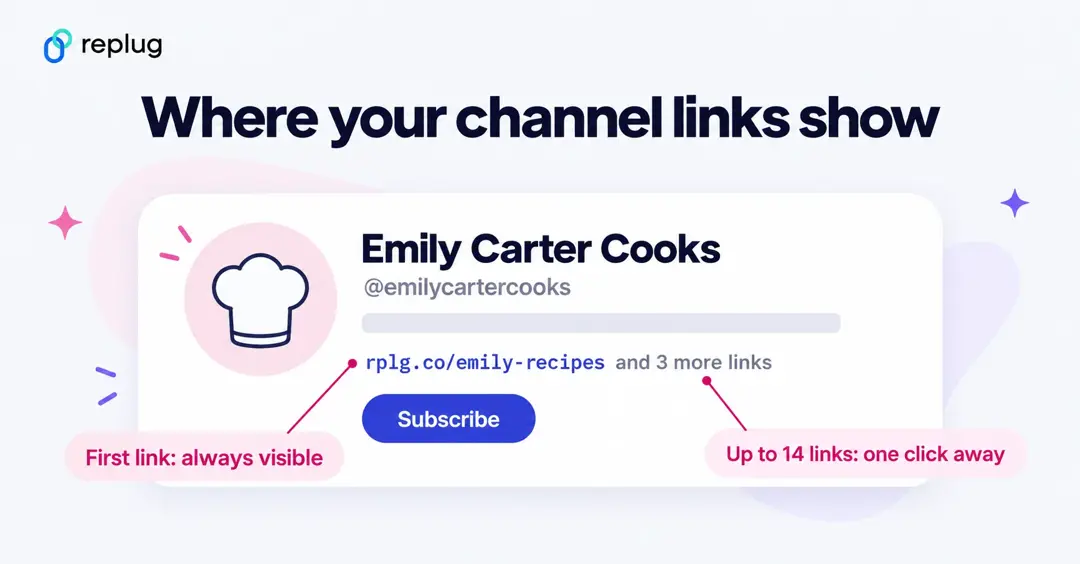
Short answer: sign in to YouTube Studio, open Customization → Profile, click Add link under Links, enter a title and the URL, and click Publish. You can add up to 14 links. The first one appears in your channel header near the Subscribe button, and the others show when viewers click to see more links (YouTube Help).
Quick guide on adding links to your YouTube bio:
Step 1: Access the YouTube Studio
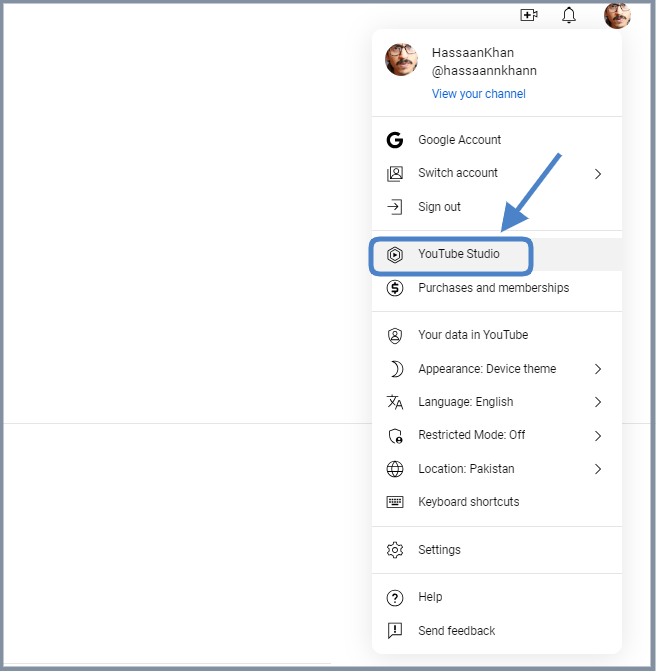
YouTube Studio is the option that provides access to the channel dashboard.
Click on the profile icon from the top-right corner of the screen.
Now, click on the “YouTube Studio” option.
Step 2: Go to the “Customization” section
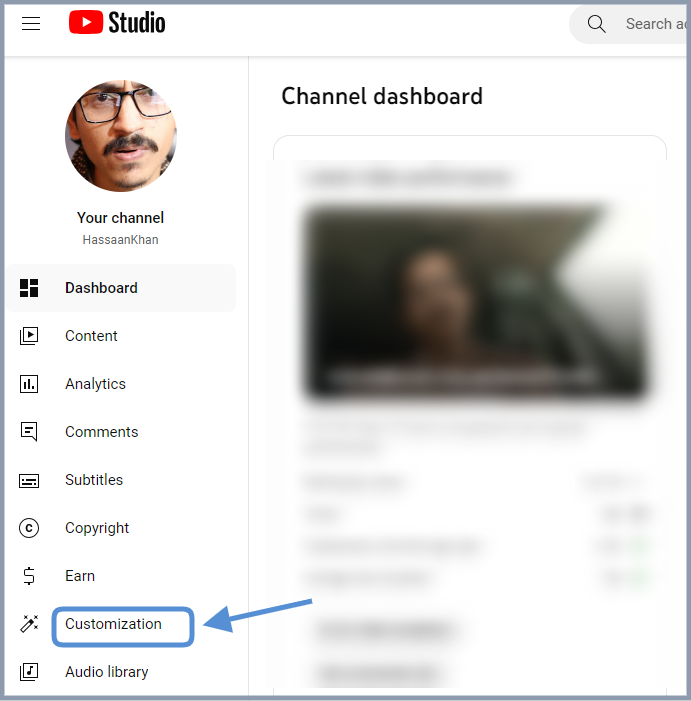
The next up is the access to the customization section. Look out for the second to last option on the left sidebar; you’ll see the “Customization” option.
Click on that option and enter the customization area.
Step 3: Open the “Profile” tab
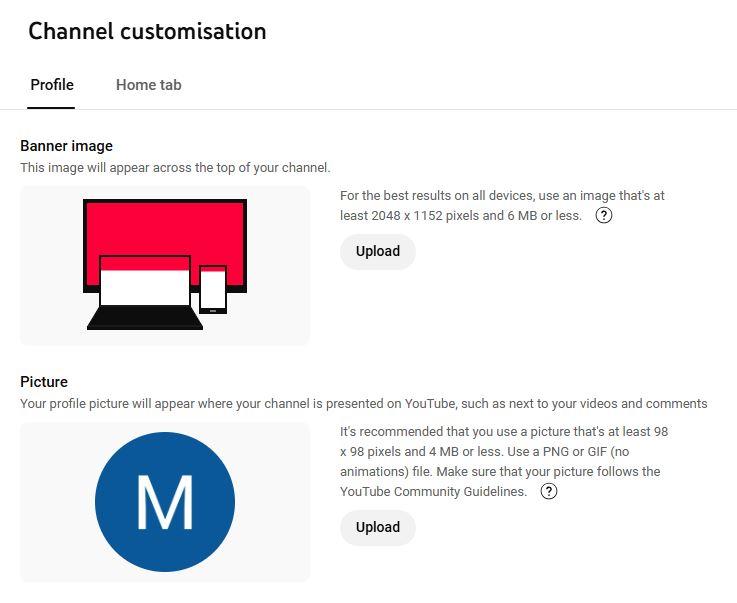
Click on the “Profile” tab to access the bio area.
Now, you’ll see the channel’s name, description, and URL.
Step 4: Add links to your bio
Once you have accessed the “Profile” section, you’ll see several customization
options.
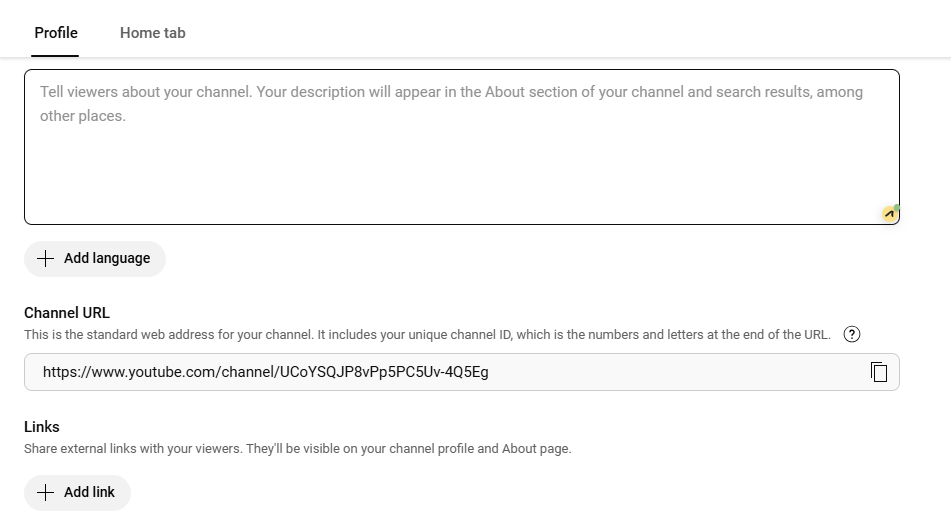
To add links to your bio, simply navigate to the links section, click on “Add a link”.
Step 5: Add a link
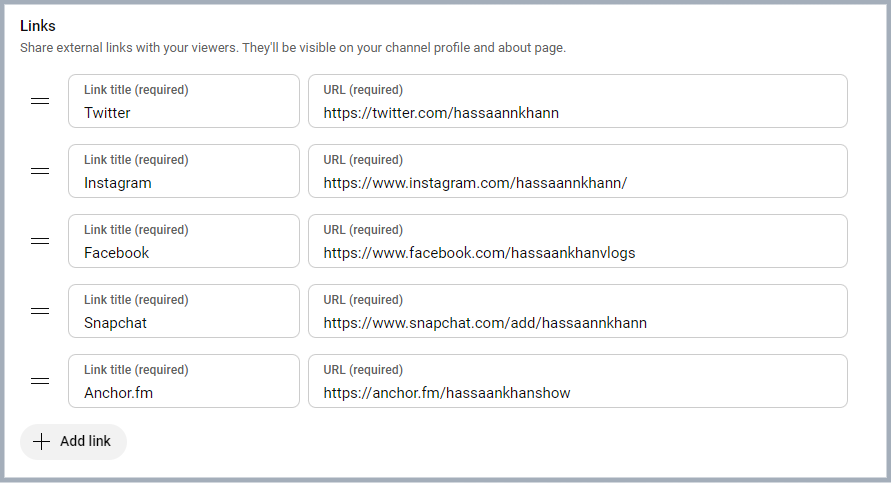
Add your link title and paste the URLs.
Click “Publish” to save. Your first link shows in your channel header next to your description, and the rest appear when viewers click to see more links (YouTube moved channel links out of the old “About” tab).
Also check out: How to add links to Tumblr bio: Step-by-step guide
How to add links to your YouTube bio on your phone
You can’t add channel links in the main YouTube app, but you can in the free YouTube Studio app for iPhone, iPad and Android:
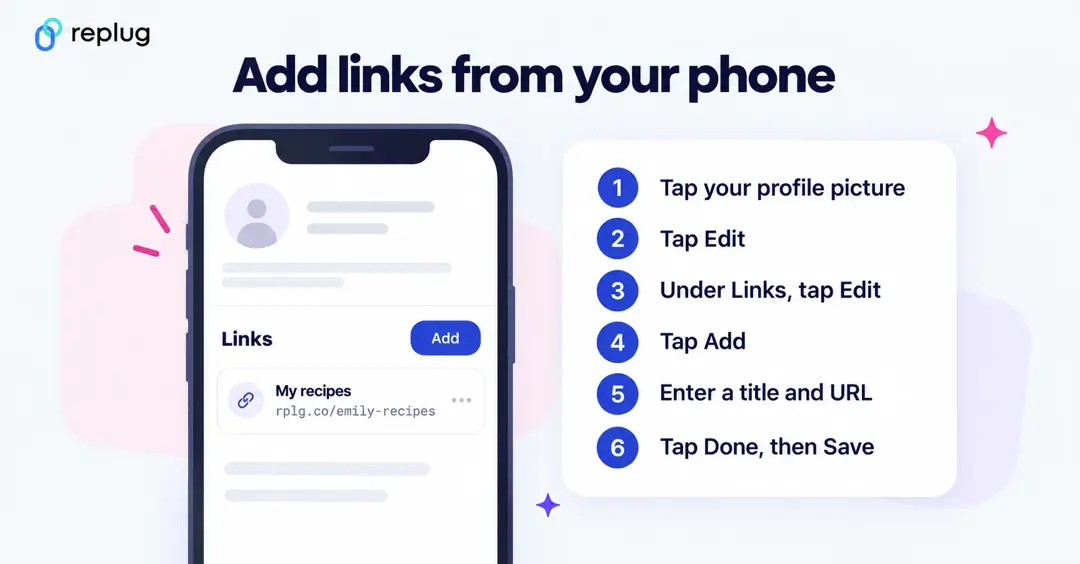
- Open the YouTube Studio app.
- In the top right, tap your profile picture.
- Next to your channel description, tap Edit.
- Under Links, tap Edit.
- Tap Add and enter the title and URL of your site.
- Tap Done, then Save.
Where your YouTube bio links show up
Channel links (YouTube calls them “channel profile links”) are separate from the links you put in video descriptions. Here is where each kind of link appears and whether viewers can click it, according to YouTube’s help page on sharing links:
| Where the link is | Clickable? | Notes |
|---|---|---|
| Channel profile links (your “bio”) | Yes | Up to 14; the first shows in the channel header, the rest behind “more links” |
| Long-form video descriptions and comments | Yes | Needs advanced features turned on for your channel |
| Shorts descriptions and Shorts comments | No | Shown as plain text to reduce spam |
| Related video link on a Short | Yes | Points to one of your own videos |
| Posts | No | URLs in posts aren’t clickable |
Because only the first link is visible without an extra click, put the link you care about most at the top of the list. To add clickable links under individual videos as well, follow our guide on adding links to YouTube descriptions.
How to edit or remove a link in your YouTube bio
Go back to YouTube Studio → Customization → Profile (or the Studio app’s Edit screen), change the title or URL in the Links section or remove the link, and click Publish. Changing the order of the list changes which link shows first.
Where to find the link in bio on YouTube
If a creator says “link in bio,” they mean the links on their channel page:
- On a computer: click the creator’s name or picture to open their channel. The first link sits in the header under the channel description; click the text next to it that offers more links to see the full list.
- In the YouTube app: tap the channel name or picture, then tap the link under the description, or tap the description area to open the full list of links.
- From a Short: links in Shorts descriptions and comments aren’t clickable, so tap the channel name on the Short to open the channel page and find the links there.
YouTube bio link not showing? Check these
- You didn’t click Publish. Changes in the Profile tab aren’t live until you publish them.
- You’re looking at the wrong spot. Only the first link is shown in the header. The others appear after viewers click to see more links.
- You hit the limit. YouTube allows up to 14 channel links.
- The site breaks YouTube’s external links policy. Links to content that violates YouTube’s policies aren’t allowed on YouTube.
- You added the link to a Short. URLs in Shorts descriptions and comments stay plain text. Use your channel links instead.
- The URL has a typo. Paste the full address, including https://, and open it once from your channel to test it.
How to optimize your links for engagement: A guide for YouTube creators
Below are some of the best practices of adding links to your YouTube bio.
1. Relevance is key
Always ensure that the links you share are relevant to the content of your video. If you’re creating makeup tutorials, link to your beauty blog for in-depth articles, product reviews, and additional resources that complement your video. This not only provides value but also enriches the viewer’s experience.
2. Shorten URLs
Using shortened branded URLs in your YouTube bio can greatly enhance your channel’s professionalism and effectiveness in attracting viewers.
To make this even easier, you can use a free link shortener that cleans up long URLs and helps you present a neat, memorable bio link. This is especially handy when you’re sharing multiple pages or long website URLs.
These custom short links not only save precious character space but also make it easier for your audience to recognize and remember the destination, fostering trust and engagement.
3. Social media connections
Consider linking to your social media accounts, such as Instagram, where you can share behind-the-scenes content, engage with followers through polls, and showcase additional makeup looks. These platforms allow for real-time interaction and help you build a stronger connection with your audience.
Additionally, utilizing a URL shortener that provides tracking analytics can empower you to assess which links perform best, allowing you to refine your approach and maximize your outreach.
4. Keeping descriptions clear and concise
When adding links, accompany them with a brief description to clarify what the link is for.
5. Regularly updating links
Links can become outdated quickly. Regularly check all your links to ensure they’re functional, and directing viewers to the correct content.
6. Adjusting link strategy based on data
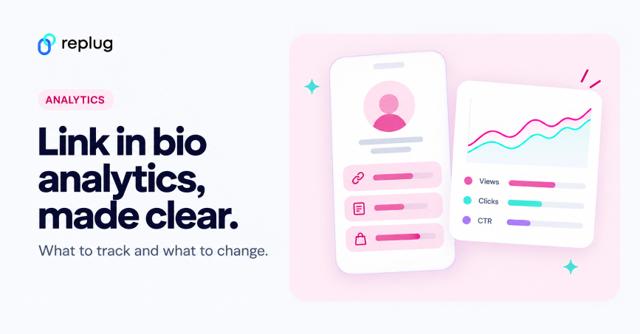
Using a top-notch analytics tool, you can track how many clicks your links receive. This data will help you understand which are the most effective and why.
Based on performance metrics, refine your approach. If certain links aren’t getting clicks, consider changing their placement or how you describe them.
You can also use a YouTube link in bio tool to optimize engagement.
You may also like: How to Insert Links in YouTube Descriptions: Step-by-Step
The ultimate solution: Bio links
Leverage the power of bio links to not only showcase your additional content but also to significantly enhance your YouTube presence. Transform your viewer’s experience guiding them effortlessly to your blog site, merchandise, or any other relevant platforms. This tailored approach makes it easier for your audience to connect with you on multiple channels.
By linking to your related content—be it blog posts or social media—you create a comprehensive digital ecosystem. This enhances viewer engagement and encourages them to explore more of your work, ultimately fostering a loyal community that values your expertise.
A bio link page works especially well as your first YouTube channel link: viewers see one link in your header, and it opens a page with all your links, from your newest video to your store. With Replug you can build a bio link page for YouTube on the Free plan (2 bio links, 100 short links) and see how many people clicked each link.
3 common mistakes to avoid when adding links on YouTube
1. Spamming links
Avoid overcrowding your bio with too many links. This can overwhelm and confuse viewers. Focus on quality over quantity.
2. Ignoring guidelines
YouTube has specific policies regarding links. Ignoring these can result in penalties or removal of your content. Always stay informed about community guidelines.
3. Neglecting mobile users
With many users accessing YouTube on mobile, ensure your links are mobile-friendly. Test how they appear and work on different devices.
Conclusion
Adding links to your YouTube bio is a powerful tool for boosting engagement, directing traffic to your other platforms, and generating revenue. By understanding how to strategically incorporate links, you’ll enhance your channel’s visibility and viewer experience. Remember to regularly review your links and keep them updated for the best results.
FAQ
Frequently Asked Questions

Mustafa Niazi