Want a single QR code that sends users to different destinations based on location, device, or time? Replug makes it simple.
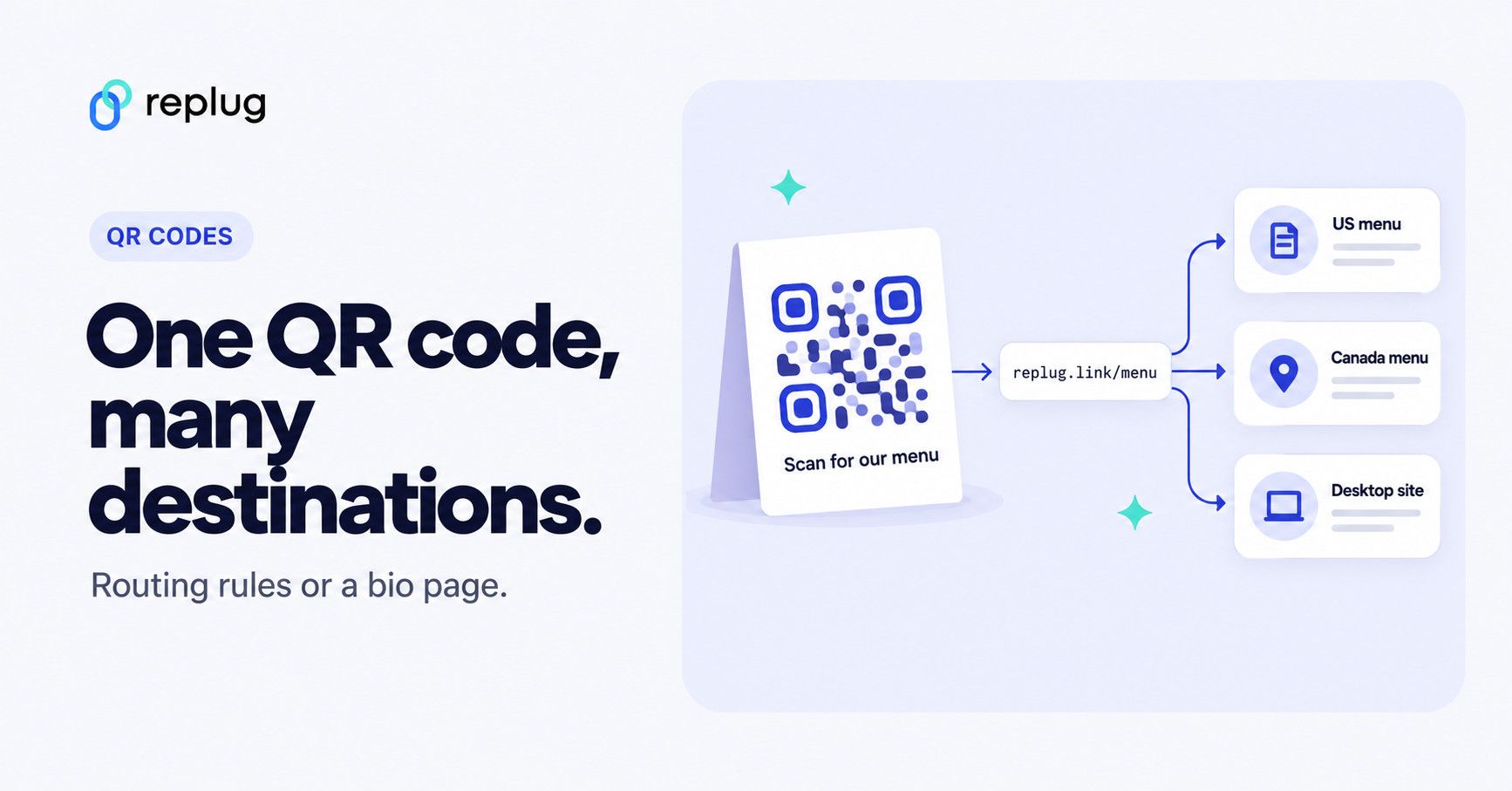
Quick answer: a QR code can only hold one link, so a “multi-URL” QR code holds a short link that decides where to send each person. There are two ways to do it: routing rules, which send each scan to one destination based on country, device, browser, OS or date, and a bio page (a small landing page of links), where the person picks the link they want. Both work with one printed code.
Whether you want a short link, managing global campaigns, A/B testing landing pages, or creating personalized user journeys, Replug’s traffic routing and bio link features give you powerful ways to connect users with the right content, automatically.
In this guide, we’ll walk you through two easy methods to create a multi-URL QR code using this one-of-a-kind link management platform, i.e., Replug:
- One with traffic routing rules
- Another using a customizable bio link page
Let’s get started and help you create a smart QR code that works harder for your brand.
What is a multi-URL QR code?
A QR code stores a single piece of data. When people talk about a QR code with multiple links, they mean a code that holds one short link, and the service behind that link picks the destination. That is why a multi-URL code is always a dynamic code: the routing happens on the server after the scan, not inside the pattern. Every Replug QR code works this way, on your own domain if you add one, according to the Replug QR code generator page.
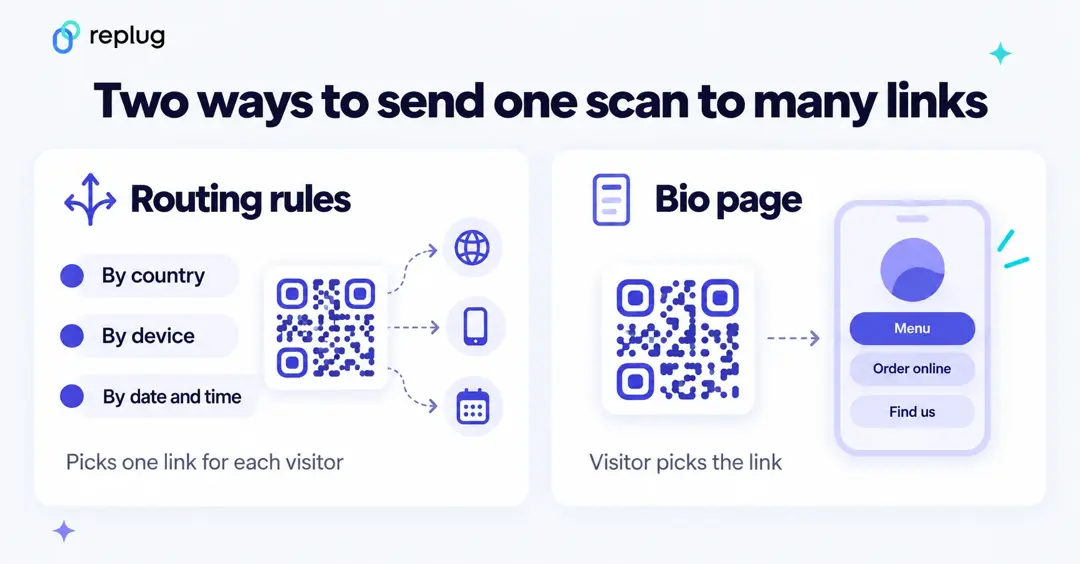
| Routing rules | Bio page | |
|---|---|---|
| Who picks the link | The rules pick one link for each visitor | The visitor taps the link they want |
| Good for | Country or language versions, app store links by device, dated offers | Menus, “order online / find us / follow us”, several products |
| What people see | The destination page right away | A page of buttons first |
| Replug plan | Scale and Agency | Every plan (Free includes 2 bio links) |
The plan details come from Replug’s pricing page.
Method 1: Create a multi-URL QR code using traffic routing
Step 1: Log in to your Replug account
- Head to Replug.io and log in. If you’re new, sign up. Traffic routing is on the Scale and Agency plans, which you can try free for 14 days, according to Replug’s pricing page.
Step 2: Create a smart link
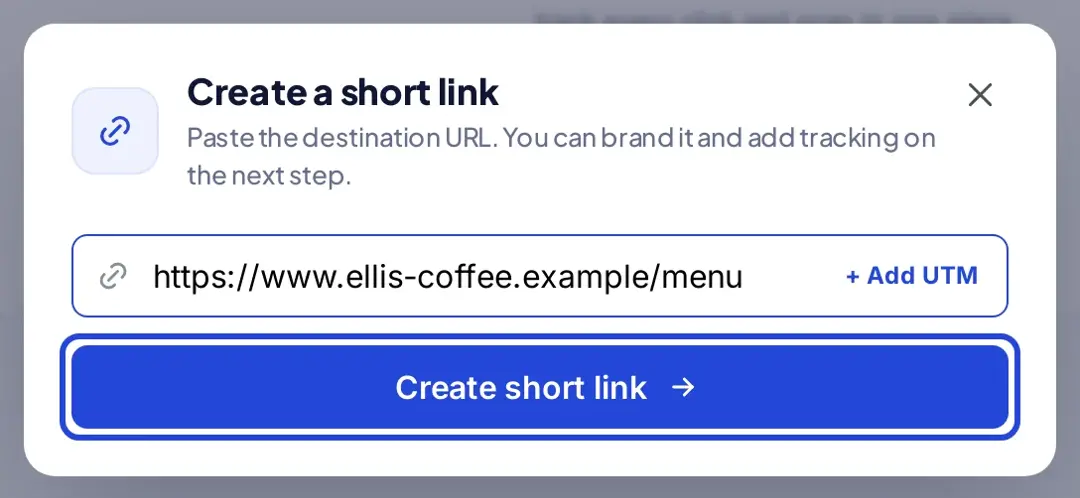
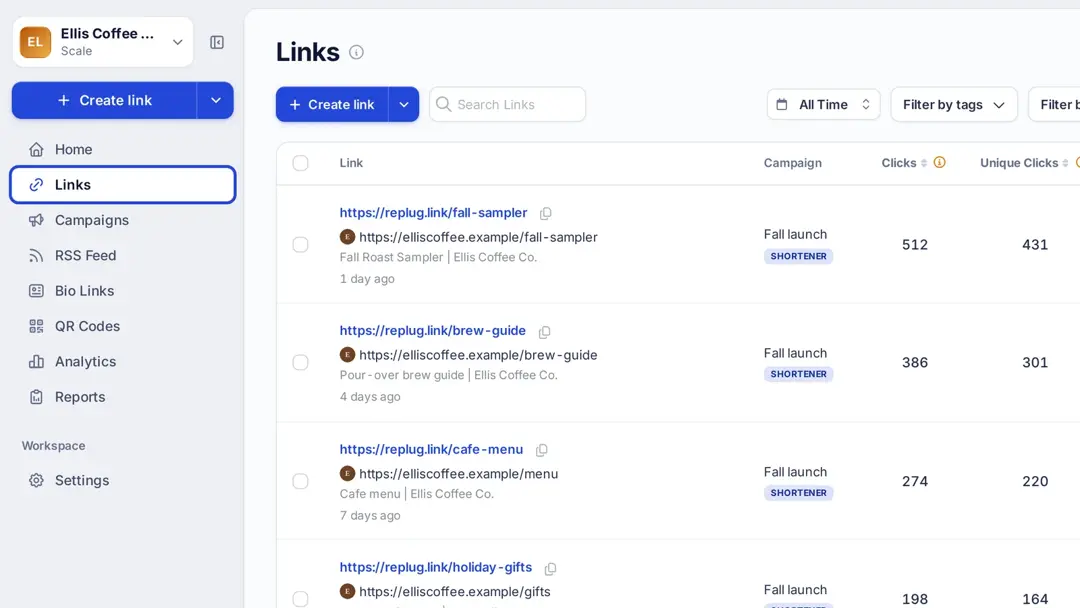
- Click “Create link” at the top of the left sidebar. Paste your primary URL (the default destination) and click “Create short link”.
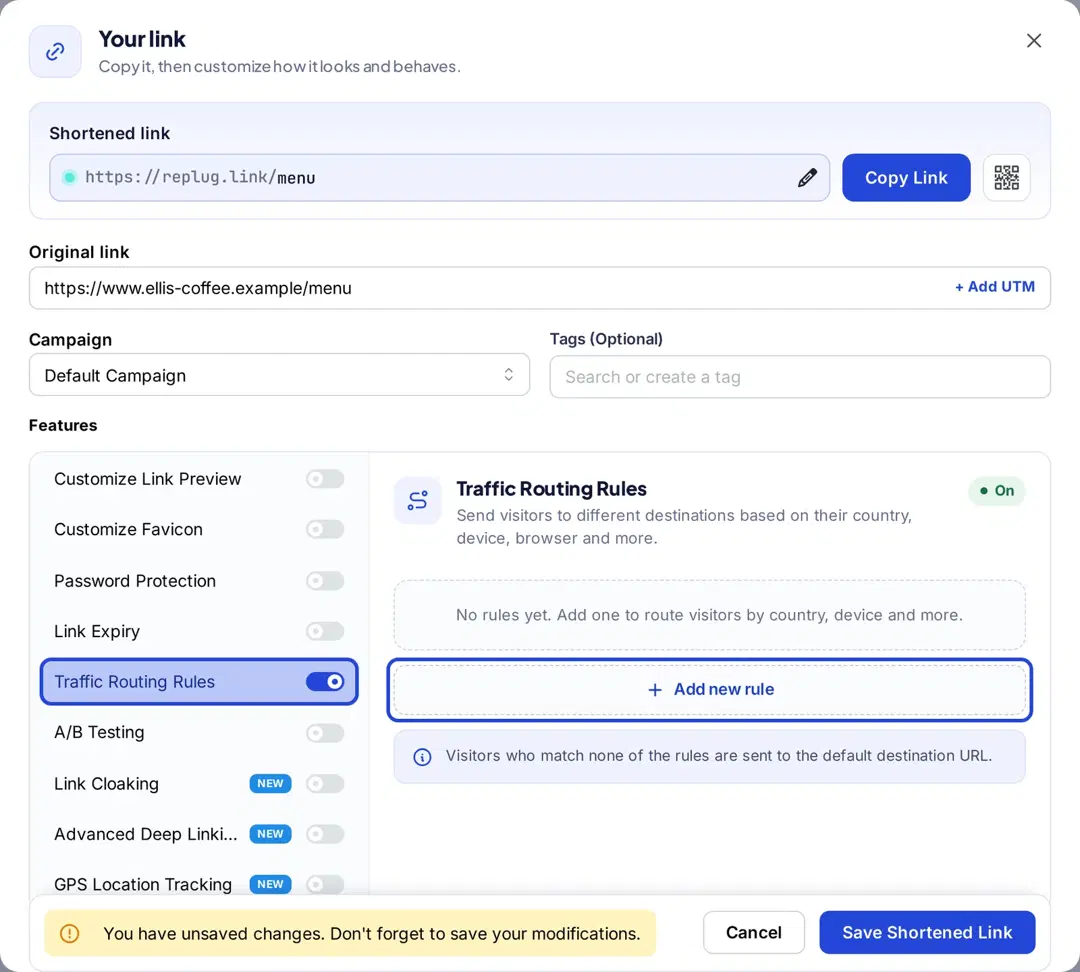
- The “Your link” window opens. Under Features, turn on “Traffic Routing Rules” and click “Add new rule”.
Step 3: Set up your multi-URL destinations
You’ll now define how your traffic should be routed. Replug gives you a variety of conditions to choose from:
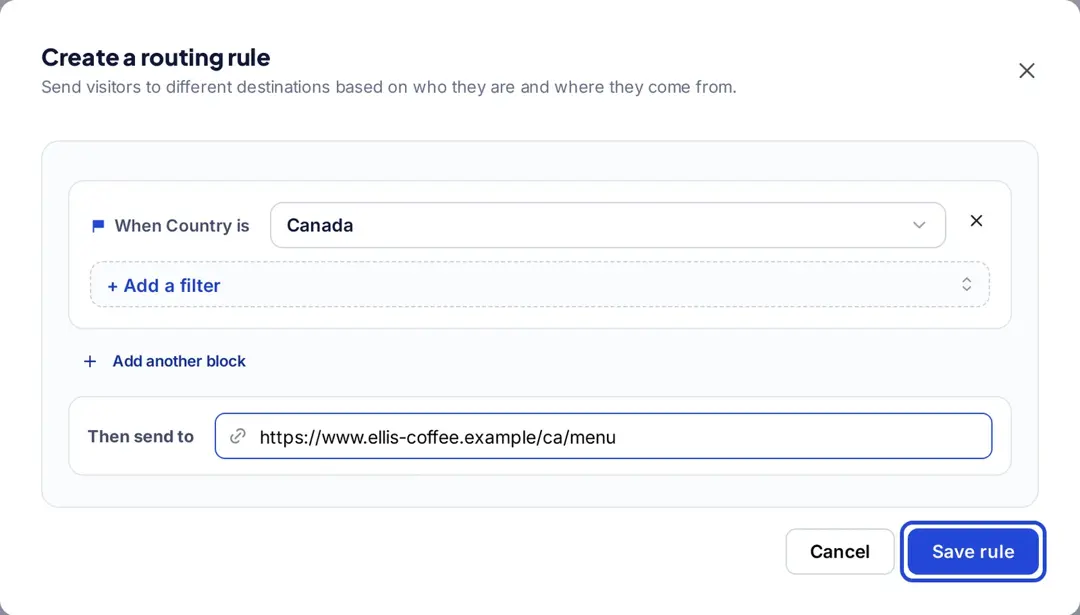
- Country-based redirection: Send users to different URLs based on their location (you can also narrow it to a city within one country).
- Device-based redirection: Route users based on their device type, such as smartphones or laptops.
- Browser or OS-based redirection: Customize based on the user’s browser or operating system.
- Date and day-of-week rules: Perfect for limited-time offers or weekday and weekend menus.
- A/B testing: Split traffic between multiple pages for performance testing. This is a separate “A/B Testing” switch in the same Features list (Scale and Agency), not a routing rule.
In the “Create a routing rule” window, add a filter (Country, City, Device, Browser, OS, Date, DaysOfWeek or IP), choose its value, enter the URL under “Then send to” and click “Save rule.” Repeat for each destination. Visitors who match none of the rules go to the default URL.
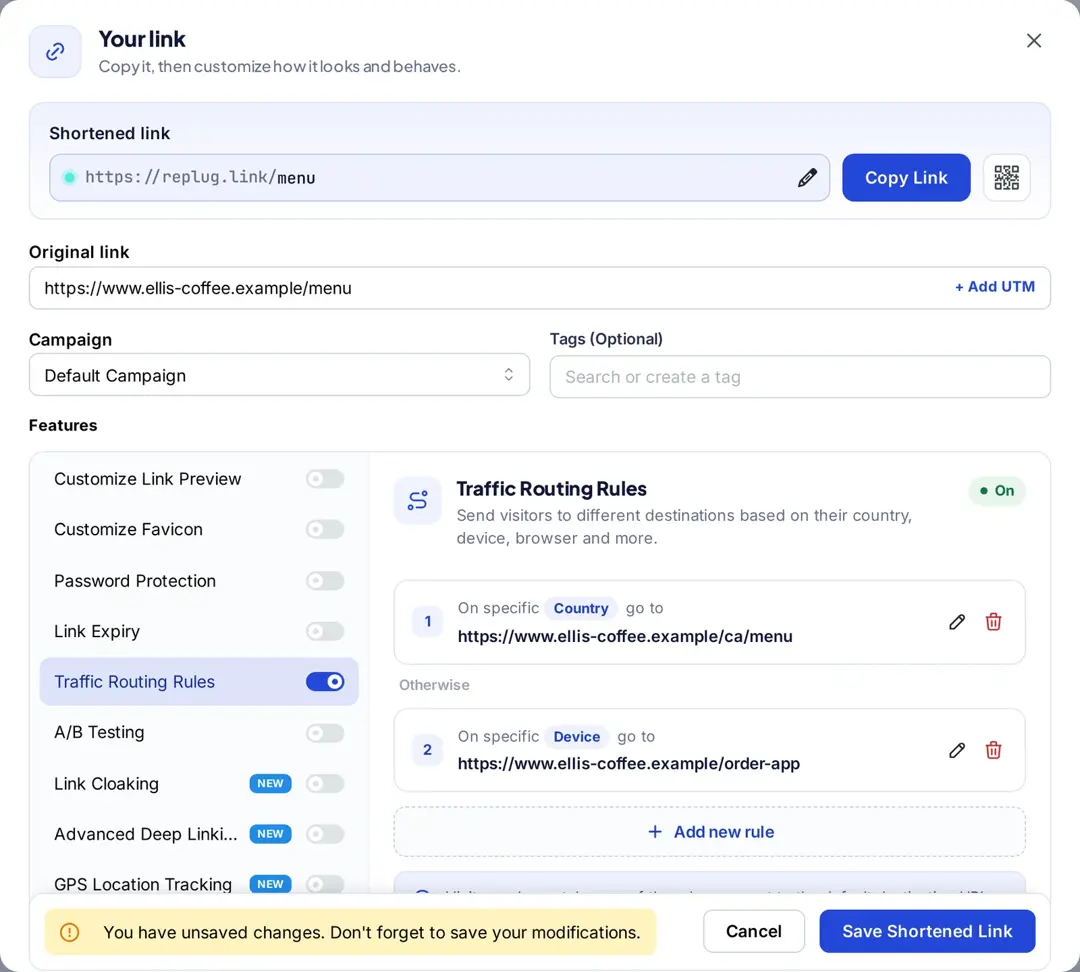
Edit or delete any rule block right from the dashboard anytime.
Step 4: Generate a QR code for your link
Once your traffic routing link is ready:
- Click “Save Shortened Link”, then click the QR code button next to “Copy Link” (or open the link’s actions menu on the Links page and choose “QR Code”).
- Customize the QR code with your brand colors and shapes; adding a logo is on the Scale and Agency plans.
- Click “Download” and pick SVG, PNG, JPEG or WEBP to save your QR code.
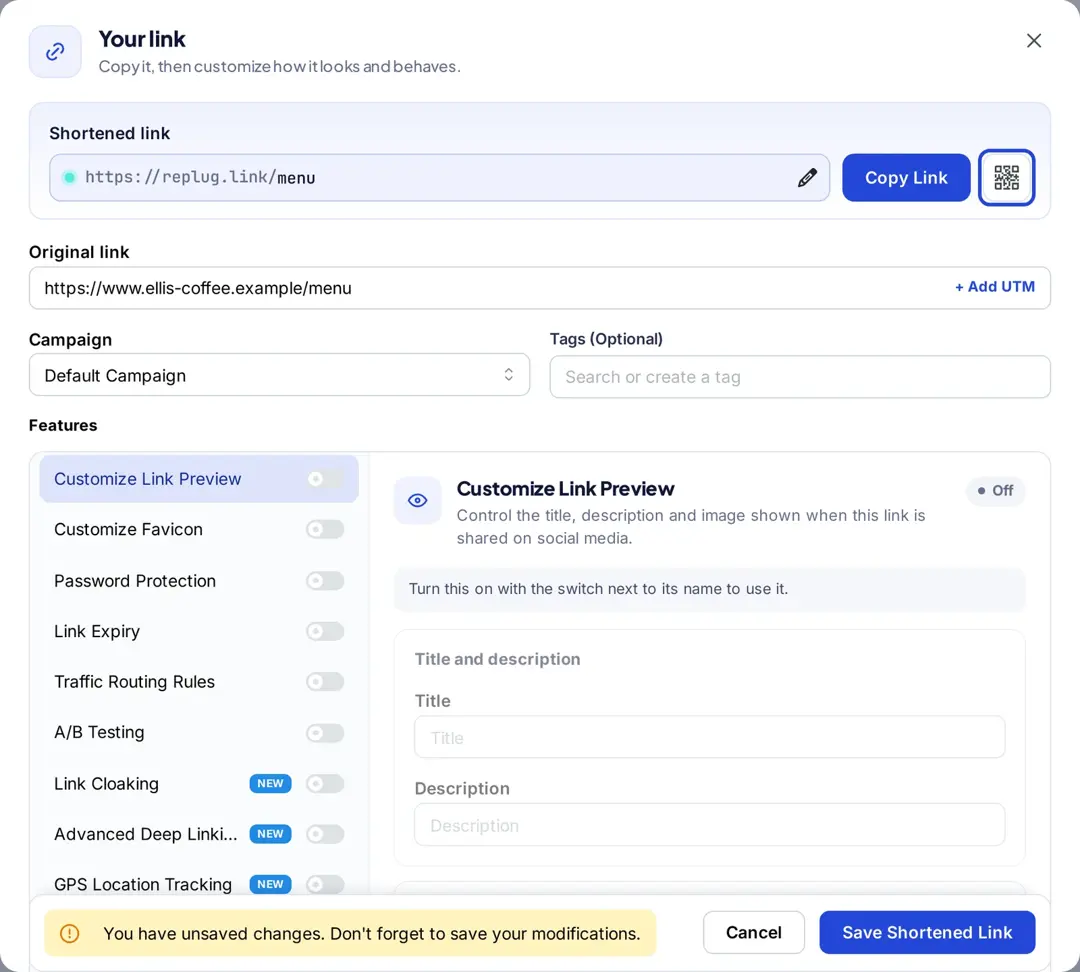
Now, one QR code can dynamically redirect your audience based on the rules you’ve set.
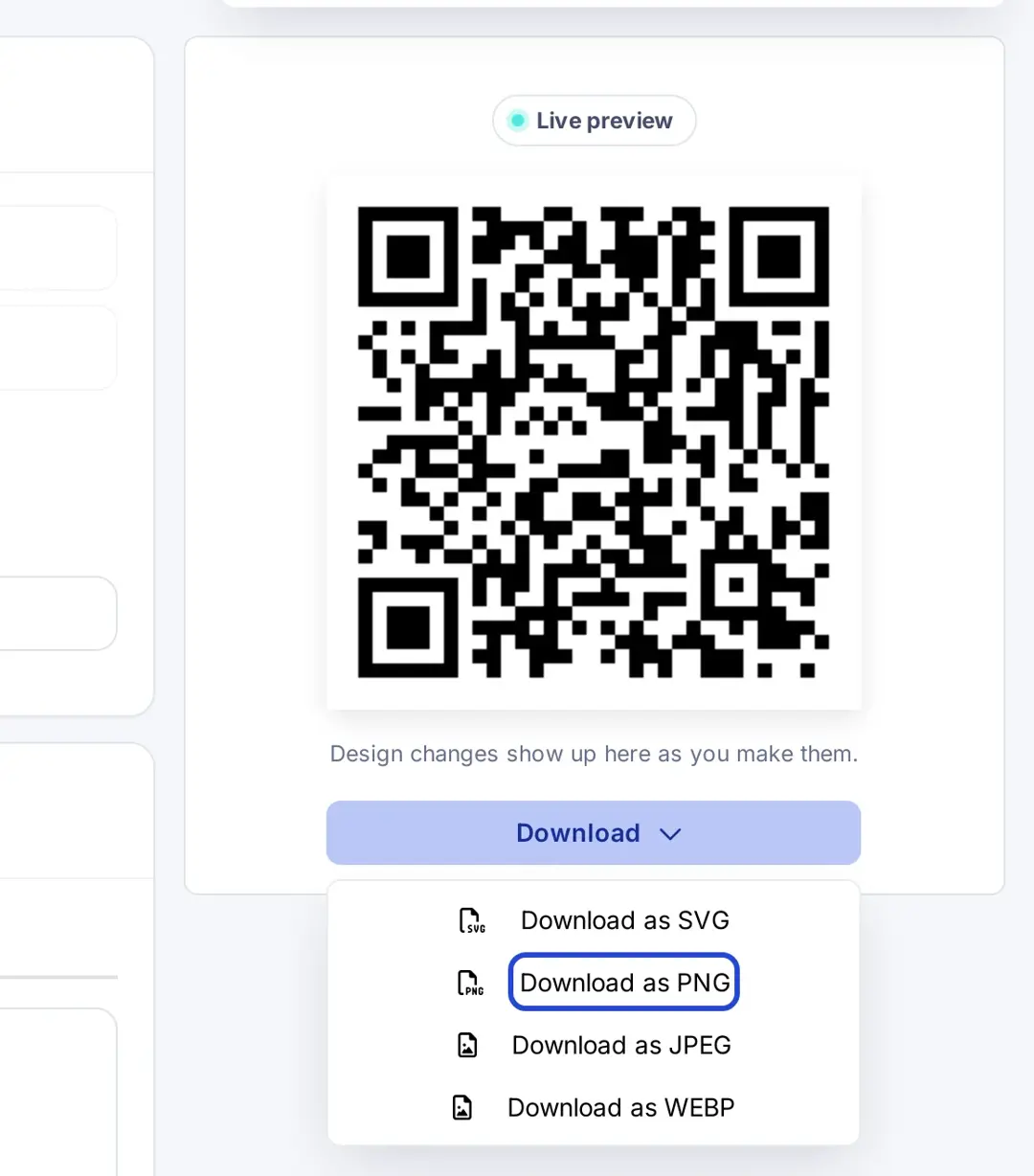
This one QR code now dynamically redirects your audience based on the rules you’ve set.
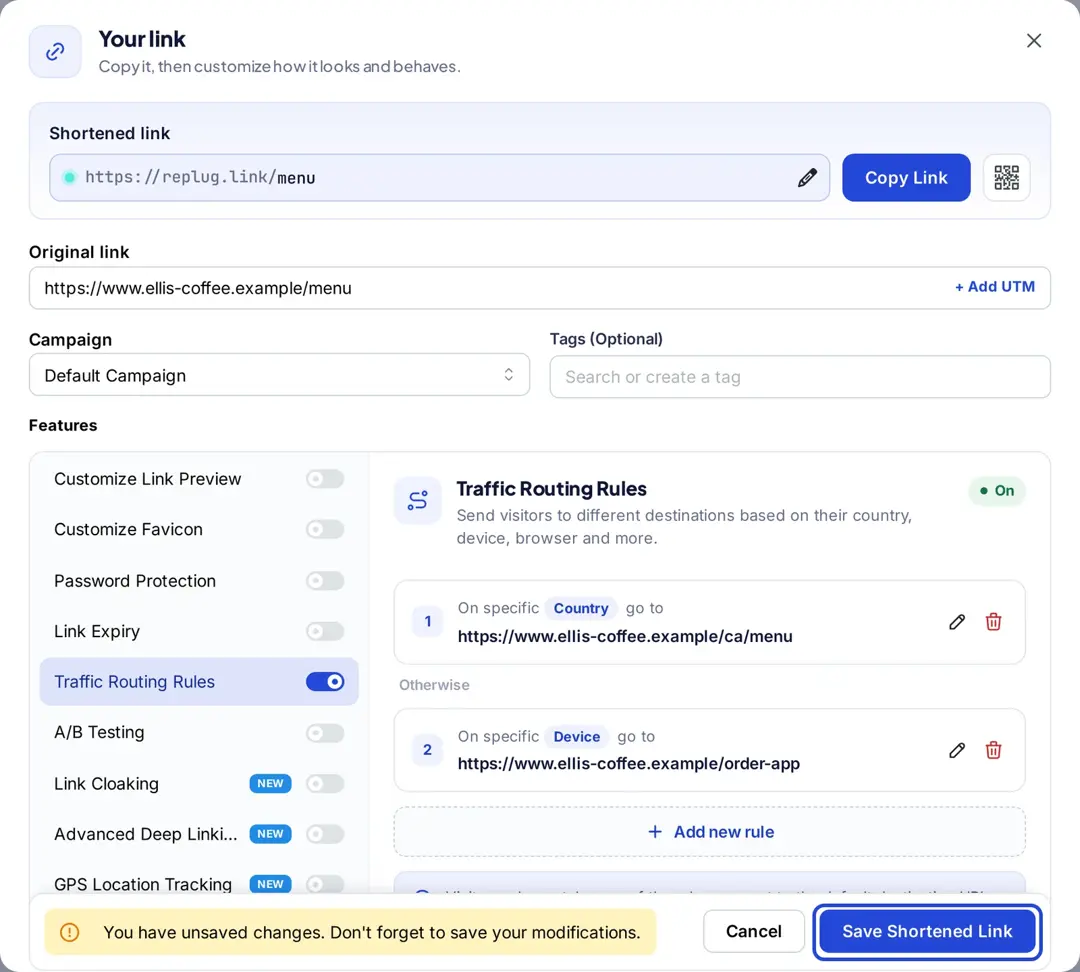
Step 5: Save, share & track
Save your link and share your QR code anywhere: product labels, posters, social media, you name it. Don’t forget to monitor performance from the Replug analytics dashboard. Track:
- QR scans
- Clicks by country, city, device, OS and browser
- Unique clicks
- And more!
Want to create your QR code instantly? Open the Replug QR Code Generator and set up a smart QR in seconds.
Also read: How to create a QR code for a URL?
Method 02: Create a multi-URL code using a bio link page
Start by logging into your Replug account. Don’t have one? Sign up for free and explore all the features. Once logged in, you’ll land on your dashboard.
Step 01: Navigate to bio links
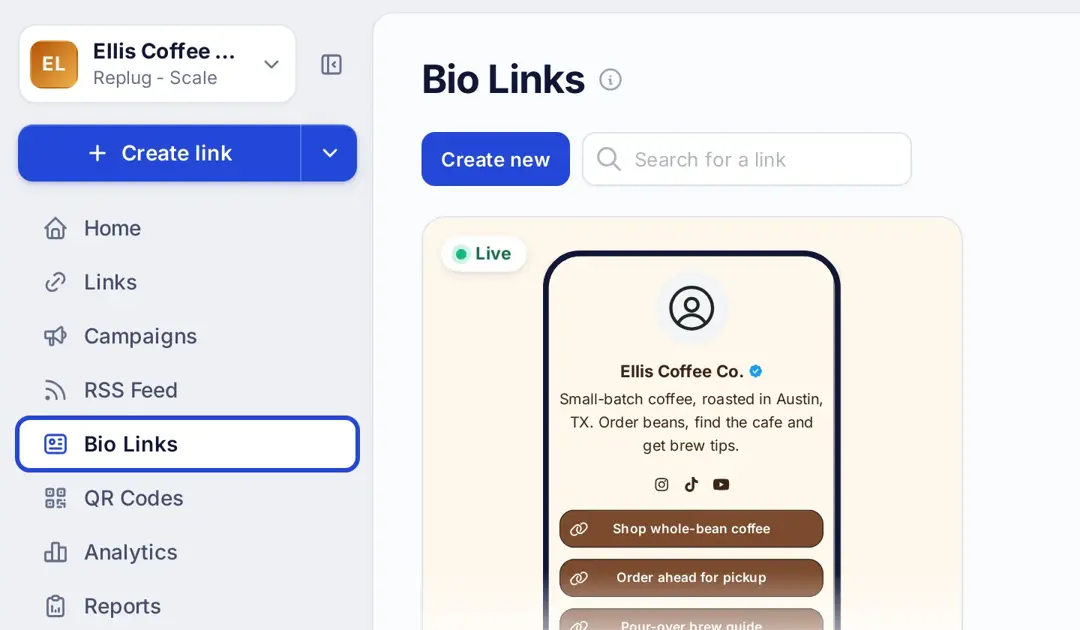
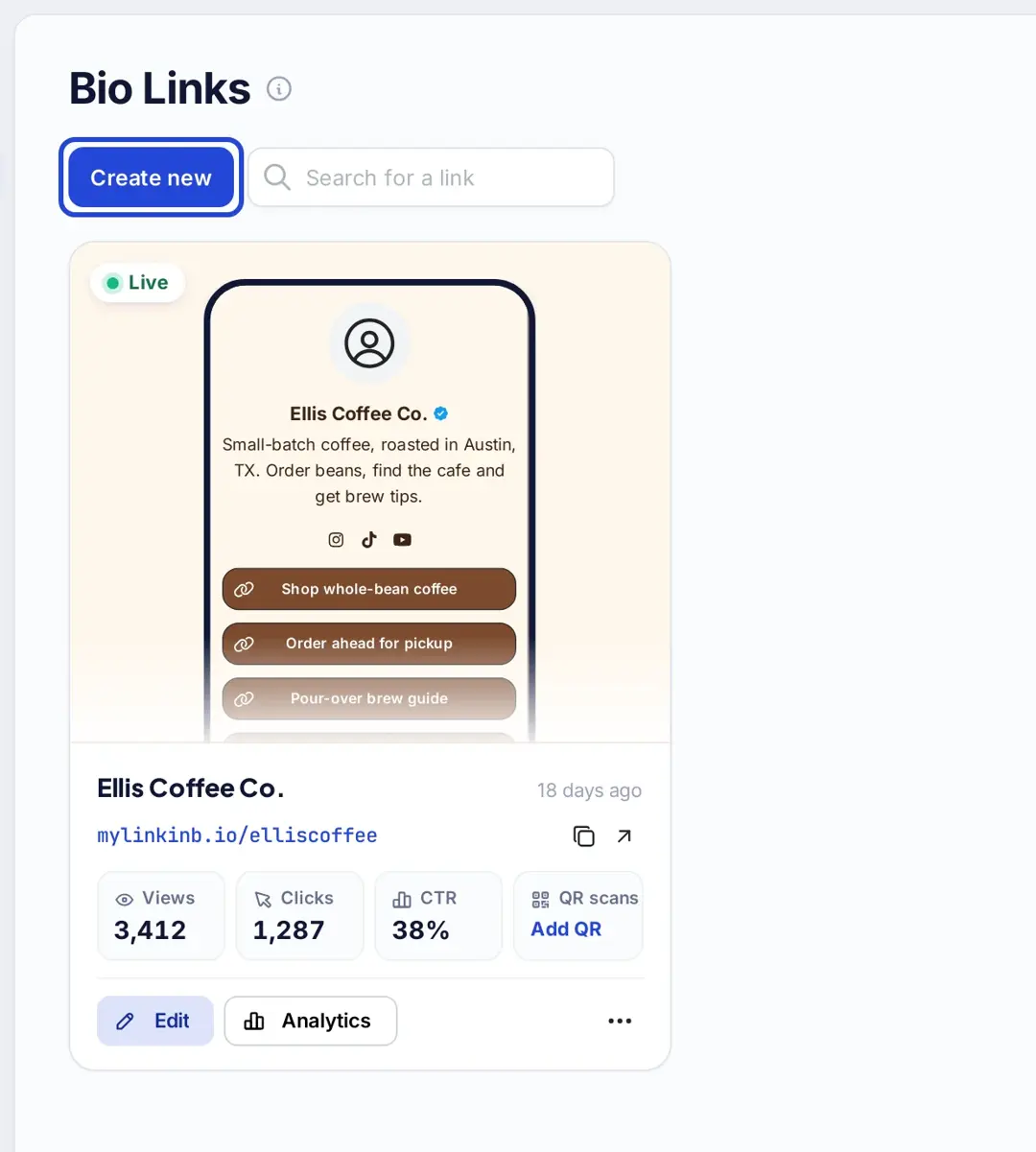
From your dashboard, go to the “Bio Links” section. Click on Create New to start building your bio link page.
Step 02: Build your multi-URL bio site
- Customize your profile: Add your name, profile image, a short description, and a verification badge (Scale and Agency) to personalize your page.
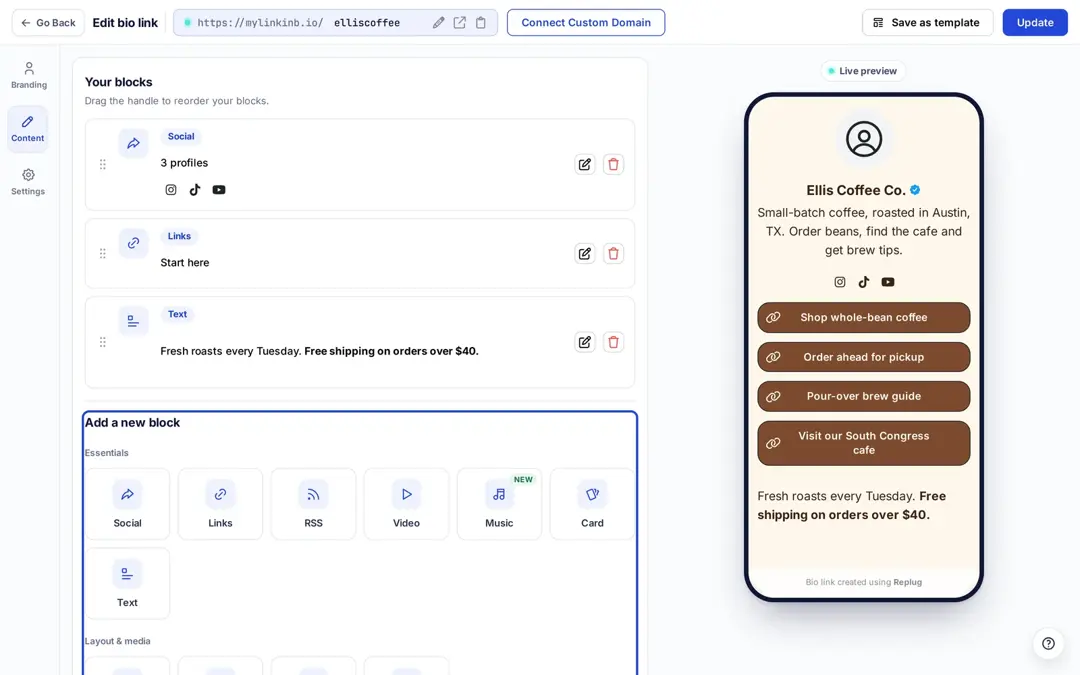
- Once you’ve set up your branding, head to the Content section. Here, you can add social media links, RSS feeds, cards, and other important URLs.
- Click ‘Links’ under Add a new block and enter a title and URL for your website, store products, blogs, or more (up to 5 links per Links block).
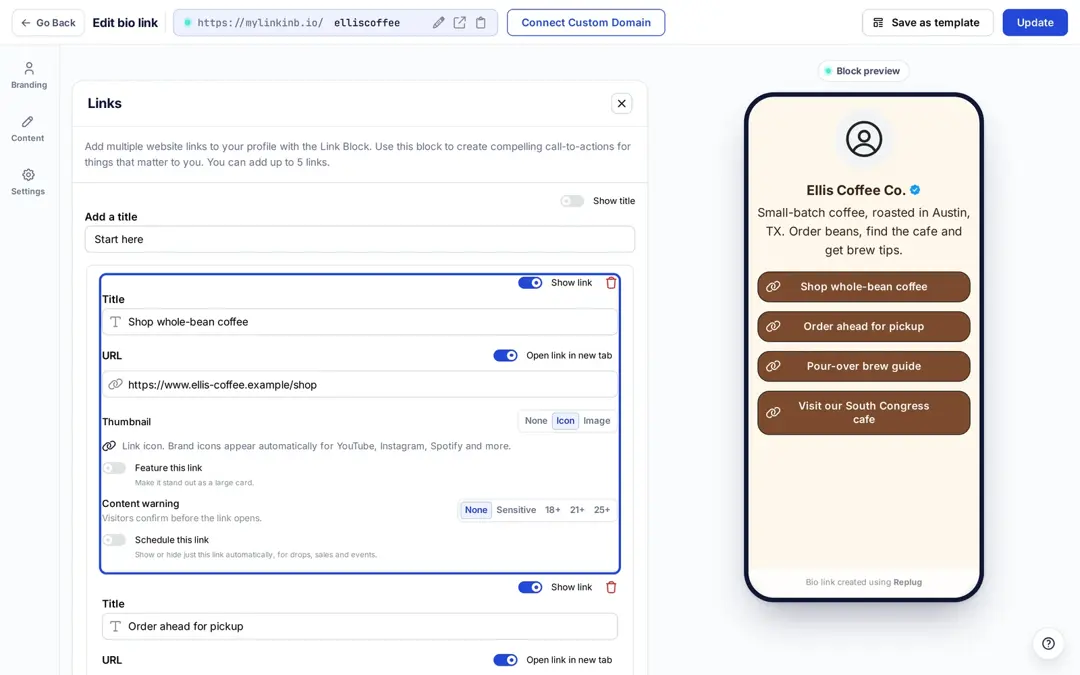
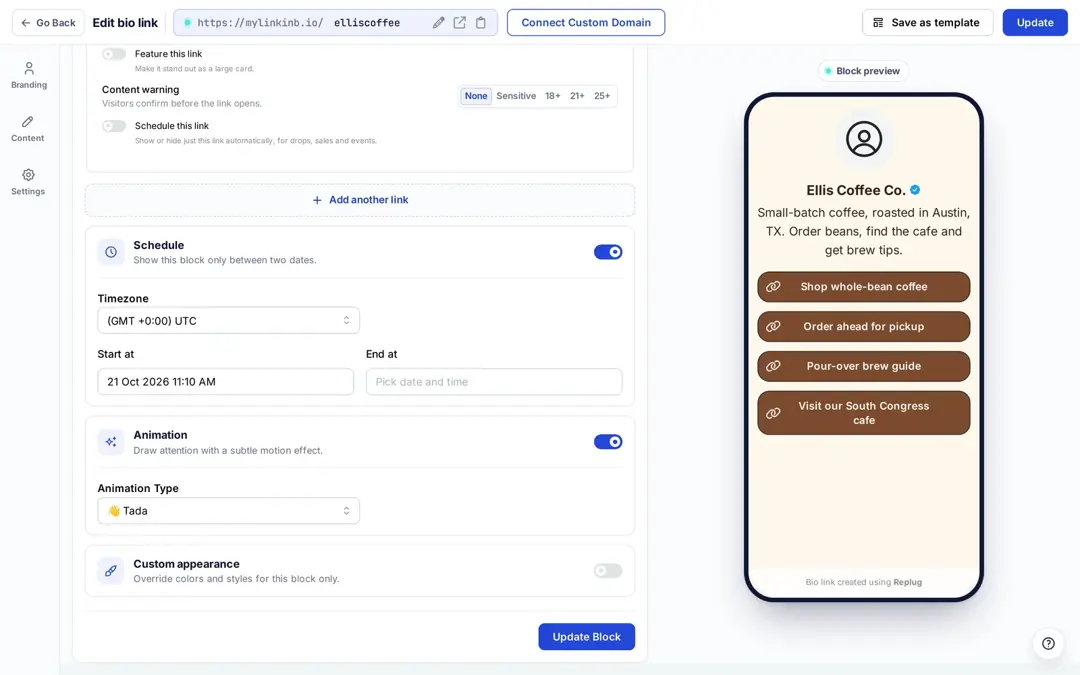
- Schedule links to go live based on your campaign needs: each link has a “Schedule this link” switch, and the whole block can be shown only between two dates.
- Add animations for a more engaging experience.
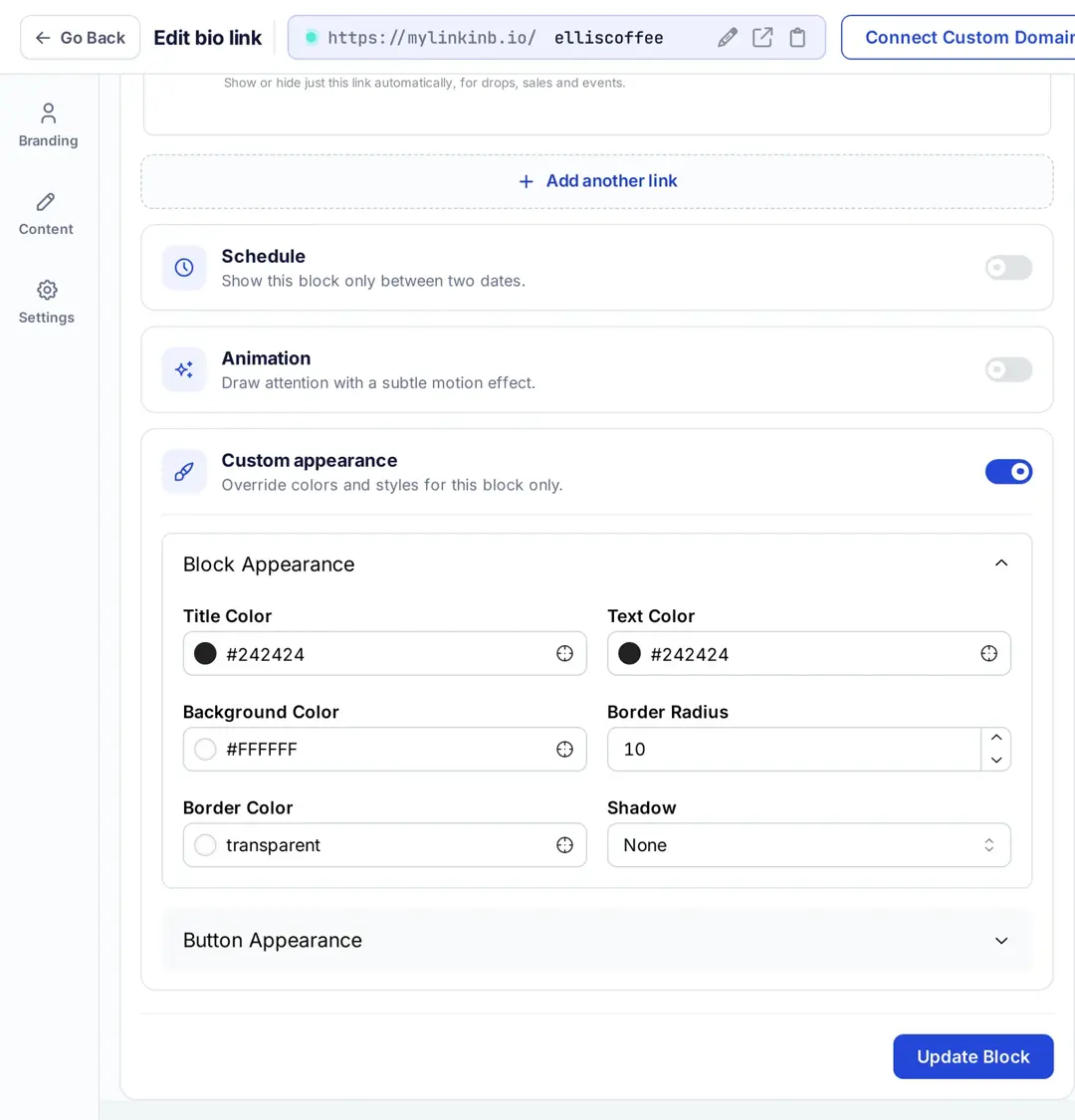
- Customize the look of each link by adjusting colors, button shapes, and styles to match your branding.
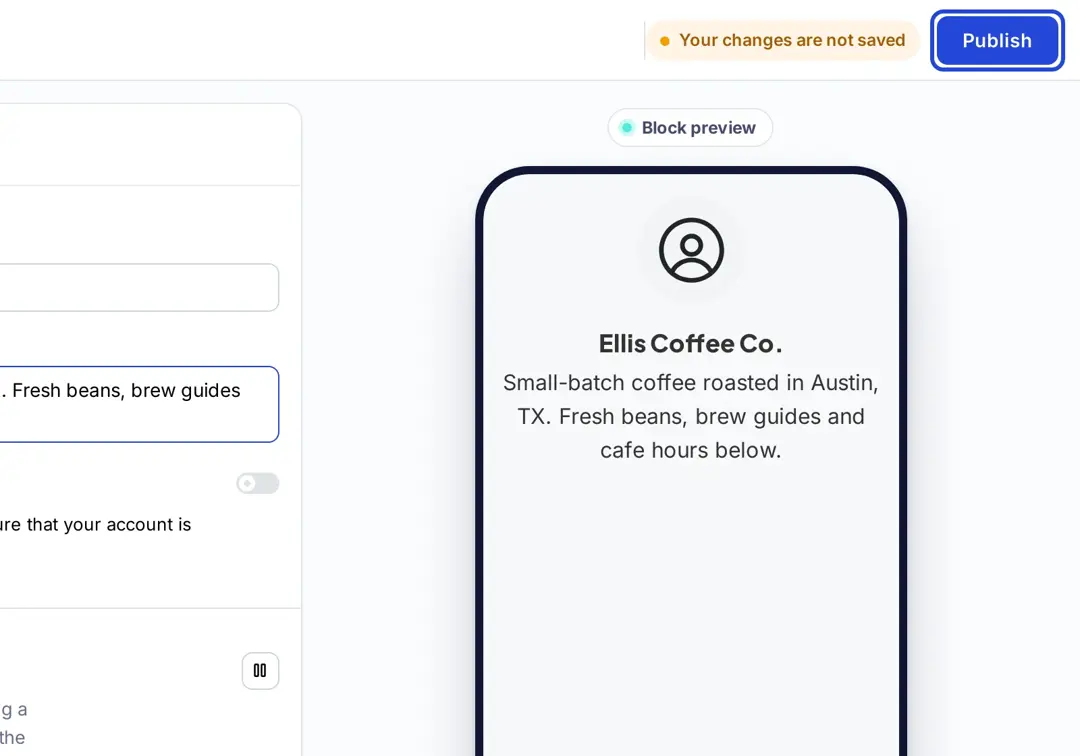
- Once your page is ready, hit the Publish button in the top right corner. Your multi-link landing page is now ready.
Step 03: Create QR code
Now that your bio site is live, it’s time to create a bio site QR code:
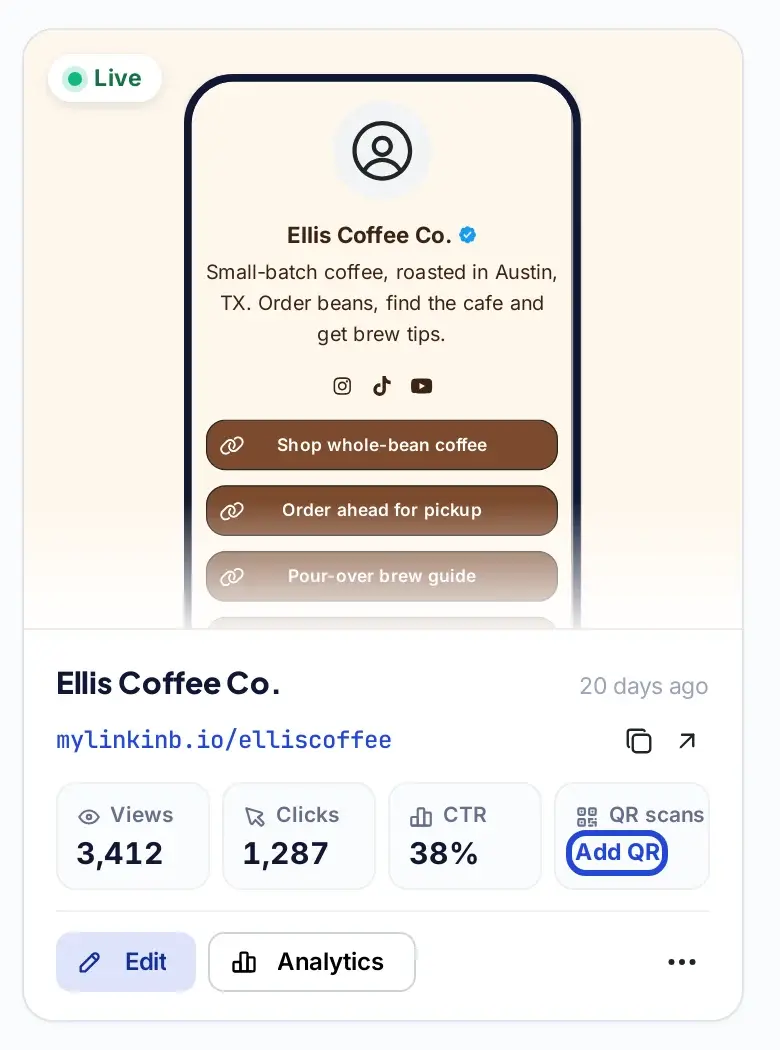
- Go back to bio links: On your bio page’s card in the Bio Links section, click “Add QR” under QR scans. Replug opens a new QR code with Bio Link already selected as the type.
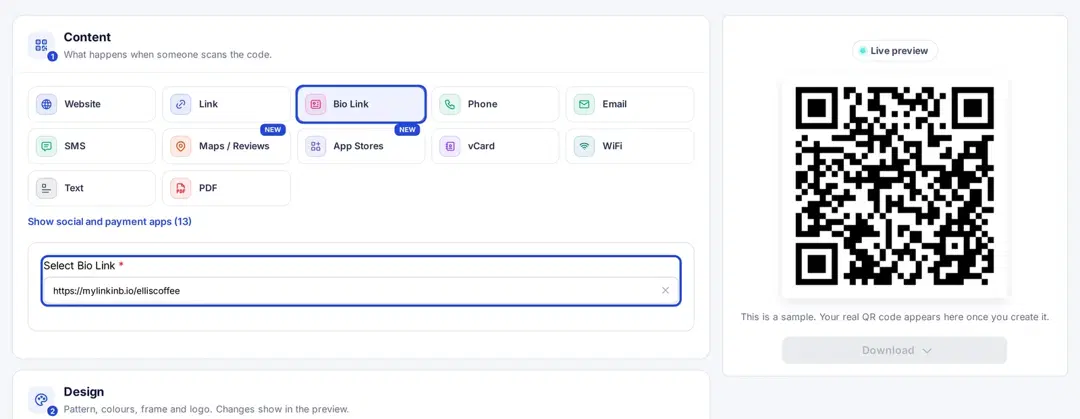
- Tailor your bio site QR code’s colors and design to fit your brand’s identity.
- Download your QR code: Once you’re satisfied with how it looks, click “Create QR Code” and download it as SVG, PNG, JPEG or WEBP.
Multi-URL QR code examples
- An app download code: one code on a coffee cup sleeve sends smartphone users to the order-ahead app page and laptop users to the website.
- A shop by country: Ellis Coffee Co. in Austin, TX ships beans to the US and Canada; one code on the bag opens the US shop for most scans and the Canadian shop, with prices in Canadian dollars, for scans from Canada.
- A poster that changes after the event: a date rule sends scans to ticket sales until the event and to the photo gallery afterward.
- A small-business bio page: a QR code on the counter opens a page with “Menu”, “Order online”, “Find us” and “Leave a review”.
Before you print a multi-URL QR code
- Set a sensible default URL: anyone who matches none of your rules lands there.
- Test every rule. Scan with an iPhone and an Android phone, and use a VPN or ask a friend abroad to check country rules.
- Keep rules simple. Two or three rules are easier to keep correct than ten.
- Print a test copy at the real size and scan it from the distance people will stand.
- Remember the routing lives in your account: if the plan or the link is removed, the printed code stops routing. Keep the link active as long as the code is in circulation.
Conclusion
Creating a multi URL QR code in Replug is easy, powerful, and perfect for anyone running advanced marketing campaigns. With the flexibility of traffic routing and detailed analytics, you’ll have more control over how and where users land – all from one smart QR code.
Ready to create your own? Log in to Replug and get started today!
FAQs on multi-URL QR code

Manahil