Exchanging contact information isn’t what it used to be.
Gone are the days of digging into your bag for a crumpled business card or spelling out your email letter by letter in a noisy setting. Sharing your details should be fast, frictionless, and kind of cool.
That’s where a QR code for your contact info comes to the rescue.
Whether you’re at a networking event, attending a trade show, or just casually meeting someone who wants to stay in touch, a contact info QR code (also known as a vCard QR code) makes the exchange seamless. One quick scan, and boom! Your new contact has everything they need to reach you.
Quick answer: a contact info QR code (also called a vCard QR code) stores your name, phone number, email and other details, so anyone who scans it can save you as a contact in one tap. Make one by choosing the vCard type in a QR code generator, filling in your details, styling the code and downloading it for print. Decide first whether you want a static code (works offline, can’t be changed) or a dynamic one (needs a connection, can be edited and tracked).
In this guide, we’ll walk you through how to create a QR code for your contact info using our QR code generator. It’s simple, fast, and lets you ditch the paper.
What is a QR code for contact info?
A QR code for contact info is a scannable code that automatically saves your contact details to the user’s phone. Instead of manually typing in your number, email, or job title, the scanner gets it all pre-filled.
These QR codes are based on vCard or meCard formats, which smartphones recognize and convert into a new contact entry.
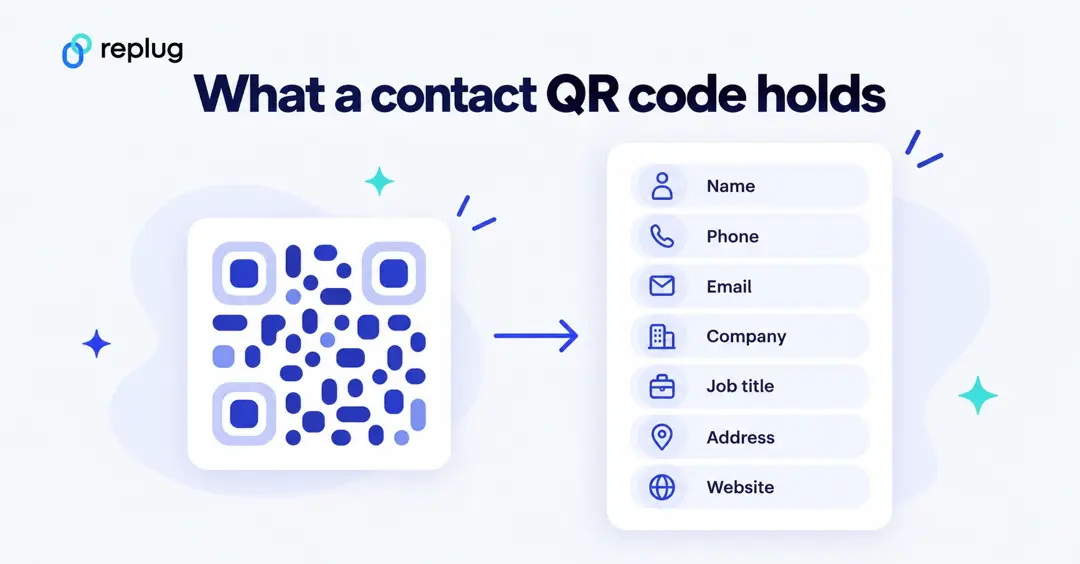
Still unsure why you should care?
vCard vs MeCard: which format should you use?
Both formats store contact details as plain text inside the code. vCard is the long-standing standard for electronic business cards; the current version, vCard 4.0, is published by the IETF as RFC 6350. It supports many fields (several phone numbers, addresses, titles, websites and more) and is what most generators and phones use. MeCard is a shorter, simpler contact format that holds fewer fields, so the code it produces is a little less dense.
| vCard | MeCard | |
|---|---|---|
| Fields | Name, phones, emails, company, title, address, website and more | Name, phone, email, address, website and a few others |
| Code density | Denser (more text) | Lighter |
| Best for | Business cards, full contact details | Very small codes with just the basics |
If you’re not sure, pick vCard. It’s the format Replug and most other generators offer for contact codes.
Static vs dynamic contact QR codes
This is the decision that matters most, and it’s easy to miss:
- Static vCard code: the contact details sit inside the pattern itself. It works without an internet connection and never depends on a service staying online, but you can’t change it after printing, you can’t count scans, and the more fields you add, the denser and harder to print small the code gets.
- Dynamic vCard code: the pattern holds a short link. When someone scans it, the phone opens the link and receives your contact card. It needs a connection, but the pattern stays simple, you can see how many people scanned it, and (on plans that allow it) you can update your details without reprinting.
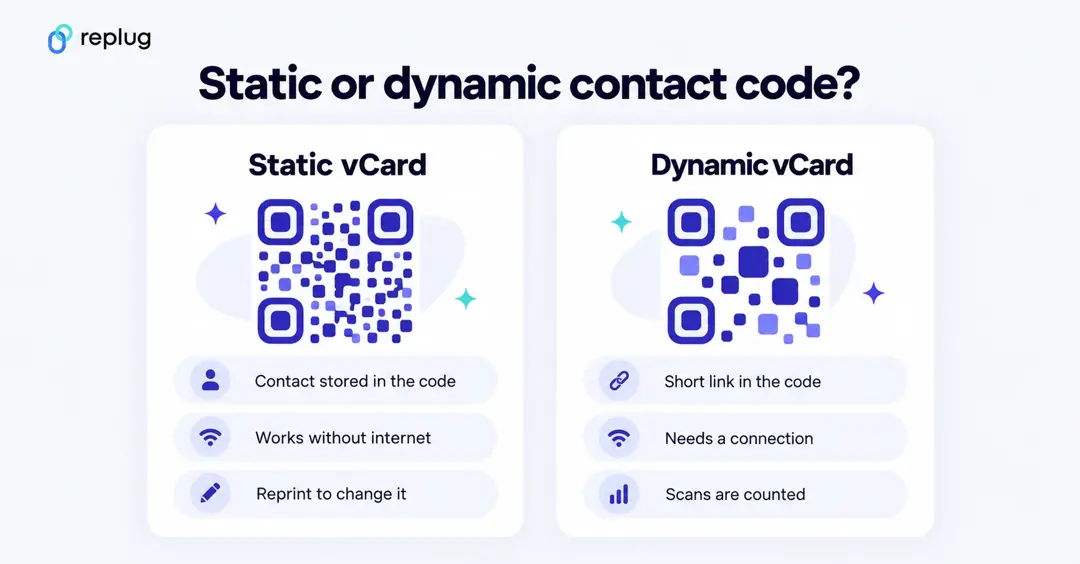
Every Replug QR code is dynamic: it runs through a short link, on your own domain if you add one, so a Replug contact code opens that link and hands the phone your contact card to save. Scans show up in analytics by country, city, device, OS and browser, according to the Replug QR code generator page.
What happens when someone scans it?
With a static code, the phone reads the details straight from the pattern and offers to add a new contact. With a dynamic code, the camera first shows the short link; tapping it opens the browser, which then offers the contact card to save or open in the Contacts app. Either way, nothing is saved until the person confirms.
What to put on a contact QR code (and what to leave off)
- Include: your name, the phone number and email you want people to use, company, job title and website.
- Think twice about a home address, a personal cell number or a date of birth on anything public, like a flyer or a booth sign.
- Fewer fields mean a simpler pattern on a static code, which matters on a small business card.
- Test it on an iPhone and an Android phone and open the saved contact to check every field came through.
Why use a QR code for contact info?
Let’s count the benefits:
- Paperless and professional: No more printing hundreds of business cards.
- Instant saving: Scanning the code instantly adds you to someone’s contact list.
- More info, less space: Unlike a traditional card, you can include your website, address, title, socials; basically, your whole professional identity.
- Error-free sharing: Avoid typos in email addresses and phone numbers.
- Great first impression: It shows you’re tech-savvy and efficient.
Now that you’re convinced (hopefully), let’s get into the “how.”
How to create a QR code for contact info using Replug?
Creating a QR code with Replug is as simple as it can be. Here’s how to do it:
Step 1: Sign in or create a Replug account
Start by heading over to Replug. If you’re already part of the Replug family, log in to your dashboard. If not, no worries. You can create an account in under two minutes.
Pro tip: Replug has a Free plan with 10 QR codes, and paid plans come with a 14-day free trial, according to Replug’s pricing page. Website, short link and bio link codes work on every plan; the vCard type starts on Essentials.
Step 2: Navigate to “QR Codes”
Once you’re in your dashboard, look for the “QR Codes” tab in the navigation menu. Click it.
You’ll see an option to “Create New”. Go ahead and hit that button, then pick “Start blank” (or one of the ready-made templates).
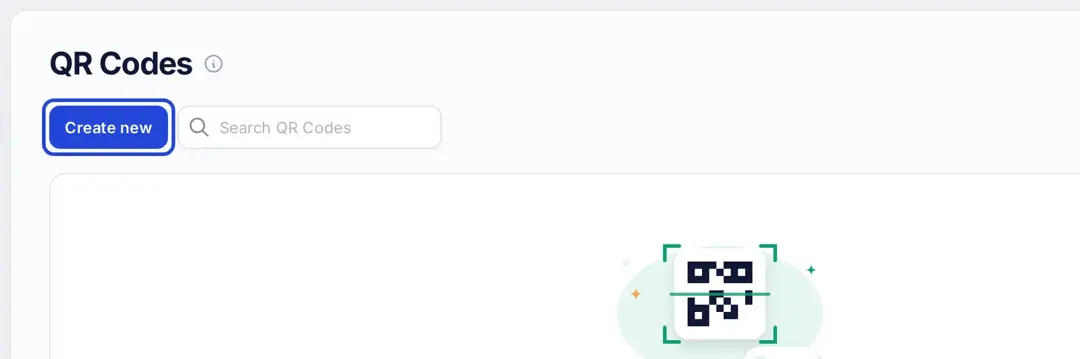
Step 3: Choose “vCard” as your QR code type
Replug supports different QR code types (like URLs, text, and emails), but for contact info, you’ll have to select vCard.
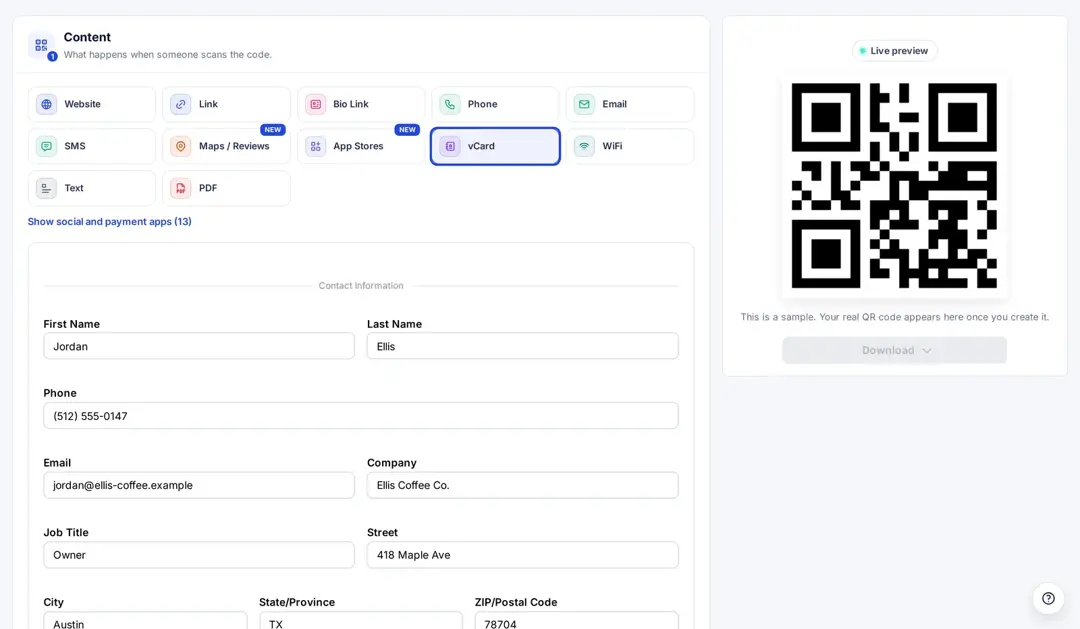
This is the format that stores all your details in one neat package.
Step 4: Fill in your contact info
Here’s where you enter the info you want to share. Here’s what Replug allows you to include:
- First and Last Name
- Phone Number
- Email Address
- Company Name
- Job Title
- Full Address (Street, City, Province/State, ZIP/Postal Code, Country)
- Website URL
Step 5: Customize the design (optional but fun)
Replug gives you tons of design customization options. You can:
- Change QR code color and dot shapes (Essentials and up)
- Add your company logo in the center (Scale and Agency)
- Pick from five frame styles under Design → Frame
- Add a CTA like “Scan to Save Contact” in the Frame Text field
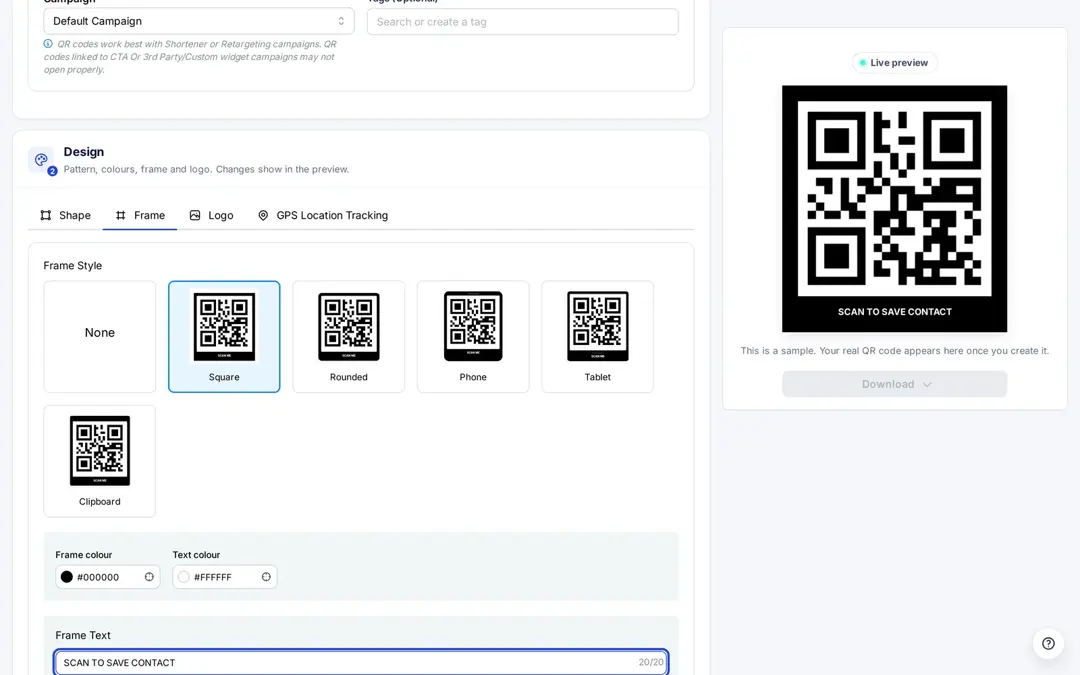
Remember. Design isn’t just about aesthetics; it can improve scan rates, too.
Step 6: Download and share
Once your contact info QR code looks perfect, click “Create QR Code” at the top right, then hit “Download.”
Download it in your preferred format (SVG, PNG, JPEG or WEBP); pick SVG for print, and you’re ready to roll. You can print it on:
- Business cards
- Flyers
- Brochures
- Event badges
- Conference booths
- Even your LinkedIn banner
Or just keep a digital version on your phone ready to show. You can even generate a QR code for Whatsapp to ensure smooth communication with your audience.
You may also like: How to create a QR code for email and boost clicks
Benefits of using Replug for QR codes
Here’s why Replug is a solid choice for generating QR codes:
- User-friendly interface: Replug’s dashboard is clean, intuitive, and beginner-friendly. Everything from creating to customizing your QR code happens in a few simple clicks.
- Advanced customization: Add brand colors, logos, borders, and calls to action that make your QR code stand out and match your identity.
- Multiple QR code types: Besides contact info (vCard), Replug supports QR codes for social media, URLs, email, phone numbers, text, and more.
- Editable even after sharing: Made a typo or changed your job title? No need to reprint everything. With Replug’s dynamic codes, you can edit QR codes even after they’ve been shared (changing a printed code is on the Scale and Agency plans).
- Built-in analytics: Want to know how many people scanned your QR code, when, and where? Replug’s analytics gives you detailed stats so that you can measure your outreach efforts.
- Safe and secure: Replug ensures your QR codes and associated information are stored securely. No shady business or random redirects.
- Seamless integration: Whether you want to use your QR code on a landing page, embed it in emails, or pair it with link tracking tools, Replug plays nicely with your existing workflow.
Where to use your QR code for contact info?
Here are some smart ways to use a contact info QR code:
- Add it to your email signature
- Embed it on your website contact page
- Print it on presentation slides
- Share it during Zoom calls by holding it up or screen-sharing
- Place it on tabletop stands at events or meetups
Putting it on a printed card? See how to create a QR code for a business card for size and placement tips.
Final thoughts
Using a QR code for contact info may not be your default move yet, but it should be.
It saves time, reduces human error, and makes your interactions smoother. Plus, it’s a subtle flex that says, “I’ve got my stuff together.”
With Replug, setting up your contact info QR code is super easy. Whether you’re a freelancer, a startup founder, a recruiter, or just someone who networks a lot, it’s a tool you’ll want in your digital toolkit.
So go ahead. Ditch the stack of business cards, and let your QR do the talking.
Try Replug today and create your first contact QR code in minutes. And while you’re at it, give our powerful URL shortener a go, also to simplify and track your links effortlessly, all from this one single platform!
Frequently asked questions

Amna Yawar