Quick answer: add utm_source, utm_medium and utm_campaign to the page URL, then make the QR code from that tagged URL. A tidier way is to put the tagged URL behind a short link and make the QR code from the short link: the code stays simple to scan, and you count scans as well as visits. Here is a copyable example:
https://www.ellis-coffee.example/fall-menu?utm_source=flyer&utm_medium=qr_code&utm_campaign=fall_menu&utm_content=south_congressUsing QR codes in print campaigns, product packaging, event booths, or posters? Great, but if you’re not adding UTM tags, you’re missing out on valuable data.
Now, you might ask the question: “What are UTM codes?“
UTM codes, parameters, or tags are not just digital marketing fluff; they’re a vital tracking tool that turns blind QR scans into actionable insights.
Let’s say you distribute the same digital brochure in two cities, New York and Chicago. If both QR codes lead to the same bare URL, you’ll never know which city drove more traffic or conversions.
Give each brochure its own tag, such as utm_source=brochure_ny and utm_source=brochure_chicago, and your analytics tool reports the two cities as separate sources.
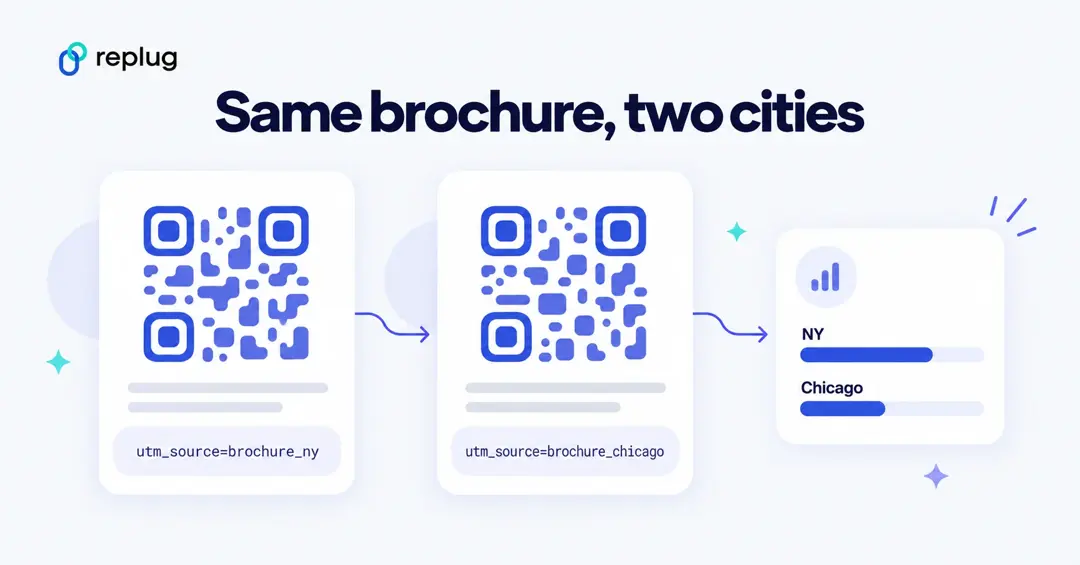
You can pinpoint exactly where your results are coming from.
By embedding UTM tags into your QR code URLs, you unlock the power to analyze campaign performance, compare locations and design versions, and decide where to print next, all with data you can use. The best part? It only takes a few extra seconds.
This guide will show you how to create UTM-tagged links, generate QR codes, and track results like a pro. Whether managing a product launch, hosting a trade show booth, or running a local flyer drop, it’s time to make your QR codes work smarter, not just harder.
What a QR code URL with UTM tags looks like
A UTM-tagged URL is your normal page address plus a question mark and a few name=value pairs joined with &. For a fall menu flyer from a fictional coffee shop in Austin, TX, it looks like this:
https://www.ellis-coffee.example/fall-menu?utm_source=flyer&utm_medium=qr_code&utm_campaign=fall_menu&utm_content=south_congress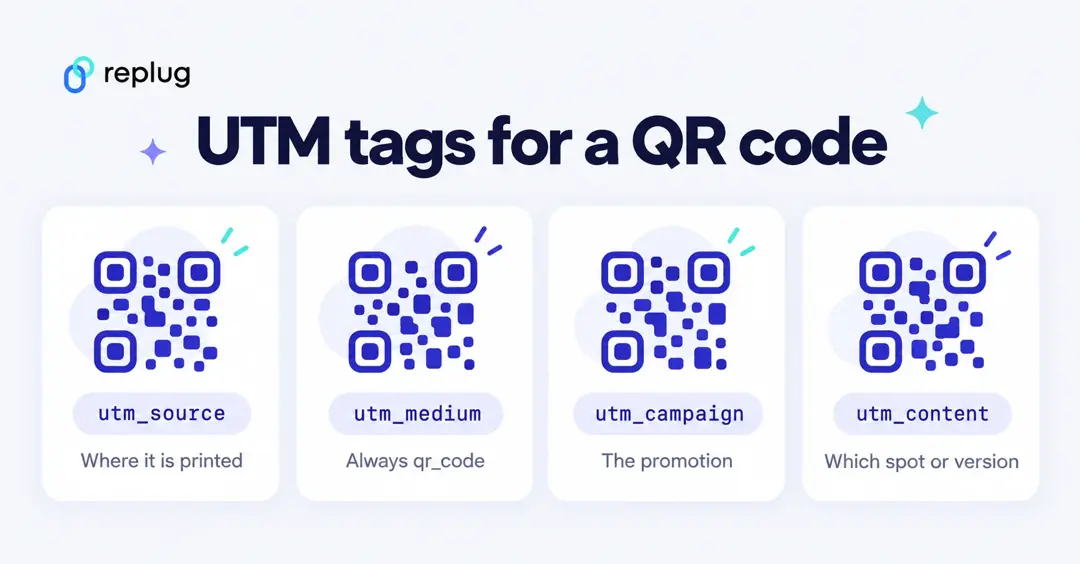
Google’s URL builders help page says to always set utm_source, utm_medium and utm_campaign, and notes that values are case sensitive: flyer and Flyer show up as two different sources. For QR codes, this split works well:
| Parameter | What to put in it for a QR code | Example |
|---|---|---|
utm_source | Where the code is printed or shown | flyer, poster, packaging, brochure_ny |
utm_medium | The channel, the same on every QR code | qr_code |
utm_campaign | The promotion or launch | fall_menu |
utm_content (optional) | Which spot or design, when one campaign has several | south_congress, back_cover |
Copy this template and replace the capitals. Use lowercase and the same spelling every time:
https://YOURSITE.COM/PAGE?utm_source=PLACEMENT&utm_medium=qr_code&utm_campaign=CAMPAIGN&utm_content=SPOTOne thing to expect in Google Analytics 4: it has no QR code channel. Its default channel group rules don’t match a medium such as qr_code, so those visits are listed as Unassigned in channel reports. That’s fine: switch the report to source / medium or campaign (steps below) and every placement shows up by name.
Put the tagged URL behind a short link
You can paste the full tagged URL straight into any QR code generator. The catch is length: the more characters a QR code holds, the more modules it needs, so a long URL makes a denser code that needs more print size to scan reliably (see QR code size). Pointing the code at a short link that forwards to the tagged URL fixes that and adds three things:
- Scan counts. The short link records each scan before it redirects, so you see scans in your link tool and sessions in Google Analytics. Step 05 below shows where to find them.
- A fixable code. If a tag has a typo after printing, you can change the destination of the short link instead of reprinting. In Replug that is on the Scale and Agency plans, per replug.io/pricing.
- One tagging workflow. The same UTM builder you use for email and social links works for QR codes. Tracking URLs in general are explained in what a tracking URL is.
How to add UTM tags to QR codes in Replug (step-by-step)?
Log in to Replug, or create a free account (paid plans start with a 14-day trial). The UTM builder is included on every plan, including Free.
Step 01: Paste your link
- On the Home screen, paste the page you want people to land on (without UTM tags) into the Paste a long URL to shorten… field and click Shorten. This is the page people land on when they scan your trackable QR code.

- The Your link window opens with your new short link.
Step 02: Add UTM parameters
- Click + Add UTM next to the Original link.
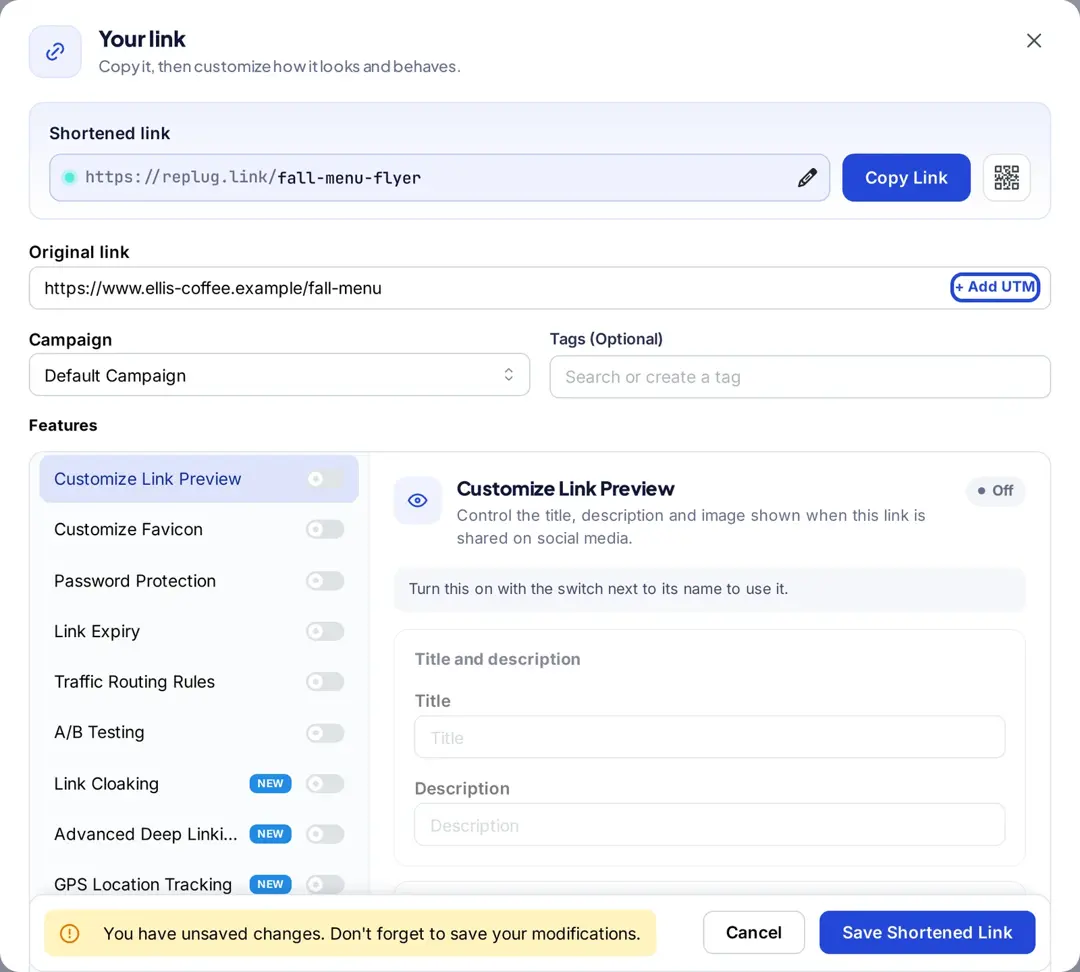
- Fill in Campaign, Medium and Source (Term and Content are optional), or pick a saved preset. Turn on Save these tags as a new preset to reuse them on your next QR code.
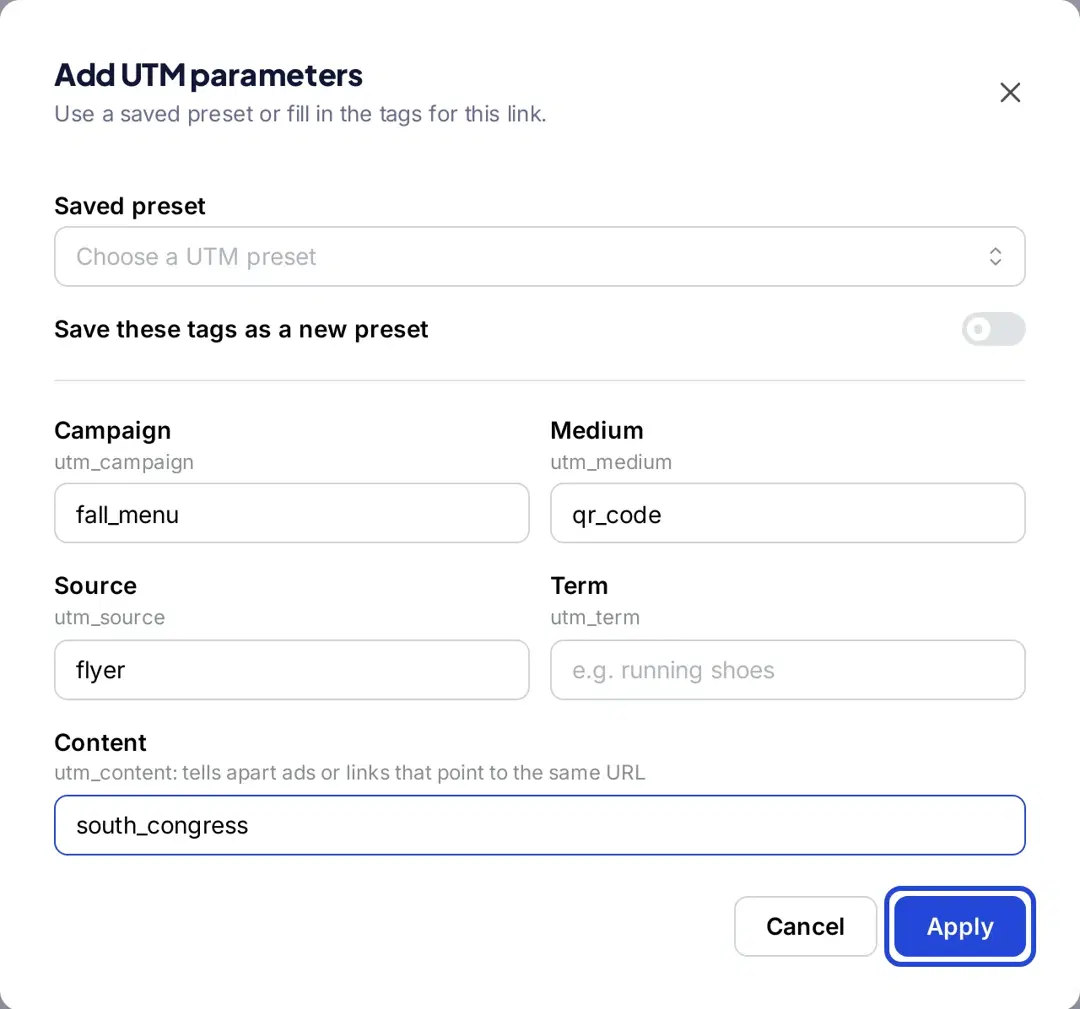
- Click Apply. The tags are added to the original link and the button changes to Edit UTM.
Step 03: Generate a QR code
- Click Save Shortened Link, then click the QR code button next to Copy Link (or open the link’s actions menu on the Links page and choose QR Code). Save first: if you click the QR code button with unsaved changes, Replug warns that they will be lost.
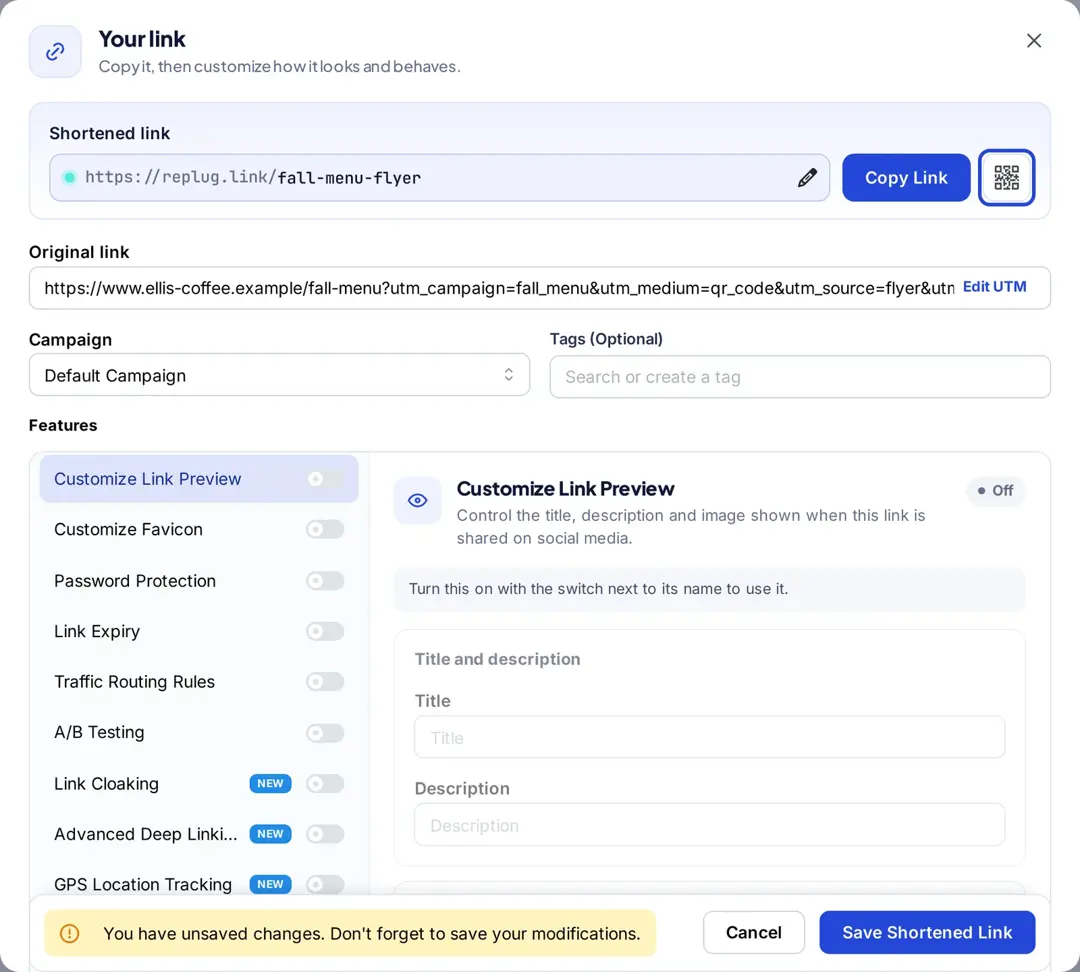
- The New QR code page opens for that short link. Pick colors, shapes and a frame (custom colors, shapes and frames are on paid plans; a logo in the middle is on Scale and Agency, per Replug’s QR code generator page), then click Create QR Code.
Step 04: Download and share
- Click Download and pick SVG, PNG or JPEG (SVG stays sharp at any print size). Scan it with your phone once and check that the page opens with your tags in the address bar, then add it to business cards, packaging, flyers, or anywhere else you want to guide people with a quick scan.
Step 05: Track QR code performance
For QR code tracking, open the link or QR code analytics in Replug. You can see scans and unique scans over time, and break them down by:
- Country
- Device and operating system
- Browser
- City
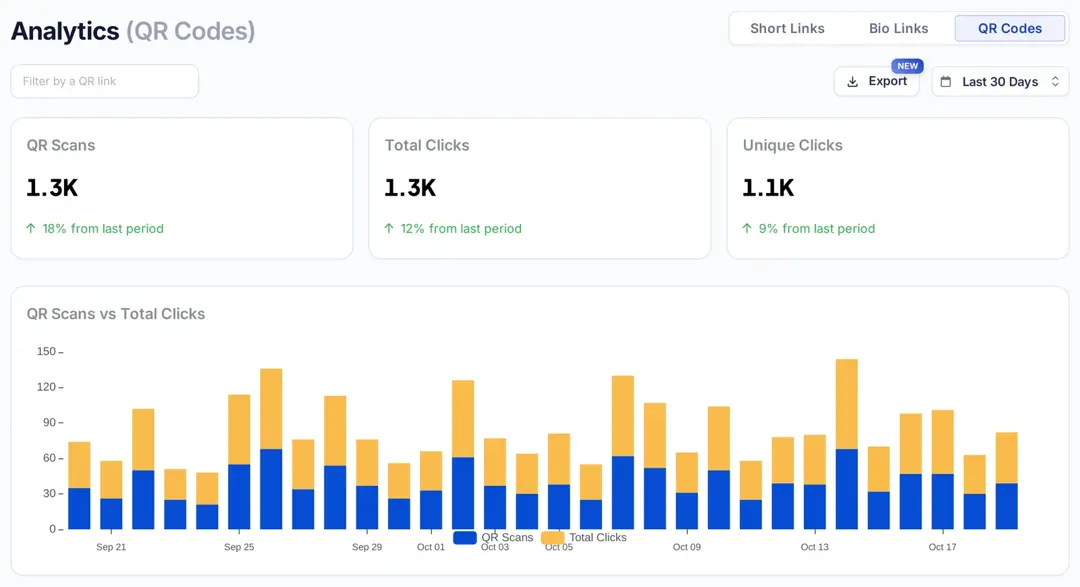
Then check the same visits in Google Analytics 4: from the left menu select Reports, then Acquisition > Traffic acquisition, and change the dimension to Session source / medium or Session campaign, per Google’s Analytics Help. Each placement appears under its own utm_source, so flyer / qr_code and poster / qr_code sit on separate rows.
Conclusion
Incorporating UTM tags into your QR codes isn’t optional; it’s the difference between guessing and knowing. Without UTM tracking, your analytics can’t differentiate between a scan from a product box, a printed flyer, or an event badge. That’s a huge blind spot, especially when you’re running multiple offline campaigns and need to justify marketing ROI.
Let’s be real: QR codes are everywhere. However, most businesses still miss the mark by using plain URLs that provide zero context after a scan. UTM tags change that. With just a few parameters added to your links, you gain full visibility into campaign performance, scan sources, and user behavior – all visible in your analytics dashboard.
For even better outcomes, try using our free UTM builder. You won’t regret your decision!
FAQs on adding UTM tags to QR codes

Manahil