Don’t underestimate the impact of a well-designed link preview: on LinkedIn, the image, title and description under your post are often the first thing people see.
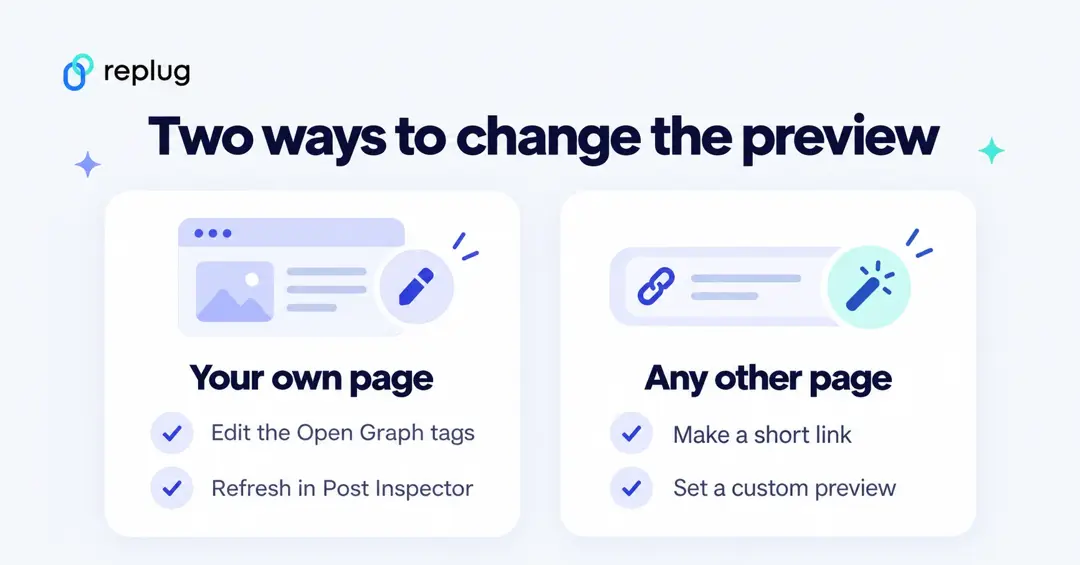
Here is the short answer. LinkedIn builds a link preview from the Open Graph tags on the page you link to: og:title, og:image, og:description and og:url, according to LinkedIn Help. To customize it, either edit those tags on your own page and refresh the preview with LinkedIn’s free Post Inspector, or, for a page you can’t edit, share a Replug short link with its own custom preview.
In this guide we’ll cover how LinkedIn reads a preview, how to change it on your own site, how to customize it with a short link, and how to fix a preview that won’t update.
Why customize your LinkedIn link previews?
LinkedIn is where many professionals discover articles, product pages and events, and the preview card is the part of your post that people tap. A preview with the wrong image, a cut-off title or a generic description makes a good link look careless.
This means that in addition to optimizing your profile, every link you share on the platform should be carefully optimized. This approach helps you stand out in a crowded feed and effectively engage your target audience.
Specifically, check the preview for every link you share. By customizing the title, description, and thumbnail, you can capture attention and connect with the audience that matters most to your business.
How LinkedIn builds a link preview
When you paste a URL into a post, LinkedIn fetches the page and reads its Open Graph tags. LinkedIn Help lists the tags that must exist:
<meta property="og:title" content="Fall Tasting Night at Ellis Coffee Co." />
<meta property="og:description" content="Taste three new roasts on Oct 24 in Austin, TX. Free, RSVP required." />
<meta property="og:image" content="https://www.ellis-coffee.example/images/tasting-1200x627.jpg" />
<meta property="og:url" content="https://www.ellis-coffee.example/events/fall-tasting" />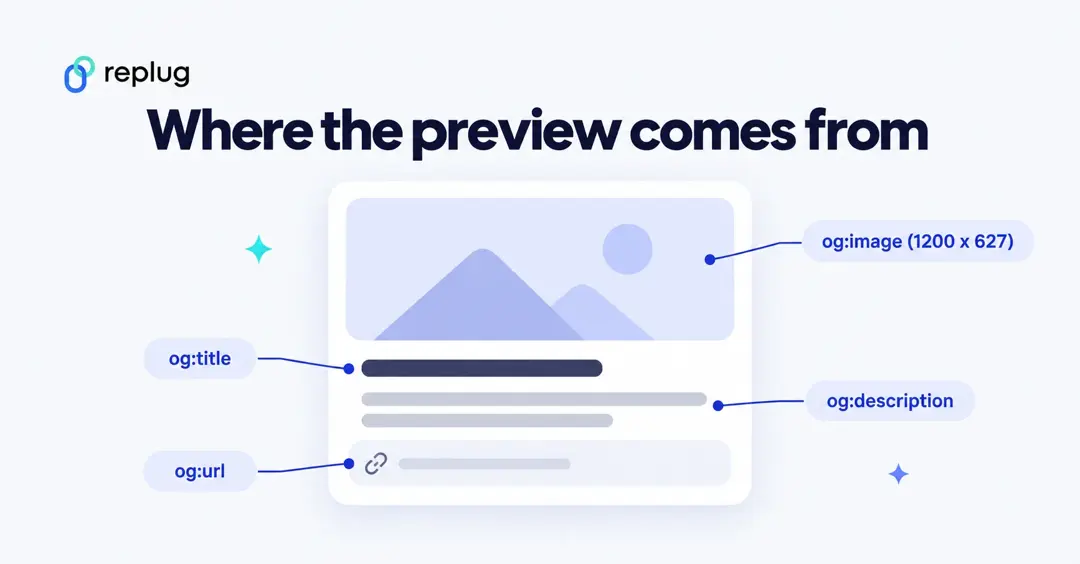
LinkedIn’s image requirements for shared links, from the same help page:
- Minimum image size: 1200 x 627 pixels
- Recommended ratio: 1.91:1
- Maximum file size: 5 MB
- Images less than 401 pixels wide display as a small thumbnail instead of a large image
The tags themselves follow the Open Graph protocol, which Facebook, X and most messaging apps read too, so a good preview on LinkedIn usually looks right elsewhere.
Option 1: Change the preview on your own website
If you control the page, the preview is fixed at the source:
- Edit the Open Graph tags. Most content management systems and SEO plugins have a “social” or “Open Graph” section for each page where you set the title, description and image. If you edit HTML directly, add the four tags shown above to the page’s <head>.
- Use the right image. Upload an image at least 1200 x 627 pixels with the important part in the middle, so it still reads at feed size.
- Refresh LinkedIn’s copy. Open Post Inspector, enter the URL you want to share and check that the preview shows the new content. LinkedIn caches previews, and LinkedIn Help says the Post Inspector refreshes the URL.
- Post again. The refreshed preview applies to new posts only; LinkedIn notes that the preview for any existing posts with the URL stays the same.
Replug’s free link preview generator lets you paste a URL and see how its preview looks before you post, and the free meta tag generator creates title and description tags you can paste into your page’s <head>.
Option 2: Customize the preview with a Replug short link
If you are sharing a page you can’t edit (a partner’s article, an event listing, a product on a marketplace), you can still control the preview. In Replug, a short link can carry its own title, description and image. When LinkedIn’s crawler opens the short link, Replug shows it your custom preview; people who click still go to the original page. Customize Link Preview is available on Essentials, Scale and Agency, according to the pricing page (checked October 2026).
Step 1: Shorten the link
In your Replug dashboard, paste the page URL into the shorten box on the Home page and click Shorten.

Step 2: Open the link features
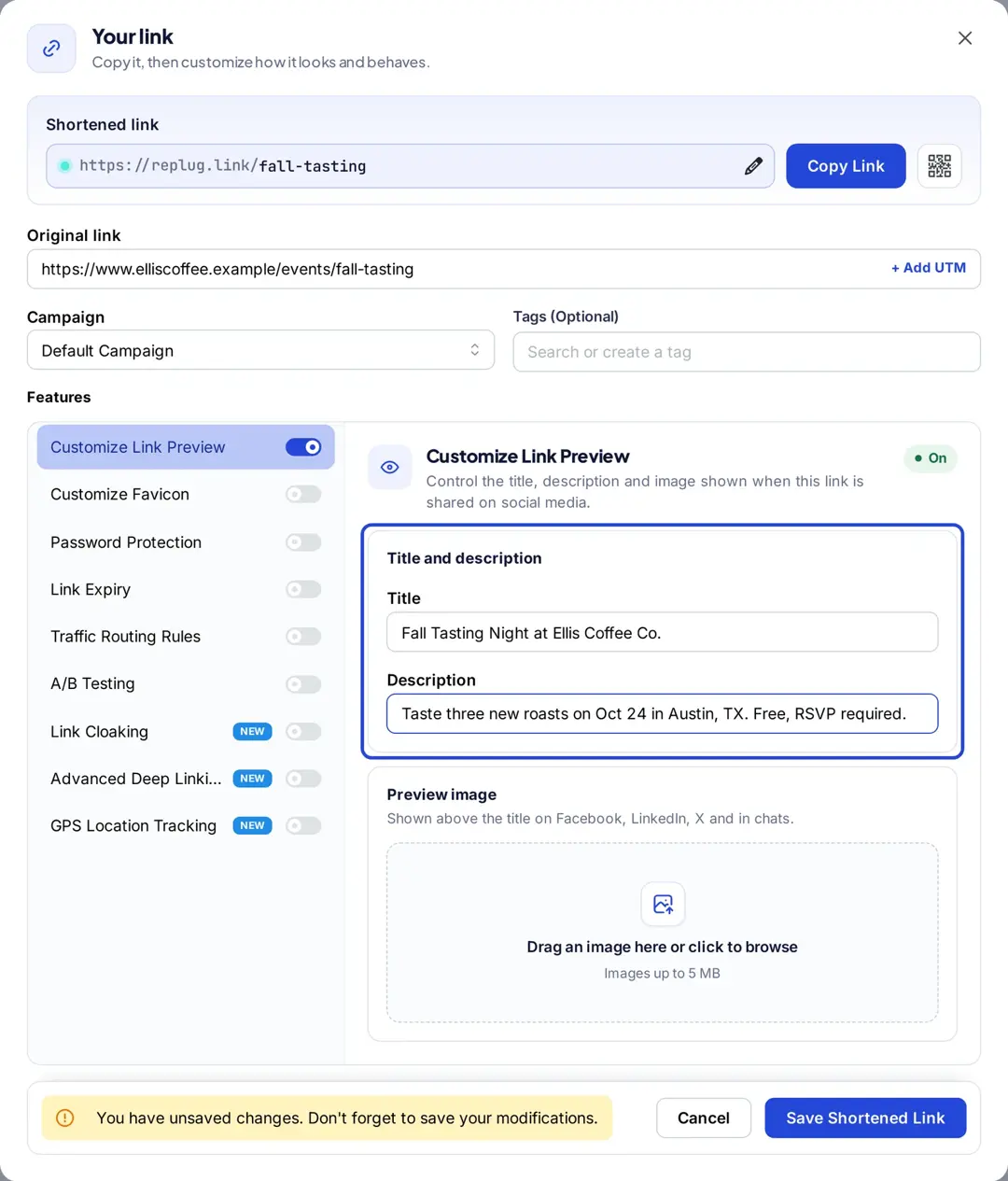
The Your link window shows the short link, the original link, the campaign and a list of link features.
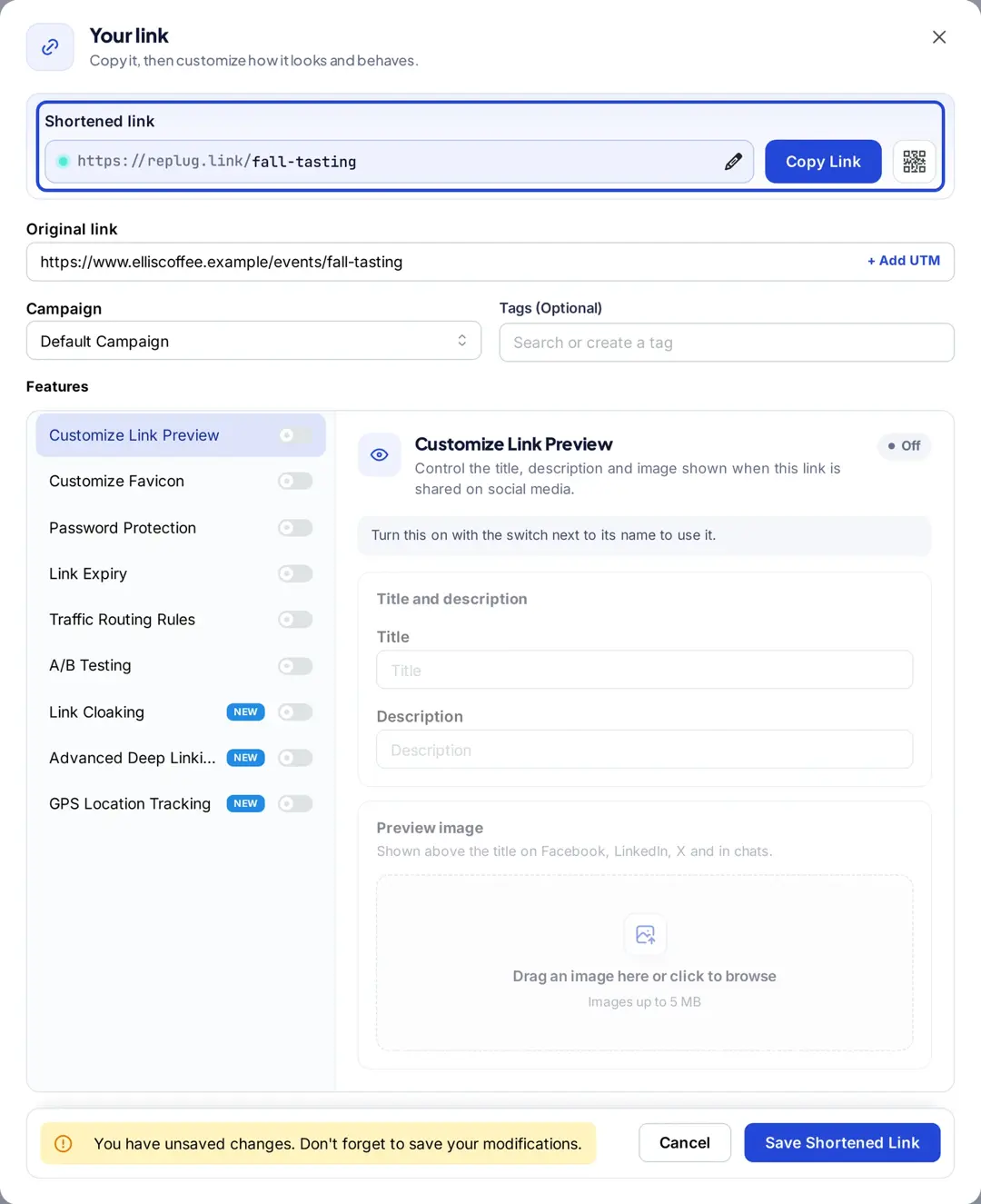
Step 3: Turn on Customize Link Preview
Switch on Customize Link Preview, then add a Title, a Description and a Preview image (use 1200 x 627 pixels for LinkedIn). Click Save Shortened Link.
Step 4: Check it and post
Paste the short link into Post Inspector to see the preview LinkedIn will show, then paste it into your LinkedIn post. If you want the link itself to carry your name, connect a custom domain so the short link uses your own domain instead of replug.link.
Related: How to customize the Facebook link preview using Replug?
LinkedIn link preview not working? Quick fixes
- Old image or title: LinkedIn is showing a cached copy. Run the URL through Post Inspector, then create a new post.
- No image at all: the page has no og:image, the image URL is blocked or redirects, or the file is over 5 MB. Check the tag and open the image URL in a private window. If you’re not sure which address that is, here’s how to copy an image address.
- Tiny thumbnail instead of a large image: the image is narrower than 401 pixels. Use at least 1200 x 627.
- Wrong title: the page has no og:title, so LinkedIn falls back to something else on the page. Add the tag.
- The preview shows your short link’s target, not your custom preview: check that Customize Link Preview is switched on and saved for that short link.
Related: How to customize Twitter (X) link preview using Replug? and how messaging apps build previews in our guide to SMS link previews.
How using a URL shortener can enhance your customized LinkedIn links
Once you’ve set up your LinkedIn link preview, a URL shortener adds a few more benefits. With Replug, you can shorten and personalize your LinkedIn URLs to align with your brand identity, making your links look cleaner, more professional, and instantly recognizable.
Using Replug’s LinkedIn link shortener, you can customize the URL slug (Essentials and up), add your brand name or campaign keywords, and change the favicon or preview image. Replug’s analytics then show clicks, unique clicks, countries, devices and referrers for each link.
Final verdict
LinkedIn shows whatever the page’s Open Graph tags say, so the fix starts there: set a clear og:title, og:description and a 1200 x 627 og:image, then refresh with Post Inspector. When you can’t edit the page, a Replug short link with a custom preview gives you the same control. Replug’s free website URL changer covers the short link itself; custom previews need a paid plan.
FAQs on custom LinkedIn link previews

Manahil