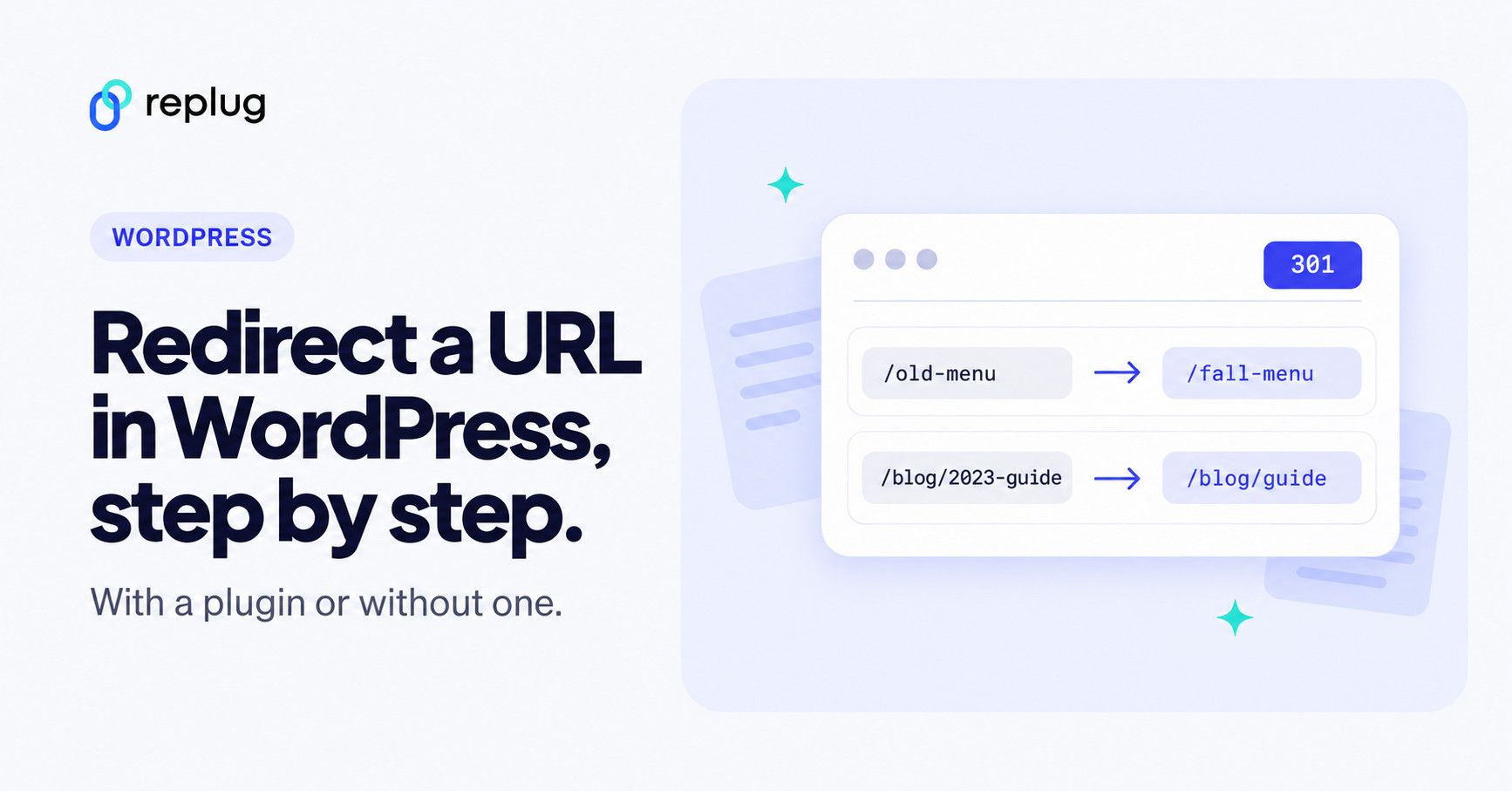
Are you tired of encountering dead ends and frustrating error messages while browsing the web? Well, get ready to bid farewell to those exasperating moments because we have a game-changer for you: URL redirection. It’s like having your very own digital GPS that ensures every click you make leads you straight to your desired online destination.
In this guide, we’re going to unravel the mysteries of URL redirection and make it crystal clear why it’s a must-know concept for anyone navigating the digital realm. No jargon, no complicated technicalities – just straightforward explanations and practical tips that will empower you to redirect URLs like a pro.
Ready? Let’s dive in and discover how to redirect a URL in WordPress!
Quick answer: the easiest way to redirect a URL in WordPress is the free Redirection plugin: install it, open Tools > Redirection, enter the old path as the Source URL and the new address as the Target URL, and click Add Redirect. If you already use an SEO plugin, Rank Math’s free Redirections module or Yoast SEO Premium’s redirect manager does the same job. Without a plugin, add a rule to your .htaccess file (Apache), your Nginx config, or your host’s control panel. Use a 301 when the page has moved for good and a 302 when the move is temporary.
What is URL Redirection?
URL redirection, also known as URL forwarding, is the process of directing a user from one web address (URL) to another. It is a technique used to ensure that when a user clicks on a specific URL, they are automatically redirected to a different URL, typically to a new location or destination.
URL redirection serves multiple purposes in the digital landscape. It allows website owners to manage changes such as rebranding, domain changes, or restructuring their website’s content without breaking existing links or causing inconvenience to users. It also helps to maintain search engine rankings by preserving the authority and relevance associated with the original URL.
Types of URL redirects
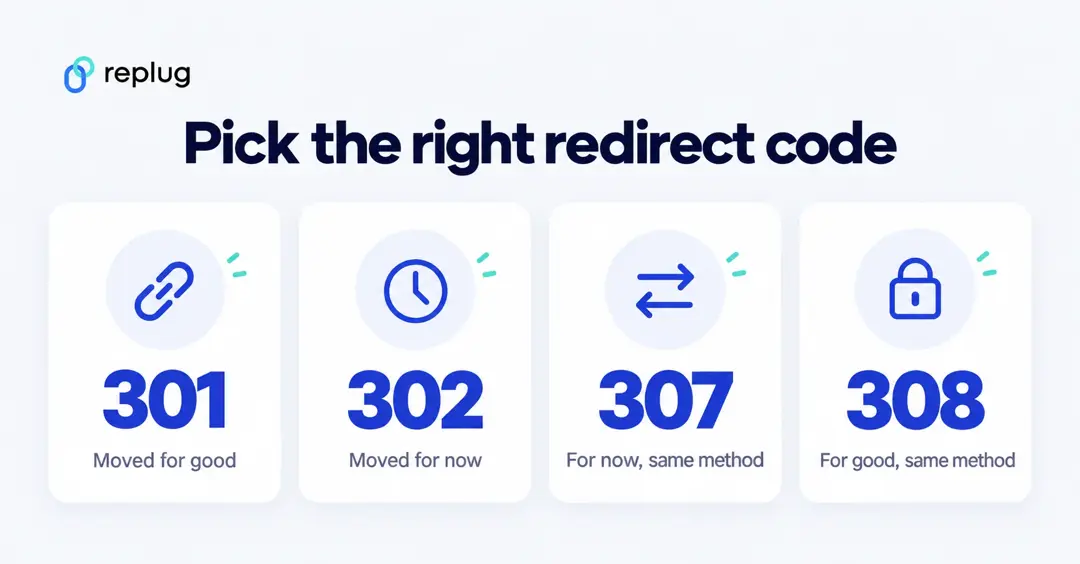
There are two primary types of URL redirection:
Permanent redirect (HTTP 301)
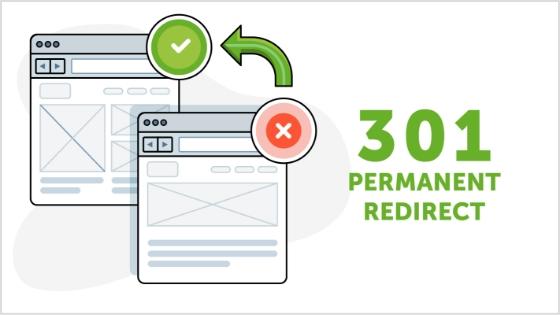
This type of redirect indicates that the original URL has moved permanently to a new location. It informs search engines and web browsers that the new URL should be considered the main and preferred address for the content. Permanent redirects are commonly used for situations like domain changes or when merging multiple web pages into a single page.
Also read: What is a URL slug: Its impact on SEO, examples, best practices, & more
Temporary redirect (HTTP 302)
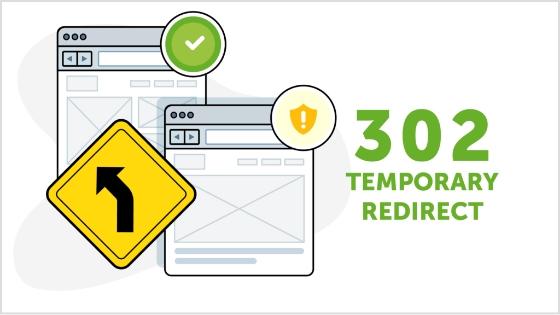
Temporary redirects are used when the original URL is only temporarily unavailable or has moved to a different location for a short period. It instructs web browsers and search engines to visit the new URL temporarily, while still recognizing the original URL. Temporary redirects are often used during website maintenance or when testing new pages before making them permanent.
Other unusual redirects include:
Besides the commonly used permanent redirect (HTTP 301) and temporary redirect (HTTP 302), there are a few other types of redirects that serve specific purposes. These include:
303 see other
This redirect is similar to the temporary redirect (HTTP 302) but has a specific meaning defined in the HTTP protocol. It indicates to the browser that the requested resource can be found at a different location, and the response to the redirected request should be a GET method.
307 temporary redirect
This is another type of temporary redirect, similar to HTTP 302. It indicates to the browser that the requested resource has temporarily moved to a different location. However, unlike HTTP 302, the browser should continue to use the same HTTP method (e.g., POST) for the redirected request.
308 permanent redirect
Similar to the permanent redirect (HTTP 301), the 308 status code indicates that the requested resource has permanently moved to a new location. The key difference is that the browser should use the same HTTP method (e.g., POST) for the redirected request, whereas HTTP 301 may convert a POST request to a GET request.
These additional redirect types (303, 307, and 308) have specific use cases and are less commonly utilized compared to HTTP 301 and HTTP 302 redirects. The choice of which redirect type to use depends on the specific requirements of your website and the desired behavior for the redirected requests.
For a WordPress site the rule of thumb is simple: use 301 when a page, post or the whole site has moved for good, and 302 (or 307) when you’ll switch it back, for example during maintenance or a short promotion. Google’s redirects documentation explains why it matters: Google shows the new URL in search results for permanent redirects and keeps showing the original URL for temporary ones. The full comparison of every code is in our guide to the HTTP 302 status code.
How to redirect a URL in WordPress?
To redirect a URL in WordPress, you can use a plugin, edit the .htaccess file (Apache servers), add a rule to your Nginx configuration, or use your hosting control panel. A plugin is the safest choice if you don’t manage the server yourself. Here are the methods, step by step:

Method 1: Using a WordPress redirection plugin
Step 1: Install and activate a redirection plugin

Go to your WordPress dashboard, navigate to “Plugins” > “Add New,” and search for a redirection plugin such as “Redirection“ or “Yoast SEO“. Install and activate the plugin of your choice. Note that redirects in Yoast are a Yoast SEO Premium feature (a paid plugin), while Redirection is free; its WordPress.org page says “there’s no premium version” and listed 2+ million active installations when we checked in October 2026.
Step 2: Set up the redirect
Once the plugin is activated, go to the plugin’s settings or options page (usually located under “Tools” or “SEO” in the dashboard menu). Look for a section related to URL redirection or redirects.
Step 3: Add a new redirection rule
In the plugin’s settings, you should find an option to add a new redirection rule. Enter the old URL (source) and the new URL (target) where you want the redirect to point. Choose the appropriate redirect type (301 or 302) as needed.
Step 4: Save the redirection rule
After filling in the necessary details, save the redirection rule. The plugin will handle the redirection, and when someone accesses the old URL, they will be automatically redirected to the new URL you specified.
Option A: the Redirection plugin (free)
- In your dashboard, go to Plugins > Add New Plugin, search for “Redirection” (by John Godley), click Install Now, then Activate.
- Open Tools > Redirection and finish the short setup wizard. The getting started guide shows the menu location.
- In the Add new redirection form, enter the Source URL relative to your site (for example
/fall-menu-2025) and the Target URL (for example/fall-menuor a full external address). Per the plugin’s documentation, the target can be any URL. - The default action is Redirect to URL. To check or change the HTTP code, click the cog icon to open the advanced options: the plugin’s redirect actions page lists 301, 302, 303, 307 and 308. Pick 301 for a page that has moved for good.
- Click Add Redirect, then open the old URL in a private browser window to test it.
Redirection can also watch for changed permalinks and create the redirect for you, log 404 errors so you can redirect them, and save rules to .htaccess or export them for Nginx, as listed on its WordPress.org page.
Option B: Rank Math (free Redirections module)
If you use Rank Math, enable the Redirections module under Rank Math SEO > Dashboard > Modules (the module appears in Advanced mode), then go to Rank Math SEO > Redirections and click Add New. Enter the Source URL, the Destination URL and the redirection type: Rank Math supports 301, 302 and 307, according to its redirections guide. Some advanced redirection options are part of Rank Math PRO.
Option C: Yoast SEO Premium (redirect manager)
Yoast’s redirect manager is included in Yoast SEO Premium, Yoast SEO AI+ and Yoast WooCommerce SEO, not in the free Yoast SEO plugin. Its main advantage is that it asks to create a redirect when you change a URL or delete a page, and it supports regex rules and CSV import and export.
Also read: How To Change A URL Of Any Website?
Method 2: Modifying the .htaccess file
Step 1:Access your website’s files
Connect to your website’s hosting account using FTP (File Transfer Protocol) or access the file manager in your WordPress hosting control panel.
Step 2: Backup the .htaccess file
Before making any changes, it’s important to create a backup of the existing .htaccess file in case anything goes wrong. Simply download a copy of the .htaccess file to your local computer.
Step 3: Edit the .htaccess file
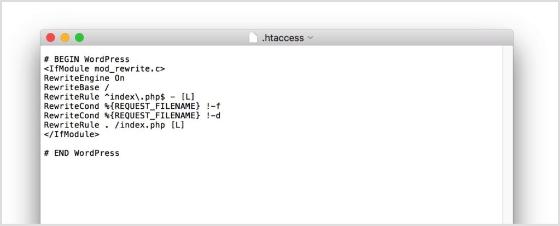
Open the .htaccess file using a text editor. Add the following code at the beginning or end of the file, depending on your preference:
Redirect 301 /old-url/ http://www.example.com/new-urlReplace “/old-url/” with the actual URL slug or path of the old URL you want to redirect, and “http://www.example.com/new-url” with the desired destination URL.
Put your rules above the # BEGIN WordPress block: WordPress manages the lines between # BEGIN WordPress and # END WordPress and can rewrite them when you save your permalink settings. The Redirect directive comes from Apache’s mod_alias; use Redirect 302 (or Redirect temp) for a temporary redirect. To send a whole old domain to a new one while keeping each path, a rewrite rule works:
RewriteEngine On
RewriteCond %{HTTP_HOST} ^(www\.)?old-domain\.com$ [NC]
RewriteRule ^(.*)$ https://www.new-domain.com/$1 [R=301,L]
Also read: What is URL hijacking: Different forms of typosquatting, consequences, and prevention techniques
Step 4: Save and upload the modified .htaccess file
Save the changes to the .htaccess file and upload it back to the root directory of your WordPress installation, overwriting the existing file.
Step 5: Test the redirection
Visit the old URL in your web browser and verify that it correctly redirects to the new URL you specified. If the redirection is working as expected, you have successfully redirected the URL in WordPress.
Remember, modifying the .htaccess file requires caution, as any mistakes in the code can cause issues with your website. Make sure to double-check the changes and keep a backup of the original .htaccess file for safety purposes.
Method 3: Adding a rule in Nginx
If your server runs Nginx, .htaccess files are ignored. Add a rule to the site’s server block instead (or ask your host to, since many managed hosts don’t give you access to the config). The return directive sends the redirect:
location = /old-url/ {
    return 301 https://www.example.com/new-url;
}
Reload Nginx after saving, then test the old URL.
Method 4: Using your hosting control panel
Many hosts offer a redirect tool, so you don’t need to touch files. In cPanel it’s under Domains > Redirects: choose Permanent (301) or Temporary (302), pick the domain, enter the path to redirect from and the address to redirect to, and click Add, as cPanel’s documentation describes. cPanel’s docs also note that you can’t edit an existing redirect; delete it and create it again.
On WordPress.com, a site redirect is only meant for sending a whole .wordpress.com address to a site elsewhere when you leave WordPress.com; for single pages or posts, WordPress.com points you to a redirection plugin.
Method 5: Redirecting in code (for developers)
In a child theme or a small custom plugin, you can redirect one page with wp_redirect() on the template_redirect hook. The function reference notes that it sends a 302 unless you pass another code, and that it must be followed by exit:
add_action( 'template_redirect', function () {
    if ( is_page( 'old-page' ) ) {
        wp_redirect( home_url( '/new-page/' ), 301 );
        exit;
    }
} );
For targets on your own site, wp_safe_redirect() is the safer function because it only allows hosts you trust.
Does WordPress redirect changed URLs on its own?
Partly. When you change a published post’s slug, WordPress keeps the old slug and sends visitors who use it to the new permalink; this is handled by wp_old_slug_redirect(). The same function skips hierarchical post types, so it doesn’t cover pages, and it doesn’t help when you delete content, change the permalink structure or move to a new domain. For those, add a redirect with one of the methods above.
How to redirect a WordPress page to an external URL
All the methods above accept an external target. In Redirection or Rank Math, put the full external address (with https://) in the target or destination field; in .htaccess or Nginx, write the full URL in the rule. Use a 302 if the page will come back, so search engines keep your own URL.
If all you need is a shareable link that points somewhere else, for example a sign-up form or a partner page, you don’t have to create a WordPress page at all. A branded short link does it and shows you the clicks; see how to redirect a URL to another URL for the options outside WordPress.
Common WordPress redirect problems
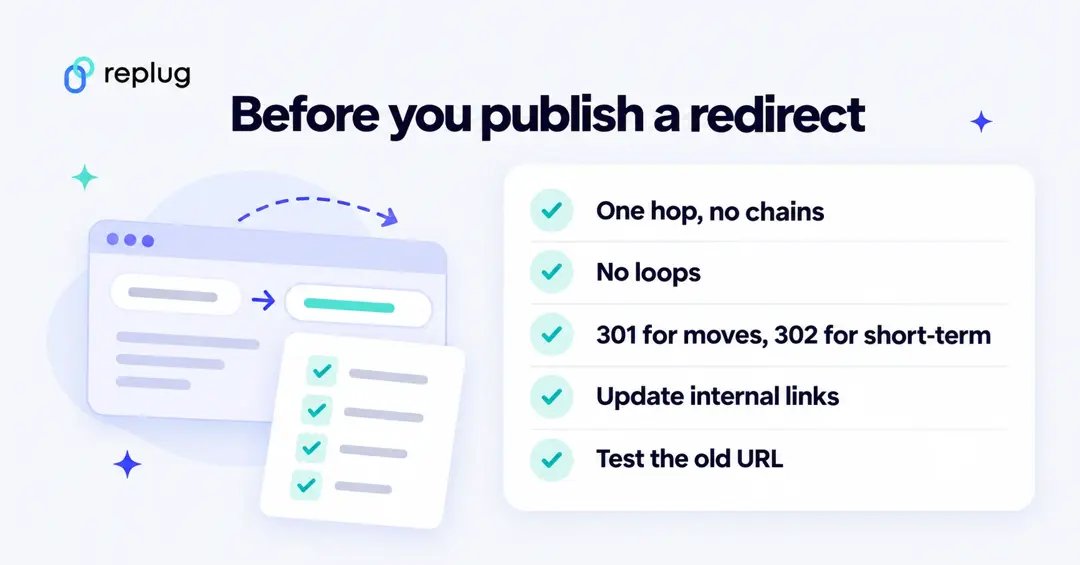
- Too many redirects (a loop): two rules point at each other, or an HTTPS or www rule from your host fights a plugin rule. Remove one of them.
- Redirect chains: /a goes to /b, which goes to /c. Point /a straight to /c so visitors make one hop.
- The old page still shows: a caching plugin, your host’s cache or a CDN is serving a stored copy. Clear the caches, and test in a private window because browsers can remember 301s.
- Trailing slash mismatch: /old-page and /old-page/ can be different source URLs. Match the form your site uses, or use the plugin’s option to ignore the trailing slash.
- .htaccess rule ignored: the server runs Nginx, or the rule sits inside the # BEGIN WordPress block and was overwritten.
You can see each hop in a terminal with curl -I, which prints the status code and the Location header:
curl -I https://www.example.com/old-url/Why you should create a redirect?
There are several scenarios in which you may need to create a redirect. Here are some common situations where redirects are useful:
1. Rebranding or website restructuring
If you undergo a rebranding process or make significant changes to your website’s structure, you may need to redirect old URLs to their new equivalents. This ensures that users who access the old URLs are seamlessly directed to the updated content.
2. Changing domain names
When you change your website’s domain name, it’s essential to set up redirects from the old domain to the new one. This preserves your website’s traffic, and search engine rankings, and ensures that visitors who may have bookmarked or shared your old URLs are still able to access your content.
3. Handling outdated or expired content
When you remove or archive certain pages or posts on your website, you can create redirects to guide users to relevant and up-to-date content. This prevents visitors from encountering dead ends or 404 error pages and helps maintain a positive user experience.
4. Managing affiliate or marketing campaigns
If you’re running specific marketing campaigns or affiliate programs that involve unique URLs, you might need to create redirects to track and direct visitors to the intended landing pages. This allows you to monitor campaign performance and ensure visitors land at the correct destination.
5. Correcting broken or mistyped URLs
If you discover broken or mistyped URLs on your website, creating redirects can fix these issues. By redirecting the incorrect URLs to the correct ones, you can ensure a smooth browsing experience for your users and prevent them from encountering frustrating dead ends.
Remember, redirects are powerful tools that can help you maintain website functionality, improve user experience, and preserve SEO efforts. Whenever you make changes to your website that impact URLs, consider whether a redirect is necessary to ensure a seamless transition and to guide users and search engines to the right content.
Also read: How to make a link clickable: Create hyperlinks easily on any platform
Final words
In the vast realm of the internet, URL redirection is the key to unlocking seamless navigation and preserving your online presence.
And if you want to simplify your links further, making them more shareable, memorable and trackable, a good short url
tool is worth adding to your toolkit.
By mastering the art of redirection, you can ensure a flawless user experience, maintain search engine rankings, and adapt to changes with ease.
Whether you’re rebranding, restructuring, or simply seeking to enhance your website’s performance, redirecting URLs is your secret weapon.
If you’re looking for a full-service solution that combines redirects, analytics and team collaboration, you might consider a dedicated link management platform for your entire domain and marketing workflow.
So, embrace the power of redirection, navigate the digital landscape with confidence, and watch as your online presence soars to new heights. Get ready to redirect your way to success!
You may also like:
How to automatically shorten URLs in an RSS Feed
What is a URL slug: Its impact on SEO, examples, best practices, & more
FAQs

Arslan Jadoon