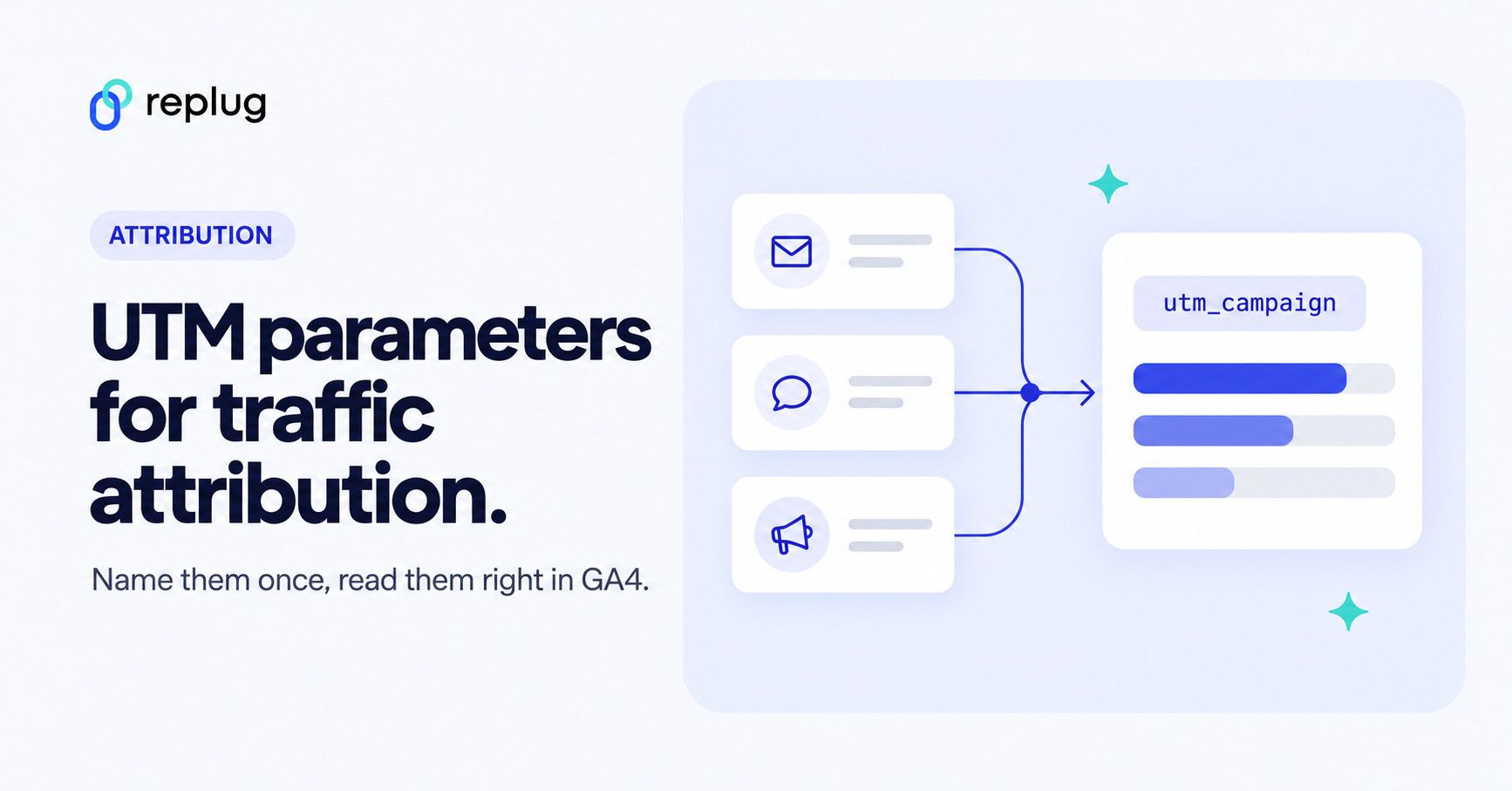
In digital marketing, understanding where your website traffic originates is like having a compass in a vast sea—essential for navigating your way to success. The hardest visits to attribute are dark traffic, the traffic that arrives without a referrer. This is where UTM parameters step in. These simple tags, added to your URLs, hold the key to unlocking valuable insights into the performance of your online campaigns, facilitating accurate traffic attribution.
In this guide, we’ll break down UTM parameters in straightforward terms. We’ll explain why they matter, how they’re structured, and, most importantly, how you can use them to track the effectiveness of your marketing efforts. Whether you’re new to the digital marketing game or seeking to fine-tune your strategies, this guide will empower you to leverage UTM parameters effectively, helping you make informed decisions and steer your campaigns toward greater success.
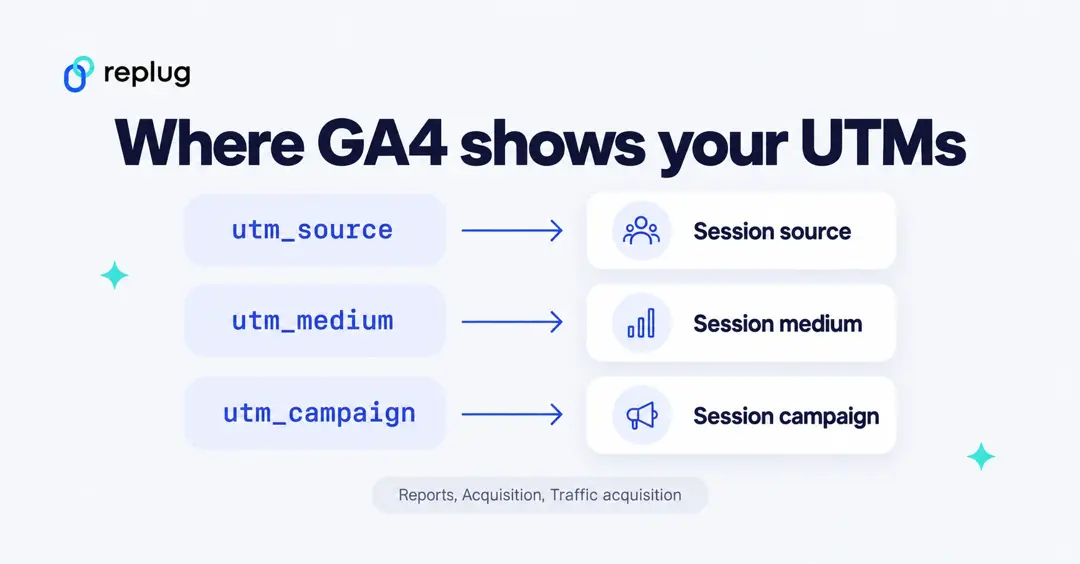
Quick answer: UTM parameters are tags you add to a link (utm_source, utm_medium, utm_campaign, plus optional utm_term, utm_content and utm_id) so your analytics tool can credit each visit to the right source, channel and campaign. Agree on one lowercase naming convention, tag every link you share, and read the results in Google Analytics under Reports > Acquisition > Traffic acquisition, where the tags appear as session source, medium and campaign, per Google Analytics Help.
What are UTM parameters?
This question often takes the center stage: “What are UTM codes or parameters?”
UTM parameters, short for Urchin Tracking Module parameters, are tags added to the end of a URL to track and analyze the effectiveness of marketing campaigns. They provide valuable information about the source, medium, campaign, term, and content associated with a particular link.
Here’s a breakdown of the key components of UTM parameters:
- Source (utm_source): The referrer that sends the traffic, such as a search engine, a newsletter or a billboard (Google’s examples: google, newsletter4, billboard). For example, utm_source=google indicates traffic coming from Google.
- Medium (utm_medium): The marketing medium, such as cpc, banner, email or social. You only tag links you share yourself; organic search visits get their source and medium from the search engine. For instance, utm_medium=cpc denotes traffic from a cost-per-click advertising campaign.
- Campaign (utm_campaign): The product, slogan, promo code or promotion the link belongs to. It allows you to differentiate between different campaigns or promotions. For instance, utm_campaign=spring_sale distinguishes traffic generated by a spring sale campaign.
- Term (utm_term): The paid keyword, used mostly in paid search campaigns to record the keyword behind the ad click. For example, utm_term=running+shoes indicates the keyword associated with a paid search ad for running shoes.
- Content (utm_content): Used to tell creatives apart, such as different ad creatives or two call-to-action links in the same email. It helps marketers identify which specific content is driving traffic. For example, utm_content=sidebar_ad identifies traffic from a sidebar advertisement.
Google Analytics 4 also reads a few newer parameters, per Google Analytics Help (checked October 2026):
- Campaign ID (utm_id): an ID for the campaign, useful if you import cost or campaign data.
- Source platform (utm_source_platform): the platform that directed the traffic, such as the ad buying platform.
- Creative format (utm_creative_format) and marketing tactic (utm_marketing_tactic): accepted in URLs, but Google notes they aren’t currently reported in GA4.
Values are case-sensitive: utm_source=google and utm_source=Google are two different sources in your reports. Google recommends always setting utm_source, utm_medium and utm_campaign; missing parameters show up as “(not set)”.
How to create a UTM link
A UTM link is your normal page URL with the tags added after it. You can type it by hand, use a URL builder, or add the tags when you shorten the link. The format, per Google Analytics Help: put a question mark after the URL, write each tag as a name=value pair, and separate the pairs with an ampersand (&). The order doesn’t matter, but the values are case-sensitive.
https://www.example.com/fall-menu?utm_source=newsletter&utm_medium=email&utm_campaign=fall_menuIf the URL already has a question mark (for example ?id=42), add the tags with an ampersand instead: ?id=42&utm_source=newsletter….
With a URL builder
Google’s free Campaign URL Builder and Replug’s free UTM builder both work the same way: paste the page URL, fill in source, medium and campaign (term and content are optional) and copy the finished link. For Android app ads, Google points to its separate Play Campaign URL Builder.
In Replug, while you shorten the link
If you want a short link and UTM tags in one step, these are the steps in the current Replug app:
- On the Home screen, paste the page URL into the Paste a long URL to shorten… field and click Shorten.
- In the Your link window, click + Add UTM next to the original link.
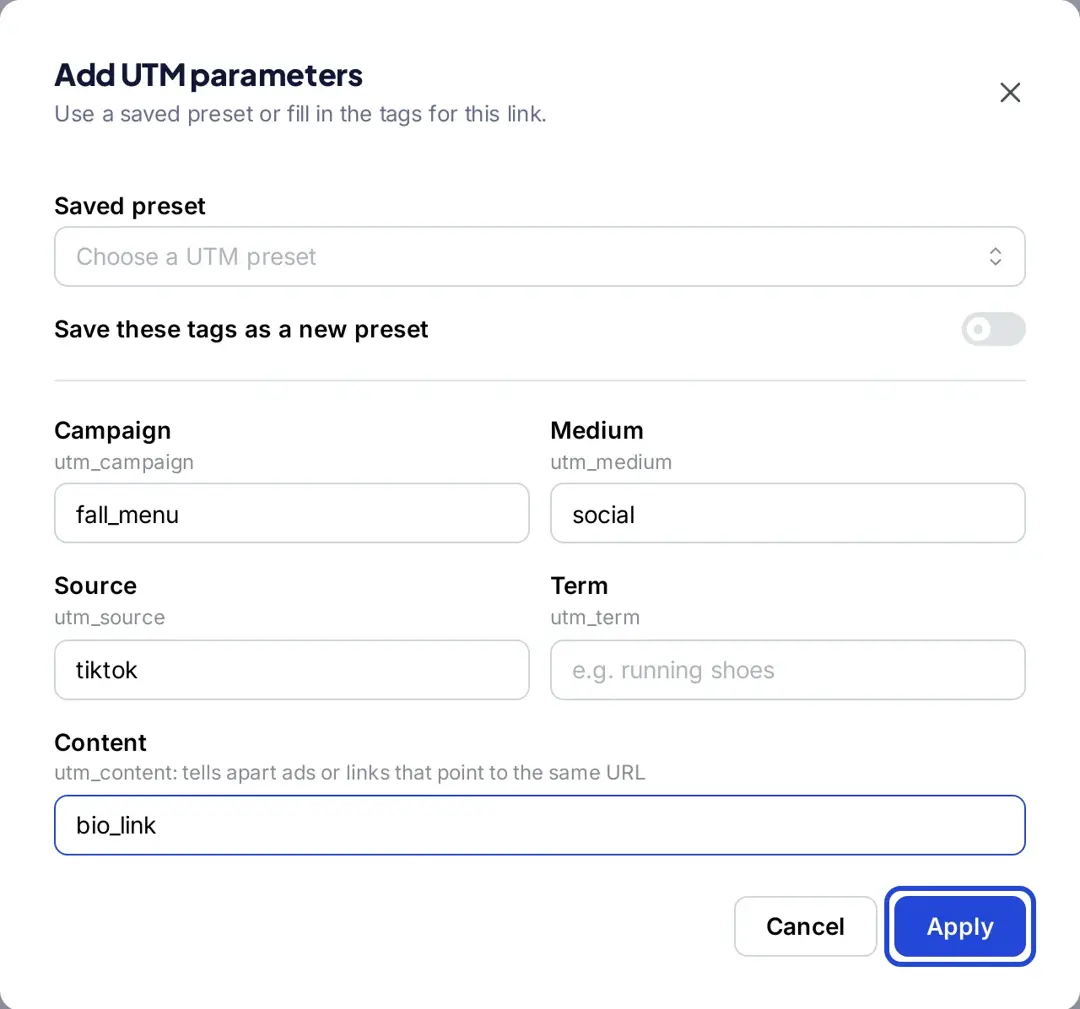
- In Add UTM parameters, choose a Saved preset or fill in campaign, medium and source (term and content if you need them). Turn on Save these tags as a new preset to reuse them, then apply them.
- Optionally change the back-half of the short link with the pencil icon (Essentials and up), then click Save Shortened Link.

The tags are added to the original link, so the short link sends visitors to the tagged URL: Replug counts the clicks, and Google Analytics credits the visits to your source, medium and campaign.
Mistakes to avoid when you build UTM links
- Spaces and odd characters: use underscores or hyphens (fall_menu), not spaces, so the link doesn’t break when it is copied.
- Mixed spelling or case: Facebook, facebook and fb become three sources. Pick one value per platform and keep it lowercase.
- Tagging internal links: UTMs belong on links that bring people to your site from elsewhere, not on links between your own pages.
- Personal data in tags: never put email addresses, names or phone numbers in utm_source, utm_medium, utm_term, utm_campaign or utm_content; Google’s policies forbid sending personally identifiable information to Analytics.
What is traffic attribution?
Traffic attribution refers to identifying and assigning credit to the various channels, campaigns, or sources that contribute to website traffic or conversions. In other words, it involves determining where your website visitors are coming from and understanding the paths they take before completing a desired action, such as making a purchase, signing up for a newsletter, or filling out a contact form.
The goal of traffic attribution is to attribute the appropriate value to each touchpoint along the customer journey, allowing marketers to understand the effectiveness of their marketing efforts and allocate resources accordingly.
In GA4 this works at two levels. UTM parameters decide which source, medium and campaign a session is credited to, which feeds the Traffic acquisition report and the channel groups. When a visitor later completes a key event, such as a purchase or sign-up, GA4’s attribution models decide which of their earlier clicks gets the credit: data-driven (the default, which spreads credit based on your data), paid and organic last click, or Google paid channels last click. Google retired the first click, linear, time decay and position-based models in November 2023.
If you also link Google Ads with auto-tagging, GA4 uses the auto-tagged values for source and medium, and your manual utm_content and utm_term still feed the manual ad content and term dimensions, per Google Analytics Help.
By accurately attributing traffic, marketers can answer questions such as:
- Which marketing channels or campaigns are driving the most traffic to my website?
- What is the impact of each marketing touchpoint on conversions?
- How do customers interact with multiple channels before converting?
- How can I optimize my marketing strategy to improve performance and ROI?
Benefits of using UTMs for traffic attribution:
Using UTM parameters for traffic attribution offers several benefits that empower marketers to make informed decisions and optimize their marketing strategies effectively:
Granular insight into traffic sources
UTM tags offer a microscopic view of where your website traffic originates, allowing you to pinpoint the exact sources and campaigns driving visitors to your site with unparalleled accuracy.
Strategic resource allocation
With UTM parameters, you can identify high-performing marketing channels and campaigns, enabling you to allocate your resources—whether time, budget, or creative efforts—strategically toward the channels that deliver the best results.
Quantifiable campaign impact
By associating unique parameters with each campaign, UTM parameters provide measurable data on the performance of your marketing efforts. This data-driven approach empowers you to measure the effectiveness of your campaigns objectively and refine your strategies accordingly.
Insightful user journey analysis
UTM parameters allow you to trace users’ paths to reach your website, shedding light on their journey and interactions with your brand. This deep understanding of user behavior informs personalized marketing tactics and website optimizations, enhancing the overall user experience.
How to use UTM parameters for traffic attribution?
Using UTM parameters for traffic attribution involves a straightforward process. Here’s a step-by-step guide:
Step 1: Identify your campaigns
Determine the marketing campaigns or initiatives you want to track. This could include email newsletters, social media posts, PPC ads, or any other promotional efforts.
Step 2: Create unique UTM parameters
Generate UTM parameters for each campaign with Replug’s free UTM builder, Google’s Campaign URL Builder or the UTM fields in your link tool. The key parameters include:
- utm_source: The referrer of the traffic (e.g., google, newsletter, facebook).
- utm_medium: The marketing medium (e.g., cpc, email, social).
- utm_campaign: The specific campaign name or identifier.
Additional optional parameters:
- utm_term: Keywords associated with the ad or link.
- utm_content: Differentiate between variations of the same ad or link.
Step 3: Append UTM parameters to URLs
Once you have created the UTM parameters, append them to the URLs of your marketing assets. For example:
https://www.example.com/fall-menu?utm_source=newsletter&utm_medium=email&utm_campaign=fall_menu&utm_content=header_button
https://www.example.com/fall-menu?utm_source=instagram&utm_medium=social&utm_campaign=fall_menu&utm_content=bio_link
https://www.example.com/fall-menu?utm_source=facebook&utm_medium=paid_social&utm_campaign=fall_menu&utm_content=video_a
Step 4: Track incoming traffic
Monitor your website analytics platform (e.g., Usermaven) to track incoming traffic with UTM parameters. You can view the data under the “Attribution” or “Acquisition” sections, depending on your analytics tool. In Google Analytics 4, open Reports > Acquisition > Traffic acquisition and switch the primary dimension to Session source / medium or Session campaign, per Google Analytics Help.
Step 5: Analyze and interpret data
Use the data collected through UTM parameters to analyze the performance of your campaigns. Identify which campaigns, channels, or sources drive the most traffic and conversions. Evaluate the effectiveness of your marketing efforts and make data-driven decisions to optimize future campaigns.
Step 6: Refine and iterate
Continuously refine your UTM parameters and tracking methods based on the insights gained. Test different variations, channels, or messaging to improve performance and maximize ROI over time.
How GA4 sorts your UTM traffic into channels
GA4 also groups sessions into channels, such as Email, Organic Social or Paid Social, using your utm_source and utm_medium. If your medium doesn’t match its rules, the traffic can land in “Unassigned”. These are some of the default rules, per Google Analytics Help (checked October 2026):
| Channel | What GA4 looks for | Example tags |
|---|---|---|
| Source or medium is email, e-mail, e_mail or e mail | utm_source=newsletter&utm_medium=email | |
| Organic Social | A known social site as the source, or a medium of social, social-network, social-media, sm, social network or social media | utm_source=instagram&utm_medium=social |
| Paid Social | A known social site as the source and a medium that matches cpc, ppc, retargeting or starts with paid | utm_source=facebook&utm_medium=paid_social |
| Referral | Medium is referral, app or link | utm_source=partner_blog&utm_medium=referral |
| Unassigned | No channel rule matches | utm_medium=flyer (no matching rule) |
So if you want QR codes, flyers or podcasts reported in a useful channel, either pick mediums that match these rules or build a custom channel group in GA4. Channel rules themselves aren’t case-sensitive, but the source and medium values in your reports are.
Best practices for using UTM parameters:
1. Establish clear naming conventions:
Develop a standardized naming convention for UTM parameters to maintain consistency and clarity across all campaigns. Consistent naming conventions make it easier to track and analyze data accurately.

A simple template you can copy into a shared doc or sheet and fill in:
Rules
- lowercase only, underscores instead of spaces
- one utm_source per platform: google, facebook, instagram, tiktok, linkedin, newsletter
- one utm_medium per channel: cpc, paid_social, social, email, referral, qr_code
- utm_campaign = short campaign name: fall_menu, black_friday_2026
- utm_content = the creative or placement: video_a, header_button, bio_link

Template
https://www.example.com/page?utm_source={platform}&utm_medium={channel}&utm_campaign={campaign}&utm_content={creative}

Log (one row per link)
date | owner | destination URL | utm_source | utm_medium | utm_campaign | utm_content | short link
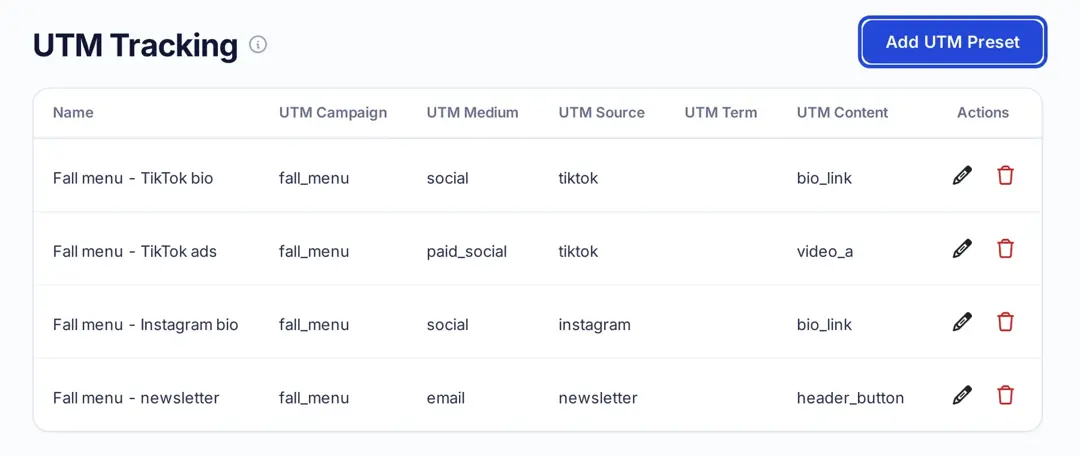
Saving the combinations you use as presets keeps everyone on the same names. In Replug, you can save UTM presets under Settings > UTM Tracking and pick one whenever you add UTMs to a link.
2. Include relevant information:
Ensure that UTM parameters contain relevant information about the source, medium, campaign, and content. This information should accurately reflect the purpose and context of each campaign or promotional activity.
3. Be selective with parameters:
Avoid using unnecessary UTM parameters that don’t contribute meaningful insights. Focus on the essential parameters that help you track and analyze the performance of your campaigns effectively.
4. Use URL shorteners:
Long URLs with UTM parameters can be cumbersome and visually unappealing. Consider using our best free link shortener to create cleaner, more user-friendly links while still incorporating parameters for UTM tracking purposes. For more on how tagged links work, see what a tracking URL is.
5. Regularly review and update:
Periodically review your UTM parameters to ensure they align with your current marketing objectives and strategies. Update or refine them as needed to maintain relevance and accuracy over time.
6. Educate your team:
Provide training and guidance to your marketing team on the proper use of UTM parameters. Ensure everyone understands the importance of consistent implementation and follows best practices to avoid errors or inconsistencies.
7. Document your UTM strategy:
Keep detailed documentation of your UTM parameters, including naming conventions, usage guidelines, and tracking procedures. This documentation serves as a reference for your team and helps maintain consistency across campaigns.
8. Test and validate:
Before launching campaigns with UTM parameters, test and validate your tracking setup to ensure everything is functioning correctly. Verify that data is being captured accurately in your analytics platform and troubleshoot any issues before going live.
Optimize your UTM parameters with Replug
For marketers seeking a streamlined solution to manage UTM parameters and track link performance, Replug offers a robust suite of tools designed to simplify the process.
With Replug’s free UTM builder, you can create tagged URLs for your marketing campaigns in seconds: enter the website URL, source, medium and campaign name (term, content and ID are optional) and copy the result. Inside the Replug app, the Add UTM window adds the same tags to any short link and can save them as a preset. The UTM builder is on every plan, including Free, per replug.io/pricing. For a platform-specific example, see how to set up UTM tags for TikTok links.
But that’s not all. Replug goes beyond UTM parameters, offering comprehensive link management capabilities to optimize your marketing efforts further. You can track clicks on every tagged link in one dashboard.
With this amazing link optimization platform, you can:
- Create branded short links: Enhance your brand’s visibility and trust by creating custom short links that reflect your brand identity.
- Track clicks: see clicks and unique clicks on every link, with countries, devices, browsers and referrers. Replug counts clicks on your links; conversions belong in your analytics tool, which reads the UTMs.
- Retarget people who click: add a Meta, Google, LinkedIn or other ad platform pixel to your links so people who click can see your ads later (1 pixel on Essentials, unlimited on Scale and Agency), and show a call-to-action message on the pages you share (Essentials and above), per replug.io/pricing.
Whether you’re a solopreneur, small business owner, or marketing agency, Replug empowers you to optimize your marketing efforts and drive results.
Frequently asked questions

Arslan Jadoon