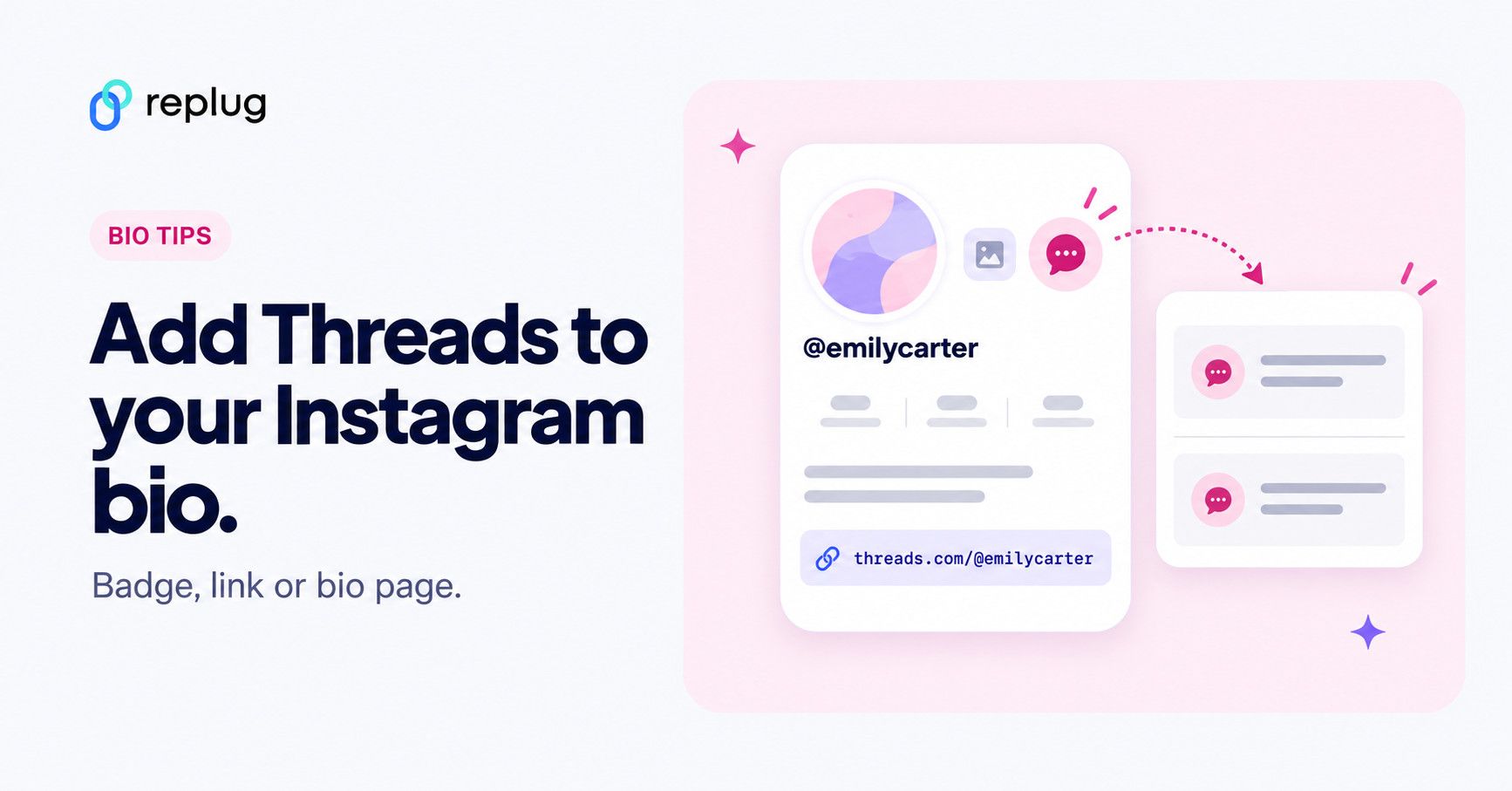
You’ve got your Instagram bio all set up, but it feels like something’s missing. Maybe it’s neat, but it’s not “popping’’ the way you want it to. You’ve probably seen other profiles with those slick little threads in their bios and thought: That’s genius! How do I get in on this? Well, guess what? You’re in the right place because we’re about to show you exactly how to add threads to Instagram bio and make your profile stand out in a big way.
We’ll walk you through the three simple methods of adding threads to your Instagram bio, including a unique way to do it using Instagram bio links. It’s easier than you might think, and the results will be totally worth it. With threads, you can take your Instagram bio from basic to eye-catching in no time, creating a profile that feels fresh and dynamic.
So, let’s dive in and get your bio looking its best!
Short answer: the quickest way is the Threads badge. In the Instagram app, go to your profile, tap Edit profile and turn on Show Threads badge; a small Threads icon then appears on your profile and opens your Threads account. If you want a visible, clickable link instead, copy your Threads profile link (threads.com/@yourusername) and add it under Edit profile → Links → Add external link. To share Threads alongside your other links, use a bio link page.
But wait… what even is “Threads”?
If you’re an Instagram pro, you’ve probably heard of Instagram Threads by now, and maybe even wondered how you can bring the two together.
Threads is Instagram’s text-based counterpart, built around promoting healthy conversations, while Instagram itself thrives on visual content.
Threads, the newer text-based app from Meta, is all about sparking meaningful conversations and staying connected with your audience in a more direct way. Since its launch in July 2023, Threads has skyrocketed to over 300 million monthly actives (Adam Mosseri, Head of Instagram), many of whom have come from Instagram. By August 2025 Meta reported more than 400 million monthly active users. Why? Because these two platforms sync up perfectly, making it easy to link them and create a seamless experience.
Think of it as X’s/Twitter’s most popular alternative.
How to add threads to Instagram bio?
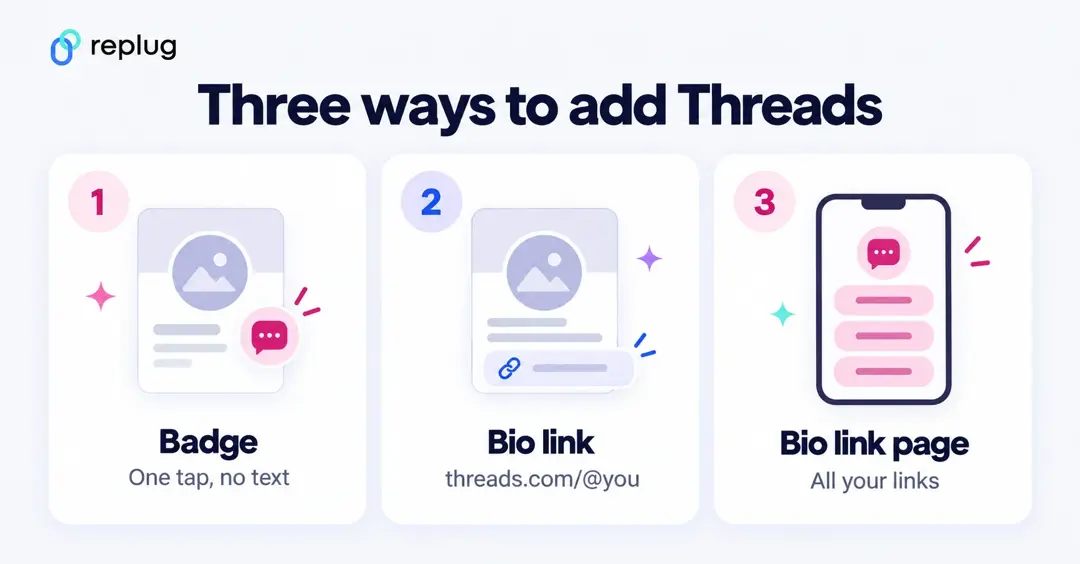
Now let’s get to the fun part! There are three methods to add threads in your Instagram bio:
Method 1: As a clickable icon directly through the Threads app
Method 2: Adding a Threads link using Instagram’s External link option.
Method 3: Using the Replug bio link feature
Method 1: How to add Threads to Instagram bio as a clickable icon directly through the Threads app
- Open the threads app: If you don’t have the Threads app installed already, go to your Apple Store or Playstore to install it.
- Sign in with Instagram: Before you start, make sure you have an active Instagram account to link with Threads. If you’re already logged into Instagram, Threads will automatically detect your profile and link the two.

- Set up your experience: Choose whether you want to keep your profile public or private.

- Tap “Join Threads”: Once done, you’ll see a button at the bottom to join Threads. Click on it to proceed.

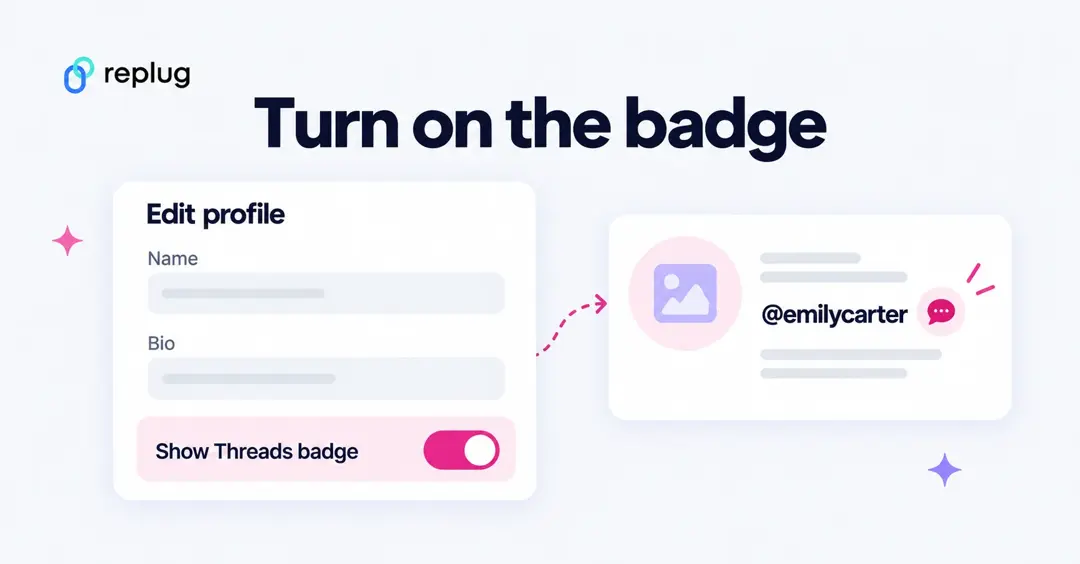
- Threads will be added to your Instagram profile: Once done, go to your Instagram profile. Here, you’ll see a clickable Threads icon at the top right, as well as in your bio section.

Note: You can easily hide your Threads badge inside your Instagram app by simply clicking “Edit profile” and toggling the “Show Threads badge” button.
Two things to know about the badge, from Instagram’s help page: the setting works in both directions, so turning it off on Instagram also hides the Instagram badge on your Threads profile, and the badge is visible to everyone who visits your Instagram profile, even if your account is private.

| Pros | Cons |
| Effortless setup: Threads automatically links to Instagram. | Easily overlooked: The icon is small and placed in a corner. |
| Minimalist look: No extra links cluttering your bio. | No clear call to action: The icon does not look like a clickable link. |
| Direct integration: Ensures a seamless experience between Instagram and Threads. | Limited awareness: Some users may not recognize the Threads icon yet. |
Related: How to add a Twitter (X) link to Instagram bio?
Method 2: How to add Threads to Instagram bio using an external link
- Access your Threads profile and click on Edit profile.
- Copy your Threads link.

- Open the Instagram app and click on Edit profile.
- Click on Add external link

- Paste your Threads URL.
- Your Threads link will appear in your Instagram bio.

Where to find your Threads link: in the Threads app, open your profile, tap Share profile and choose Copy link. The link looks like https://www.threads.com/@yourusername; older links that use threads.net still redirect. Instagram lets you add up to five links to your bio, so your Threads link can sit next to your website or shop link. Give it a clear title such as “Threads” so it reads well in the link list.
Pros and cons
| Pros | Cons |
| Straightforward: Simply copy and paste the link. | Not visually appealing: A long URL can look messy and unprofessional. |
| Clickable and obvious: Users can clearly see it is a link. | Limited engagement: A single external link might not get much attention. |
Recommendation: For maximum traffic, it’s optimal to duplicate the Threads link on your Instagram bio page through one of the best link in bio tool online.
The good news is that you can easily do that using Replug’s bio link feature! Which brings us to the next method.
Method 3: How to add Threads to Instagram bio using Replug’s bio link feature
Replug takes your Instagram bio to another level with its bio link feature. You can create a bio site that includes the link to your Instagram Threads account alongside other important links that you want to showcase to your audience.
Here are the simple steps that you need to follow if you use Replug’s Instagram link in bio tool to put Threads in your Instagram bio:
- Open the Replug app and log in to your Replug account. If you don’t have an account, you can easily create one within minutes!
- Access the Bio Links feature from your home page.

- Click on Create new.

- Click on Content and add a “Links” block.

- Paste your Threads profile URL and give it a title.

- Customize your bio link URL and copy it.


- Use this link on your Instagram by adding an external link (refer to method 2).
- You’ll now see your bio link in your Instagram bio!

Pros and cons
| Pros | Cons |
| Customizable and professional: You can brand your bio link page. | Requires an extra step: You need to create and manage a Replug account. |
| Multi-link capability: Add other important links alongside your Threads profile. | One extra click for users: Instead of clicking directly on a Threads link, users go through a bio link page first. |
| Better user experience: Visitors see all your links in one place, increasing engagement. | |
| Link analytics: You can track how many people clicked on your Threads profile and optimize your CTR. |
Related: How to put your VSCO link in your Instagram bio?
Which method should you use?
| Method | Best for | What visitors see |
|---|---|---|
| Threads badge | Anyone who just wants followers to find their Threads account | A small Threads icon on your profile; no link text |
| External link to Threads | Creators who want Threads to be one of their bio links | “Threads” in your list of bio links |
| Bio link page with Threads on it | Anyone sharing several places: Threads, YouTube, a shop, a newsletter | One link that opens a page with all your buttons, plus click counts |
You can combine them: keep the badge on, and put a bio link page in your Instagram links so the people who want more than Threads can find everything else.
Threads badge not showing on Instagram? Try this
- Check the toggle. Go to your Instagram profile, tap Edit profile and make sure Show Threads badge is on.
- Use the same account. The badge only appears on the Instagram account your Threads profile was created with. If you have several Instagram accounts, switch to the right one.
- Update both apps. Older versions of Instagram or Threads may not show the setting.
- Check your Threads profile. If you deactivated or deleted your Threads profile, the badge goes away. Reactivate Threads, or add your Threads link manually once you have a new profile.
- Give it a moment. After you change the setting, close and reopen Instagram; the badge can take a little while to update for other people.
How to add your Instagram to your Threads bio
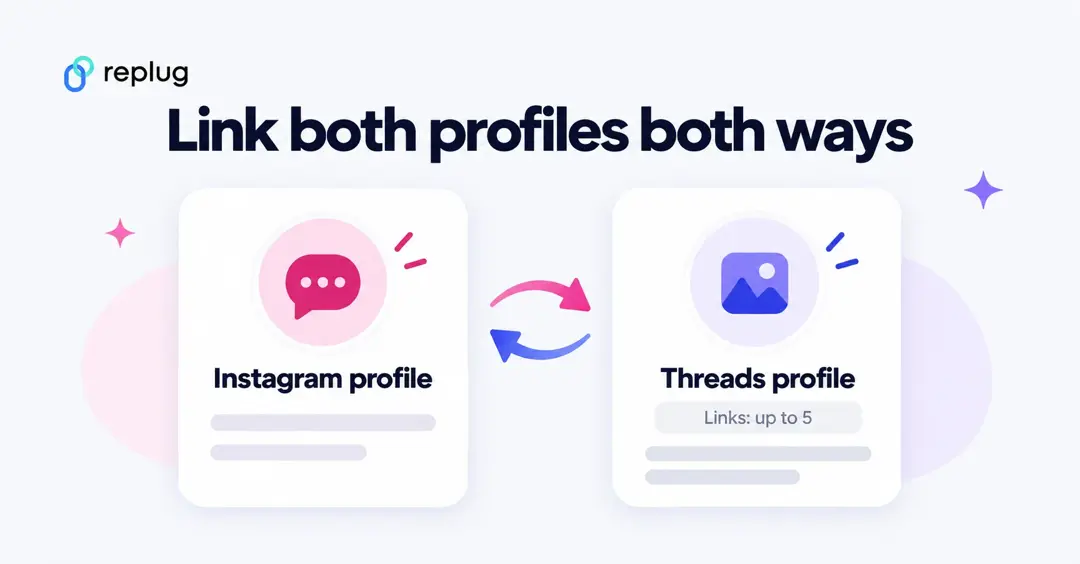
Linking works the other way too. If your Threads profile was created with Instagram, Threads shows an Instagram badge on your profile, controlled by the same setting. You can also add links to your Threads bio: in Threads, tap Edit profile → Links and add your website, your bio link page or other profiles. Threads lets you add up to five links.
Tips for promoting Threads from Instagram
- Mention it in your bio text. A short line such as “Daily thoughts on Threads” tells people why to tap the badge.
- Share a Threads post to your Story. In Threads, tap the share icon under a post and choose Instagram Story. Add a link sticker that points to your Threads profile so viewers can follow you in one tap.
- Pin a reminder. If you post a Reel about a topic you discuss on Threads, say so in the caption and point to the link in your bio.
- Track what works. Put a short link to your Threads profile on your bio link page and check how many people tap it each week.
Conclusion
Adding Threads to your Instagram bio helps you connect with your audience more effectively, but choosing the right method matters. While the built-in Threads badge and direct link options work, they come with limitations like low visibility and cluttered URLs.
This is where Replug stands out. With its bio link feature, you can create a branded, clickable landing page that includes your Threads profile along with other important links. This not only makes your Instagram bio look clean and professional but also boosts engagement and tracks clicks to see what’s working.
Replug is the ultimate solution if you want a seamless, customizable, and data-driven way to showcase your Threads profile. Start using it today!
What’s even better is that you can also enhance your links’ appearance with our free URL shortener with tracking, making it easier to share clean, trackable URLs across your desired platforms.
FAQs on how to add Threads to Instagram bio

Amna Yawar