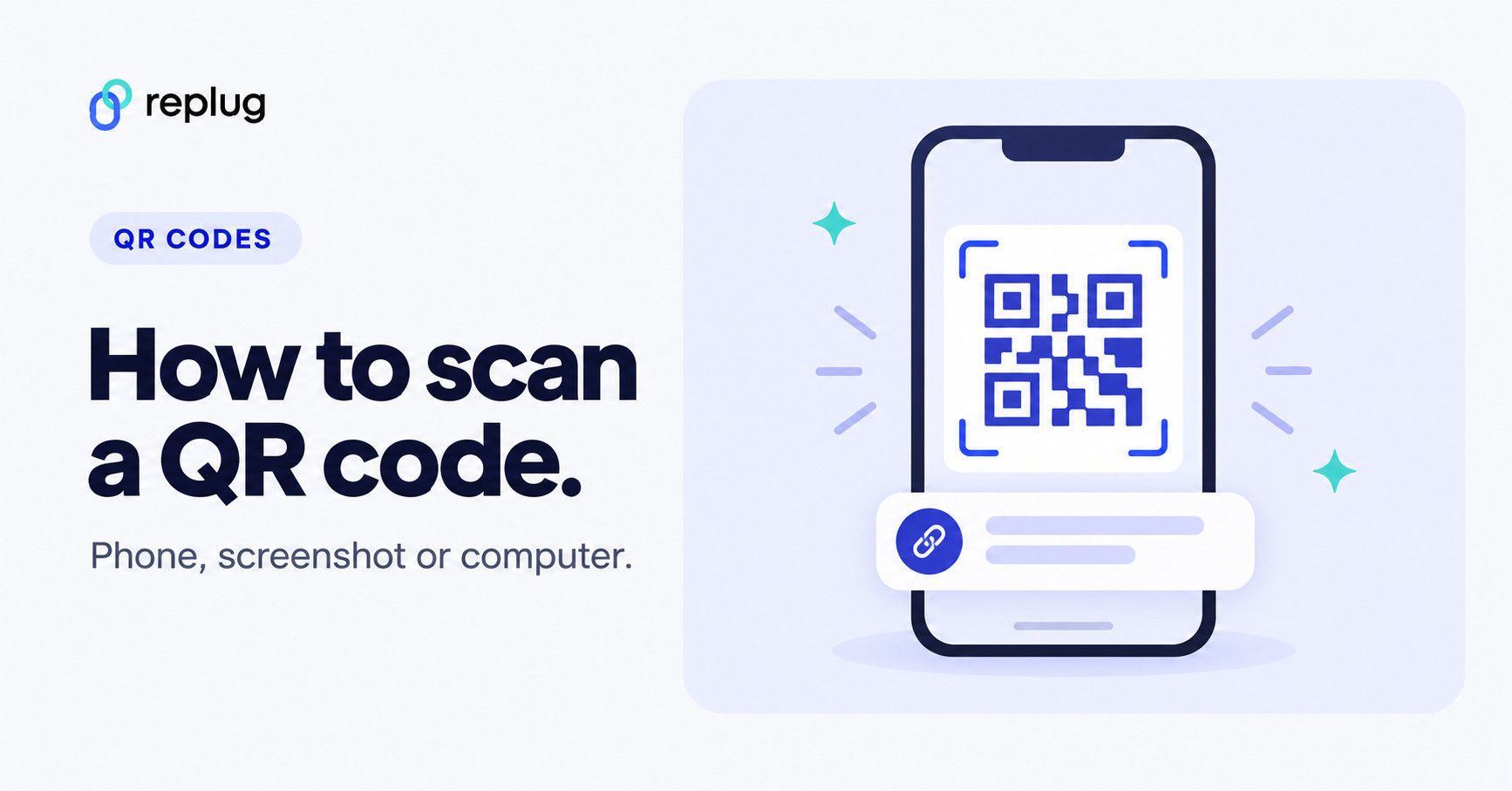
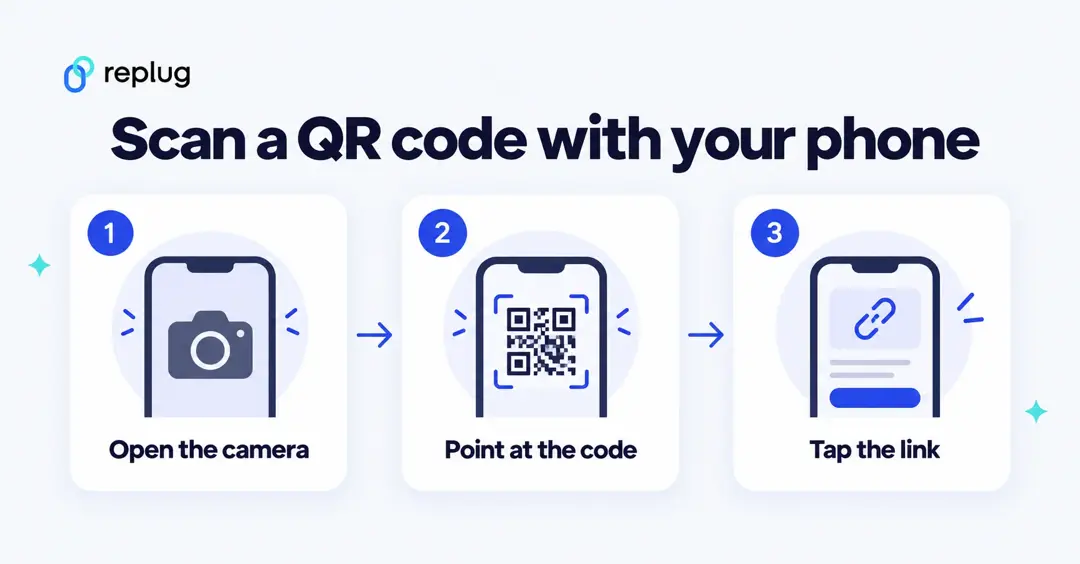
To scan a QR code, open your phone’s camera, point it at the code so the whole square is on screen, and tap the link or banner that appears. That works on any recent iPhone and on most Android phones, with no extra app. If the code is already on your screen (in a screenshot, email or website), use Photos or Google Lens on the same phone, or point another device’s camera at it.
Below are the exact steps for iPhone and Android from Apple’s and Google’s help pages, how to scan a code that is already on your phone, how to scan one on a Mac or Windows computer, and what to check before you tap a link from a QR code.
Disclosure: this is Replug’s blog. Replug makes QR codes, which we mention at the end.
What is a QR code?
A QR code (Quick Response code) is a two-dimensional barcode: a grid of black and white squares that a camera can read from any angle. It can hold a URL, plain text, a contact card, Wi-Fi details or a payment link. According to DENSO WAVE’s history of the QR code, the company (then a division of DENSO CORPORATION) released it in 1994, and the auto industry adopted it for electronic Kanban, a production-management tool, before it spread to tickets, payments and marketing. For how the squares store data, see how a QR code works.
There are two common types of QR codes:
- Static QR codes contain the data itself, so the destination can never change.
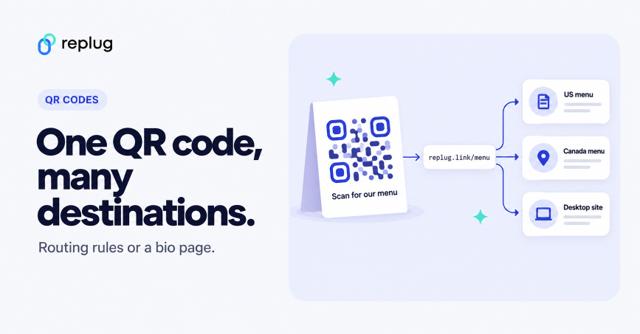
- Dynamic QR codes contain a short link that redirects to the destination, so the code owner can count scans and, with some tools, change where it points without reprinting.
For the person scanning, both work the same way: point the camera, then tap.
How to scan a QR code on an iPhone
iPhones read QR codes in the built-in Camera app and with the Code Scanner in Control Center, according to Apple Support.
With the Camera app
- Open Camera from the Home Screen, Lock Screen or Control Center (or with the Camera Control on supported models).
- In Photo mode, position your iPhone so the QR code appears inside the camera frame.
- Tap the link that appears at the bottom of the screen.
Steps from Apple’s iPhone User Guide. If nothing appears, move a little closer, make sure the whole code is in view and turn on the flashlight in low light.
With Code Scanner in Control Center
- Open Control Center and tap the Scan Code button.
- Hold your iPhone so the QR code appears on screen, then tap the link to open it.
If you don’t see Scan Code, add it: open Control Center, touch and hold the background, tap Add a Control, then tap Scan Code in the gallery (Apple Support).
From a photo or screenshot on your iPhone
- Open the photo or screenshot in the Photos app.
- Tap the Live Text button.
- Tap the quick action (the link) at the bottom of the screen.
Apple describes these quick actions in Interact with content in a photo or video. Photos also groups pictures that contain QR codes: tap Collections, scroll to Utilities and open the QR codes collection (Apple Support). For more ways to read a code from an image, see how to scan a QR code from a screenshot.
How to scan a QR code on Android
Most Android phones scan QR codes with the camera, a Quick Settings tile or Google Lens, according to Android’s guide to scanning QR codes. Menu names vary by phone maker; for brand-specific screens, see our Android QR code scanning guide.
With the Camera app
- Open your camera app.
- Point it at the QR code.
- Pause until the code is detected, then tap the notification that appears (a website, payment link or other action).
Some phones use Camera from Google, which can scan in its regular photo mode or in a dedicated QR mode; scanning doesn’t work in portrait or video mode (Camera from Google Help).
With the Quick Settings QR scanner
- Swipe down from the top of the screen.
- Tap the QR scanner icon.
- Point your phone’s camera at the code.
Samsung Galaxy phones and tablets offer the same scanner in the Quick settings panel and in the Camera app (Samsung Support). If you don’t see the tile, edit your Quick Settings and add it.
With Google Lens
Point Google Lens at a QR code and it shows the link or information behind it (Android). In Google Photos, open a saved picture of a code, tap More, then Google Lens (Google Photos Help).
How to scan a QR code that’s already on your phone
You can’t point a phone’s camera at its own screen, so use one of these instead:
- Android with Circle to Search: touch and hold the Home button or navigation handle, then circle the QR code; the result appears at the bottom of the screen. Google lists it for select Android phones, including Pixel 6 and later (Android Help), and notes it may not work in some apps, such as banking apps.
- Android without Circle to Search: take a screenshot, open it in Google Photos and use Google Lens.
- iPhone: take a screenshot, open it in Photos and tap the Live Text button, then the link.
- Any phone: show the code to a second phone or tablet and scan it with that device’s camera.
How to scan a QR code on a computer
Apple and Google document QR scanning for phones and tablets, and Google documents Lens for Chrome on a computer. These three routes work on a Mac or a Windows PC:
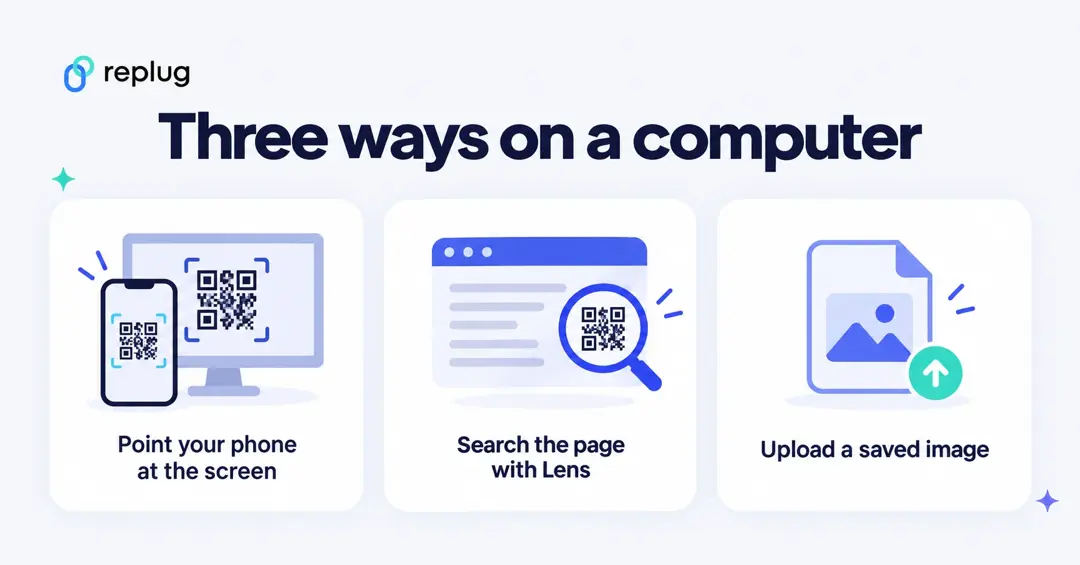
- Use your phone: point your iPhone or Android camera at the code on your monitor and tap the link. If you want to keep working on the computer, send the link to yourself.
- Google Lens in Chrome: open the page with the code, click the three-dot menu and choose Search this tab with Google Lens (or right-click the page), then select the code (Chrome Help). Google says a screenshot of the page is sent to Google to process the search.
- A saved image: if the code is in a file, open it in Chrome and use Google Lens on it, or open the image on your phone and scan it there.
Be careful with “free online QR scanner” sites and extensions you don’t know: you are uploading a picture to someone else’s server. The FBI also advises against downloading QR scanner apps, since most phones have a built-in scanner in the camera (FBI IC3 public service announcement).
Tips for scanning a QR code
If a code won’t scan straight away, these habits usually fix it. For codes that still fail, see why a QR code isn’t working.
Good lighting and focus
Cameras need light and contrast to read the small squares. Move toward a window or turn on the flashlight, and wait until the code looks sharp on screen.
Distance and stability
Too close or too far and the code blurs. Fill most of the frame with the code without cutting off the edges, and hold still for a second so the camera can focus.
Optimal angle
Hold the camera as straight on as you can. A small tilt is fine, but steep angles and curved surfaces such as bottles distort the pattern.
Use the native camera
Your phone’s camera or Control Center scanner is enough for nearly every code, and it’s what the FBI recommends over third-party scanner apps.
How to check a QR code is safe before you tap
A QR code hides its destination until you scan it, which scammers use. The FBI’s Internet Crime Complaint Center warns that criminals tamper with digital and physical QR codes, for example by placing a sticker over a real code, to send people to sites that steal login and payment details. Its advice:
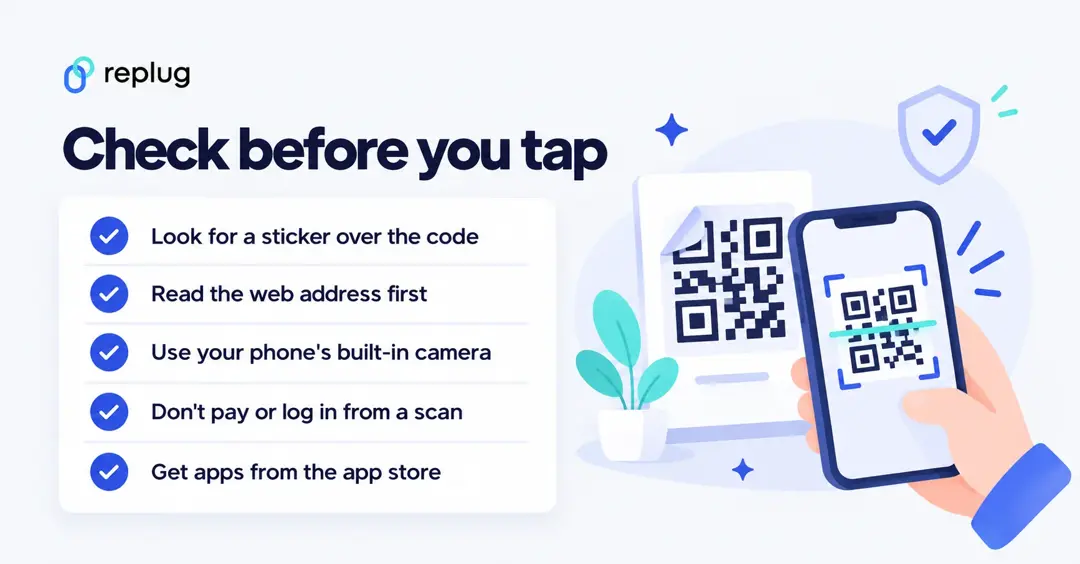
- Inspect for tampering: on a physical code, check that no sticker has been placed over the original.
- Preview the URL: after you scan, read the web address before you open it. A fake domain may look like the real one with a typo or a misplaced letter.
- Avoid sensitive actions: be careful entering login, personal or payment details on a site you reached from a QR code. To pay, type a known, trusted address instead.
- Get apps from the app store: don’t download an app from a QR code.
- Verify unexpected codes: if an email says a payment failed and only a QR code can fix it, call the company using a number from its real website. If a friend sends a code, check with them another way.
Random codes on poles, parking meters or flyers with no clear owner are worth skipping altogether.
What happens after you scan a QR code?
Your phone shows what the code contains: usually a link, sometimes text, a contact card, Wi-Fi details or a payment request. Nothing opens until you tap. After you tap, you are just visiting a web page or opening an app, so the usual rules apply: check the address, and only sign in or pay where you trust the site.
Create your own QR code with Replug
If you’re on the other side, making codes for menus, packaging or events, a dynamic code lets you see whether people scan it. Replug’s QR code generator makes every code dynamic: each one runs through a branded short link, so scans are tracked by time, country, city, device, OS and browser. Website, short link and Bio Links codes are on every plan and other code types start on Essentials, according to the QR code generator page.
Custom shapes and frames start on Essentials, and adding your logo or changing a printed code’s destination is on Scale and Agency, according to Replug’s pricing. The Free plan includes 10 smart QR codes. You can also add retargeting pixels that fire on every scan (one pixel on Essentials, unlimited on Scale and Agency). If you’re printing one, here’s how to write a call to action to go with it, and a long URL is a good reason to use a short link behind the code.
Wrapping up
On a phone, the camera is all you need: open it, point at the code and tap the link. For codes already on your screen, use Photos on iPhone or Circle to Search and Google Lens on Android. On a computer, scan the screen with your phone or use Google Lens in Chrome. Before you tap, read the address, and never pay or log in from a code you don’t trust.
Frequently asked questions
Frequently Asked Questions

Muhammad Ahsan Jamal