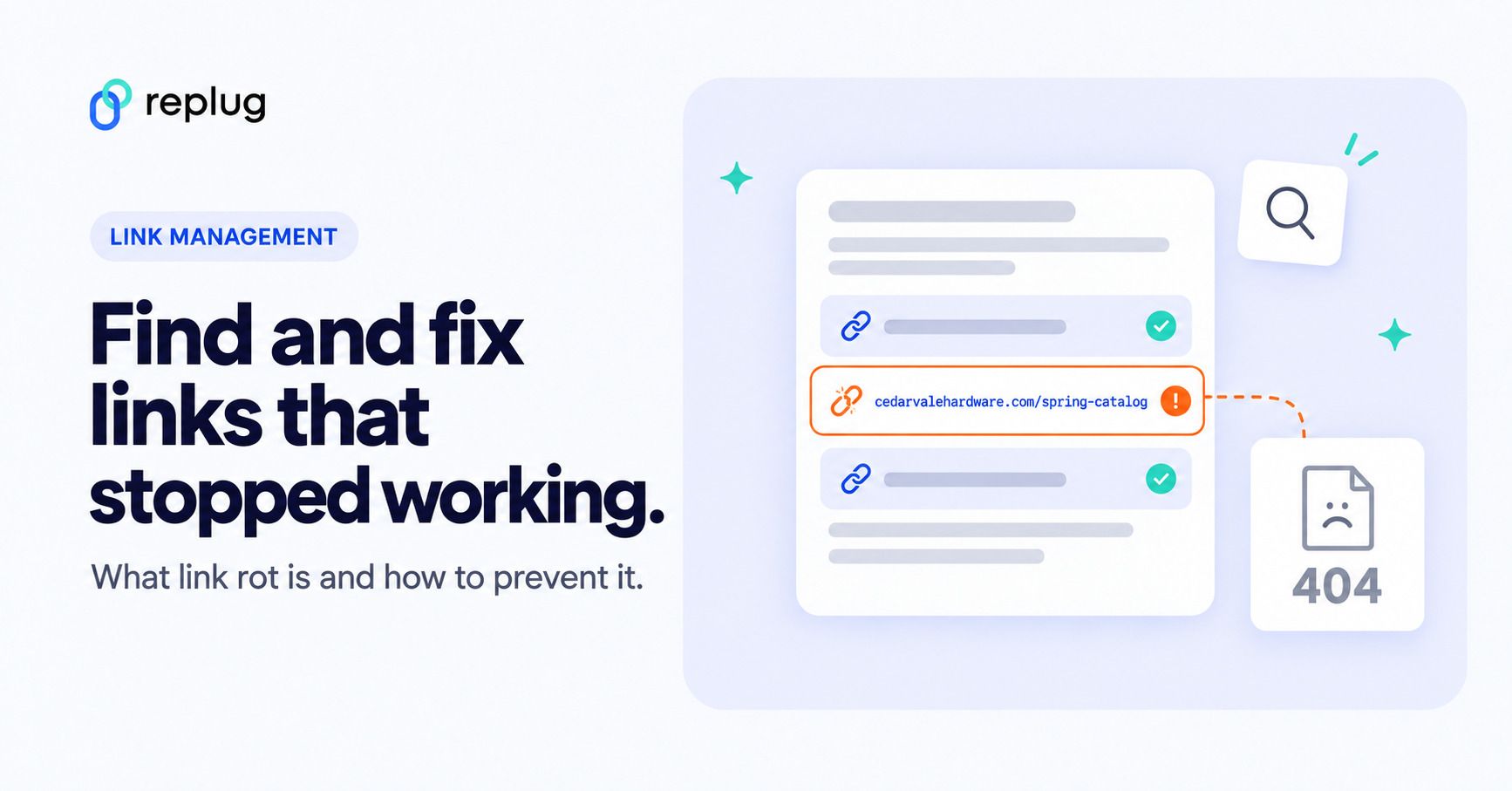
Link rot is the gradual breaking of links as the pages they point to are moved, renamed or deleted, so a link that once worked now leads to an error or the wrong page. It affects websites, emails, documents and printed QR codes, and it grows every year a link stays in circulation unchecked.
Updated: November 2026
The fix comes in three parts: find the links that broke, fix them in order of how much traffic they carry, and set things up so fewer break next time. This guide covers all three, with exact steps for your website, your emails and PDFs, and the short links and QR codes you manage in a tool such as Replug’s link management.
What is link rot?
Link rot is what happens to links over time: the page at the other end disappears or moves, and the link stops leading anywhere useful. You will also see it called link decay or reference rot, and a single link it has broken is called a dead link or broken link.
A rotted link usually ends in one of three places:
- An error page, most often “404 Not Found”, because the page was deleted or its address changed.
- Nowhere at all, because the whole site or domain is gone and the browser can’t connect.
- The wrong page, such as a home page, because the site sends every old address there instead of to a matching page.
Link rot vs content drift
Content drift is the quieter cousin of link rot: the link still works, but the page it opens has changed and no longer says what you linked it for.
| Link rot | Content drift | |
|---|---|---|
| What happens | The link stops working | The link works, but the content changed |
| Example | Cedarvale Hardware in Dayton, Ohio deletes its 2021 “spring catalog” page, so every newsletter that linked to it now shows a 404 | The same address now shows the 2026 catalog, so a blog post quoting 2021 prices points to different prices |
| How you spot it | A link checker or crawler reports an error | Only by reading the page again |
| Usual fix | Update, redirect or remove the link | Link to a dated page or an archived copy |
Outbound and inbound link rot
Link rot runs in two directions, and you fix each one differently:
- Outbound: links you published that point to other sites. You can’t stop those sites from changing, so you find and update your links.
- Inbound: links other people published that point to your pages. You can’t edit their posts, so you keep your own URLs alive with redirects whenever you move or rename a page.
How common is link rot?
Very common, and it gets worse with age. The most thorough recent measurement is the Pew Research Center’s “When Online Content Disappears” study (May 2024), which checked nearly a million webpages captured between 2013 and 2023, plus links on news sites, government sites and Wikipedia.
| What Pew measured | Finding |
|---|---|
| Webpages that existed at some point between 2013 and 2023 | 25% were no longer accessible by October 2023 |
| Webpages from 2013 | 38% were no longer available |
| Webpages from 2023 | 8% were already gone |
| News webpages | 23% contained at least one broken link |
| Government webpages | 21% contained at least one broken link |
| Wikipedia pages | 54% had at least one link in their References section pointing to a page that no longer exists |
Pew also found that in most cases the page was deleted from a site that was otherwise still working. In other words, link rot is mostly not about sites vanishing; it’s about ordinary sites cleaning up, redesigning and moving pages without leaving a forwarding address.
What causes link rot?
Most broken links trace back to one of a handful of causes, and each has a matching fix:
| Cause | Example | Fix |
|---|---|---|
| Page deleted | Cedarvale Hardware removes its 2021 spring catalog page | Link to the current page, or to an archived copy of the old one |
| URL changed without a redirect | /spring-catalog becomes /catalogs/spring-2026 | Add a 301 redirect from the old address to the new one |
| Site migration or domain change | The store moves from cedarvalehw.com to cedarvalehardware.com and old paths stop working | Map every old URL to a new one with redirects before launch, and keep the old domain renewed |
| Domain expired | Nobody renews the domain of a past event site, and it stops resolving | Turn on auto-renew for every domain that has links pointing to it |
| Shortener or service shut down | Google stopped redirecting goo.gl links that showed no recent activity after August 25, 2025 | Use short links that keep working on a domain you own |
| Expired file share or changed permissions | A shared PDF’s sharing is turned off, or the file moves to another account | Re-share the file or host it on your site, then update the link |
| Typo in the original link | A newsletter links to /spring-catalgo | Click-test every link before you send or print, then fix the source |
Why does link rot matter for marketers?
Link rot matters because every broken link is a click you paid for, in time or money, that goes nowhere. The cost shows up in four places.
Lost visitors and trust
Someone who clicks a link and lands on an error page usually leaves. If it happens in your own content, they also learn that your pages aren’t maintained, which makes them less likely to trust the next link you share.
Wasted links and crawling
Broken links don’t earn you a search penalty. Google has said that 404 errors are “a perfectly normal part of the web” and that they don’t by themselves hurt how the rest of your site ranks. The cost is quieter: a link pointing to a dead page sends visitors and search crawlers nowhere, and when one of your own pages has moved, Google’s Page indexing report help recommends a 301 redirect to the new location so the old address keeps working.
Broken attribution
A campaign link with UTM tags that lands on a 404 page still records the click in your link analytics, but the visit ends there. Your report shows clicks with no sign-ups or sales, and the campaign looks like it failed when the real problem was the destination.
Printed QR codes and PDFs you can’t edit
Links printed on flyers, packaging and signs, or saved inside PDFs people have already downloaded, can’t be updated. If the page behind them goes away, the only fixes are to change where the link leads (if it’s a short link you control) or to reprint.
How do you find broken links?
You find broken links with a different tool for each place they live: Google Search Console and a crawler for your website, your link tool for short links and QR codes, and your email platform’s reports for emails. First, agree on what counts as broken.
What counts as a broken link?
- Broken: 404 Not Found, 410 Gone, any 5xx server error, or a domain that no longer resolves or accepts connections.
- Usually not broken: 401 and 403 (the page exists but needs a login or blocks automated checks) and 429 (the site is rate-limiting the checker).
- Broken in disguise: pages that return a normal status but show a “not found” message or send every old URL to the home page. Google calls these soft 404 errors, and a crawler won’t always flag them, so spot-check important links by hand.
On your website
Use Google Search Console for your own pages that return errors, and a crawler for broken links inside your pages, including links to other sites:
- In Google Search Console, open Indexing → Pages.
- In the Why pages aren’t indexed table, click Not found (404) to see URLs on your site that return a 404. Google may have found them through a link from another page, or because the page existed before and was deleted.
- For each one, decide: if the page moved, redirect it; if it’s gone on purpose, leave the 404 and update any of your own pages that still link to it.
- Run a crawler over your site. The Screaming Frog SEO Spider free version crawls up to 500 URLs; a paid license removes the limit. Enter your home page and click Start.
- Open the Response Codes tab and filter for Client Error (4xx), then Server Error (5xx).
- Select a broken URL and open the Inlinks tab at the bottom to see which of your pages link to it, or use Bulk Export to export the full list.
- Paste the list into a spreadsheet with columns for the broken URL, the page it’s on, that page’s traffic, the fix and who owns it.
In your short links and QR codes
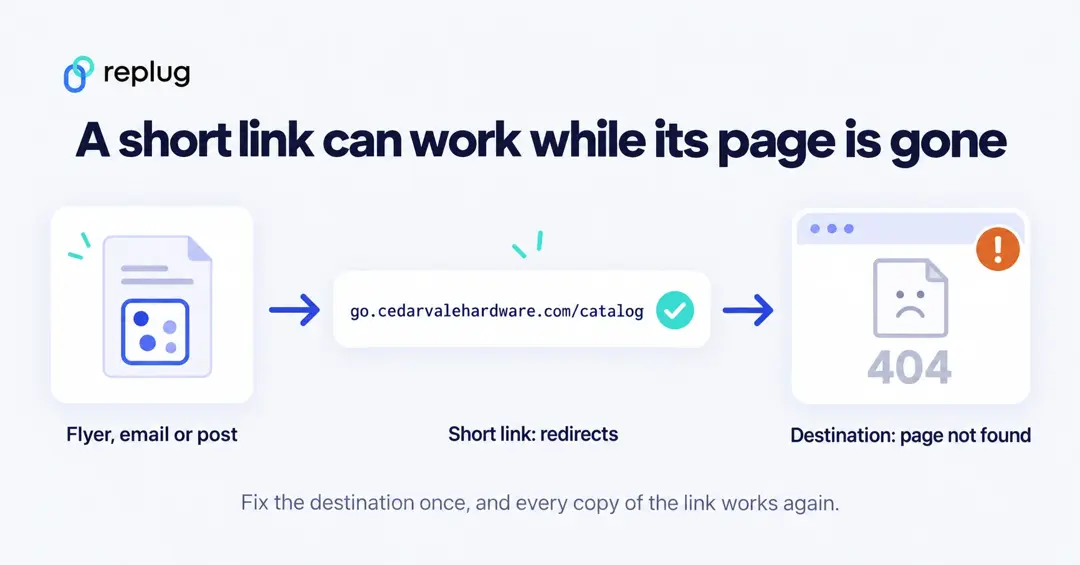
A short link has two layers, and either one can break. The short link itself can stop working if the shortener shuts down or the domain lapses. More often, the short link still redirects perfectly, but the page it points to is gone, so every flyer, email and post carrying that link quietly leads to an error.
Replug is a link-management platform for branded short links, bio pages, QR codes and retargeting, and it watches that second layer for you. Here is exactly how Replug manages and monitors links:
- Once a day, Replug checks the destinations of each workspace’s links that were clicked in the last 30 days, up to the 200 most-clicked active links. Archived and disabled links are skipped.
- A check fails on a 404, 410, 5xx error, or a DNS or connection error. It follows up to three redirects to reach the final page. Pages that answer 401, 403 or 429 count as working, because they exist but block automated visits.
- A link is marked broken after two failed checks in a row, so a site that is down for an hour doesn’t trigger an alert. One good check clears it.
- You get one in-app notification that day, for example “3 links point to pages that aren’t working”, naming up to two of the links and linking to your links list. Everyone in the workspace who can edit links sees it. It’s an in-app notification, not an email.
Replug checks the destinations of your Replug links only; it doesn’t crawl your website, and it doesn’t change destinations for you. When a link is flagged, you decide where it should point next.
In emails and PDFs
Emails and PDFs need a manual pass, because no crawler can reach an inbox or a downloaded file:
- Automated emails first. Welcome series, receipts and follow-ups keep sending for years. Open each one, click every link, and check its click report in your email platform for links that get clicks.
- Top-clicked links next. In past campaigns, sort the click report by clicks and test the top links; those are the ones people still find in their inboxes.
- PDFs and slide decks. Click every link in the current version of each file. For files people have already downloaded, you can only fix links that go through a short link you control.
How do you fix broken links in old posts?
Fix broken links in order of impact, and choose the fix by what happened to the page:
- Prioritize by traffic. Start with the pages that get the most visits and the links that get the most clicks.
- Find the new address. Search the linked site for the page’s title. If it moved, update your link to the new URL.
- Redirect your own moved pages. If the broken link points to a page on your site that moved, add a 301 redirect from the old URL to the new one, so every copy of the old link on other sites works again too.
- Use an alternative or an archive. If the page is gone, link a current page that covers the same thing, or a saved copy in the Internet Archive’s Wayback Machine. Pick the snapshot closest to the date you first linked it.
- Remove the link if nothing fits, and rewrite the sentence so it still makes sense without it.
- Re-check. Crawl or click-test the page again, and note the date in your link list.
If the broken link is a short link you control, you don’t need to hunt down every copy. Change where a short link points once, and every email, post and printed QR code that carries it lands on the new page. In Replug, destination editing is on the Scale plan and up.
How can you prevent link rot?
You can’t stop other sites from deleting pages, but you can control how much of that reaches your audience. These habits cover most of it:
- Share links on a domain you own. Links on your own domain keep working if you switch tools, because you can point the domain at a new service. If your domain is registered at GoDaddy, here’s how to use a GoDaddy domain for short links.
- Use editable short links for anything long-lived. Put a short link, not the raw URL, on print, packaging, PDFs and automated emails, so you can change the destination later. In Replug that’s the Scale plan and up.
- Keep a link inventory. One sheet with each important link, where it’s used, who owns it and when to review it next.
- Redirect when you move pages. Never delete or rename a URL without a 301 redirect, and map every old URL before a site migration.
- Set a fallback for mistyped short links. In Replug, the 404 Redirect URL setting on a custom domain sends anyone who opens a short link that doesn’t exist to a page you choose instead of an error.
- End offers on purpose. For time-limited promotions, give a promo link an end date instead of deleting the page and leaving the link to break.
- Restrict access without moving files. To keep a file private, add a password to a link rather than moving or unsharing the file and breaking every link to it.
- Archive what you cite. When you publish, save copies of key sources with the Wayback Machine, so you have a fallback if they disappear.
- Let readers report dead links. A contact link or a short “Found a broken link?” line in your footer turns readers into an early warning system.
FAQ
Keep your links working
Link rot never stops, but it doesn’t have to reach your audience. Check your site monthly, fix the busiest pages first, and put anything long-lived on a short link you can repoint. See how Replug manages and monitors links, including the daily destination checks.
Frequently Asked Questions

Muhammad Ahsan Jamal